wheel Lexus GS350 2015 Quick Guide
[x] Cancel search | Manufacturer: LEXUS, Model Year: 2015, Model line: GS350, Model: Lexus GS350 2015Pages: 96, PDF Size: 2.89 MB
Page 2 of 96
GS350_QG_OM30F71U_(U)
1
The Quick Guide is not intended as a substitute for your Owner’s
Manual. We strongly encourage you to review the Owner’s
Manual and supplementary manuals so you will have a better
understanding of your vehicle’ s capabilities and limitations.
12.3-inch Display............................................................................................................................... .49
Audio System Audio control screen........................................................................................................... ......... 62
Side Display (vehicles with a navigation system).............................................................. 62
Remote control (steering wheel switches).......................................................................... 62
Basic operation ................................................................................................................ ...............63
Radio .......................................................................................................................... ......................... 64
DVD player/CD player ........................................................................................................... ....65
Operating an iPod .............................................................................................................. ........... 67
BSM (Blind Spot Monitor) .............................................................................................................. 37
Cruise Control ...................................................................................................................................... 31
Driving Mode Select Switch ..........................................................................................................40
Driving Position Memory ................................................................................................................. 14
Dynamic Radar Cruise Control ...................................................................................................33
Eco Driving Indicator ........................................................................................................................ 24
Engine (Ignition) Switch .................................................................................................................... 16
Floor mat installation ............................................................................................................................11
Front Air Conditioning System Control screen ................................................................................................................. ............... 69
Option control screen .......................................................................................................... ....... 70
Side display................................................................................................................... ......................71
Using the automatic mode....................................................................................................... .. 72
Adjusting the temperature for the driver’s and front passenger’s seats separately (DUAL mode)
(vehicles without rear air conditioning system) .......................................................... 72
Adjusting the temperature for the driver’s, front passenger’s and rear seats separately (3-ZONE mode)
(vehicles with rear air conditioning system) ................................................................. 72
Using the S-FLOW mode .......................................................................................................... 72
Front Seats .............................................................................................................................................. 13
Fuel Tank Cap ...................................................................................................................................... 88
GS350_QG_OM30F71U_(U).book Page 1 Monday, January 19, 2015 4:43 PM
Page 8 of 96
7
GS350_QG_OM30F71U_(U)
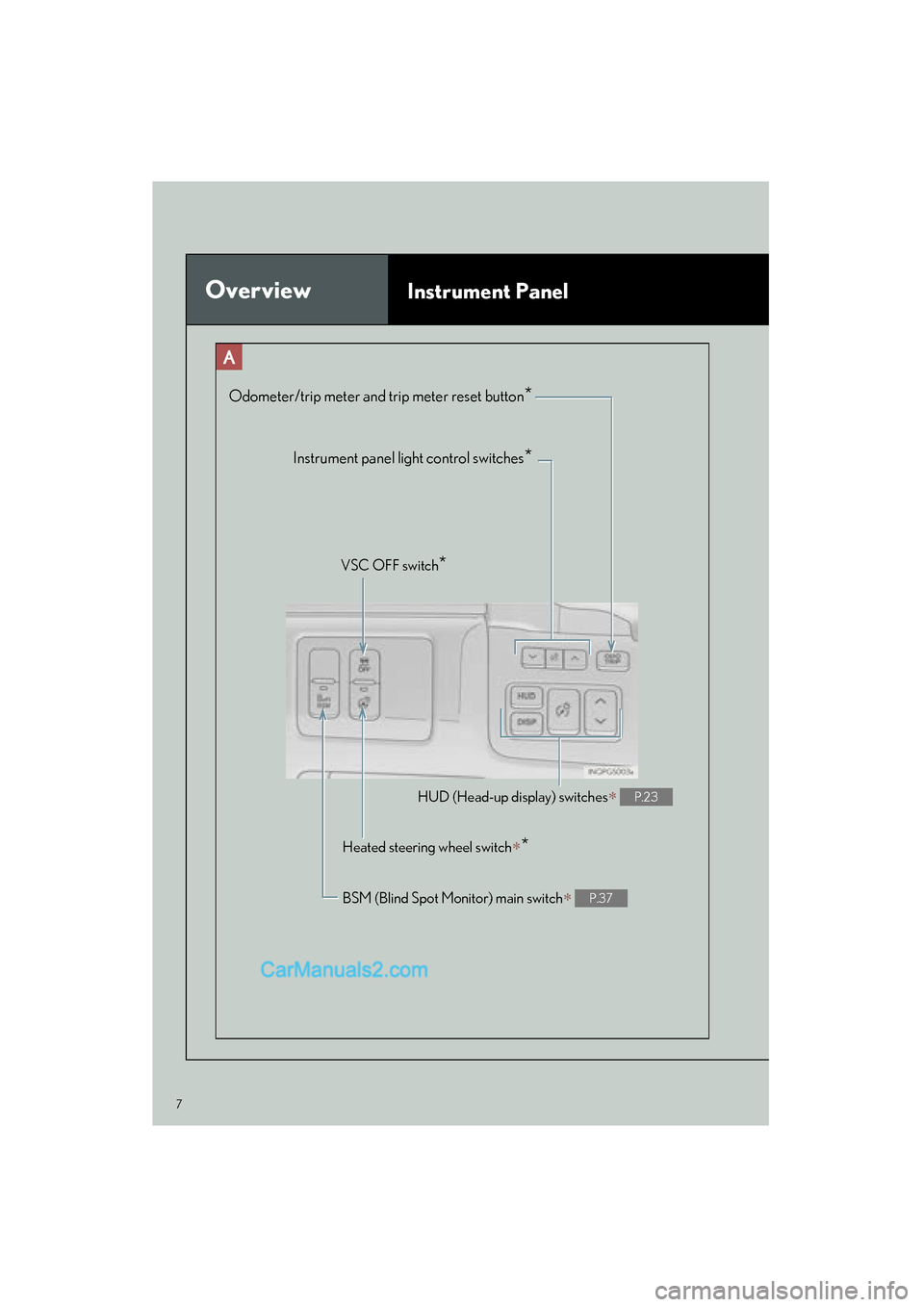
OverviewInstrument Panel
Odometer/trip meter and trip meter reset button*
Instrument panel light control switches*
VSC OFF switch*
HUD (Head-up display) switches∗ P.23
Heated steering wheel switch∗*
BSM (Blind Spot Monitor) main switch∗ P.37
GS350_QG_OM30F71U_(U).book Page 7 Monday, January 19, 2015 4:43 PM
Page 15 of 96
14
GS350_QG_OM30F71U_(U)
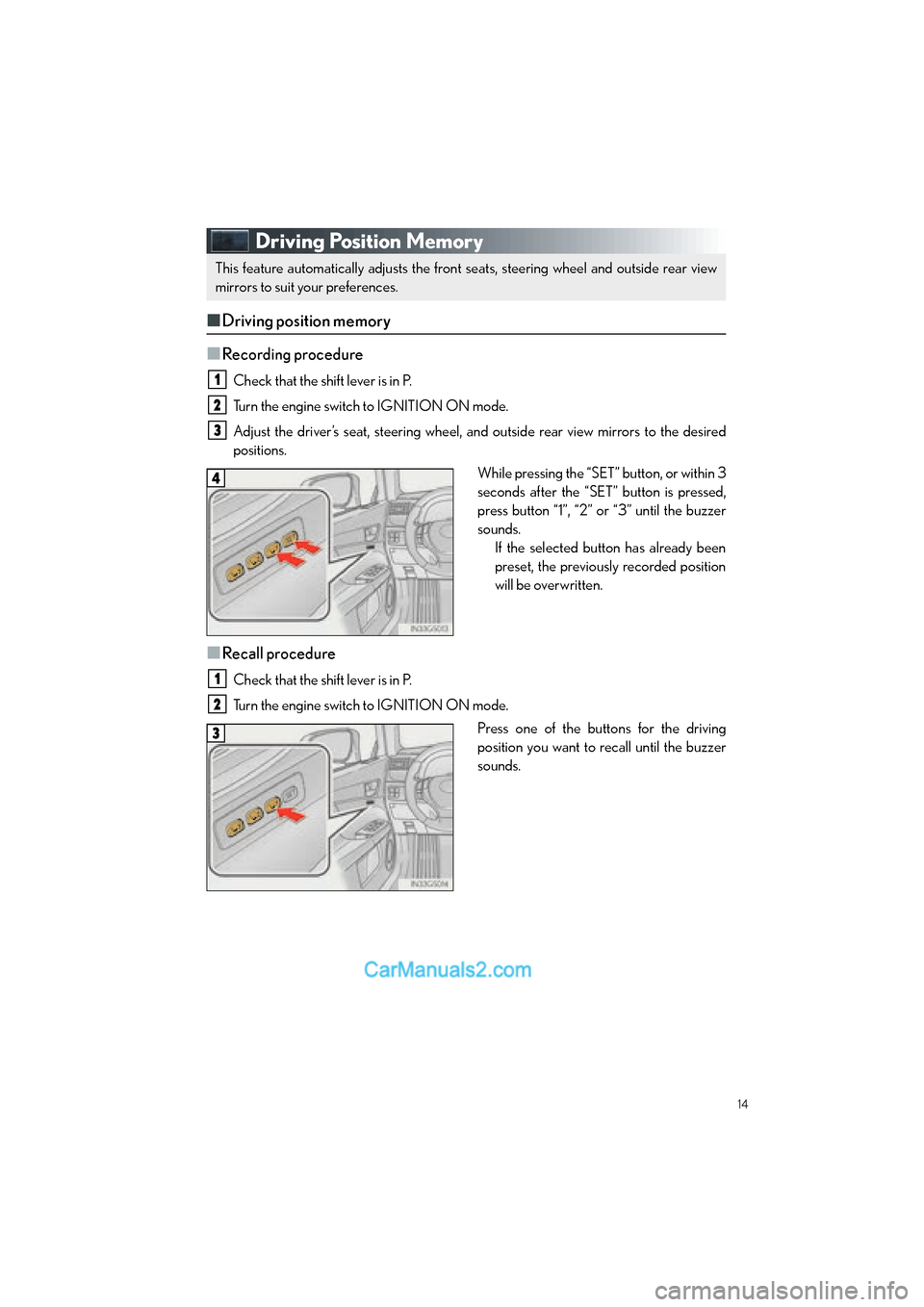
Driving Position Memory
■Driving position memory
■
Recording procedure
Check that the shift lever is in P.
Turn the engine switch to IGNITION ON mode.
Adjust the driver’s seat, steering wheel, and outside rear view mirrors to the desired
positions. While pressing the “SET” button, or within 3
seconds after the “SET” button is pressed,
press button “1”, “2” or “3” until the buzzer
sounds.If the selected button has already been
preset, the previously recorded position
will be overwritten.
■Recall procedure
Check that the shift lever is in P.
Turn the engine switch to IGNITION ON mode.
Press one of the buttons for the driving
position you want to recall until the buzzer
sounds.
This feature automatically adjusts the front seats, steering wheel and outside rear view
mirrors to suit your preferences.
1
2
3
4
1
2
3
GS350_QG_OM30F71U_(U).book Page 14 Monday, January 19, 2015 4:43 PM
Page 39 of 96
38
GS350_QG_OM30F71U_(U)
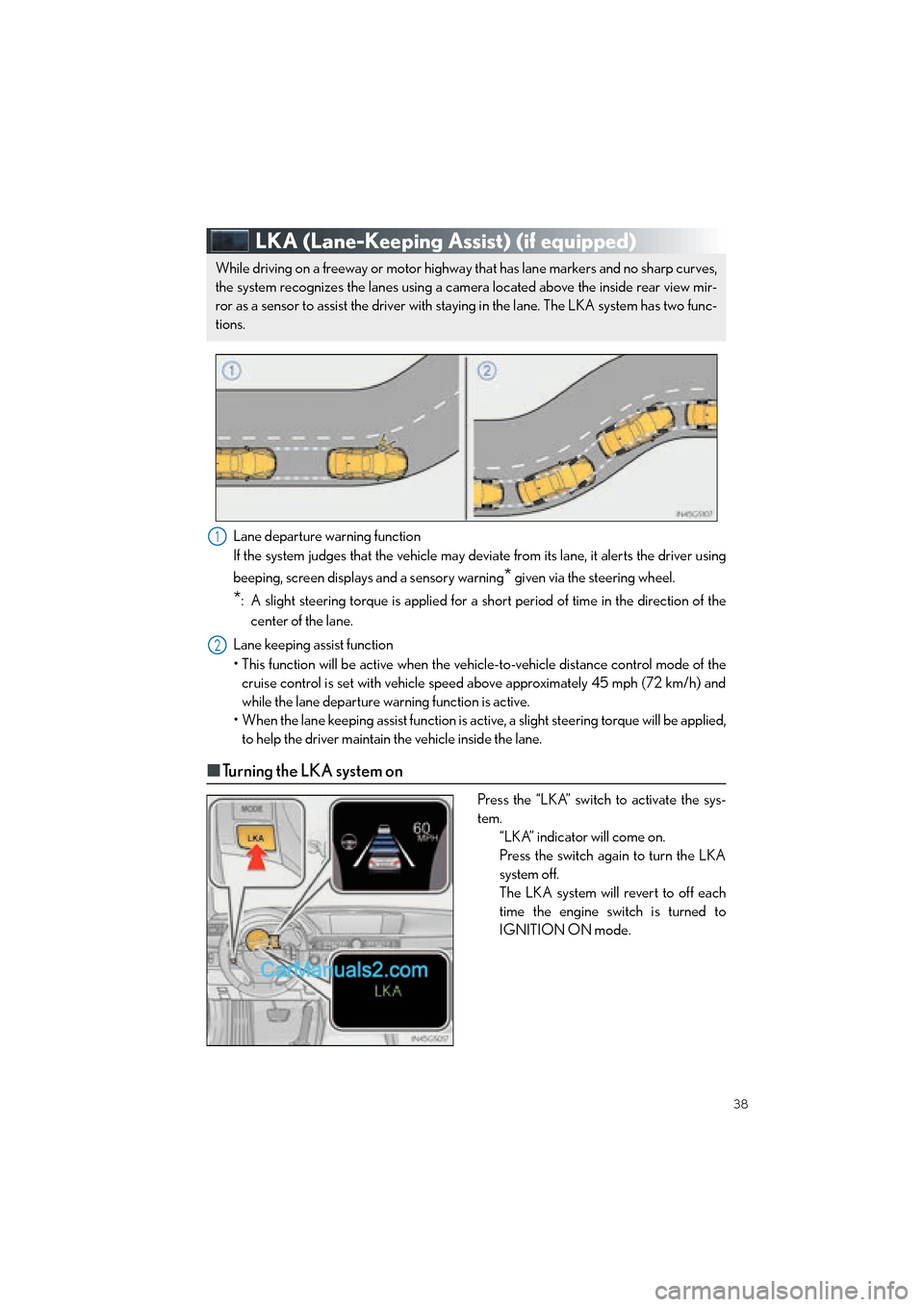
LKA (Lane-Keeping Assist) (if equipped)
Lane departure warning function
If the system judges that the vehicle may deviate from its lane, it alerts the driver using
beeping, screen displays and a sensory warning
* given via the steering wheel.
*: A slight steering torque is applied for a short period of time in the direction of the
center of the lane.
Lane keeping assist function
• This function will be active when the vehicl e-to-vehicle distance control mode of the
cruise control is set with vehicle speed above approximately 45 mph (72 km/h) and
while the lane departure warning function is active.
• When the lane keeping assist function is act ive, a slight steering torque will be applied,
to help the driver maintain the vehicle inside the lane.
■ Turning the LKA system on
Press the “LKA” switch to activate the sys-
tem.
“LKA” indicator will come on.
Press the switch again to turn the LKA
system off.
The LKA system will revert to off each
time the engine switch is turned to
IGNITION ON mode.
While driving on a freeway or motor highway that has lane markers and no sharp curves,
the system recognizes the lanes using a camera located above the inside rear view mir-
ror as a sensor to assist the driver with st aying in the lane. The LKA system has two func-
tions.
1
2
GS350_QG_OM30F71U_(U).book Page 38 Monday, January 19, 2015 4:43 PM
Page 40 of 96

39
GS350_QG_OM30F71U_(U)
■Indication on the multi-information display
When the LKA system is on, the lane line display and steering wheel display are shown.
Lane keeping assist function operation
indication
Steering wheel displayed:
Indicates that the function is currently
operating.
Steering wheel not displayed:
Indicates that the function is not cur-
rently operating.
Dynamic radar cruise control display
Lane departure warning function indi-
cation (when the inside of the white line
is white):
The function has recognized lane
markers.
Lane departure warning function indi-
cation (when the inside of the white line
is black):
A lane marker is not recognized by the
system, or the LKA system functions
are temporarily canceled.
1
2
3
4
GS350_QG_OM30F71U_(U).book Page 39 Monday, January 19, 2015 4:43 PM
Page 58 of 96
57
GS350_QG_OM30F71U_(U)
Hands-free System For Cellular Phone
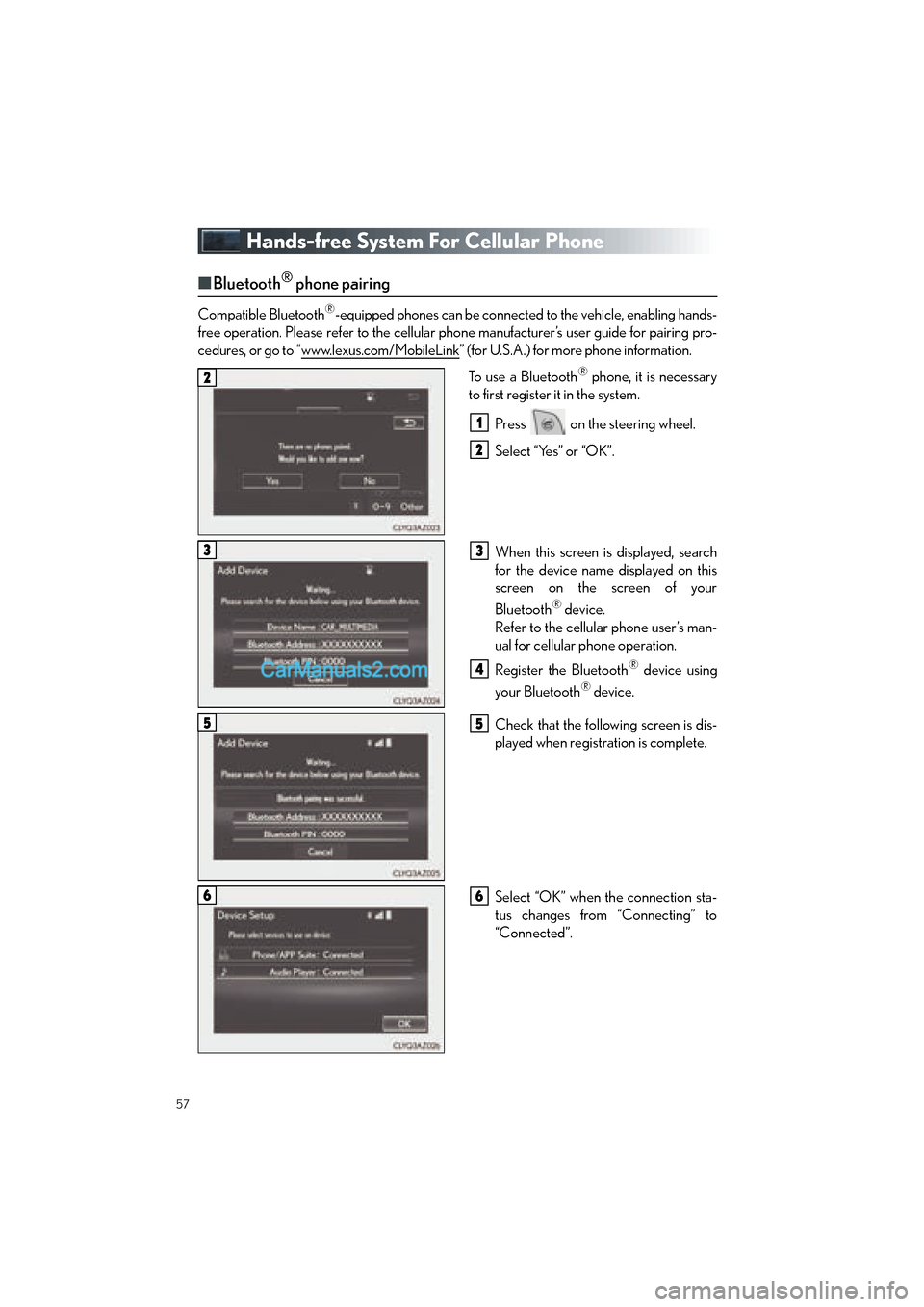
■Bluetooth® phone pairing
Compatible Bluetooth®-equipped phones can be connected to the vehicle, enabling hands-
free operation. Please refer to the cellular phone manufacturer’s user guide for pairing pro-
cedures, or go to “www.lexus.com/MobileLink
” (for U.S.A.) for more phone information.
To use a Bluetooth
® phone, it is necessary
to first register it in the system.
Press on the steering wheel.
Select “Yes” or “OK”.
When this screen is displayed, search
for the device name displayed on this
screen on the screen of your
Bluetooth
® device.
Refer to the cellular phone user’s man-
ual for cellular phone operation.
Register the Bluetooth
® device using
your Bluetooth
® device.
Check that the following screen is dis-
played when registration is complete.
Select “OK” when the connection sta-
tus changes from “Connecting” to
“Connected”.
2
1
2
33
4
55
66
GS350_QG_OM30F71U_(U).book Page 57 Monday, January 19, 2015 4:43 PM
Page 61 of 96

60
GS350_QG_OM30F71U_(U)
■Calling by name (vehicles with navigation system)
You can call by giving a name registered in the contacts. For details, refer to the
“NAVIGATION AND MULTIMEDIA SYSTEM OWNER’S MANUAL”.
Press .
Say “Call
■Calling by favorites list
Press on the steering wheel.
Select the “Favorites” tab and select
the desired contact.
Select the desired number.
Check that the “Call” screen is dis-
played.
11
2
: Pressing this switch turns the voice command system on. Say a command after the
beep.
21
2
33
4
GS350_QG_OM30F71U_(U).book Page 60 Monday, January 19, 2015 4:43 PM
Page 62 of 96

61
GS350_QG_OM30F71U_(U)
■Calling using e-mail/SMS/MMS message
Press on the steering wheel.
Select .
Select the desired message.
Select .
Check that the “Call” screen is dis-
played.
■Receiving a call
When a call is received, this screen is
displayed with a sound.
Press on the steering wheel to
talk on the phone.
To refuse the call, press on the steer-
ing wheel.
■ Steering switches
Sending/Receiving/“Phone” screen
display
End call/Refuse call
Start the voice command system
Increases/decreases volume
21
2
3
4
5
The tab display may vary depending on the type of cellular phone.
11
2
1
2
3
4
GS350_QG_OM30F71U_(U).book Page 61 Monday, January 19, 2015 4:43 PM
Page 63 of 96

62
GS350_QG_OM30F71U_(U)
Audio System
■Audio control screen
Follow the procedure below to display the audio control screen.
Press the “MENU” button on the
Remote Touch.
Please refer to page 45 for the
Remote Touch operation.
The “Menu” screen will be displayed.
Using the Remote Touch, select
“Radio” or “Media” and select each tab.
■Side Display (vehicles with a navigation system)
Operations such as selecting a preset sta-
tion or track are carried out on the screen.
Changing the audio sources
Station selector/selecting a track/file/
chapter
■Remote control (steering wheel switches)
Some audio features can be controlled using the switches on the steering wheel.
Radio mode: Selects a radio station
SAT mode: Selects a channel
Audio CD mode: Selects a track
MP3/WMA/AAC disc mode: Selects
a file
DVD mode: Selects a chapter
USB mode: Selects a file/track
iPod mode: Selects a track/file
BT audio mode: Selects a track
Increases/decreases volume
Press: Change audio modes
Press and hold: Mute/unmute or
pause/resume the current operation
1
2
1
2
1
2
3
GS350_QG_OM30F71U_(U).book Page 62 Monday, January 19, 2015 4:43 PM
Page 77 of 96

76
GS350_QG_OM30F71U_(U)
Voice Command System
■Basic operation
Press the talk switch.
To cancel the voice command system,
press and hold the talk switch.
After a beep sounds, say the desired
command.
On the list screen, you can select the
desired command.
Continue on to pages 77-80 for a detailed list of Voice Commands for the following cate-
gories: Basic. . . . . . . . . . . . . . . . . . . . . . . . . . . . . . . . . . . . . . . . . . . . . . . . . . . . . P.77
Apps . . . . . . . . . . . . . . . . . . . . . . . . . . . . . . . . . . . . . . . . . . . . . . . . . . . . . P.77
Navi . . . . . . . . . . . . . . . . . . . . . . . . . . . . . . . . . . . . . . . . . . . . . . . . . . . . . P.77
Phone. . . . . . . . . . . . . . . . . . . . . . . . . . . . . . . . . . . . . . . . . . . . . . . . . . . . P.78
Radio . . . . . . . . . . . . . . . . . . . . . . . . . . . . . . . . . . . . . . . . . . . . . . . . . . . . P.78
Audio . . . . . . . . . . . . . . . . . . . . . . . . . . . . . . . . . . . . . . . . . . . . . . . . . . . . P.79
Info . . . . . . . . . . . . . . . . . . . . . . . . . . . . . . . . . . . . . . . . . . . . . . . . . . . . . . P.79
Other . . . . . . . . . . . . . . . . . . . . . . . . . . . . . . . . . . . . . . . . . . . . . . . . . . . P.80
1
2
■Important voice commands information and tips
• Voice commands can be used while driving.
• You must wait until after the beep to say a command.
• In vehicles with a navigation system, a large (TALK icon) will appear on the navi-
gation screen to prompt you to say a command.
• If you know what command to use, you can press at any time to interrupt the
voice guidance.
• If a desired outcome is not shown, or if no selections are available, press on the
steering wheel to return to the previous screen.
NOTE: When inputting voice commands you must wait until after the beep to speak.
GS350_QG_OM30F71U_(U).book Page 76 Monday, January 19, 2015 4:43 PM