phone Lexus GS450h 2009 Service Manual
[x] Cancel search | Manufacturer: LEXUS, Model Year: 2009, Model line: GS450h, Model: Lexus GS450h 2009Pages: 622
Page 356 of 622
355
3-4. Using the hands-free system (for cellular phone)
3
Interior features
GS_HV_U (OM30B44U)
April 27, 2009 10:09 am
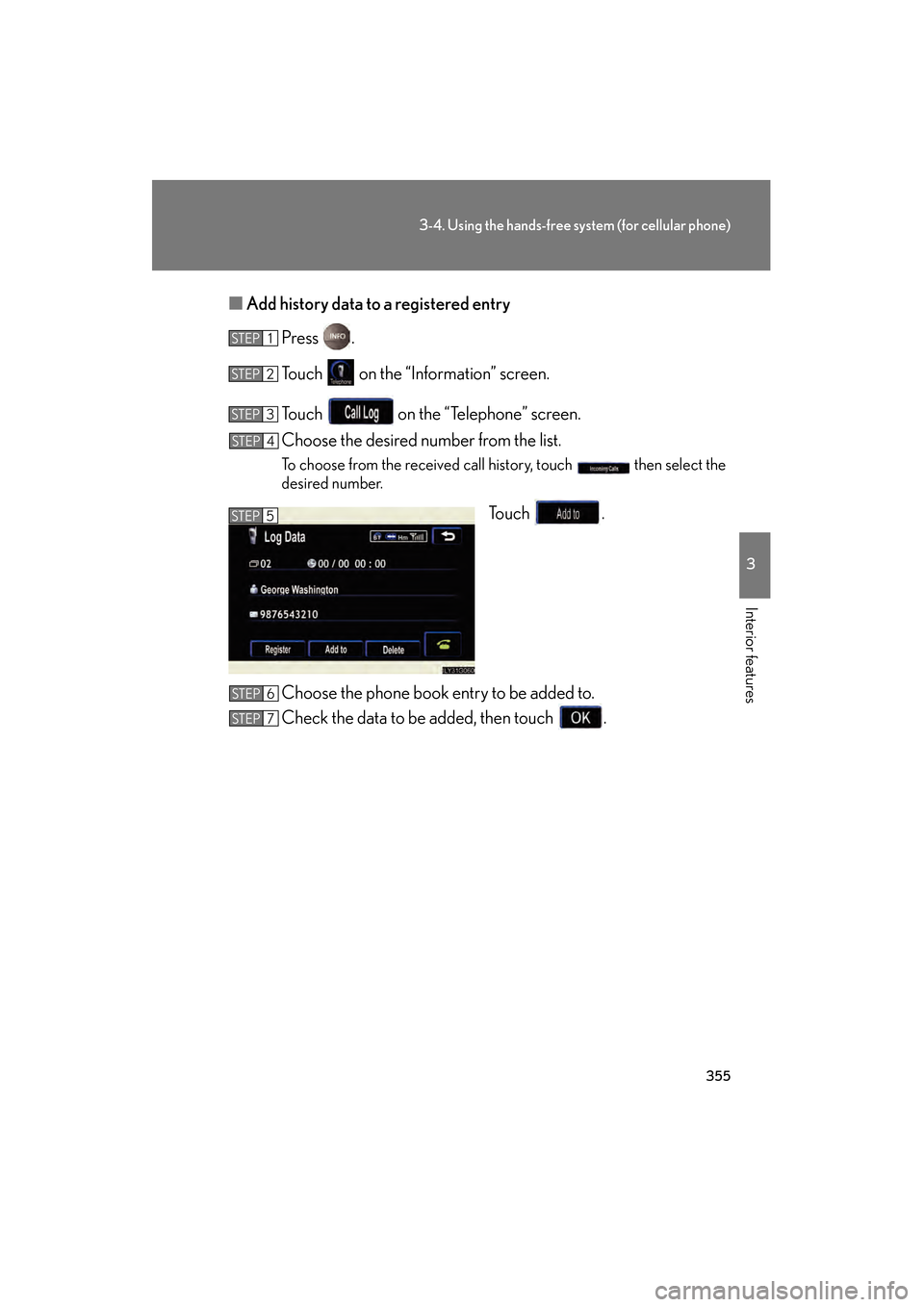
■Add history data to a registered entry
Press .
Touch on the “Information” screen.
Touch on the “Telephone” screen.
Choose the desired number from the list.
To choose from the received call history, touch then select the
desired number.
To u c h .
Choose the phone book entry to be added to.
Check the data to be added, then touch .
STEP1
STEP2
STEP3
STEP4
STEP5
STEP6
STEP7
GS450h_HV_U.book Page 355 Monday, April 27, 2009 10:10 AM
Page 357 of 622
356
3-4. Using the hands-free system (for cellular phone)
GS_HV_U (OM30B44U)
April 27, 2009 10:09 am
■Editing phone book data
Press .
Touch on the “Information” screen.
Touch on the “Telephone” screen.
Touch on the “Settings” screen.
Touch in the “Phone Book” section of the “Phone Book
Management” screen.
Choose the data to edit.
Choose the switch to edit.
After editing, touch .
■ Deleting phone book data
Press .
Touch on the “Information” screen.
Touch on the “Telephone” screen.
Touch on the “Settings” screen.
Touch in the “Phone Book” section of the “Phone Book
Management” screen.
Select the data to delete.
A confirmation message will be displayed. If everything is correct,
touch .
STEP1
STEP2
STEP3
STEP4
STEP5
STEP6
STEP7
STEP8
STEP1
STEP2
STEP3
STEP4
STEP5
STEP6
STEP7
GS450h_HV_U.book Page 356 Monday, April 27, 2009 10:10 AM
Page 358 of 622
357
3-4. Using the hands-free system (for cellular phone)
3
Interior features
GS_HV_U (OM30B44U)
April 27, 2009 10:09 am
■To delete all data
Follow the steps “Deleting phone book data” to “STEP 5”. In the “Phone Book” sec-
tion of the “Phone Book Management” screen, touch . To delete all data
within a group, touch , then select the group to delete. To delete all con-
tact data, touch . Check that everything is correct, then touch.
■Registering/Editing/Deleting from the phone book
You can register data in the phone book, edit registered data, and delete items.
Press .
Touch on the “Information” screen.
Touch on the “Telephone” screen.
To register data, touch on the “Phone Book” screen.
To delete all data, touch .
To delete or edit specific data, select the data to delete/edit, then touch to delete, or to edit.
■The phone book
The method for transferring phone book data from the phone to the system varies
with phone model. See the phone’s manual.
STEP1
STEP2
STEP3
STEP4
GS450h_HV_U.book Page 357 Monday, April 27, 2009 10:10 AM
Page 359 of 622
358
3-4. Using the hands-free system (for cellular phone)
GS_HV_U (OM30B44U)
April 27, 2009 10:09 am
Changing the phone book group name settings
■ Registering a group name
Press .
Touch on the “Information” screen.
Touch on the “Telephone” screen.
Touch on the “Settings” screen.
Touch the switch in the “Group Name” section of the
“Phone Book Management” screen.
Select the group to re gister (“01” - “19”).
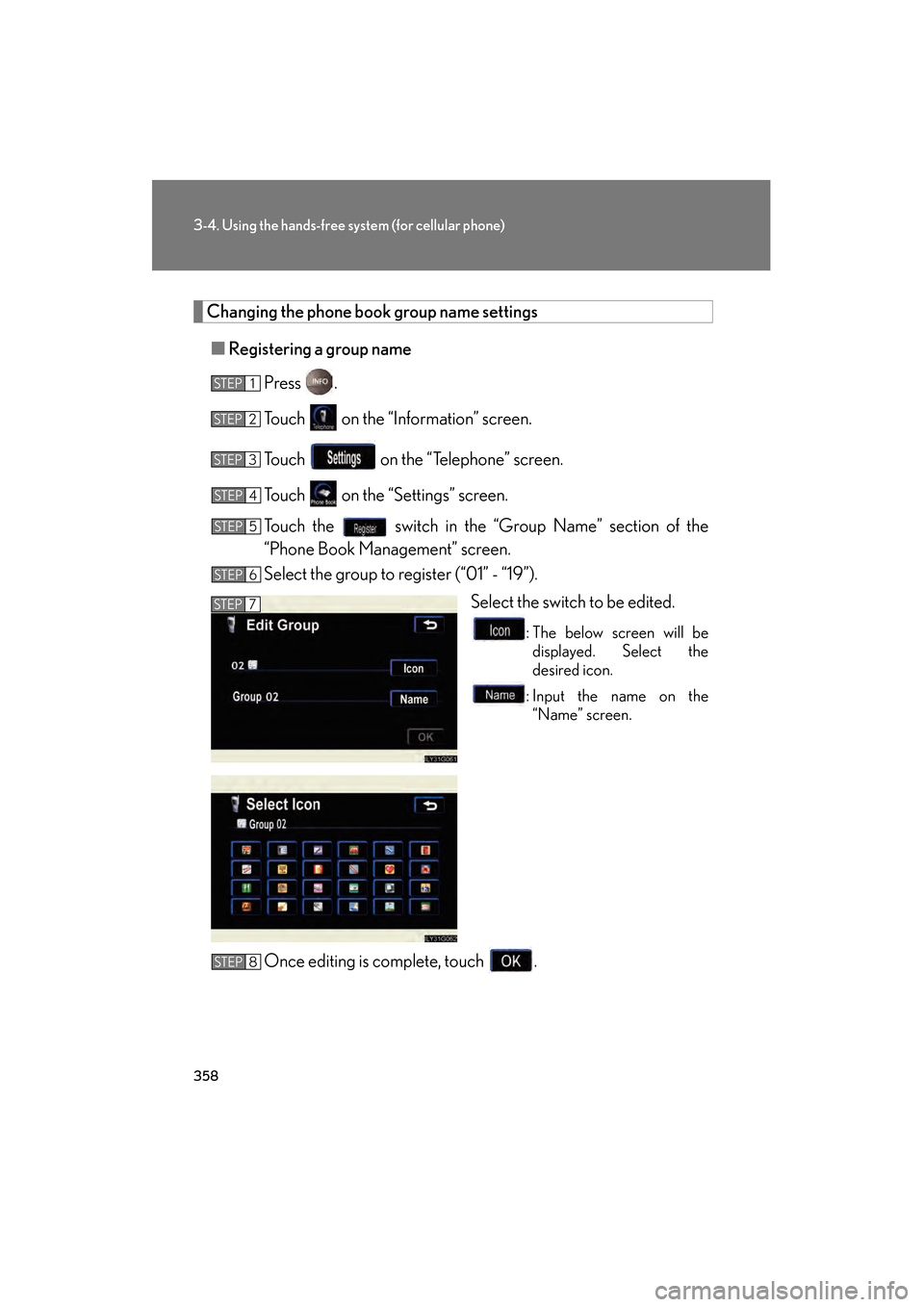
Select the switch to be edited.
: The below screen will bedisplayed. Select the
desired icon.
: Input the name on the “Name” screen.
Once editing is complete, touch .
STEP1
STEP2
STEP3
STEP4
STEP5
STEP6
STEP7
STEP8
GS450h_HV_U.book Page 358 Monday, April 27, 2009 10:10 AM
Page 360 of 622
359
3-4. Using the hands-free system (for cellular phone)
3
Interior features
GS_HV_U (OM30B44U)
April 27, 2009 10:09 am
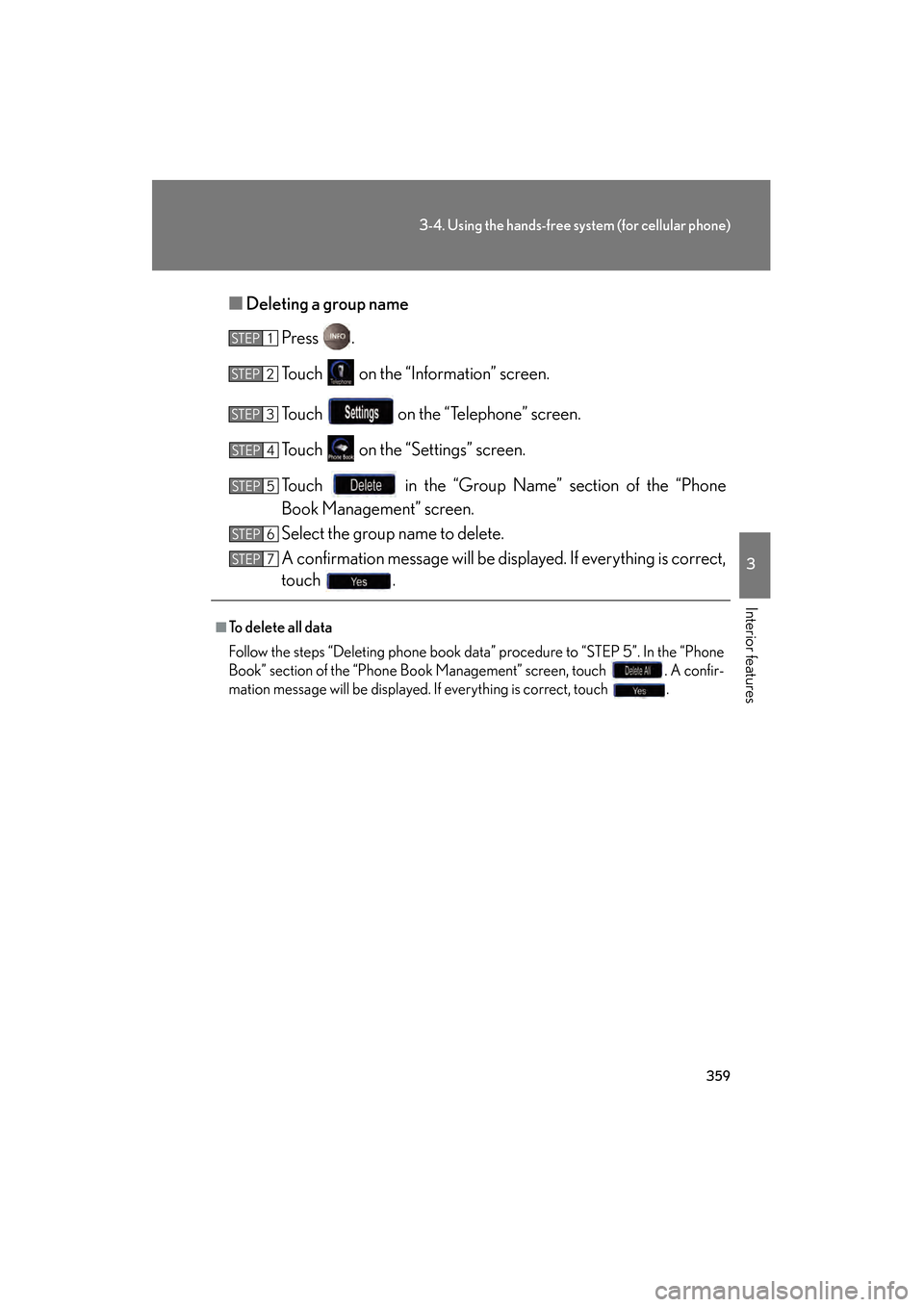
■Deleting a group name
Press .
Touch on the “Information” screen.
Touch on the “Telephone” screen.
Touch on the “Settings” screen.
Touch in the “Group Name” section of the “Phone
Book Management” screen.
Select the group name to delete.
A confirmation message will be displayed. If everything is correct,
touch .
■To delete all data
Follow the steps “Deleting phone book data” procedure to “STEP 5”. In the “Phone
Book” section of the “Phone Book Management” screen, touch . A confir-
mation message will be displayed. If everything is correct, touch .
STEP1
STEP2
STEP3
STEP4
STEP5
STEP6
STEP7
GS450h_HV_U.book Page 359 Monday, April 27, 2009 10:10 AM
Page 361 of 622
360
3-4. Using the hands-free system (for cellular phone)
GS_HV_U (OM30B44U)
April 27, 2009 10:09 am
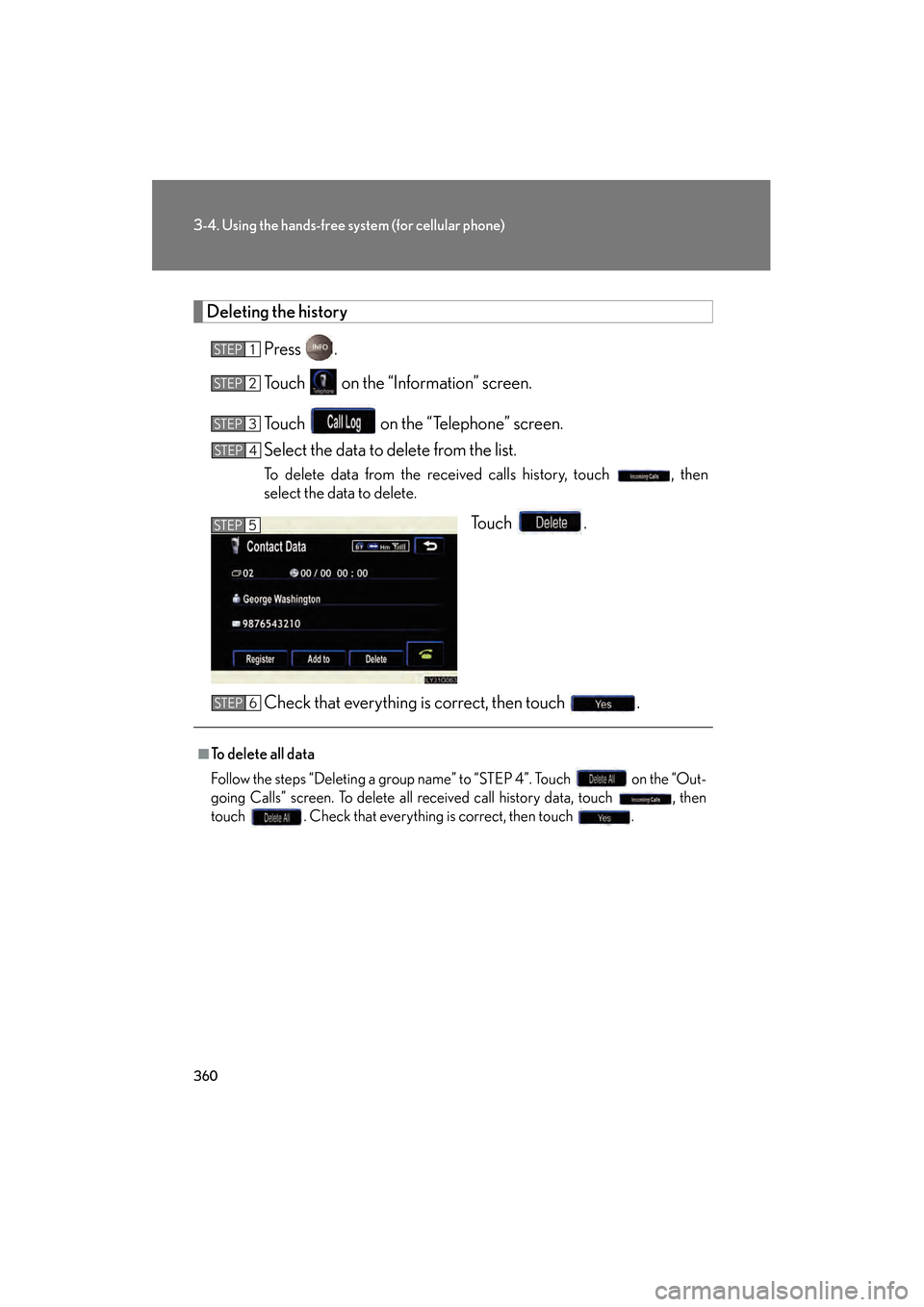
Deleting the history
Press .
Touch on the “Information” screen.
Touch on the “Telephone” screen.
Select the data to delete from the list.
To delete data from the received calls history, touch , then
select the data to delete.
Touch .
Check that everything is correct, then touch .
STEP1
STEP2
STEP3
STEP4
STEP5
■To delete all data
Follow the steps “Deleting a group name” to “STEP 4”. Touch on the “Out-
going Calls” screen. To delete all received call history data, touch , then
touch . Check that everything is correct, then touch .
STEP6
GS450h_HV_U.book Page 360 Monday, April 27, 2009 10:10 AM
Page 362 of 622
361
3-4. Using the hands-free system (for cellular phone)
3
Interior features
GS_HV_U (OM30B44U)
April 27, 2009 10:09 am
Changing the security settingsYou can disable certain hands-free system functions. Use the security set-
tings when you do not wish other people to see the registered data, for
example when having the vehicle valet parked at a hotel.
To enable or disable security, the security code (4 digits) is required. The
default code is “0000”. Be sure to change the security code before use.
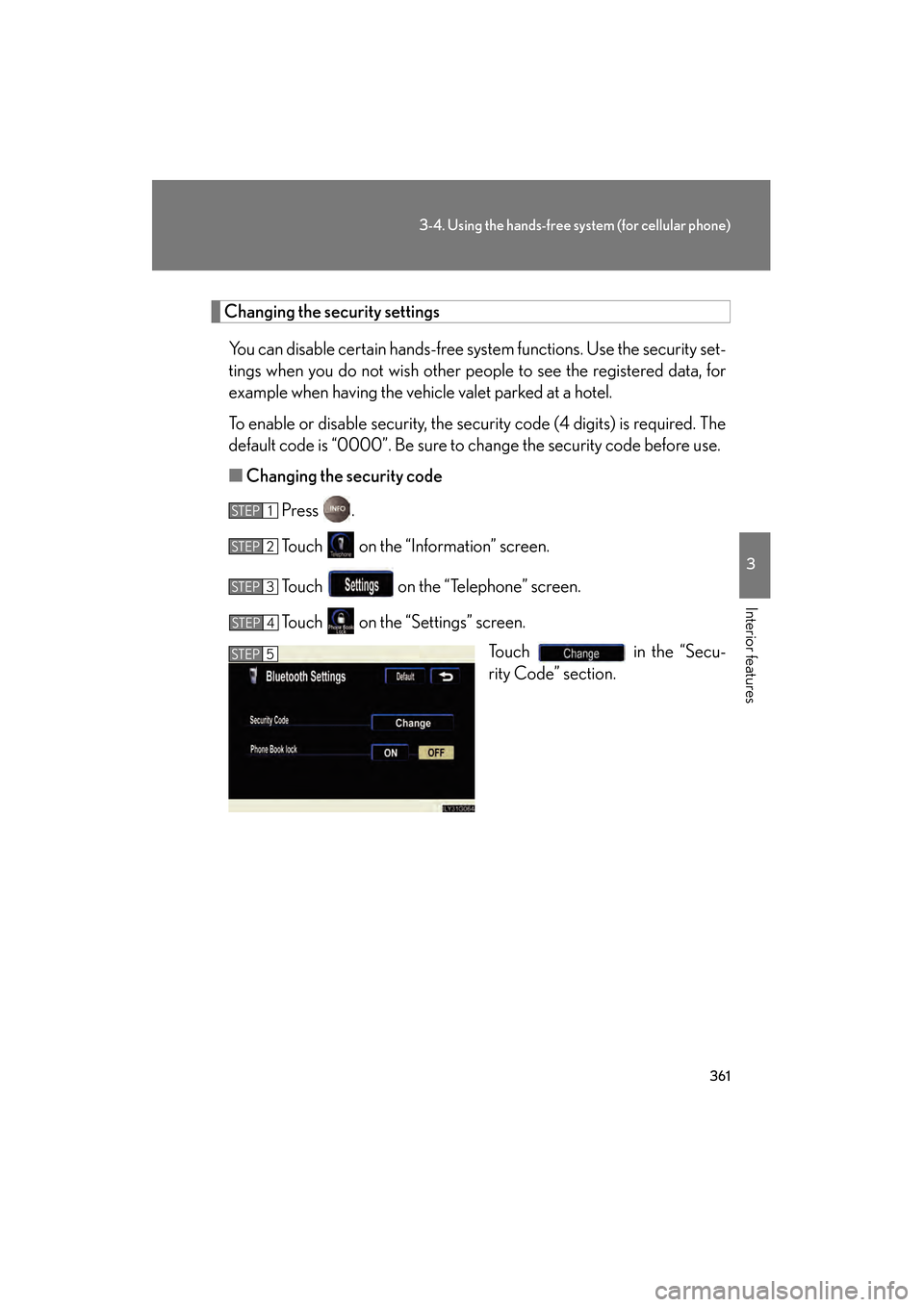
■ Changing the security code
Press .
Touch on the “Information” screen.
Touch on the “Telephone” screen.
Touch on the “Settings” screen. Touch in the “Secu-
rity Code” section.
STEP1
STEP2
STEP3
STEP4
STEP5
GS450h_HV_U.book Page 361 Monday, April 27, 2009 10:10 AM
Page 363 of 622
362
3-4. Using the hands-free system (for cellular phone)
GS_HV_U (OM30B44U)
April 27, 2009 10:09 am
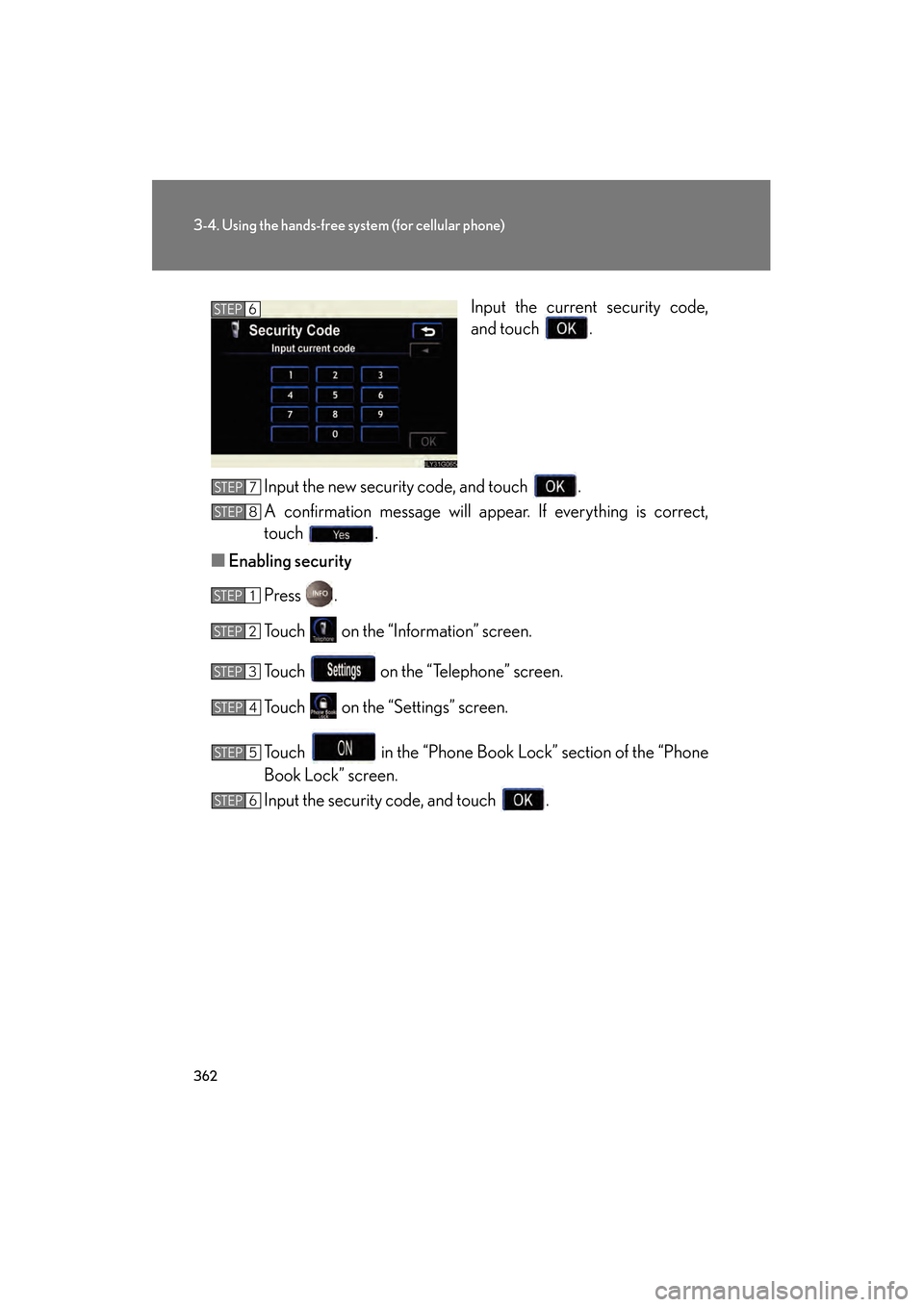
Input the current security code,
and touch .
Input the new security code, and touch .
A confirmation message will appear. If everything is correct,
touch .
■ Enabling security
Press .
Touch on the “Information” screen.
Touch on the “Telephone” screen.
Touch on the “Settings” screen.
Touch in the “Phone Book Lock” section of the “Phone
Book Lock” screen.
Input the security code, and touch .STEP6
STEP7
STEP8
STEP1
STEP2
STEP3
STEP4
STEP5
STEP6
GS450h_HV_U.book Page 362 Monday, April 27, 2009 10:10 AM
Page 364 of 622
363
3-4. Using the hands-free system (for cellular phone)
3
Interior features
GS_HV_U (OM30B44U)
April 27, 2009 10:09 am
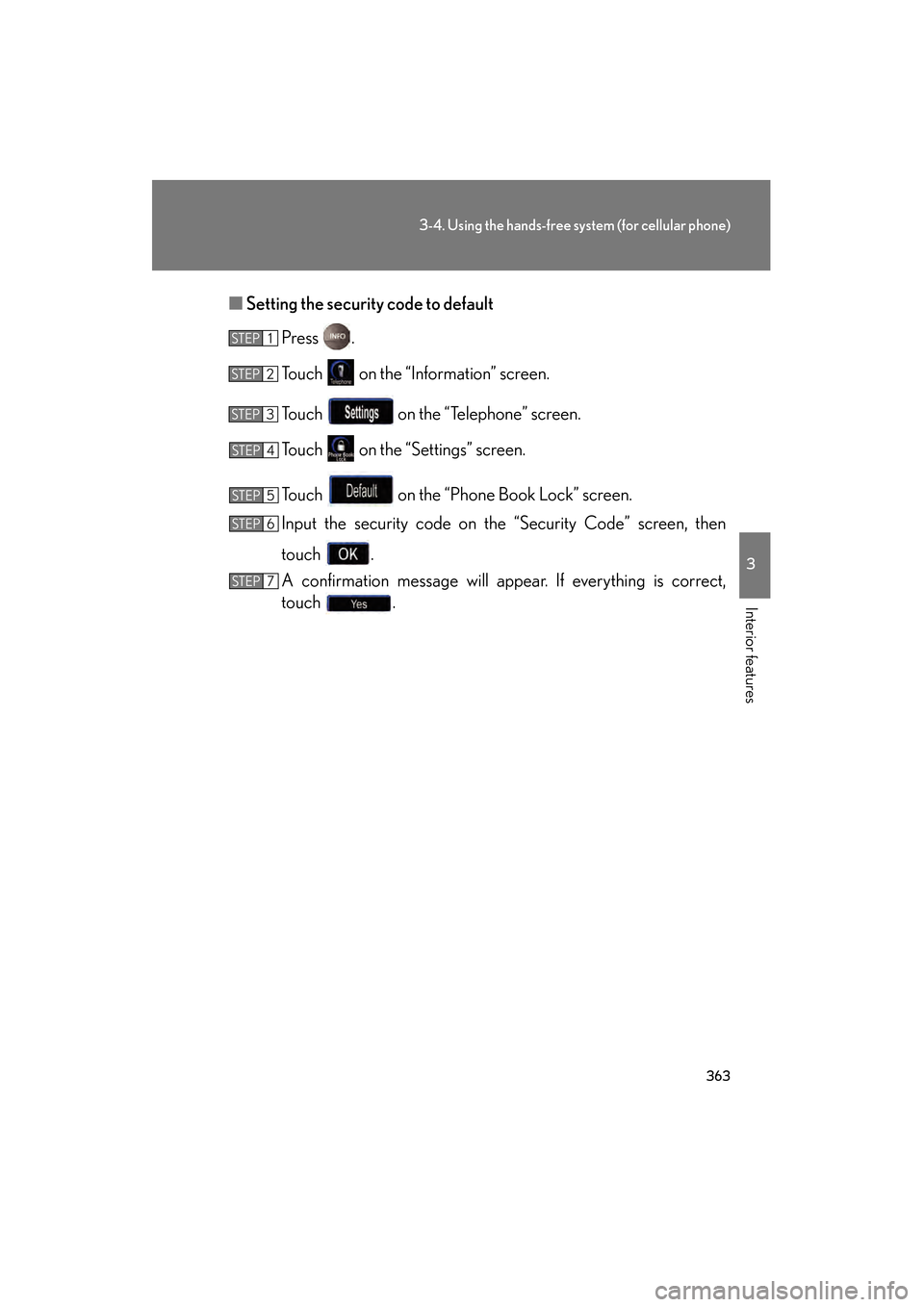
■Setting the security code to default
Press .
Touch on the “Information” screen.
Touch on the “Telephone” screen.
Touch on the “Settings” screen.
Touch on the “Phone Book Lock” screen.
Input the security code on the “Security Code” screen, then
touch .
A confirmation message will appear. If everything is correct,
touch .
STEP1
STEP2
STEP3
STEP4
STEP5
STEP6
STEP7
GS450h_HV_U.book Page 363 Monday, April 27, 2009 10:10 AM
Page 365 of 622
364
3-4. Using the hands-free system (for cellular phone)
GS_HV_U (OM30B44U)
April 27, 2009 10:09 am
■If the “Phone Book Lock” is set
If the security code is input and the “Phone Book Lock” set, the following functions
are locked.
●Display of the phone book screen and transferring, registering, editing, deleting
the phone book data.
●Display of speed dial screen, registering, deleting the speed dial and speed dial-
ing.
●Display of the other party’s name for calls being received or made.
●Displayed of dialed numbers screen and received calls screen, deleting dialed
numbers and received numbers.
●Display of phone information screen.
●Changing the security code.
The speed dial screen is not displayed while driving.
■When changing the security code
●Be sure to choose a number difficult for strangers to guess.
●Do not forget the security code. Even your Lexus dealer will be unable to dis-
able the security. If you do forget the code, initialize all personal data.
( → P. 2 4 6 )
GS450h_HV_U.book Page 364 Monday, April 27, 2009 10:10 AM