change time Lexus GS450h 2013 User Guide
[x] Cancel search | Manufacturer: LEXUS, Model Year: 2013, Model line: GS450h, Model: Lexus GS450h 2013Pages: 862, PDF Size: 19.06 MB
Page 221 of 862

220
GS450h_U (OM30D01U)
4-3. Operating the lights and wipers
*1: After temporary operation, the mode will return to AUTO mode.
*2: AUTO mode will be canceled.
When AUTO mode is selected, the sensor sensitivity can be adjusted by
turning the switch ring.Increases the sensitivity
Decreases the sensitivity
Washer/wiper dual operation
Wipers will automatically operate a
couple of times after the washer
squirts.
or or
or
OffTe m p o r a r y operationTe m p o r a r y operationLow speed operationHigh speed operation
Low speed operationOffOffHigh speed operationHigh speedoperation
High speed operationOffLow speedoperationNo changeNo change
AUTO modeIntermittent operation
Off
Te m p o r a r y
operation
*1Low speed
operation
*2High speed
operation
*2
ContinuouslyNo change
Operation
Status
before
operation
6
7
8
GS450h_U.book Page 220 Monday, January 23, 2012 10:20 AM
Page 223 of 862
222
GS450h_U (OM30D01U)
4-3. Operating the lights and wipers
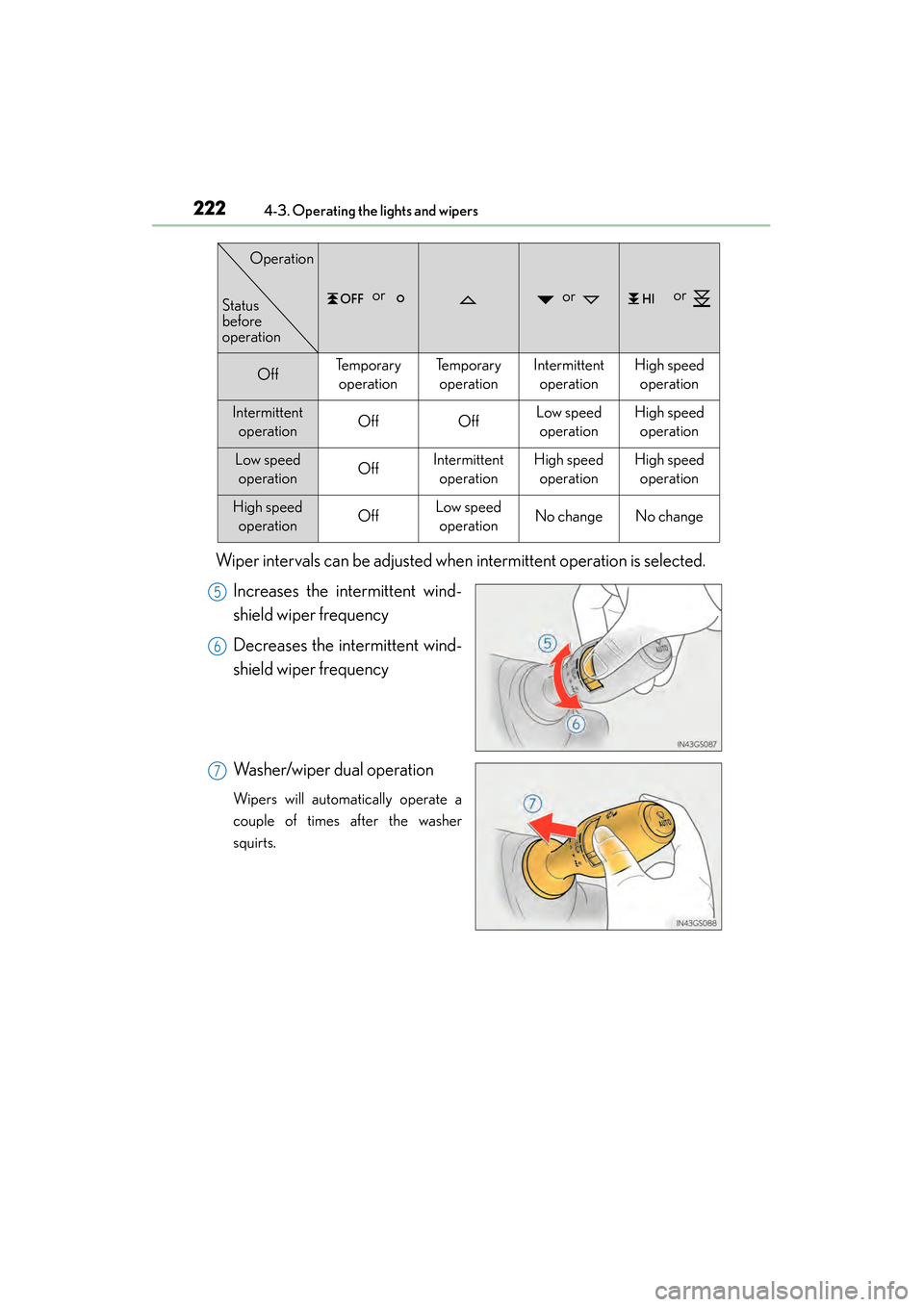
Wiper intervals can be adjusted when intermittent operation is selected.Increases the intermittent wind-
shield wiper frequency
Decreases the intermittent wind-
shield wiper frequency
Washer/wiper dual operation
Wipers will automatically operate a
couple of times after the washer
squirts.
or or or
OffTe m p o r a r y operationTe m p o r a r y operationIntermittent operationHigh speedoperation
Intermittent operationOffOffLow speedoperationHigh speed operation
Low speed operationOffIntermittent operationHigh speedoperationHigh speedoperation
High speed operationOffLow speedoperationNo changeNo change
Status
before
operation
Operation
5
6
7
GS450h_U.book Page 222 Monday, January 23, 2012 10:20 AM
Page 234 of 862
GS450h_U (OM30D01U)
2334-5. Using the driving support systems
4
Driving
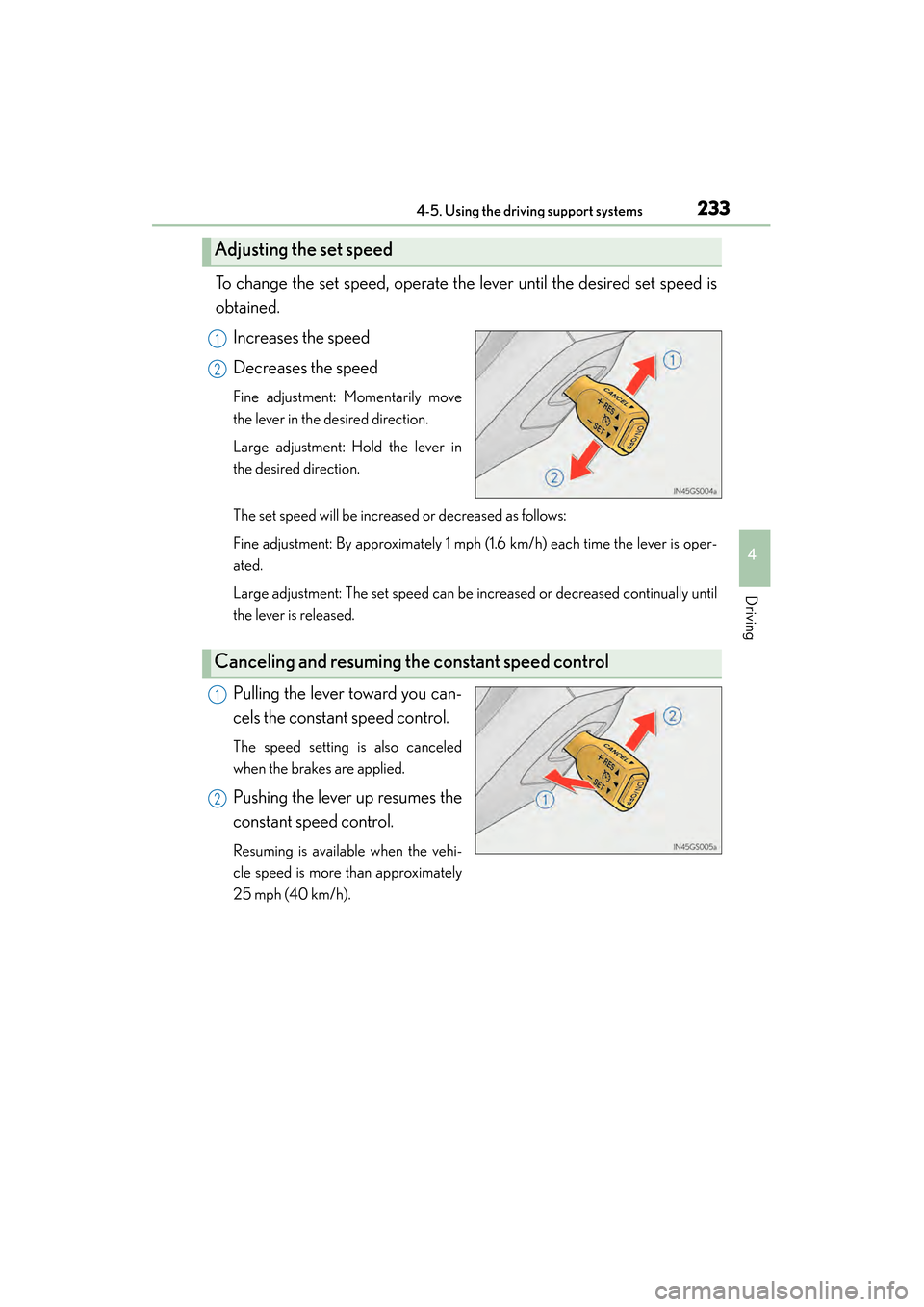
To change the set speed, operate the lever until the desired set speed is
obtained.Increases the speed
Decreases the speed
Fine adjustment: Momentarily move
the lever in the desired direction.
Large adjustment: Hold the lever in
the desired direction.
The set speed will be increased or decreased as follows:
Fine adjustment: By approximately 1 mph (1.6 km/h) each time the lever is oper-
ated.
Large adjustment: The set speed can be increased or decreased continually until
the lever is released.
Pulling the lever toward you can-
cels the constant speed control.
The speed setting is also canceled
when the brakes are applied.
Pushing the lever up resumes the
constant speed control.
Resuming is available when the vehi-
cle speed is more than approximately
25 mph (40 km/h).
Adjusting the set speed
1
2
Canceling and resuming the constant speed control
1
2
GS450h_U.book Page 233 Monday, January 23, 2012 10:20 AM
Page 239 of 862
238
GS450h_U (OM30D01U)
4-5. Using the driving support systems
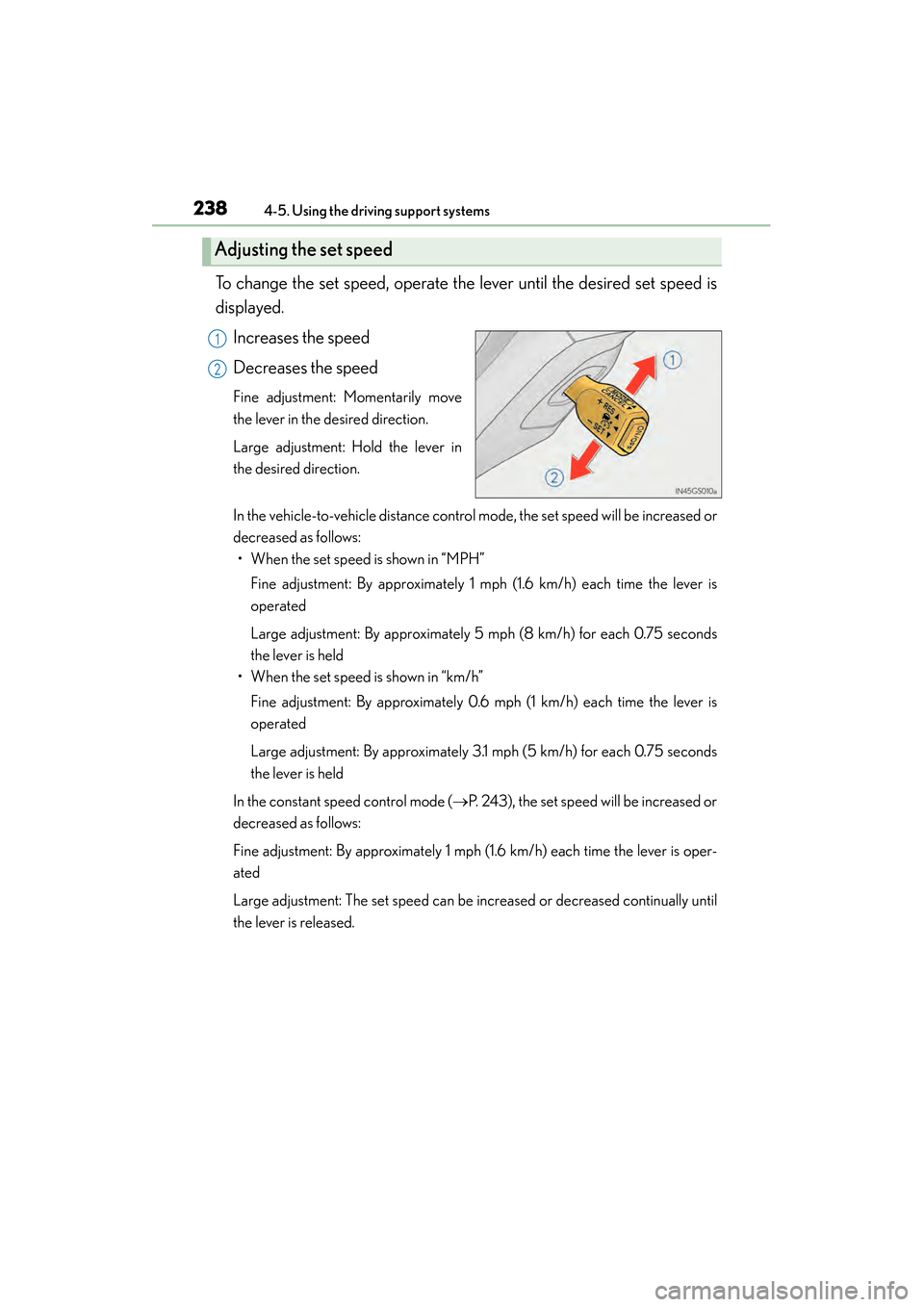
To change the set speed, operate the lever until the desired set speed is
displayed.Increases the speed
Decreases the speed
Fine adjustment: Momentarily move
the lever in the desired direction.
Large adjustment: Hold the lever in
the desired direction.
In the vehicle-to-vehicle distance control mode, the set speed will be increased or
decreased as follows:• When the set speed is shown in “MPH”
Fine adjustment: By approximately 1 mph (1.6 km/h) each time the lever is
operated
Large adjustment: By approximately 5 mph (8 km/h) for each 0.75 seconds
the lever is held
• When the set speed is shown in “km/h”
Fine adjustment: By approximately 0.6 mph (1 km/h) each time the lever is
operated
Large adjustment: By approximately 3.1 mph (5 km/h) for each 0.75 seconds
the lever is held
In the constant speed control mode ( →P. 243), the set speed will be increased or
decreased as follows:
Fine adjustment: By approximately 1 mph (1.6 km/h) each time the lever is oper-
ated
Large adjustment: The set speed can be increased or decreased continually until
the lever is released.
Adjusting the set speed
1
2
GS450h_U.book Page 238 Monday, January 23, 2012 10:20 AM
Page 258 of 862
GS450h_U (OM30D01U)
2574-5. Using the driving support systems
4
Driving
■If there are lane markers on only one side of the vehicle
The lane keeping assist function will not operate. Also, the lane departure warning
will not operate for the side on which lane markers could not be recognized.
■Conditions in which the function may not operate correctly
In the following conditions, the LKA system functions may not operate, or it may not
be possible to ensure adequate performance. Also, the camera sensor may be
unable to recognize lane lines causing the lane departure warning function to oper-
ate incorrectly, or the lane keeping assist function may not operate properly. How-
ever, this does not indicate a malfunction.
●When driving through an area with no lane markers, such as a tollbooth, a crossing
or before a ticket checkpoint
●When driving on a sharp curve
●When lanes are extremely narrow or extremely wide
●When the vehicle leans to one side an unusual amount due to a heavy load or
improper tire inflation pressure
●When the following distance between your vehicle and the vehicle ahead is
extremely short
●When the lane markers are yellow (These may be more difficult for the system to
recognize compared to white markers.)
●When the lane markers are broken, “Botts’ dots”, “Raised pavement marker” or
stones
●When lane markers are obscured or partially obscured by sand, dirt, etc.
●When there are shadows on the road running parallel with lane markers, or if a
shadow covers the lane markers
●When driving on a particularly bright road surface, such as concrete
●When driving on a road surface that is bright due to reflected light
●When driving in a location where the light level changes rapidly, such as the
entrance to or exit from a tunnel
●When sunlight or the headlights of oncoming vehicles are shining directly into the
camera lens
●When driving on roads that are branching or merging
●When driving on a road surface that is wet due to rain, previous rainfall, standing
water, etc.
●When the vehicle experiences strong up-and-down motion such as when driving
on an extremely rough road or on a seam in the pavement
●When headlight brightness at nighttime is reduced due to dirt on the lenses, or
when the headlights are misaligned
●When driving with a strong crosswind
GS450h_U.book Page 257 Monday, January 23, 2012 10:20 AM
Page 310 of 862
GS450h_U (OM30D01U)
3094-5. Using the driving support systems
4
Driving
■When there is a malfunction in the system
If a system malfunction is detected due to any of the following reasons, warning mes-
sages will be displayed: (→P. 7 2 7 )
●There is a malfunction with the sensors
●The sensors have become dirty
●The outside temperature is extremely high or low
●The sensor voltage has become abnormal
■Certification for the BSM
XFor vehicles sold in the U.S.A.
FCC ID: OAYBSDTX
This device complies with part 15 of the FCC Rules. Operation is subject to the fol-
lowing three conditions:
(1) This device may not cause harmful interference.
(2) This device must accept any interference received, including interference that may cause undesired operation.
(3) This device may only work when the vehicle is in operation pursuant to § 15.252 (a) (4).
FCC WARNING
Changes or modifications not expressly approved by the party responsible for com-
pliance could void the user’s authority to operate the equipment.
XFor vehicles sold in Canada
IC: 4135A-BSDTX
This device complies with the radio standards specification RSS-220 of Industry
Canada. Operation is subject to the following two conditions:
(1) This device may not cause harmful interference.
(2) This device must accept any interference received, including interference that may cause undesired operation.
NOTE
During printing time of this user manual the approvals listed below are granted. Fur-
ther countries may become available or actual certification identifiers may be sub-
ject to change or update.
WA R N I N G
Changes or modifications not expressly approved by the party responsible for com-
pliance could void the user’s authority to operate the equipment.
GS450h_U.book Page 309 Monday, January 23, 2012 10:20 AM
Page 311 of 862
310
GS450h_U (OM30D01U)
4-5. Using the driving support systems
CAUTION
■Cautions regarding the use of the system
The driver is solely responsible for safe driving. Always drive safely, taking care to
observe your surroundings.
The Blind Spot Monitor is a supplementary system which alerts the driver that a
vehicle is present in the blind spot. Do not overly rely on the Blind Spot Monitor
system. The system cannot judge if it is safe to change lanes, therefore over reli-
ance could cause an accident resulting in death or serious injury. According to
conditions, the system may not function correctly. Therefore the driver’s own visual
confirmation of safety is necessary.
■Handling the radar sensor
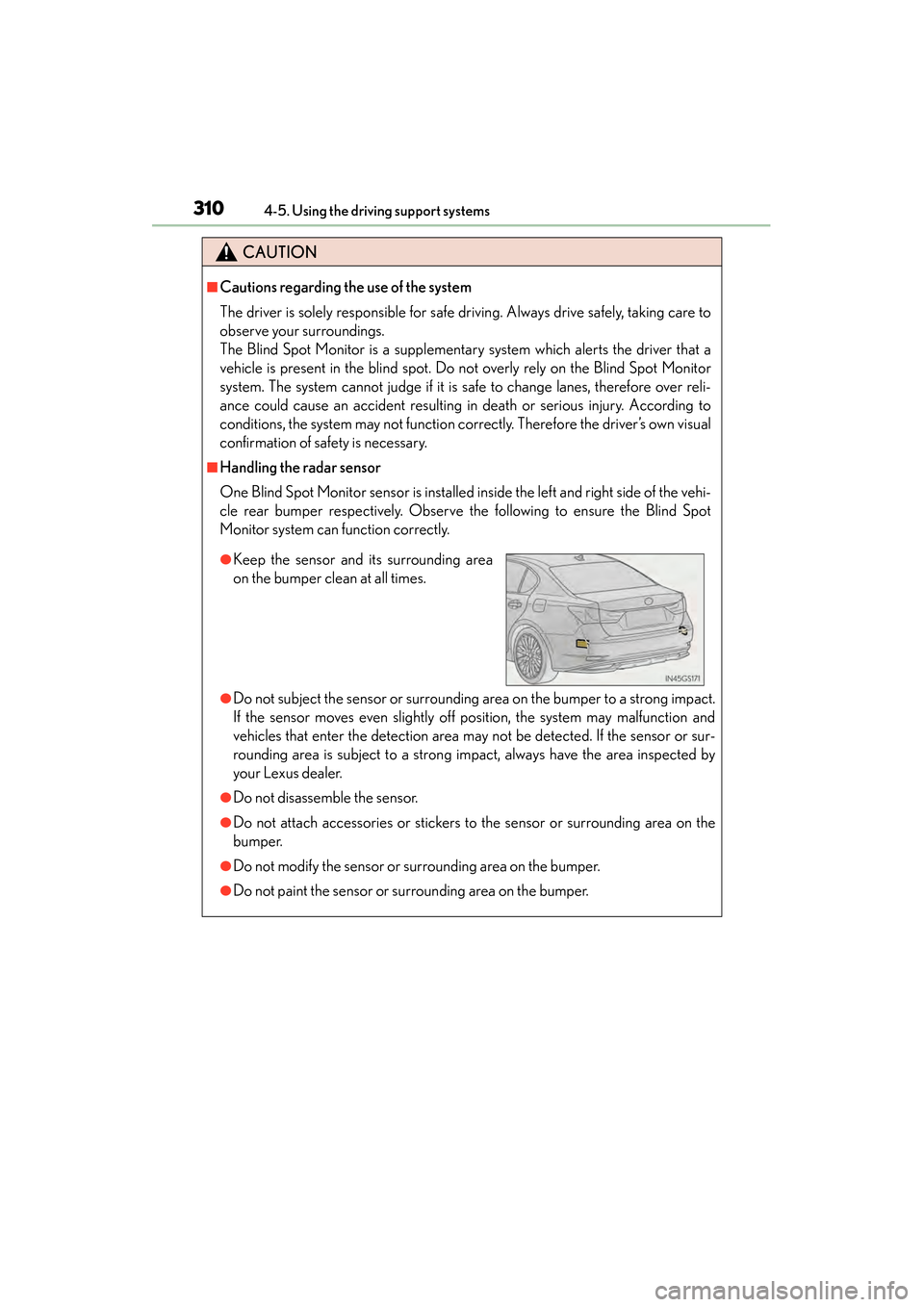
One Blind Spot Monitor sensor is installed inside the left and right side of the vehi-
cle rear bumper respectively. Observe the following to ensure the Blind Spot
Monitor system can function correctly.
●Do not subject the sensor or surrounding area on the bumper to a strong impact.
If the sensor moves even slightly off position, the system may malfunction and
vehicles that enter the detection area may not be detected. If the sensor or sur-
rounding area is subject to a strong impact, always have the area inspected by
your Lexus dealer.
●Do not disassemble the sensor.
●Do not attach accessories or stickers to the sensor or surrounding area on the
bumper.
●Do not modify the sensor or surrounding area on the bumper.
●Do not paint the sensor or surrounding area on the bumper.
●Keep the sensor and its surrounding area
on the bumper clean at all times.
GS450h_U.book Page 310 Monday, January 23, 2012 10:20 AM
Page 334 of 862
GS450h_U (OM30D01U)
3335-1. Remote Touch screen
5
Interior features
■When using the Remote Touch screen
●If the screen is cold, the display may be dark, or the system may seem to be operat-
ing slightly slower than normal.
●When the screen is viewed through polarized sunglasses, a rainbow pattern may
appear on the screen due to optical characteristics of the screen. If this is disturb-
ing, please operate the screen without polarized sunglasses.
●Dimmed screen buttons cannot be operated.
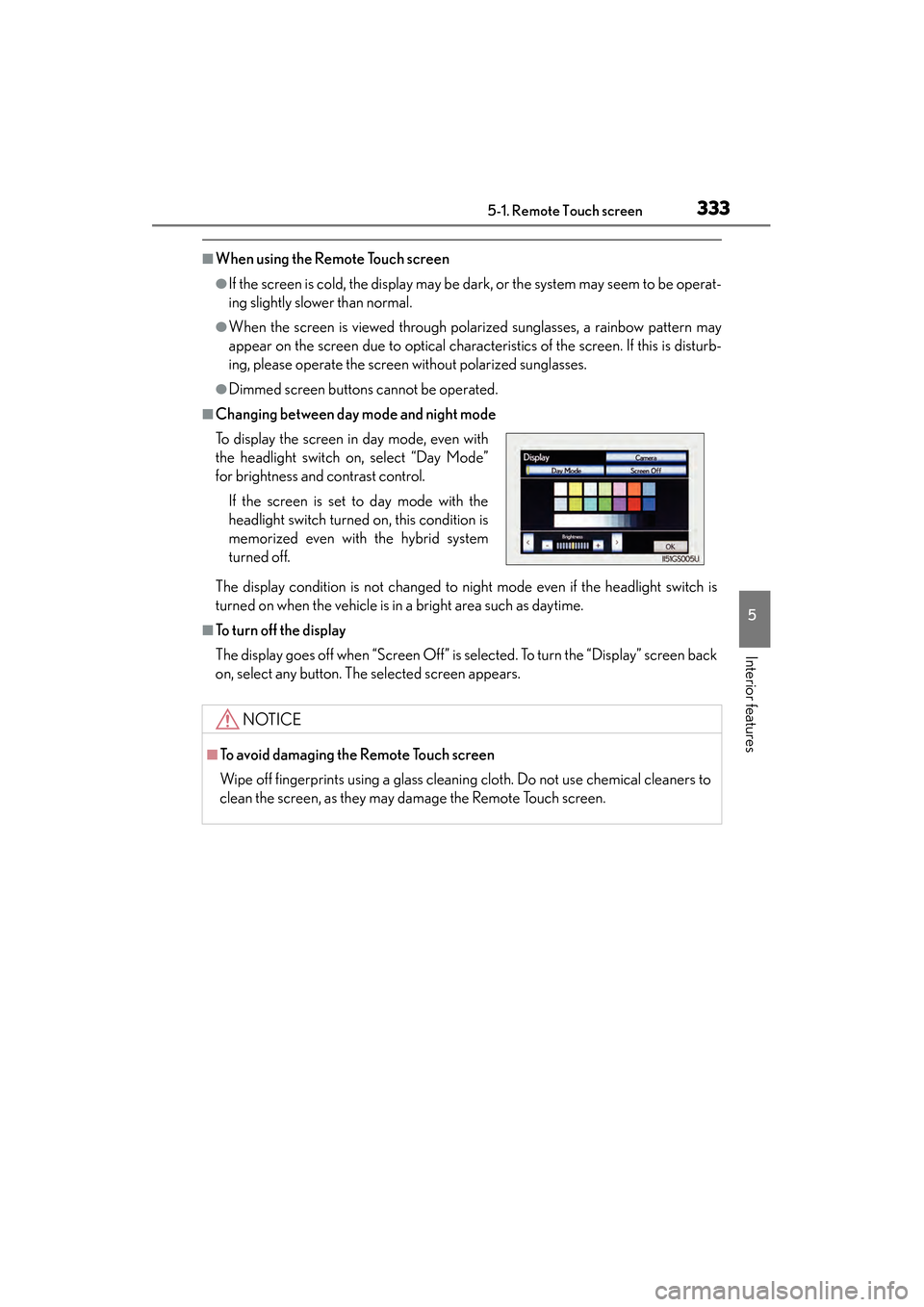
■Changing between day mode and night mode
The display condition is not changed to night mode even if the headlight switch is
turned on when the vehicle is in a bright area such as daytime.
■To t u r n o f f t h e d i s p l a y
The display goes off when “Screen Off” is selected. To turn the “Display” screen back
on, select any button. The selected screen appears. To display the screen in day mode, even with
the headlight switch on, select “Day Mode”
for brightness and contrast control.
If the screen is set to day mode with the
headlight switch turned on, this condition is
memorized even with the hybrid system
turned off.
NOTICE
■To avoid damaging the Remote Touch screen
Wipe off fingerprints using a glass cleaning cloth. Do not use chemical cleaners to
clean the screen, as they may damage the Remote Touch screen.
GS450h_U.book Page 333 Monday, January 23, 2012 10:20 AM
Page 338 of 862
GS450h_U (OM30D01U)
3375-1. Remote Touch screen
5
Interior features
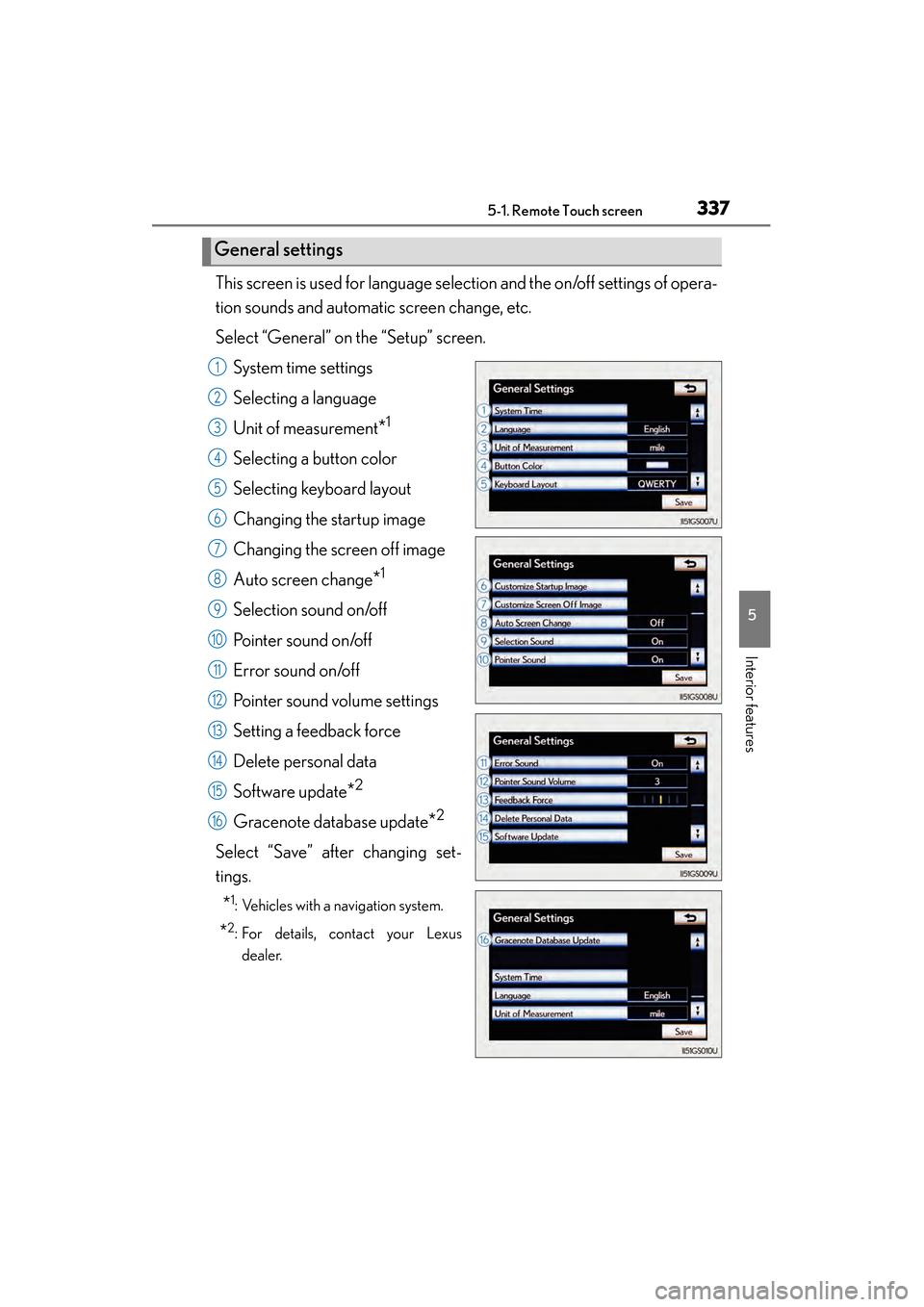
This screen is used for language selection and the on/off settings of opera-
tion sounds and automatic screen change, etc.
Select “General” on the “Setup” screen.System time settings
Selecting a language
Unit of measurement
*1
Selecting a button color
Selecting keyboard layout
Changing the startup image
Changing the screen off image
Auto screen change
*1
Selection sound on/off
Pointer sound on/off
Error sound on/off
Pointer sound volume settings
Setting a feedback force
Delete personal data
Software update
*2
Gracenote database update*2
Select “Save” after changing set-
tings.
*1: Vehicles with a navigation system.
*2: For details, contact your Lexusdealer.
General settings
1
2
3
4
5
6
7
8
9
10
11
12
13
14
15
16
GS450h_U.book Page 337 Monday, January 23, 2012 10:20 AM
Page 340 of 862
GS450h_U (OM30D01U)
3395-1. Remote Touch screen
5
Interior features
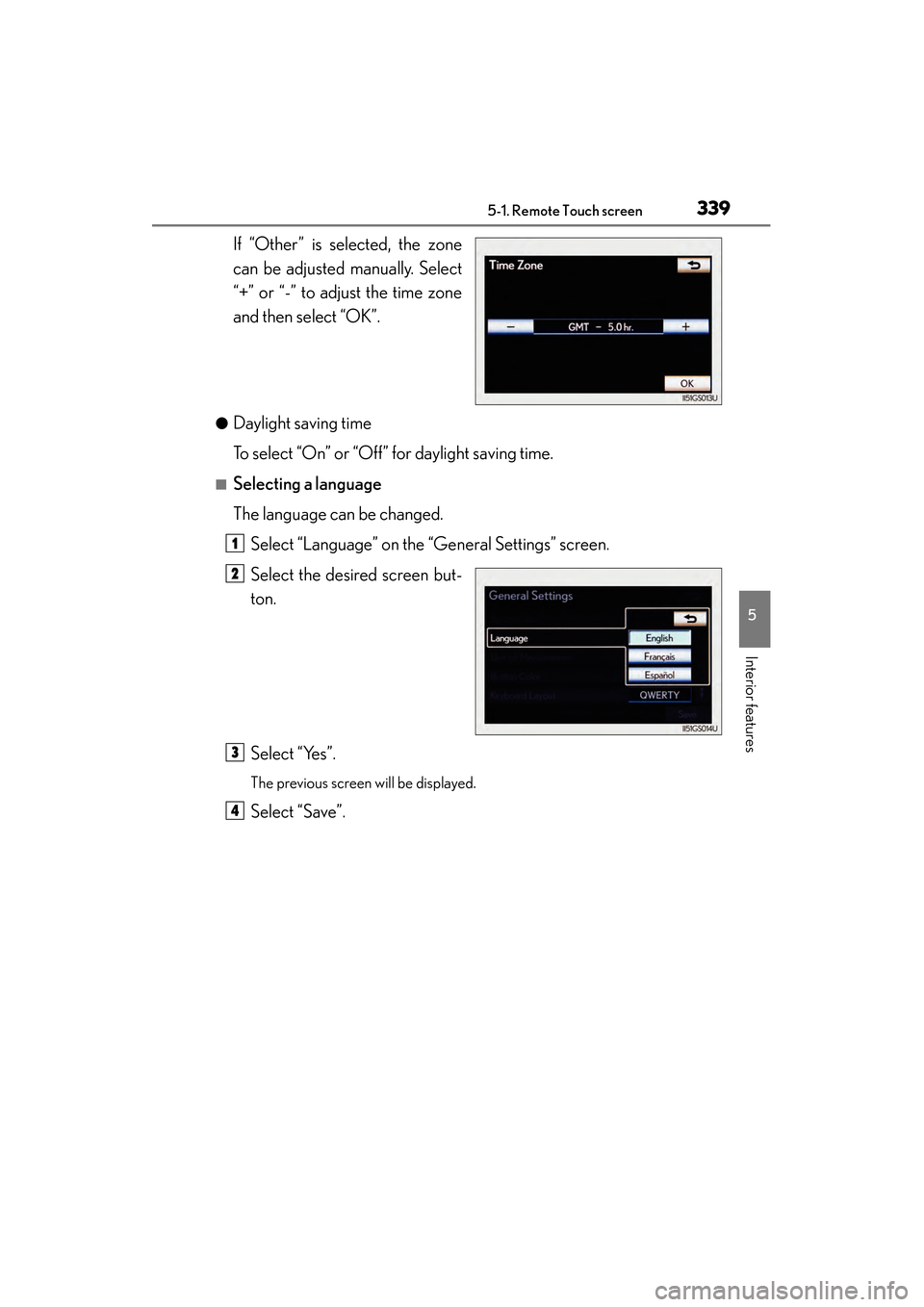
If “Other” is selected, the zone
can be adjusted manually. Select
“+” or “-” to adjust the time zone
and then select “OK”.
●Daylight saving time
To select “On” or “Off” for daylight saving time.
■Selecting a language
The language can be changed.Select “Language” on the “General Settings” screen.
Select the desired screen but-
ton.
Select “Yes”.
The previous screen will be displayed.
Select “Save”.
1
2
3
4
GS450h_U.book Page 339 Monday, January 23, 2012 10:20 AM