navigation Lexus GS450h 2013 User Guide
[x] Cancel search | Manufacturer: LEXUS, Model Year: 2013, Model line: GS450h, Model: Lexus GS450h 2013Pages: 862, PDF Size: 19.06 MB
Page 338 of 862
GS450h_U (OM30D01U)
3375-1. Remote Touch screen
5
Interior features
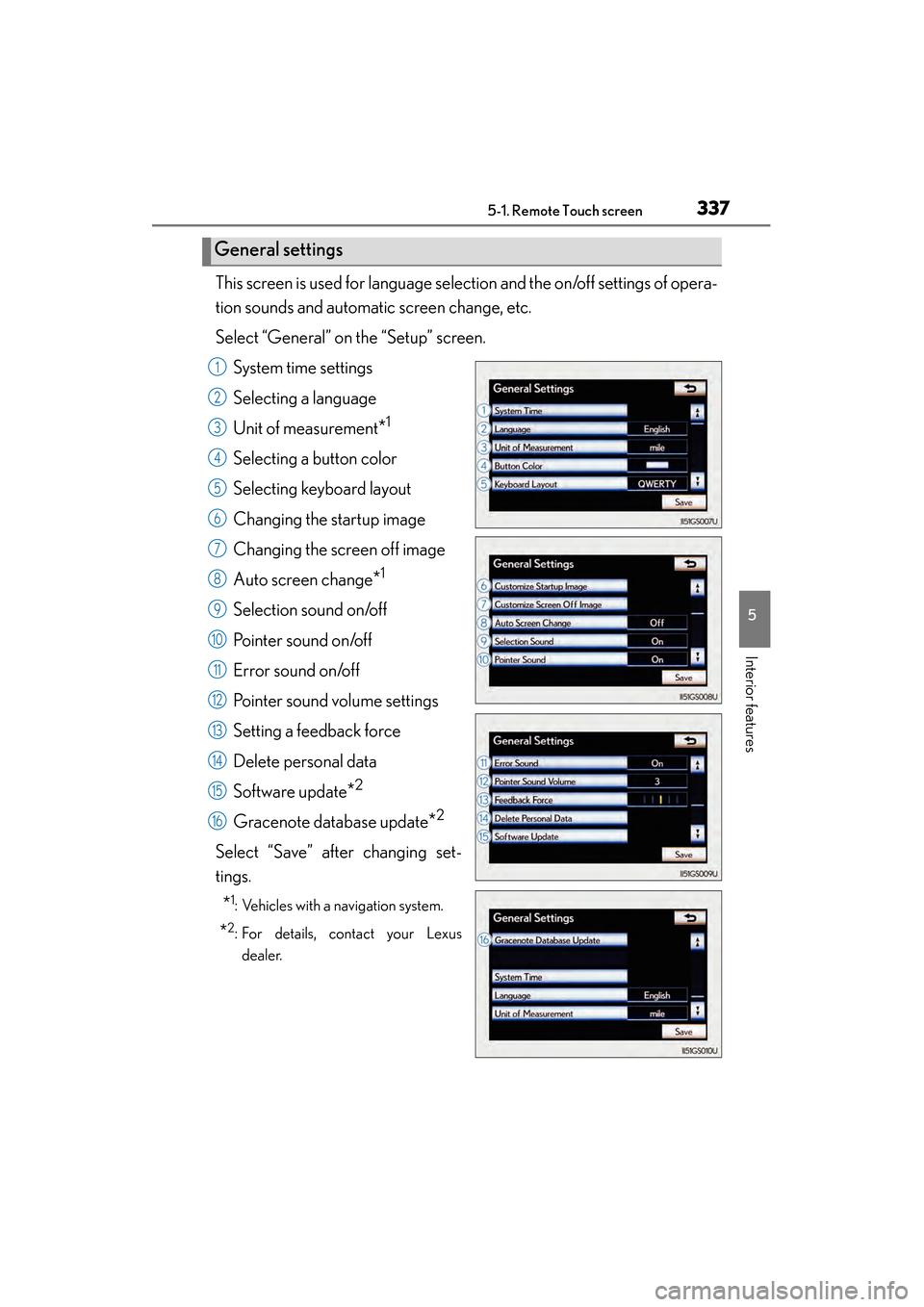
This screen is used for language selection and the on/off settings of opera-
tion sounds and automatic screen change, etc.
Select “General” on the “Setup” screen.System time settings
Selecting a language
Unit of measurement
*1
Selecting a button color
Selecting keyboard layout
Changing the startup image
Changing the screen off image
Auto screen change
*1
Selection sound on/off
Pointer sound on/off
Error sound on/off
Pointer sound volume settings
Setting a feedback force
Delete personal data
Software update
*2
Gracenote database update*2
Select “Save” after changing set-
tings.
*1: Vehicles with a navigation system.
*2: For details, contact your Lexusdealer.
General settings
1
2
3
4
5
6
7
8
9
10
11
12
13
14
15
16
GS450h_U.book Page 337 Monday, January 23, 2012 10:20 AM
Page 341 of 862
3405-1. Remote Touch screen
GS450h_U (OM30D01U)
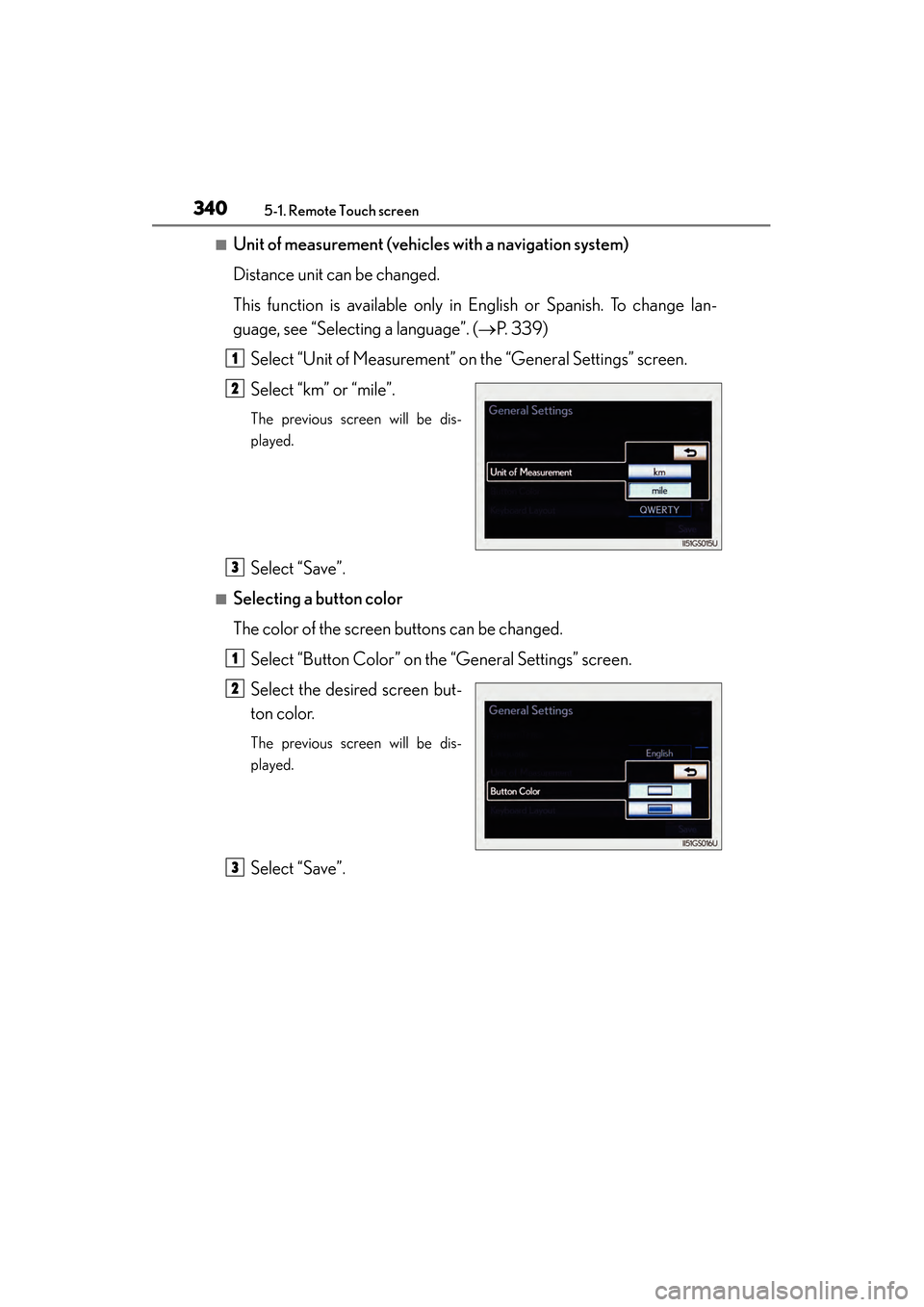
■Unit of measurement (vehicles with a navigation system)
Distance unit can be changed.
This function is available only in English or Spanish. To change lan-
guage, see “Selecting a language”. ( →P. 3 3 9 )
Select “Unit of Measurement” on the “General Settings” screen.
Select “km” or “mile”.
The previous screen will be dis-
played.
Select “Save”.
■Selecting a button color
The color of the screen buttons can be changed.
Select “Button Color” on the “General Settings” screen.
Select the desired screen but-
ton color.
The previous screen will be dis-
played.
Select “Save”.
1
2
3
1
2
3
GS450h_U.book Page 340 Monday, January 23, 2012 10:20 AM
Page 342 of 862
GS450h_U (OM30D01U)
3415-1. Remote Touch screen
5
Interior features
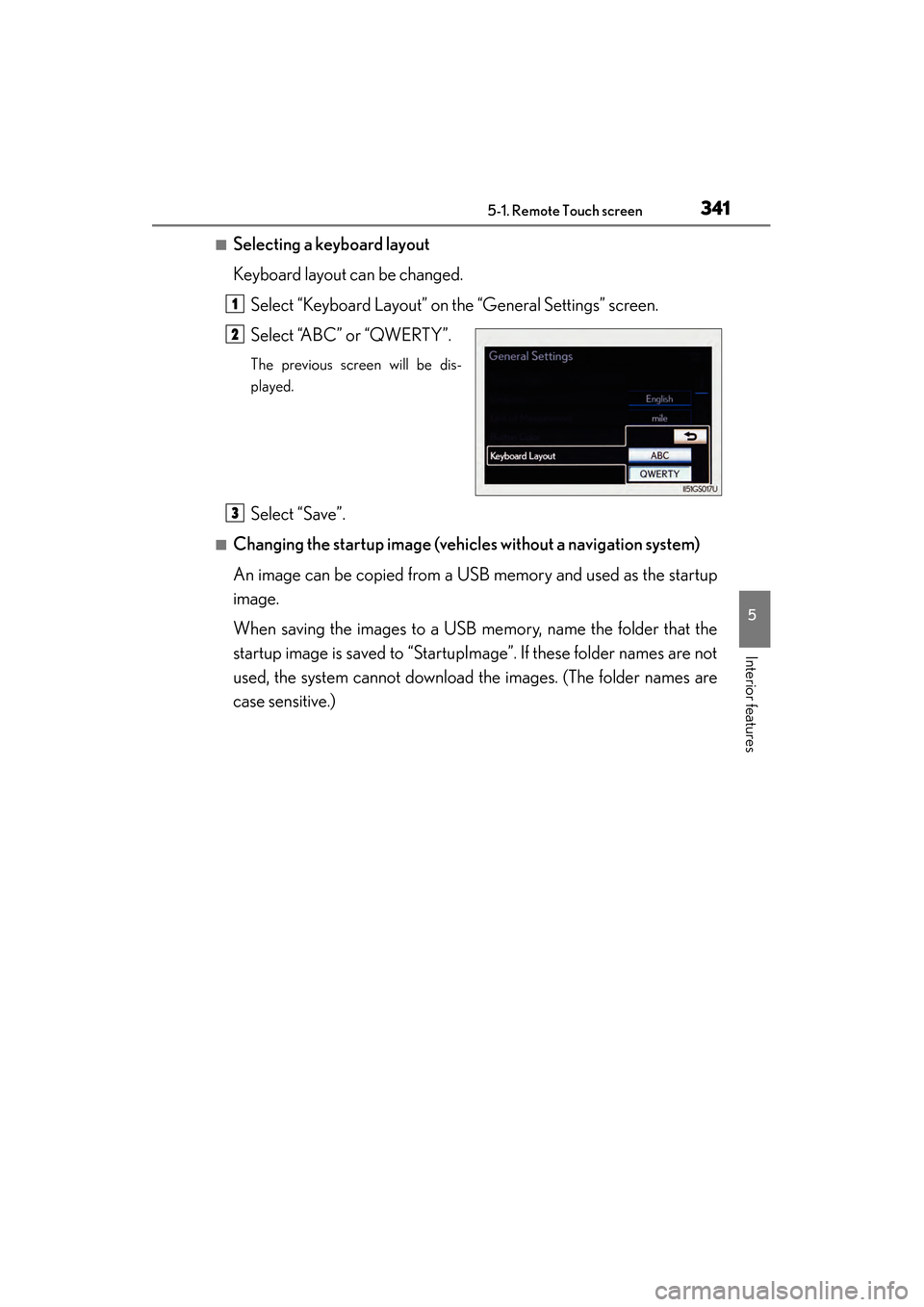
■Selecting a keyboard layout
Keyboard layout can be changed.Select “Keyboard Layout” on the “General Settings” screen.
Select “ABC” or “QWERTY”.
The previous screen will be dis-
played.
Select “Save”.
■Changing the startup image (vehic les without a navigation system)
An image can be copied from a USB memory and used as the startup
image.
When saving the images to a USB memory, name the folder that the
startup image is saved to “StartupImage”. If these folder names are not
used, the system cannot download the images. (The folder names are
case sensitive.)
1
2
3
GS450h_U.book Page 341 Monday, January 23, 2012 10:20 AM
Page 348 of 862
GS450h_U (OM30D01U)
3475-1. Remote Touch screen
5
Interior features
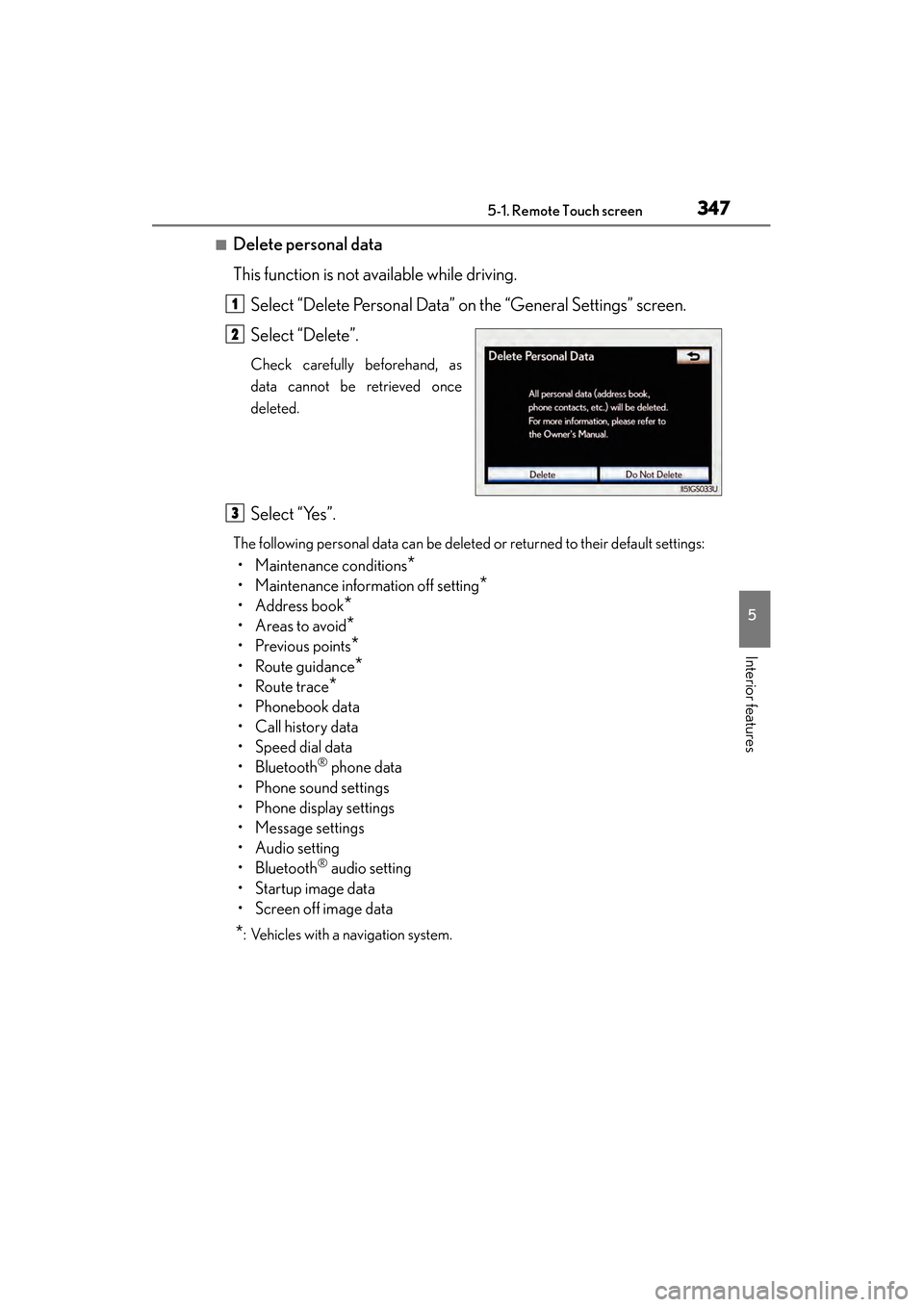
■Delete personal data
This function is not available while driving.Select “Delete Personal Data” on the “General Settings” screen.
Select “Delete”.
Check carefully beforehand, as
data cannot be retrieved once
deleted.
Select “Yes”.
The following personal data can be deleted or returned to their default settings:
• Maintenance conditions*
• Maintenance information off setting*
• Address book*
•Areas to avoid*
•Previous points*
• Route guidance*
•Route trace*
• Phonebook data
•Call history data
• Speed dial data
•Bluetooth
® phone data
• Phone sound settings
• Phone display settings
• Message settings
• Audio setting
•Bluetooth
® audio setting
•Startup image data
• Screen off image data
*: Vehicles with a navigation system.
1
2
3
GS450h_U.book Page 347 Monday, January 23, 2012 10:20 AM
Page 350 of 862
GS450h_U (OM30D01U)
3495-1. Remote Touch screen
5
Interior features
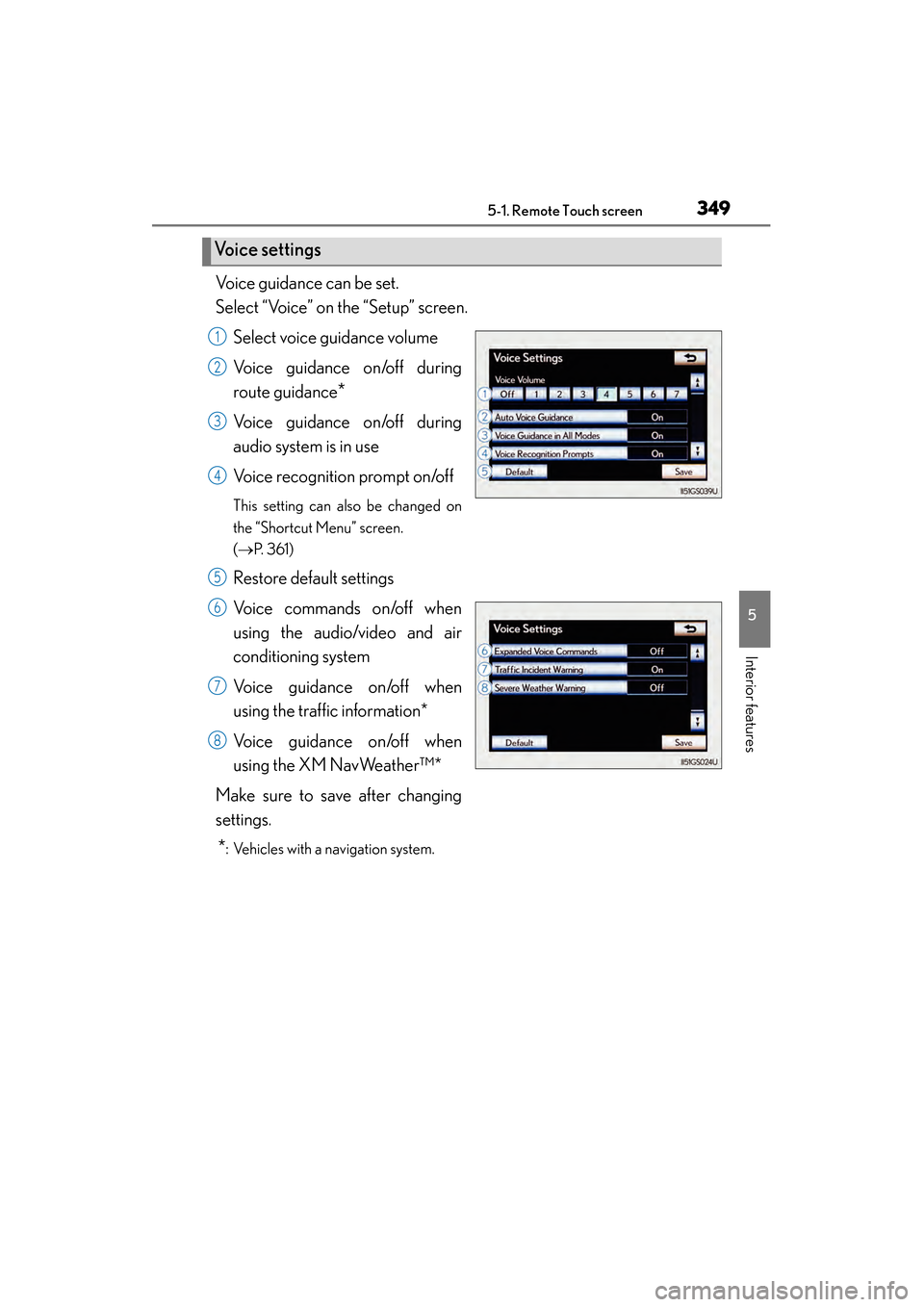
Voice guidance can be set.
Select “Voice” on the “Setup” screen.Select voice guidance volume
Voice guidance on/off during
route guidance
*
Voice guidance on/off during
audio system is in use
Voice recognition prompt on/off
This setting can also be changed on
the “Shortcut Menu” screen.
(→ P. 3 6 1 )
Restore default settings
Voice commands on/off when
using the audio/video and air
conditioning system
Voice guidance on/off when
using the traffic information*
Voice guidance on/off when
using the XM NavWeather™*
Make sure to save after changing
settings.
*: Vehicles with a navigation system.
Vo i c e s e t t i n g s
1
2
3
4
5
6
7
8
GS450h_U.book Page 349 Monday, January 23, 2012 10:20 AM
Page 351 of 862
3505-1. Remote Touch screen
GS450h_U (OM30D01U)
■Voice volume
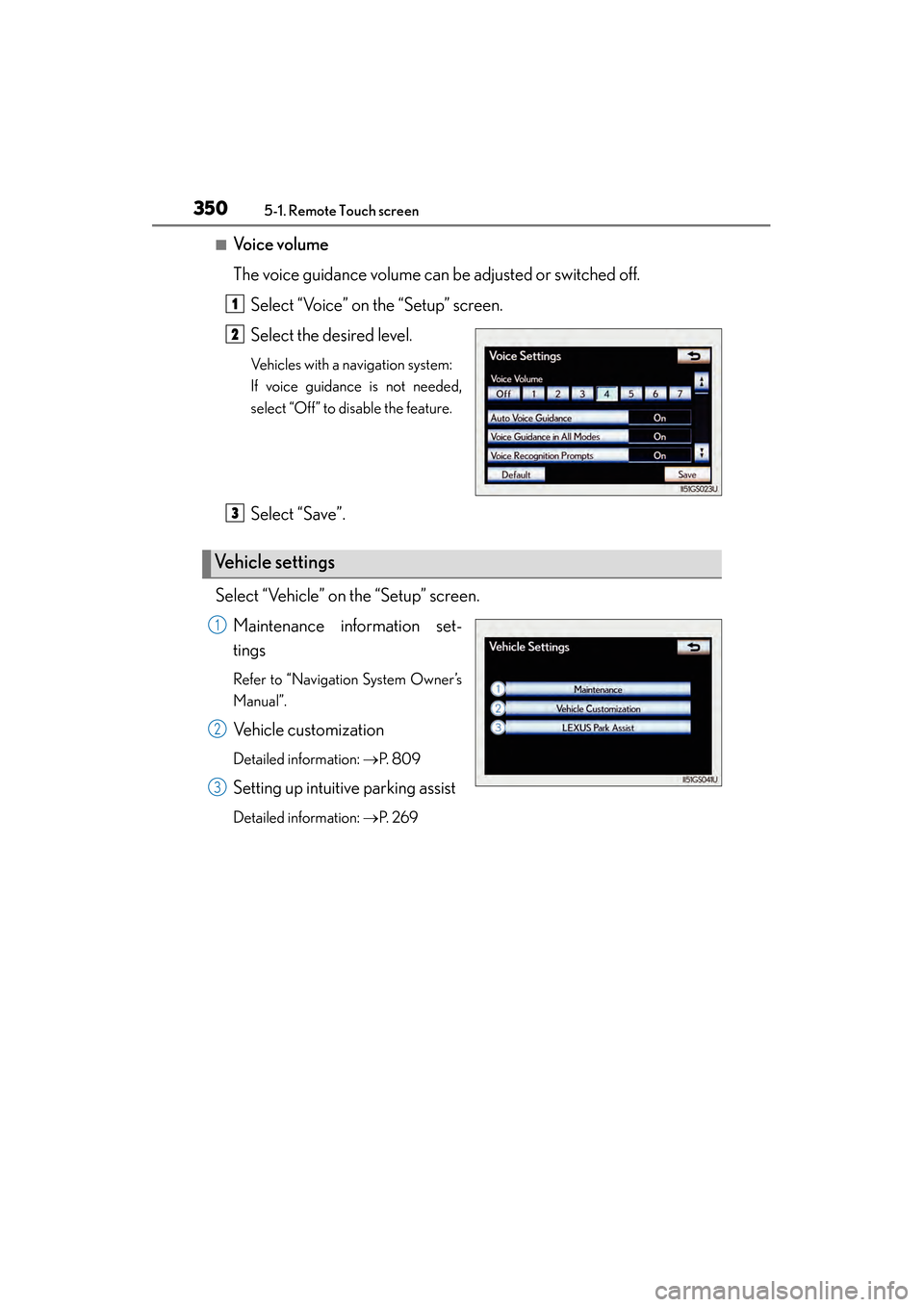
The voice guidance volume can be adjusted or switched off.Select “Voice” on the “Setup” screen.
Select the desired level.
Vehicles with a navigation system:
If voice guidance is not needed,
select “Off” to disable the feature.
Select “Save”.
Select “Vehicle” on the “Setup” screen. Maintenance information set-
tings
Refer to “Navigation System Owner’s
Manual”.
Vehicle customization
Detailed information: →P. 8 0 9
Setting up intuitive parking assist
Detailed information: →P. 2 6 9
1
2
Ve h i c l e s e t t i n g s
3
1
2
3
GS450h_U.book Page 350 Monday, January 23, 2012 10:20 AM
Page 354 of 862
353
GS450h_U (OM30D01U)5-1. Remote Touch screen
5
Interior features
Voice command system
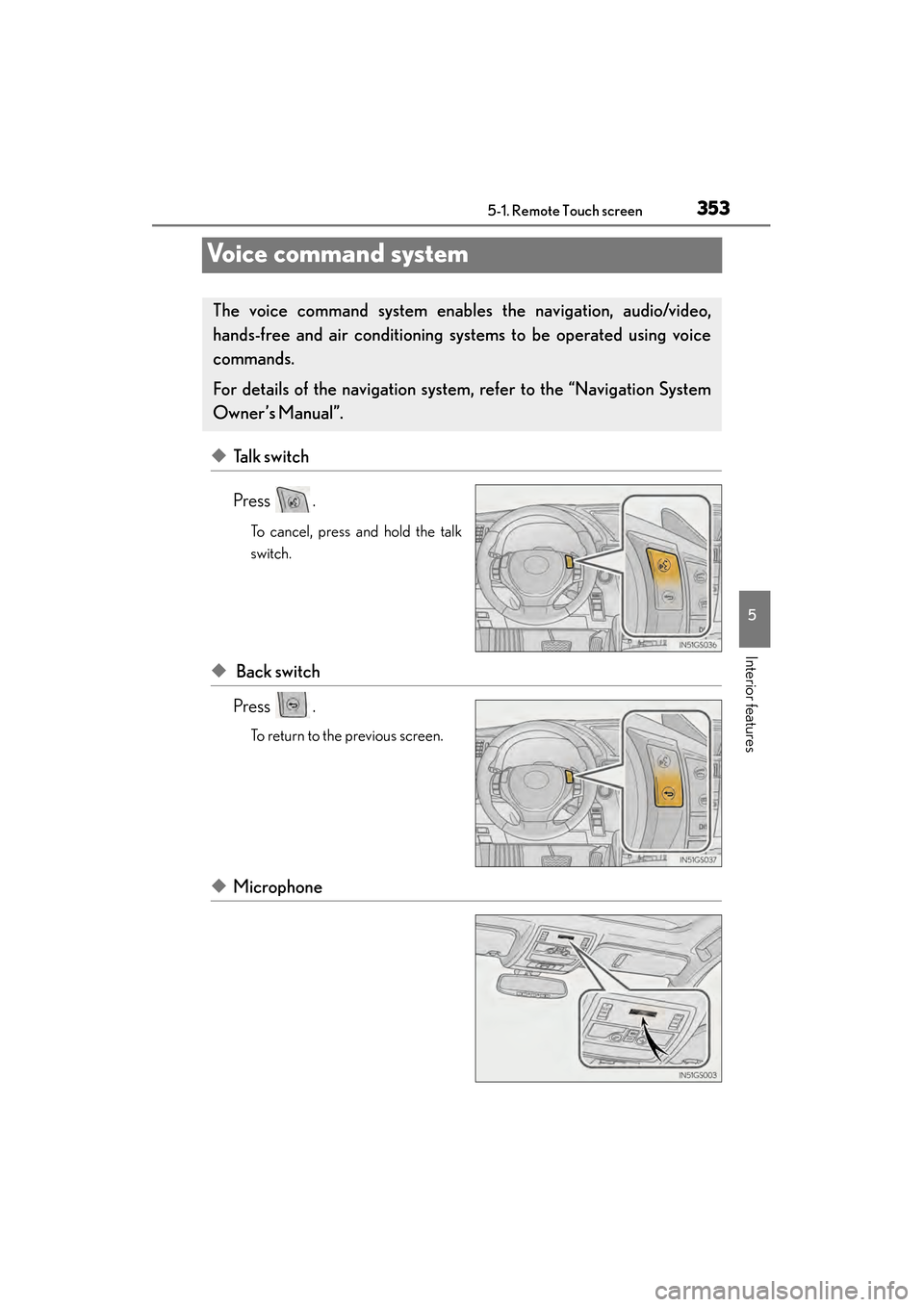
◆Talk switch
Press .
To cancel, press and hold the talk
switch.
◆ Back switch
Press .
To return to the previous screen.
◆Microphone
The voice command sys tem enables the navigation, audio/video,
hands-free and air conditioning sys tems to be operated using voice
commands.
For details of the navigation system , refer to the “Navigation System
Owner’s Manual”.
GS450h_U.book Page 353 Monday, January 23, 2012 10:20 AM
Page 365 of 862
364
GS450h_U (OM30D01U)
5-2. Using the air conditioning system and defogger
Front automatic air conditioning system
Air outlets and fan speed are automatically adjusted according to the
temperature setting.
Vehicles with a navigation system: The air conditioning system can be
displayed and operated on the “Side Display”. For details, refer to the
“Navigation System Owner’s Manual”.
Press the “MENU” button on the Remote Touch, then select “Climate”
to display the air conditioning operation screen.
The display and button positions will di ffer depending on the type of the
system.
GS450h_U.book Page 364 Monday, January 23, 2012 10:20 AM
Page 387 of 862
386
GS450h_U (OM30D01U)
5-3. Using the audio system
Audio system type
CD and DVD player with AM/FM radio
Vehicles with a navigation system: The audio fun ctions can be displayed
and operated on the “Side Display”. For details, refer to the “Navigation
System Owner’s Manual”.
XUsing the instrument panel
Press the “RADIO” or “MEDIA” button to display the audio control
screen.
XUsing the Remote Touch
Press the “MENU” button on the Remote Touch, select “Radio” or
“Media” and select each tab to display the audio control screen.
GS450h_U.book Page 386 Monday, January 23, 2012 10:20 AM
Page 422 of 862
GS450h_U (OM30D01U)
4215-3. Using the audio system
5
Interior features
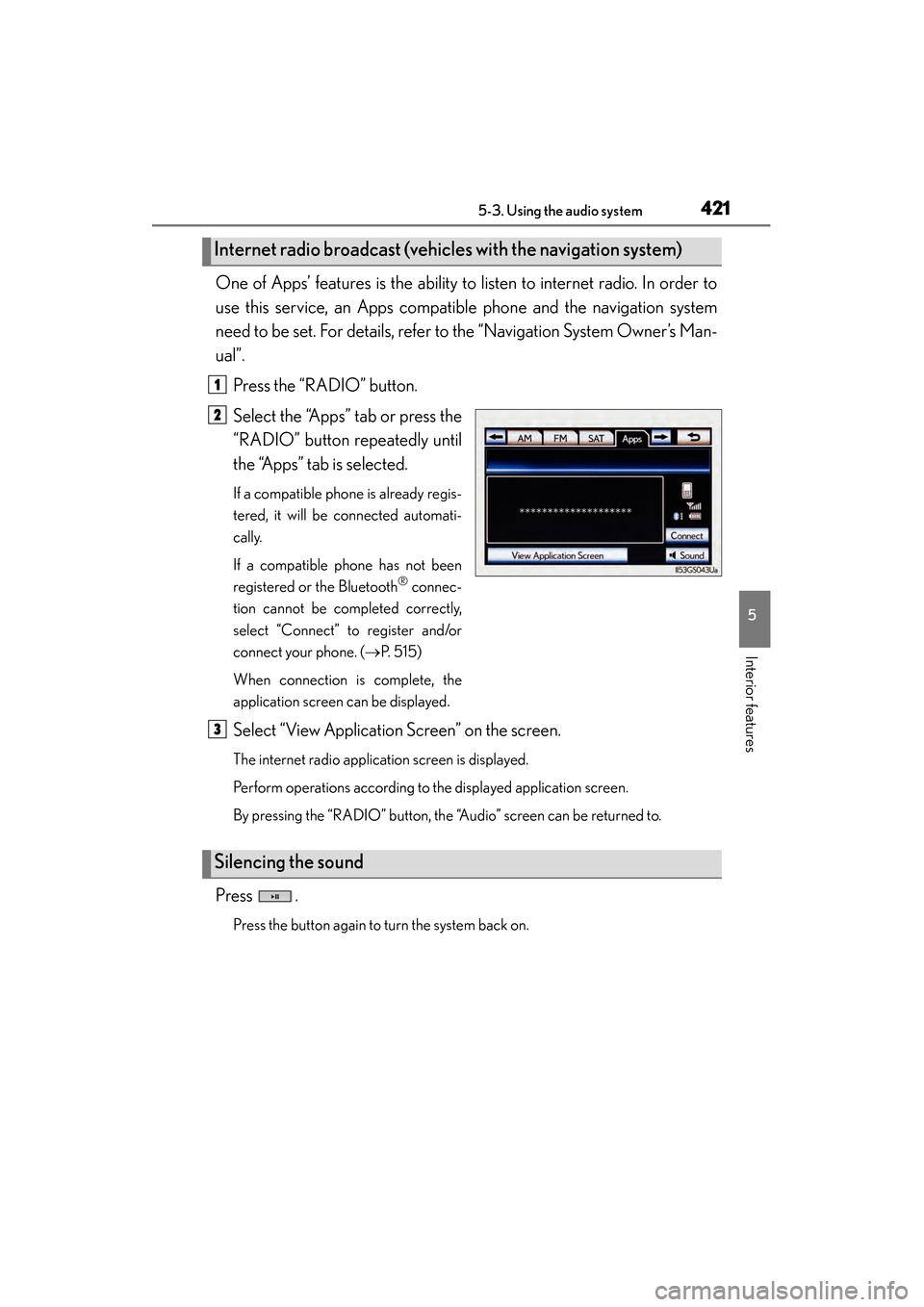
One of Apps’ features is the ability to listen to internet radio. In order to
use this service, an Apps compatible phone and the navigation system
need to be set. For details, refer to the “Navigation System Owner’s Man-
ual”.Press the “RADIO” button.
Select the “Apps” tab or press the
“RADIO” button repeatedly until
the “Apps” tab is selected.
If a compatible phone is already regis-
tered, it will be connected automati-
cally.
If a compatible phone has not been
registered or the Bluetooth
® connec-
tion cannot be completed correctly,
select “Connect” to register and/or
connect your phone. ( →P. 5 1 5 )
When connection is complete, the
application screen can be displayed.
Select “View Application Screen” on the screen.
The internet radio application screen is displayed.
Perform operations according to the displayed application screen.
By pressing the “RADIO” button, the “Audio” screen can be returned to.
Press .
Press the button again to turn the system back on.
Internet radio broadcast (vehicles with the navigation system)
1
2
Silencing the sound
3
GS450h_U.book Page 421 Monday, January 23, 2012 10:20 AM