ECU Lexus GS450h 2014 Workshop Manual
[x] Cancel search | Manufacturer: LEXUS, Model Year: 2014, Model line: GS450h, Model: Lexus GS450h 2014Pages: 890, PDF Size: 40.62 MB
Page 331 of 890
330
GS450h_OM_OM30D52U_(U)
4-5. Using the driving support systems
■Conditions under which the Blind Spot Monitor function may not function cor-
rectly
●The Blind Spot Monitor function may not detect vehicles correctly in the following
conditions:
• During bad weather such as heavy rain, fog, snow etc.
• When ice or mud etc. is attached to the rear bumper
• When driving on a road surface that is wet due to rain, standing water etc.
• When there is a significant difference in speed between your vehicle and thevehicle that enters the detection area
• When a vehicle is in the detection area from a stop and remains in the detection area as your vehicle accelerates
• When driving up or down consecutive steep inclines, such as hills, a dip in the road etc.
• When multiple vehicles approach with only a small gap between each vehicle
• When vehicle lanes are wide, and the vehicle in the next lane is too far away from your vehicle
• When the vehicle that enters the detection area is traveling at about the same speed as your vehicle
• When there is a significant difference in height between your vehicle and the vehicle that enters the detection area
• Directly after the BSM main switch is set to on
●Instances of the Blind Spot Monitor function unnecessarily detecting a vehicle and/
or object may increase under the following conditions:
• When there is only a short distance between your vehicle and a guardrail, wall etc.
• When there is only a short distance between your vehicle and a following vehi- cle
• When vehicle lanes are narrow and a vehicle driving 2 lanes across from your vehicle enters the detection area
• When items such as a bicycle carrier are installed on the rear of the vehicle
GS450h_OM_OM30D52U_(U).book Page 330 Monday, July 29, 2013 12:07 PM
Page 384 of 890
GS450h_OM_OM30D52U_(U)
3835-1. Remote Touch screen
5
Interior features
■Voice command system
●Commands that are not displayed in the “Shortcut Menu” screen can be operated
from the “Main Menu” screen.
●If the system does not respond or the confirmation screen does not disappear,
press and try again.
●Voice guidance can be canceled by setting voice prompts to off. Use this setting
when it is desirable to say a command immediately after pressing and hearing
a beep.
■If a voice command cannot be recognized
●If a voice command cannot be recognized within 6 seconds, voice guidance will
say “Pardon?” (“Command not recognized.” will be displayed on the screen) and
voice command reception will restart.
●If a voice command cannot be recognized 2 consecutive times, the voice com-
mand guidance system will say “Paused. To restart voice recognition, push the talk
switch. To cancel voice recognition, push and hold the talk switch.” Then voice rec-
ognition will be suspended.
■When selecting “Voice Prompts”
●The voice recognition prompt can be set to on or off. This setting can also be
changed on the “Voice Settings” screen. (→P. 3 7 1 )
●Voice recognition will be temporarily suspended. Press again.
GS450h_OM_OM30D52U_(U).book Page 383 Monday, July 29, 2013 12:07 PM
Page 455 of 890
454
GS450h_OM_OM30D52U_(U)
5-3. Using the audio system
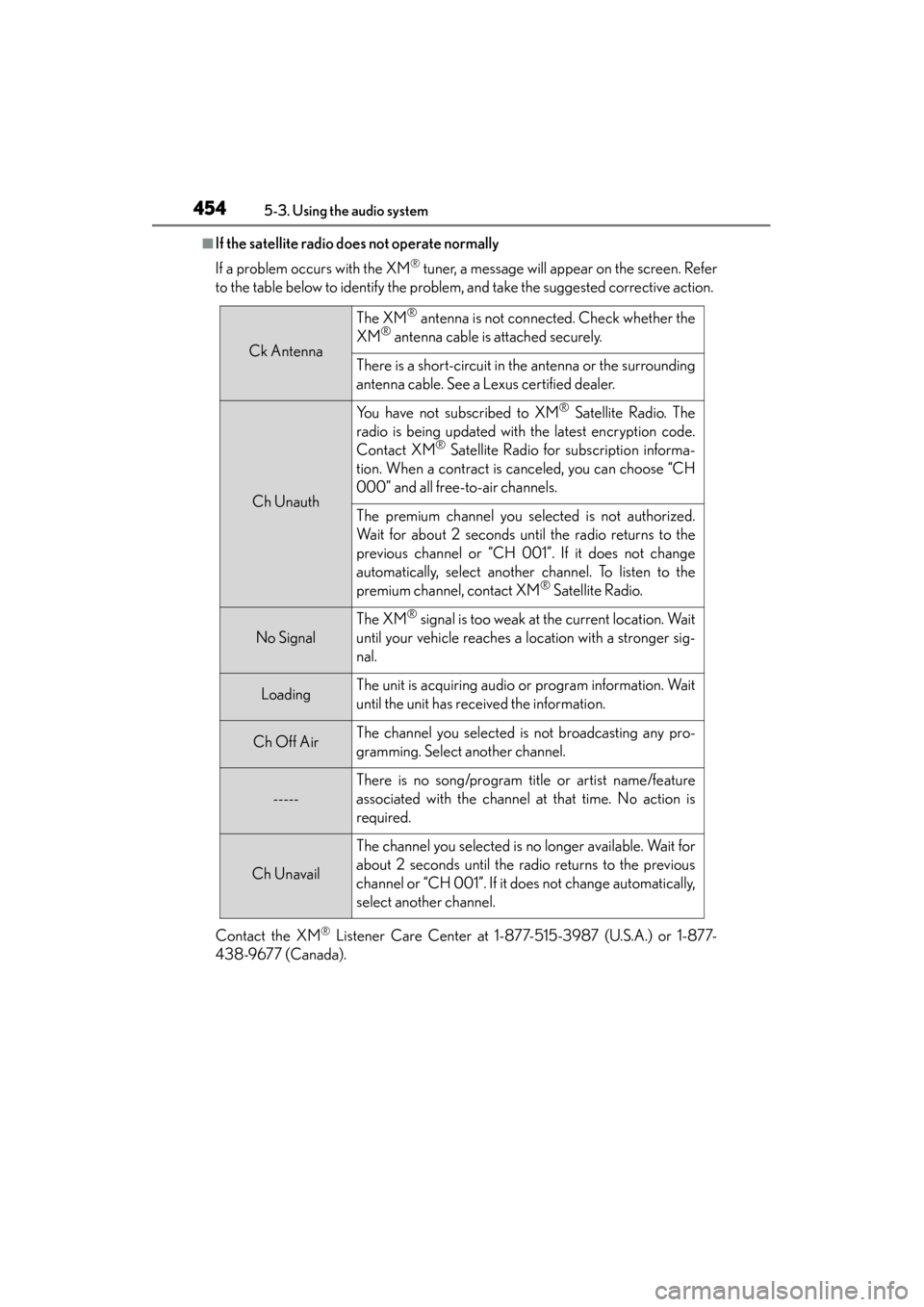
■If the satellite radio does not operate normally
If a problem occurs with the XM
® tuner, a message will appear on the screen. Refer
to the table below to identify the problem, and take the suggested corrective action.
Contact the XM
® Listener Care Center at 1-877-515-3987 (U.S.A.) or 1-877-
438-9677 (Canada).
Ck Antenna
The XM® antenna is not connected. Check whether the
XM® antenna cable is attached securely.
There is a short-circuit in the antenna or the surrounding
antenna cable. See a Lexus certified dealer.
Ch Unauth
You have not subscribed to XM® Satellite Radio. The
radio is being updated with the latest encryption code.
Contact XM
® Satellite Radio for subscription informa-
tion. When a contract is canceled, you can choose “CH
000” and all free-to-air channels.
The premium channel you selected is not authorized.
Wait for about 2 seconds until the radio returns to the
previous channel or “CH 001”. If it does not change
automatically, select another channel. To listen to the
premium channel, contact XM
® Satellite Radio.
No Signal
The XM® signal is too weak at the current location. Wait
until your vehicle reaches a location with a stronger sig-
nal.
LoadingThe unit is acquiring audio or program information. Wait
until the unit has received the information.
Ch Off AirThe channel you selected is not broadcasting any pro-
gramming. Select another channel.
-----
There is no song/program title or artist name/feature
associated with the channel at that time. No action is
required.
Ch Unavail
The channel you selected is no longer available. Wait for
about 2 seconds until the radio returns to the previous
channel or “CH 001”. If it does not change automatically,
select another channel.
GS450h_OM_OM30D52U_(U).book Page 454 Monday, July 29, 2013 12:07 PM
Page 541 of 890
540
GS450h_OM_OM30D52U_(U)
5-4. Using the hands-free phone system (for cellular phone)
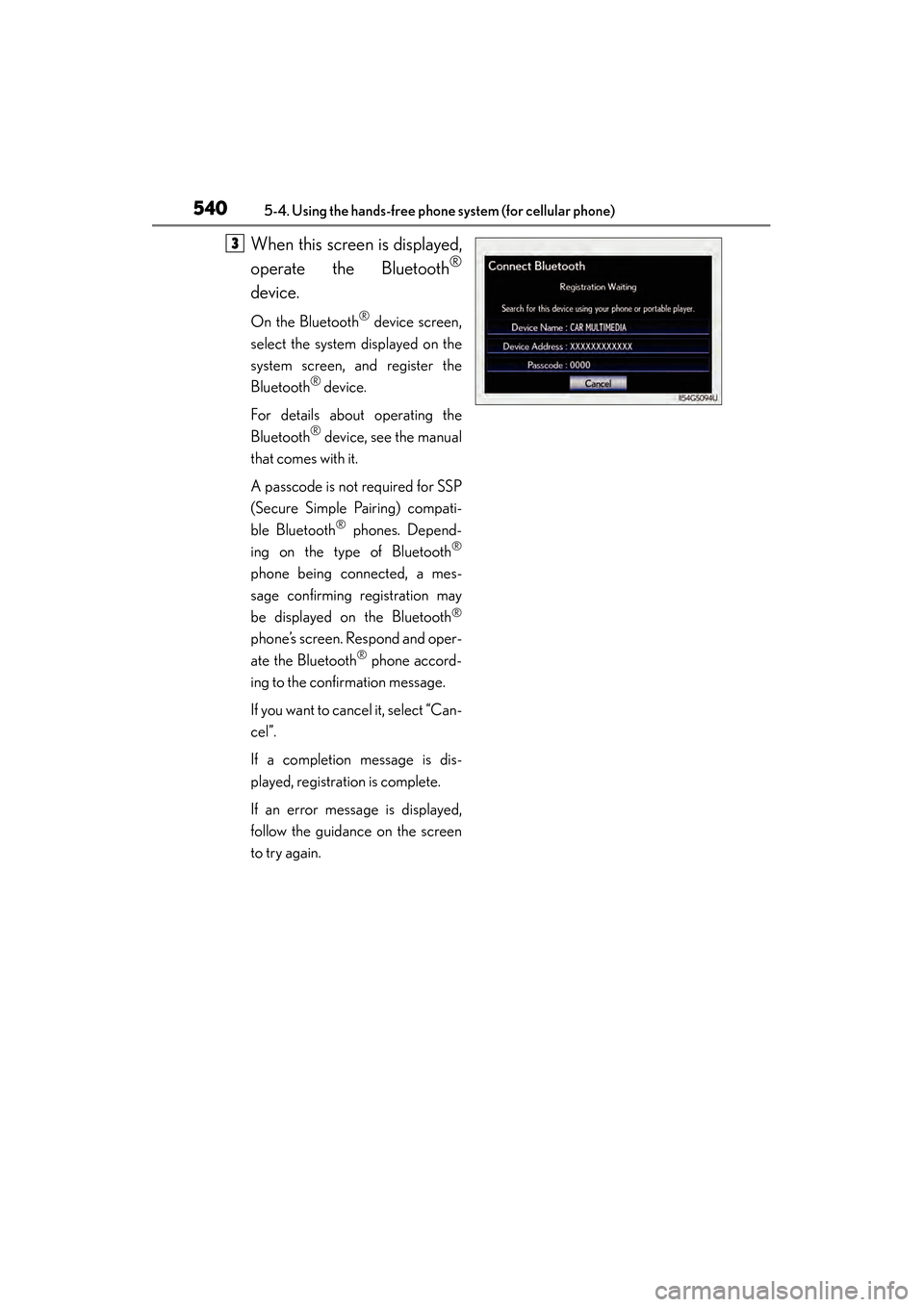
When this screen is displayed,
operate the Bluetooth
®
device.
On the Bluetooth® device screen,
select the system displayed on the
system screen, and register the
Bluetooth
® device.
For details about operating the
Bluetooth
® device, see the manual
that comes with it.
A passcode is not required for SSP
(Secure Simple Pairing) compati-
ble Bluetooth
® phones. Depend-
ing on the type of Bluetooth®
phone being connected, a mes-
sage confirming registration may
be displayed on the Bluetooth
®
phone’s screen. Respond and oper-
ate the Bluetooth
® phone accord-
ing to the confirmation message.
If you want to cancel it, select “Can-
cel”.
If a completion message is dis-
played, registration is complete.
If an error message is displayed,
follow the guidance on the screen
to try again.
3
GS450h_OM_OM30D52U_(U).book Page 540 Monday, July 29, 2013 12:07 PM
Page 587 of 890
586
GS450h_OM_OM30D52U_(U)
5-4. Using the hands-free phone system (for cellular phone)
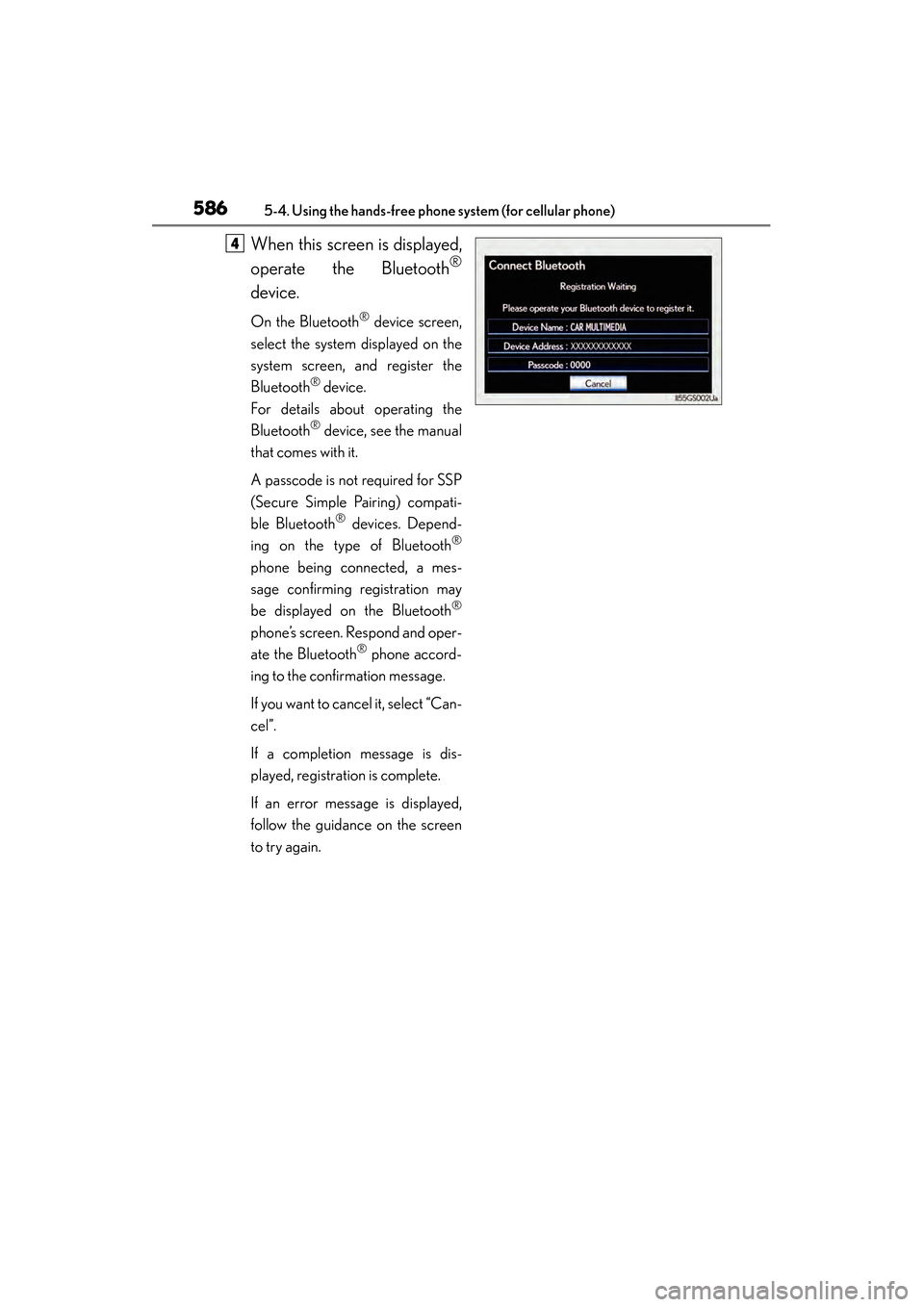
When this screen is displayed,
operate the Bluetooth
®
device.
On the Bluetooth® device screen,
select the system displayed on the
system screen, and register the
Bluetooth
® device.
For details about operating the
Bluetooth
® device, see the manual
that comes with it.
A passcode is not required for SSP
(Secure Simple Pairing) compati-
ble Bluetooth
® devices. Depend-
ing on the type of Bluetooth®
phone being connected, a mes-
sage confirming registration may
be displayed on the Bluetooth
®
phone’s screen. Respond and oper-
ate the Bluetooth® phone accord-
ing to the confirmation message.
If you want to cancel it, select “Can-
cel”.
If a completion message is dis-
played, registration is complete.
If an error message is displayed,
follow the guidance on the screen
to try again.
4
GS450h_OM_OM30D52U_(U).book Page 586 Monday, July 29, 2013 12:07 PM
Page 591 of 890
590
GS450h_OM_OM30D52U_(U)
5-4. Using the hands-free phone system (for cellular phone)
■Editing the “Device Name”
If you change a device name, the name registered in your cellular phone is not
changed.
■About “Device Address”
The address peculiar to the system. It cannot be changed. If you have registered two
Bluetooth
® phones with the same device name and you cannot distinguish one from
the other, refer to this address.
■“My Phone Number”:
The phone number of the Bluetooth
® phone is displayed on the screen. Depending
on the type of phone, the phone number may not be displayed.
■“Profiles”:
The compatibility profile of the Bluetooth
® device is displayed on the screen.
■“Connect Portable Player from”:
There are 2 portable player connection settings available; “Vehicle” and “Portable
Player”.
■When you delete a Bluetooth® phone
The phonebook data will be deleted at the same time.
GS450h_OM_OM30D52U_(U).book Page 590 Monday, July 29, 2013 12:07 PM
Page 594 of 890
GS450h_OM_OM30D52U_(U)
5935-4. Using the hands-free phone system (for cellular phone)
5
Interior features
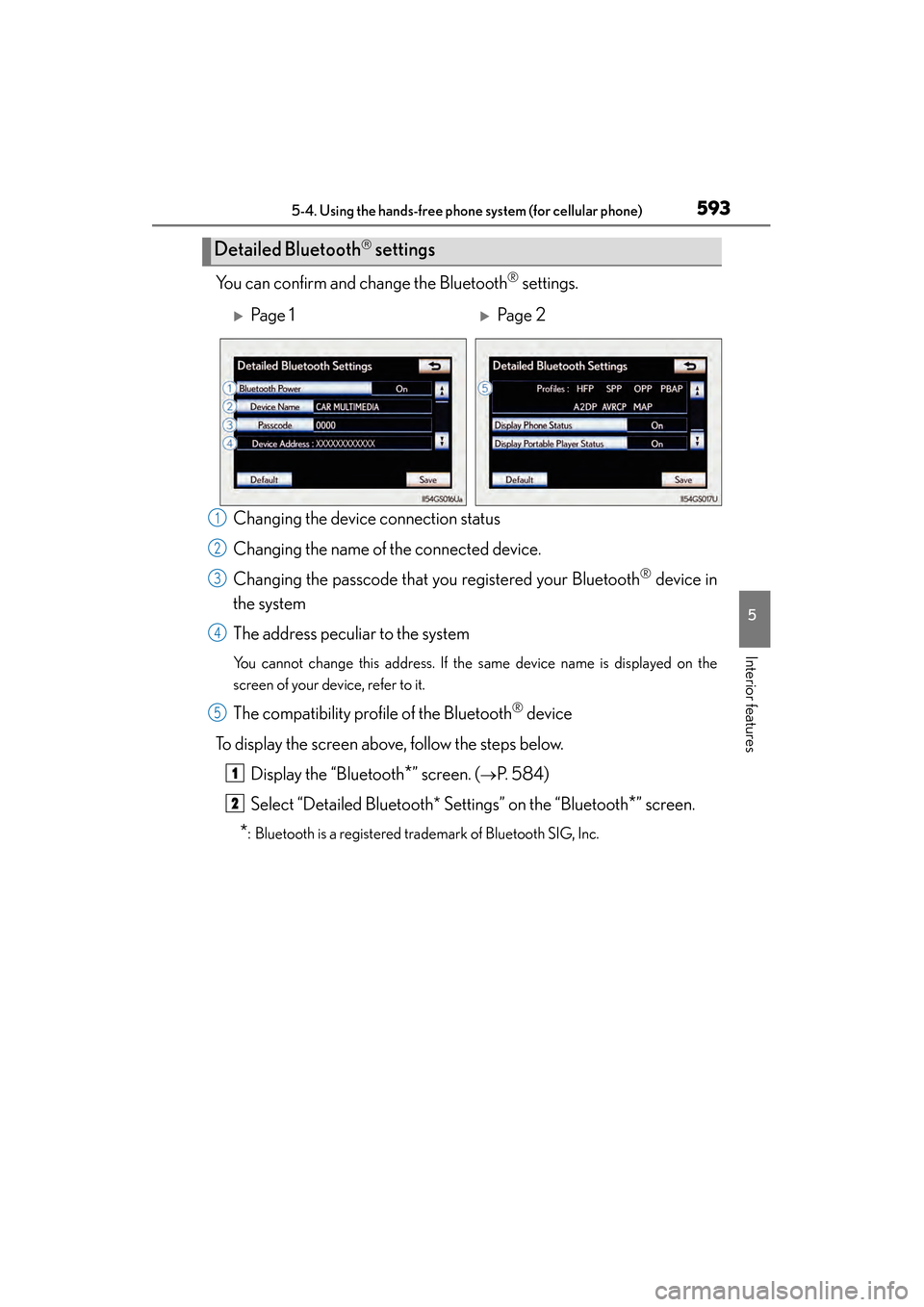
You can confirm and change the Bluetooth® settings.
Changing the device connection status
Changing the name of the connected device.
Changing the passcode that you registered your Bluetooth
® device in
the system
The address peculiar to the system
You cannot change this address. If the same device name is displayed on the
screen of your device, refer to it.
The compatibility profile of the Bluetooth® device
To display the screen above, follow the steps below. Display the “Bluetooth
*” screen. (→P. 584)
Select “Detailed Bluetooth* Settings” on the “Bluetooth
*” screen.
*: Bluetooth is a registered trademark of Bluetooth SIG, Inc.
Detailed Bluetooth settings
XPa g e 1XPa g e 2
1
2
3
4
5
1
2
GS450h_OM_OM30D52U_(U).book Page 593 Monday, July 29, 2013 12:07 PM
Page 608 of 890
607
GS450h_OM_OM30D52U_(U)5-6. Using the storage features
5
Interior features
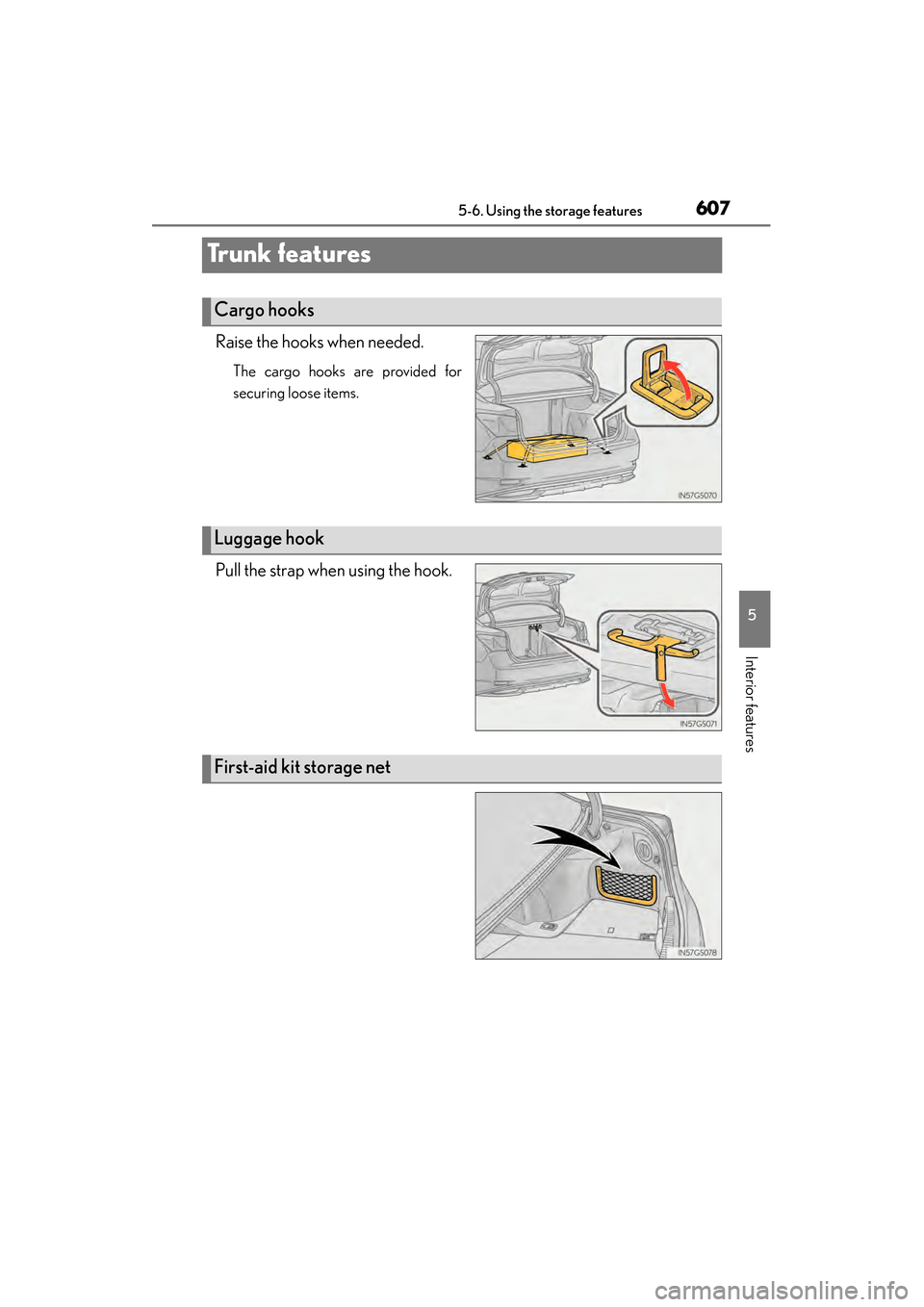
Trunk features
Raise the hooks when needed.
The cargo hooks are provided for
securing loose items.
Pull the strap when using the hook.
Cargo hooks
Luggage hook
First-aid kit storage net
GS450h_OM_OM30D52U_(U).book Page 607 Monday, July 29, 2013 12:07 PM
Page 628 of 890
627
GS450h_OM_OM30D52U_(U)5-7. Other interior features
5
Interior features
Garage door opener
The garage door opener (HomeLink® Universal Transceiver) is manufac-
tured under license from HomeLink
®.
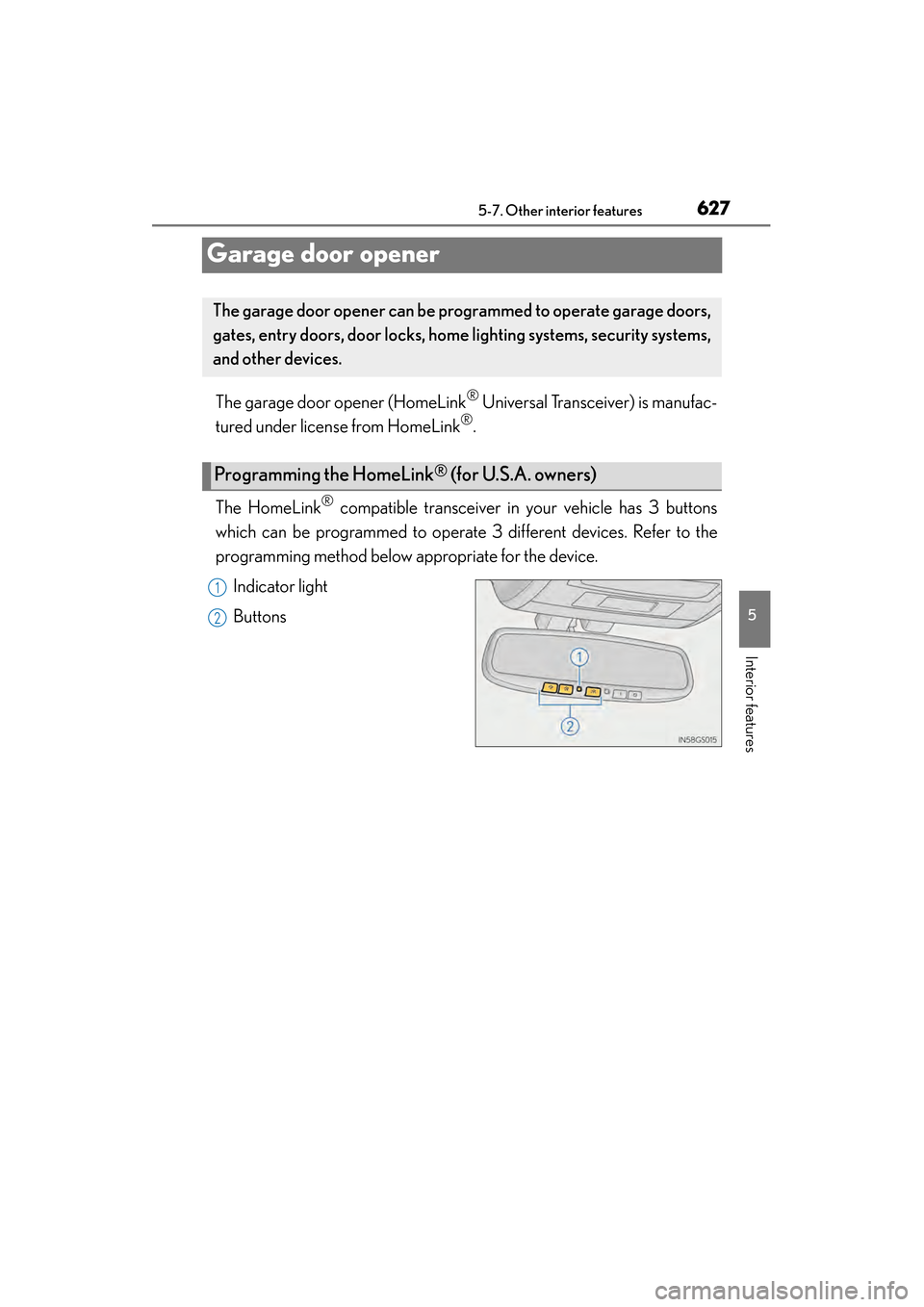
The HomeLink
® compatible transceiver in your vehicle has 3 buttons
which can be programmed to operate 3 different devices. Refer to the
programming method below appropriate for the device.
Indicator light
Buttons
The garage door opener can be pr ogrammed to operate garage doors,
gates, entry doors, door locks, home lighting systems, security systems,
and other devices.
Programming the HomeLink® (for U.S.A. owners)
1
2
GS450h_OM_OM30D52U_(U).book Page 627 Monday, July 29, 2013 12:07 PM
Page 631 of 890
630
GS450h_OM_OM30D52U_(U)
5-7. Other interior features
Press and hold the vehicle’s programmed HomeLink® button for
2 seconds and release it. Repeat this step once again. The garage
door may open.
If the garage door opens, the programming process is complete. If the door
does not open, press and release the button a third time. This third press and
release will complete the programming process by opening the garage door.
The ceiling mounted garage door opener motor should now recognize the
HomeLink
® signal and operate the garage door.
Repeat the steps above to program another rolling code system for
any of the remaining HomeLink
® buttons.
■Programming an entry gate (for U.S.A. owners)/Programming a
devices in the Canadian market
Place the remote control transmit ter 1 to 3 in. (25 to 75 mm) away
from the HomeLink
® buttons.
Keep the HomeLink® indicator light in view while programming.
Press and hold the selected HomeLink® button.
Repeatedly press and release (cycle) the remote control transmitter
for 2 seconds each until step is completed.
When the HomeLink
® indicator light starts to flash rapidly, release
the buttons.
Test the HomeLink
® operation by pressing the newly programmed
button. Check to see if the gate/device operates correctly.
Repeat the steps above to program another device for any of the
remaining HomeLink
® buttons.
■Programming other devices
To program other devices such as home security systems, home door
locks and lighting, contact your Lexus dealer for assistance.
■Reprogramming a button
The individual HomeLink
® buttons cannot be erased but can be repro-
grammed. To reprogram a button, follow the “Reprogramming a
HomeLink
® button” instructions.
3
4
1
2
3
4
4
5
6
GS450h_OM_OM30D52U_(U).book Page 630 Monday, July 29, 2013 12:07 PM