Auto lock Lexus IS250 2010 Navigation Manual
[x] Cancel search | Manufacturer: LEXUS, Model Year: 2010, Model line: IS250, Model: Lexus IS250 2010Pages: 391, PDF Size: 38.06 MB
Page 9 of 391
8
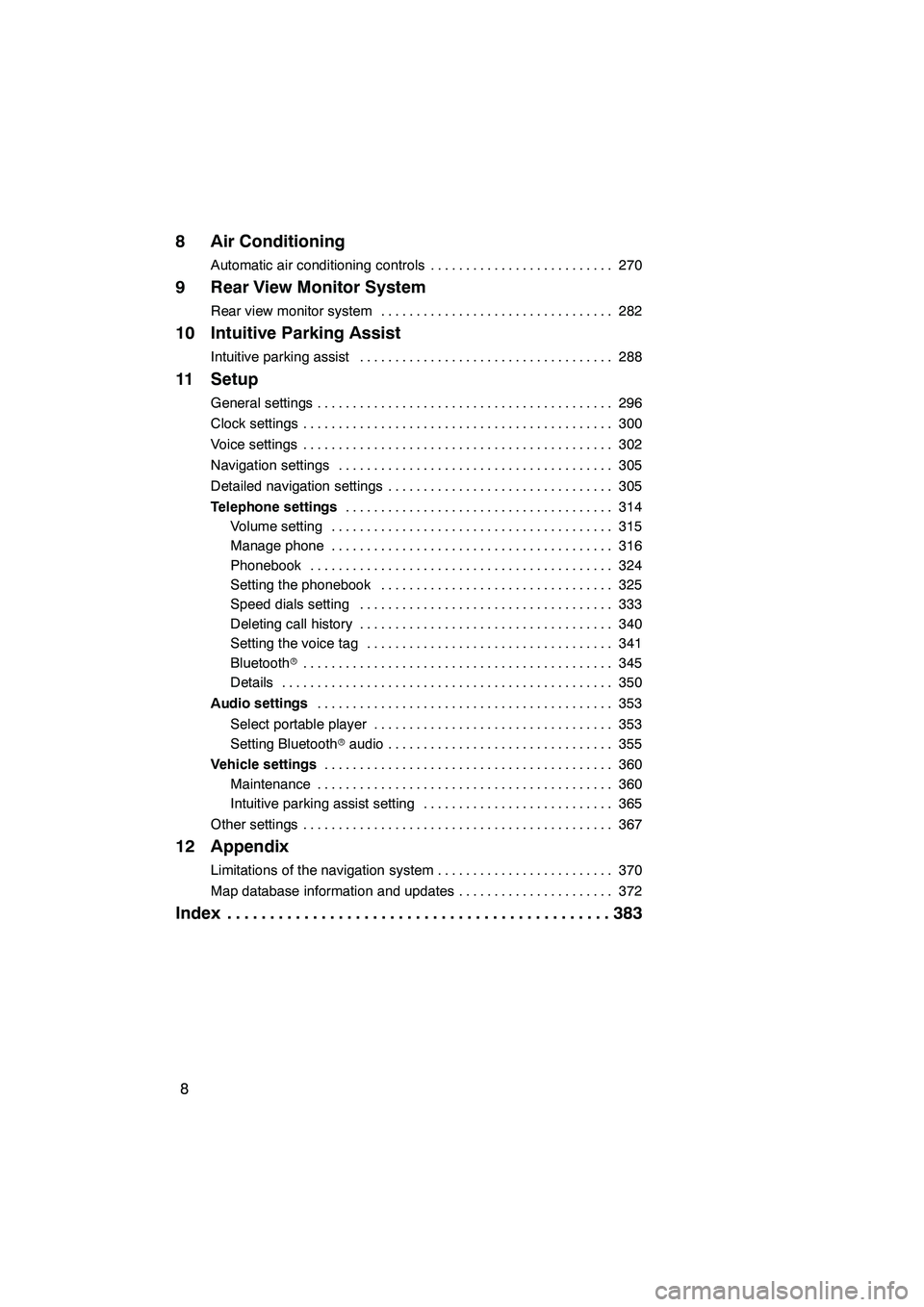
8 Air Conditioning
Automatic air conditioning controls270
..........................
9 Rear View Monitor System
Rear view monitor system 282
.................................
10 Intuitive Parking Assist
Intuitive parking assist 288
....................................
11 Setup
General settings 296
..........................................
Clock settings 300
............................................
Voice settings 302
............................................
Navigation settings 305
.......................................
Detailed navigation settings 305
................................
Telephone settings 314
......................................
Volume setting 315
........................................
Manage phone 316
........................................
Phonebook 324
...........................................
Setting the phonebook 325
.................................
Speed dials setting 333
....................................
Deleting call history 340
....................................
Setting the voice tag 341
...................................
Bluetooth r 345
............................................
Details 350
...............................................
Audio settings 353
..........................................
Select portable player 353
..................................
Setting Bluetooth raudio 355
................................
Vehicle settings 360
.........................................
Maintenance 360
..........................................
Intuitive parking assist setting 365
...........................
Other settings 367
............................................
12 Appendix
Limitations of the navigation system 370
.........................
Map database information and updates 372
......................
Index 383
.............................................
ISF/IS NAVI (U)
Page 23 of 391
22
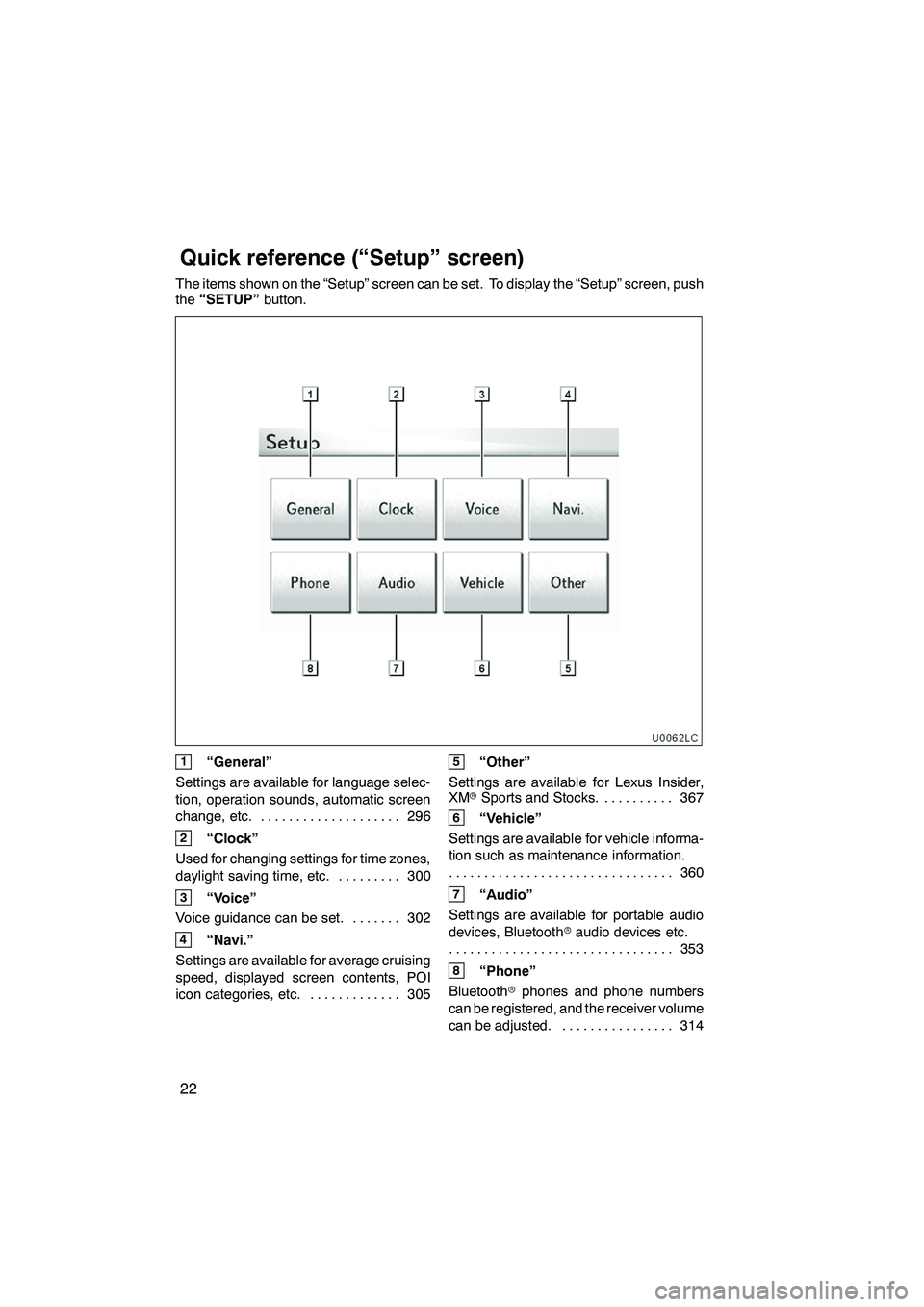
The items shown on the “Setup” screen can be set. To display the “Setup” screen, push
the“SETUP” button.
U0062LC
1“General”
Settings are available for language selec-
tion, operation sounds, automatic screen
change, etc. 296
....................
2“Clock”
Used for changing settings for time zones,
daylight saving time, etc. 300
.........
3“Voice”
Voice guidance can be set. 302 .......
4“Navi.”
Settings are available for average cruising
speed, displayed screen contents, POI
icon categories, etc. 305 .............
5“Other”
Settings are available for Lexus Insider,
XM rSports and Stocks. 367
..........
6“Vehicle”
Settings are available for vehicle informa-
tion such as maintenance information. 360
................................
7“Audio”
Settings are available for portable audio
devices, Bluetooth raudio devices etc.
353
................................
8“Phone”
Bluetooth rphones and phone numbers
can be registered, and the receiver volume
can be adjusted. 314 ................
ISF/IS NAVI (U)
Quickreference (“Setup” screen)
Page 195 of 391
AUDIO/VIDEO SYSTEM
194
Turn the knob clockwise to step up the
station band or counterclockwise to
step down.
Your radio automatically changes to stereo
reception when a stereo broadcast is re-
ceived. “ST” appears on the screen. If the
signal becomes weak, the radio reduces
the amount of channel separation to pre-
vent the weak signal from creating noise.
If the signal becomes extremely weak, the
radio switches from stereo to mono recep-
tion. In this case, “ST” disappears from the
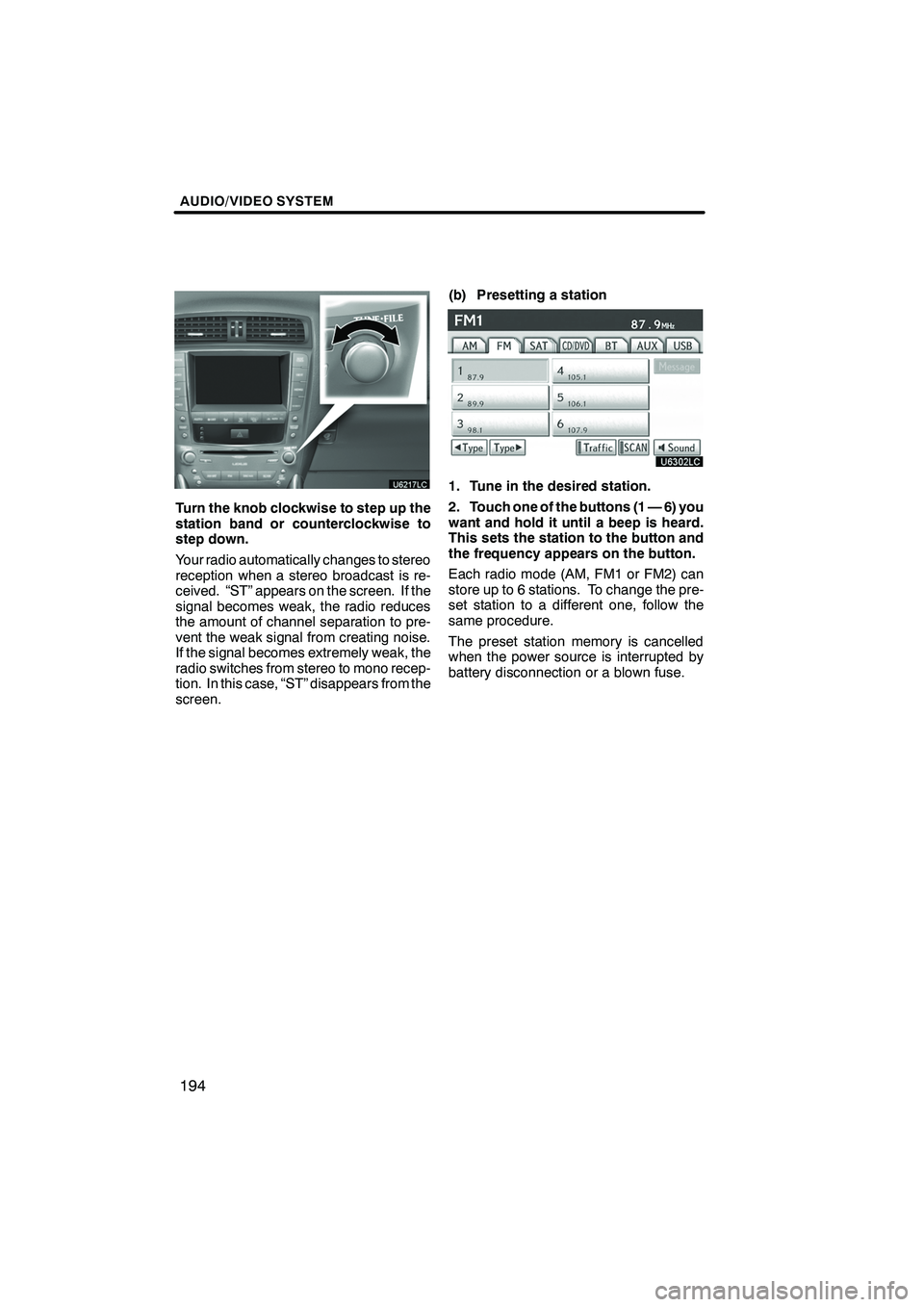
screen.(b) Presetting a station
1. Tune in the desired station.
2. Touch one of the buttons (1 — 6) you
want and hold it until a beep is heard.
This sets the station to the button and
the frequency appears on the button.
Each radio mode (AM, FM1 or FM2) can
store up to 6 stations. To change the pre-
set station to a different one, follow the
same procedure.
The preset station memory is cancelled
when the power source is interrupted by
battery disconnection or a blown fuse.
ISF/IS NAVI (U)
Finish
Page 235 of 391
AUDIO/VIDEO SYSTEM
234
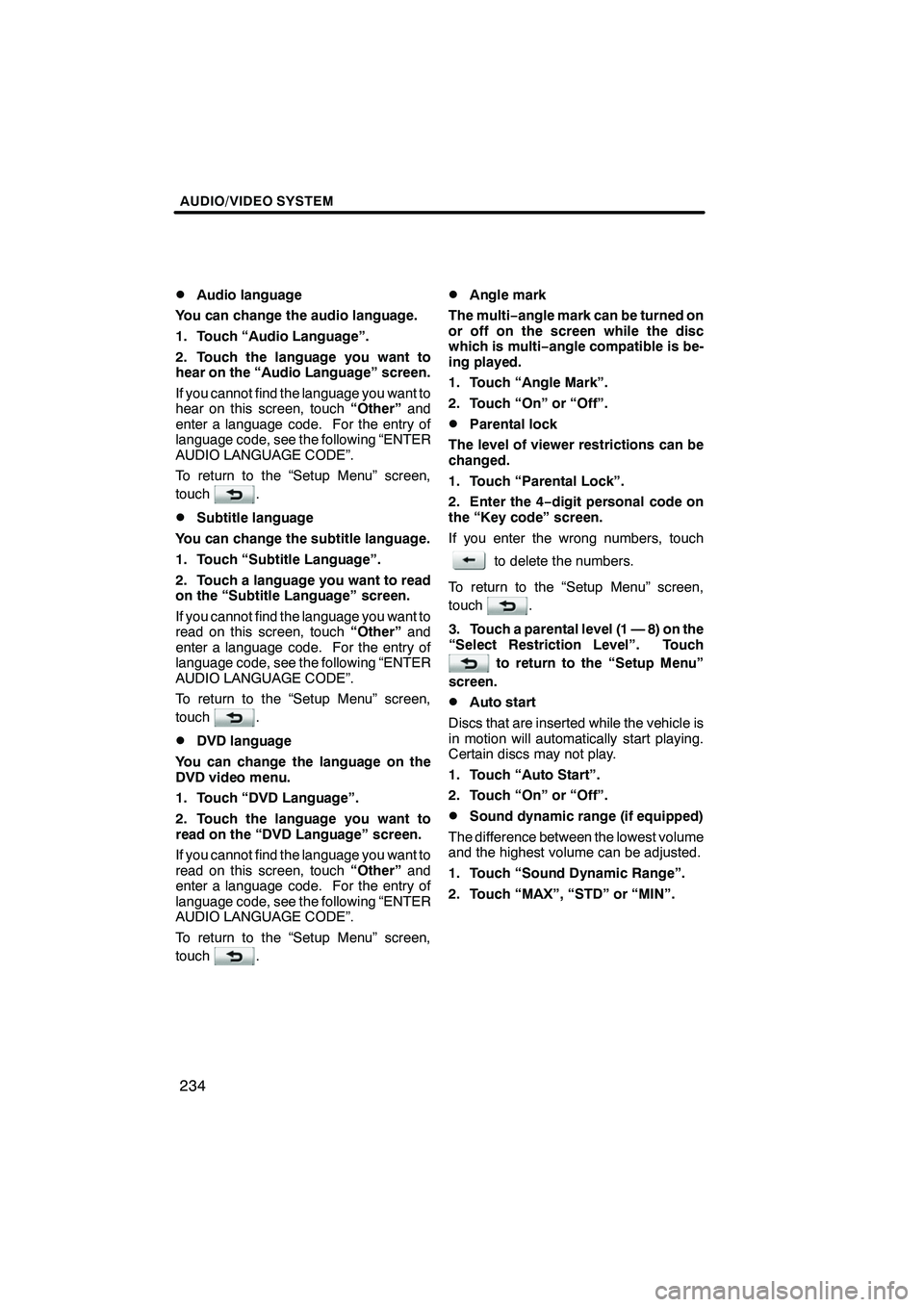
D
Audio language
You can change the audio language.
1. Touch “Audio Language”.
2. Touch the language you want to
hear on the “Audio Language” screen.
If you cannot find the language you want to
hear on this screen, touch “Other”and
enter a language code. For the entry of
language code, see the following “ENTER
AUDIO LANGUAGE CODE”.
To return to the “Setup Menu” screen,
touch
.
DSubtitle language
You can change the subtitle language.
1. Touch “Subtitle Language”.
2. Touch a language you want to read
on the “Subtitle Language” screen.
If you cannot find the language you want to
read on this screen, touch “Other”and
enter a language code. For the entry of
language code, see the following “ENTER
AUDIO LANGUAGE CODE”.
To return to the “Setup Menu” screen,
touch
.
DDVD language
You can change the language on the
DVD video menu.
1. Touch “DVD Language”.
2. Touch the language you want to
read on the “DVD Language” screen.
If you cannot find the language you want to
read on this screen, touch “Other”and
enter a language code. For the entry of
language code, see the following “ENTER
AUDIO LANGUAGE CODE”.
To return to the “Setup Menu” screen,
touch
.
DAngle mark
The multi− angle mark can be turned on
or off on the screen while the disc
which is multi −angle compatible is be-
ing played.
1. Touch “Angle Mark”.
2. Touch “On” or “Off”.
DParental lock
The level of viewer restrictions can be
changed.
1. Touch “Parental Lock”.
2. Enter the 4− digit personal code on
the “Key code” screen.
If you enter the wrong numbers, touch
to delete the numbers.
To return to the “Setup Menu” screen,
touch
.
3. Touch a parental level (1 — 8) on the
“Select Restriction Level”. Touch
to return to the “Setup Menu”
screen.
DAuto start
Discs that are inserted while the vehicle is
in motion will automatically start playing.
Certain discs may not play.
1. Touch “Auto Start”.
2. Touch “On” or “Off”.
DSound dynamic range (if equipped)
The difference between the lowest volume
and the highest volume can be adjusted.
1. Touch “Sound Dynamic Range”.
2. Touch “MAX”, “STD” or “MIN”.
ISF/IS NAVI (U)
Finish
Page 277 of 391
AIR CONDITIONING
276
D
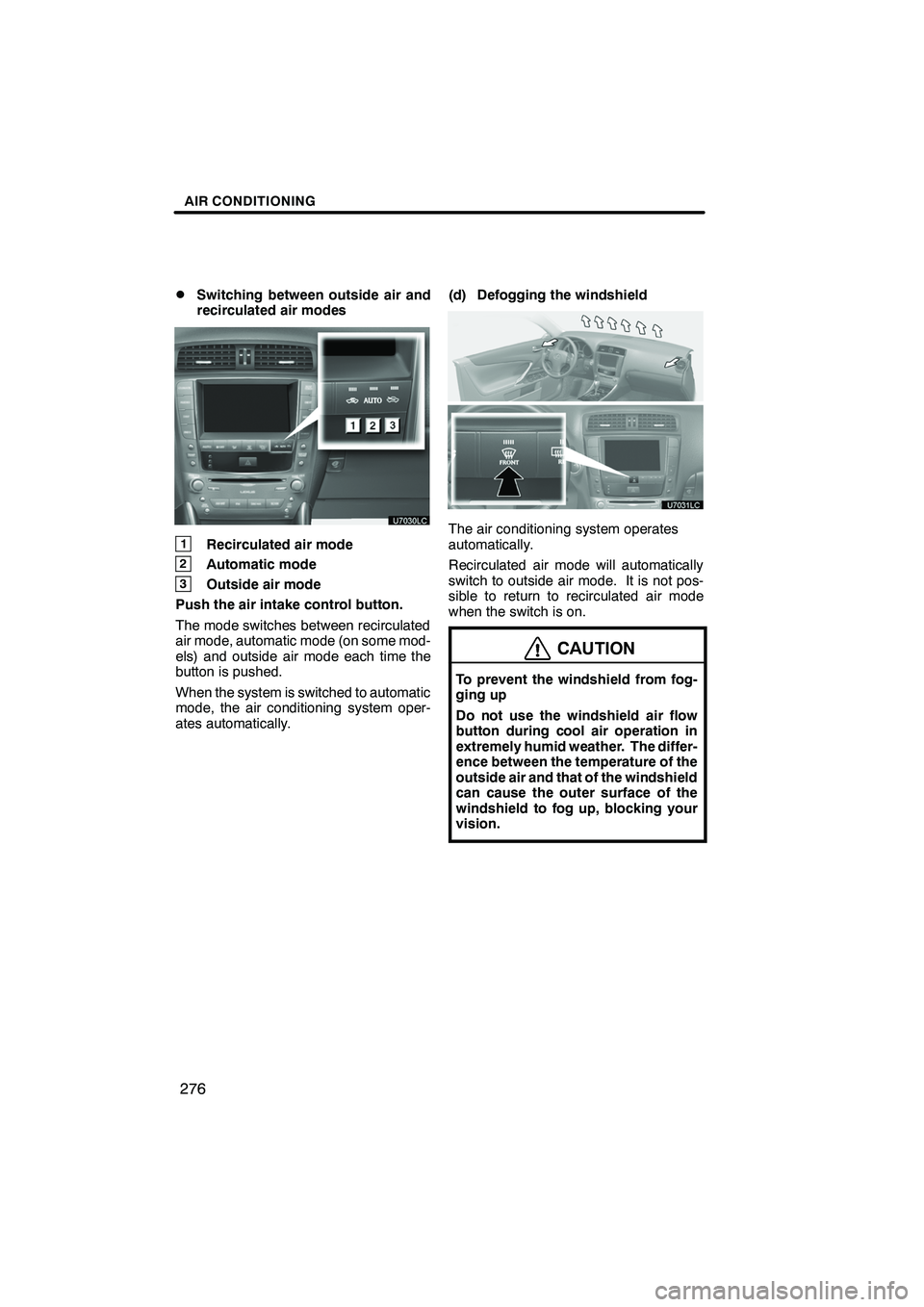
Switching between outside air and
recirculated air modes
1Recirculated air mode
2Automatic mode
3Outside air mode
Push the air intake control button.
The mode switches between recirculated
air mode, automatic mode (on some mod-
els) and outside air mode each time the
button is pushed.
When the system is switched to automatic
mode, the air conditioning system oper-
ates automatically. (d) Defogging the windshield
The air conditioning system operates
automatically.
Recirculated air mode will automatically
switch to outside air mode. It is not pos-
sible to return to recirculated air mode
when the switch is on.
CAUTION
To prevent the windshield from fog-
ging up
Do not use the windshield air flow
button during cool air operation in
extremely humid weather. The differ-
ence between the temperature of the
outside air and that of the windshield
can cause the outer surface of the
windshield to fog up, blocking your
vision.
ISF/IS NAVI (U)
Finish
Page 296 of 391
SECTION11
SETUP
295
SETUP
DGeneral settings 296 .......................................
(Used for language selection and the on/off settings of
operation sounds and automatic screen change.)
D Clock settings 300
.........................................
(Used for changing time zones and the on/off settings of
daylight saving time.)
D Voice settings 302
.........................................
(Voice guidance can be set.)
D Navigation settings 305
....................................
(“Home” and “Preset Destinations” can be set and edited.)
D Detailed navigation settings 305
.............................
(Average cruising speed, displayed screen contents,
and POI icon categories can be set.)
D Telephone settings 314
.....................................
(Bluetooth rphones can be registered.)
D Audio settings 353
.........................................
(Settings are available for portable audio devices and
Bluetooth raudio devices players.)
D Vehicle settings 360
.......................................
(Vehicle information can be set.)
D Other settings 367
.........................................
(Used for changing settings for Lexus Insider and
XM rSports and Stocks.)
ISF/IS NAVI (U)
Finish
11
Page 385 of 391
INDEX
384
Numbers/Symbols
? button
20,33
.........................
3 routes selection 85 ...................
A
A/C button 270
........................
Activation of service 153
...............
Adding destinations 94
.................
Address book button 20,77
..............
Address book entries 117
...............
Address book entry information 37 .......
Address button 20,65
...................
Adjust exhaust gas sensor screen 273 ...
Adjusting the air conditioning
system settings manually 274
..........
Adjusting the air outlets 277
.............
Air conditioning controls 270
............
Air flow control buttons 270,275
.........
Air intake control button 270,273,276 .....
Air outlets 275
........................
Alphabet key 28
.......................
AM button 180
........................
AM·FM button 180
.....................
Angle mark 233
.......................
Areas to avoid 123
....................
Arrow screen 39,90
....................
ASL 190
.............................
AUDIO button 180
.....................
Audio button 22
.......................
Audio language 233
...................
Audio settings 353
.....................
Audio/video remote controls 258
.........
Audio/video system
operating hints 260
...................
Auto avoid traffic 170,308
..............
AUTO button 270 ......................
Auto start 233 .........................
Automatic air conditioning system 272 ....
Automatic mode 276 ...................
Automatic sound levelizer 190 ...........
AUX adapter 193 ......................
AUX button 180 .......................
AUX·USB button 180 ..................
B
BASS 190
............................
Bluetooth r 130,314,345
.................
Bluetooth raudio operation 243 ..........
Bluetooth rconnection status 350,351 ....
Brightness 31 .........................
Building information 43 .................
C
Calendar 149
.........................
Calendar button 23
....................
Call by call history 142
.................
Call by dial 139
.......................
Call by phonebook 140
.................
Call by POI 145
.......................
Call by speed dial 141
.................
Call by voice recognition 143,148 ........
Call on the Bluetooth rphone 139 ........
Categories 71
.........................
CAUTION screen 26
...................
CD button 180
........................
CD changer operation 204
..............
Cellular phone 130
....................
CH/DISC button 180
...................
Change icon 119
......................
Change location 121,126
...............
Change name 120,125
.................
Change phone # 121
...................
Change size 126
......................
Changing a portable player name 354 ....
Changing the angle 233
................
Changing the audio format 232
..........
Changing the audio language 232 .......
Changing the Bluetooth raudio
passcode 359 ........................
Changing the Bluetooth raudio
player name 359 .....................
Changing the Bluetooth rsettings 346 ....
Changing the page 231
................
Changing the subtitle language 231 ......
Channel category 199
..................
Chapter 242 ..........................
City to search 65,70 ....................
CLIMATE button 270,271 ...............
Clock button 22 .......................
Clock settings 300 .....................
Color 31 .............................
Command list 49,51 ....................
Compass mode screen 39,41 ............
Connecting a Bluetooth rphone 136 ......
Connecting a USB memory
or iPod 251 ..........................
Connecting Bluetooth raudio 358 ........
Connecting Bluetooth r
audio player 246 .....................
Contrast 31 ...........................
Coordinates button 20,82 ...............
Current position calibration 311 ..........
Current position display 33 .............
Cursor position as a destination 34 ......
Cursor position as an address book entry 35 ........................
ISF/IS NAVI (U)
Finish