change time Lexus IS250 2012 User Guide
[x] Cancel search | Manufacturer: LEXUS, Model Year: 2012, Model line: IS250, Model: Lexus IS250 2012Pages: 594, PDF Size: 7.2 MB
Page 241 of 594

240
3-2. Using the audio system
IS350/250_U
Selecting a CD■ To select a CD to play
To select the desired CD, press “ ∧” or “ ∨” on or .
■ To scan loaded CDs (type A only)
Press and hold
until you hear a beep.
The first ten seconds of the first track on each CD will be played.
Press again when the desired CD is reached.
Random playback
■ Current CD
Press (RAND).
■ All CDs
Press and hold (RAND) until you hear a beep.
Repeat play
■ To repeat a track
Press (RPT).
■ To repeat all of the tracks on a CD
Press and hold (RPT) until you hear a beep.
Playing and pausing tracks
To play or pause a track, press ( ).
Switching the displayPress .
Each time is pressed, the display changes in the order of Track no./
Elapsed time → CD title → Track title.
STEP1
STEP2
Page 248 of 594

247
3-2. Using the audio system
3
Interior features
IS350/250_U
Switching the displayPress .
Each time is pressed, the display changes in the order of Folder no./
File no./Elapsed time → Folder name → File name → Album title (MP3
only) → Tr a c k t i t l e → Artist name.
■Display
Up to 12 characters can be displayed at a time.
If there are 13 characters or more, pressing and holding until you hear a
beep will display the remaining characters.
A maximum of 24 characters can be displayed.
If is pressed until you hear a beep again or has not been pressed for 6 sec-
onds or more, the display will return to the first 12 characters.
Depending on the contents recorded, the characters may not be displayed prop-
erly or may not be displayed at all.
■Canceling random, repeat and scan playback
Press (RAND), (RPT), again.
■When “LOAD”, “ERROR”, “WAIT” or “NO MUSIC” is shown on the display
“LOAD”: This indicates that the CD player has completed loading the CD.
“ERROR”: This indicates a trouble either in the CD or inside the player. The CD
may be dirty, damaged, or inserted up-side down.
“WAIT”: Operation is stopped due to a high temperature inside the player. Wait for a while and then press or . Contact your Lexus dealer if
the CD still cannot be played back.
“NO MUSIC”: This indicates that the MP3/WMA file is not included in the CD.
Page 257 of 594

256
3-2. Using the audio system
IS350/250_U
Selecting songsTurn or press “ ∧” or “ ∨” on to select the desired song.
Playing and pausing songs
To play or pause a song, press ( ).
Fast-forwarding and rewinding songs
To fast-forward or rewind, press and hold “ ∧” or “ ∨” on until you
hear a beep.
Shuffle playback ■ Playing songs from one playlist or album in random order
Press (RAND).
■ Playing songs from all the playlists or albums in random order
Press and hold (RAND) until you hear a beep.
Repeat play
Press (RPT).
Switching the displayPress .
Each time is pressed, the display changes in the order of Elapsed time
→ Album title → Tr a c k t i t l e → Artist name.
Page 265 of 594

264
3-2. Using the audio system
IS350/250_U
Switching the displayPress .
Each time is pressed, the display changes in the order of Elapsed time
→ Folder name → File name → Album title (MP3 only) → Tr a c k t i t l e →
Artist name.
■USB memory functions
●Depending on the USB memory that is connected to the system, the device
itself may not be operable and certain functions may not be available. If the
device is inoperable or a function is unavailable due to a malfunction (as
opposed to a system specification), disconnecting the device and reconnecting
it once again may resolve the problem.
●If the USB memory still does not begin operation after being disconnected and
reconnected, format the memory.
■Display
Up to 12 characters can be displayed at a time.
If there are 13 characters or more, pressing and holding until you hear a
beep will display the remaining characters.
A maximum of 24 characters can be displayed.
If is pressed until you hear a beep again or has not been pressed for 6 sec-
onds or more, the display will return to the first 12 characters.
Depending on the contents recorded, the characters may not be displayed prop-
erly or may not be displayed at all.
■Canceling random, repeat and scan playback
Press (RAND), (RPT), again.
■Error messages
“ERROR”: This indicates a problem in the USB memory or its connection.
“NO MUSIC”: This indicates that no MP3/WMA files are included in the USB
memory.
Page 271 of 594

270
3-2. Using the audio system
IS350/250_U
Adjusting the Automatic Sound Levelizer (ASL)Press .
The ASL switches between on and off modes each time is
pressed.
ASL automatically adjusts the volume an d tone quality according to the noise
level as you drive your vehicle.
Adjusting sound quality and volume balance
■ Changing sound quality modes
Press .
Pressing changes the sound mode in the following order:
“BAS”→ “MID”→“TRE” →“FAD” →“BAL”
■ Adjusting sound quality
Press or to adjust the level.
*: The sound quality level is adjusted individually in each audio mode.
Mode
displayedSound qual- ity modeLevelPress ∨Press ∧
“BAS”*Bass-5 to 5
LowHigh“MID”*Mid-range-5 to 5
“TRE”*Tr e b l e-5 to 5
“FAD”
Front/rear
volume
balance
F7 to R7Shifts to rearShifts to front
“BAL”
Left/right volume
balance
L7 to R7Shifts to leftShifts to right
Page 275 of 594

274
3-2. Using the audio system
IS350/250_U
Changing the audio sourcePress when the audio system is turned on. The audio source
changes as follows each time is pressed. If no discs are inserted in
the player, or if the external device is not connected, that mode will be
skipped. Type A:
FM1 →FM2 →SAT1 →SAT2 →SAT3 →CD player →
Bluetooth
®audio →AUX →iPod or USB memory →AM
Type B:
FM1 →FM2 →CD player →Bluetooth
®audio →AUX →
iPod or USB memory →AM
Adjusting the volume
Press “+” on to increase the volume and “-” to decrease the vol-
ume.
Hold down to continue increasing or decreasing the volume.
Selecting a radio station
Press to select radio mode.
Press “∧” or “ ∨” on to select a radio station.
To scan for receivable stations, press and hold until you hear a
beep.
Selecting a track/file or song
Press to select CD, Bluetooth
® audio, iPod or USB mem-
ory mode.
Press “ ∧” or “ ∨” on to select the desired track/file or song.
STEP1
STEP2
STEP1
STEP2
Page 283 of 594

282
3-3. Using the Bluetooth® audio system
IS350/250_UGuidance for registration completion is heard.
If the portable player has a Bluetooth
® phone, the phone can be regis-
tered at the same time. A voice guidance instruction to register a Blue-
tooth
® phone is heard.
Select “Yes” or “No” using a voice command or ,
and . (Bluetooth
® phone →P. 2 9 8 )
Menu list of the Bluetooth® audio system
First menuSecond
menuThird menuOperation detail
“Setup”
“BT•A
Setup”
“Pair Audio”Registering a portable player
“Connect”Selecting a portable player to
be used
“Change Name”Changing the registered name
of a portable player
“List Audios”Listing the registered portable
players
“Set Passkey”Changing the passkey
“Delete Audio”Deleting a registered portable
player
“System
Setup”
“Guidance Vol”Setting voice guidance volume
“Device Name”Displaying the Bluetooth®
device address and name
“Initialize”Initializing the system
STEP7
Page 286 of 594

285
3-3. Using the Bluetooth® audio system
3
Interior features
IS350/250_U
Selecting an albumTo select the desired album, press ( ∧) or ( ∨).
Selecting tracks
Press “ ∧” or “ ∨” on to select the desired track.
Playing and pausing tracks
To play or pause a track, press ( ).
Fast-forwarding and rewinding tracks
To fast-forward or rewind, press and hold “ ∧” or “∨ ” on until you
hear a beep.
Random playback Press (RAND).
Repeat playPress (RPT).
Scanning tracks (type A)Press .
Switching the displayPress .
Each time is pressed, the display changes in the order of Elapsed time
→ Album title → Track title → Artist name.
Page 292 of 594

291
3-3. Using the Bluetooth® audio system
3
Interior features
IS350/250_U
Listing the registered portable playersSelect “List Audio Players (List Audios)” using a voice command or , and . The list of registered portable players will be
read aloud.
When listing is complete, the system returns to “BT•A Setup”.
Pressing the talk switch while the name of a portable player is being read
aloud selects the portable player, and the following functions will become
available:
● Selecting a portable player: “Connect Audio Player (Connect)”
● Changing a registered name: “Change Name”
● Deleting a portable player: “Delete Audio Player (Delete Audio)”
Changing the passkey
Select “Set Passkey” using a voice command or ,
and .
Pattern A
Press the talk switch, say a 4 to 8-digit number, and select “Con-
firm” using a voice command or , and .
Pattern B
Select a 4 to 8-digit number using , and .
The number should be input 1 digit at a time.
When the entire number to be registered as a passkey has been
input, press again.
If the number to be registered has 8 digits, pressing is not nec-
essary.
STEP1
STEP2
STEP2
STEP3
Page 314 of 594
313
3-4. Using the hands-free phone system (for mobile phones)
3
Interior features
IS350/250_U
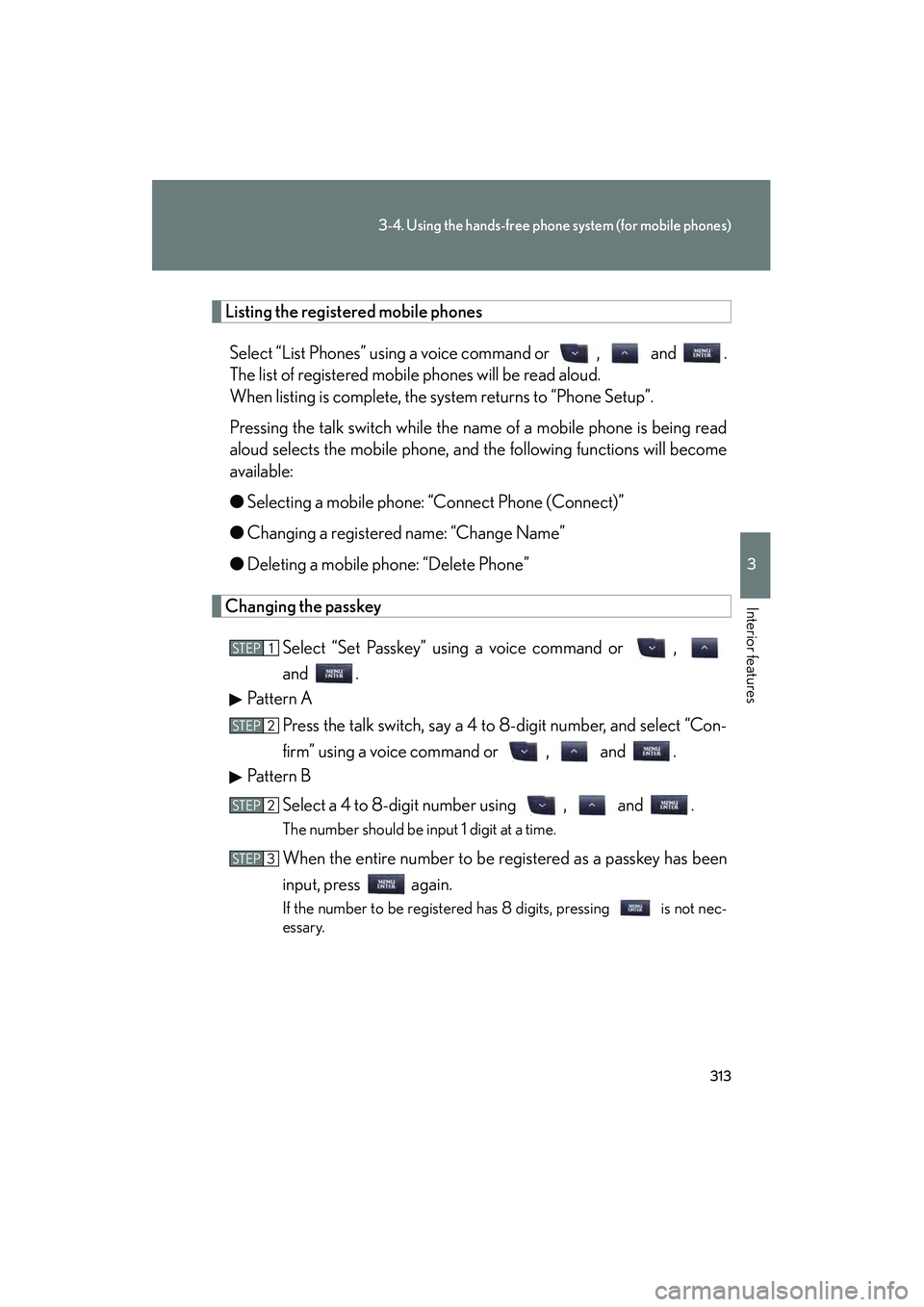
Listing the registered mobile phonesSelect “List Phones” using a voice command or , and .
The list of registered mobile phones will be read aloud.
When listing is complete, the system returns to “Phone Setup”.
Pressing the talk switch while the name of a mobile phone is being read
aloud selects the mobile phone, and the following functions will become
available:
● Selecting a mobile phone: “Connect Phone (Connect)”
● Changing a registered name: “Change Name”
● Deleting a mobile phone: “Delete Phone”
Changing the passkey
Select “Set Passkey” using a voice command or ,
and .
Pattern A
Press the talk switch, say a 4 to 8-digit number, and select “Con-
firm” using a voice command or , and .
Pattern B
Select a 4 to 8-digit number using , and .
The number should be input 1 digit at a time.
When the entire number to be registered as a passkey has been
input, press again.
If the number to be registered has 8 digits, pressing is not nec-
essary.
STEP1
STEP2
STEP2
STEP3