phone Lexus IS250 2014 Owner's Guide
[x] Cancel search | Manufacturer: LEXUS, Model Year: 2014, Model line: IS250, Model: Lexus IS250 2014Pages: 588, PDF Size: 98.77 MB
Page 354 of 588

3545-9. Bluetooth® Phone
IS250_EE(OM53C51E)
Move the controller to the left while on the message screen.
Select “Quick message” to display the “Quick message” screen.
Select the desired message and then select “Send”.
■Editing a quick message
Move the controller to the left while on the message screen.
Select “Quick message” and then the desired message. Move the control-
ler to the left while the desired message is displayed.
Select “Edit”.
To return to the default message after editing, select “Default”.
Replying to a message
1
2
3
1
2
3
Page 355 of 588

3555-9. Bluetooth® Phone
5
Lexus Display Audio system
IS250_EE(OM53C51E)
This function is available when the “E-mail notification popup” or “SMS/MMS
notification popup” are set to on. (→P. 3 6 2 )
X“Incoming E-mail display” or “Incoming SMS/MMS display” are set to “Drop-
Down”
When E-mail/SMS/MMS are received, the incoming message is displayed
on the upper side of the screen with a sound.
X“Incoming E-mail display” or “Incoming SMS/MMS display” are set to “Full
Screen”
When E-mail/SMS/MMS are received, the incoming message screen is dis-
played with a sound and it can be operated on the screen.
Check the message.
Refuse to check the message.
Call to receive the message
sender’s phone number.
Receiving a message popup function
1
2
3
Page 356 of 588

3565-9. Bluetooth® Phone
IS250_EE(OM53C51E)
Volume switch
During an incoming call: Adjusts the
ring tone volume
During speaking on the phone:
Adjusts in call volume.
The voice guidance volume cannot be
adjusted using this button.
Off hook switch
•Start call
• Receiving
• Phone top screen display
On hook switch
•End call
• Refuse call
Talk switch
Press: Turns the voice command system on
Press and hold: Turns the voice command system off
Using the steering wheel switches
The steering wheel switches can be used to operate a connected cellular
phone.
Operating a telephone using the steering wheel switches
1
2
3
4
Page 357 of 588

3575-9. Bluetooth® Phone
5
Lexus Display Audio system
IS250_EE(OM53C51E)
Go to “Telephone settings”: → “Setup” → “Telephone”
Register and connect a Bluetooth
®
device. (→P. 3 3 6 )
Adjust the call volume and message
readout volume. (→P. 3 5 7 )
Change the contact/call history set-
tings. (→P. 3 5 9 )
Change the messaging settings.
(→P. 3 6 2 )
Change the phone display settings. (→P. 3 5 8 )
Go to “Sound settings”: → “Setup” → “Telephone” → “Sound settings”
Change the ring tone type
Adjust the ring tone volume
Change incoming SMS/MMS tone
type
Adjust the incoming SMS/MMS
tone volume
Change the incoming email tone
type
Adjust the incoming email tone vol-
ume
Adjust in call tone volume
Bluetooth® phone settings
You can adjust the hands-free system to your desired settings.
“Telephone settings” screen
1
2
3
4
Sound settings
5
1
2
3
4
5
6
7
Page 358 of 588
3585-9. Bluetooth® Phone
IS250_EE(OM53C51E)
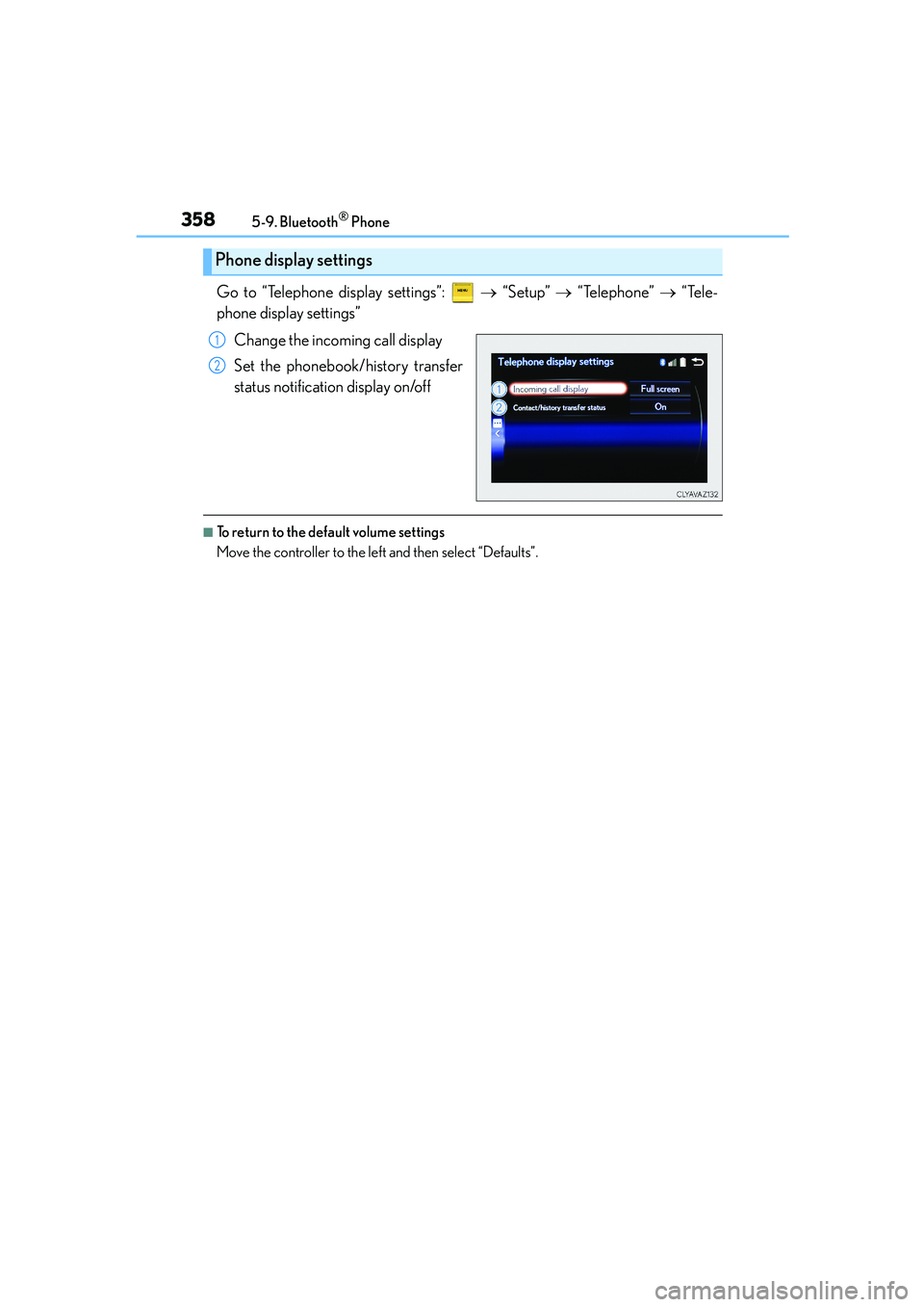
Go to “Telephone display settings”: → “Setup” → “Telephone” → “Tele-
phone display settings”
Change the incoming call display
Set the phonebook/history transfer
status notification display on/off
■To return to the default volume settings
Move the controller to the left and then select “Defaults”.
Phone display settings
1
2
Page 359 of 588
359
5
Lexus Display Audio system
IS250_EE(OM53C51E)5-10. Phonebook
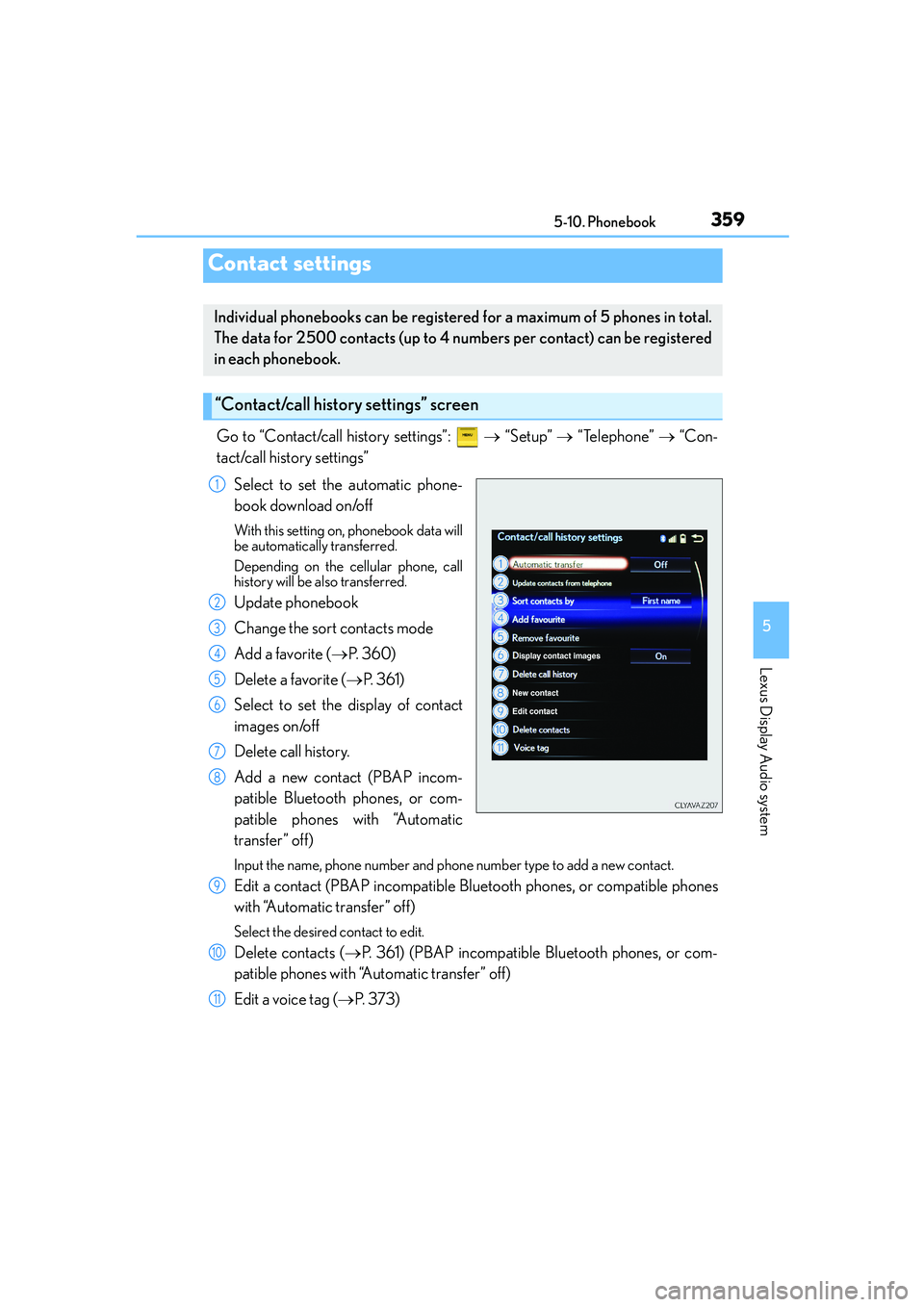
Go to “Contact/call history settings”: → “Setup” → “Telephone” → “Con-
tact/call history settings”
Select to set the automatic phone-
book download on/off
With this setting on, phonebook data will
be automatically transferred.
Depending on the cellular phone, call
history will be also transferred.
Update phonebook
Change the sort contacts mode
Add a favorite (→P. 3 6 0 )
Delete a favorite (→P. 3 6 1 )
Select to set the display of contact
images on/off
Delete call history.
Add a new contact (PBAP incom-
patible Bluetooth phones, or com-
patible phones with “Automatic
transfer” off)
Input the name, phone number and phone number type to add a new contact.
Edit a contact (PBAP incompatible Bluetooth phones, or compatible phones
with “Automatic transfer” off)
Select the desired contact to edit.
Delete contacts (→P. 361) (PBAP incompatible Bluetooth phones, or com-
patible phones with “Automatic transfer” off)
Edit a voice tag (→P. 3 7 3 )
Contact settings
Individual phonebooks can be registered for a maximum of 5 phones in total.
The data for 2500 contacts (up to 4 numbers per contact) can be registered
in each phonebook.
“Contact/call history settings” screen
1
2
3
4
5
6
7
8
9
10
11
Page 360 of 588
3605-10. Phonebook
IS250_EE(OM53C51E)
■Return to the default settings
Move the controller to the left and select “Defaults”.
You can transfer the phone numbers in your Bluetooth® phone to display audio
system. Operation methods differ between PBAP compatible and PBAP incom-
patible Bluetooth
® phones. If your cellular phone does not support either PBAP
or OPP services, you cannot transfer contacts.
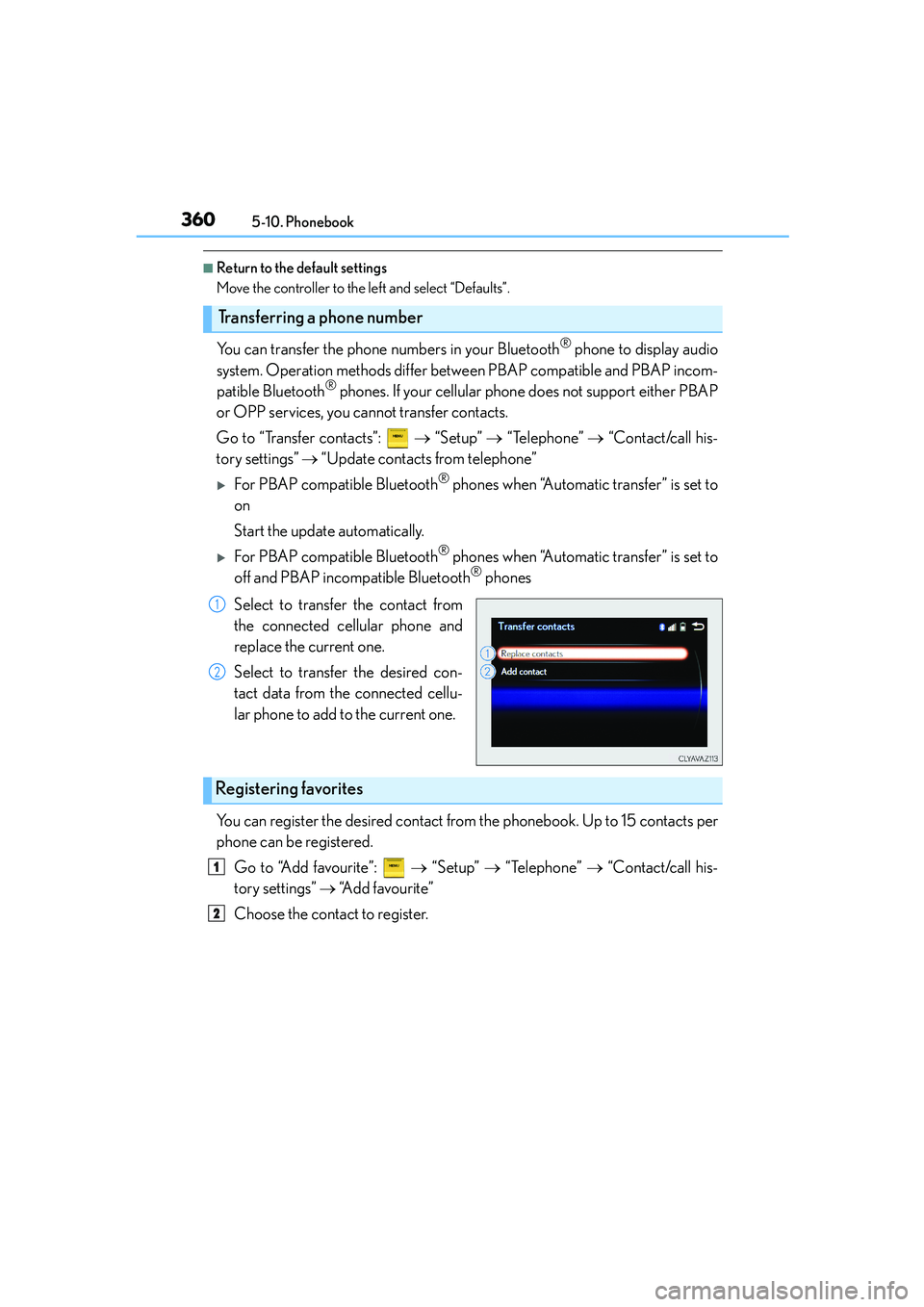
Go to “Transfer contacts”: → “Setup” → “Telephone” → “Contact/call his-
tory settings” → “Update contacts from telephone”
XFor PBAP compatible Bluetooth® phones when “Automatic transfer” is set to
on
Start the update automatically.
XFor PBAP compatible Bluetooth® phones when “Automatic transfer” is set to
off and PBAP incompatible Bluetooth® phones
Select to transfer the contact from
the connected cellular phone and
replace the current one.
Select to transfer the desired con-
tact data from the connected cellu-
lar phone to add to the current one.
You can register the desired contact from the phonebook. Up to 15 contacts per
phone can be registered.
Go to “Add favourite”: → “Setup” → “Telephone” → “Contact/call his-
tory settings” → “A d d f a v o u r i t e ”
Choose the contact to register.
Transferring a phone number
1
2
Registering favorites
1
2
Page 361 of 588
3615-10. Phonebook
5
Lexus Display Audio system
IS250_EE(OM53C51E)
Go to “Remove favourite”: → “Setup” → “Telephone” → “Contact/call
history settings” → “Remove favourite”
Select the desired contacts.
You can select all contacts by selecting “Select all”
Move the controller to the left and select “Remove”.
Go to “Delete contact”: → “Setup” → “Telephone” → “Contact/call his-
tory settings” → “Delete contacts”
Select the desired contacts.
You can select all contacts by selecting “Select all”.
Move the controller to the left and select “Delete”.
■Phonebook data
Phonebook data is managed separately for every registered phone. When another
phone is connected, you cannot read the registered data.
■When transferring contacts
Transfer contacts while the engine is running.
If the cellular phone is OPP or PBAP compatible, you may need to input “1234” on the
cellular phone for OBEX certification.
■When you have selected “Replace contacts” or “Add contact” to transfer contacts
If the cellular phone does not support OPP service, you cannot use these functions. You
can transfer the phonebook data only by operating your phone.
■Transferring contacts while Bluetooth® audio is playing
Bluetooth® audio will disconnect. It will reconnect automatically when data transfer fin-
ishes. It may not reconnect depending on the phone which is connected.
Removing favorites
Deleting the contacts data
1
2
3
1
2
3
Page 362 of 588
3625-10. Phonebook
IS250_EE(OM53C51E)
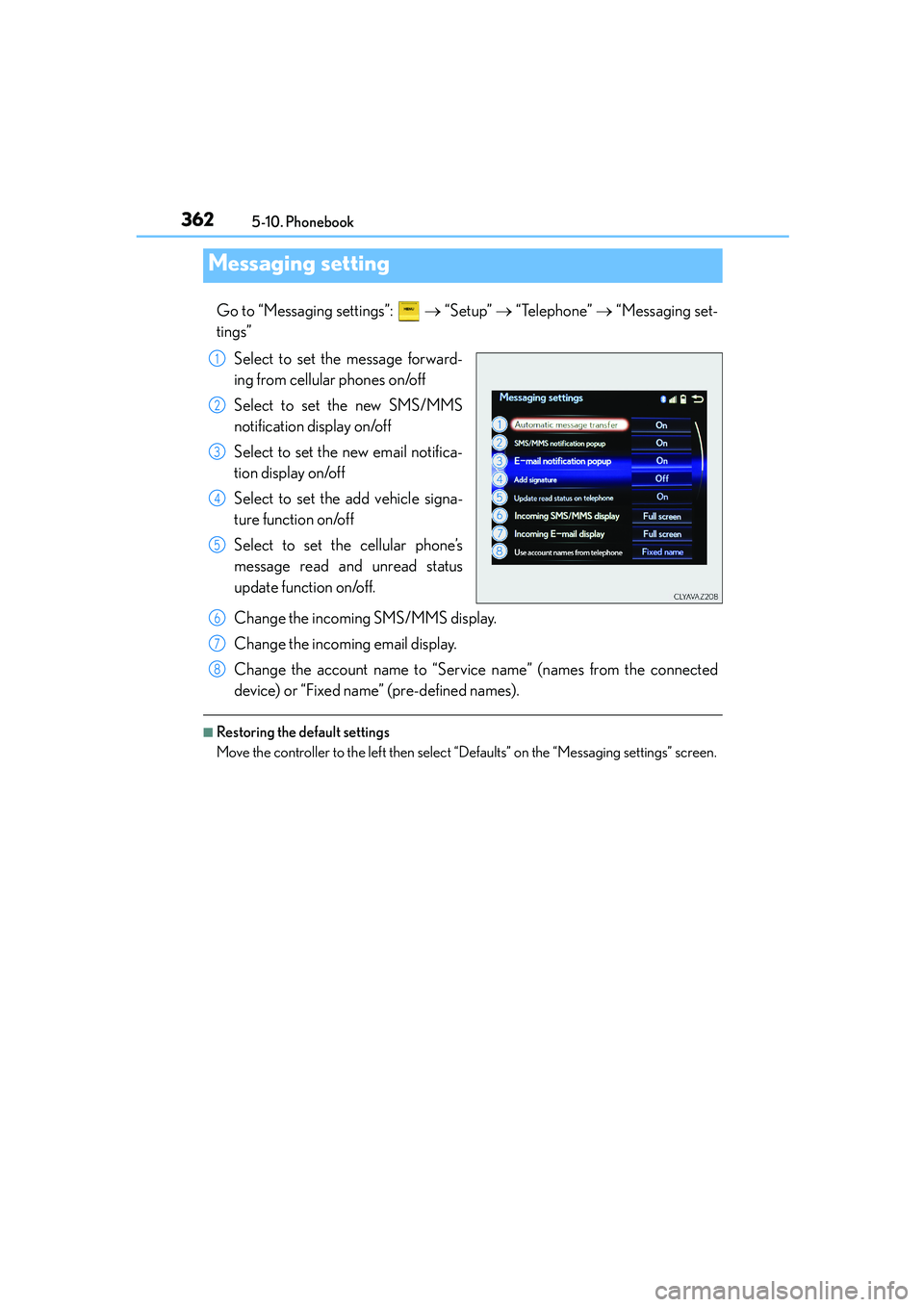
Go to “Messaging settings”: → “Setup” → “Telephone” → “Messaging set-
tings”
Select to set the message forward-
ing from cellular phones on/off
Select to set the new SMS/MMS
notification display on/off
Select to set the new email notifica-
tion display on/off
Select to set the add vehicle signa-
ture function on/off
Select to set the cellular phone’s
message read and unread status
update function on/off.
Change the incoming SMS/MMS display.
Change the incoming email display.
Change the account name to “Service name” (names from the connected
device) or “Fixed name” (pre-defined names).
■Restoring the default settings
Move the controller to the left then select “Defaults” on the “Messaging settings” screen.
Messaging setting
1
2
3
4
5
6
7
8
Page 363 of 588
363
5
Lexus Display Audio system
IS250_EE(OM53C51E)5-11. Bluetooth
®
■When using the Bluetooth® audio system
●In the following situations, the system may not function.
• If the portable audio player is turned off
• If the portable audio player is not connected
• If the portable audio player’s battery is low
●There may be a delay if a cellular phone connection is made during Bluetooth® audio
play.
●Depending on the type of portable audio player that is connected to the system, opera-
tion may differ slightly and certain functions may not be available.
■When using the hands-free system
●The audio system is muted when making a call.
●If both parties speak at the same time, it may be difficult to hear.
●If the received call volume is overly loud, an echo may be heard.
If the Bluetooth® phone is too close to the system, quality of the sound may deteriorate
and connection status may deteriorate.
●In the following situations, it may be difficult to hear the other party:
• When driving on unpaved roads
• When driving at high speeds
•If a window is open
• If the air conditioning is blowing directly on the microphone
• If there is interference from the network of the cellular phone
■Conditions under which the system will not operate
●If using a cellular phone that does not support Bluetooth®
●If the cellular phone is turned off
●If you are outside of cellular phone service coverage
●If the cellular phone is not connected
●If the cellular phone’s battery is low
●When outgoing calls are controlled, due to heavy traffic on telephone lines, etc.
●When the cellular phone itself cannot be used
●When transferring phonebook data from the cellular phone
Bluetooth®