radio LEXUS IS250 2016 User Guide
[x] Cancel search | Manufacturer: LEXUS, Model Year: 2016, Model line: IS250, Model: LEXUS IS250 2016Pages: 542, PDF Size: 9.65 MB
Page 222 of 542
223
3-2. Using the audio system
3
Interior features
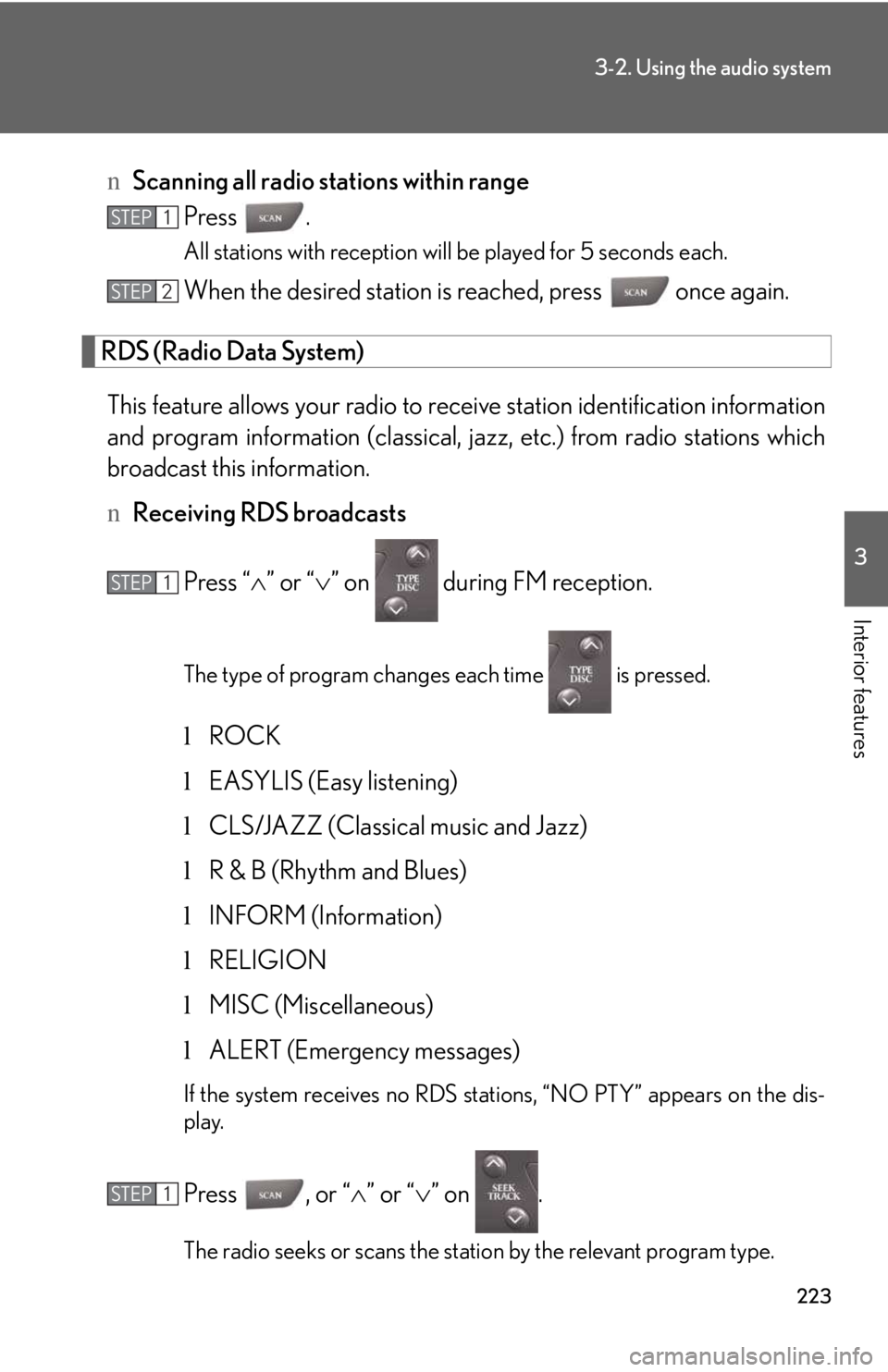
nScanning all radio stations within range
Press .
All stations with reception will be played for 5 seconds each.
When the desired station is reached, press once again.
RDS (Radio Data System)
This feature allows your radio to receive station identification information
and program information (classical, jazz, etc.) from radio stations which
broadcast this information.
nReceiving RDS broadcasts
Press “∧” or “∨” on during FM reception.
The type of program changes each time is pressed.
lROCK
lEASYLIS (Easy listening)
lCLS/JAZZ (Classical music and Jazz)
lR & B (Rhythm and Blues)
lINFORM (Information)
lRELIGION
lMISC (Miscellaneous)
lALERT (Emergency messages)
If the system receives no RDS stations, “NO PTY” appears on the dis-
play.
Press , or “∧” or “∨” on .
The radio seeks or scans the station by the relevant program type.
STEP1
STEP2
STEP1
STEP1
Page 223 of 542
224
3-2. Using the audio system
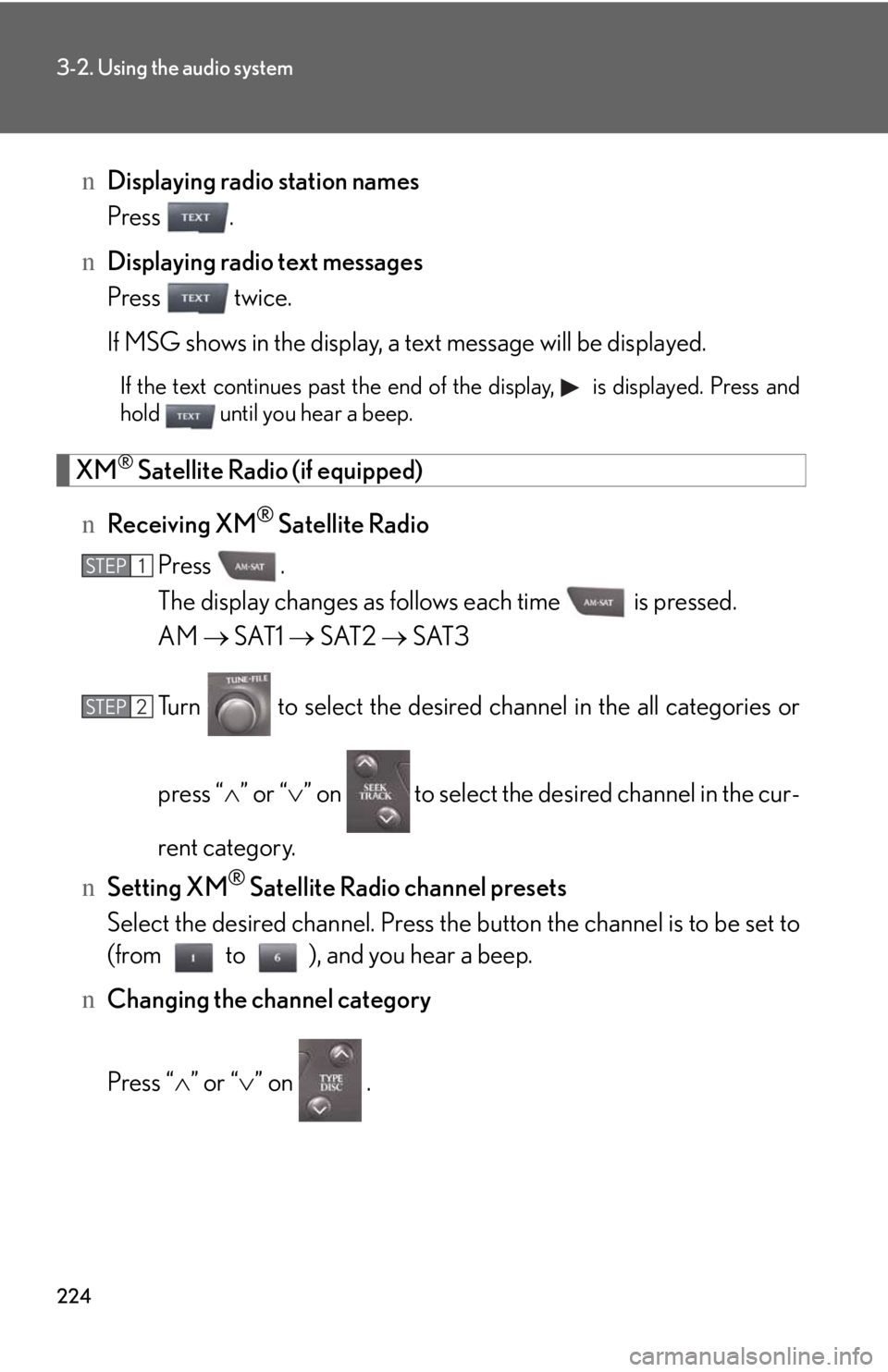
nDisplaying radio station names
Press .
nDisplaying radio text messages
Press twice.
If MSG shows in the display, a text message will be displayed.
If the text continues past the end of the display, is displayed. Press and
hold until you hear a beep.
XM® Satellite Radio (if equipped)
nReceiving XM® Satellite Radio
Press .
The display changes as follows each time is pressed.
AM → SAT1 → SAT2 → SAT3
Turn to select the desired channel in the all categories or
press “∧” or “∨” on to select the desired channel in the cur-
rent category.
nSetting XM® Satellite Radio channel presets
Select the desired channel. Press the button the channel is to be set to
(from to ), and you hear a beep.
nChanging the channel category
Press “∧” or “∨” on .
STEP1
STEP2
Page 224 of 542
225
3-2. Using the audio system
3
Interior features
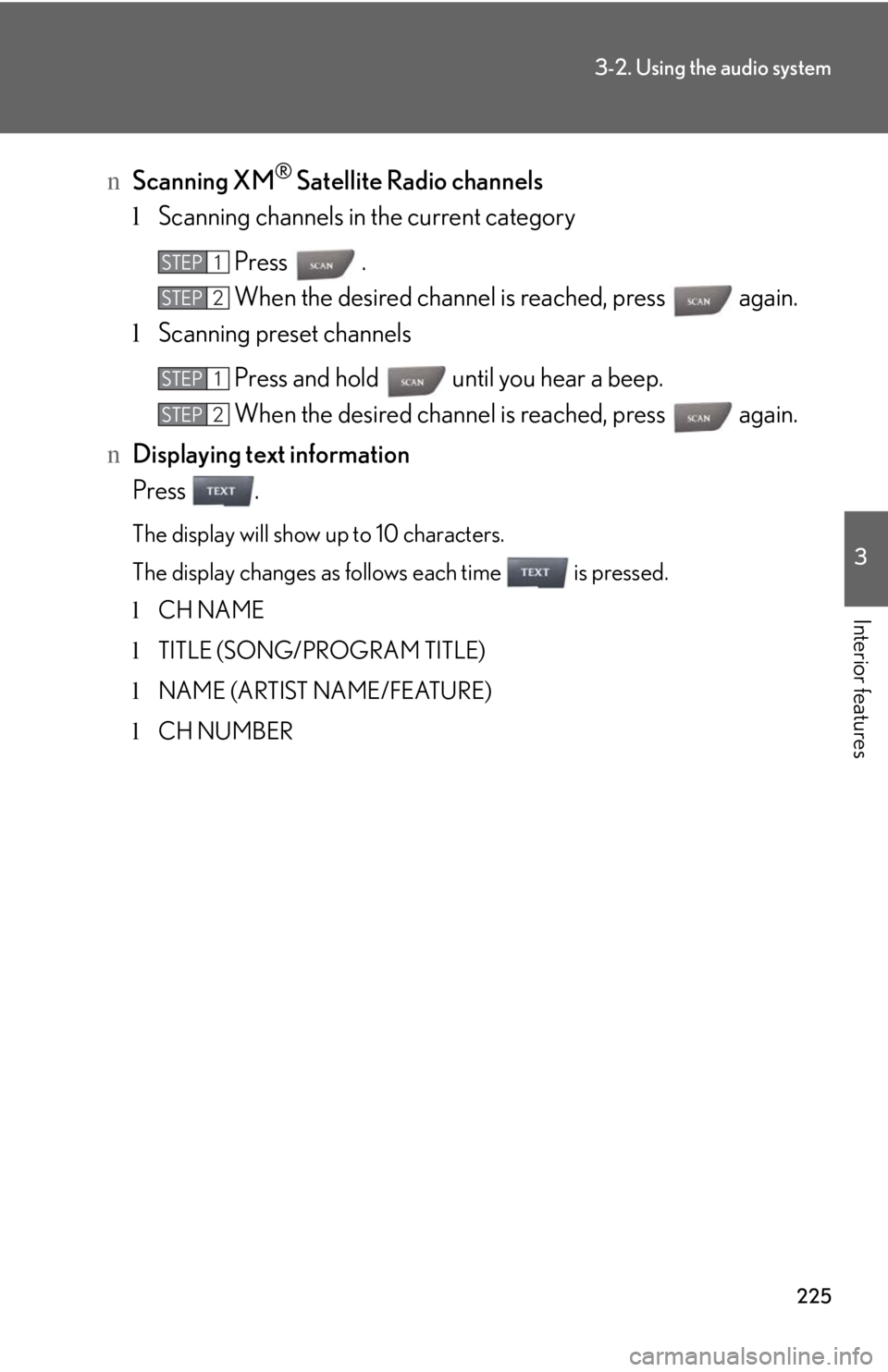
nScanning XM® Satellite Radio channels
lScanning channels in the current category
Press .
When the desired channel is reached, press again.
lScanning preset channels
Press and hold until you hear a beep.
When the desired channel is reached, press again.
nDisplaying text information
Press .
The display will show up to 10 characters.
The display changes as follows each time is pressed.
lCH NAME
lTITLE (SONG/PROGRAM TITLE)
lNAME (ARTIST NAME/FEATURE)
lCH NUMBER
STEP1
STEP2
STEP1
STEP2
Page 225 of 542
226
3-2. Using the audio system
nWhen the battery is disconnected
Stations presets are erased.
nReception sensitivity
lMaintaining perfect radio reception at all times is difficult due to the continually
changing position of the antenna, differences in signal strength and surrounding
objects, such as trains, transmitters, etc.
lThe radio antenna is mounted inside the rear window. To maintain clear radio
reception, do not attach metallic window tinting or other metallic objects to the
antenna wire mounted inside the rear window.
nXM® Satellite Radio
An XM® Satellite Radio is a tuner designed exclusively to receive broadcasts pro-
vided under a separate subscription. Availability is limited to the 48 contiguous
states and 10 Canadian provinces.
lXM® subscriptions
For detailed information about XM® Satellite Radio or to subscribe:
U.S.A. ⎯
Visit on the web at www.xmradio.com or call 1-877-515-3987.
Canada ⎯
Visit on the web at www.xmradio.ca or call 1-877-438-9677.
lRadio ID
You will need the radio ID when activating XM® service or reporting a prob-
lem. Select “CH000” using , and the receiver's 8-character ID number
will appear.
lSatellite tuner
The tuner supports only Audio Services (Music and Talk) and the accompany-
ing Text Information of XM® Satellite Radio.
Page 226 of 542
227
3-2. Using the audio system
3
Interior features
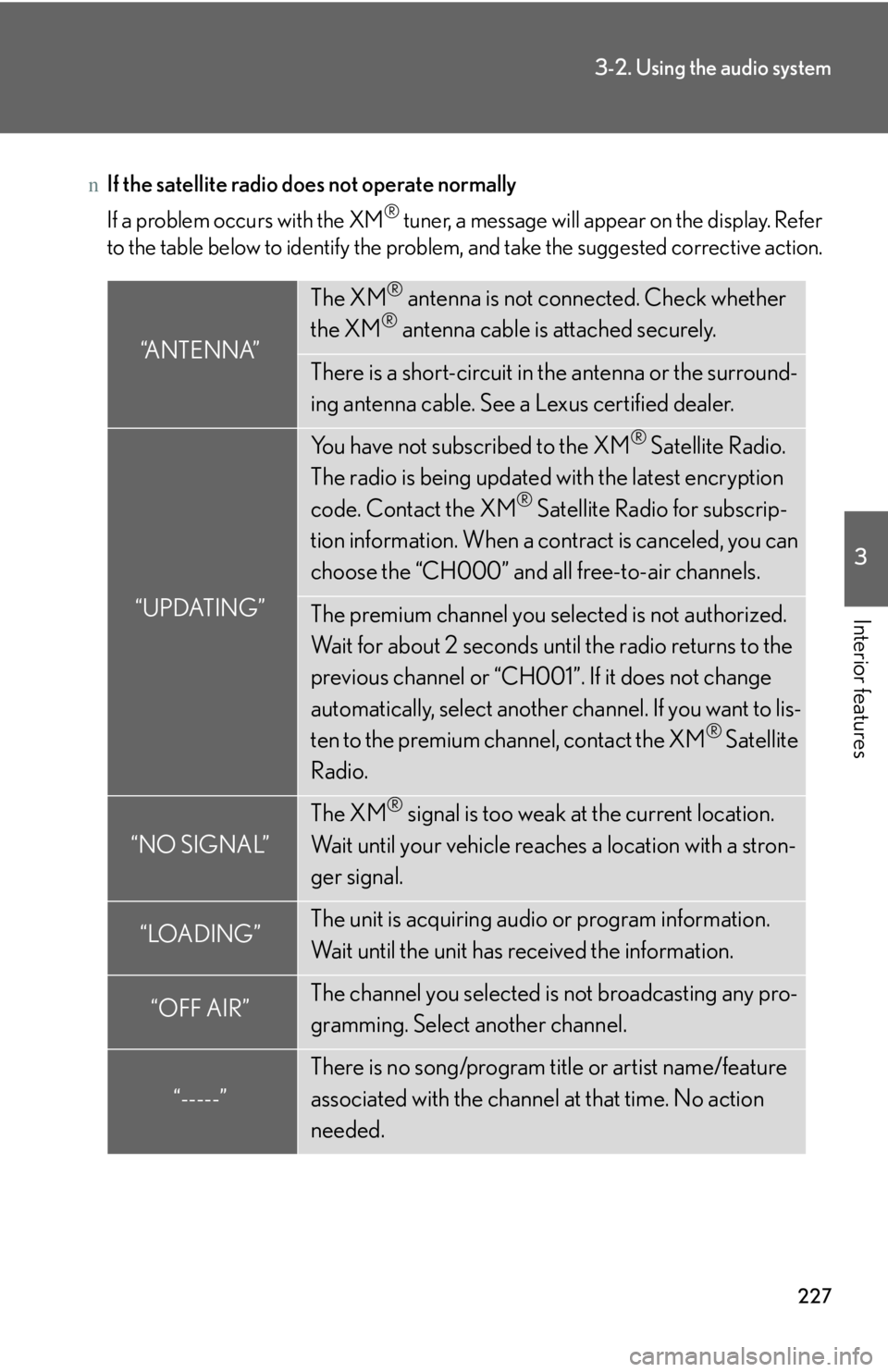
nIf the satellite radio does not operate normally
If a problem occurs with the XM® tuner, a message will appear on the display. Refer
to the table below to identify the problem, and take the suggested corrective action.
“ANTENNA”
The XM® antenna is not connected. Check whether
the XM® antenna cable is attached securely.
There is a short-circuit in the antenna or the surround-
ing antenna cable. See a Lexus certified dealer.
“UPDATING”
You have not subscribed to the XM® Satellite Radio.
The radio is being updated with the latest encryption
code. Contact the XM® Satellite Radio for subscrip-
tion information. When a contract is canceled, you can
choose the “CH000” and all free-to-air channels.
The premium channel you selected is not authorized.
Wait for about 2 seconds until the radio returns to the
previous channel or “CH001”. If it does not change
automatically, select another channel. If you want to lis-
ten to the premium channel, contact the XM® Satellite
Radio.
“NO SIGNAL”
The XM® signal is too weak at the current location.
Wait until your vehicle reaches a location with a stron-
ger signal.
“LOADING”The unit is acquiring audio or program information.
Wait until the unit has received the information.
“OFF AIR”The channel you selected is not broadcasting any pro-
gramming. Select another channel.
“-----”
There is no song/program title or artist name/feature
associated with the channel at that time. No action
needed.
Page 227 of 542
228
3-2. Using the audio system
Contact the XM® Listener Care Center at 1-877-515-3987 (U.S.A.) or 1-877-
438-9677 (Canada).
nCertifications for the radio tuner
This equipment has been tested and found to comply with the limits for a class B
digital device, pursuant to Part 15 of the FCC Rules. These limits are designed to
provide reasonable protection against harmful interference in a residential installa-
tion. This equipment generates, uses and can radiate radio frequency energy and, if
not installed and used in accordance with the instructions, may cause harmful inter-
ference to radio communications. However, there is no guarantee that interference
will not occur in a particular installation.
If this equipment does cause harmful interference to radio or television reception,
which can be determined by turning the equipment off and on, the user is encour-
aged to try to correct the interference by trying one or more of the following:
lReorienting or relocate the receiving antenna.
lIncreasing the separation between the equipment and receiver.
lConnecting the equipment into an outlet on a circuit different from that to which
the receiver is connected.
lConsulting the dealer or an experienced radio/TV technician for help.
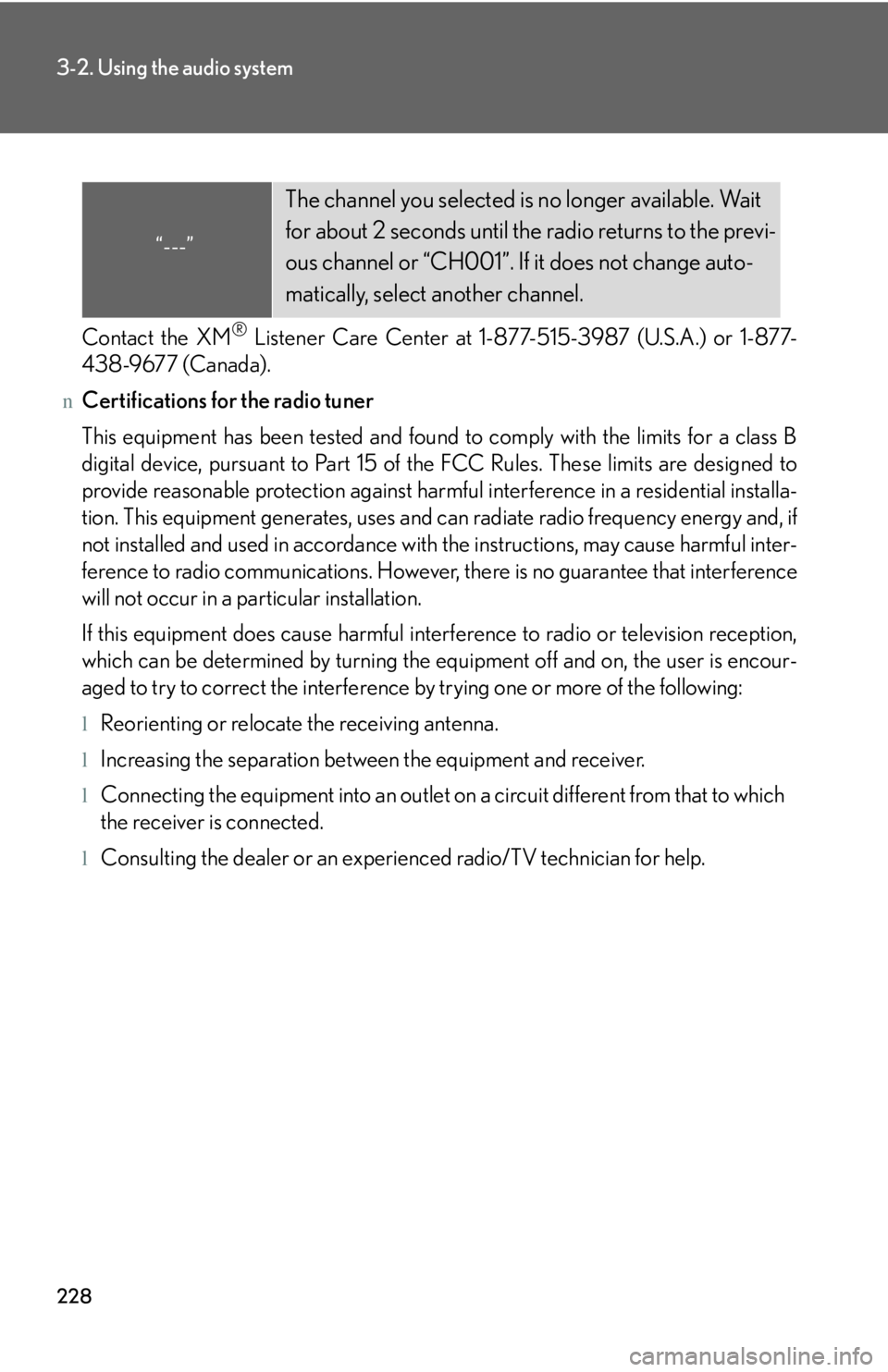
“---”
The channel you selected is no longer available. Wait
for about 2 seconds until the radio returns to the previ-
ous channel or “CH001”. If it does not change auto-
matically, select another channel.
Page 244 of 542
245
3-2. Using the audio system
3
Interior features
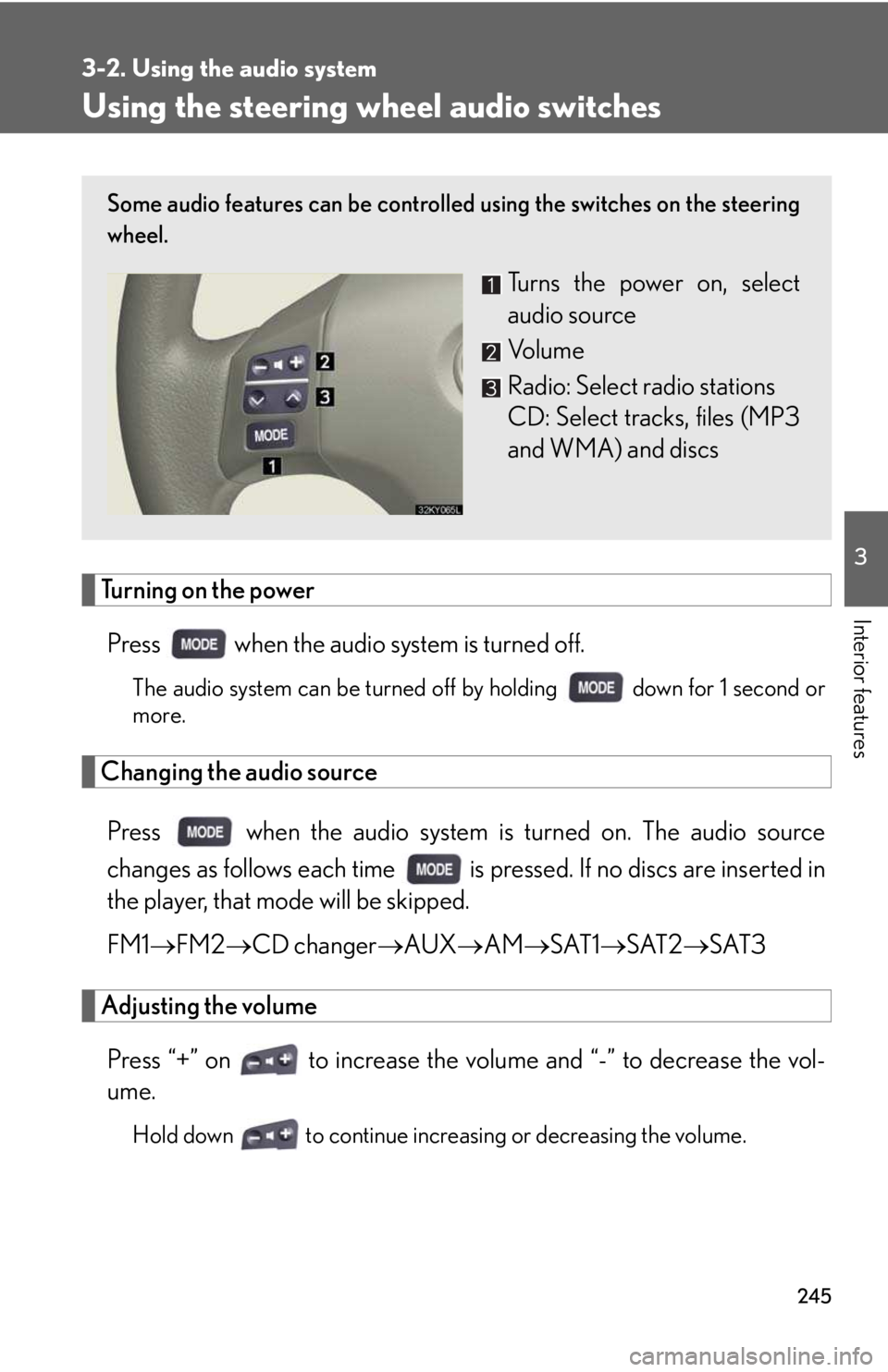
Using the steering wheel audio switches
Turning on the power
Press when the audio system is turned off.
The audio system can be turned off by holding down for 1 second or
more.
Changing the audio source
Press when the audio system is turned on. The audio source
changes as follows each time is pressed. If no discs are inserted in
the player, that mode will be skipped.
FM1→FM2→CD changer→AUX→AM→SAT1→SAT2→SAT3
Adjusting the volume
Press “+” on to increase the volume and “-” to decrease the vol-
ume.
Hold down to continue increasing or decreasing the volume.
Some audio features can be controlled using the switches on the steering
wheel.
Turns the power on, select
audio source
Vo l u m e
Radio: Select radio stations
CD: Select tracks, files (MP3
and WMA) and discs
Page 245 of 542
246
3-2. Using the audio system
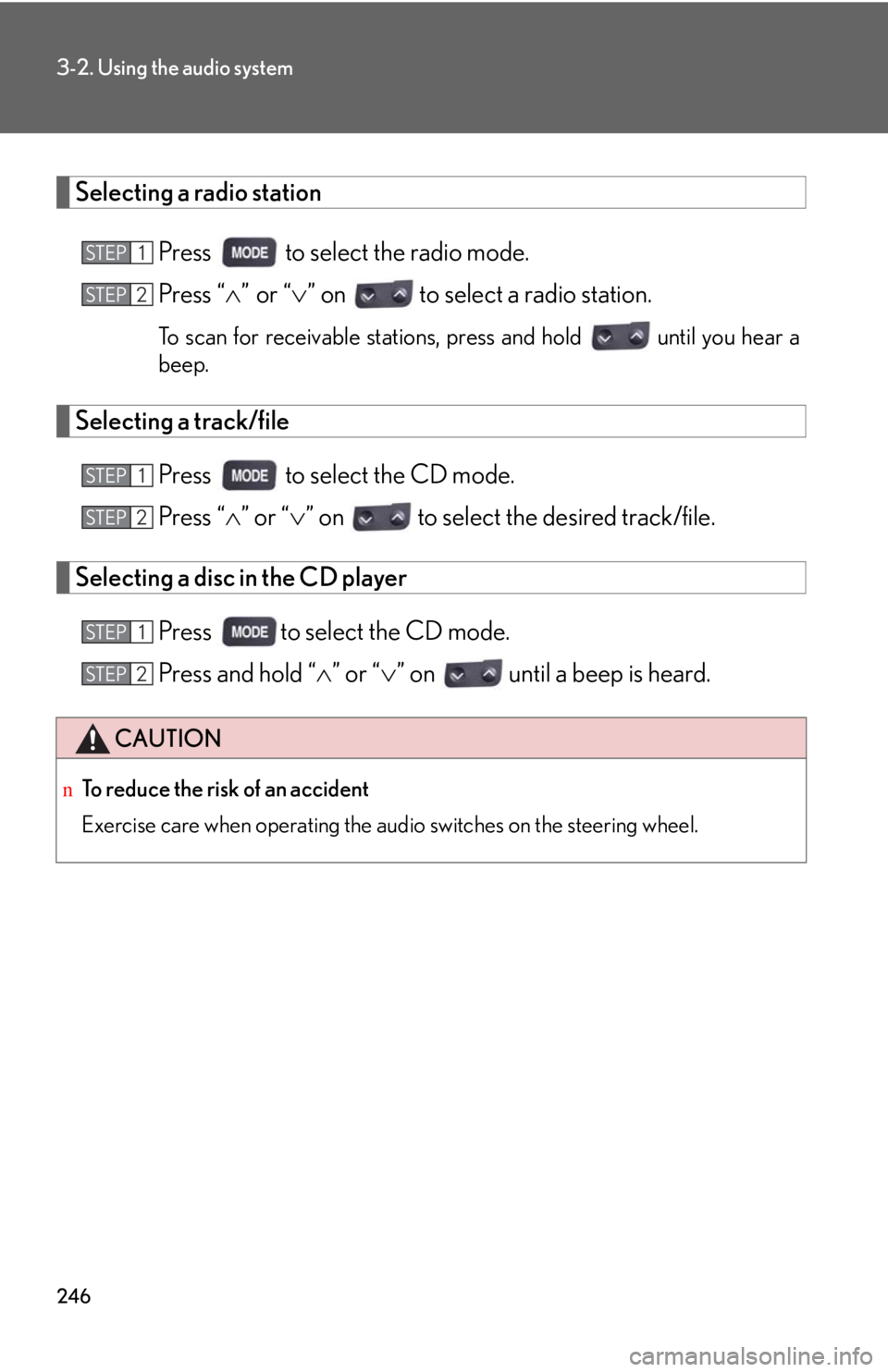
Selecting a radio station
Press to select the radio mode.
Press “∧” or “∨” on to select a radio station.
To scan for receivable stations, press and hold until you hear a
beep.
Selecting a track/file
Press to select the CD mode.
Press “∧” or “∨” on to select the desired track/file.
Selecting a disc in the CD player
Press to select the CD mode.
Press and hold “∧” or “∨” on until a beep is heard.
CAUTION
nTo reduce the risk of an accident
Exercise care when operating the audio switches on the steering wheel.
STEP1
STEP2
STEP1
STEP2
STEP1
STEP2
Page 385 of 542
388
5-2. Steps to take in an emergency
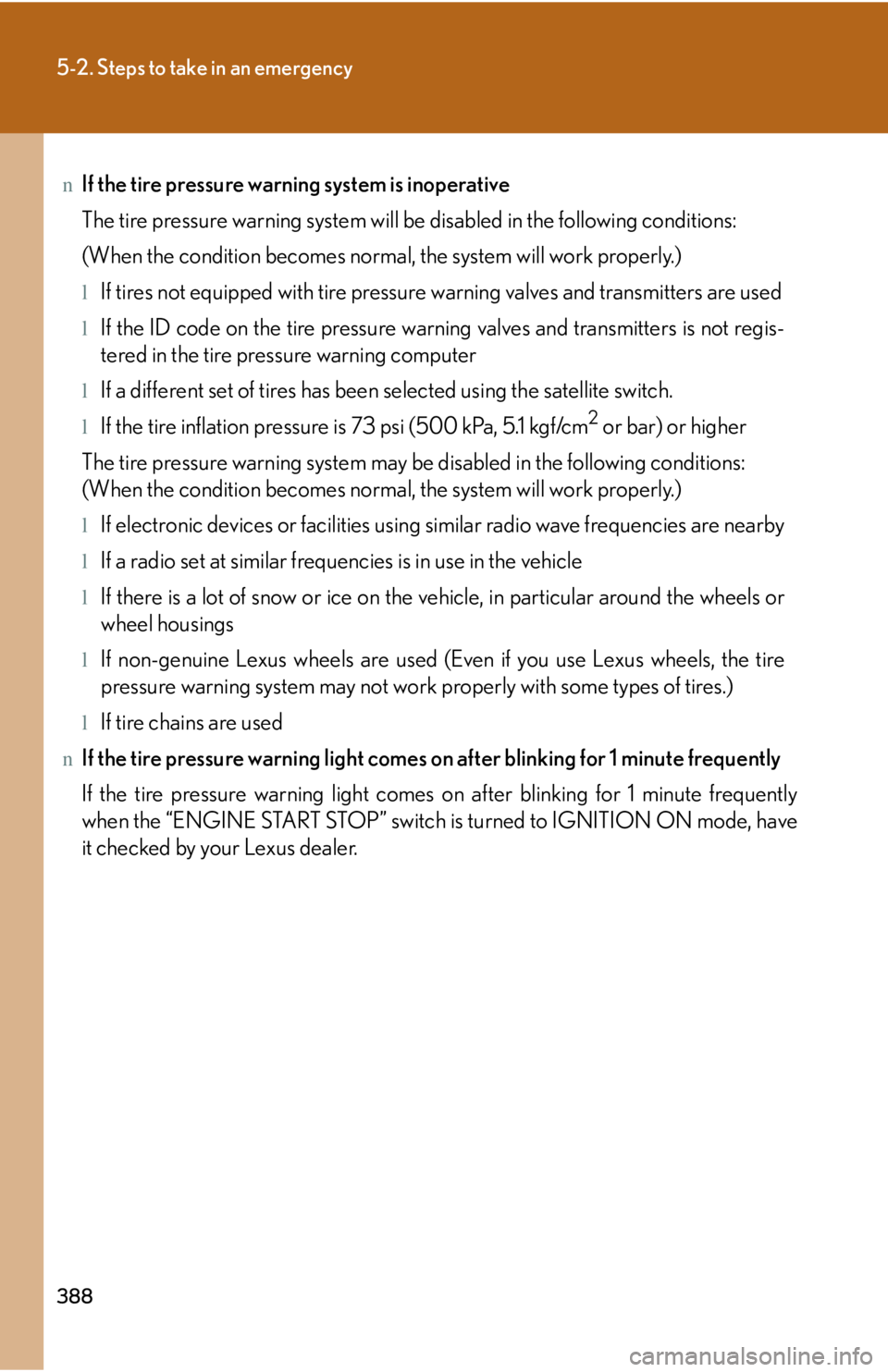
nIf the tire pressure warning system is inoperative
The tire pressure warning system will be disabled in the following conditions:
(When the condition becomes normal, the system will work properly.)
lIf tires not equipped with tire pressure warning valves and transmitters are used
lIf the ID code on the tire pressure warning valves and transmitters is not regis-
tered in the tire pressure warning computer
lIf a different set of tires has been selected using the satellite switch.
lIf the tire inflation pressure is 73 psi (500 kPa, 5.1 kgf/cm2 or bar) or higher
The tire pressure warning system may be disabled in the following conditions:
(When the condition becomes normal, the system will work properly.)
lIf electronic devices or facilities using similar radio wave frequencies are nearby
lIf a radio set at similar frequencies is in use in the vehicle
lIf there is a lot of snow or ice on the vehicle, in particular around the wheels or
wheel housings
lIf non-genuine Lexus wheels are used (Even if you use Lexus wheels, the tire
pressure warning system may not work properly with some types of tires.)
lIf tire chains are used
nIf the tire pressure warning light comes on after blinking for 1 minute frequently
If the tire pressure warning light comes on after blinking for 1 minute frequently
when the “ENGINE START STOP” switch is turned to IGNITION ON mode, have
it checked by your Lexus dealer.
Page 450 of 542
454
6-1. Specifications
nTemperature A, B, C
The temperature grades are A (the highest), B, and C, representing
the tire's resistance to the generation of heat and its ability to dissipate
heat when tested under controlled conditions on a specified indoor
laboratory test wheel.
Sustained high temperature can cause the material of the tire to degenerate
and reduce tire life, and excessive temperature can lead to sudden tire fail-
ure.
The grade C corresponds to a level of performance which all passenger car
tires must meet under the Federal Motor Vehicle Safety Standard No. 109.
Grades B and A represent higher levels of performance on the laboratory
test wheel than the minimum required by law.
Warning: The temperature grades for this tire are established for a tire that
is properly inflated and not overloaded.
Excessive speed, underinflation, or excessive loading, either separately or in
combination, can cause heat buildup and possible tire failure.
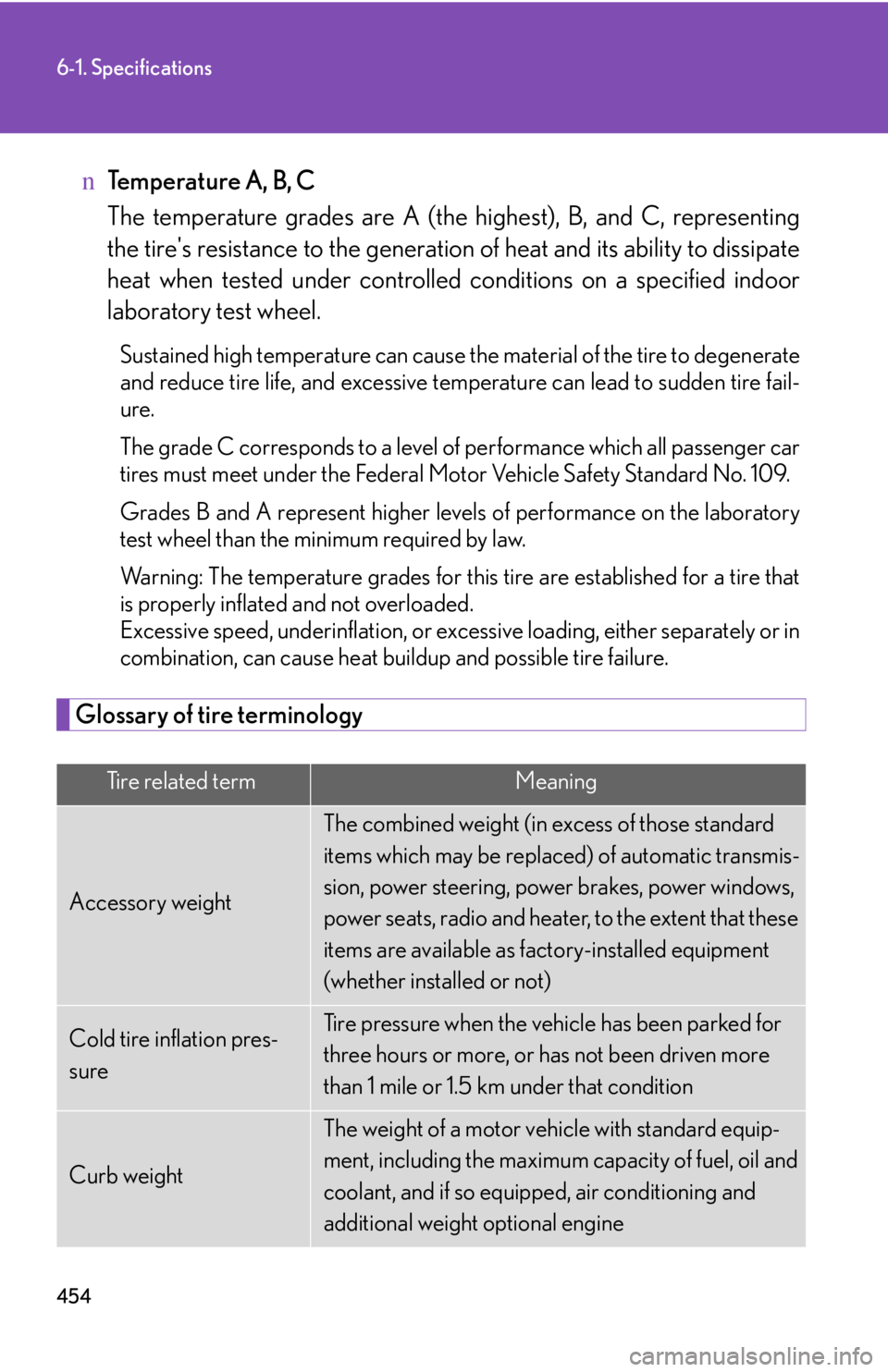
Glossary of tire terminology
Tire related termMeaning
Accessory weight
The combined weight (in excess of those standard
items which may be replaced) of automatic transmis-
sion, power steering, power brakes, power windows,
power seats, radio and heater, to the extent that these
items are available as factory-installed equipment
(whether installed or not)
Cold tire inflation pres-
sure
Tire pressure when the vehicle has been parked for
three hours or more, or has not been driven more
than 1 mile or 1.5 km under that condition
Curb weight
The weight of a motor vehicle with standard equip-
ment, including the maximum capacity of fuel, oil and
coolant, and if so equipped, air conditioning and
additional weight optional engine