audio LEXUS IS300 2023 User Guide
[x] Cancel search | Manufacturer: LEXUS, Model Year: 2023, Model line: IS300, Model: LEXUS IS300 2023Pages: 96, PDF Size: 5.32 MB
Page 59 of 96
58
IS500_IS350_IS300_QG_U
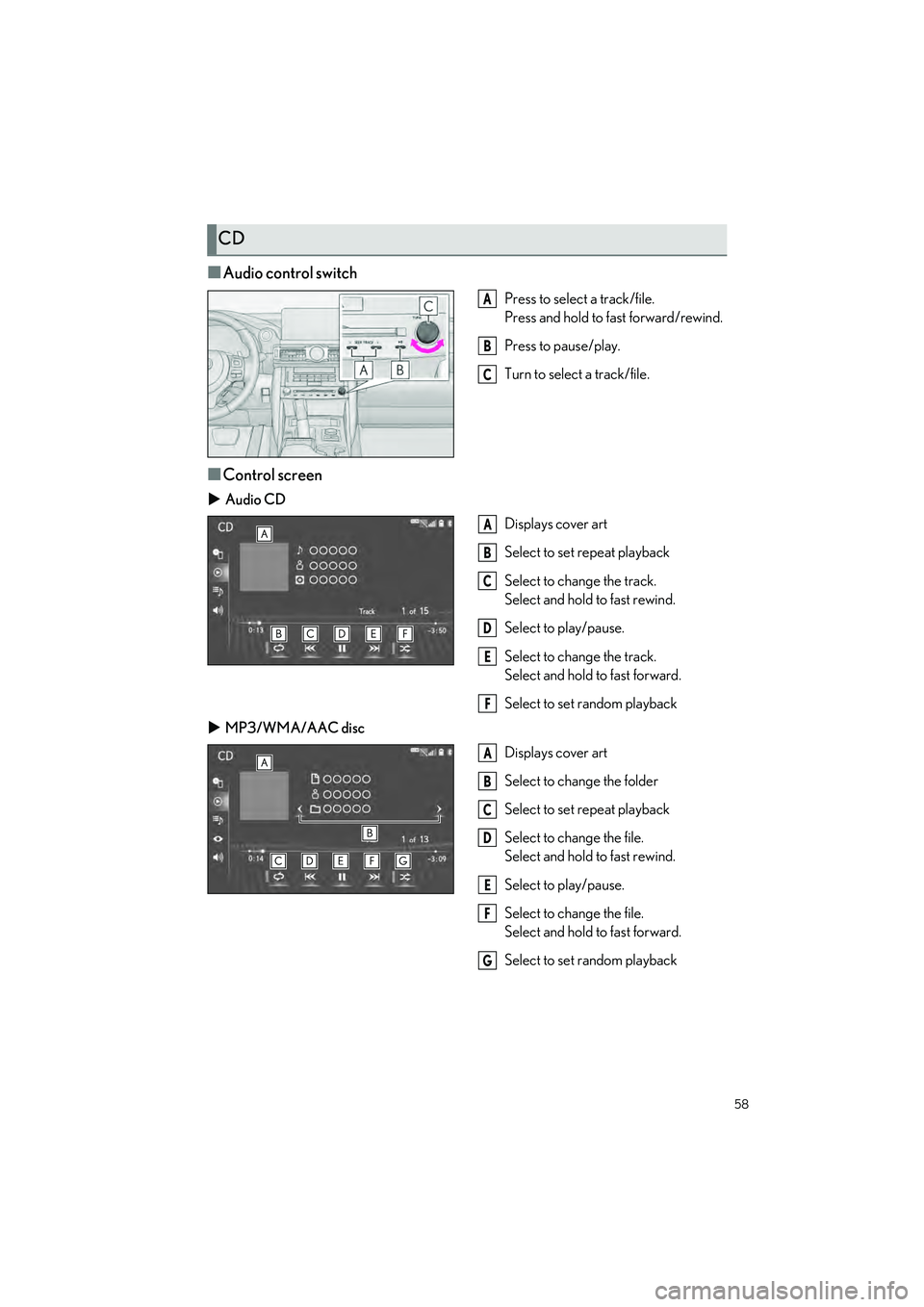
■Audio control switch
Press to select a track/file.
Press and hold to fast forward/rewind.
Press to pause/play.
Turn to select a track/file.
■Control screen
Audio CD
Displays cover art
Select to set repeat playback
Select to change the track.
Select and hold to fast rewind.
Select to play/pause.
Select to change the track.
Select and hold to fast forward.
Select to set random playback
MP3/WMA/AAC disc
Displays cover art
Select to change the folder
Select to set repeat playback
Select to change the file.
Select and hold to fast rewind.
Select to play/pause.
Select to change the file.
Select and hold to fast forward.
Select to set random playback
CD
A
B
C
A
B
C
D
E
F
A
B
C
D
E
F
G
Page 60 of 96
59
IS500_IS350_IS300_QG_U
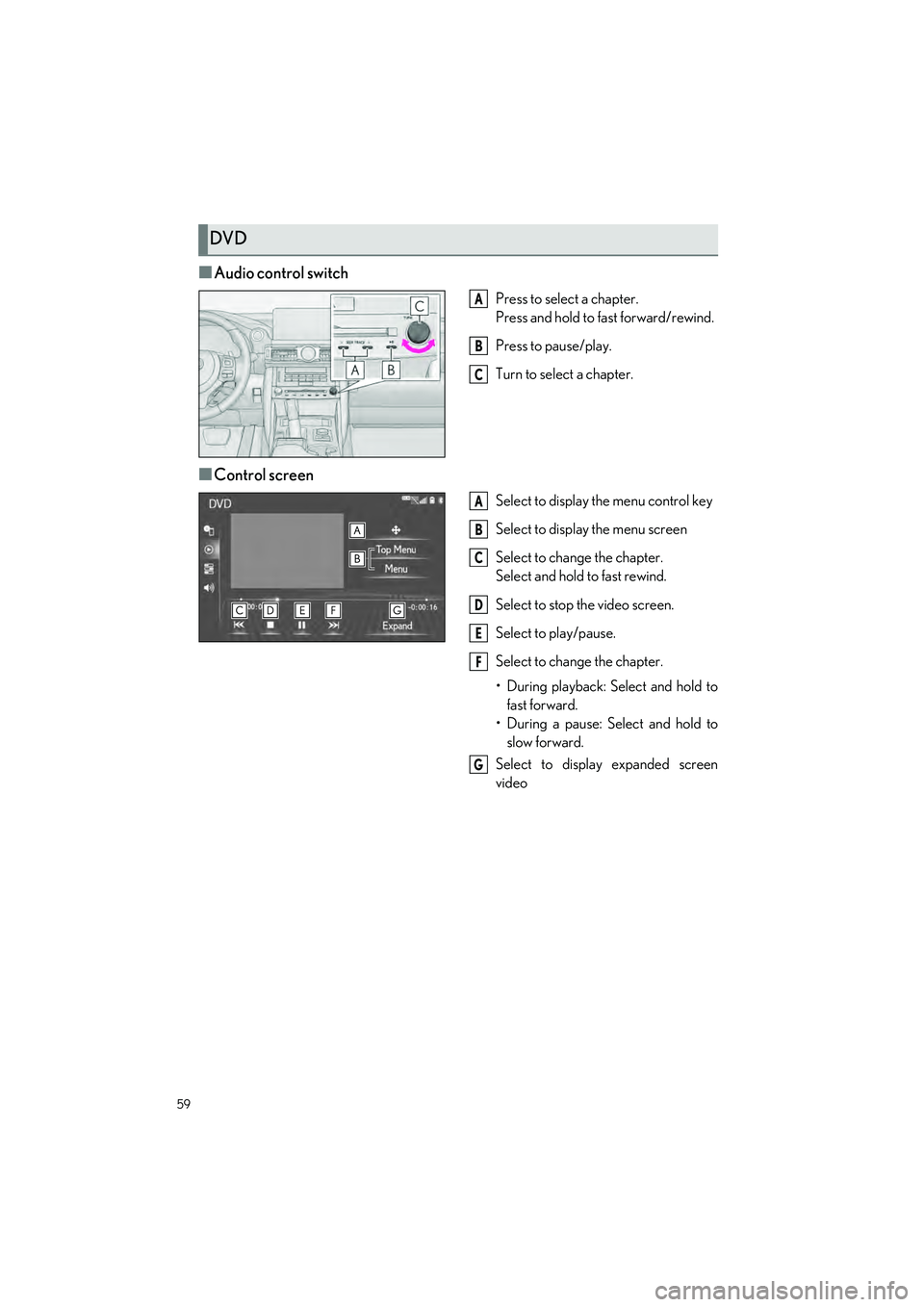
■Audio control switch
Press to select a chapter.
Press and hold to fast forward/rewind.
Press to pause/play.
Turn to select a chapter.
■Control screen
Select to display the menu control key
Select to display the menu screen
Select to change the chapter.
Select and hold to fast rewind.
Select to stop the video screen.
Select to play/pause.
Select to change the chapter.
• During playback: Select and hold to fast forward.
• During a pause: Select and hold to slow forward.
Select to display expanded screen
video
DVD
A
B
C
A
B
C
D
E
F
G
Page 61 of 96
60
IS500_IS350_IS300_QG_U
*: This function is not available in some countries or areas.
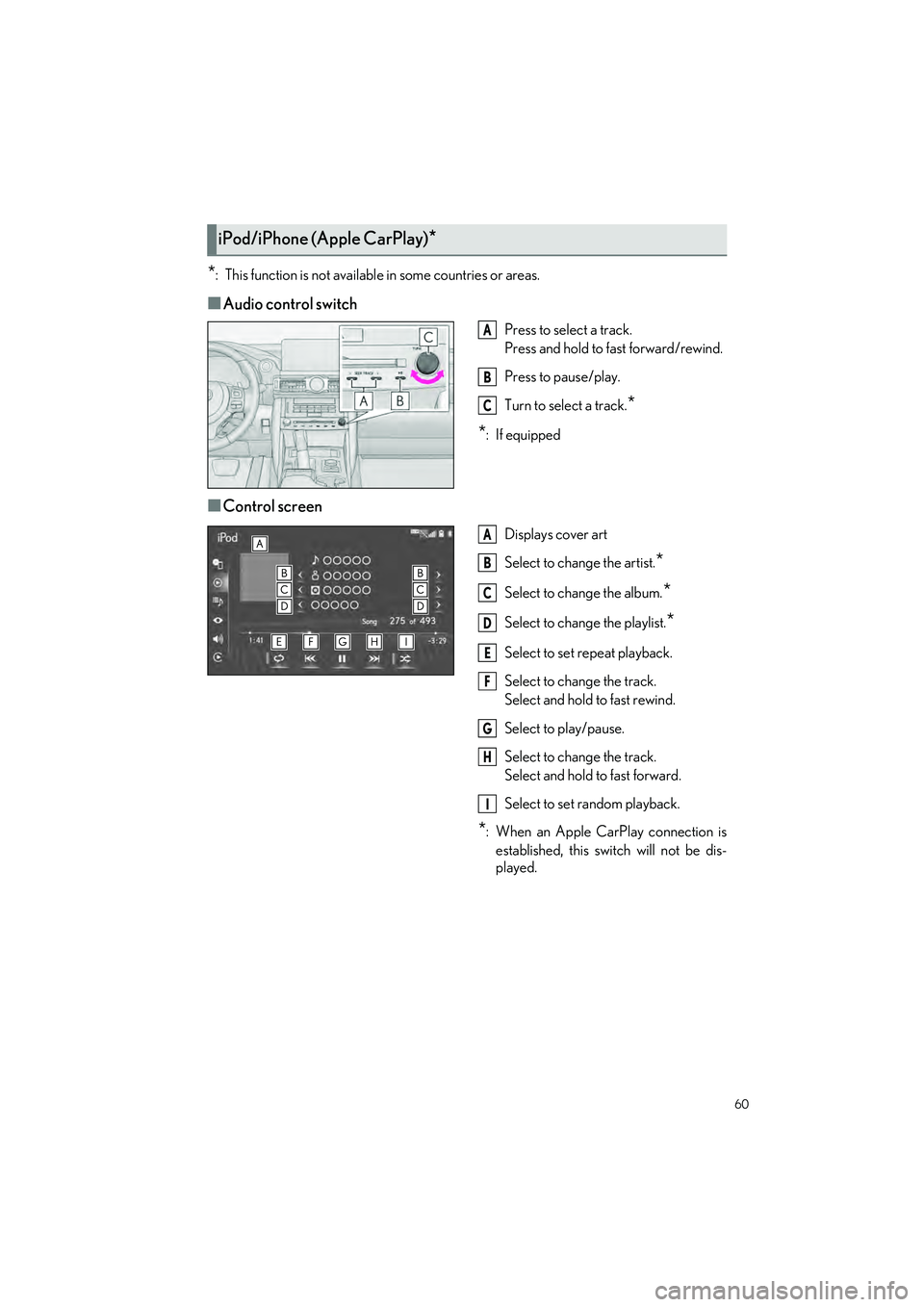
■Audio control switch
Press to select a track.
Press and hold to fast forward/rewind.
Press to pause/play.
Turn to select a track.
*
*
:If equipped
■Control screen
Displays cover art
Select to change the artist.
*
Select to change the album.*
Select to change the playlist.*
Select to set repeat playback.
Select to change the track.
Select and hold to fast rewind.
Select to play/pause.
Select to change the track.
Select and hold to fast forward.
Select to set random playback.
*: When an Apple CarPlay connection is established, this switch will not be dis-
played.
iPod/iPhone (Apple CarPlay)*
A
B
C
A
B
C
D
E
F
G
H
I
Page 65 of 96
64
IS500_IS350_IS300_QG_U
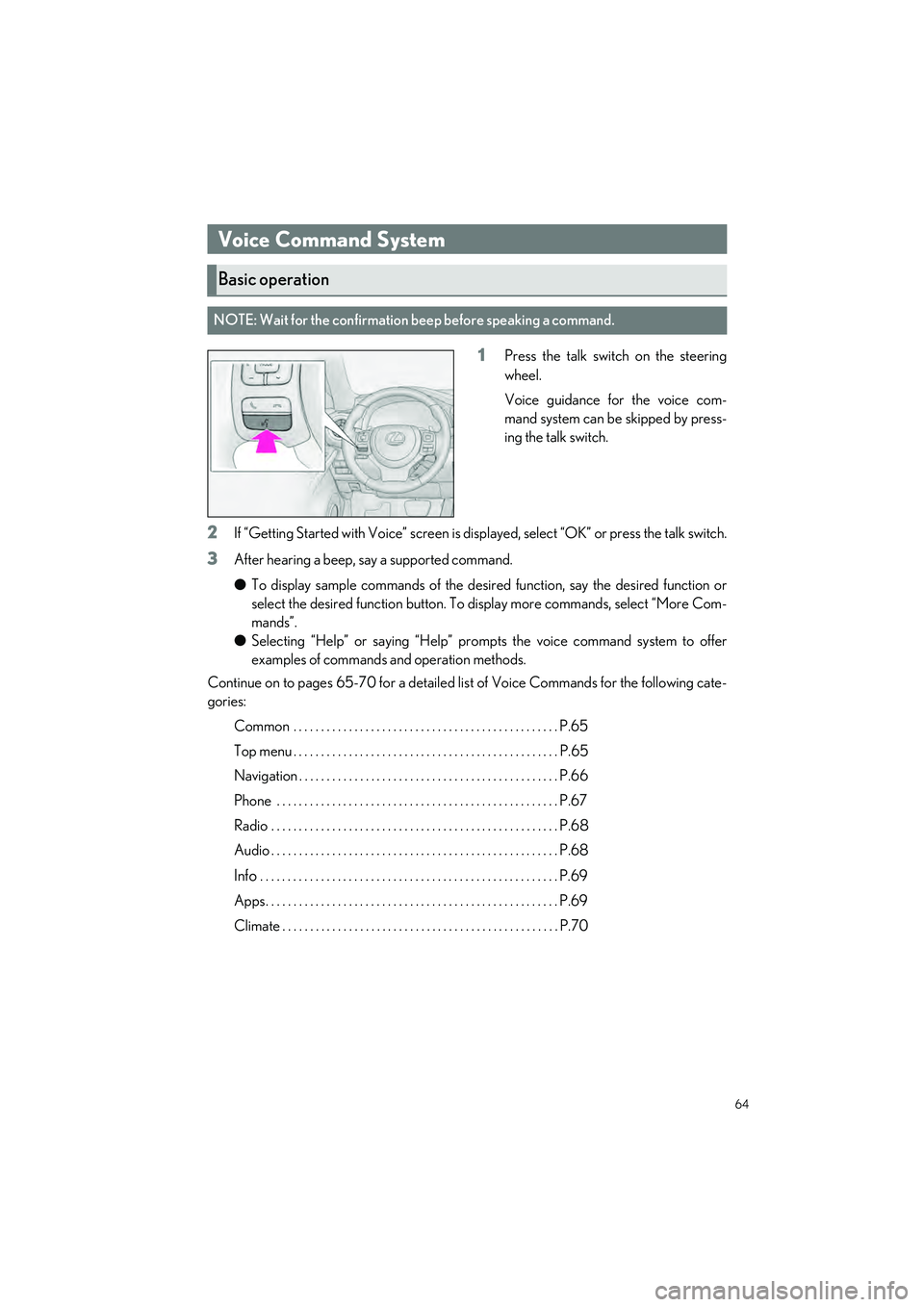
1Press the talk switch on the steering
wheel.
Voice guidance for the voice com-
mand system can be skipped by press-
ing the talk switch.
2If “Getting Started with Voice” screen is disp layed, select “OK” or press the talk switch.
3After hearing a beep, say a supported command.
●To display sample commands of the desired function, say the desired function or
select the desired function button. To display more commands, select “More Com-
mands”.
● Selecting “Help” or saying “Help” prom pts the voice command system to offer
examples of commands and operation methods.
Continue on to pages 65-70 for a detailed lis t of Voice Commands for the following cate-
gories:
Common . . . . . . . . . . . . . . . . . . . . . . . . . . . . . . . . . . . . . . . . . . . . . . . . P.65
Top menu . . . . . . . . . . . . . . . . . . . . . . . . . . . . . . . . . . . . . . . . . . . . . . . . P.65
Navigation . . . . . . . . . . . . . . . . . . . . . . . . . . . . . . . . . . . . . . . . . . . . . . . P.66
Phone . . . . . . . . . . . . . . . . . . . . . . . . . . . . . . . . . . . . . . . . . . . . . . . . . . . P.67
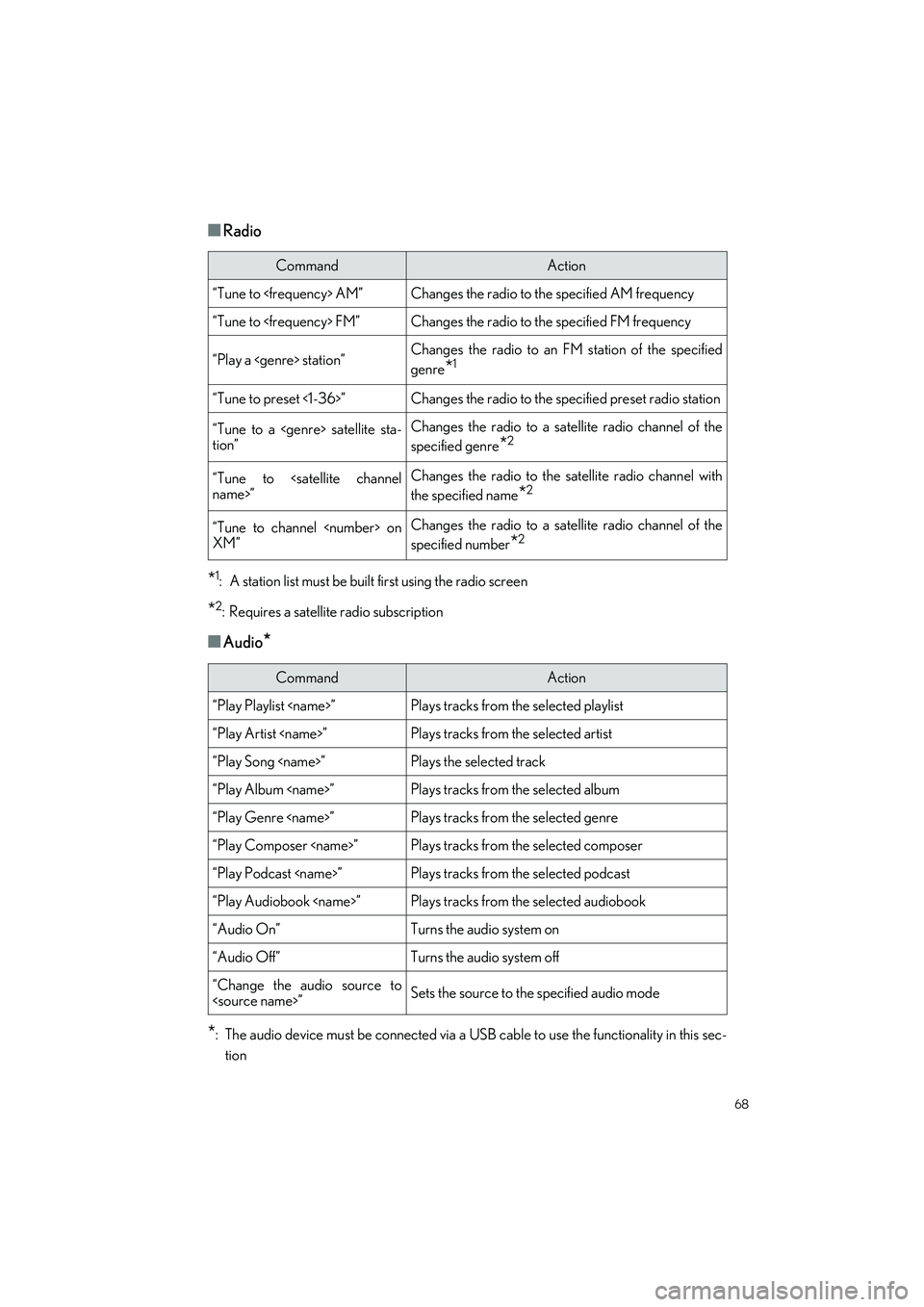
Radio . . . . . . . . . . . . . . . . . . . . . . . . . . . . . . . . . . . . . . . . . . . . . . . . . . . . P.68
Audio . . . . . . . . . . . . . . . . . . . . . . . . . . . . . . . . . . . . . . . . . . . . . . . . . . . . P.68
Info . . . . . . . . . . . . . . . . . . . . . . . . . . . . . . . . . . . . . . . . . . . . . . . . . . . . . . P.69
Apps. . . . . . . . . . . . . . . . . . . . . . . . . . . . . . . . . . . . . . . . . . . . . . . . . . . . . P.69
Climate . . . . . . . . . . . . . . . . . . . . . . . . . . . . . . . . . . . . . . . . . . . . . . . . . . P.70
Voice Command System
Basic operation
NOTE: Wait for the confirmation beep before speaking a command.
Page 69 of 96
68
IS500_IS350_IS300_QG_U
■Radio
*1: A station list must be built first using the radio screen
*2: Requires a satellite radio subscription
■Audio*
*
: The audio device must be connected via a USB cable to use the functionality in this sec- tion
CommandAction
“Tune to
“Tune to
“Play a
genre
*1
“Tune to preset <1-36>”Changes the radio to the specified preset radio station
“Tune to a
tion”Changes the radio to a satellite radio channel of the
specified genre
*2
“Tune to
the specified name
*2
“Tune to channel
XM”Changes the radio to a satellite radio channel of the
specified number
*2
CommandAction
“Play Playlist
“Play Artist
“Play Song
“Play Album
“Play Genre
“Play Composer
“Play Podcast
“Play Audiobook
“Audio On”Turns the audio system on
“Audio Off”Turns the audio system off
“Change the audio source to