CD player Lexus IS300h 2014 User Guide
[x] Cancel search | Manufacturer: LEXUS, Model Year: 2014, Model line: IS300h, Model: Lexus IS300h 2014Pages: 612, PDF Size: 111.33 MB
Page 356 of 612
3565-6. Using an external device
IS300h_EE(OM53C61E)
→P. 3 2 3
Pressing the “MEDIA” button displays the top screen from any screen of the
selected source.
■Menu screen
→P. 3 3 6
■Operating portable players connected to the audio system
Volume can be adjusted using the vehicle's audio controls. All other adjustments must be
made on the portable player itself.
■When using a portable player connected to the power outlet
Noise may occur during playback. Use the power source of the portable player.
Using the AUX port
To use the AUX port, connect a portable player, press the “MEDIA” button or
select “AUX” or “A/V” on the “Source” screen.
Connecting a portable player
Top screen
NOTICE
■If the console box lid cannot be fully closed
Depending on the size and shape of the portable player that is connected to the sys-
tem, the auxiliary box lid may not close fully. In this case, do not forcibly close the lid as
this may damage the portable audio player or the terminals, etc.
IS300h_EE_OM53C61E.book 356 ページ 2014年5月20日 火曜日 午後5時40分
Page 357 of 612

357
5
Lexus Display Audio system
IS300h_EE(OM53C61E)5-7. Connecting Bluetooth
®
Steps for using Bluetooth® devices
The following can be performed using Bluetooth® wireless communication:
■A portable audio player can be operated and listened to via the Display
Audio system
■Hands-free phone calls can be made via a cellular phone
In order to use wireless communication, register and connect a Bluetooth
®
device by performing the following procedures.
Device registration/connection flow
1. Register the Bluetooth® device to be used with Lexus Display
Audio system (→P. 3 5 9 )
2. Select the Bluetooth® device to be used
(→P. 360)
AudioHands-free phone
3. Start Bluetooth® connec-
tion (→P. 3 6 1 )3. Start Bluetooth® connec-
tion (→P. 3 6 2 )
4. Check connection status
(→P. 3 6 5 )4. Check connection status
(→P. 368)
5. Use Bluetooth® audio
(→P. 366)5. Use Bluetooth® phone
(→P. 3 6 9 )
IS300h_EE_OM53C61E.book 357 ページ 2014年5月20日 火曜日 午後5時40分
Page 359 of 612
3595-7. Connecting Bluetooth®
5
Lexus Display Audio system
IS300h_EE(OM53C61E)
Turn the Bluetooth® connection setting of your device set to on.
Go to “Bluetooth
* setup”: → “Setup” → “Bluetooth*”
Move the controller to the left and then select “Add device”
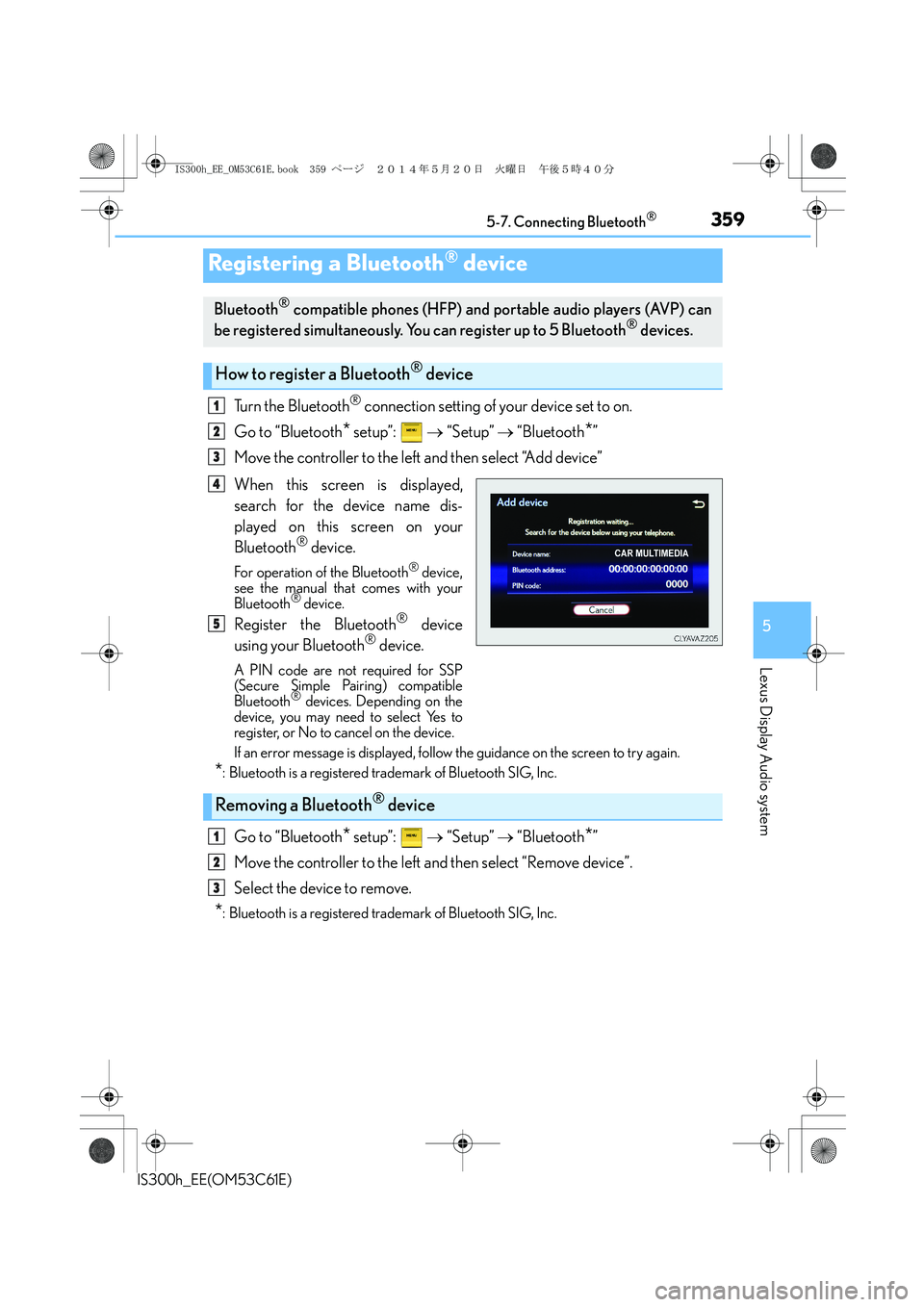
When this screen is displayed,
search for the device name dis-
played on this screen on your
Bluetooth
® device.
For operation of the Bluetooth® device,
see the manual that comes with your
Bluetooth
® device.
Register the Bluetooth® device
using your Bluetooth® device.
A PIN code are not required for SSP
(Secure Simple Pairing) compatible
Bluetooth
® devices. Depending on the
device, you may need to select Yes to
register, or No to cancel on the device.
If an error message is displayed, follow the guidance on the screen to try again.
*: Bluetooth is a registered trademark of Bluetooth SIG, Inc.
Go to “Bluetooth* setup”: → “Setup” → “Bluetooth*”
Move the controller to the left and then select “Remove device”.
Select the device to remove.
*: Bluetooth is a registered trademark of Bluetooth SIG, Inc.
Registering a Bluetooth® device
Bluetooth® compatible phones (HFP) and portable audio players (AVP) can
be registered simultaneously. You can register up to 5 Bluetooth® devices.
How to register a Bluetooth® device
1
2
3
4
5
Removing a Bluetooth® device
1
2
3
IS300h_EE_OM53C61E.book 359 ページ 2014年5月20日 火曜日 午後5時40分
Page 360 of 612
3605-7. Connecting Bluetooth®
IS300h_EE(OM53C61E)
Go to “Bluetooth* setup”: → “Setup” → “Bluetooth*”
Select the device to connect.
Select “Connect all”, “Connect as a telephone” or “Connect as audio player”.
If the desired Bluetooth
® device is not displayed, register the device.
(→P. 3 5 9 )
*: Bluetooth is a registered trademark of Bluetooth SIG, Inc.
Selecting a Bluetooth® device
If multiple Bluetooth® devices are registered, follow the procedure below to
select the Bluetooth® device to be used. You may only use one device at a
time.
How to select a Bluetooth® device
1
2
3
IS300h_EE_OM53C61E.book 360 ページ 2014年5月20日 火曜日 午後5時40分
Page 361 of 612
3615-7. Connecting Bluetooth®
5
Lexus Display Audio system
IS300h_EE(OM53C61E)
When the portable audio player is in standby for a connection, it will be automat-
ically connected whenever the power switch is in either ACCESSORY or ON
mode.
Operate the portable player and connect it to the Bluetooth
® audio system.
Go to “Bluetooth
* setup”: → “Setup” → “Bluetooth*”
Select the device to connect.
Select “Connect all” or “Connect as audio player”.
If the desired Bluetooth
® device is not displayed, register the device.
(→P. 3 5 9 )
*: Bluetooth is a registered trademark of Bluetooth SIG, Inc.
Connecting a Bluetooth® audio player
There are 2 portable audio player connection settings available: connecting
from the vehicle and connecting from the portable player.
Connecting method is set to “Vehicle”
Connecting method is set to “Device”
1
2
3
IS300h_EE_OM53C61E.book 361 ページ 2014年5月20日 火曜日 午後5時40分
Page 362 of 612
3625-7. Connecting Bluetooth®
IS300h_EE(OM53C61E)
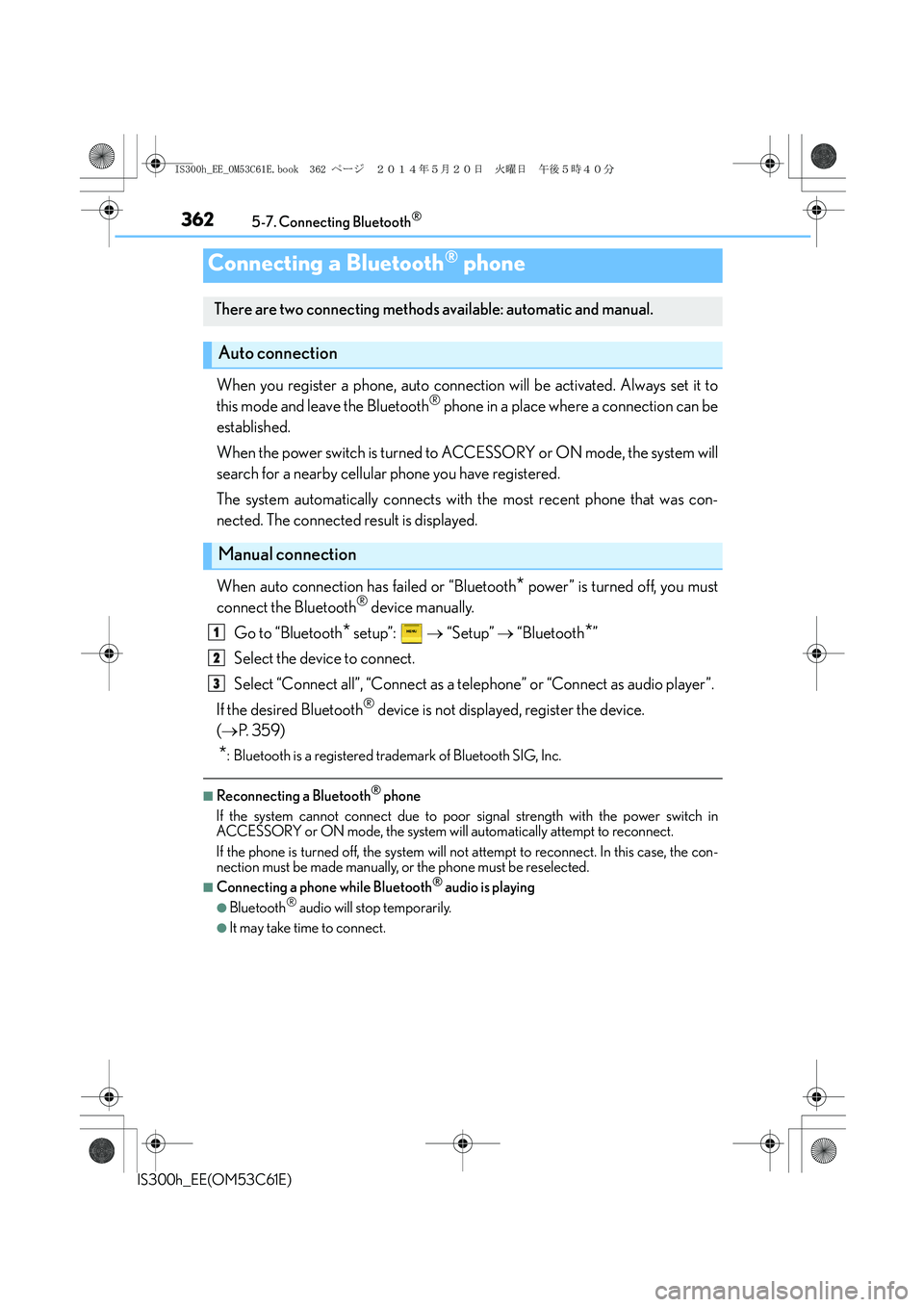
When you register a phone, auto connection will be activated. Always set it to
this mode and leave the Bluetooth® phone in a place where a connection can be
established.
When the power switch is turned to ACCESSORY or ON mode, the system will
search for a nearby cellular phone you have registered.
The system automatically connects with the most recent phone that was con-
nected. The connected result is displayed.
When auto connection has failed or “Bluetooth
* power” is turned off, you must
connect the Bluetooth® device manually.
Go to “Bluetooth
* setup”: → “Setup” → “Bluetooth*”
Select the device to connect.
Select “Connect all”, “Connect as a telephone” or “Connect as audio player”.
If the desired Bluetooth
® device is not displayed, register the device.
(→P. 3 5 9 )
*: Bluetooth is a registered trademark of Bluetooth SIG, Inc.
■Reconnecting a Bluetooth® phone
If the system cannot connect due to poor signal strength with the power switch in
ACCESSORY or ON mode, the system will automatically attempt to reconnect.
If the phone is turned off, the system will not attempt to reconnect. In this case, the con-
nection must be made manually, or the phone must be reselected.
■Connecting a phone while Bluetooth® audio is playing
●Bluetooth® audio will stop temporarily.
●It may take time to connect.
Connecting a Bluetooth® phone
There are two connecting methods available: automatic and manual.
Auto connection
Manual connection
1
2
3
IS300h_EE_OM53C61E.book 362 ページ 2014年5月20日 火曜日 午後5時40分
Page 363 of 612
3635-7. Connecting Bluetooth®
5
Lexus Display Audio system
IS300h_EE(OM53C61E)
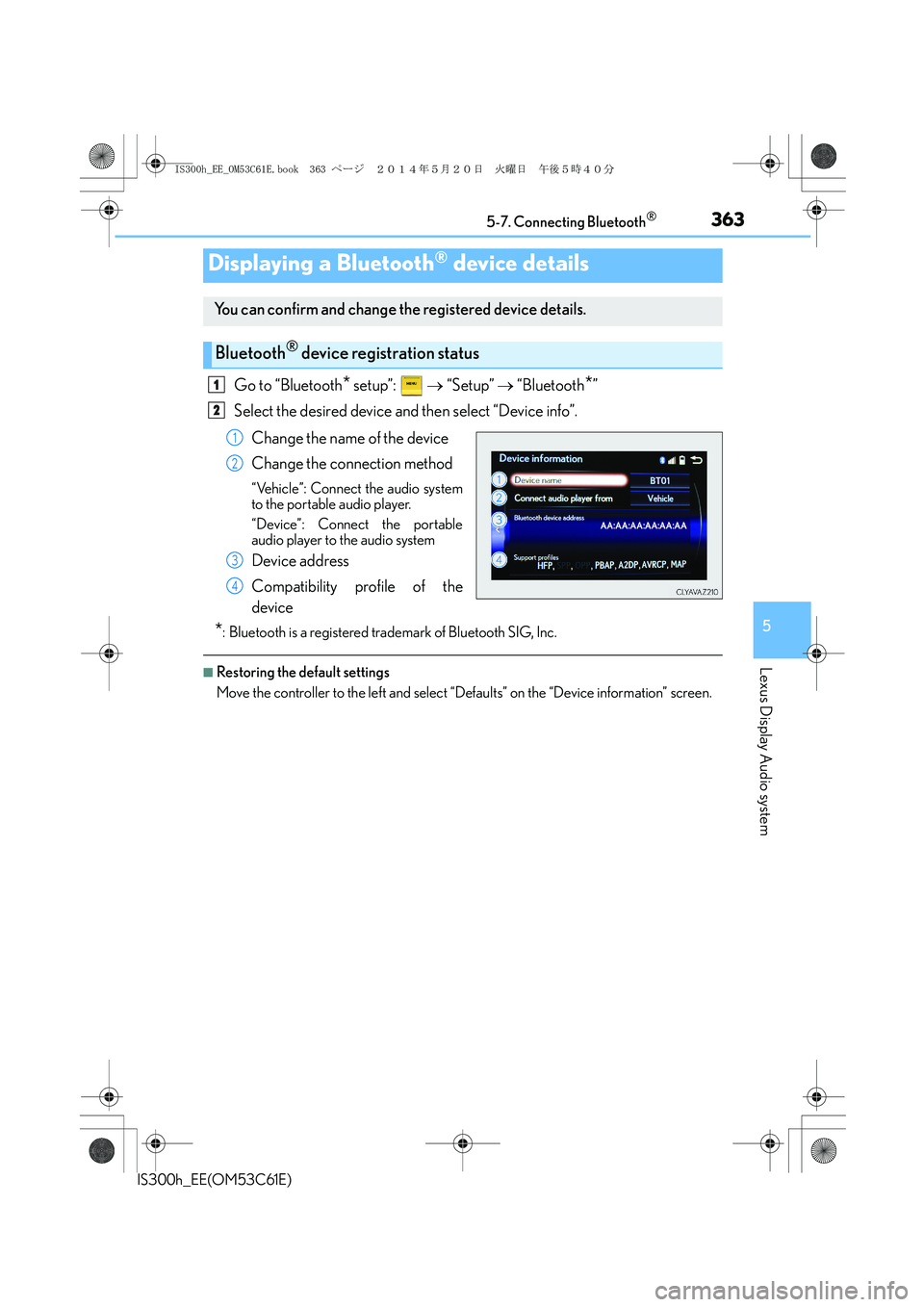
Go to “Bluetooth* setup”: → “Setup” → “Bluetooth*”
Select the desired device and then select “Device info”.
Change the name of the device
Change the connection method
“Vehicle”: Connect the audio system
to the portable audio player.
“Device”: Connect the portable
audio player to the audio system
Device address
Compatibility profile of the
device
*: Bluetooth is a registered trademark of Bluetooth SIG, Inc.
■Restoring the default settings
Move the controller to the left and select “Defaults” on the “Device information” screen.
Displaying a Bluetooth® device details
You can confirm and change the registered device details.
Bluetooth® device registration status
1
2
1
2
3
4
IS300h_EE_OM53C61E.book 363 ページ 2014年5月20日 火曜日 午後5時40分
Page 364 of 612
3645-7. Connecting Bluetooth®
IS300h_EE(OM53C61E)
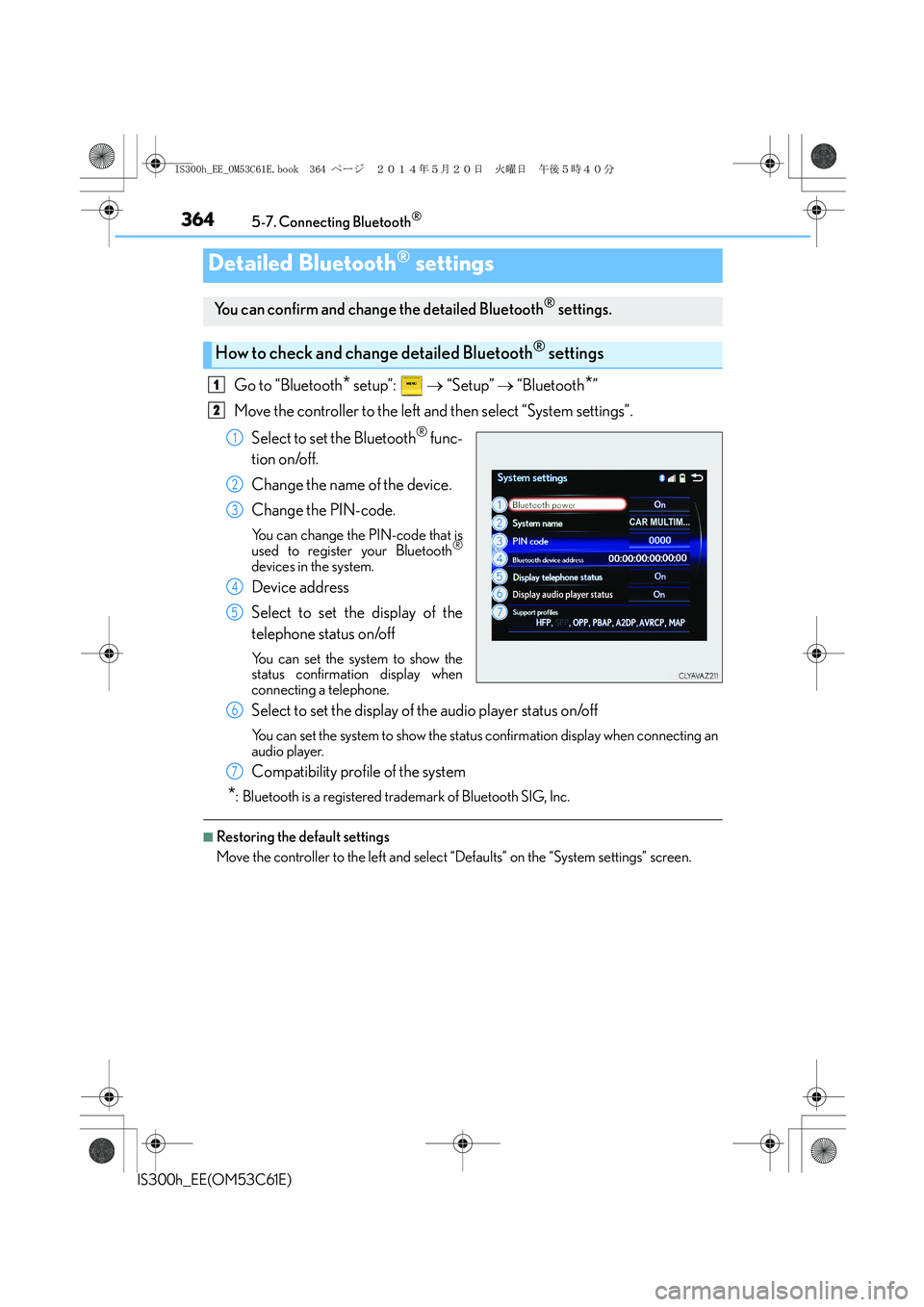
Go to “Bluetooth* setup”: → “Setup” → “Bluetooth*”
Move the controller to the left and then select “System settings”.
Select to set the Bluetooth
® func-
tion on/off.
Change the name of the device.
Change the PIN-code.
You can change the PIN-code that is
used to register your Bluetooth®
devices in the system.
Device address
Select to set the display of the
telephone status on/off
You can set the system to show the
status confirmation display when
connecting a telephone.
Select to set the display of the audio player status on/off
You can set the system to show the status confirmation display when connecting an
audio player.
Compatibility profile of the system
*: Bluetooth is a registered trademark of Bluetooth SIG, Inc.
■Restoring the default settings
Move the controller to the left and select “Defaults” on the “System settings” screen.
Detailed Bluetooth® settings
You can confirm and change the detailed Bluetooth® settings.
How to check and change detailed Bluetooth® settings
1
2
1
2
3
4
5
6
7
IS300h_EE_OM53C61E.book 364 ページ 2014年5月20日 火曜日 午後5時40分
Page 365 of 612
365
5
Lexus Display Audio system
IS300h_EE(OM53C61E)5-8. Bluetooth
® Audio
When a Bluetooth® device cannot be connected, check the connection status
on the “Bluetooth
* audio” screen. If the device is not connected, either register
or reconnect the device. (→P. 3 6 0 , 3 6 1 )
*: Bluetooth is a registered trademark of Bluetooth SIG, Inc.
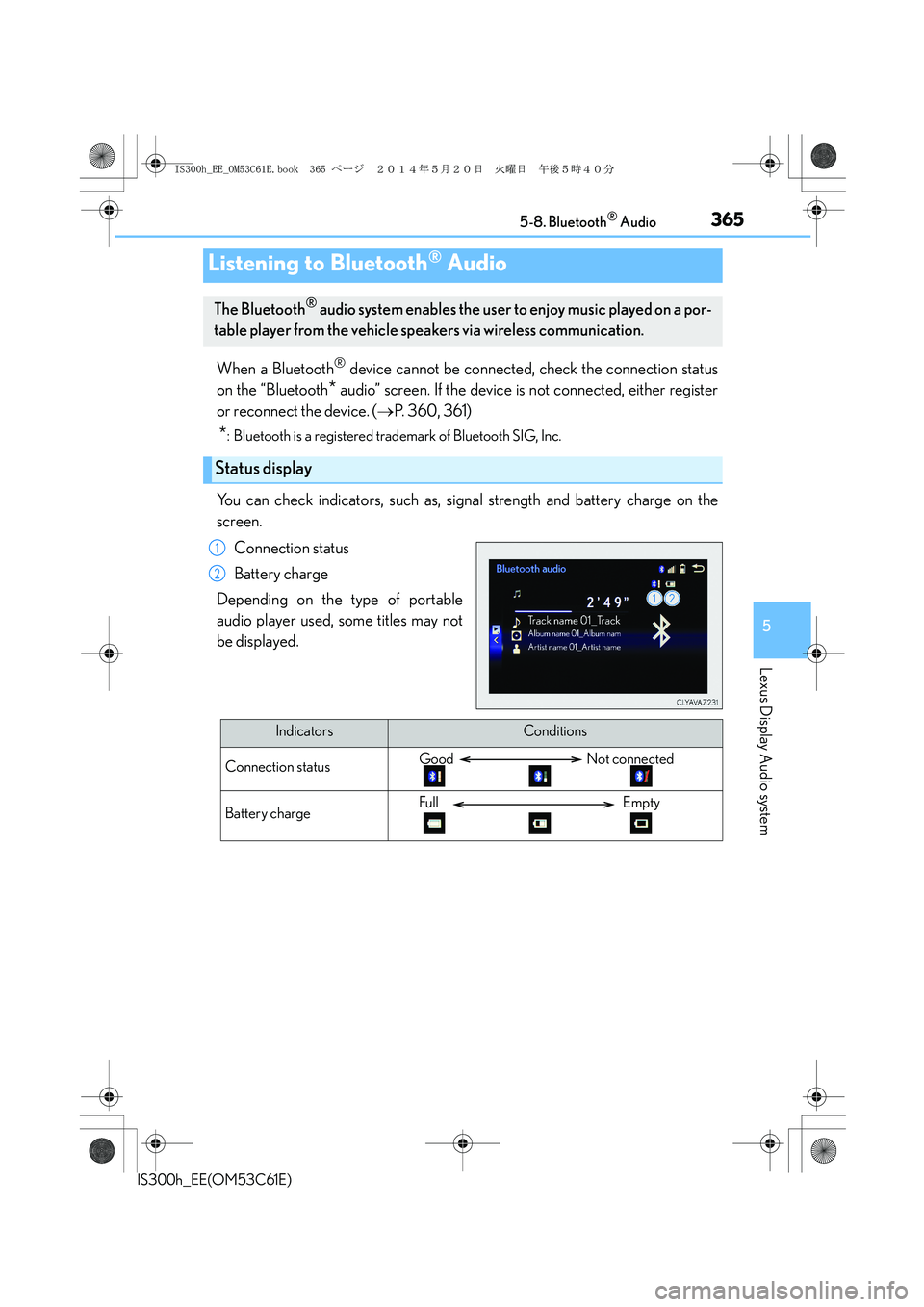
You can check indicators, such as, signal strength and battery charge on the
screen.
Connection status
Battery charge
Depending on the type of portable
audio player used, some titles may not
be displayed.
Listening to Bluetooth® Audio
The Bluetooth® audio system enables the user to enjoy music played on a por-
table player from the vehicle speakers via wireless communication.
Status display
1
2
IndicatorsConditions
Connection statusGood Not connected
Battery chargeFull Empty
IS300h_EE_OM53C61E.book 365 ページ 2014年5月20日 火曜日 午後5時40分
Page 385 of 612
385
5
Lexus Display Audio system
IS300h_EE(OM53C61E)5-11. Bluetooth
®
■When using the Bluetooth® audio system
●In the following situations, the system may not function.
• If the portable audio player is turned off
• If the portable audio player is not connected
• If the portable audio player’s battery is low
●There may be a delay if a cellular phone connection is made during Bluetooth® audio
play.
●Depending on the type of portable audio player that is connected to the system, opera-
tion may differ slightly and certain functions may not be available.
■When using the hands-free system
●The audio system is muted when making a call.
●If both parties speak at the same time, it may be difficult to hear.
●If the received call volume is overly loud, an echo may be heard.
If the Bluetooth® phone is too close to the system, quality of the sound may deteriorate
and connection status may deteriorate.
●In the following situations, it may be difficult to hear the other party:
• When driving on unpaved roads
• When driving at high speeds
•If a window is open
• If the air conditioning is blowing directly on the microphone
• If there is interference from the network of the cellular phone
■Conditions under which the system will not operate
●If using a cellular phone that does not support Bluetooth®
●If the cellular phone is turned off
●If you are outside of cellular phone service coverage
●If the cellular phone is not connected
●If the cellular phone’s battery is low
●When outgoing calls are controlled, due to heavy traffic on telephone lines, etc.
●When the cellular phone itself cannot be used
●When transferring phonebook data from the cellular phone
Bluetooth®
IS300h_EE_OM53C61E.book 385 ページ 2014年5月20日 火曜日 午後5時40分