phone Lexus IS350 2020 / LEXUS 2020 IS300,IS350 (OM53F29U) User Guide
[x] Cancel search | Manufacturer: LEXUS, Model Year: 2020, Model line: IS350, Model: Lexus IS350 2020Pages: 660, PDF Size: 10.84 MB
Page 311 of 660

311
Lexus DisplayAudio system
5
IS350 AWD/IS350/IS300 AWD/IS300_U
5-6. Using an external device
Listening to an iPod .................... 351
Using USB memory device.......................................... 355
Using the AUX port ................ 359
5-7. Connecting Bluetooth
®
Steps for using Bluetooth®
devices ........................................ 360
Registering a Bluetooth
®
device...........................................362
Selecting a Bluetooth
®
device...........................................363
Connecting a Bluetooth
®
audio player ...............................364
Connecting a Bluetooth
®
phone ...........................................365
Displaying a Bluetooth
®
device details ............................366
Detailed Bluetooth
®
settings......................................... 367
5-8. Bluetooth
® Audio
Listening to Bluetooth
®
Audio............................................370 5-9. Bluetooth
® Phone
Using a Bluetooth
®
Phone .............................................371
Making a call ................................ 374
Receiving a call ........................... 377
Speaking on the phone............ 378
Using a Bluetooth
®
phone message....................... 380
Using the steering wheel switches.......................................382
Bluetooth
® phone
settings ........................................383
5-10. Phonebook Contact settings .........................385
Messaging setting..................... 388
5-11. Bluetooth
®
What to do if... (Troubleshooting)...................389
Bluetooth
®................................... 393
5-12. Other function “Information” screen................ 400
USB photo .................................... 402
Weather information................ 404
Voice command system .........405
Page 313 of 660

3135-1. Basic Operations
5
Lexus Display Audio system
IS350 AWD/IS350/IS300 AWD/IS300_U
■“Menu” screen
To display the “Menu” screen, press the “MENU” button on the Lexus Display
Audio controller.
*: Available in the 48 states, D.C. and Alaska
ButtonFunction
“Radio”Display the radio top screen ( P. 338)
“Media”Display the media top screen ( P. 344, 351, 355, 359, 364)
“Climate”Display the air conditioning control screen ( P. 417)
“Phone”Display the phone top screen ( P. 371)
“Connected Navi”*
If a turn-by-turn navigation application has been downloaded
to a connected phone, the appl ication will be displayed and
can be used.
“Info”Display the “Information” screen ( P. 400)
“Setup”Display the “Setup” screen ( P. 324)
“Display”Display the display settings screen ( P. 329)
Page 317 of 660

3175-1. Basic Operations
5
Lexus Display Audio system
IS350 AWD/IS350/IS300 AWD/IS300_U
■When using the screen
●Under extremely cold conditions, the Lexus Display Audio controller may react slowly.
●If the screen is cold, the display may be dark, or the system may seem to be operating
slightly slower than normal.
●The screen may seem dark and hard to see when viewed through sunglasses. Change
your angle of viewing, adjust the display on the “Display” screen (P. 329) or remove
your sunglasses.
■Using cellular phones
Interference may be heard through the audi o system’s speakers if a cellular phone is
being used inside or close to the vehicle while the audio system is operating.
WARNING
■Using the Lexus Display Audio controller
Be careful when touching the Lexus Display Audio controller in extreme temperatures
as it may become very hot or cold due to the temperature inside the vehicle.
■Laser product
●CAUTION
USE OF CONTROL OR ADJUSTMENT OR PERFORMANCE OF PROCE-
DURES OTHER THAN THOSE SPECIFIED HEREIN MAY RESULT IN HAZARD-
OUS RADIATION EXPOSURE.
●CAUTION
THE USE OF OPTICAL INSTRUMENTS WITH THIS PRODUCT WILL
INCREASE EYE HAZARD.
NOTICE
■To prevent Lexus Display Audio controller malfunction
●Do not allow the Lexus Display Audio controll er to come into contact with food, liq-
uid, stickers or lit cigarettes as doing so may cause it to change color, emit a strange
odor or stop functioning.
●Do not subject the Lexus Display Audio controller to excessive pressure or strong
impact as the controller may bend or break off.
■To prevent battery discharge
Do not leave the audio system on longer than necessary when the engine is off.
■To avoid damaging the audio system
Take care not to spill drinks or other fluids on the audio system.
Page 319 of 660

3195-1. Basic Operations
5
Lexus Display Audio system
IS350 AWD/IS350/IS300 AWD/IS300_U
Press and hold the off hook switch
until you hear the beeps that indicate
the system is listening.
The Mobile Assistant can be used
only when the neighboring screen is
displayed.
To cancel the Mobile Assistant, select
“Cancel”, or press and hold the off hook
switch.
To restart the Mobile Assistant for addi-
tional commands, press the off hook
switch. Mobile Assistant can only be
restarted after the sy stem responds to a
voice command. After some phone and
music commands, the Mobile Assistant
feature will automatically end to com-
plete the requested action.
Mobile Assistant
The Mobile Assistant feature will activate Apple’s Siri Eyes Free mode via
the steering wheel switches. To operate the Mobile Assistant, a compatible
cellular phone must be registered and connected to this system via
Bluetooth
. ( P. 360)
1
2
Page 320 of 660

3205-1. Basic Operations
IS350 AWD/IS350/IS300 AWD/IS300_U
■Adjusting the volume
The volume of the Mobile Assist ant can be adjusted using the
“PWR·VOL” knob or
steering wheel volume switch es. The Mobile Assistant and phone call volumes are syn-
chronized.
■Microphone
It is not necessary to speak directly into the microphone when using the Mobile Assis-
tant.
●Wait for the listening beeps before using the Mobile Assistant.
●The Mobile Assistant may not recognize commands in the following situations:
• When spoken too quickly.
• When spoken at a low or high volume.
• When the roof or windows are open.
• When passengers are talking while th e Mobile Assistant is being used.
• When the air conditioning syst em’s fan speed is set high.
• When the air conditioning vents are turned toward the microphone.
■Mobile Assistant precautions
●The available features and functions may vary based on the iOS version installed on the
connected device.
●Some Siri features are limited in Eyes Free mode. If you attempt to use an unavailable
function, Siri will inform you that the function is not available.
●If Siri is not enabled on the ce llular phone connected via Bluetooth, an error message
will be displayed on the screen.
●While a phone call is active, the Mobile Assistant cannot be used.
●If using the navigation feature of the cellular phone, ensure the active audio source is
Bluetooth audio or iPod in order to hear turn by turn direction prompts.
Page 324 of 660

324
IS350 AWD/IS350/IS300 AWD/IS300_U5-2. Setup
Go to “Setup”: “MENU” button
“Setup”
Change the settings for operation
sounds, screen animation, etc.
( P. 325)
Change the settings for voice guid-
ance. ( P. 328)
Change the settings for registering,
removing, connecting and discon-
necting Bluetooth
® devices.
( P. 362, 363, 364, 365)
Change the settings for FM radio,
iPod, etc. ( P. 332)
Change the settings for vehicle cus-
tomization. ( P. 613)
Change the settings for phone
sound, phonebook, etc. ( P. 383)
Change the settings for mobile data
usage notification.
Setup menu
The Lexus Display Audio system can be adjusted to the desired settings.
Display “Setup” screen
1
2
3
4
5
6
7
Page 325 of 660
3255-2. Setup
5
Lexus Display Audio system
IS350 AWD/IS350/IS300 AWD/IS300_U
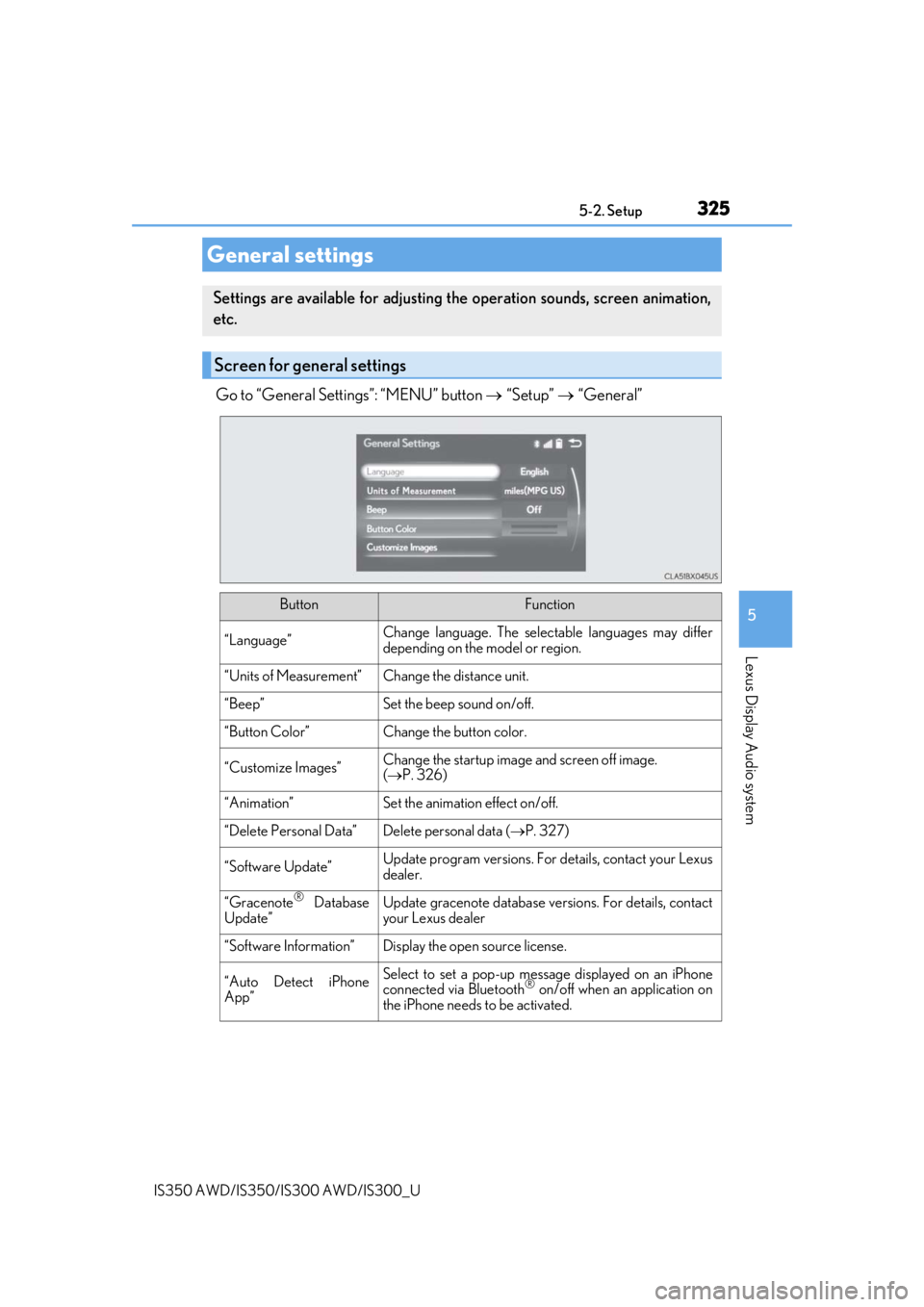
Go to “General Settings”: “MENU” button “Setup” “General”
General settings
Settings are available for adjusting th e operation sounds, screen animation,
etc.
Screen for general settings
ButtonFunction
“Language”Change language. The select able languages may differ
depending on the model or region.
“Units of Measurement”Change the distance unit.
“Beep”Set the beep sound on/off.
“Button Color”Change the button color.
“Customize Images”Change the startup image and screen off image.
( P. 326)
“Animation”Set the animation effect on/off.
“Delete Personal Data”Delete personal data ( P. 327)
“Software Update”Update program versions. For details, contact your Lexus
dealer.
“Gracenote® Database
Update”Update gracenote database versions. For details, contact
your Lexus dealer
“Software Information”Display the open source license.
“Auto Detect iPhone
App”Select to set a pop-up message displayed on an iPhone
connected via Bluetooth® on/off when an application on
the iPhone needs to be activated.
Page 327 of 660

3275-2. Setup
5
Lexus Display Audio system
IS350 AWD/IS350/IS300 AWD/IS300_U
Go to “Delete Personal Data”: “MENU” button “Setup” “General”
“Delete Personal Data”
Select “Delete”.
Check carefully beforeha nd, as data cannot be retrieved once deleted.
The following personal data will be deleted or changed to its default settings.
• Phonebook data
• Call history data
• Favorite data
• Bluetooth
® devices data
• Phone sound settings
• Detailed Bluetooth
® settings
• Audio/video setting
• Customized image data
• FM info setting
• iPod tagging information
• Software update history
• Software update detail information
• Phone display setting
• Contact/call history setting
• Messaging setting
• Traffic information map
• Weather information
• Phonebook data for voice recognition
• Music data for voice recognition
NOTICE
■To prevent damage to the USB me mory device or its terminals
P. 358
Deleting personal data
1
2
Page 352 of 660
3525-6. Using an external device
IS350 AWD/IS350/IS300 AWD/IS300_U
■About iPod
●Use of the Made for Apple badge means that an accessory has been designed to con-
nect specifically to the Appl e product(s) identified in the badge, and has been certified
by the developer to meet Apple performanc e standards. Apple is not responsible for
the operation of this device or its compliance with safe ty and regulatory standards.
Please note that the use of this accessory with an Apple product may affect wireless
performance.
●iPhone, iPod, iPod classic, iPod nano, iP od touch, and Lightning are trademarks of
Apple Inc., registered in the U.S. and other countries.
●The Lightning connector works with iPhone 5s, iPhone 5c, iPhone 5, iPod touch (5th
generation), and iPod nano (7th generation).
●The 30-pin connector works with iPhone 4s, iPhone 4, iPhone 3GS, iPhone 3G,
iPhone, iPod touch (1st through 4th generati on), iPod classic, and iPod nano (1st
through 6th generation)
●USB works with iPhone 5s, iPhone 5c, iPho ne 5, iPhone 4s, iPhone 4, iPhone 3GS,
iPhone 3G, iPhone, iPod touch (1st through 5th generation), iPod classic, and iPod
nano (1st through 7th generation).
●Bluetooth® technology works with iPhone 5s, iP hone 5c, iPhone 5, iPhone 4s, iPhone
4, iPhone 3GS, iPhone 3G, iPhone, iPod touch (2nd through 5th generation) and iPod
nano (7th generation).
■iPod cover art
●Depending on the iPod and songs in the iPod, iPod cover art may be displayed.
●This function can be changed to on/off. (P. 334)
●It may take time to display iPod cover art, and the iPod may not be operated while the
cover art display is in process.
Page 354 of 660

3545-6. Using an external device
IS350 AWD/IS350/IS300 AWD/IS300_U
■Compatible models
The following iPod®, iPod nano®, iPod classic®, iPod touch® and iPhone® devices can
be used with this system.
●Made for
• iPod touch (5th generation)
*
• iPod touch (4th generation)
• iPod touch (3rd generation)
• iPod touch (2nd generation)
• iPod touch (1st generation)
• iPod classic
• iPod with video
• iPod nano (7th generation)
*
• iPod nano (6th generation)
• iPod nano (5th generation)
• iPod nano (4th generation)
• iPod nano (3rd generation)
• iPod nano (1st generation)
• iPhone 5s
*
• iPhone 5c*
• iPhone 5*
• iPhone 4S
• iPhone 4
• iPhone 3GS
• iPhone 3G
• iPhone
*: iPod video not supported
Depending on differences between models or software versions, etc., some models
might be incompatible with this system.
NOTICE
■To prevent damage to the iPod or its terminals
●Depending on the size and shape of the iPod that is connected to the system, the con-
sole box may not close fully. In this case, do not forcibly close the console box as this
may damage the iPod or the terminal, etc.
●Do not leave the iPod in the vehicle. The temperature inside the vehicle may become
high.
●Do not push down on or apply unnecessary pressure to the iPod while it is connected.
●Do not insert foreign objects into the port.