audio Lexus IS350 2020 / LEXUS 2020 IS300,IS350 (OM53F29U) Owner's Guide
[x] Cancel search | Manufacturer: LEXUS, Model Year: 2020, Model line: IS350, Model: Lexus IS350 2020Pages: 660, PDF Size: 10.84 MB
Page 266 of 660

2664-5. Using the driving support systems
IS350 AWD/IS350/IS300 AWD/IS300_U
■The intuitive parking assist can be operated when
●Front corner sensors:
• The engine switch is in IGNITION ON mode.
• The shift lever is in other than P.
• The vehicle speed is less than about 6 mph (10 km/h). (At any speed when the shift lever is in R)
●Front center sensors:
• The engine switch is in IGNITION ON mode.
• The shift lever is in other than P or R.
• The vehicle speed is less than about 6 mph (10 km/h).
●Rear corner and rear center sensors:
• The engine switch is in IGNITION ON mode.
• The shift lever is in R.
■Intuitive parking assist display
Vehicles with a Lexus Display Audio system: When an obst acle is detected while the
Lexus parking assist monitor is in use, the warning indicator will appear in the upper part
of the screen even if the disp lay setting has been set to off.
■If a message is displayed on the multi-information display
P. 532
■Certification
For vehicles sold in Canada
This ISM device complies with Canadian ICES-001.
Cet appareil ISM est conforme a la norme NMB-001 du Canada.
■Customization
Some functions can be customized. ( P. 613)
Page 268 of 660

2684-5. Using the driving support systems
IS350 AWD/IS350/IS300 AWD/IS300_U
WARNING
●The shape of the obstacle may prevent a sensor from detecting it. Pay particular
attention to the following obstacles:
• Wires, fences, ropes, etc.
• Cotton, snow and other materi als that absorb sound waves
• Sharply-angled objects
• Low obstacles
• Tall obstacles with upper sections projecting outwards in the direction of your vehicle
• People, animals and other moving objects
• People wearing certain types of clothing
●The following situations may occur during use.
• Depending on the shape of the obstacle and other factors, the detection distance may shorten, or detection may be impossible.
• Obstacles may not be detected if they are too close to the sensor.
• There will be a short delay between obstac le detection and display. Even at slow
speeds, there is a possibility that the obstacle will come within the sensor’s detec-
tion areas before the display is shown and the buzzer sounds.
• Thin posts or objects lower than the sensor may not be detected when approached, even if they have been detected once.
• It might be difficult to hear beeps due to the volume of audio system or air flow noise of the air co nditioning system.
NOTICE
■When using intuitive parking assist
In the following situations, the system may not function correctly due to a sensor mal-
function, etc. Have the vehicle checked by your Lexus dealer.
●The intuitive parking assist operation disp lay flashes, and a buzzer sounds when no
obstacles are detected.
●If the area around a sensor co llides with something, or is subjected to strong impact.
●If the bumper collides with something.
●If the display shows continuously without beeping, except when the buzzer mute
switch has been turned on.
●If a display error occurs, first check the sensor.
If the error occurs even if there is no ice, sn ow or mud on the sensor, it is likely that the
sensor is malfunctioning.
■Notes when washing the vehicle
Do not apply intensive bursts of water or steam to the sensor area.
Doing so may result in the sensor malfunctioning.
Page 271 of 660

2714-5. Using the driving support systems
4
Driving
IS350 AWD/IS350/IS300 AWD/IS300_U
When the shift position is in any position other than R, the display mode can be
changed in the following procedure.
Press the “MENU” button on the Le xus Display Audio controller/Remote
touch, and then select on the screen.
Select “Vehicle”, and then select “Back Camera Guide Line Setting” on the
screen.
Select the desired display mode.
Estimated course line display
mode ( P. 272)
Parking assist guide line display
mode ( P. 274)
Distance guide line display mode
Distance guide lines only are dis-
played.
Switching the display mode
1
2
3
1
2
3
Page 276 of 660

2764-5. Using the driving support systems
IS350 AWD/IS350/IS300 AWD/IS300_U
■Area displayed on screen
The parking assist monitor displays
an image of the view from the
bumper of the rear area of the vehi-
cle.
The image on the rear view monitor
system screen can be adjusted.
(Vehicles with a Lexus Display
Audio system: P. 329) (Vehicles
with a navigation system: “NAVI-
GATION SYSTEM OWNER’S
MANUAL”.)
• The area displayed on the screen may vary according to vehicle orien-
tation conditions.
• Objects which are close to either corner of the bumper or under the
bumper cannot be seen on the
screen.
• The camera uses a special lens. The dist ance of the image that appears on the
screen differs from the actual distance.
Lexus parking assist monitor precautions
Corners of bumper
Page 281 of 660

2814-5. Using the driving support systems
4
Driving
IS350 AWD/IS350/IS300 AWD/IS300_U
■If you notice any symptoms
If you notice any of the following symptoms, refer to the likely cause and the
solution, and re-check.
If the symptom is not resolved by the solution, have the vehicle inspected by
your Lexus dealer.
Things you should know
Likely causeSolution
The image is difficult to see
• The vehicle is in a dark area
• The temperature around the lens is
either high or low
• The outside temperature is low
• There are water droplets on the cam- era
• It is raining or humid
• Foreign matter (mud etc.) is adhering to the camera
• There are scratches on the camera
• Sunlight or headlights are shining directly into the camera
•The vehicle is unde r fluorescent lights,
sodium lights, mercury lights etc.
If this happens due to these causes, it
does not indicate a malfunction.
Back up while visually checking the vehi-
cle’s surroundings. (Use the monitor
again once conditions have been
improved.)
The image on the Lexus parking assist
monitor system screen can be adjusted.
(Vehicles with a Lexus Display Audio sys-
tem: P. 329) (Vehicles with a naviga-
tion system: “NAVIGATION SYSTEM
OWNER’S MANUAL”.)
The image is blurry
Dirt or foreign matter (such as water
droplets, snow, mud etc.) is adhering to
the camera.Flush the camera with a large quantity of
water and wipe the camera lens clean
with a soft and wet cloth.
The image is out of alignment
The camera or surrounding area has
received a strong impact.Have the vehicle inspected by your Lexus
dealer.
The guide lines are very far out of alignment
The camera position is out of alignment.Have the vehicle inspected by your Lexus
dealer.
• The vehicle is tilted (there is a heavy
load on the vehicle, tire pressure is low
due to a tire puncture, etc.)
• The vehicle is used on an incline.If this happens due to these causes, it
does not indicate a malfunction.
Back up while visually checking the vehi-
cle’s surroundings.
Page 287 of 660

2874-5. Using the driving support systems
4
Driving
IS350 AWD/IS350/IS300 AWD/IS300_U
■Outside rear view mirror indicator visibility
In strong sunlight, the outside rear view mirror indicator may be difficult to see.
■Hearing the RCTA buzzer
The RCTA buzzer may be difficult to hear over loud noises, such as if the audio system
volume is high.
■When there is a malfunction in the Blind Spot Monitor
If a system malfunction is detected due to any of the following, a warning message will be
displayed: ( P. 532)
●A sensor is malfunctioning
●A sensor is dirty or covere d with snow or a sticker
●The outside temperature is extremely high or low
●Sensor voltage is abnormal
●A sensor is misaligned
■Certification for the Blind Spot Monitor
Page 293 of 660
2934-5. Using the driving support systems
4
Driving
IS350 AWD/IS350/IS300 AWD/IS300_U
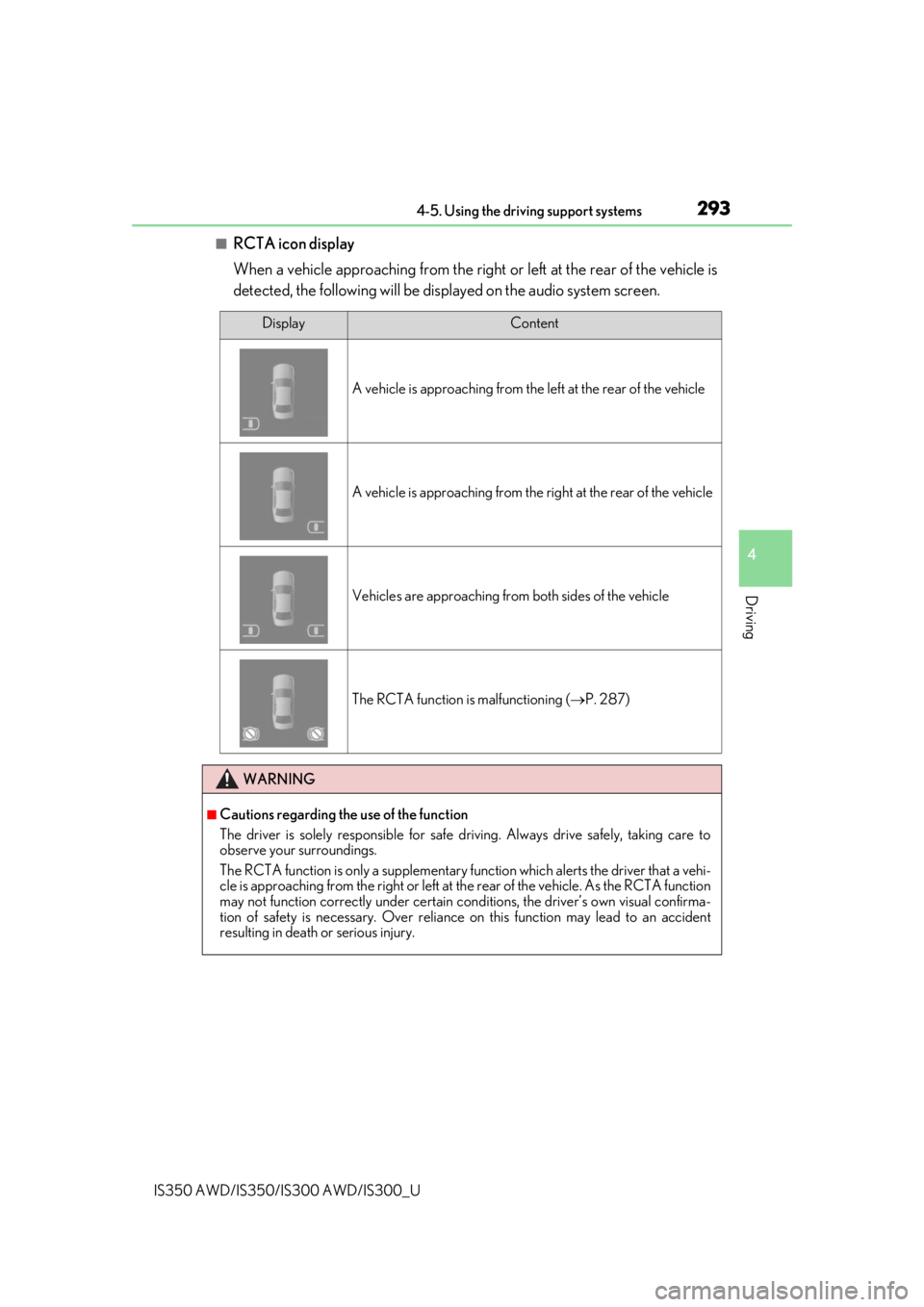
■RCTA icon display
When a vehicle approaching from the right or left at the rear of the vehicle is
detected, the following will be displayed on the audio system screen.
DisplayContent
A vehicle is approaching from the left at the rear of the vehicle
A vehicle is approaching from the right at the rear of the vehicle
Vehicles are approaching from both sides of the vehicle
The RCTA function is malfunctioning ( P. 287)
WARNING
■Cautions regarding the use of the function
The driver is solely responsible for safe driving. Always drive safely, taking care to
observe your surroundings.
The RCTA function is only a supplementary function which alerts the driver that a vehi-
cle is approaching from the right or left at the rear of the vehicle. As the RCTA function
may not function correctly under certain cond itions, the driver’s own visual confirma-
tion of safety is necessary. Over reliance on this function may lead to an accident
resulting in death or serious injury.
Page 298 of 660

2984-5. Using the driving support systems
IS350 AWD/IS350/IS300 AWD/IS300_U
Vehicles with Adaptive Variable Suspension System
Normal mode/Customized mode
Normal mode and customized mode ar e selected by pressing the driving
mode select switch. Each time the switch is pressed, the driving mode
changes between normal mode and customized mode. When customized
mode is selected, the “CUSTOMIZE” indicator will be illuminated.
When Eco drive mode or sport mode is se lected, pressing the switch changes the
driving mode to normal mode.
• Normal mode
Provides an optimal balance of fuel economy, quietness, and dynamic per-
formance. Suitable for city driving.
• Customized mode Allows you to drive with the following functions set to your preferred set-
tings.
Customized mode settings can only be changed on the drive mode cus-
tomization display of the audio system screen.
(Displaying the drive mode customization display: 619)
1
Page 310 of 660

310
IS350 AWD/IS350/IS300 AWD/IS300_U
5-1. Basic OperationsLexus Display Audio system ........................................... 312
Steering wheel audio switches........................................ 318
Mobile Assistant.......................... 319
USB/AUX ports ......................... 321
5-2. Setup Setup menu .................................. 324
General settings ......................... 325
Voice settings ..............................328
Display settings ........................... 329
5-3. Using the audio system Selecting the audio source ..........................................330
Optimal use of the audio system ........................................... 331
Audio settings ............................. 332
Audio menu screen operation ....................................335
5-4. Using the radio Radio operation..........................338
5-5. Playing an audio CD and MP3/WMA/AAC discs
CD player operation ................ 344
Lexus Display Audio system
5
Page 311 of 660

311
Lexus DisplayAudio system
5
IS350 AWD/IS350/IS300 AWD/IS300_U
5-6. Using an external device
Listening to an iPod .................... 351
Using USB memory device.......................................... 355
Using the AUX port ................ 359
5-7. Connecting Bluetooth
®
Steps for using Bluetooth®
devices ........................................ 360
Registering a Bluetooth
®
device...........................................362
Selecting a Bluetooth
®
device...........................................363
Connecting a Bluetooth
®
audio player ...............................364
Connecting a Bluetooth
®
phone ...........................................365
Displaying a Bluetooth
®
device details ............................366
Detailed Bluetooth
®
settings......................................... 367
5-8. Bluetooth
® Audio
Listening to Bluetooth
®
Audio............................................370 5-9. Bluetooth
® Phone
Using a Bluetooth
®
Phone .............................................371
Making a call ................................ 374
Receiving a call ........................... 377
Speaking on the phone............ 378
Using a Bluetooth
®
phone message....................... 380
Using the steering wheel switches.......................................382
Bluetooth
® phone
settings ........................................383
5-10. Phonebook Contact settings .........................385
Messaging setting..................... 388
5-11. Bluetooth
®
What to do if... (Troubleshooting)...................389
Bluetooth
®................................... 393
5-12. Other function “Information” screen................ 400
USB photo .................................... 402
Weather information................ 404
Voice command system .........405