audio LEXUS LX570 2014 User Guide
[x] Cancel search | Manufacturer: LEXUS, Model Year: 2014, Model line: LX570, Model: LEXUS LX570 2014Pages: 956, PDF Size: 16.4 MB
Page 401 of 956

Interior features
3
401
LX570_OM_OM60L21U_(U) Playing WMA/
MP3 discs .............................. 587
Playing a Bluetooth ®
audio....................................... 589
Playing a USB memory ........ 592
Playing iPod ............................. 594
Playing DVD video ................ 596
DVD player and DVD
video disc information ....... 605
Using the video mode ........... 607
3-5. Using the hands-free system
(for cellular phone)
Hands-free system
(for cellular phone) .............. 612
Using a Bluetooth ®
phone ....................................... 621
Setting the hands-free
system (for cellular
phone)..................................... 644
Setting the Bluetooth ®
........ 669
3-6. Using the interior lights
Interior lights list ..................... 682
• Interior lights ........................... 683
• Personal lights ........................ 684
• Luggage compartment
light.............................................. 685 3-7. Using the storage features
List of storage features......... 686
• Glove box ................................. 687
• Console box............................ 688
• Overhead console ................ 689
• Cup holders ............................. 690
• Bottle holders .......................... 692
• Card holder.............................. 693
• Auxiliary boxes ....................... 693
3-8. Other interior features
Cool box ................................... 695
Sun visors .................................. 697
Vanity mirrors ......................... 698
Ashtrays.................................... 699
Cigarette lighter .................... 700
Power outlets ........................... 701
Heated steering wheel ........ 703
Seat heaters and
ventilators ............................. 705
Armrest .................................... 708
Assist grips ............................... 709
Floor mats ................................. 710
Luggage compartment
features ................................... 712
Garage door opener ............. 714
Safety Connect ...................... 722
Page 402 of 956

402
LX570_OM_OM60L21U_(U) 3-1. Using the touch screen
Touch screen By touching the screen with your fi nger, you can control the audio system
and air conditioning system, and adjust the screen display etc.
Button Pa g e
“CLIMATE” P. 4 4 0
“A U D I O ” P. 4 5 8
“MAP VOICE”/”DEST” Navigation System Owner’s Manual
“INFO” P. 4 2 7 /
Navigation System Owner’s Manual
P. 6 1 2
“SETUP” P. 4 1 0
Page 403 of 956
4033-1. Using the touch screen
3
Interior features
LX570_OM_OM60L21U_(U) Initial screen
When the “ENGINE START
STOP” switch is turned to
ACCESSORY or IGNITION ON
mode, the initial screen will be dis-
played for a few seconds as the
system starts up. Images shown on the initial screen
can be changed to suit individual
preferences. ( P. 4 1 7 )
Adjusting the display
The contrast and brightness of the screen display and the image the cam-
era displays can be adjusted. (For information regarding audio/video
screen adjustment: P. 5 1 8 )
Press the “SETUP” button and the touch “Display” on the “Setup”
screen. STEP 1
Page 422 of 956

4223-1. Using the touch screen
LX570_OM_OM60L21U_(U) ■ Delete personal data
This function is not available while driving.
Touch “Delete Personal Data” on the “General Settings” screen.
Touch “Delete”. Check carefully beforehand, as
data cannot be retrieved once
deleted.
To u c h “ Ye s ” .The following personal data can be deleted or returned to their default set-
tings:
• Maintenance conditions
• Maintenance information off setting
• Address book
•Areas to avoid
•Previous points
• Route guidance
• Route trace
• Phonebook data
• Call history data
• Speed dial data
•Bluetooth ®
phone data
• Phone sound settings
• Phone display settings
• Message settings
• Audio setting
•Bluetooth ®
audio setting
• Startup image data
• Screen off image data STEP 1
STEP 2
STEP 3
Page 423 of 956
4233-1. Using the touch screen
3
Interior features
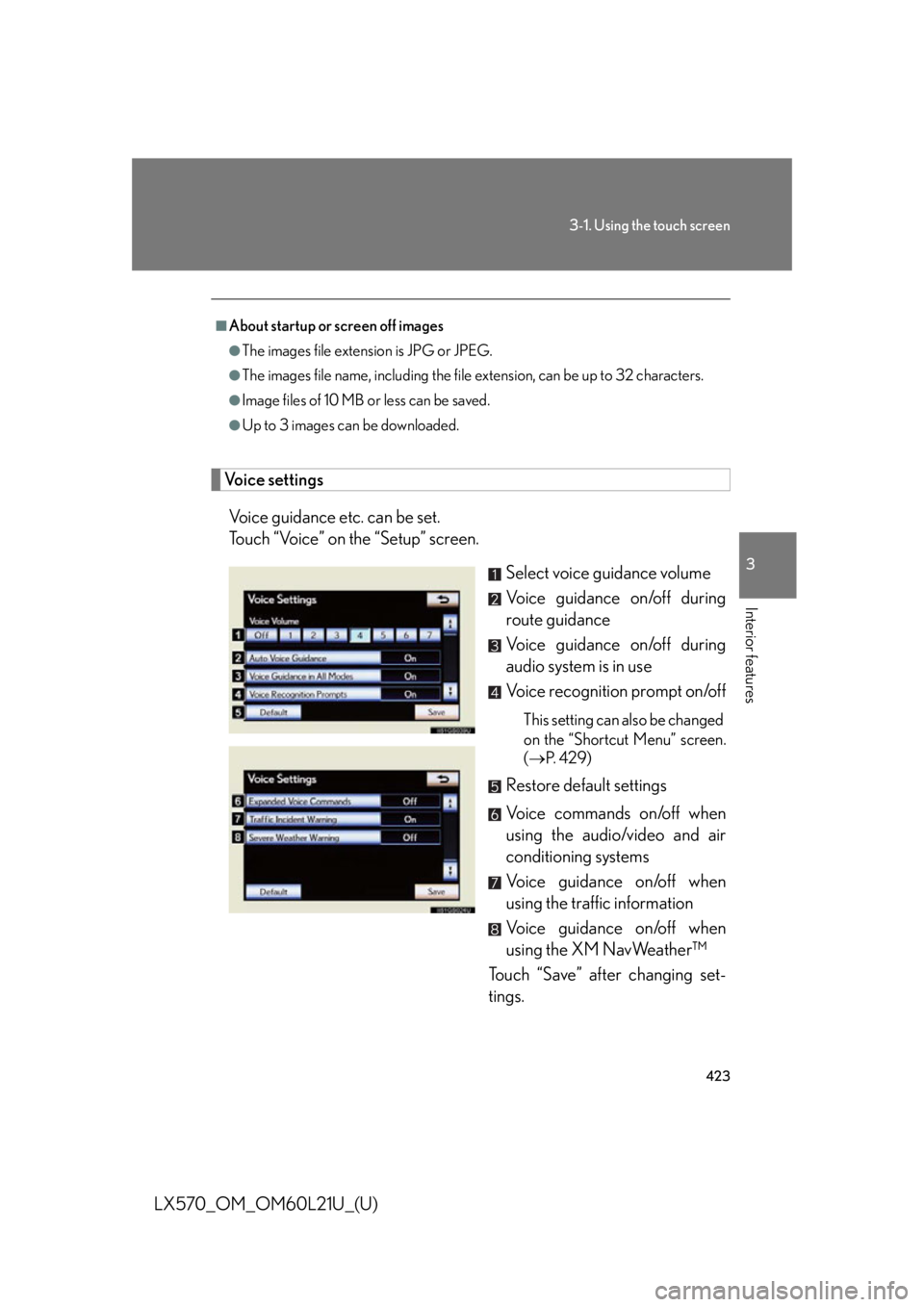
LX570_OM_OM60L21U_(U) Voice settings
Voice guidance etc. can be set.
Touch “Voice” on the “Setup” screen.
Select voice guidance volume
Voice guidance on/off during
route guidance
Voice guidance on/off during
audio system is in use
Voice recognition prompt on/off This setting can also be changed
on the “Shortcut Menu” screen.
( P. 4 2 9 )
Restore default settings
Voice commands on/off when
using the audio/video and air
conditioning systems
Voice guidance on/off when
using the traffic information
Voice guidance on/off when
using the XM NavWeather™
Touch “Save” after changing set-
tings.■
About startup or screen off images ●
The images file extension is JPG or JPEG. ●
The images file name, including the file extension, can be up to 32 characters.●
Image files of 10 MB or less can be saved. ●
Up to 3 images can be downloaded.
Page 426 of 956
4263-1. Using the touch screen
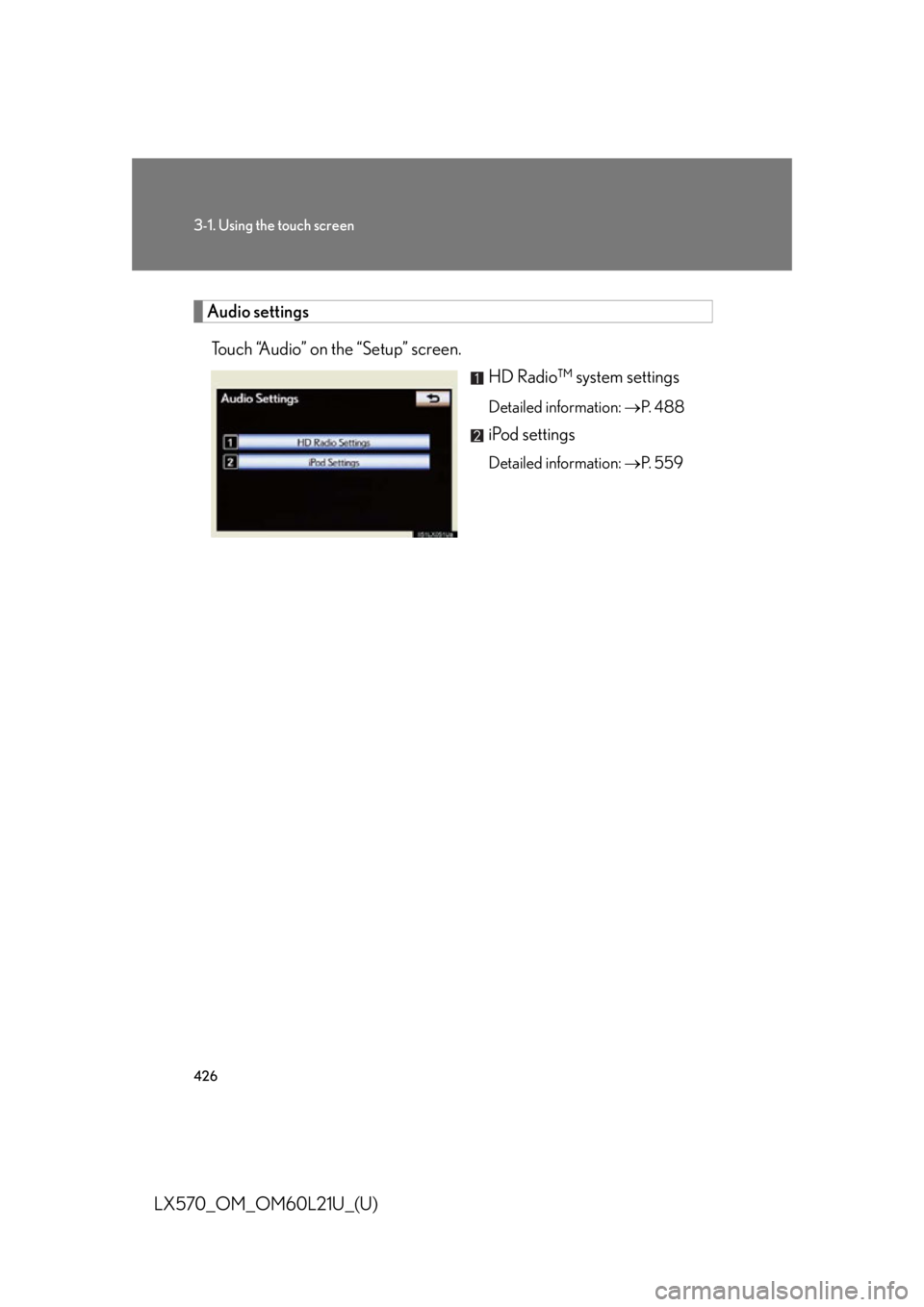
LX570_OM_OM60L21U_(U) Audio settings
Touch “Audio” on the “Setup” screen.
HD Radio™ system settings Detailed information: P. 4 8 8
iPod settings Detailed information: P. 5 5 9
Page 429 of 956

4293-1. Using the touch screen
3
Interior features
LX570_OM_OM60L21U_(U) Voice command system
Voice command system operation
■ Voice command system operation
Press or . After the “Shortcut Menu” screen has been displayed, voice guidance
will commence.
Voice guidance for the voice command system can be skipped by
pressing
or .The voice command system enables th e navigation, audio/video, hands-
free and air conditioning systems to be operated using voice commands.
For details of the navigation syst em, refer to the “Navigation System
Owner’s Manual”.
■ Talk switch Press
or .To cancel, press and hold
or .
■ Microphone
STEP 1
Page 433 of 956

4333-1. Using the touch screen
3
Interior features
LX570_OM_OM60L21U_(U) Expanded voice commands
Touching “On” next to “Expanded Voice Commands” on the “Voice
Settings” screen enables voice co mmand operation of the audio/video
and air conditioning system. ( P. 423)
For more information on operatio ns that can be controlled using
expanded voice commands, re fer to “Command list”. ( P. 433)
■ Voice command example (turn the audio system)
Press or .
Say “Audio on”.
Command list
Recognizable voice commands and their actions are shown below.
● For devices that are not installed in the vehicle, the related commands
will not be displayed in the “Shortcut Menu” screen. Also, according to
conditions, other commands may no t be displayed in the “Shortcut
Menu” screen.
● Voice recognition language can be changed. ( P. 415)
● Commands that have a “O” in the Sho rtcut Menu column can be rec-
ognized from the “Shortcut Menu” screen.
Commands that have a “—” in the Sh ortcut Menu column can only be
recognized from the screen that they are displayed in. STEP 1
STEP 2
Page 436 of 956

4363-1. Using the touch screen
LX570_OM_OM60L21U_(U) ■ Select audio mode
When expanded voice commands are turned “On”. ( P. 433)
* : Bluetooth is a registered tr ademark of Bluetooth SIG, Inc.Command
Action Shortcut
Menu
“Radio” Sets the audio mode to radio. O
“A M ” Selects the AM band. O
“FM” Selects the FM band. O
“Satellite radio” Selects the satellite radio mode. O
“Disc” Selects the disc audio mode. O
“Auxiliary” Selects the auxiliary audio mode. O
“Bluetooth
* audio” Selects the Bluetooth ®
audio mode. O
“iPod” Selects the iPod audio mode. O
“USB audio” Selects the USB audio mode. O
“Audio on” Turns the audio system on. O
“Audio off” Turns the audio system off. O
Page 439 of 956

4393-1. Using the touch screen
3
Interior features
LX570_OM_OM60L21U_(U) ■
Natural speech information ●
The “Use the Phone” and “Play Music” commands displayed on the “Shortcut
Menu” screen can be operated using natural language speech recognition
technology. ●
If the command cannot be recognized completely, the command input screen
will be displayed. (Search results will be shown based on the part of the com-
mand that was recognized.)■
When turning the audio or air conditioning system on ●
Commands relating to operation of the audio/video and air conditioning sys-
tems can only be performed when the au dio/video and air conditioning systems
are turned on. ●
Expanded voice commands can be recognized when the “Shortcut Menu”
screen is displayed.■
The Gracenote ®
media database
Music recognition technology and related data are provided by Gracenote ®
.
Gracenote is the industry standard in music recognition technology and related
content delivery. For more information visit www.gracenote.com .