audio LEXUS LX570 2015 User Guide
[x] Cancel search | Manufacturer: LEXUS, Model Year: 2015, Model line: LX570, Model: LEXUS LX570 2015Pages: 960, PDF Size: 11.33 MB
Page 403 of 960
Interior features
3
403
LX570_OM_OM60L96U_(U) Playing WMA/
MP3 discs ............................... 591
Playing a Bluetooth ®
audio........................................ 593
Playing a USB memory......... 596
Playing iPod ............................ 598
Playing DVD video ............... 600
DVD player and DVD
video disc information ....... 609
Using the video mode ............. 611
3-5. Using the hands-free system
(for cellular phone)
Hands-free system
(for cellular phone) .............. 616
Using a Bluetooth ®
phone ...................................... 625
Setting the hands-free
system (for cellular
phone)..................................... 648
Setting the Bluetooth ®
........ 673
3-6. Using the interior lights
Interior lights list ..................... 686
• Interior lights ............................ 687
• Personal lights ........................ 688
• Luggage compartment
light.............................................. 689 3-7. Using the storage features
List of storage features ........ 690
• Glove box .................................. 691
• Console box............................. 692
• Overhead console ................ 693
• Cup holders ............................. 694
• Bottle holders .......................... 696
• Card holder.............................. 697
• Auxiliary boxes ....................... 697
3-8. Other interior features
Cool box ................................... 699
Sun visors .................................. 701
Vanity mirrors ......................... 702
Ashtrays.................................... 703
Cigarette lighter.................... 704
Power outlets .......................... 705
Heated steering wheel ........ 707
Seat heaters and
ventilators ............................. 709
Armrest ..................................... 712
Assist grips ................................ 713
Floor mats ................................. 714
Luggage compartment
features .................................... 716
Garage door opener ............. 718
Safety Connect ...................... 726
Page 404 of 960

404
LX570_OM_OM60L96U_(U) 3-1. Using the touch screen
Touch screen By touching the screen with your fi nger, you can control the audio system
and air conditioning system, and adjust the screen display etc.
Button Page
“CLIMATE” P. 444
“AUDIO” P. 462
“MAP VOICE”/”DEST” Navigation System Owner’s Manual
“INFO” P. 429/
Navigation System Owner’s Manual
P. 616
“SETUP” P. 412
Page 406 of 960
4063-1. Using the touch screen
LX570_OM_OM60L96U_(U) Adjusting the display
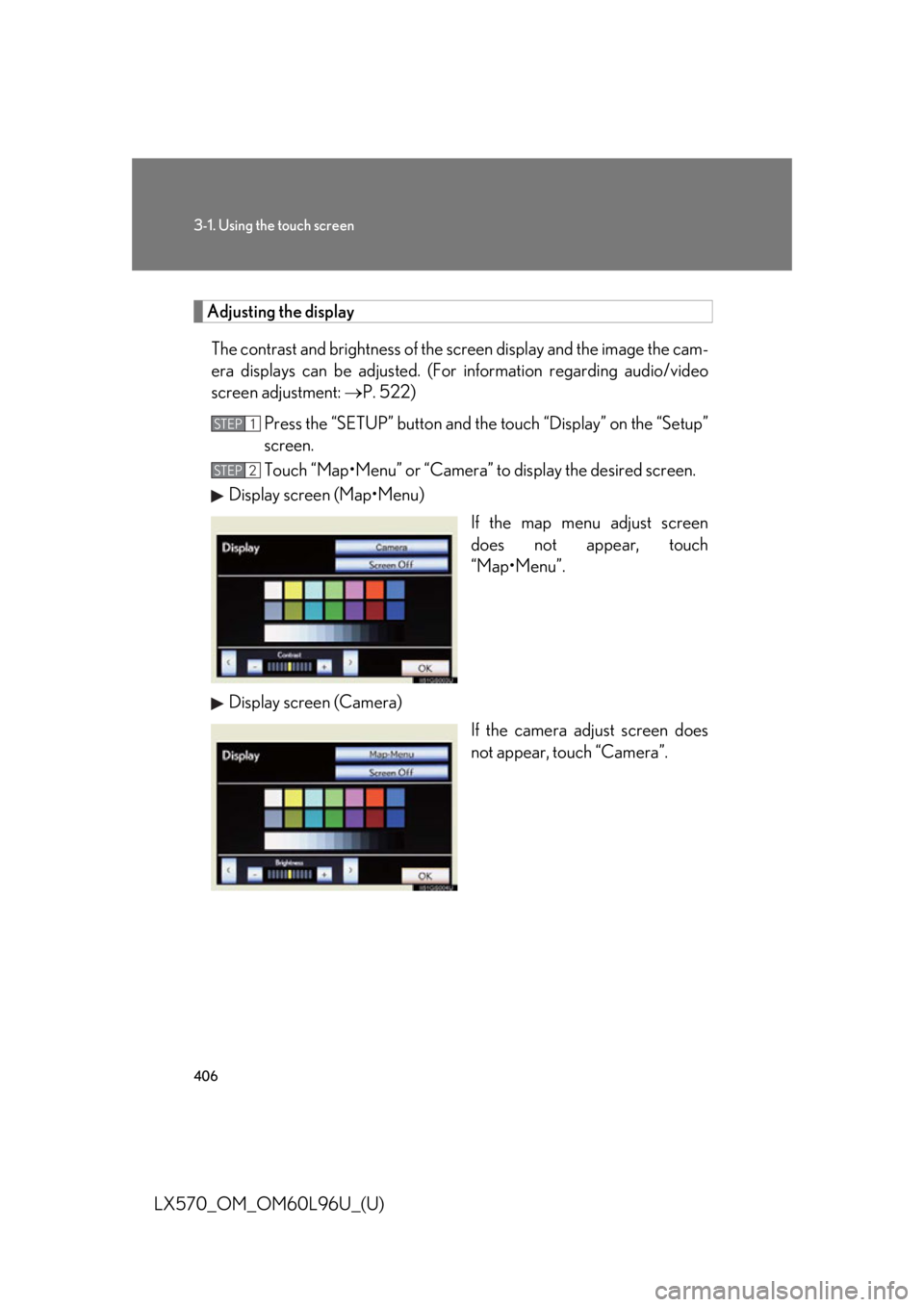
The contrast and brightness of the screen display and the image the cam-
era displays can be adjusted. (For information regarding audio/video
screen adjustment: P. 522)
Press the “SETUP” button and the touch “Display” on the “Setup”
screen.
Touch “Map•Menu” or “Camera” to display the desired screen.
Display screen (Map•Menu)
If the map menu adjust screen
does not appear, touch
“Map•Menu”.
Display screen (Camera)
If the camera adjust screen does
not appear, touch “Camera”.STEP 1
STEP 2
Page 413 of 960

4133-1. Using the touch screen
3
Interior features
LX570_OM_OM60L96U_(U) * : Bluetooth is a registered tr ademark of Bluetooth SIG, Inc.Switch Page
“Display” P. 406/
Navigation System Owner’s Manual
“General” P. 414/
Navigation System Owner’s Manual
“Voice” P. 425/
Navigation System Owner’s Manual
“Navigation” Navigation System Owner’s Manual
“Vehicle” P. 426/
Navigation System Owner’s Manual
“Phone” P. 427
“Bluetooth
* ” P. 427
“Audio” P. 428
“Other” Navigation System Owner’s Manual
Page 424 of 960
4243-1. Using the touch screen
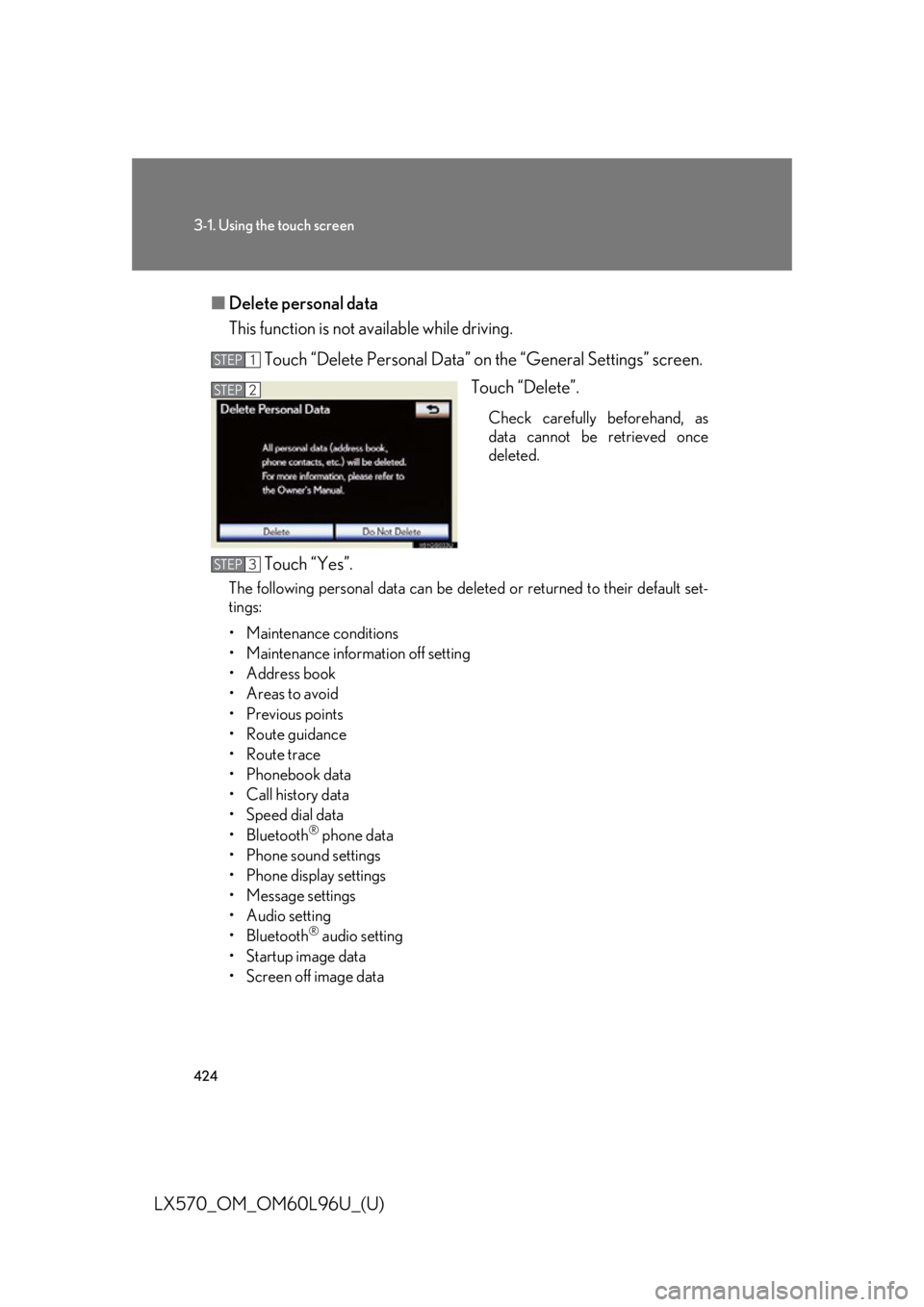
LX570_OM_OM60L96U_(U) ■ Delete personal data
This function is not available while driving.
Touch “Delete Personal Data” on the “General Settings” screen.
Touch “Delete”. Check carefully beforehand, as
data cannot be retrieved once
deleted.
Touch “Yes”.The following personal data can be dele ted or returned to their default set-
tings:
• Maintenance conditions
• Maintenance information off setting
• Address book
• Areas to avoid
•Previous points
• Route guidance
• Route trace
• Phonebook data
• Call history data
• Speed dial data
•Bluetooth ®
phone data
• Phone sound settings
• Phone display settings
• Message settings
• Audio setting
•Bluetooth ®
audio setting
• Startup image data
• Screen off image data STEP 1
STEP 2
STEP 3
Page 425 of 960
4253-1. Using the touch screen
3
Interior features
LX570_OM_OM60L96U_(U) Voice settings
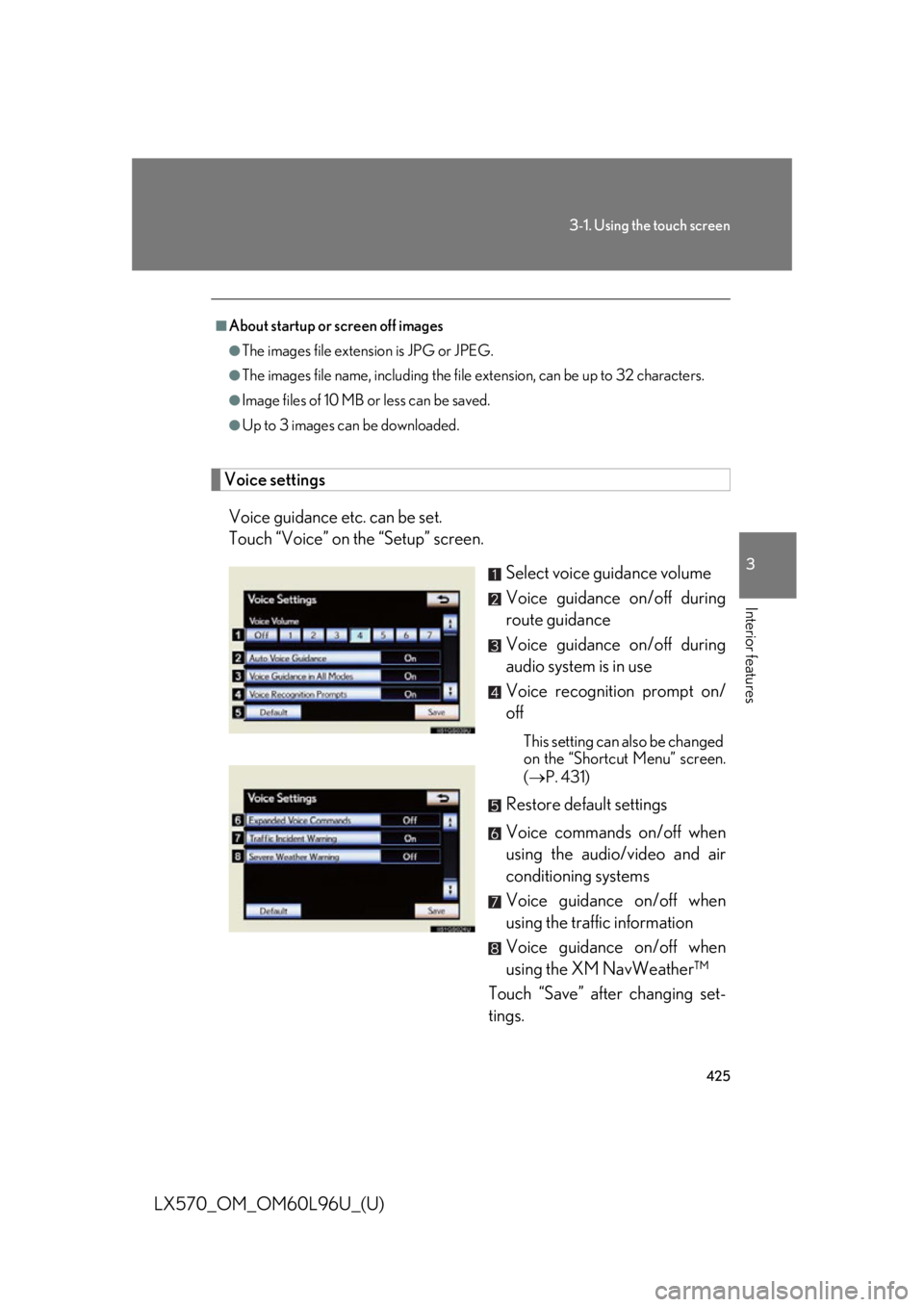
Voice guidance etc. can be set.
Touch “Voice” on th e “Setup” screen.
Select voice guidance volume
Voice guidance on/off during
route guidance
Voice guidance on/off during
audio system is in use
Voice recognition prompt on/
off This setting can also be changed
on the “Shortcut Menu” screen.
( P. 431)
Restore default settings
Voice commands on/off when
using the audio/video and air
conditioning systems
Voice guidance on/off when
using the traffic information
Voice guidance on/off when
using the XM NavWeather™
Touch “Save” after changing set-
tings.■
About startup or screen off images ●
The images file extension is JPG or JPEG. ●
The images file name, including the file extension, can be up to 32 characters.●
Image files of 10 MB or less can be saved.●
Up to 3 images can be downloaded.
Page 428 of 960
4283-1. Using the touch screen
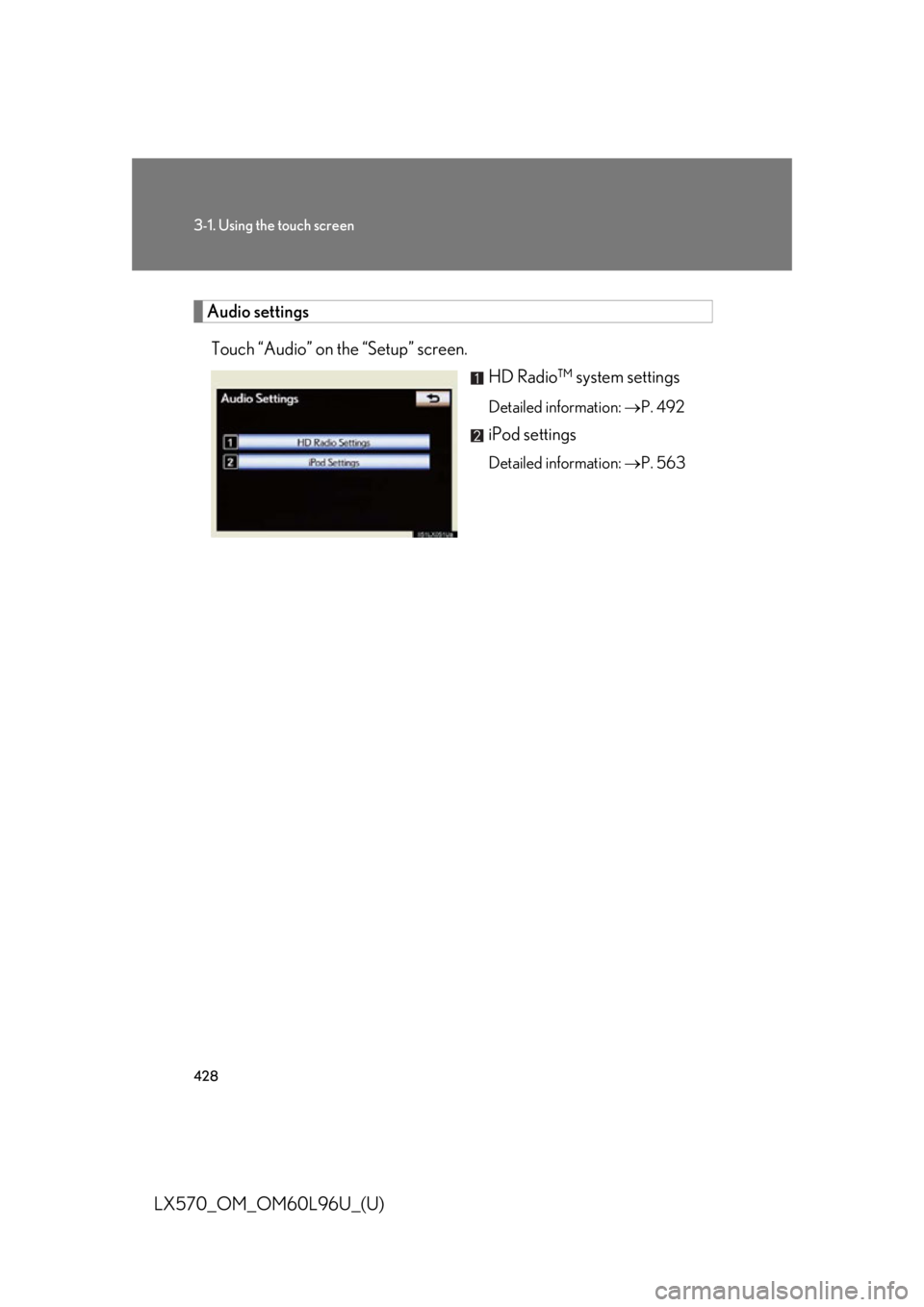
LX570_OM_OM60L96U_(U) Audio settings
Touch “Audio” on the “Setup” screen.
HD Radio™ system settings Detailed information: P. 492
iPod settings Detailed information: P. 563
Page 431 of 960

4313-1. Using the touch screen
3
Interior features
LX570_OM_OM60L96U_(U) Voice command system
Voice command system operation
■ Voice command system operation
Press or . After the “Shortcut Menu” screen ha s been displayed, voice guidance
will commence.
Voice guidance for the voice command system can be skipped by
pressing
or .The voice command system enables th e navigation, audio/video, hands-
free and air conditioning systems to be operated using voice commands.
For details of the navigation syst em, refer to the “Navigation System
Owner’s Manual”.
■ Talk switch Press
or .To cancel, press and hold
or .
■ Microphone
STEP 1
Page 435 of 960

4353-1. Using the touch screen
3
Interior features
LX570_OM_OM60L96U_(U) Expanded voice commands
Touching “On” next to “Expande d Voice Commands” on the “Voice
Settings” screen enables voice comma nd operation of the audio/video
and air conditioning system. ( P. 425)
For more information on operations that can be controlled using
expanded voice commands, refer to “Command list”.
■ Voice command example (turn the audio system)
Press or .
Say “Audio on”.
Command list
Recognizable voice commands and their actions are shown below.
● For devices that are not installed in the vehicle, the related commands
will not be displayed in the “Shortc ut Menu” screen. A lso, according to
conditions, other commands may no t be displayed in the “Shortcut
Menu” screen.
● Voice recognition language can be changed. ( P. 417)
● Commands that have a “O” in the Shortcut Menu column can be rec-
ognized from the “Shortcut Menu” screen.
Commands that have a “—” in the Shortcut Menu column can only be
recognized from the screen that they are displayed in. STEP 1
STEP 2
Page 438 of 960

4383-1. Using the touch screen
LX570_OM_OM60L96U_(U) ■ Select audio mode
When expanded voice commands are turned “On”. ( P. 435)
* : Bluetooth is a registered tr ademark of Bluetooth SIG, Inc.Command
Action Shortcut
Menu
“Radio” Sets the audio mode to radio. O
“AM” Selects the AM band. O
“FM” Selects the FM band. O
“Satellite radio” Selects the satellite radio mode. O
“Disc” Selects the disc audio mode. O
“Auxiliary” Selects the auxiliary audio mode. O
“Bluetooth
* audio” Selects the Bluetooth ®
audio mode. O
“iPod” Selects the iPod audio mode. O
“USB audio” Selects the USB audio mode. O
“Audio on” Turns the audio system on. O
“Audio off” Turns the audio system off. O