buttons LEXUS LX570 2015 User Guide
[x] Cancel search | Manufacturer: LEXUS, Model Year: 2015, Model line: LX570, Model: LEXUS LX570 2015Pages: 960, PDF Size: 11.33 MB
Page 418 of 960

4183-1. Using the touch screen
LX570_OM_OM60L96U_(U) ■ Unit of measurement
Distance unit can be changed.
This function is available only in English or Spanish. To change lan-
guage, see “Selecting a language”. ( P. 417)
Touch “Unit of Measurement” on the “General Settings” screen.
Touch “km” or “mile”. The previous screen will be dis-
played.
Touch “Save”.
■ Selecting a button color
The color of the screen buttons can be changed.
Touch “Button Color” on th e “General Settings” screen.
Touch the desired screen button
color. The previous screen will be dis-
played.
Touch “Save”. STEP 1
STEP 2
STEP 3
STEP 1
STEP 2
STEP 3
Page 464 of 960
4643-3. Using the audio system
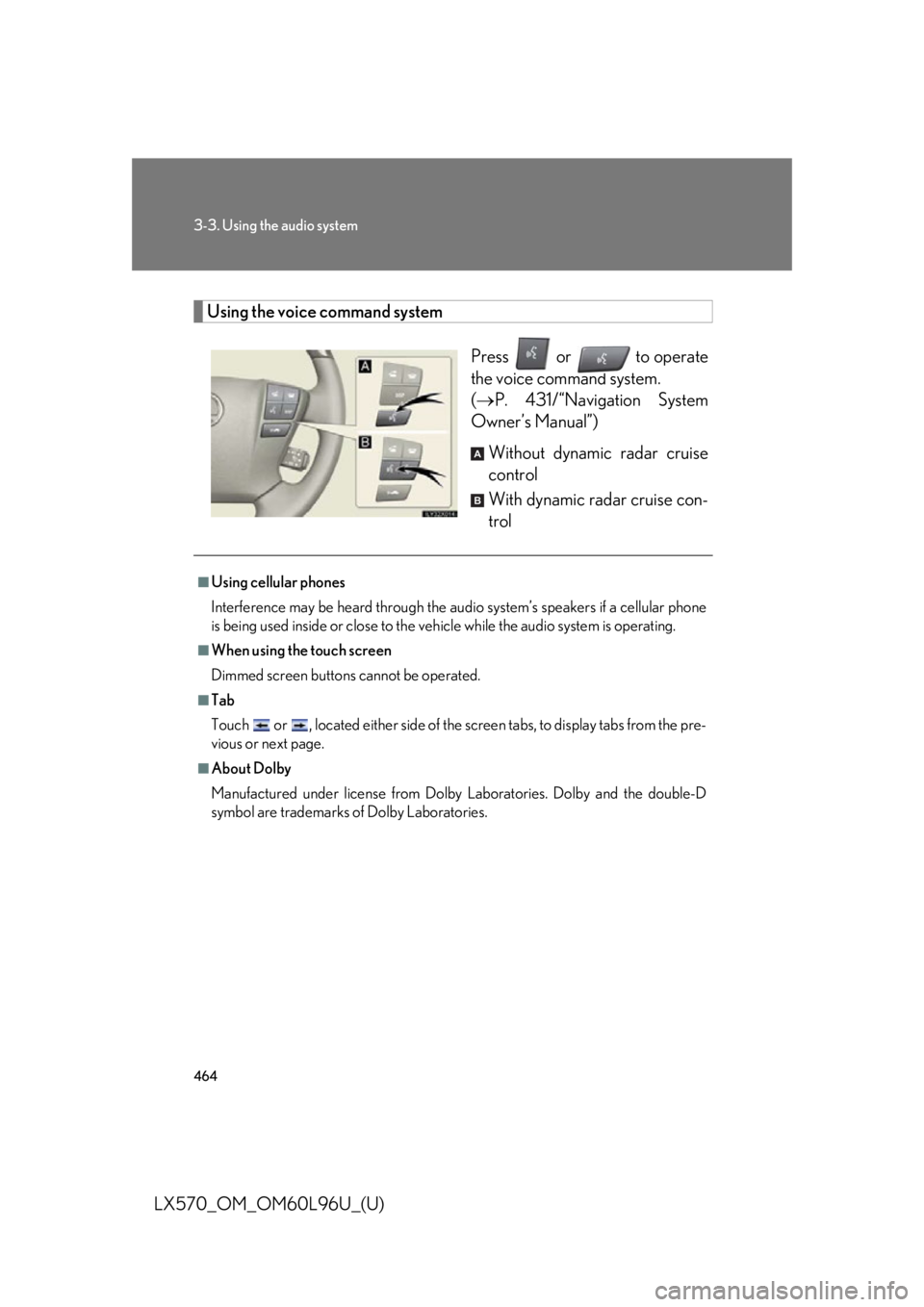
LX570_OM_OM60L96U_(U) Using the voice command system
Press or to operate
the voice command system.
( P. 431/“Navigation System
Owner’s Manual”)
Without dynamic radar cruise
control
With dynamic radar cruise con-
trol A
B
■
Using cellular phones
Interference may be heard through the audio system’s speakers if a cellular phone
is being used inside or close to the ve hicle while the audio system is operating.■
When using the touch screen
Dimmed screen buttons cannot be operated. ■
Tab
Touch or , located either side of the screen tabs, to display tabs from the pre-
vious or next page. ■
About Dolby
Manufactured under license from Dolby Laboratories. Dolby and the double-D
symbol are trademarks of Dolby Laboratories.
Page 488 of 960
4883-3. Using the audio system
LX570_OM_OM60L96U_(U) Selecting a station (excluding XM ®
Satellite Radio)
■ Seek tuning
Press and hold “ ” or “ ” on the “PRST•TRACK” button.
■ Manual tuning
Turn the “TUNE•SCROLL” knob.
■ Preset stations
Touch the desired preset stations (1 - 6). Change the page by using “<” or “>” on the screen.
Press “ ” or “ ” on the “PRST•TRACK” button.
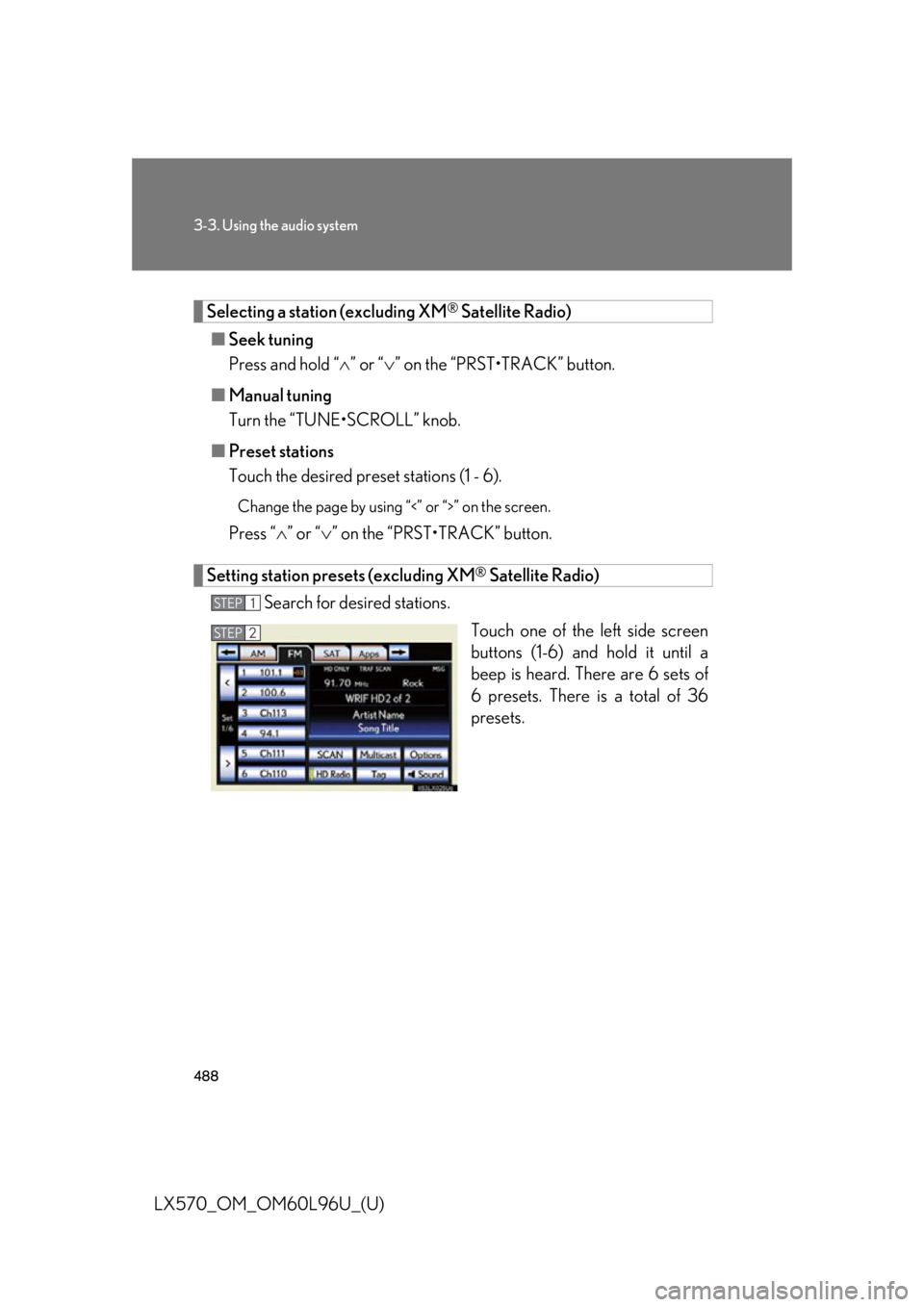
Setting station presets (excluding XM ®
Satellite Radio)
Search for desired stations.
Touch one of the left side screen
buttons (1-6) and hold it until a
beep is heard. There are 6 sets of
6 presets. There is a total of 36
presets.STEP 1
STEP 2
Page 498 of 960
4983-3. Using the audio system
LX570_OM_OM60L96U_(U) XM ®
Satellite Radio
■ Receiving XM ®
Satellite Radio
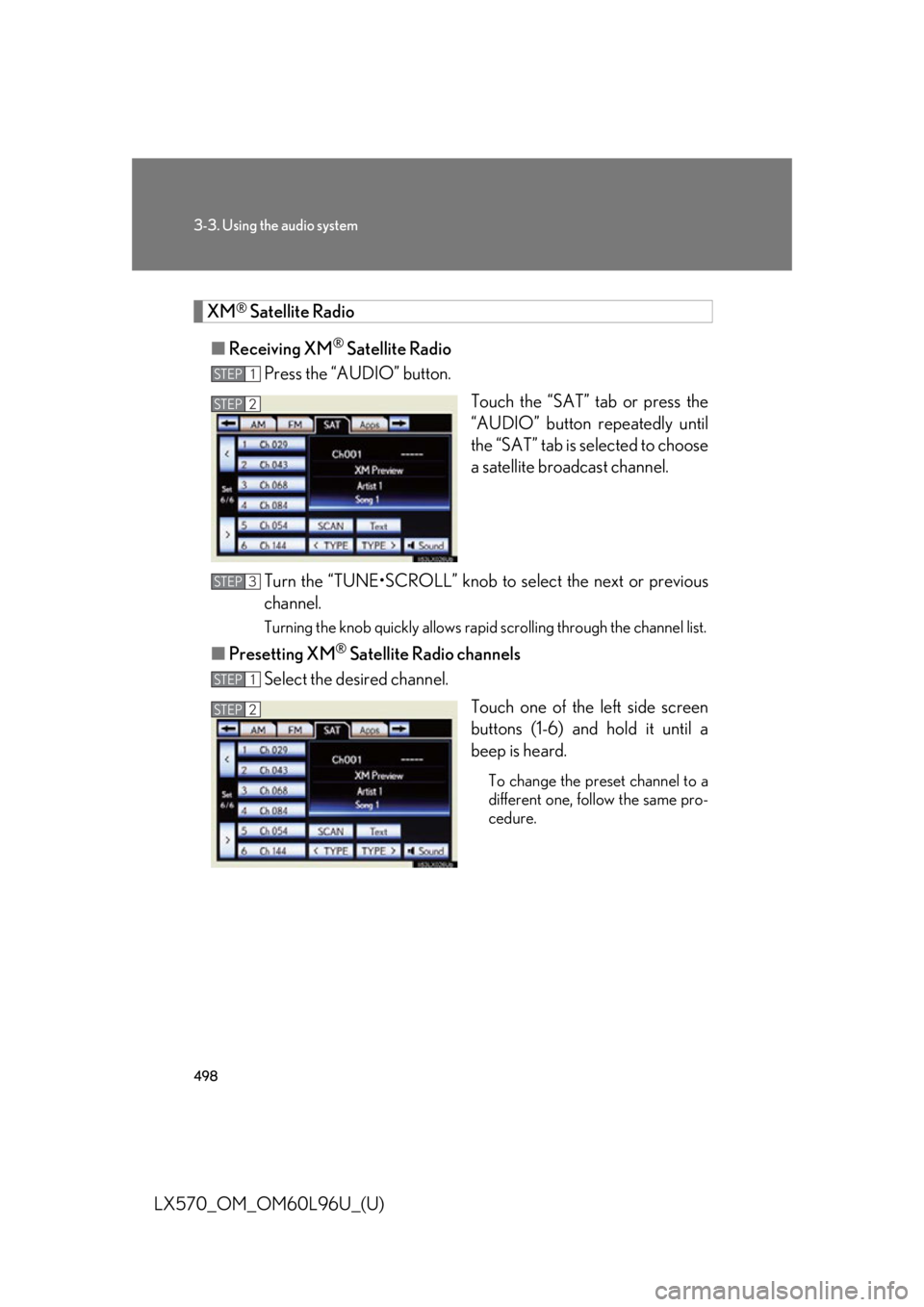
Press the “AUDIO” button.
Touch the “SAT” tab or press the
“AUDIO” button repeatedly until
the “SAT” tab is selected to choose
a satellite broadcast channel.
Turn the “TUNE•SCROLL” knob to select the next or previous
channel. Turning the knob quickly allows rapid scrolling through the channel list.
■ Presetting XM ®
Satellite Radio channels
Select the desired channel.
Touch one of the left side screen
buttons (1-6) and hold it until a
beep is heard. To change the preset channel to a
different one, follow the same pro-
cedure.STEP 1
STEP 2STEP 2
STEP 3
STEP 1
STEP 2STEP 2
Page 555 of 960

5553-3. Using the audio system
3
Interior features
LX570_OM_OM60L96U_(U) Touch the desired tab and select
the desired folder, artist or album. Character screen buttons, “ABC”,
“DEF” etc., allow a direct jump to
list entries that begin with the same
letter as the character button.
Each time the same character
screen button is touched, the list
starting with the subsequent char-
acter is displayed. ,
: Touch to move the list up
or down by 5 folder/artist/
album groups.
“TUNE
• SCROLL” knob: Turn the
knob clockwise or counterclock-
wise to quickly scroll up or down
the folder/artist/album list.
, : If appears to the right of
an item name, the com-
plete name is too long for
the screen. Touch to
scroll to the end of the
name. Touch to move to
the beginning of the name.STEP 2
Page 580 of 960

5803-4. Using the rear seat entertainment system
LX570_OM_OM60L96U_(U) Display
When audio-video equip ment is connected to the A/V input port, rear
passengers can enjoy different audio sources on each display. ( P. 611)
Rear seat entertainment system controller
Turns display off To turn the display back on, press
the “SOURCE”, “DISC” or
“VIDEO” button.
Selects the display to be oper-
ated Buttons other than can be
operated if the switch is switched.
L: left side display
R: right side display
Turns the rear seat entertainment
system on or off
Caution screen
This screen appears for a few sec-
onds when the “ENGINE START
STOP” switch is in ACCESSORY
or IGNITION ON mode.
Page 601 of 960

6013-4. Using the rear se at entertainment system
3
Interior features
LX570_OM_OM60L96U_(U) ■ Control icon screen
Press the “OPTION” button on the controller if no icons are shown
while watching a DVD video, and the following screen appears.
Hide the buttons
Setting screen appears
( P. 605)
Menu screen appears
Rewind
Stop
Play/pause
Fast forward
If appears on the screen when you select an icon, the operation
relevant to that control is not permitted.
■ Settings screen
Select “Settings” on the control icon screen , the following screen
appears.
Change initial setting
Return to previous screen
Search by title
Display the predetermined
scene and start playing from
there
Change audio language
Change subtitle language
Change angle
Page 602 of 960
6023-4. Using the rear seat entertainment system
LX570_OM_OM60L96U_(U) Turning on or off the control icons
Press the “OPTION” button on the co ntroller to turn on the control
icons.
Press the “OPTION” button on the contro ller once again or select “Hide
Buttons” to turn off the control icon.
Turning on the title selection screen
Press the “TOP MENU” button on the controller or select “Top Menu” to
turn on the title selection screen. For the operation of the title selection
screen, see the separate manual for the DVD disc.
Turning on the menu screen
Press the “MENU” button on the contro ller or select “Menu” to turn on
the menu screen. For the operation of the menu screen, see the separate
manual for the DVD disc.
Fast forwarding/rewinding a disc
Press or , or press and hold or .
Slow playback
Select and then select .
Page 619 of 960
6193-5. Using the hands-free system (for cellular phone)
3
Interior features
LX570_OM_OM60L96U_(U) ■
When using the hands-free system ●
The audio system is muted when making a call. ●
If both parties speak at the same time, it may be difficult to hear.●
If the incoming call volume is overly loud, an echo may be heard. ●
Try to face toward the microphone as much as possible when speaking.●
In the following circumstances, it may be difficult to hear the other party:
• When driving on unpaved roads
• When driving at high speeds
• If a window is open
• If the air conditioning is blowing directly on the microphone
• If the air conditioning is set to high
• There is an effect from the network of the cellular phone■
Conditions under which the system will not operate ●
If using a cellular phone that does not support Bluetooth ®
●
If the cellular phone is turned off ●
If you are outside service range ●
If the cellular phone is not connected ●
If the cellular phone’s battery is low■
When using the touch screen
Dimmed screen buttons cannot be operated.
Page 650 of 960
6503-5. Using the hands-free sy stem (for cellular phone)
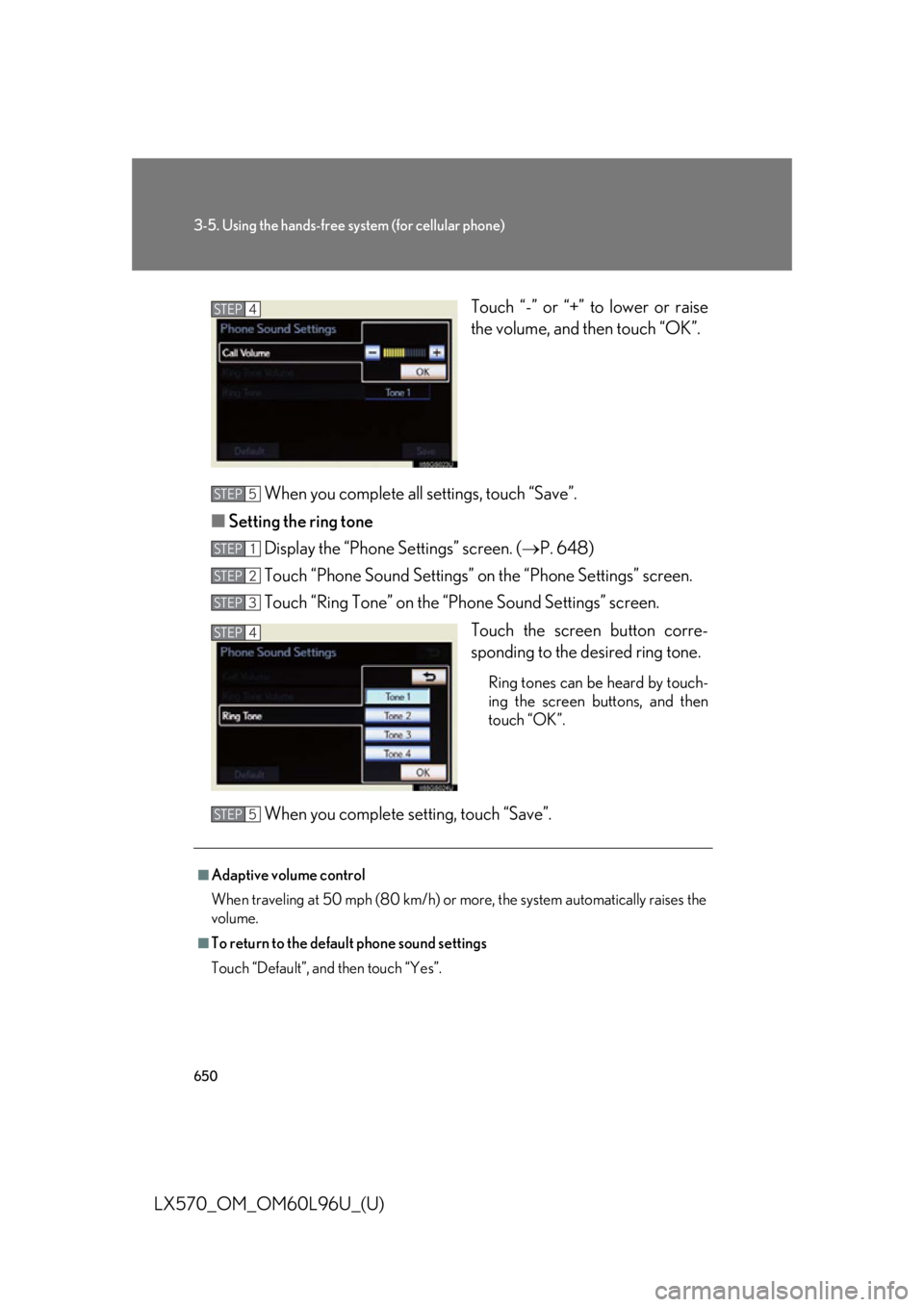
LX570_OM_OM60L96U_(U) Touch “-” or “+” to lower or raise
the volume, and then touch “OK”.
When you complete all settings, touch “Save”.
■ Setting the ring tone
Display the “Phone Settings” screen. ( P. 648)
Touch “Phone Sound Settings” on the “Phone Settings” screen.
Touch “Ring Tone” on the “Phone Sound Settings” screen.
Touch the screen button corre-
sponding to the desired ring tone. Ring tones can be heard by touch-
ing the screen buttons, and then
touch “OK”.
When you complete setting, touch “Save”. STEP 4
STEP 5
STEP 1
STEP 2
STEP 3
STEP 4
■
Adaptive volume control
When traveling at 50 mph (80 km/h) or mo re, the system automatically raises the
volume. ■
To return to the default phone sound settings
Touch “Default”, and then touch “Yes”. STEP 5