radio LEXUS LX570 2015 User Guide
[x] Cancel search | Manufacturer: LEXUS, Model Year: 2015, Model line: LX570, Model: LEXUS LX570 2015Pages: 960, PDF Size: 11.33 MB
Page 438 of 960

4383-1. Using the touch screen
LX570_OM_OM60L96U_(U) ■ Select audio mode
When expanded voice commands are turned “On”. ( P. 435)
* : Bluetooth is a registered tr ademark of Bluetooth SIG, Inc.Command
Action Shortcut
Menu
“Radio” Sets the audio mode to radio. O
“AM” Selects the AM band. O
“FM” Selects the FM band. O
“Satellite radio” Selects the satellite radio mode. O
“Disc” Selects the disc audio mode. O
“Auxiliary” Selects the auxiliary audio mode. O
“Bluetooth
* audio” Selects the Bluetooth ®
audio mode. O
“iPod” Selects the iPod audio mode. O
“USB audio” Selects the USB audio mode. O
“Audio on” Turns the audio system on. O
“Audio off” Turns the audio system off. O
Page 462 of 960

462
LX570_OM_OM60L96U_(U) 3-3. Using the audio system
Audio system type CD and DVD player with AM/FM radio
Press the “AUDIO” button and touch ea ch tab to display the audio control
screen.
Page 463 of 960

4633-3. Using the audio system
3
Interior features
LX570_OM_OM60L96U_(U) Title Page
Using the radio P. 487
Using the CD/DVD player P. 507
Playing an audio CD and MP3/WMA discs P. 509
Playing DVD video P. 515
CD/DVD player and DVD video disc information P. 529
Listening to Bluetooth ®
audio P. 541
Listening to a USB memory P. 552
Listening to an iPod P. 562
Optimal use of the audio/video system P. 572
Using the AUX port P. 574
Using the steering wheel audio switches P. 576
Page 487 of 960
4873-3. Using the audio system
3
Interior features
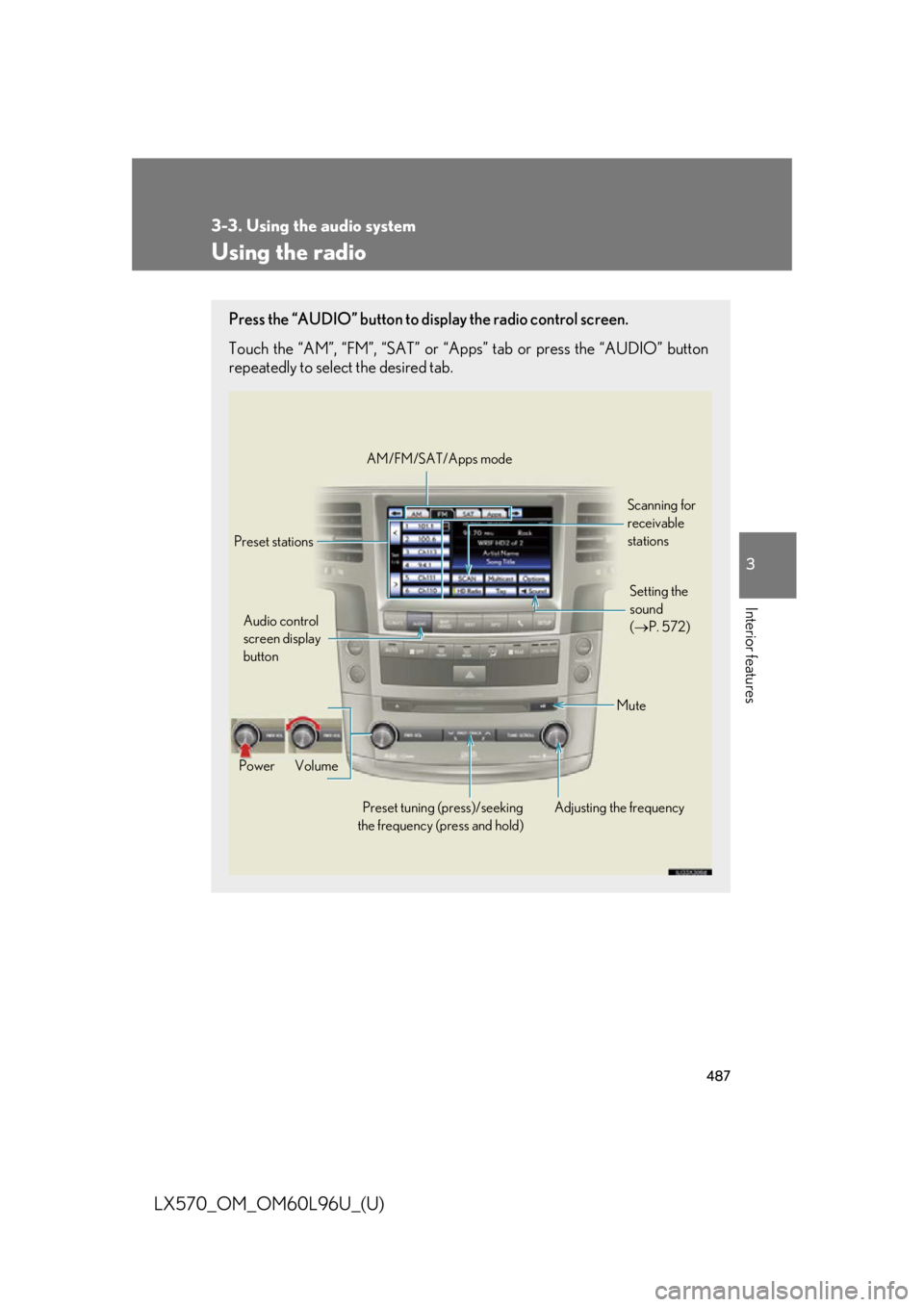
LX570_OM_OM60L96U_(U) Using the radio Press the “AUDIO” button to disp lay the radio control screen.
Touch the “AM”, “FM”, “SAT” or “Apps” tab or press the “AUDIO” button
repeatedly to select the desired tab.
Audio control
screen display
button
Power Volume
Preset tuning (press)/seeking
the frequency (press and hold) Adjusting the frequency AM/FM/SAT/Apps mode
Preset stations Scanning for
receivable
stations
Mute Setting the
sound
( P. 572)
Page 488 of 960
4883-3. Using the audio system
LX570_OM_OM60L96U_(U) Selecting a station (excluding XM ®
Satellite Radio)
■ Seek tuning
Press and hold “ ” or “ ” on the “PRST•TRACK” button.
■ Manual tuning
Turn the “TUNE•SCROLL” knob.
■ Preset stations
Touch the desired preset stations (1 - 6). Change the page by using “<” or “>” on the screen.
Press “ ” or “ ” on the “PRST•TRACK” button.
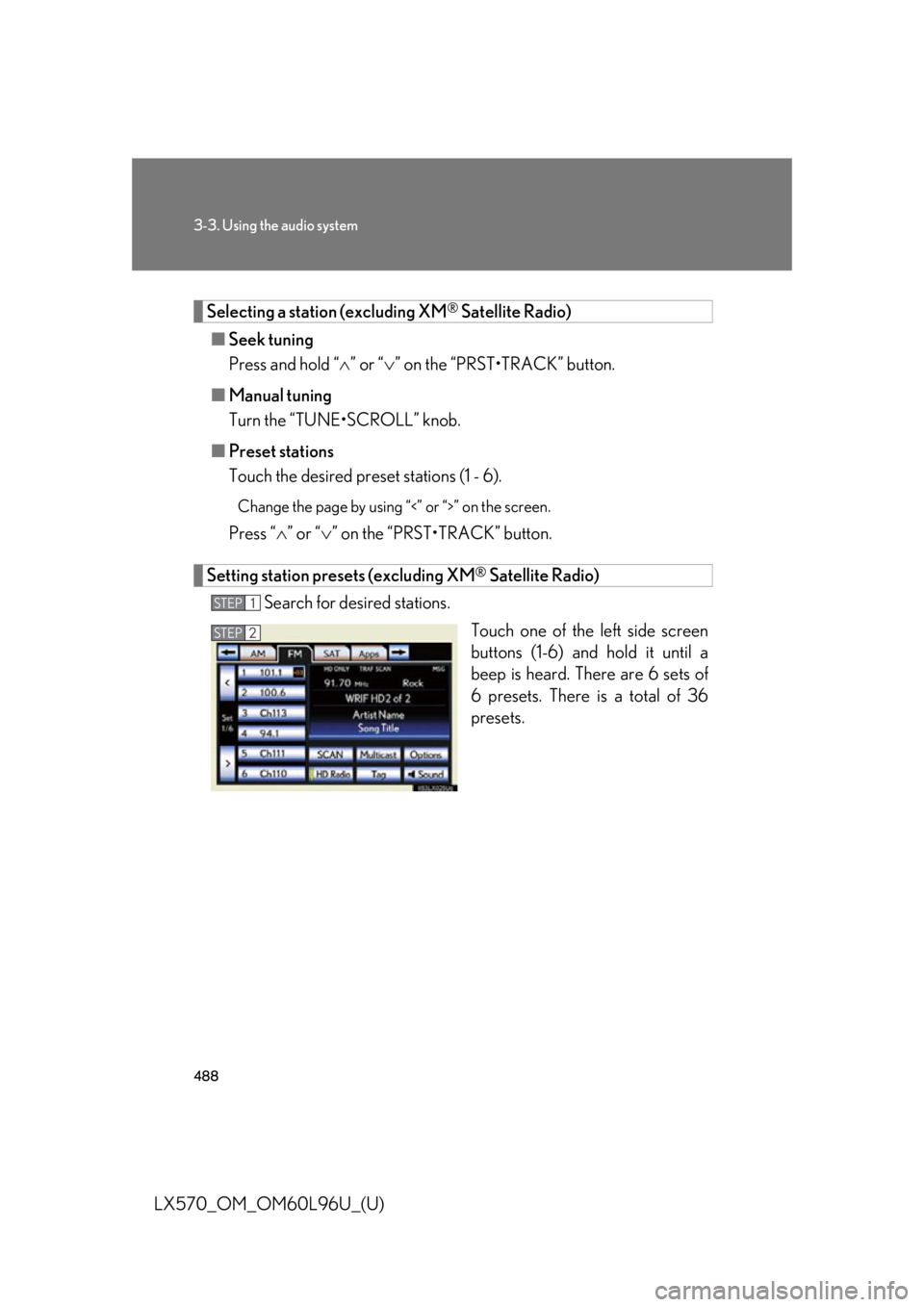
Setting station presets (excluding XM ®
Satellite Radio)
Search for desired stations.
Touch one of the left side screen
buttons (1-6) and hold it until a
beep is heard. There are 6 sets of
6 presets. There is a total of 36
presets.STEP 1
STEP 2
Page 489 of 960
4893-3. Using the audio system
3
Interior features
LX570_OM_OM60L96U_(U) Scanning radio stations (excluding XM ®
Satellite Radio)
Scanning all radio stations within range
Touch “SCAN” on the screen. “SCAN” appears on the screen.
The radio will find the next station an d stay there for 10 seconds if “All”
or “HD Only” is selected, or 5 second s if “Analog” is selected, and then
scan again. ( P. 492)
Touch “SCAN” once again when the desired station is reached.
RBDS (Radio Broadcast Data Systems)
This feature allows your radio to receive station identification information
and program information (classical, jazz, etc.) fr om radio stations which
broadcast this information.
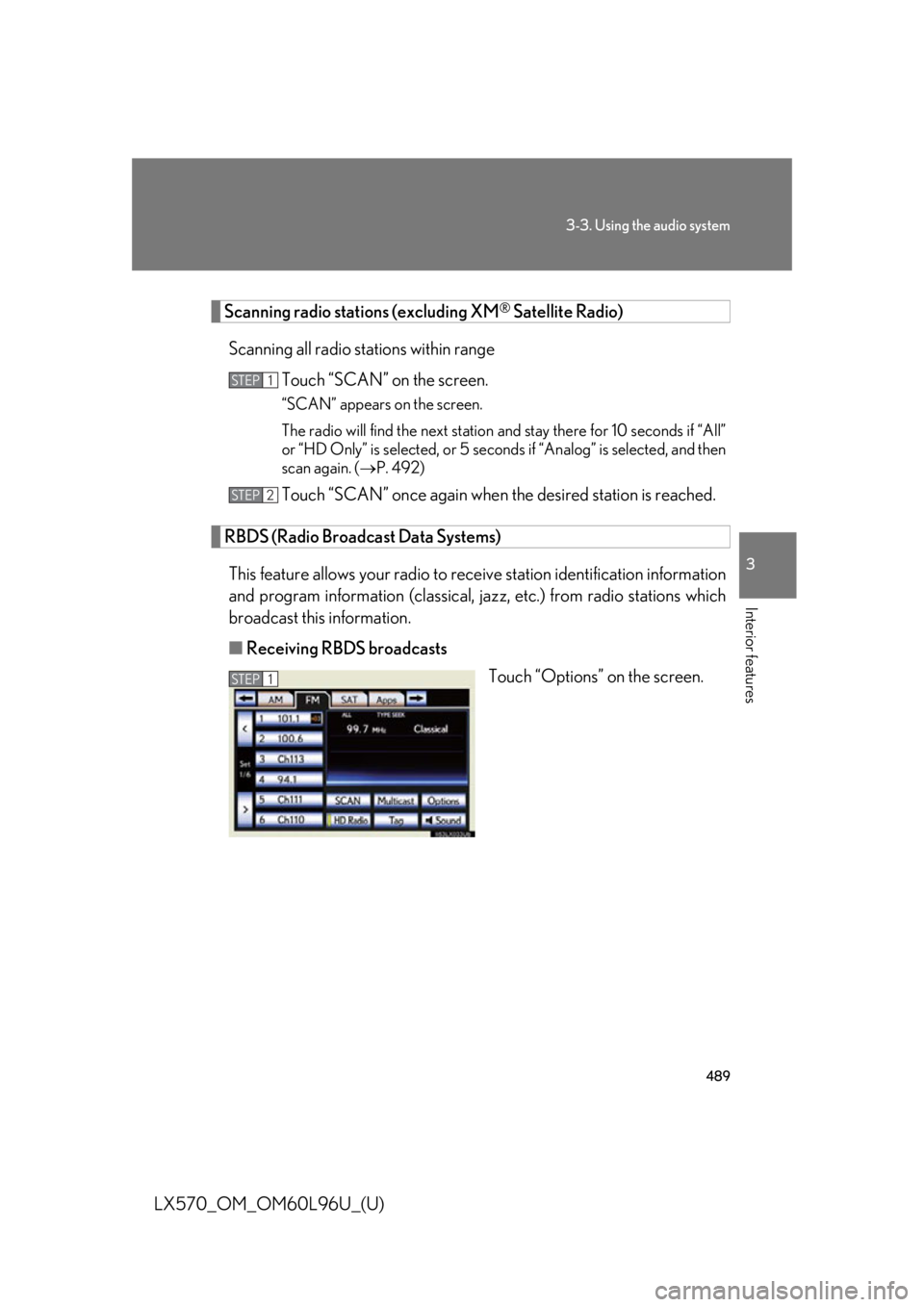
■ Receiving RBDS broadcasts
Touch “Options” on the screen.STEP 1
STEP 2
STEP 1
Page 490 of 960
4903-3. Using the audio system
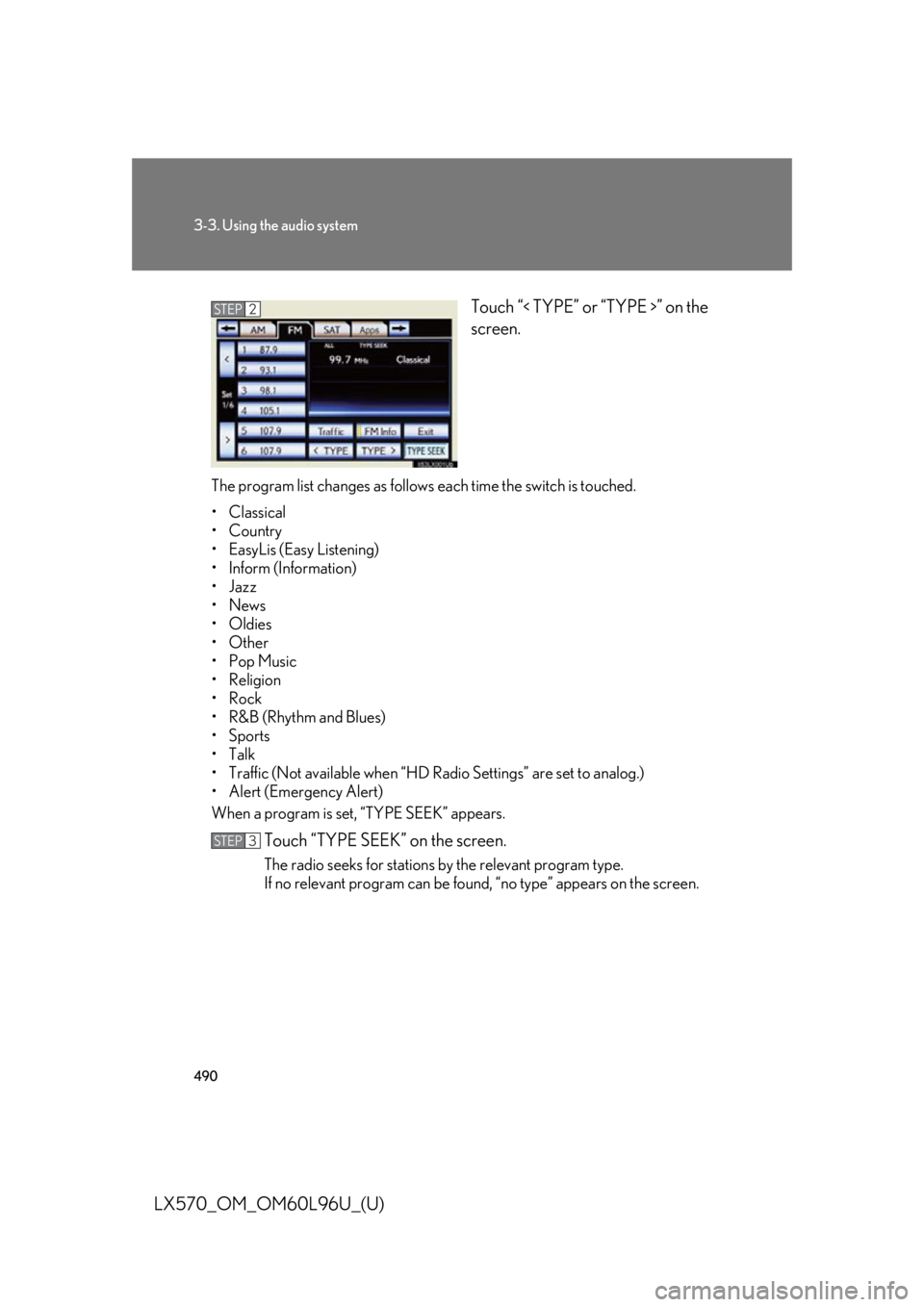
LX570_OM_OM60L96U_(U) Touch “< TYPE” or “TYPE >” on the
screen.
The program list changes as follows each time the switch is touched.
• Classical
•Country
• EasyLis (Easy Listening)
• Inform (Information)
•Jazz
•News
• Oldies
•Other
•Pop Music
• Religion
•Rock
•R&B (Rhythm and Blues)
•Sports
•Talk
• Traffic (Not available when “HD Radio Settings” are set to analog.)
• Alert (Emergency Alert)
When a program is set, “TYPE SEEK” appears.
Touch “TYPE SEEK” on the screen. The radio seeks for stations by the relevant program type.
If no relevant program can be foun d, “no type” appears on the screen.STEP 2
STEP 3
Page 491 of 960
4913-3. Using the audio system
3
Interior features
LX570_OM_OM60L96U_(U) ■ Traffic announcement
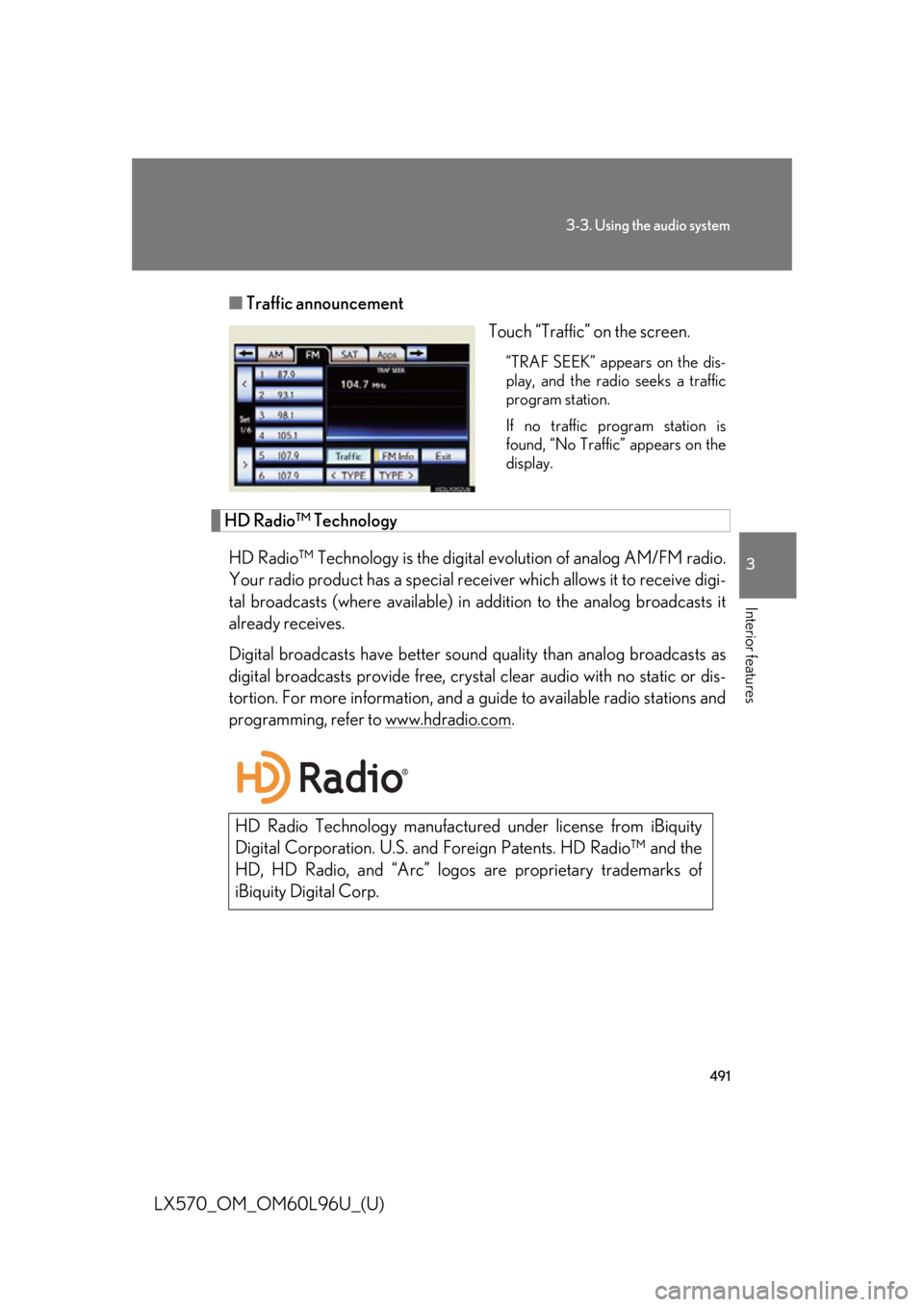
Touch “Traffic” on the screen. “TRAF SEEK” appears on the dis-
play, and the radio seeks a traffic
program station.
If no traffic program station is
found, “No Traffic” appears on the
display.
HD Radio™ Technology
HD Radio™ Technology is the digital evolution of analog AM/FM radio.
Your radio product has a special receiv er which allows it to receive digi-
tal broadcasts (where ava ilable) in addition to th e analog broadcasts it
already receives.
Digital broadcasts have better sound quality than analog broadcasts as
digital broadcasts provide free, crysta l clear audio with no static or dis-
tortion. For more information, and a guide to available radio stations and
programming, refer to www.hdradio.com .
HD Radio Technology manufactu red under license from iBiquity
Digital Corporation. U.S. and Fo reign Patents. HD Radio™ and the
HD, HD Radio, and “Arc” logo s are proprietary trademarks of
iBiquity Digital Corp.
Page 492 of 960
4923-3. Using the audio system
LX570_OM_OM60L96U_(U) ■ HD Radio™ system settings
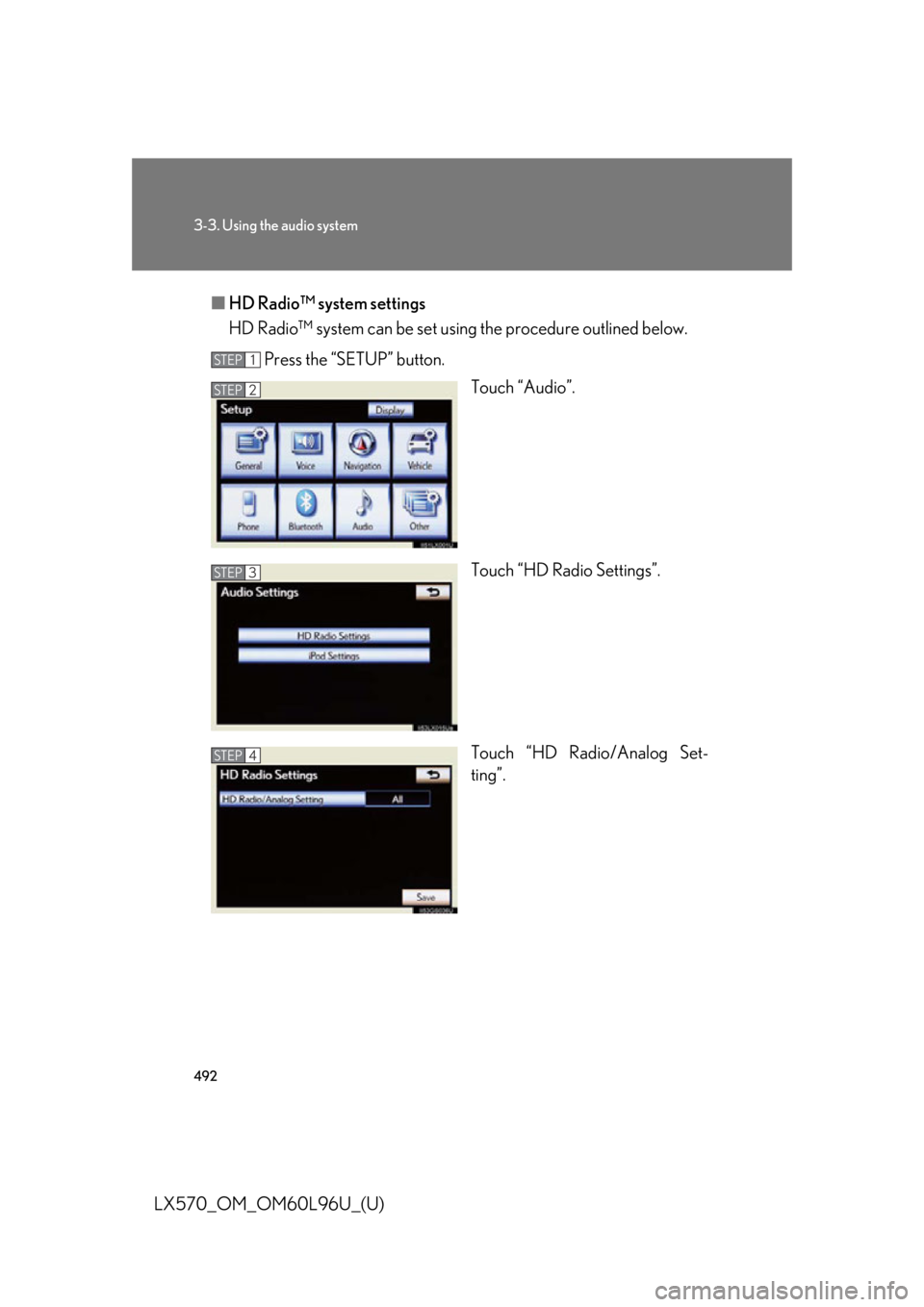
HD Radio™ system can be set using the procedure outlined below.
Press the “SETUP” button.
Touch “Audio”.
Touch “HD Radio Settings”.
Touch “HD Radio/Analog Set-
ting”.STEP 1
STEP 2
STEP 3
STEP 4
Page 493 of 960
4933-3. Using the audio system
3
Interior features
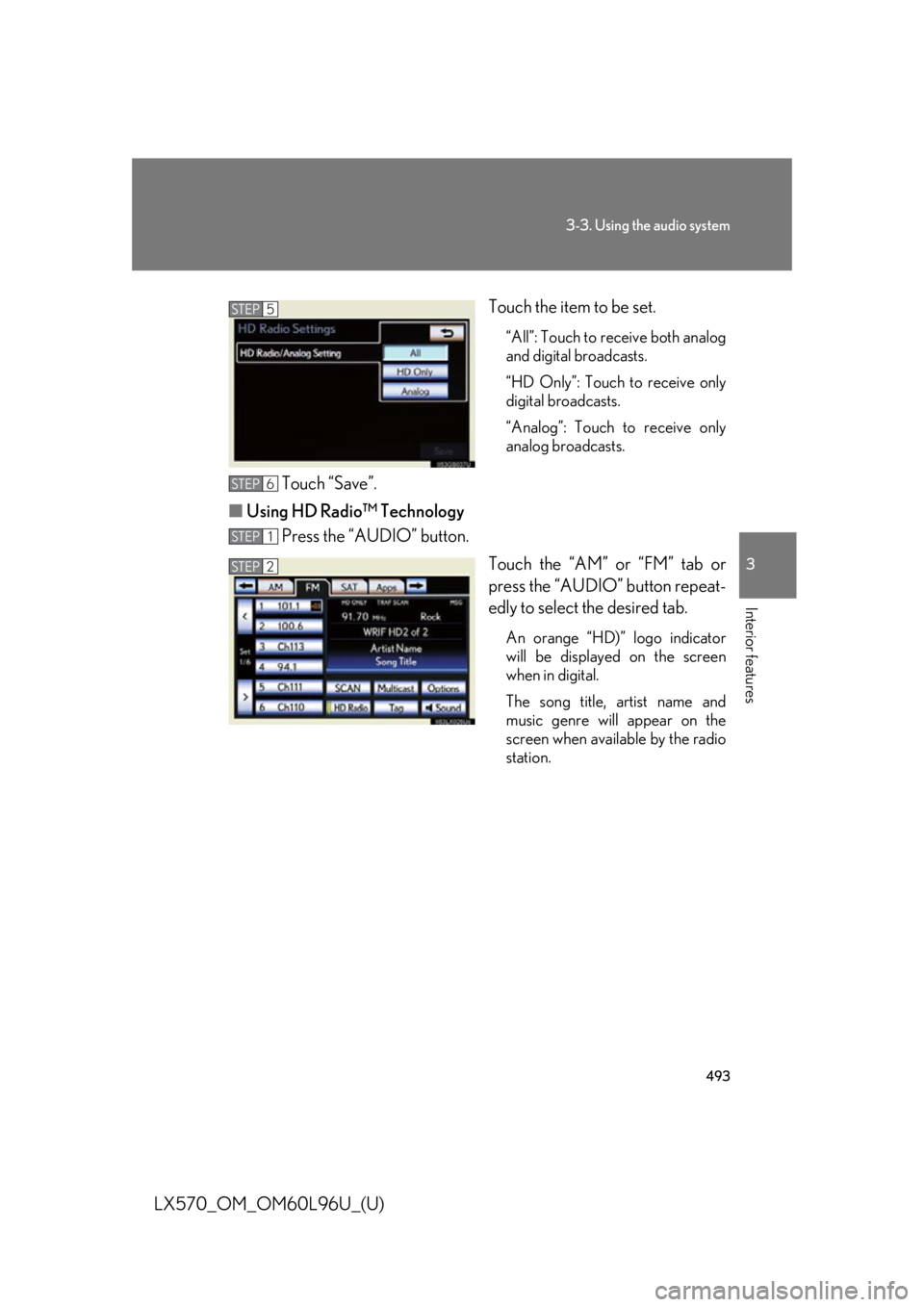
LX570_OM_OM60L96U_(U) Touch the item to be set. “All”: Touch to receive both analog
and digital broadcasts.
“HD Only”: Touch to receive only
digital broadcasts.
“Analog”: Touch to receive only
analog broadcasts.
Touch “Save”.
■ Using HD Radio™ Technology
Press the “AUDIO” button.
Touch the “AM” or “FM” tab or
press the “AUDIO” button repeat-
edly to select the desired tab. An orange “HD)” logo indicator
will be displayed on the screen
when in digital.
The song title, artist name and
music genre will appear on the
screen when available by the radio
station.STEP 5
STEP 6
STEP 1
STEP 2