phone LEXUS LX570 2015 Owner's Manual
[x] Cancel search | Manufacturer: LEXUS, Model Year: 2015, Model line: LX570, Model: LEXUS LX570 2015Pages: 960, PDF Size: 11.33 MB
Page 468 of 960

4683-3. Using the audio system
LX570_OM_OM60L96U_(U) Copyright © 1991, 1993 The Regents of the University of California. All rights
reserved.
Copyright © 1991, 1993 The Regents of the University of California. All rights
reserved.
This code is derived from software cont ributed to Berkeley by Berkeley Software
Design, Inc.
Copyright © 1992, 1993 The Regents of th e University of California. All rights
reserved.
Copyright © 1992, 1993 The Regents of th e University of California. All rights
reserved.
This code is derived from software cont ributed to Berkeley by Ralph Campbell.
Copyright © 1992, 1993 The Regents of th e University of California. All rights
reserved.
© UNIX System Laboratories, Inc. All or some portions of this file are derived from
material licensed to the University of California by American Telephone and Tele-
graph Co. or Unix System Laboratories, Inc. and are reproduced herein with the
permission of UNIX Sy stem Laboratories, Inc.
Copyright © 1992, 1993 The Regents of th e University of California. All rights
reserved.
This software was developed by the Computer Systems Engineering group at
Lawrence Berkeley Labora tory under DARPA contract BG 91-66 and contrib-
uted to Berkeley. All advertising materials mentioning features or use of this soft-
ware must display the following acknowledgement: This product includes software
developed by the University of California, Lawrence Berkeley Laboratory.
Copyright © 1992, 1993 The Regents of th e University of California. All rights
reserved.
This code is derived from software contributed to Be rkeley by Ralph Campbell.
This file is derived from the MIPS RISC Architecture book by Gerry Kane.
Copyright © 1993 The Regents of the Univer sity of California. All rights reserved.
Copyright © 1994 The Regents of the Univer sity of California. All rights reserved.
Page 500 of 960
5003-3. Using the audio system
LX570_OM_OM60L96U_(U) Internet radio broadcast (vehicles with the navigation system)
One of Apps’ features is th e ability to listen to internet radio. In order to
use this service, an Apps compatible phone and the navigation system
need to be set. For details, refer to the “Navigation System Owner’s
Manual”.
Press the “AUDIO” button.
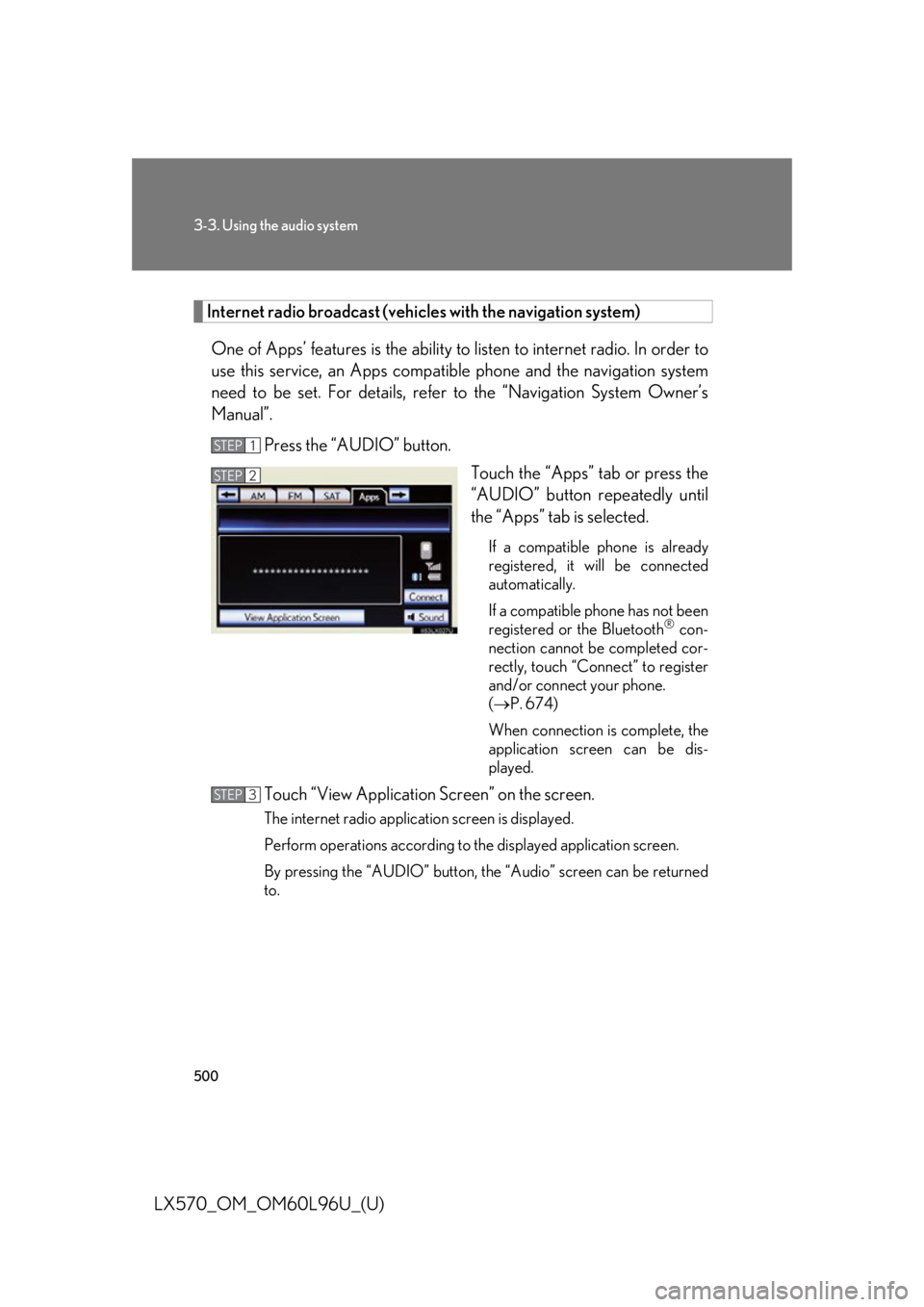
Touch the “Apps” tab or press the
“AUDIO” button repeatedly until
the “Apps” tab is selected. If a compatible phone is already
registered, it will be connected
automatically.
If a compatible phone has not been
registered or the Bluetooth ®
con-
nection cannot be completed cor-
rectly, touch “Connect” to register
and/or connect your phone.
( P. 674)
When connection is complete, the
application screen can be dis-
played.
Touch “View Applicatio n Screen” on the screen.The internet radio application screen is displayed.
Perform operations according to th e displayed application screen.
By pressing the “AUDIO” button, th e “Audio” screen can be returned
to.STEP 1
STEP 2
STEP 3
Page 505 of 960
5053-3. Using the audio system
3
Interior features
LX570_OM_OM60L96U_(U) Contact the XM ®
Listener Care Center at 1-877-515-3987 (U.S.A.) or 1-877-
438-9677 (Canada). ■
About internet radio (vehicles with the navigation system) ●
Other applications can be activated while listening to internet radio. ●
An iPhone cannot be connected via Bluetooth ®
and USB connection at the
same time. However, it is possible to recharge an iPhone while using Apps by
connecting via USB. The system uses the connection method that was used last.
Therefore, if connected via USB after Bluetooth ®
connection, it is necessary to
reconnect the iPhone via Bluetooth ®
.●
Services requiring a separa te contract can also be used. For details, refer to
http://www.lexus .com/enform/ or call 1-800-255-3987.●
If internet radio has never been listened to by activating “Apps” from the
“Information” screen, the “Apps” tab will be dimmed. Ch Unavail The channel you selected is no longer available. Wait
for about 2 seconds until the radio returns to the previ-
ous channel or “CH 001”. If it does not change auto-
matically, select another channel.
Page 549 of 960
5493-3. Using the audio system
3
Interior features
LX570_OM_OM60L96U_(U) ■
If you touch
The display returns to the previous screen. ■
Connecting Bluetooth ®
audio player●
Touching “Connect Portable Player” on the “Bluetooth*” screen also connects
a Bluetooth ®
audio player. ( P. 681)●
When none of the selectable portable players have been registered, a screen
confirming registration is displayed. The registrati on method is the same as
phone registration. ( P. 674)●
When the currently connected portable pl ayer is selected, a screen confirming
the selected player’s disconnection is displayed. ( P. 676)●
If connection fails once, a changing conn ection method confirmation screen is
displayed. If connection fails 2 or more times, a message will be displayed.
When this message is displayed, try again.
*: Bluetooth is a re gistered trademark of Bluetooth SIG, Inc.■
When using the Bluetooth ®
audio system●
In the following conditions, the system may not function.
• The portable player is turned off
• The portable player is not connected
• The portable player battery is low ●
There may be a delay if phone connection is carried out during Bluetooth ®
audio play. ●
Depending on the type of portable player that is connected to the system, oper-
ation may differ slightly and certain functions may not be available.■
Bluetooth ®
antenna
The antenna is built into the audio unit. If th e portable player is behind the seat or in
the glove box or console box, or is touching or covered by metal objects, connec-
tion status may deteriorate. ■
Battery charge/signal status
This display may not correspond exactly wi th the portable play er, and this system
does not have a charging function.
Page 568 of 960
5683-3. Using the audio system
LX570_OM_OM60L96U_(U) ■
If you touch
The display returns to the previous screen. ■
About iPod
●
“Made for iPod” and “Made for iPhone” me an that an electronic accessory has
been designed to connect specifically to iPod, or iPhone, respectively, and has
been certified by the developer to meet Apple performance standards. ●
Apple is not responsible for the operation of this device or its compliance with
safety and regulatory standards. Please note that the use of this accessory with
iPod or iPhone may affect wireless performance. ●
iPhone, iPod, iPod classic, iPod nano and iPod touch are trademarks of Apple
Inc., registered in the U.S. and other countries.■
iPod cover art ●
Depending on the iPod and the songs in the iPod, iPod cover art may be dis-
played. This function can be changed to “On” or “Off”. ( P. 563)●
It may take time to display iPod cove r art, and the iPod may not be operated
while the cover art display is in process. ●
Only iPod cover art that is saved in JPEG format can be displayed.
Page 570 of 960

5703-3. Using the audio system
LX570_OM_OM60L96U_(U) ■
Compatible models
The following iPod ®
, iPod nano ®
, iPod classic ®
, iPod touch ®
and iPhone ®
devices can be used with this system. ●
Made for
• iPod touch (4th generation)
• iPod touch (3rd generation)
• iPod touch (2nd generation)
• iPod touch (1st generation)
• iPod classic
•iPod with video
• iPod nano (6th generation)
• iPod nano (5th generation)
• iPod nano (4th generation)
• iPod nano (3rd generation)
• iPod nano (2nd generation)
• iPod nano (1st generation)
•iPhone 4
•iPhone 3GS
•iPhone 3G
•iPhone
Depending on differences be tween models or software versions etc., some models
might be incompatible with this system.
Page 579 of 960

5793
Interior features
LX570_OM_OM60L96U_(U) 3-4. Using the rear seat entertainment system
Rear seat entertainment system features
: If equippedThe rear seat entertainment system is designed for the rear passengers to
enjoy audio and DVD video separate ly from the front audio system.
Front audio system
Display
Rear seat entertainment system controller
Headphone volume control knobs and headphone jacks
A/V input port
Page 581 of 960

5813-4. Using the rear se at entertainment system
3
Interior features
LX570_OM_OM60L96U_(U) Headphone jacks
To listen to the rear audio, open
the cover and use headphones.
To use the headphones
Connect them to the jack.
To adjust the volume
Turn the knob clockwise to
increase the volume. Turn the
knob counterclockwise to
decrease the volume.
Changing the source
Press the “SOURCE”, button to
display the audio source selection
screen.
Turning on the audio source
selection screen
Selecting an icon
Inputting the selected icon
Select an audio source.STEP 1
STEP 2
Page 585 of 960
5853-4. Using the rear se at entertainment system
3
Interior features
LX570_OM_OM60L96U_(U) ■
Headphones
With some headphones generall y available in the market, it may be difficult to catch
signals properly. Lexus recommends the use of Lexus genuine wireless head-
phones.
Contact your Lexus dealer for further details. ■
Volume ●
Adjust the volume when you connect th e headphones to the jack. Loud sounds
may have a significant im pact on the human body.●
Conversational speech on some DVDs is recorded at a low volume to empha-
size the impact of sound e ffects. If you adjust the volume assuming that the con-
versations represent the maximum volume level that the DVD will play, you may
be startled by louder sound effects or when you change to a different audio
source. Be sure to adjust th e volume with this in mind.
CAUTION■
To prevent accidents and electric shock
Do not disassemble or modify the controller. ■
When the controller is not used
Stow the controller.
Injuries may result in the event of sudden braking, sudden swerving or an accident.■
For vehicles sold in the U.S.A. and Canada
Laser products ( P. 465)■
Removed battery and other parts
These parts are small and if swallowed by a child, they can cause choking. Keep
away from children. Failure to do so co uld result in death or serious injury.
Page 616 of 960
616
LX570_OM_OM60L96U_(U) 3-5. Using the hands-free system (for cellular phone)
Hands-free system (for cellular phone) The hands-free system is a function that allows you to use your cellular
phone without touching it.
This system supports Bluetooth ®
cellular phones. Bluetooth ®
is a wireless
data system that allows a cellular ph one to wirelessly connect to the hands-
free system and outgoing/incoming calls.
The illustrations of the hands-free system screens shown here may slightly
vary depending on the type of the system.
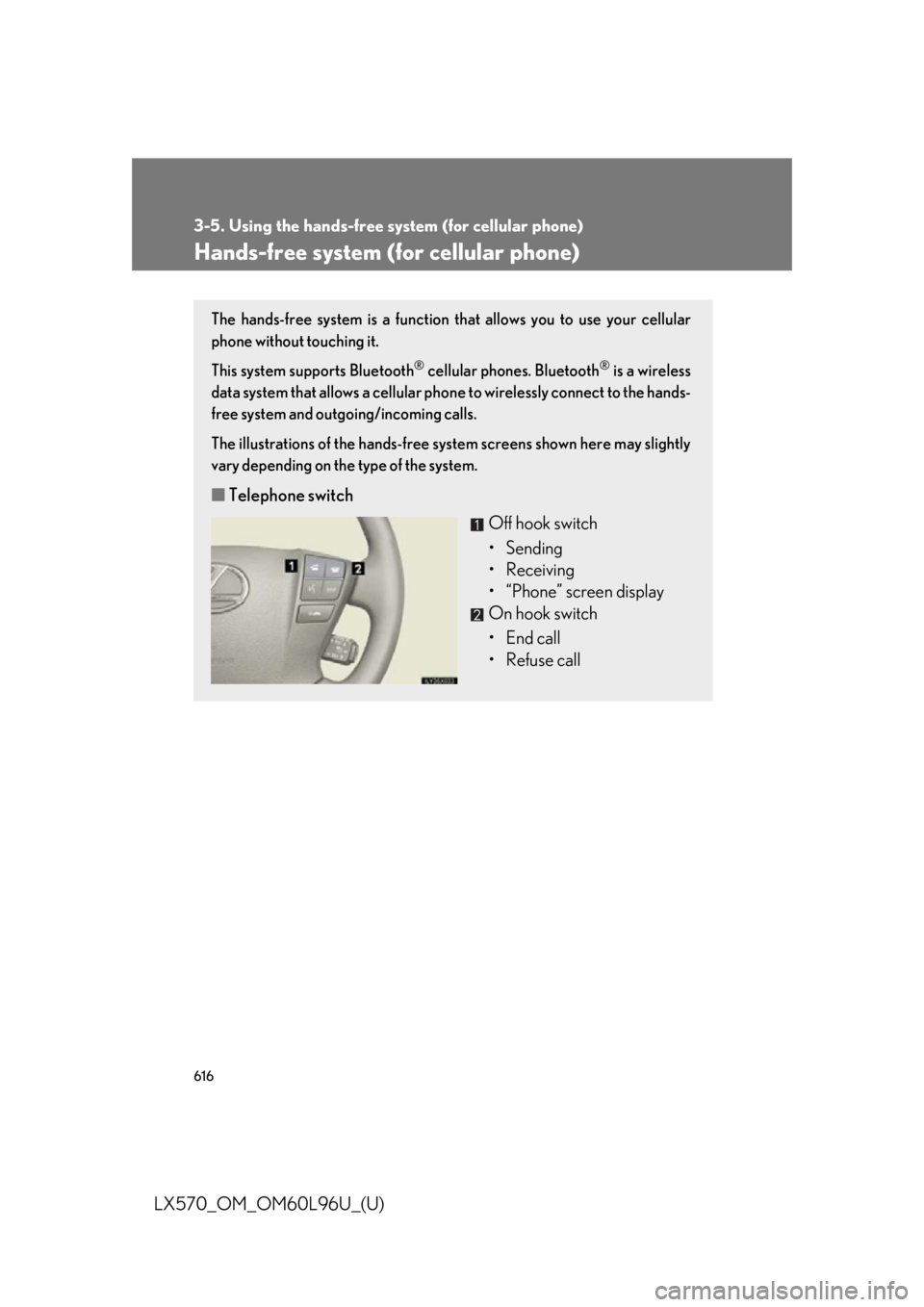
■ Telephone switch
Off hook switch
• Sending
• Receiving
• “Phone” screen display
On hook switch
• End call
• Refuse call