lights LEXUS NX200T 2016 Workshop Manual
[x] Cancel search | Manufacturer: LEXUS, Model Year: 2016, Model line: NX200T, Model: LEXUS NX200T 2016Pages: 660, PDF Size: 9.96 MB
Page 290 of 660

2904-5. Using the driving support systems
NX200t_OM_USA_OM78081U
■If you notice any symptoms
If you notice any of the following symp toms, refer to the likely cause and the
solution, and re-check.
If the symptom is not resolved by the solution, have the vehicle inspected by
your Lexus dealer.
Things you should know
Likely causeSolution
The image is difficult to see
• The vehicle is in a dark area
• The temperature around the lens is
either high or low
• The outside temperature is low
• There are water droplets on the cam- era
• It is raining or humid
• Foreign matter (mud, etc.) is adhering to the camera
• Sunlight or headlights are shining directly into the camera
• The vehicle is under fluorescent lights,
sodium lights, mercury lights etc.
If this happens due to these causes, it
does not indicate a malfunction.
Back up while visually checking the vehi-
cle’s surroundings. (Use the monitor
again once conditions have been
improved.)
The image on the Lexus parking assist
monitor system screen can be adjusted.
( P. 3 4 2 )
The image is blurry
Dirt or foreign matter (such as water
droplets, snow, mud, etc.) is adhering to
the camera.Flush the camera with a large quantity of
water and wipe the camera lens clean
with a soft and wet cloth.
The image is out of alignment
The camera or surrounding area has
received a strong impact.Have the vehicle inspected by your Lexus
dealer.
The guide lines are very far out of alignment
The camera position is out of alignment.Have the vehicle inspected by your Lexus
dealer.
• The vehicle is tilted (there is a heavy
load on the vehicle, tire pressure is low
due to a tire puncture, etc.)
• The vehicle is used on an incline.If this happens due to these causes, it
does not indicate a malfunction.
Back up while visually checking the vehi-
cle’s surroundings.
Page 317 of 660

3174-6. Driving tips
4
Driving
NX200t_OM_USA_OM78081U
Winter driving tips
●Use fluids that are appropriate to the prevailing outside temperatures. •Engine oil
• Engine coolant
• Washer fluid
●Have a service technician inspect the condition of the battery.
●Have the vehicle fitted with four snow tires or purchase a set of tire chains for
the front tires
*.
Ensure that all tires are the same size and br and, and that chains match the size of the
tires.
*: Tire chains cannot be mounted on the 225/60R18 tires.
Perform the following according to the driving conditions:
●Do not try to forcibly open a window or move a wiper that is frozen. Pour
warm water over the frozen area to melt the ice. Wipe away the water imme-
diately to prevent it from freezing.
●To ensure proper operation of the climate control system fan, remove any
snow that has accumulated on the air inlet vents in front of the windshield.
●Check for and remove any excess ice or snow that may have accumulated on
the exterior lights, vehicle’s roof, chassis, around the tires or on the brakes.
●Remove any snow or mud from the bottom of your shoes before getting in the
vehicle.
Carry out the necessary preparations and inspections before driving the vehi-
cle in winter. Always drive the vehicle in a manner appropriate to the prevail-
ing weather conditions.
Preparation for winter
Before driving the vehicle
Page 342 of 660
3425-2. Setup
NX200t_OM_USA_OM78081U
Display settings
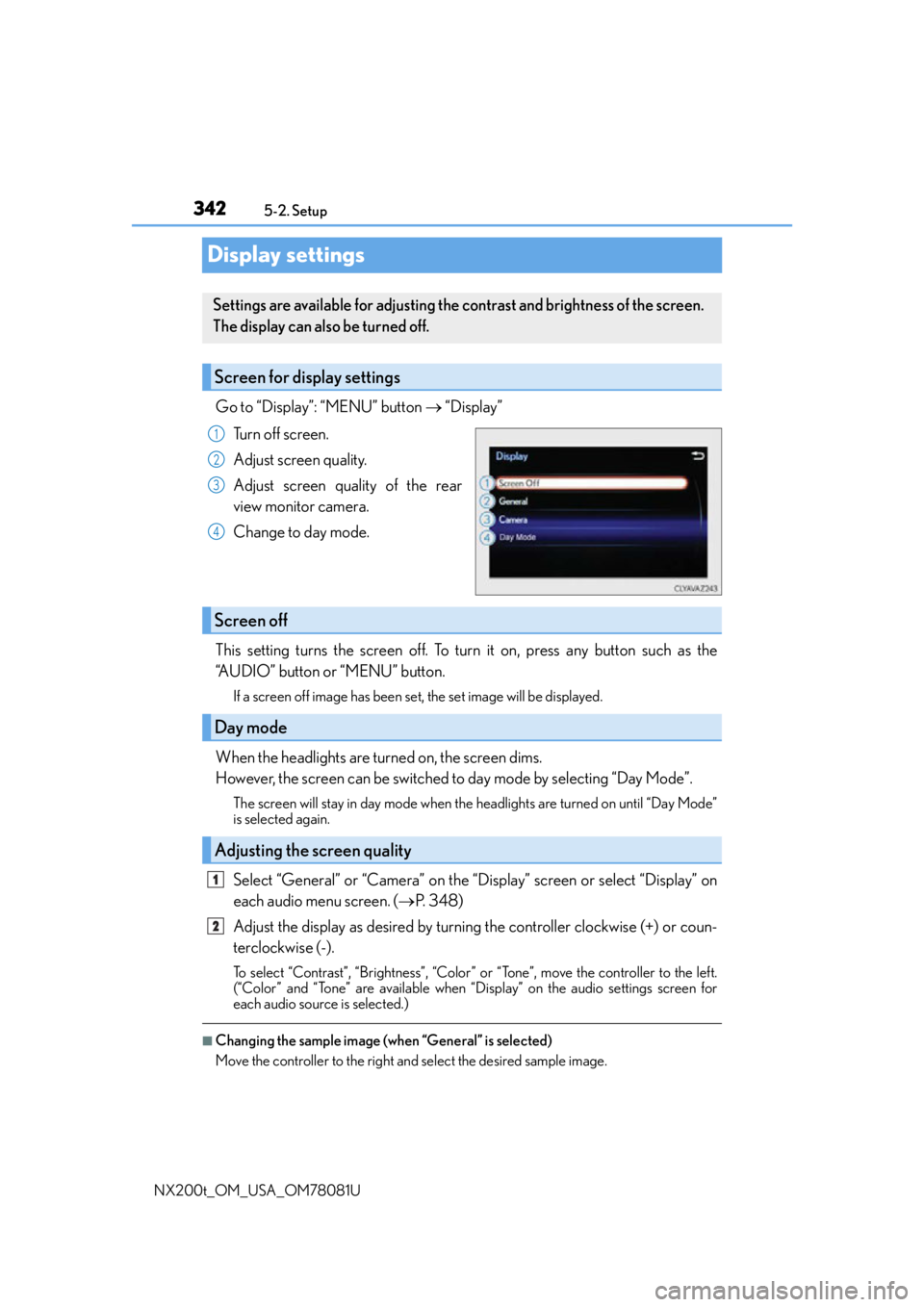
Go to “Display”: “MENU” button “Display”
Turn off screen.
Adjust screen quality.
Adjust screen quality of the rear
view monitor camera.
Change to day mode.
This setting turns the screen off. To turn it on, press any button such as the
“AUDIO” button or “MENU” button.
If a screen off image has been set, the set image will be displayed.
When the headlights are turned on, the screen dims.
However, the screen can be switched to day mode by selecting “Day Mode”.
The screen will stay in day mode when the headlights are turned on until “Day Mode”
is selected again.
Select “General” or “Camera” on the “Display” screen or select “Display” on
each audio menu screen. ( P. 3 4 8 )
Adjust the display as desired by turning the controller clockwise (+) or coun-
terclockwise (-).
To select “Contrast”, “Brightness”, “Color” or “Tone”, move the controller to the left.
(“Color” and “Tone” are available when “Display” on the audio settings screen for
each audio source is selected.)
■Changing the sample image (when “General” is selected)
Move the controller to the right and select the desired sample image.
Settings are available for adjusting the contrast and brightness of the screen.
The display can also be turned off.
Screen for display settings
1
2
3
4
Screen off
Day mode
Adjusting the screen quality
1
2
Page 419 of 660

419
6Interior features
NX200t_OM_USA_OM78081U
6-1. Using the air conditioning system and defogger
Automatic air conditioning system ..........................................420
Heated steering wheel/ seat heaters/
seat ventilators......................... 430
6-2. Using the interior lights Interior lights list..........................433• Front interior light ................434
• Personal lights........................434
• Rear interior light .................435 6-3. Using the storage features
List of storage features ............ 436• Glove box ............................... 437
• Console box........................... 437
•Cup holders/ bottle holders.........................438
• Sunglass holder .................... 439
Luggage compartment features........................................440
6-4. Other interior features Other interior features ............ 445
• Sun visors ................................ 445
• Vanity mirrors ........................ 445
• Clock ........................................ 446
• Power outlet (12 VDC)...... 446
• Power outlet (120 VAC) ... 447
• Wireless charger.................. 448
• Armrest .................................... 454
• Assist grips.............................. 455
• Coat hooks ............................. 455
Garage door opener................ 456
Compass ....................................... 462
Safety Connect ........................... 466
Page 433 of 660

4336-2. Using the interior lights
6
Interior features
NX200t_OM_USA_OM78081U
Interior lights list
Outer foot lights
Personal lights (P. 4 3 4 )
Front interior light ( P. 4 3 4 )
Rear interior light ( P. 4 3 5 )
Footwell lights
• When the engine switch is in IGNITION ON mode, the f ootwell lights will turn on.
However, if the instrument pa nel light control switch is turned to minimum, the foot-
well lights will turn off. ( P. 88)
• When shifting the shift lever is in a position other than P, the brightness of the foot-
well light will reduce intensity.
1
2
3
4
5
Page 434 of 660

4346-2. Using the interior lights
NX200t_OM_USA_OM78081U
Turns the light on/off (touch the light)
The rear interior light also turns on/off.
However, when the rear interior light
has already been turned on, it will not be
controlled by front interior light opera-
tions.
Turns the door position on/off On
The front and rear interior lights turn on/
off when a door is opened/closed.
Off
Turns the lights on/off (touch the lights)
Front interior light
1
2
Personal lights
Page 435 of 660

4356-2. Using the interior lights
6
Interior features
NX200t_OM_USA_OM78081U
Tu r n s t h e l i g h t o n /o f f
The rear interior light is also turned on/
off by the front interior light operations.
If the light is turned on by front interior
light operation, the rear interior light
cannot turn off by pressing the switch.
●Illuminated entry system: The lights automatically turn on/off according to engine
switch mode, the presence of the electronic key, whether the doors are locked/
unlocked, and whether the doors are opened/closed.
●If the interior lights remain on when the engine switch is turned off, the lights will go off
automatically after 20 minutes.
●In the following cases, the front interior li ghts and personal lights may not respond as
normal.
• When water, dirt, etc., have adhered to the lens surface
• When operated with a wet hand
• When wearing gloves, etc.
●Settings (e.g. the time elapsed before the lights turn off) can be changed.
(Customizable features: P. 6 1 8 )
Rear interior light
NOTICE
●Never remove the lens for the front interior light and personal lights. Otherwise, the
lights will be damaged. If the lens need to remove, contact your Lexus dealer.
●To prevent battery discharge, do not leav e the lights on longer than necessary when
the engine is off.
Page 437 of 660

4376-3. Using the storage features
6
Interior features
NX200t_OM_USA_OM78081U
Open (press the button)
Unlock with the mechanical key
Lock with the mechanical key
The glove box light turns on when the tail lights are on.
Lift the lid while pushing the button
to release the lock.
Vehicles with the wireless charger:
Lift the wireless charger.
●The console box light turns on when the tail lights are on.
Glove box
1
2
3
Console box
1
2
●Vehicles without the wireless charger:
The tray slides forward/backward and can be
removed.
Page 445 of 660
4456-4. Other interior features
6
Interior features
NX200t_OM_USA_OM78081U
Other interior features
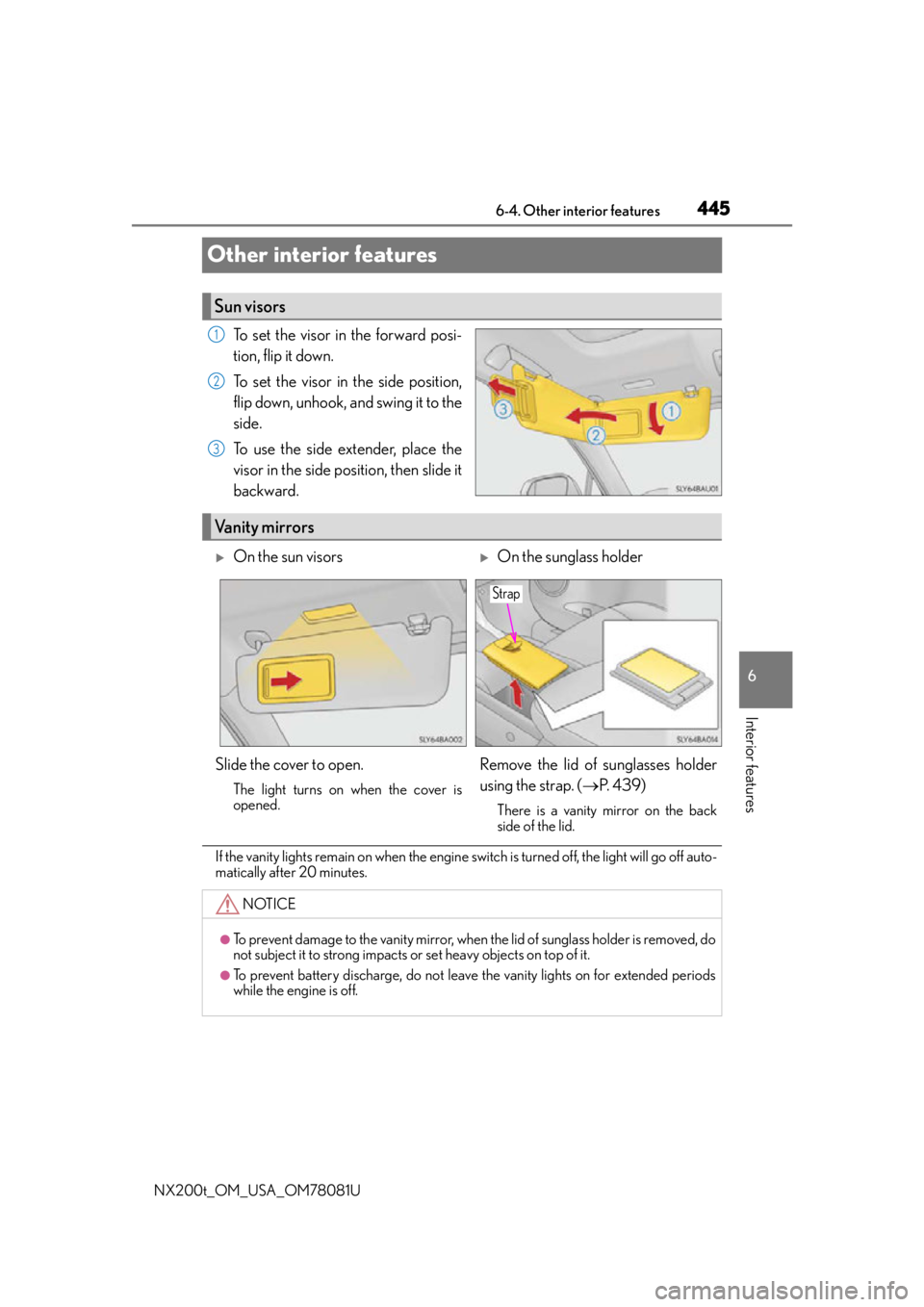
To set the visor in the forward posi-
tion, flip it down.
To set the visor in the side position,
flip down, unhook, and swing it to the
side.
To use the side extender, place the
visor in the side position, then slide it
backward.
If the vanity lights remain on when the engine switch is turned off, the light will go off auto-
matically after 20 minutes.
Sun visors
1
2
3
Vanity mirrors
On the sun visorsOn the sunglass holder
Slide the cover to open.
The light turns on when the cover is
opened.
Remove the lid of sunglasses holder
using the strap. ( P. 4 3 9 )
There is a vanity mirror on the back
side of the lid.
NOTICE
●To prevent damage to the vanity mirror, when the lid of sunglass holder is removed, do
not subject it to strong impacts or set heavy objects on top of it.
●To prevent battery discharge, do not leave the vanity lights on for extended periods
while the engine is off.
Strap
Page 450 of 660

4506-4. Other interior features
NX200t_OM_USA_OM78081U
■Lighting conditions of operation indicator light
*: Depending on the portable device, there are cases where the operation indicator light will continue being lit up orange even after the charging is complete.
●When the operation indicator light flashes
When an error occurs, the operation in dicator light flashes an orange color.
Handle the error based on the following table.
■The wireless charger can be operated when
The engine switch is in ACCESSORY or IGNITION ON mode.
■Usable portable devices
Qi standard wireless charge standard can be used on compatible devices.
However, not all Qi standard devi ces and compatibility are guaranteed.
Starting with mobile phones and smart phones , it is aimed for low power electrically sup-
plied portable devices of no more than 5W.
■When covers and accessories are attached to portable devices
Do not charge in situations where cover an d accessories not able to handle Qi are
attached to the portable devi ce. Depending on the type of cover and accessory, it may
not be possible to charge. When charging is not performed even with the portable
device placed on the charge area, remove the cover and accessories.
Operation indicator lightConditions
Tu r n i n g o f fWhen the Wireless charger power supply is off
Green (comes on)On Standby (charging possible state)
When charging is complete*
Orange (comes on)
When placing the portable device on the charging
area (detecting the portable device)
Charging
Operation indicator lightSuspected causesHandling method
Flashing repeatedly once
every second (Orange)Vehicle to charger commu-
nication failure.Contact your Lexus dealer.
Repeatedly flashes
3 times continuously
(Orange)
A foreign substance is
between the portable device
and charge area.Remove the foreign sub-
stance from between por-
table device and the
charge area.
The portable device is out of
sync due to the device being
shifted from its position.Place the portable device
near the center of the
charge area.
Repeatedly flashes
4 times continuously
(Orange)Te m p e r a t u r e r i s i n g w i t h i n
the wireless charger.Stop charging at once and
start charging again after
for a while.