air LEXUS RC F 2015 Workshop Manual
[x] Cancel search | Manufacturer: LEXUS, Model Year: 2015, Model line: RC F, Model: LEXUS RC F 2015Pages: 684, PDF Size: 9.31 MB
Page 351 of 684
3515-4. Using the radio
5
Lexus Display Audio system
RC350/RCF_U (OM24636U)
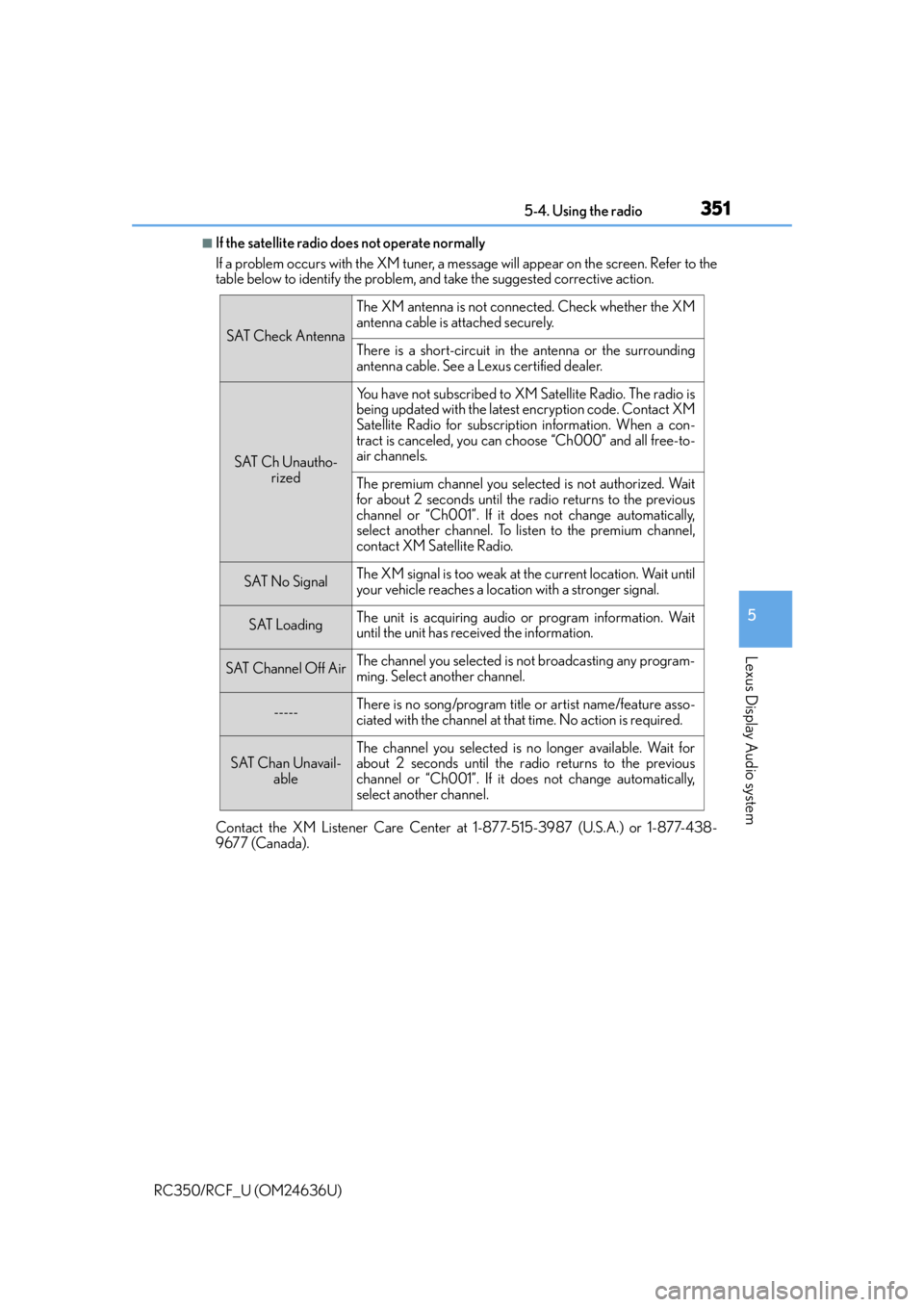
■If the satellite radio does not operate normally
If a problem occurs with the XM tuner, a message will appear on the screen. Refer to the
table below to identify the problem, and take the suggested corrective action.
Contact the XM Listener Care Center at 1-877-515-3987 (U.S.A.) or 1-877-438-
9677 (Canada).
SAT Check Antenna
The XM antenna is not connected. Check whether the XM
antenna cable is attached securely.
There is a short-circuit in the antenna or the surrounding
antenna cable. See a Lexus certified dealer.
SAT Ch Unautho-
rized
Yo u h a v e n o t s u b s c r i b e d t o X M Satellite Radio. The radio is
being updated with the latest encryption code. Contact XM
Satellite Radio for subscription information. When a con-
tract is canceled, you can choose “Ch000” and all free-to-
air channels.
The premium channel you select ed is not authorized. Wait
for about 2 seconds until the radio returns to the previous
channel or “Ch001”. If it does not change automatically,
select another channel. To listen to the premium channel,
contact XM Satellite Radio.
SAT No SignalThe XM signal is too weak at the current location. Wait until
your vehicle reaches a location with a stronger signal.
SAT LoadingThe unit is acquiring audio or program information. Wait
until the unit has received the information.
SAT Channel Off AirThe channel you selected is not broadcasting any program-
ming. Select another channel.
-----There is no song/program title or artist name/feature asso-
ciated with the channel at that time. No action is required.
SAT Chan Unavail- ableThe channel you selected is no longer available. Wait for
about 2 seconds until the radio returns to the previous
channel or “Ch001”. If it does not change automatically,
select another channel.
Page 370 of 684
3705-7. Connecting Bluetooth®
RC350/RCF_U (OM24636U)
Turn the Bluetooth® connection setting of your device set to on.
Go to “Bluetooth
* Setup”: “Setup” “Bluetooth*”
Move the controller to the left and then select “Add Device”
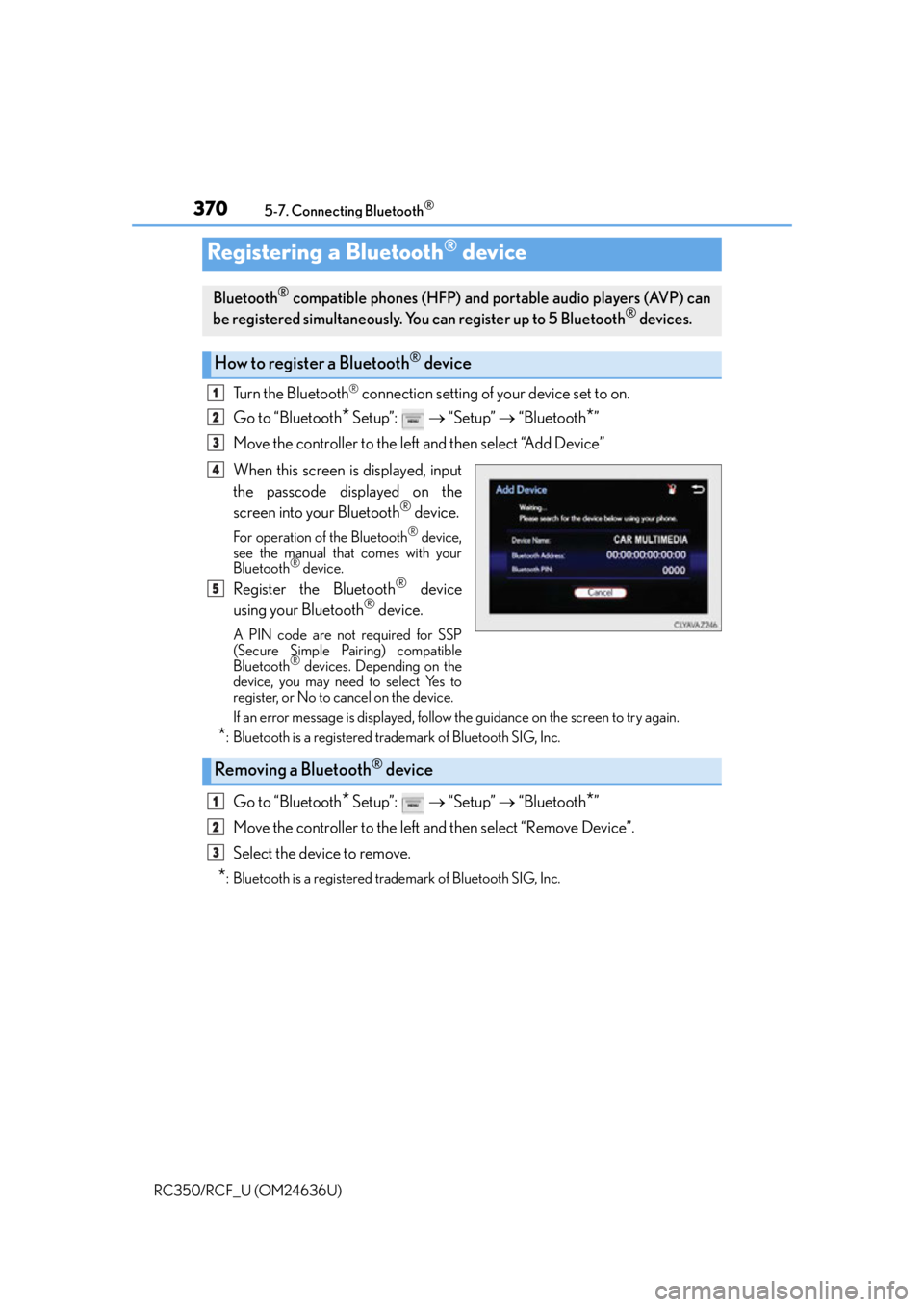
When this screen is displayed, input
the passcode displayed on the
screen into your Bluetooth
® device.
For operation of the Bluetooth® device,
see the manual that comes with your
Bluetooth
® device.
Register the Bluetooth® device
using your Bluetooth® device.
A PIN code are not required for SSP
(Secure Simple Pairing) compatible
Bluetooth
® devices. Depending on the
device, you may need to select Yes to
register, or No to cancel on the device.
If an error message is displayed, follow the guidance on the screen to try again.
*: Bluetooth is a registered trademark of Bluetooth SIG, Inc.
Go to “Bluetooth* Setup”: “Setup” “Bluetooth*”
Move the controller to the left and then select “Remove Device”.
Select the device to remove.
*: Bluetooth is a registered trademark of Bluetooth SIG, Inc.
Registering a Bluetooth® device
Bluetooth® compatible phones (HFP) and portable audio players (AVP) can
be registered simultaneously. You can register up to 5 Bluetooth® devices.
How to register a Bluetooth® device
1
2
3
4
5
Removing a Bluetooth® device
1
2
3
Page 399 of 684

3995-11. Bluetooth®
5
Lexus Display Audio system
RC350/RCF_U (OM24636U)
■When using the Bluetooth® audio system
●In the following situations, the system may not function.
• If the portable audio player is turned off
• If the portable audio player is not connected
• If the portable audio player’s battery is low
●There may be a delay if a cellular phon e connection is made during Bluetooth® audio
play.
●Depending on the type of portable audio play er that is connected to the system, opera-
tion may differ slightly and certain functions may not be available.
■When using the hands-free system
●The audio system is mu ted when making a call.
●If both parties speak at the same time, it may be difficult to hear.
●If the received call volume is overly loud, an echo may be heard.
If the Bluetooth® phone is too close to the system, quality of the sound may deteriorate
and connection status may deteriorate.
●In the following situations, it may be difficult to hear the other party:
• When driving on unpaved roads
• When driving at high speeds
•If a window is open
• If the air conditioning is blowing directly on the microphone
• If there is interference from the network of the cellular phone
●Depending on the type of phone, ce rtain functions may not be available.
■Conditions under which the system will not operate
●If using a cellular phone that does not support Bluetooth®
●If the cellular phone is turned off
●If you are outside of cellular phone service coverage
●If the cellular phone is not connected
●If the cellular phone’s battery is low
●When outgoing calls are controlled, due to heavy traffic on telephone lines, etc.
●When the cellular phone itself cannot be used
●When transferring phonebook data from the cellular phone
Bluetooth®
Page 403 of 684

4035-11. Bluetooth®
5
Lexus Display Audio system
RC350/RCF_U (OM24636U)Conformément à la réglementation d’Indust
rie Canada, le présent émetteur radio peut
fonctionner avec une antenne d’un type et d’un gain maximal (ou inférieur) approuvé
pour l’émetteur par Industrie Canada. Dans le but de réduire les risques de brouillage
radioélectrique à l’intention des autres utilisateurs, il faut choisir le type d’antenne et son
gain de sorte que la puissance isotrope rayonnée équivalente (p.i.r.e.) ne dépasse pas
l’intensité nécessaire à l’établisseme nt d’une communication satisfaisante.
WA R N I N G
■While driving
Do not operate the portable audio player, cellular phone or connect a device to the
Bluetooth
® system.
■Caution regarding interference with electronic devices
●Your audio unit is fitted with Bluetooth® antennas. People with implantable cardiac
pacemakers, cardiac resynchronization ther apy-pacemakers or implantable cardio-
verter defibrillators should maintain a re asonable distance between themselves and
the Bluetooth
® antennas. The radio waves may affect the operation of such devices.
●Before using Bluetooth® devices, users of any electrical medical device other than
implantable cardiac pacemakers, cardiac resynchronization therapy-pacemakers or
implantable cardioverter defibrillators shou ld consult the manufacturer of the device
for information about its operation under the influence of radio waves. Radio waves
could have unexpected effects on th e operation of such medical devices.
NOTICE
■When leaving the vehicle
Do not leave your portable audio player or cellular phone in the vehicle. The inside of
the vehicle may become hot, causing damage to the portable audio player or cellular
phone.
Page 410 of 684

4105-12. Other function
RC350/RCF_U (OM24636U)
●Voice commands may not be recognized if:
• Spoken too quickly.
• Spoken at a low or high volume.
• The roof or windows are open.
• Passengers are talking while voice commands are spoken.
• The air conditioning speed is set high.
• The air conditioning vents are turned towards the microphone.
●In the following conditions, the system ma y not recognize the command properly and
using voice commands may not be possible:
• The command is incorrect or unclear. No te that certain words, accents or speech
patterns may be difficult for the system to recognize.
• There is excessive background noise, such as wind noise.
■When searching for a track
●A USB memory or iPod must be connected to enable track searching and playback.
( P. 3 3 0 )
●When a USB memory or iPod is connected, recognition data is created so tracks can
be searched using voice commands.
●Recognition data is updated un der the following conditions:
• When the USB memory or iPod data has changed.
• When the voice recognition language is changed. (P. 3 3 2 )
●While the recognition data is being created or being updated, a track search cannot be
performed using a voice command.
■The Gracenote® media database
P. 3 5 6
Due to natural language speech recognitio n technology, this system enables rec-
ognition of a command when spoken naturally. However, the system cannot rec-
ognize every variation of each command.
In some situations, it is possible to omit the command for the procedure and
directly state the desired operation.
This function is available in English, Spanish and French.
Casual speech recognization
Page 413 of 684
4135-12. Other function
5
Lexus Display Audio system
RC350/RCF_U (OM24636U)
After you sign the Telematics Subscription Service Agreement, download the
Lexus Enform Remote app from your cellular phone's app store, and register
within the app (or enroll and complete registration at the dealer), you can begin
using these services. ( P. 4 5 1 )
A variety of subscription terms are available. Contact your Lexus dealer, or call 1-
800-25-LEXUS (1-800-255-3987) fo r further subscription details.
■Availability of service
Lexus Enform Remote is available in the contiguous United States, Washington D.C. and
Alaska.
■Lexus Enform Remote Information
●Lexus Enform Remote should only be used by authorized users.
●Laws in some communities may require that the vehicle be within view of the user when
operating Lexus Enform Remote.
In some states, use of Lexus Enform Remote may violate state or local laws. Before
using Lexus Enform Remote, check your state and local laws.
●Any malfunction of the Lexus should be repaired by your Lexus dealer.
●Lexus Enform Remote is designed to work at temperatures above -22 F (-30 C). This
specification is related to the Lexus Enform Remote operation, but is dependent on the
vehicle's operating temperature range which may be different.
●Content is subject to change without notice.
●Some features of the Lexus Enform Remote may not be available on some models.
●Additional information can be found at www.lexus.com/enform/.
●Availability of functions of the Lexus Enform service is dependent on network reception
level.
■Safety information for Lexus Enform Remote
Refer to safety information for Safety Connect: P. 4 5 5
Lexus Enform Remote
: If equipped
Lexus Enform Remote is a cellular phone application that lets you view and
remotely control certain aspects of your vehicle.
For details about the functions and serv ices of this application, refer to
http://www.lexus.com/enform/
.
Function of the Lexus Enform Remote is achieved by using an embedded cel-
lular device in the vehicle (D CM: Data Communication Module).
Subscription
Page 415 of 684

415
Interior features6
RC350/RCF_U (OM24636U)
6-1. Using the air conditioning system
Automatic air conditioning system ............................................416
Heated steering wheel/ seat heaters/
seat ventilators ......................... 425
6-2. Using the interior lights Interior lights list ......................... 428• Interior lights .......................... 429
• Personal lights .......................430
6-3. Using the storage features List of storage features ............. 431• Glove box ............................... 432
• Console box........................... 432
• Cup holders ........................... 433
Trunk features .............................. 434
6-4. Using the other interior features
Other interior features ............ 435 • Sun visors ................................ 435
• Vanity mirrors ........................ 435
• Clock ........................................ 436
• Power outlet ........................... 436
• Armrest .................................... 437
•Trunk storage extension .................................438
• Assist grips.............................. 439
• Coat hooks ............................. 439
Garage door opener................ 440
Compass ....................................... 447
LEXUS Enform Safety Connect ........................................451
Page 416 of 684
416
RC350/RCF_U (OM24636U)6-1. Using the air conditioning system
Automatic air conditioning system
Air outlets and fan speed are automatica
lly adjusted according to the temper-
ature setting.
Vehicles with a Lexus Display Audio sy stem: Press the “MENU” button on the
Lexus Display Audio controller, then select “Climate” to display the air condi-
tioning operation screen.
For details on the Lexus Display Audio controller, refer to “Lexus Display
Audio controller” on P. 324.
Vehicles with a navigati on system: Press the “MENU” button on the Remote
Touch, then select “Climate” to display the air conditioning control screen.
For details on the Remote Touch, refer to the “NAVIGATION SYSTEM
OWNER’S MANUAL”.
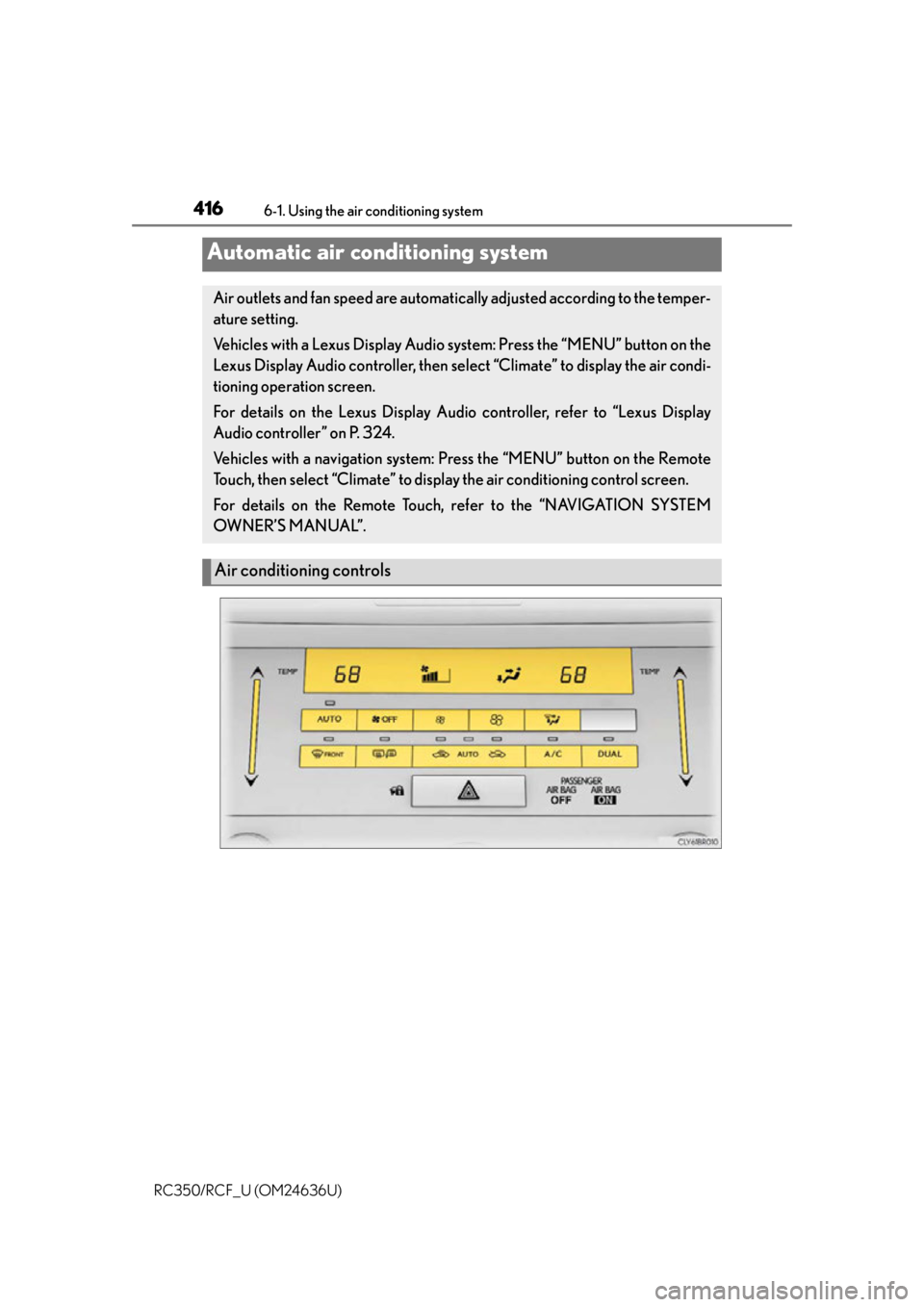
Air conditioning controls
Page 417 of 684

4176-1. Using the air conditioning system
6
Interior features
RC350/RCF_U (OM24636U)
■Adjusting the temperature setting
To adjust the temperature setting,
touch and slide your finger up or
down on the sensor.
The temperature setting can also be
adjusted by touching on the sensor.
When the temperature setting is
changed, a buzzer sounds.
■Fan speed setting
Press to increase the fan speed.
Press to decrease the fan speed.
■Change the airflow mode
To change the airflow, press .
The air outlets used are switched
each time the button is pressed.
Air flows to the upper body.
Air flows to the upper body and
feet.
Air flows to the feet.
Air flows to the feet and the wind-
shield defogger operates.
■Other functions
●Switching between outside air and recirculated air modes (P. 4 2 0 )
●Defogging the windshield ( P. 4 2 0 )
●Defogging the rear window and outside rear view mirrors ( P. 4 2 0 )
1
2
3
4
Page 418 of 684
4186-1. Using the air conditioning system
RC350/RCF_U (OM24636U)
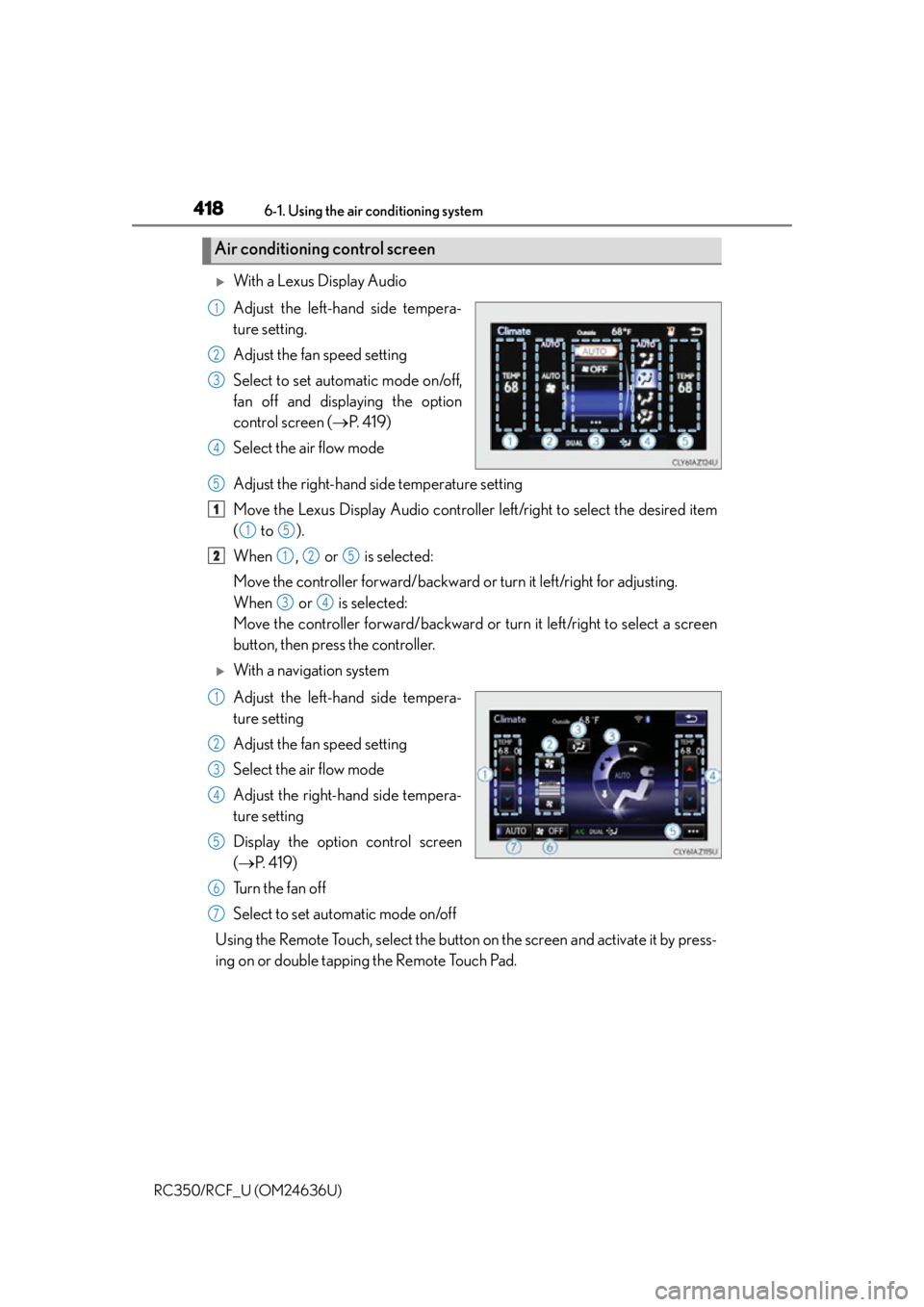
With a Lexus Display Audio
Adjust the left-hand side tempera-
ture setting.
Adjust the fan speed setting
Select to set automatic mode on/off,
fan off and displaying the option
control screen ( P. 4 1 9 )
Select the air flow mode
Adjust the right-hand side temperature setting
Move the Lexus Display Audio controller left/right to select the desired item
( to ).
When , or is selected:
Move the controller forward/backward or turn it left/right for adjusting.
When or is selected:
Move the controller forward/backward or turn it left/right to select a screen
button, then press the controller.
With a navigation system
Adjust the left-hand side tempera-
ture setting
Adjust the fan speed setting
Select the air flow mode
Adjust the right-hand side tempera-
ture setting
Display the option control screen
( P. 4 1 9 )
Tu r n t h e f a n o f f
Select to set automatic mode on/off
Using the Remote Touch, select the button on the screen and activate it by press-
ing on or double tapping the Remote Touch Pad.
Air conditioning control screen
1
2
3
4
5
1
15
2125
34
1
2
3
4
5
6
7