automatic LEXUS RC F 2016 Repair Manual
[x] Cancel search | Manufacturer: LEXUS, Model Year: 2016, Model line: RC F, Model: LEXUS RC F 2016Pages: 700, PDF Size: 14.12 MB
Page 316 of 700
3164-5. Using the driving support systems
RC350_RC300_RC200t_RC F_U (OM24671U)
Operate the active rear wing switch to raise/retract the active rear wing manu-
ally. (The active rear wing retracts when it is raised and raises when retracted.)
■Operation by switch
*: Press and hold the switch until the indicator turns off. If the switch is released while the
active rear wing is moving, it will return to the raised position automatically.
■The active rear wing can be operated when
●The engine switch is in IGNITION ON mode.
●The trunk is closed.
■Conditions which stop the operation of the active rear wing
In the following situations operatio n of the active rear wing will stop:
●The engine switch is turned off while the active rear wing is operating.
●The trunk is opened while the active rear wing is operating.
●The raising operation of the active rear wing is interrupted by an object, etc.
●The active rear wing is operated in an unus ual manner causing it to stop at an irregular
position.
In such cases, pressing the active rear wing switch will fully raise the active rear wing. Or,
begin driving the vehicle and the active rear wing will raise automatically when the vehi-
cle speed reaches 16 mph (25 km/h).
■Restoring automatic operation after the active rear wing is operated manually
If the active rear wing is operated manually, automatic operation will resume according
to the vehicle speed.
■When there is a malfunction in the system
A warning message will be displayed on the multi-information display. (P. 5 6 1 )
■Customization
The active rear wing can be held at the raised position or retracted position.
(Customizable features: P. 6 5 1 )
Manual operation
Vehicle speedUpDown
0 mph (0 km/h)
(vehicle stopped)PressPress and hold*
Approximately 0 – 12 mph (0 – 20 km/h)Operation not possibleOperation not possible
Approximately 12 – 80 mph (20 – 130 km/h)PressPress
Approximately 80 mph
(130 km/h) or moreOperation not possibleOperation not possible
Page 318 of 700
3184-5. Using the driving support systems
RC350_RC300_RC200t_RC F_U (OM24671U)
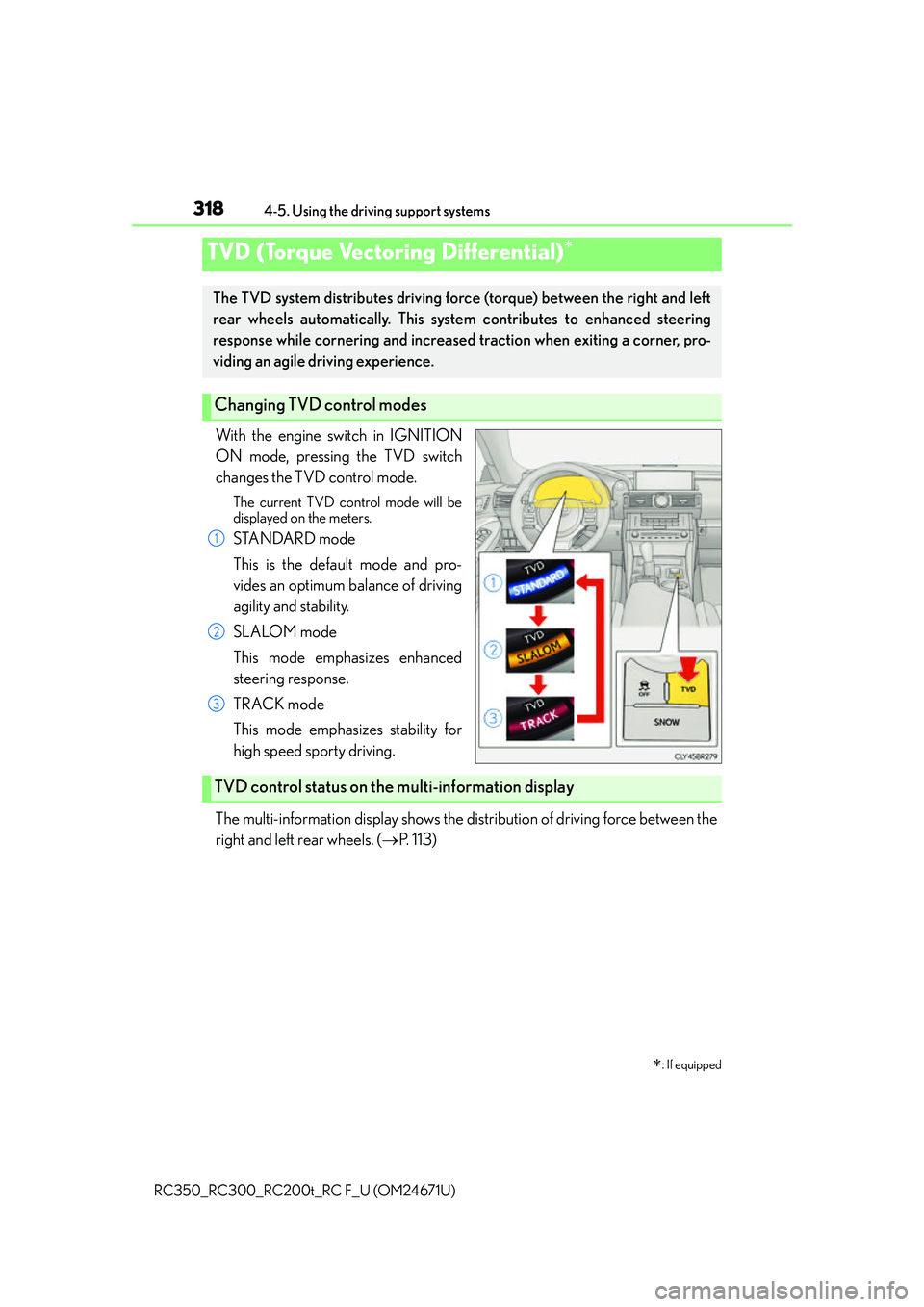
With the engine switch in IGNITION
ON mode, pressing the TVD switch
changes the TVD control mode.
The current TVD control mode will be
displayed on the meters.
STANDARD mode
This is the default mode and pro-
vides an optimum balance of driving
agility and stability.
SLALOM mode
This mode emphasizes enhanced
steering response.
TRACK mode
This mode emphasizes stability for
high speed sporty driving.
The multi-information display shows the distribution of driving force between the
right and left rear wheels. ( P. 113)
TVD (Torque Vectoring Differential)
: If equipped
The TVD system distributes driving force (torque) between the right and left
rear wheels automatically. This syst em contributes to enhanced steering
response while cornering and increased traction when exiting a corner, pro-
viding an agile driving experience.
Changing TVD control modes
1
2
3
TVD control status on the multi-information display
Page 319 of 700
3194-5. Using the driving support systems
4
Driving
RC350_RC300_RC200t_RC F_U (OM24671U)
■Automatic cancelation of the selected TVD control mode
SLALOM and TRACK mode are canceled when the engine switch is turned off. When
the engine switch is turned to IGNITION ON mode, the TVD system will be in STAN-
DARD mode.
■Automatic disabling of the TVD system
If a malfunction is detected in the TVD system, a warn ing message will be displayed on
the multi-information display ( P. 558) and the TVD system will be disabled automati-
cally. If the system is disabled, driving force will not be distributed by the TVD but through
normal differential operation.
■To protect the system
The TVD fluid temperature may become excessively high when driving for a long time
under extremely high load conditions. In th is case, a warning message will be displayed
on the multi-information display. ( P. 5 5 8 )
WA R N I N G
■Cautions regarding the use of the system
The driver is solely responsible for safe driv ing. Do not overly rely on the TVD system.
Always drive safely, taking care to observe your surroundings.
Page 327 of 700
3275-1. Basic Operations
5
Lexus Display Audio system
RC350_RC300_RC200t_RC F_U (OM24671U)
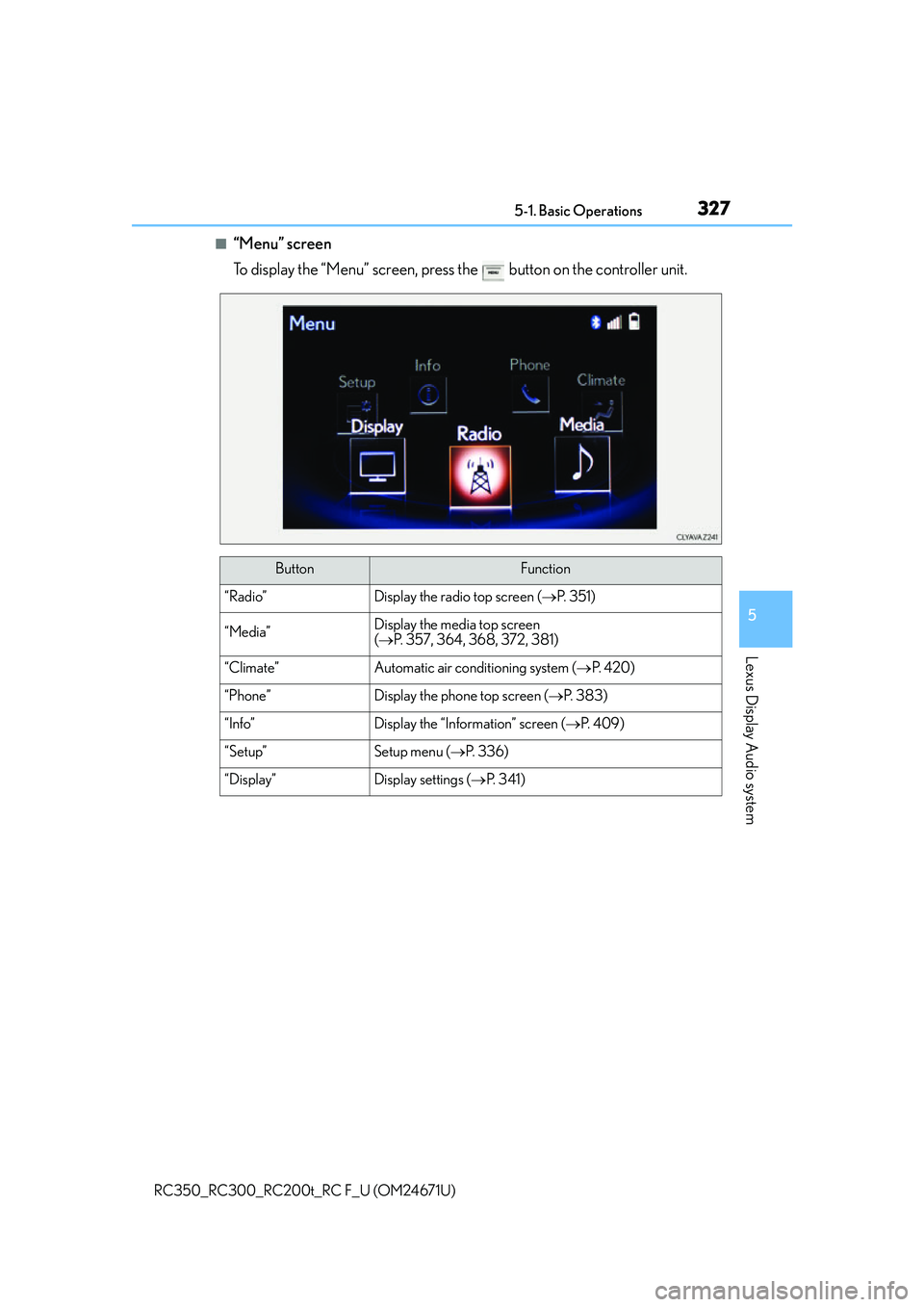
■“Menu” screen
To display the “Menu” screen, press the button on the controller unit.
ButtonFunction
“Radio”Display the radio top screen (P. 3 5 1 )
“Media”Display the media top screen
( P. 357, 364, 368, 372, 381)
“Climate”Automatic air conditioning system ( P. 4 2 0 )
“Phone”Display the phone top screen ( P. 383)
“Info”Display the “Information” screen ( P. 4 0 9 )
“Setup”Setup menu ( P. 3 3 6 )
“Display”Display settings ( P. 3 4 1 )
Page 332 of 700

3325-1. Basic Operations
RC350_RC300_RC200t_RC F_U (OM24671U)
Press and hold the switch until
you hear beeps indicating that the
system is listening.
The Mobile Assistant can be used
only when the following screen is
displayed.
To cancel the Mobile Assistant, select
“Cancel”, or press and hold the off hook
switch.
To restart the Mobile Assistant for addi-
tional commands, press the off hook
switch. Mobile Assistant can only be
restarted after the system responds to a
voice command. After some phone and
music commands, the Mobile Assistant
feature will automatically end to com-
plete the requested action.
Mobile Assistant
The Mobile Assistant feature will activate Apple’s Siri Eyes Free mode via
the steering wheel switches. To operate the Mobile Assistant, a compatible
cellular phone must be registered and connected to this system via
Bluetooth
. ( P. 3 8 3 )
1
2
Page 344 of 700
3445-3. Using the audio system
RC350_RC300_RC200t_RC F_U (OM24671U)
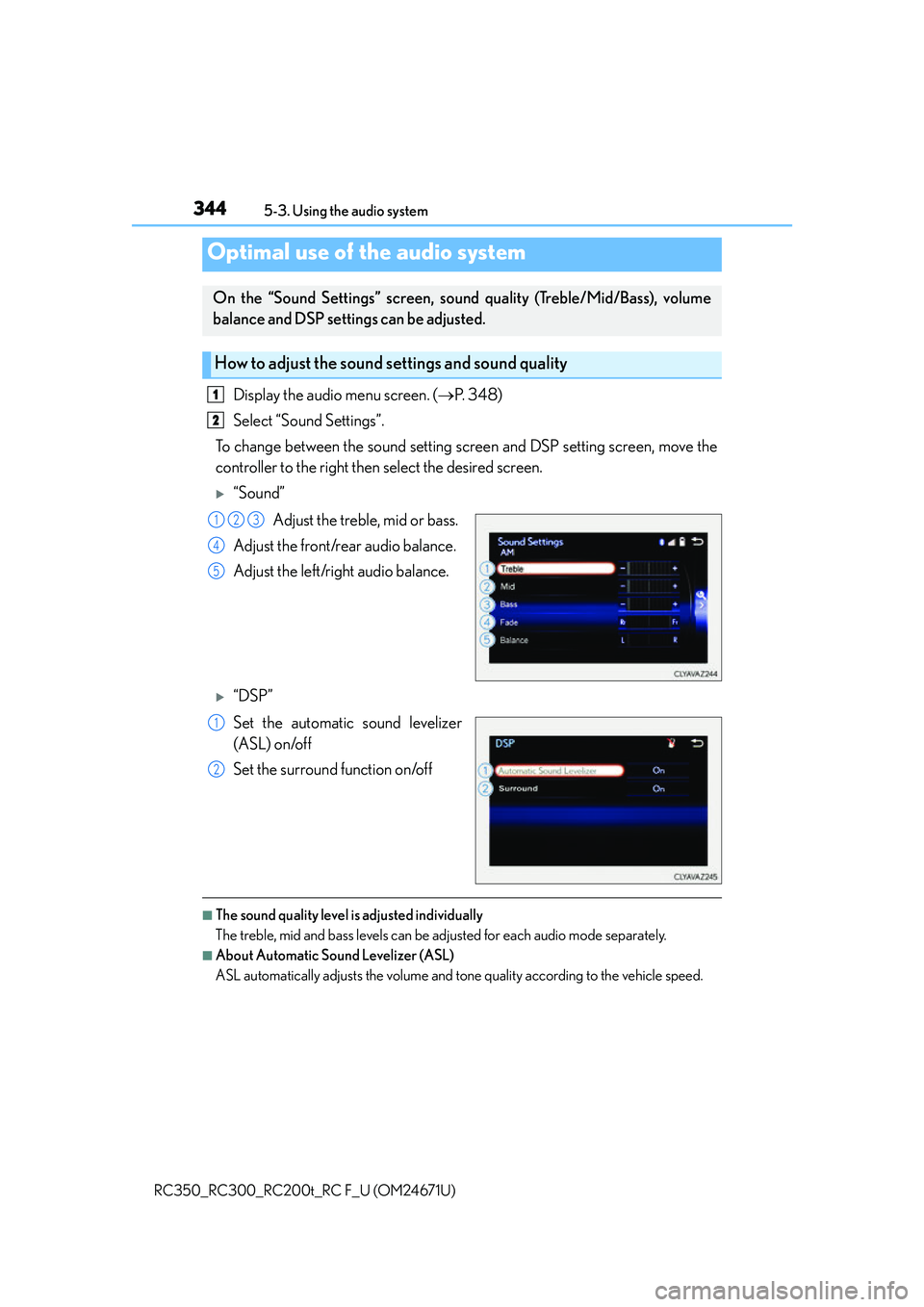
Display the audio menu screen. ( P. 3 4 8 )
Select “Sound Settings”.
To change between the sound setting screen and DSP setting screen, move the
controller to the right then select the desired screen.
“Sound”
Adjust the treble, mid or bass.
Adjust the front/rear audio balance.
Adjust the left/right audio balance.
“DSP”
Set the automatic sound levelizer
(ASL) on/off
Set the surround function on/off
■The sound quality level is adjusted individually
The treble, mid and bass levels can be adjusted for each audio mode separately.
■About Automatic Sound Levelizer (ASL)
ASL automatically adjusts the volume and tone quality according to the vehicle speed.
Optimal use of the audio system
On the “Sound Settings” screen, sound quality (Treble/Mid/Bass), volume
balance and DSP settings can be adjusted.
How to adjust the sound settings and sound quality
1
2
123
4
5
1
2
Page 356 of 700
3565-4. Using the radio
RC350_RC300_RC200t_RC F_U (OM24671U)
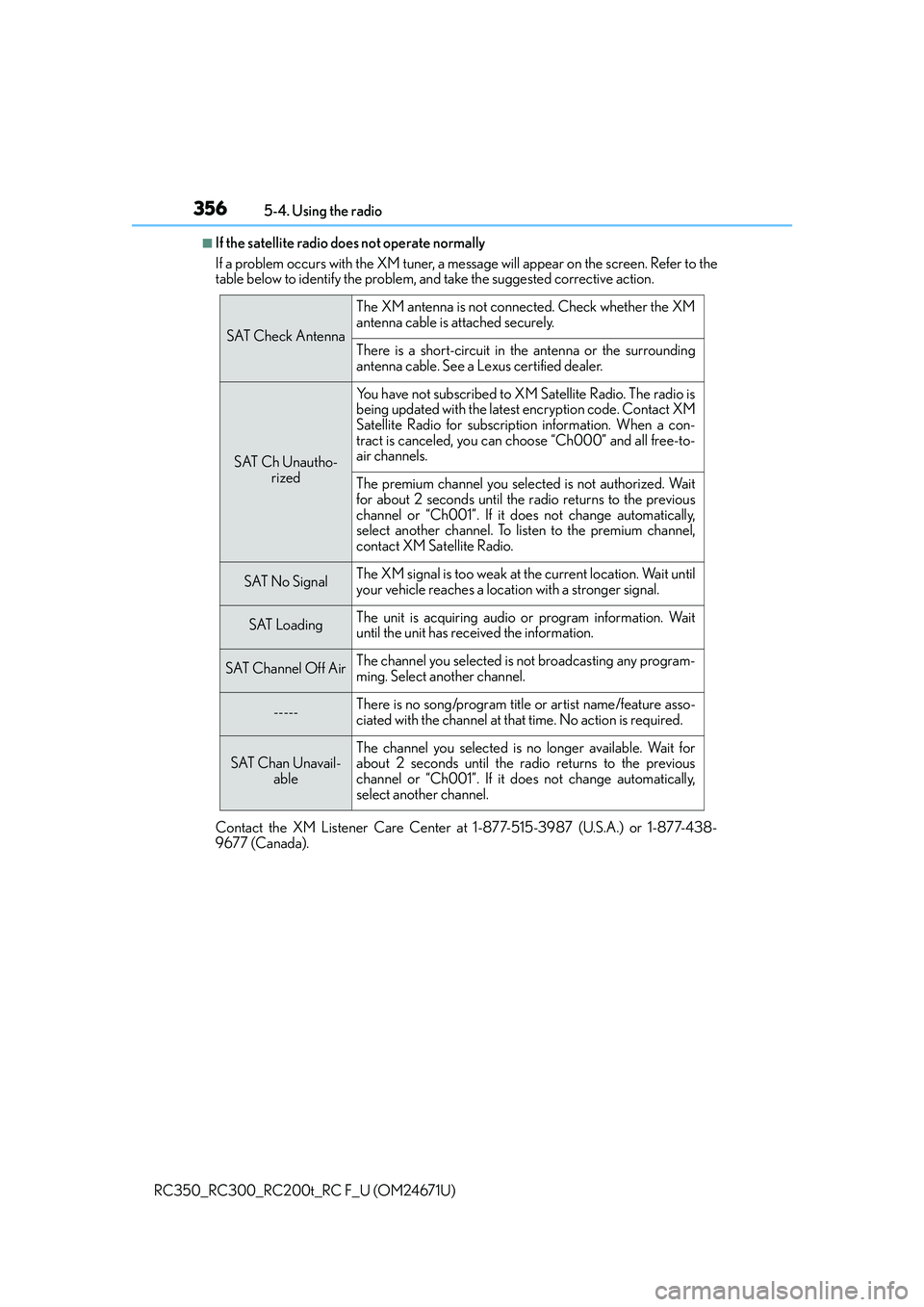
■If the satellite radio does not operate normally
If a problem occurs with the XM tuner, a me ssage will appear on the screen. Refer to the
table below to identify the problem, and take the suggested corrective action.
Contact the XM Listener Care Center at 1-877-515-3987 (U.S.A.) or 1-877-438-
9677 (Canada).
SAT Check Antenna
The XM antenna is not connected. Check whether the XM
antenna cable is attached securely.
There is a short-circuit in the antenna or the surrounding
antenna cable. See a Lexus certified dealer.
SAT Ch Unautho-
rized
Yo u h a v e n o t s u b s c r i b e d t o X M Satellite Radio. The radio is
being updated with the latest encryption code. Contact XM
Satellite Radio for subscripti on information. When a con-
tract is canceled, you can choose “Ch000” and all free-to-
air channels.
The premium channel you select ed is not authorized. Wait
for about 2 seconds until the radio returns to the previous
channel or “Ch001”. If it does not change automatically,
select another channel. To listen to the premium channel,
contact XM Satellite Radio.
SAT No SignalThe XM signal is too weak at the current location. Wait until
your vehicle reaches a location with a stronger signal.
SAT LoadingThe unit is acquiring audio or program information. Wait
until the unit has received the information.
SAT Channel Off AirThe channel you selected is not broadcasting any program-
ming. Select another channel.
-----There is no song/program title or artist name/feature asso-
ciated with the channel at that time. No action is required.
SAT Chan Unavail- ableThe channel you selected is no longer available. Wait for
about 2 seconds until the radio returns to the previous
channel or “Ch001”. If it does not change automatically,
select another channel.
Page 358 of 700

3585-5. Playing an audio CD and MP3/WMA/AAC discs
RC350_RC300_RC200t_RC F_U (OM24671U)
■Error messages
If the following error messages appear on the screen, refer to the table and take the
appropriate measures. If the pr oblem is not rectified, take the vehicle to your Lexus
dealer.
■Discs that can be used
Discs with the marks sh own below can be used.
Playback may not be possible depending on recording format or disc features, or due to
scratches, dirt or deterioration.
CDs with copy-protection feat ures may not play correctly.
■CD player protection feature
To protect the internal components, playback is automatically stopped when a problem is
detected.
■If a disc is left inside the CD player or in the ejected position for extended periods
Disc may be damaged and may not play properly.
■Lens cleaners
Do not use lens cleaners. Doing so may damage the CD player.
■MP3, WMA and AAC files
MP3 (MPEG Audio LAYER3) is a standard audio compression format.
Files can be compressed to approximately 1 /10 of their original size by using MP3 com-
pression.
WMA (Windows Media Audio) is a Microsoft audio compression format.
This format compresses audio data to a size smaller than that of the MP3 format.
AAC is short for Advanced Audio Coding and refers to an audio compression technol-
ogy standard used with MPEG2 and MPEG4.
MP3, WMA and AAC file and media/formats compatibility are limited.
MessageCauseCorrection procedures
“Check disc”
• The disc is dirty or dam- aged.
• The disc is inserted upside down.
• The disc is not playable with the player.
•Clean the disc.
• Insert the disc correctly.
• Confirm the disc is play- able with the player.
“DISC Error”There is a malfunction
within the system.Eject the disc.
“No music files found.”No playable data is
included on the disc.Eject the disc.
Page 378 of 700

3785-7. Connecting Bluetooth®
RC350_RC300_RC200t_RC F_U (OM24671U)
When you register a phone, auto connection will be activated. Always set it to
this mode and leave the Bluetooth® phone in a place where a connection can be
established.
When the engine switch is turned to ACCESSORY or IGNITION ON mode,
the system will search for a nearby cellular phone you have registered.
Next, the system automatically connects with the most recent phone that was
connected. The connected result is displayed.
When auto connection has failed or “Bluetooth
* Power” is turned off, you must
connect the Bluetooth® device manually.
Go to “Bluetooth
* Setup”: “Setup” “Bluetooth*”
Select the device to connect.
Select “Connect All”, “Connect as a Ph one” or “Connect as an Audio player”.
If the desired Bluetooth
® device is not displayed, register the device.
( P. 3 7 5 )
*: Bluetooth is a registered trademark of Bluetooth SIG, Inc.
■Reconnecting a Bluetooth® phone
If the system cannot connect due to poor si gnal strength with the engine switch in
ACCESSORY or IGNITION ON mode, the syst em will automatically attempt to recon-
nect.
If the phone is turned off, the system will not attempt to reconnect. In this case, the con-
nection must be made manually, or the phone must be reselected.
■Connecting a phone while Bluetooth® audio is playing
●Bluetooth® audio will stop temporarily.
●It may take time to connect.
Connecting a Bluetooth® phone
There are two connecting methods av ailable: automatic and manual.
Auto connection
Manual connection
1
2
3
Page 386 of 700
3865-9. Bluetooth® Phone
RC350_RC300_RC200t_RC F_U (OM24671U)
You can transfer the phone numbers in a Bluetooth® phone to the system.
Operation methods differ between PBAP (Phone Book Access Profile) compat-
ible and PBAP inco mpatible Bluetooth
® phones. If the cellular phone does not
support either PBAP or OPP (Object Push Profile) service, you cannot transfer
contacts.
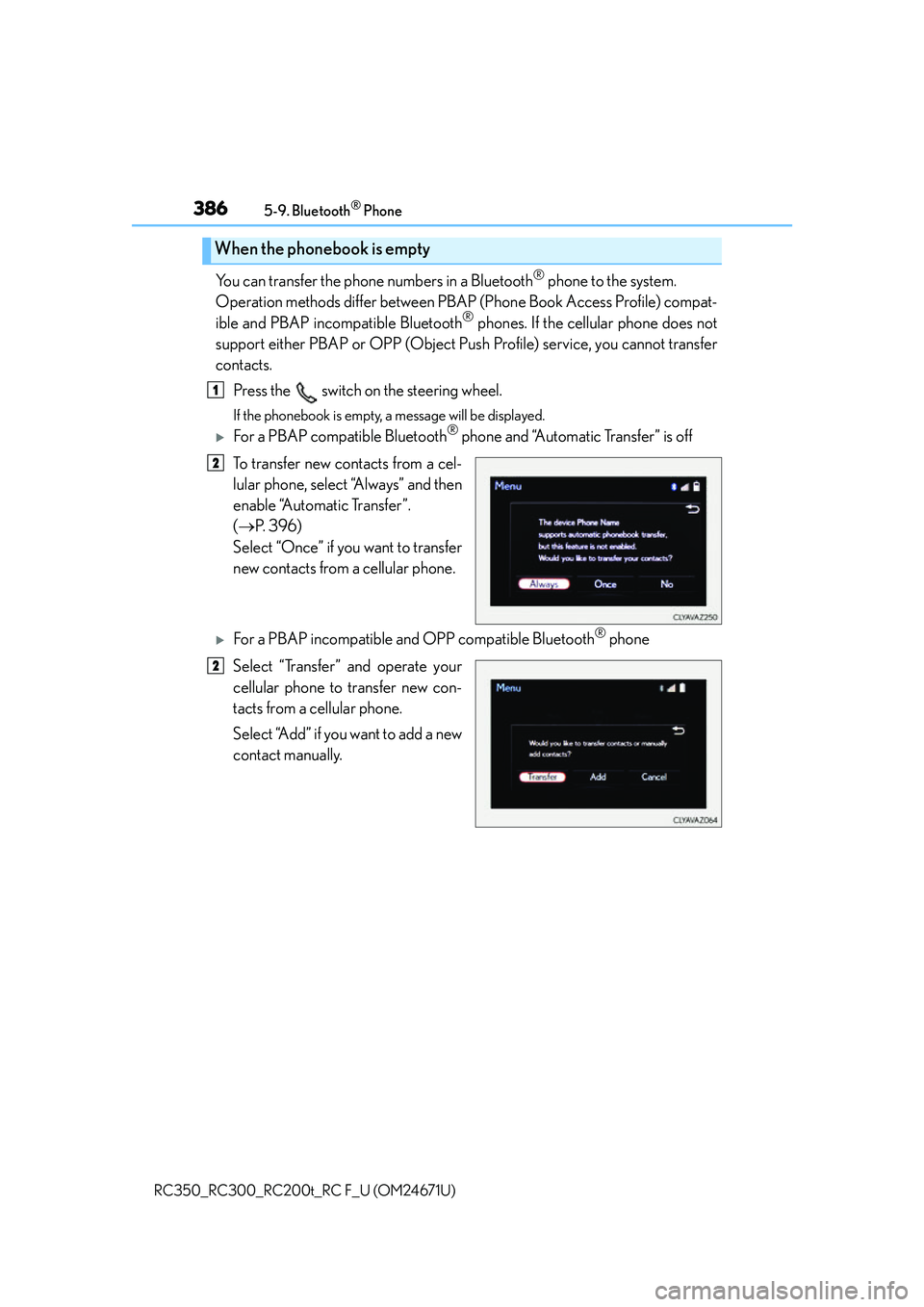
Press the switch on the steering wheel.
If the phonebook is empty, a message will be displayed.
For a PBAP compatible Bluetooth® phone and “Automatic Transfer” is off
To transfer new contacts from a cel-
lular phone, select “Always” and then
enable “Automatic Transfer”.
( P. 3 9 6 )
Select “Once” if you want to transfer
new contacts from a cellular phone.
For a PBAP incompatible and OPP compatible Bluetooth® phone
Select “Transfer” and operate your
cellular phone to transfer new con-
tacts from a cellular phone.
Select “Add” if you want to add a new
contact manually.
When the phonebook is empty
1
2
2