USB LEXUS RC200T 2017 User Guide
[x] Cancel search | Manufacturer: LEXUS, Model Year: 2017, Model line: RC200T, Model: LEXUS RC200T 2017Pages: 724, PDF Size: 42.04 MB
Page 410 of 724
4105-3. Using the audio system
RC200t_RC F_EE(OM24728E)
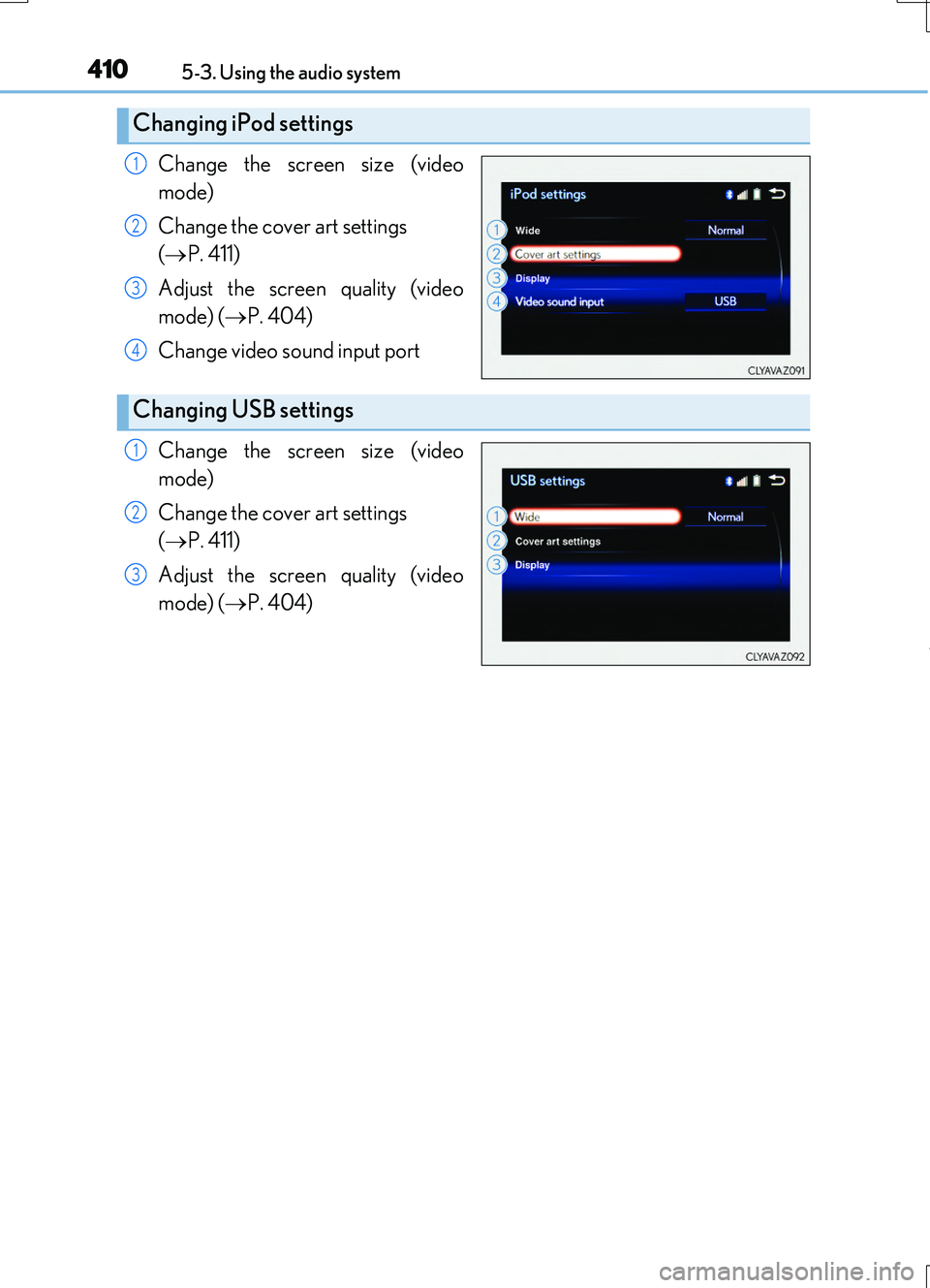
Change the screen size (video
mode)
Change the cover art settings
( P. 411)
Adjust the screen quality (video
mode) ( P. 404)
Change video sound input port
Change the screen size (video
mode)
Change the cover art settings
( P. 411)
Adjust the screen quality (video
mode) ( P. 404)
Changing iPod settings
1
2
3
4
Changing USB settings
1
2
3
Page 411 of 724
4115-3. Using the audio system
5
Lexus Display Audio system
RC200t_RC F_EE(OM24728E)
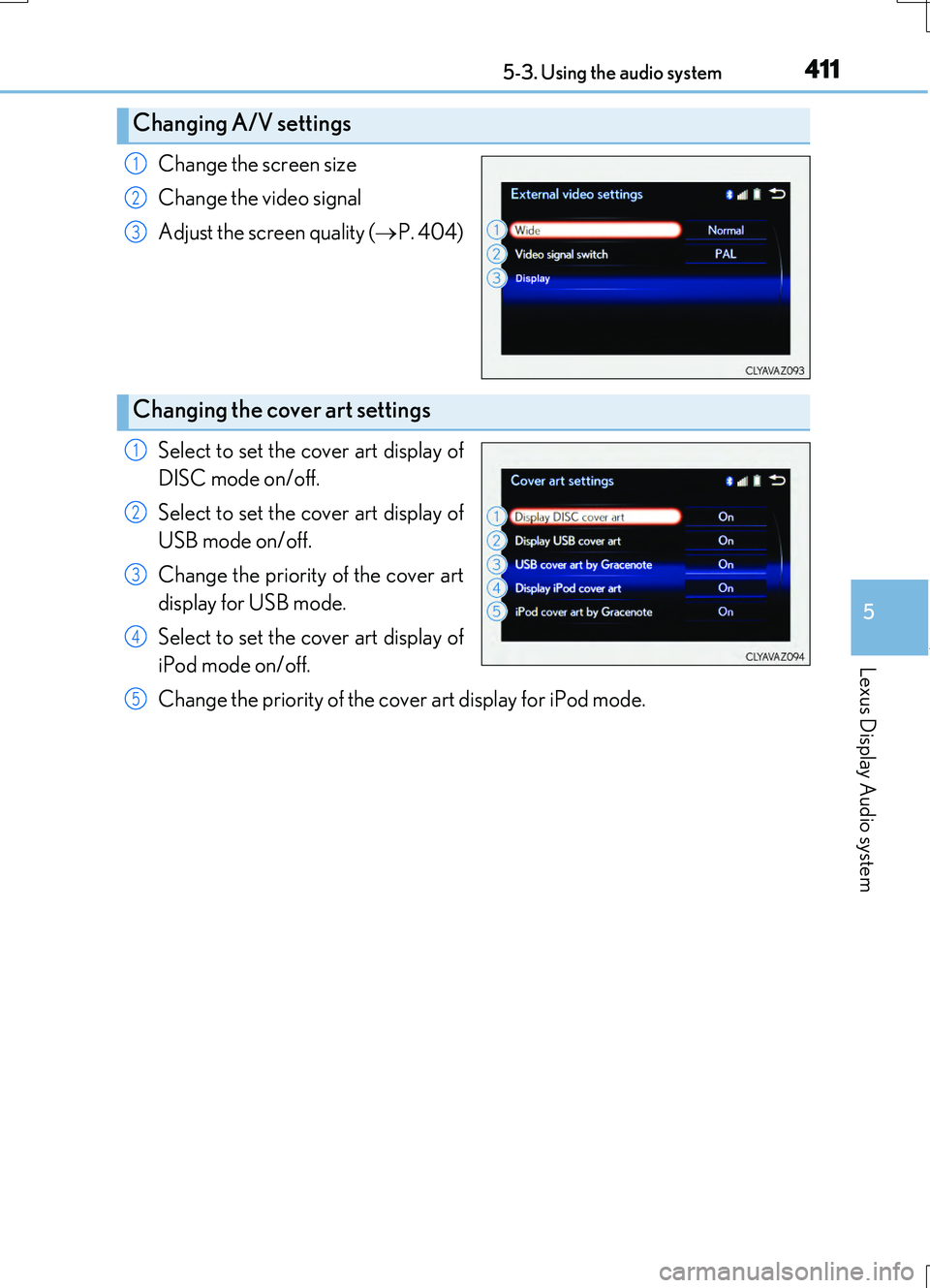
Change the screen size
Change the video signal
Adjust the screen quality ( P. 404)
Select to set the cover art display of
DISC mode on/off.
Select to set the cover art display of
USB mode on/off.
Change the priority of the cover art
display for USB mode.
Select to set the cover art display of
iPod mode on/off.
Change the priority of the cover art display for iPod mode.
Changing A/V settings
1
2
3
Changing the cover art settings
1
2
3
4
5
Page 413 of 724
4135-3. Using the audio system
5
Lexus Display Audio system
RC200t_RC F_EE(OM24728E)
CD, MP3/WMA/AAC disc, USB, Bluetooth® or iPod
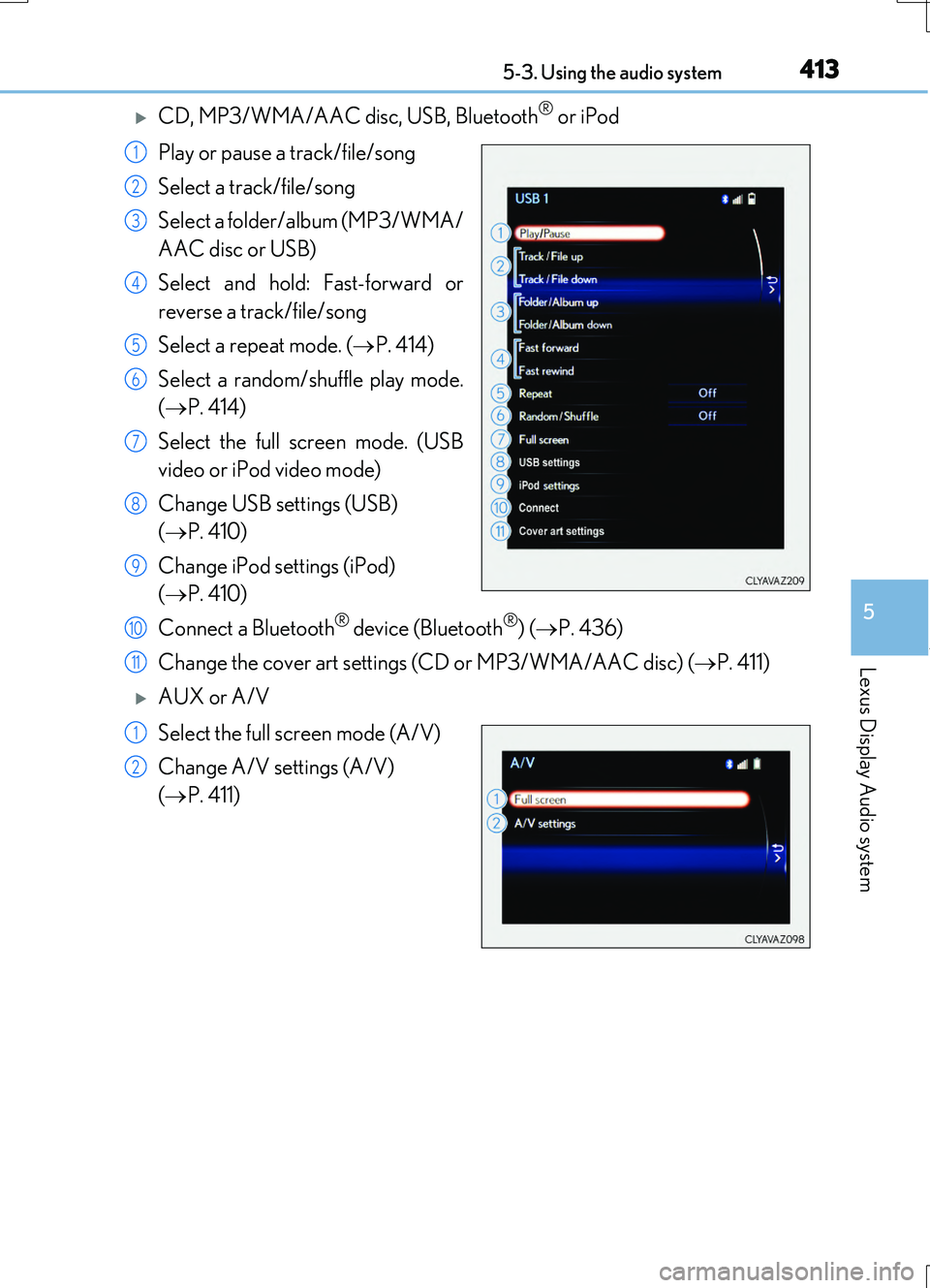
Play or pause a track/file/song
Select a track/file/song
Select a folder/album (MP3/WMA/
AAC disc or USB)
Select and hold: Fast-forward or
reverse a track/file/song
Select a repeat mode. ( P. 414)
Select a random/shuffle play mode.
( P. 414)
Select the full screen mode. (USB
video or iPod video mode)
Change USB settings (USB)
( P. 410)
Change iPod settings (iPod)
( P. 410)
Connect a Bluetooth® device (Bluetooth®) ( P. 436)
Change the cover art settings (CD or MP3/WMA/AAC disc) ( P. 411)
AUX or A/V
Select the full screen mode (A/V)
Change A/V settings (A/V)
( P. 411)
1
2
3
4
5
6
7
8
9
10
11
1
2
Page 414 of 724
4145-3. Using the audio system
RC200t_RC F_EE(OM24728E)
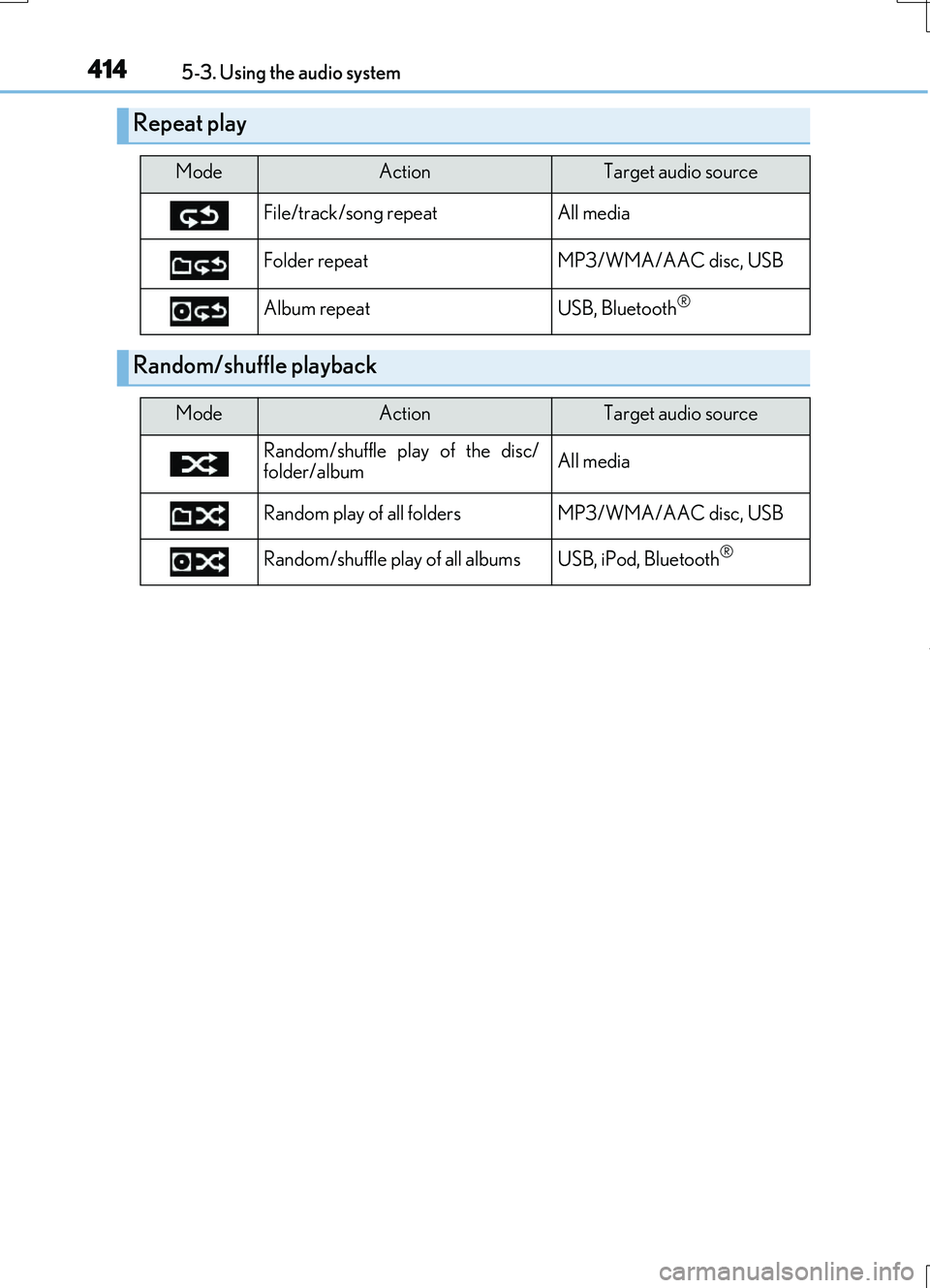
Repeat play
ModeActionTarget audio source
File/track/song repeat All media
Folder repeat MP3/WMA/AAC disc, USB
Album repeat USB, Bluetooth®
Random/shuffle playback
ModeActionTarget audio source
Random/shuffle play of the disc/ folder/album All media
Random play of all folders MP3/WMA/AAC disc, USB
Random/shuffle play of all albums USB, iPod, Bluetooth®
Page 427 of 724
4275-6. Using an external device
5
Lexus Display Audio system
RC200t_RC F_EE(OM24728E)
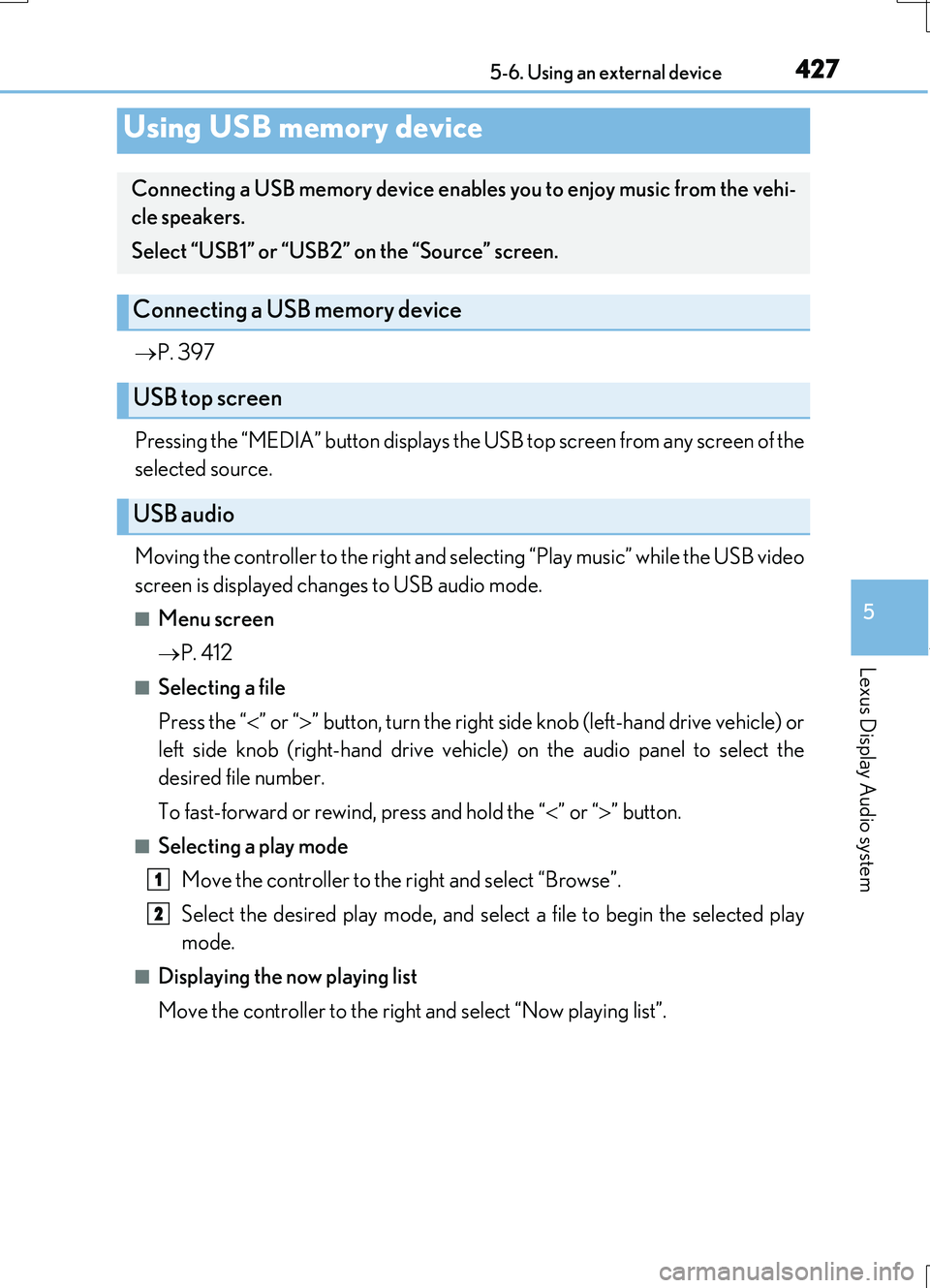
P. 397
Pressing the “MEDIA” button displays the USB top screen from any screen of the
selected source.
Moving the controller to the right and selecting “Play music” while the USB video
screen is displayed changes to USB audio mode.
■Menu screen
P. 412
■Selecting a file
Press the “ ” or “” button, turn the right side knob (left-hand drive vehicle) or
left side knob (right-hand drive vehicle) on the audio panel to select the
desired file number.
To fast-forward or rewind, press and hold the “ ” or “” button.
■Selecting a play mode
Move the controller to the right and select “Browse”.
Select the desired play mode, and select a file to begin the selected play
mode.
■Displaying the now playing list
Move the controller to the right and select “Now playing list”.
Using USB memory device
Connecting a USB memory device enables you to enjoy music from the vehi-
cle speakers.
Select “USB1” or “USB2” on the “Source” screen.
Connecting a USB memory device
USB top screen
USB audio
1
2
Page 428 of 724
4285-6. Using an external device
RC200t_RC F_EE(OM24728E)
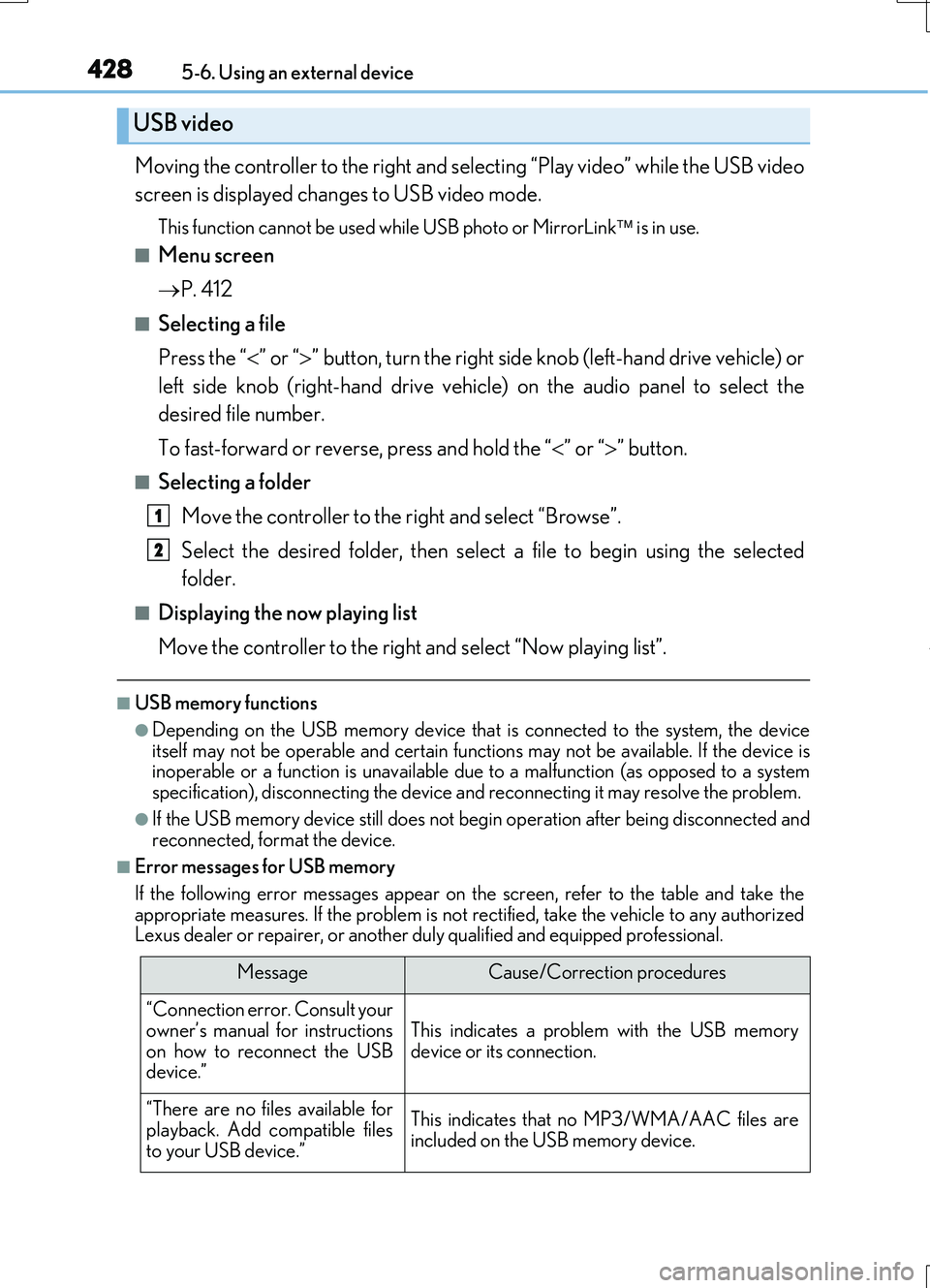
Moving the controller to the right and selecting “Play video” while the USB video
screen is displayed changes to USB video mode.
This function cannot be used while USB photo or MirrorLink is in use.
■Menu screen
P. 412
■Selecting a file
Press the “ ” or “” button, turn the right side knob (left-hand drive vehicle) or
left side knob (right-hand drive vehicle) on the audio panel to select the
desired file number.
To fast-forward or reverse, press and hold the “ ” or “” button.
■Selecting a folder
Move the controller to the right and select “Browse”.
Select the desired folder, then select a file to begin using the selected
folder.
■Displaying the now playing list
Move the controller to the right and select “Now playing list”.
■USB memory functions
●Depending on the USB memory device that is connected to the system, the device
itself may not be operable and certain functions may not be available. If the device is inoperable or a function is unavailable du e to a malfunction (as opposed to a system specification), disconnecting the device and reconnecting it may resolve the problem.
●If the USB memory device still does not begin operation after being disconnected and reconnected, format the device.
■Error messages for USB memory
If the following error messages appear on the screen, refer to the table and take the appropriate measures. If the problem is not rectified, take the vehicle to any authorizedLexus dealer or repairer, or another duly qualified and equipped professional.
USB video
MessageCause/Correction procedures
“Connection error. Consult your
owner’s manual for instructions on how to reconnect the USBdevice.”
This indicates a problem with the USB memorydevice or its connection.
“There are no files available for
playback. Add compatible files to your USB device.”
This indicates that no MP3/WMA/AAC files areincluded on the USB memory device.
1
2
Page 429 of 724
4295-6. Using an external device
5
Lexus Display Audio system
RC200t_RC F_EE(OM24728E)
■USB memory
●Compatible devices
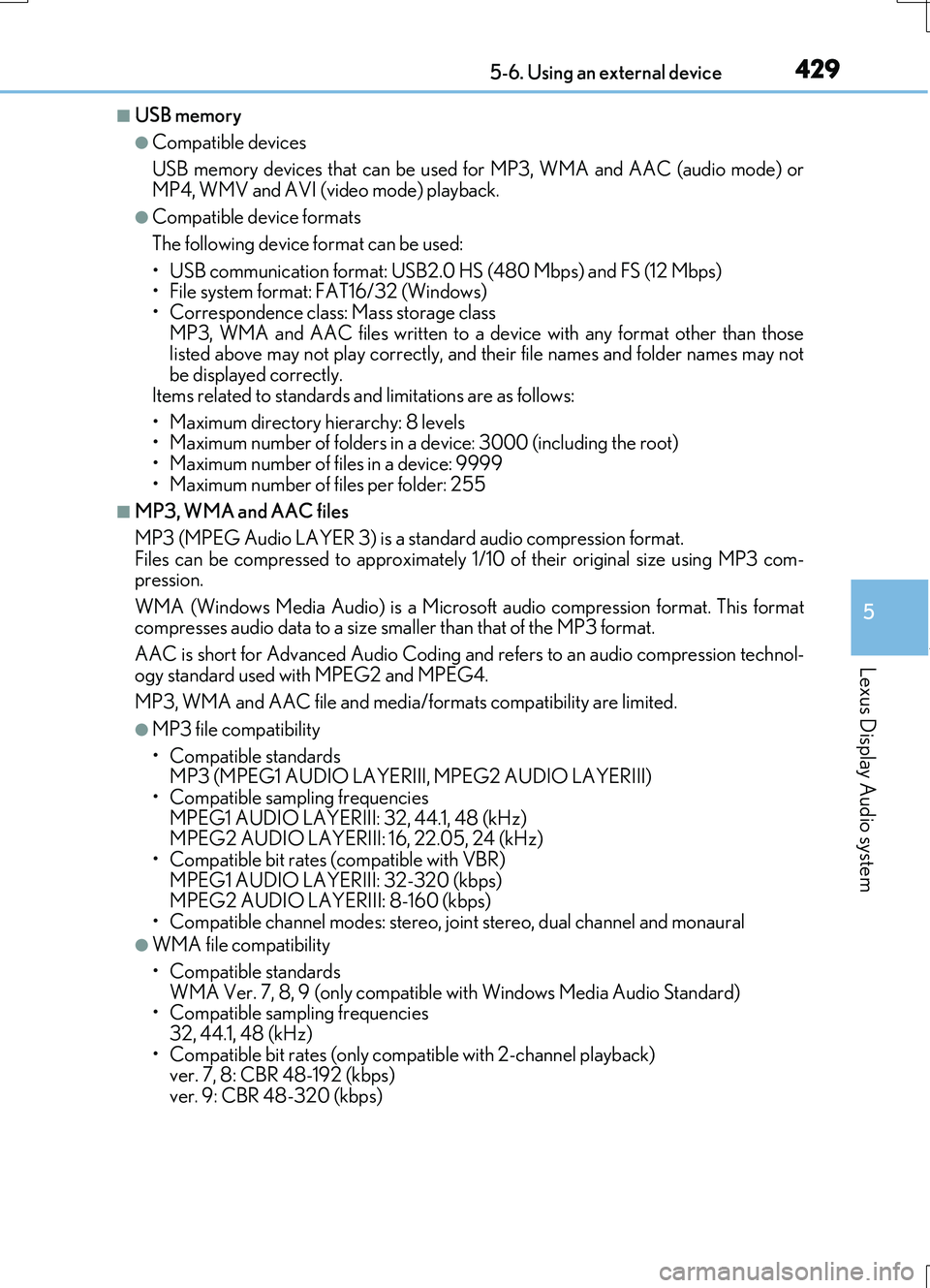
USB memory devices that can be used for MP3, WMA and AAC (audio mode) or
MP4, WMV and AVI (video mode) playback.
●Compatible device formats
The following device format can be used:
• USB communication format: USB2.0 HS (480 Mbps) and FS (12 Mbps) • File system format: FAT16/32 (Windows)• Correspondence class: Mass storage class
MP3, WMA and AAC files written to a device with any format other than those listed above may not play correctly, and their file names and folder names may notbe displayed correctly.
Items related to standards and limitations are as follows:
• Maximum directory hierarchy: 8 levels • Maximum number of folders in a device: 3000 (including the root)
• Maximum number of files in a device: 9999 • Maximum number of files per folder: 255
■MP3, WMA and AAC files
MP3 (MPEG Audio LAYER 3) is a standard audio compression format. Files can be compressed to approximately 1/ 10 of their original size using MP3 com- pression.
WMA (Windows Media Audio) is a Microsoft audio compression format. This format compresses audio data to a size smaller than that of the MP3 format.
AAC is short for Advanced Audio Coding an d refers to an audio compression technol-
ogy standard used with MPEG2 and MPEG4.
MP3, WMA and AAC file and media/ formats compatibility are limited.
●MP3 file compatibility
• Compatible standards MP3 (MPEG1 AUDIO LAYERIII, MPEG2 AUDIO LAYERIII)
• Compatible sampling frequencies MPEG1 AUDIO LAYERIII: 32, 44.1, 48 (kHz) MPEG2 AUDIO LAYERIII: 16, 22.05, 24 (kHz)
• Compatible bit rates (c ompatible with VBR) MPEG1 AUDIO LAYERIII: 32-320 (kbps) MPEG2 AUDIO LAYERIII: 8-160 (kbps)
• Compatible channel modes: stereo, joint stereo, dual channel and monaural
●WMA file compatibility
• Compatible standards WMA Ver. 7, 8, 9 (only compatible with Windows Media Audio Standard)• Compatible sampling frequencies
32, 44.1, 48 (kHz) • Compatible bit rates (only compatible with 2-channel playback)ver. 7, 8: CBR 48-192 (kbps)
ver. 9: CBR 48-320 (kbps)
Page 430 of 724
4305-6. Using an external device
RC200t_RC F_EE(OM24728E)
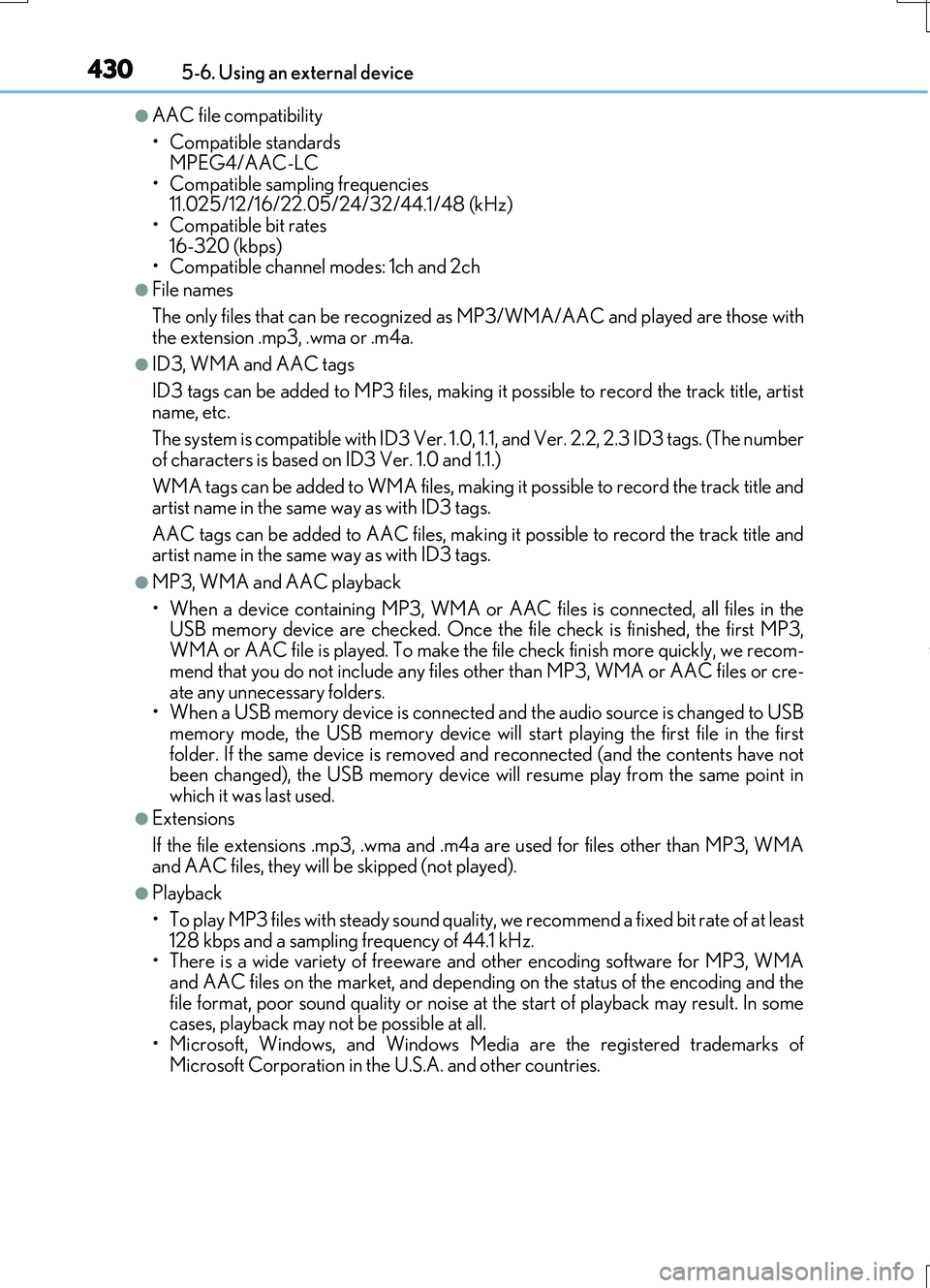
●AAC file compatibility
• Compatible standards MPEG4/AAC-LC
• Compatible sampling frequencies 11.025/12/16/22.05/24/32/44.1/48 (kHz)• Compatible bit rates
16-320 (kbps) • Compatible channel modes: 1ch and 2ch
●File names
The only files that can be recognized as MP3/WMA/AAC and played are those with the extension .mp3, .wma or .m4a.
●ID3, WMA and AAC tags
ID3 tags can be added to MP3 files, making it possible to record the track title, artist name, etc.
The system is compatible with ID3 Ver. 1.0, 1.1, and Ver. 2.2, 2.3 ID3 tags. (The number of characters is based on ID3 Ver. 1.0 and 1.1.)
WMA tags can be added to WMA files, making it possible to record the track title and
artist name in the same way as with ID3 tags.
AAC tags can be added to AAC files, making it possible to record the track title and artist name in the same way as with ID3 tags.
●MP3, WMA and AAC playback
• When a device containing MP3, WMA or AA C files is connected, all files in the USB memory device are checked. Once the file check is finished, the first MP3,
WMA or AAC file is played. To make the file check finish more quickly, we recom- mend that you do not include any files other than MP3, WMA or AAC files or cre-
ate any unnecessary folders. • When a USB memory device is connected and the audio source is changed to USBmemory mode, the USB memory device will start playing the first file in the first
folder. If the same device is removed and reconnected (and the contents have not been changed), the USB memory device will resume play from the same point inwhich it was last used.
●Extensions
If the file extensions .mp3, .wma and .m4a are used for files other than MP3, WMA
and AAC files, they will be skipped (not played).
●Playback
• To play MP3 files with steady sound quality, we recommend a fixed bit rate of at least
128 kbps and a sampling frequency of 44.1 kHz. • There is a wide variety of freeware and other encoding software for MP3, WMAand AAC files on the market, and depending on the status of the encoding and the
file format, poor sound quality or noise at the start of playback may result. In some cases, playback may not be possible at all.• Microsoft, Windows, and Windows Medi a are the registered trademarks of
Microsoft Corporation in the U.S.A. and other countries.
Page 431 of 724
4315-6. Using an external device
5
Lexus Display Audio system
RC200t_RC F_EE(OM24728E)
NOTICE
■To prevent damage to the USB memory device or its terminals
●Do not leave the USB memory device in the vehicle. The temperature inside the vehi- cle may become high, resulting in damage to the USB memory device.
●Do not push down on or apply unnecessary pressure to the USB memory devicewhile it is connected.
●Do not insert foreign objects into the port.
Page 469 of 724

469
5
Lexus Display Audio system
RC200t_RC F_EE(OM24728E) 5-12. Other function
Go to “Information”:
“Info”
Display the “MirrorLink
*” screen.
( P. 470)
Display the “USB photo” screen.
( P. 473)
*: MirrorLink is a registered trademark of
Car Connectivity Consortium, Inc.
“Information” screen
Display “Information” screen
1
2