fuel LEXUS RC300 2017 User Guide
[x] Cancel search | Manufacturer: LEXUS, Model Year: 2017, Model line: RC300, Model: LEXUS RC300 2017Pages: 724, PDF Size: 15.76 MB
Page 112 of 724
1122. Instrument cluster
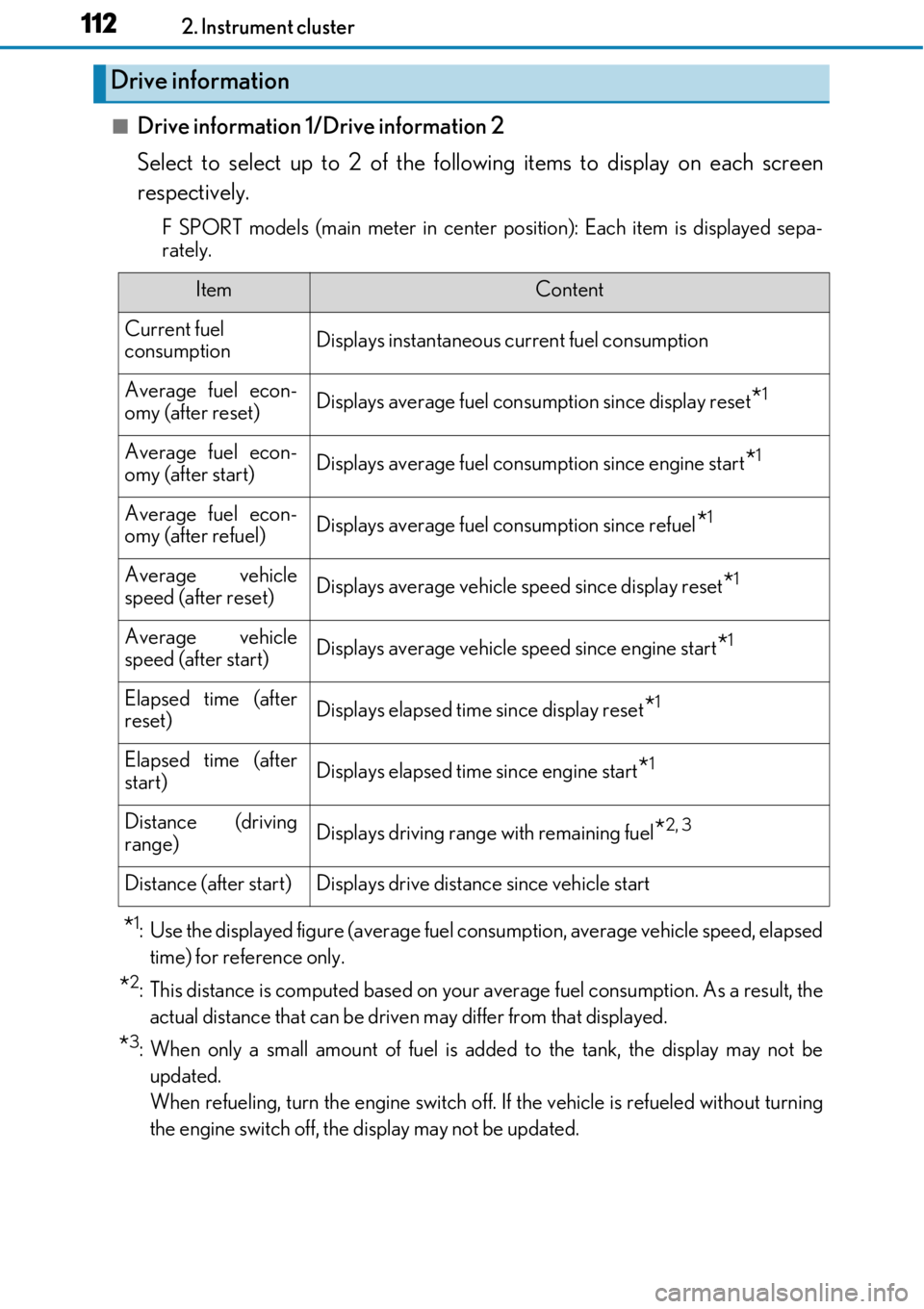
■Drive information 1/Drive information 2
Select to select up to 2 of the following items to display on each screen
respectively.
F SPORT models (main meter in center position): Each item is displayed sepa-
rately.
*1: Use the displayed figure (average fuel co nsumption, average vehicle speed, elapsed
time) for reference only.
*2: This distance is computed based on your average fuel consumption. As a result, the actual distance that can be driven may differ from that displayed.
*3: When only a small amount of fuel is added to the tank, the display may not beupdated.
When refueling, turn the engine switch off. If the vehicle is refueled without turning
the engine switch off, the display may not be updated.
Drive information
ItemContent
Current fuel
consumptionDisplays instantaneous current fuel consumption
Average fuel econ-
omy (after reset)Displays average fuel cons umption since display reset*1
Average fuel econ-
omy (after start)Displays average fuel consumption since engine start*1
Average fuel econ-
omy (after refuel)Displays average fuel consumption since refuel*1
Average vehicle
speed (after reset)Displays average vehicle speed since display reset*1
Average vehicle
speed (after start)Displays average vehicle speed since engine start*1
Elapsed time (after
reset)Displays elapsed time since display reset*1
Elapsed time (after
start)Displays elapsed time since engine start*1
Distance (driving
range)Displays driving range with remaining fuel*2, 3
Distance (after start)Displays drive distance since vehicle start
Page 113 of 724
1132. Instrument cluster
2
Instrument cluster
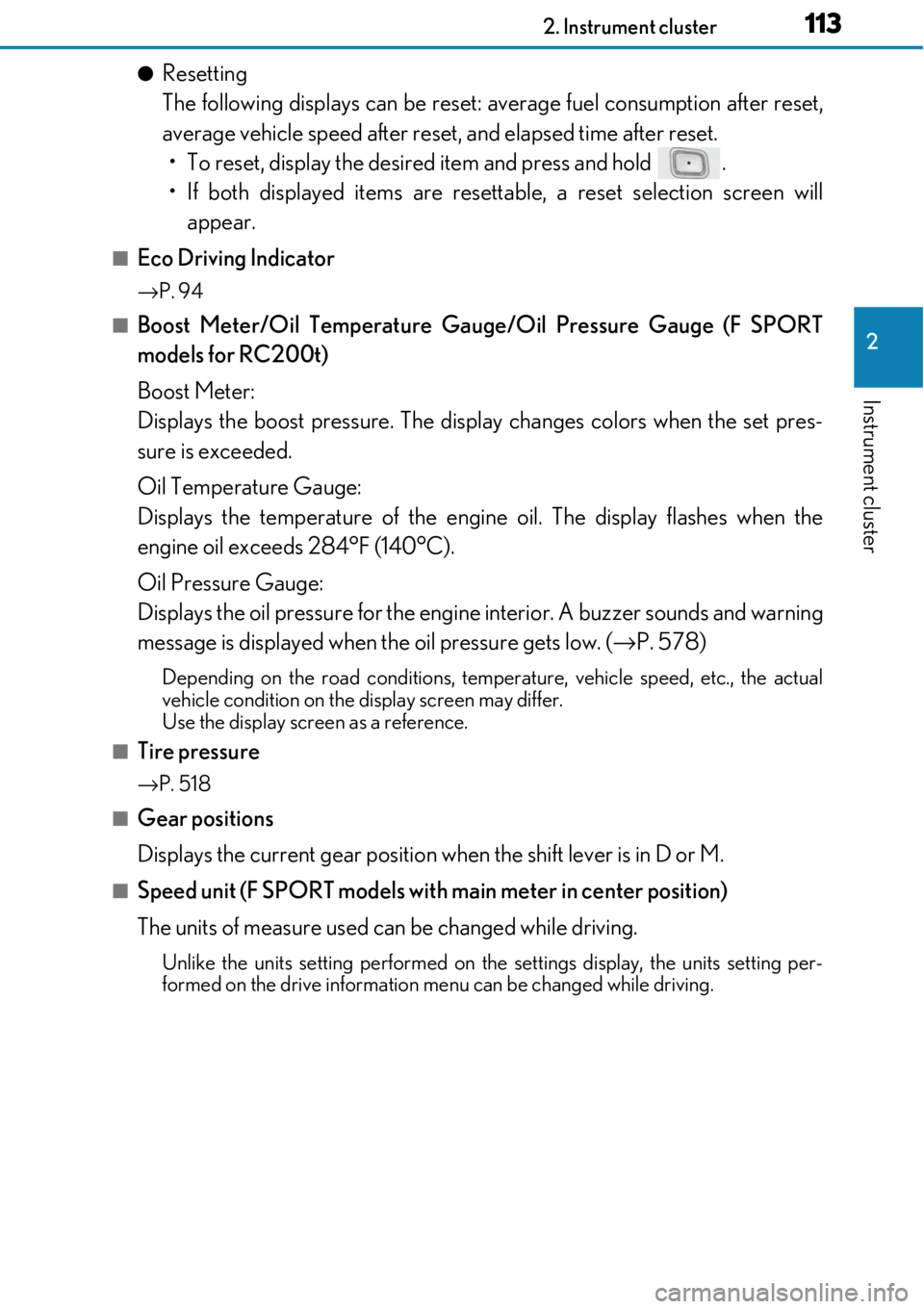
●Resetting
The following displays can be reset: average fuel consumption after reset,
average vehicle speed after reset, and elapsed time after reset. • To reset, display the desired item and press and hold .
• If both displayed items are resett able, a reset selection screen will
appear.
■Eco Driving Indicator
→ P. 94
■Boost Meter/Oil Temperature Gaug e/Oil Pressure Gauge (F SPORT
models for RC200t)
Boost Meter:
Displays the boost pressure. The display changes colors when the set pres-
sure is exceeded.
Oil Temperature Gauge:
Displays the temperature of the engine oil. The display flashes when the
engine oil exceeds 284°F (140°C).
Oil Pressure Gauge:
Displays the oil pressure for the engine interior. A buzzer sounds and warning
message is displayed when the oil pressure gets low. ( →P. 578)
Depending on the road conditions, temperature, vehicle speed, etc., the actual
vehicle condition on the display screen may differ.
Use the display scre en as a reference.
■Tire pressure
→P. 518
■Gear positions
Displays the current gear position when the shift lever is in D or M.
■Speed unit (F SPORT models with main meter in center position)
The units of measure used can be changed while driving.
Unlike the units setting performed on the settings display, the units setting per-
formed on the drive information me nu can be changed while driving.
Page 114 of 724
1142. Instrument cluster
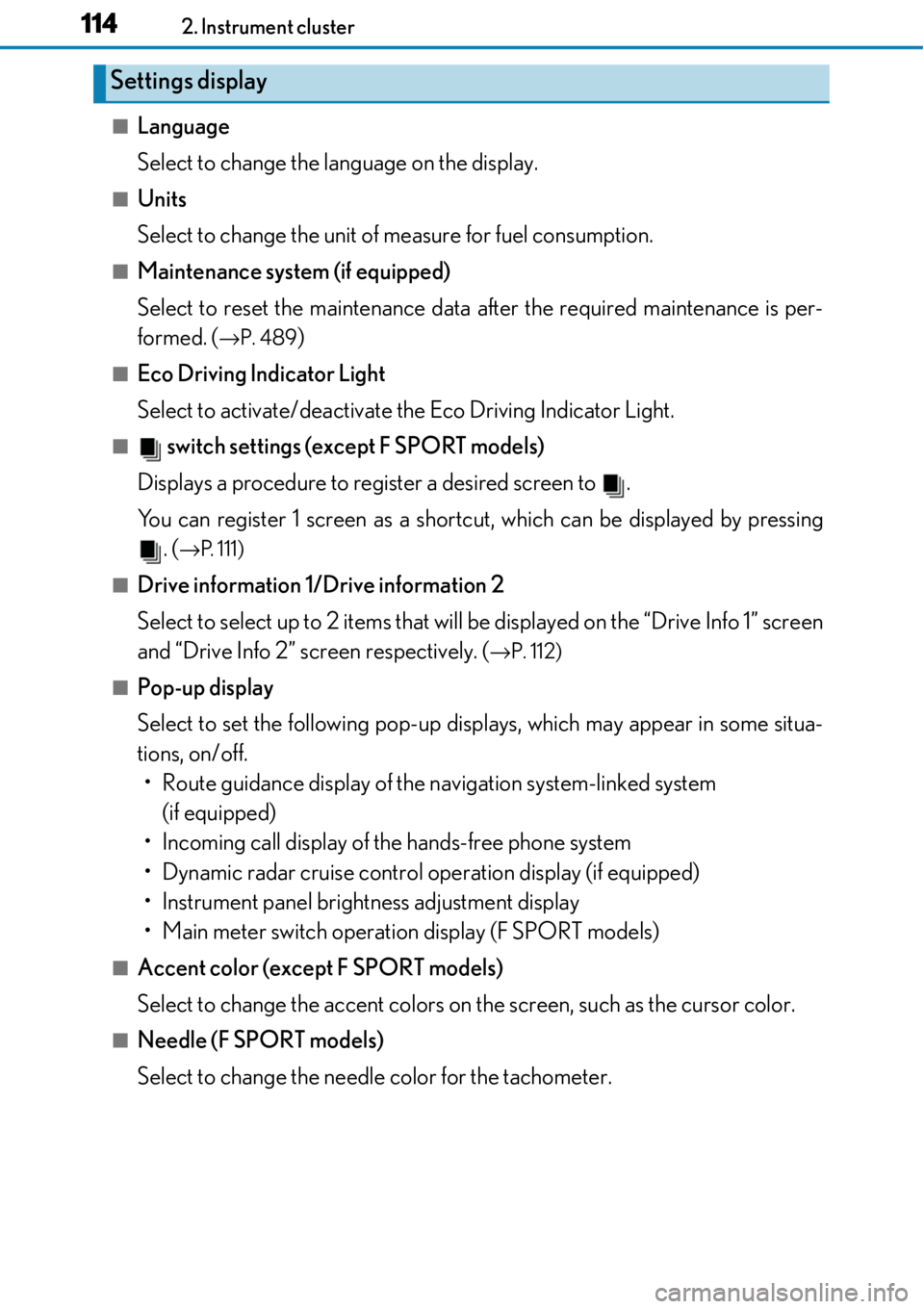
■Language
Select to change the language on the display.
■Units
Select to change the unit of measure for fuel consumption.
■Maintenance system (if equipped)
Select to reset the maintenance data after the required maintenance is per-
formed. (
→ P. 489)
■Eco Driving Indicator Light
Select to activate/deactivate th e Eco Driving Indicator Light.
■ switch settings (except F SPORT models)
Displays a procedure to register a desired screen to .
You can register 1 screen as a shortcut, which can be displayed by pressing . (
→P. 111)
■Drive information 1/Drive information 2
Select to select up to 2 items that will be displayed on the “Drive Info 1” screen
and “Drive Info 2” screen respectively. (
→ P. 112)
■Pop-up display
Select to set the following pop-up disp lays, which may appear in some situa-
tions, on/off. • Route guidance display of the navigation system-linked system (if equipped)
• Incoming call display of the hands-free phone system
• Dynamic radar cruise control operation display (if equipped)
• Instrument panel bright ness adjustment display
• Main meter switch operation display (F SPORT models)
■Accent color (except F SPORT models)
Select to change the accent colors on the screen, such as the cursor color.
■Needle (F SPORT models)
Select to change the needle color for the tachometer.
Settings display
Page 119 of 724
1192. Instrument cluster
2
Instrument cluster
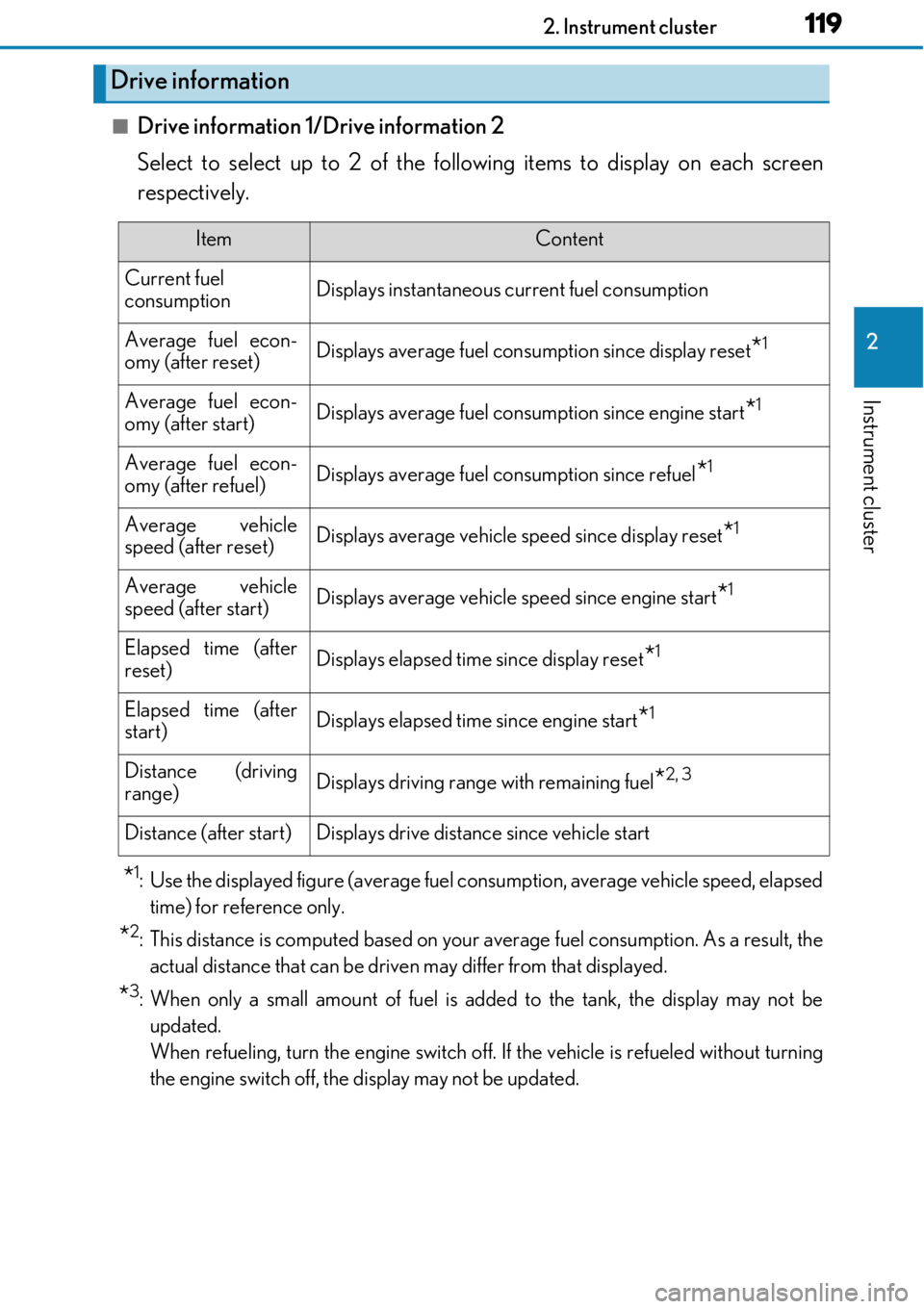
■Drive information 1/Drive information 2
Select to select up to 2 of the following items to display on each screen
respectively.
*1: Use the displayed figure (average fuel consumption, average vehicle speed, elapsed
time) for reference only.
*2: This distance is computed based on your average fuel consumption. As a result, the actual distance that can be driven may differ from that displayed.
*3: When only a small amount of fuel is added to the tank, the display may not beupdated.
When refueling, turn the engine switch off. If the vehicle is refueled without turning
the engine switch off, the display may not be updated.
Drive information
ItemContent
Current fuel
consumptionDisplays instantaneous current fuel consumption
Average fuel econ-
omy (after reset)Displays average fuel cons umption since display reset*1
Average fuel econ-
omy (after start)Displays average fuel consumption since engine start*1
Average fuel econ-
omy (after refuel)Displays average fuel consumption since refuel*1
Average vehicle
speed (after reset)Displays average vehicle speed since display reset*1
Average vehicle
speed (after start)Displays average vehicle speed since engine start*1
Elapsed time (after
reset)Displays elapsed time since display reset*1
Elapsed time (after
start)Displays elapsed time since engine start*1
Distance (driving
range)Displays driving range with remaining fuel*2, 3
Distance (after start)Displays drive distance since vehicle start
Page 120 of 724
1202. Instrument cluster
●Resetting
The following displays can be reset: average fuel consumption after reset,
average vehicle speed after reset, and elapsed time after reset. • To reset, display the desired item and press and hold .
• If both displayed items are resett able, a reset selection screen will
appear.
■Tire pressure
→ P. 518
■Gear positions
Displays the current gear position when the shift lever is in D or M.
■Units
The units of measure used can be changed while driving.
Unlike the units setting performed on the settings display, the units setting per-
formed on the drive information me nu can be changed while driving.
Page 126 of 724
1262. Instrument cluster
■Language
Select to change the language on the display.
■Units
Select to change the unit of measure for fuel consumption.
■Maintenance system (U.S.A. only)
Select to reset the maintenance data after the required maintenance is per-
formed. (
→ P. 489)
■Eco Driving Indicator Light
Select to activate/deactivate th e Eco Driving Indicator Light.
■ switch settings
Displays a procedure to register a desired screen to .
You can register 1 screen as a shortcut, which can be displayed by pressing . (→ P. 118)
■Drive information 1/Drive information 2
Select to select up to 2 items that will be displayed on the “Drive Info 1” screen
and “Drive Info 2” screen respectively.
( → P. 119)
■Pop-up display
Select to set the following pop-up disp lays, which may appear in some situa-
tions, on/off. • Route guidance display of the navigation system-linked system (if equipped)
• Incoming call display of the hands-free phone system
• Dynamic radar cruise control operation display (if equipped)
• Instrument panel bright ness adjustment display
• TVD control mode change display (if equipped)
• Drive mode change display
■Rev indicator
Select to set the rev indicator on/off.
When set to on, proceed to select the engine speed at which the rev indicator
will be displayed.
■Rev peak
Select to set the rev peak on/off.
Settings display
Page 130 of 724
1302. Instrument cluster
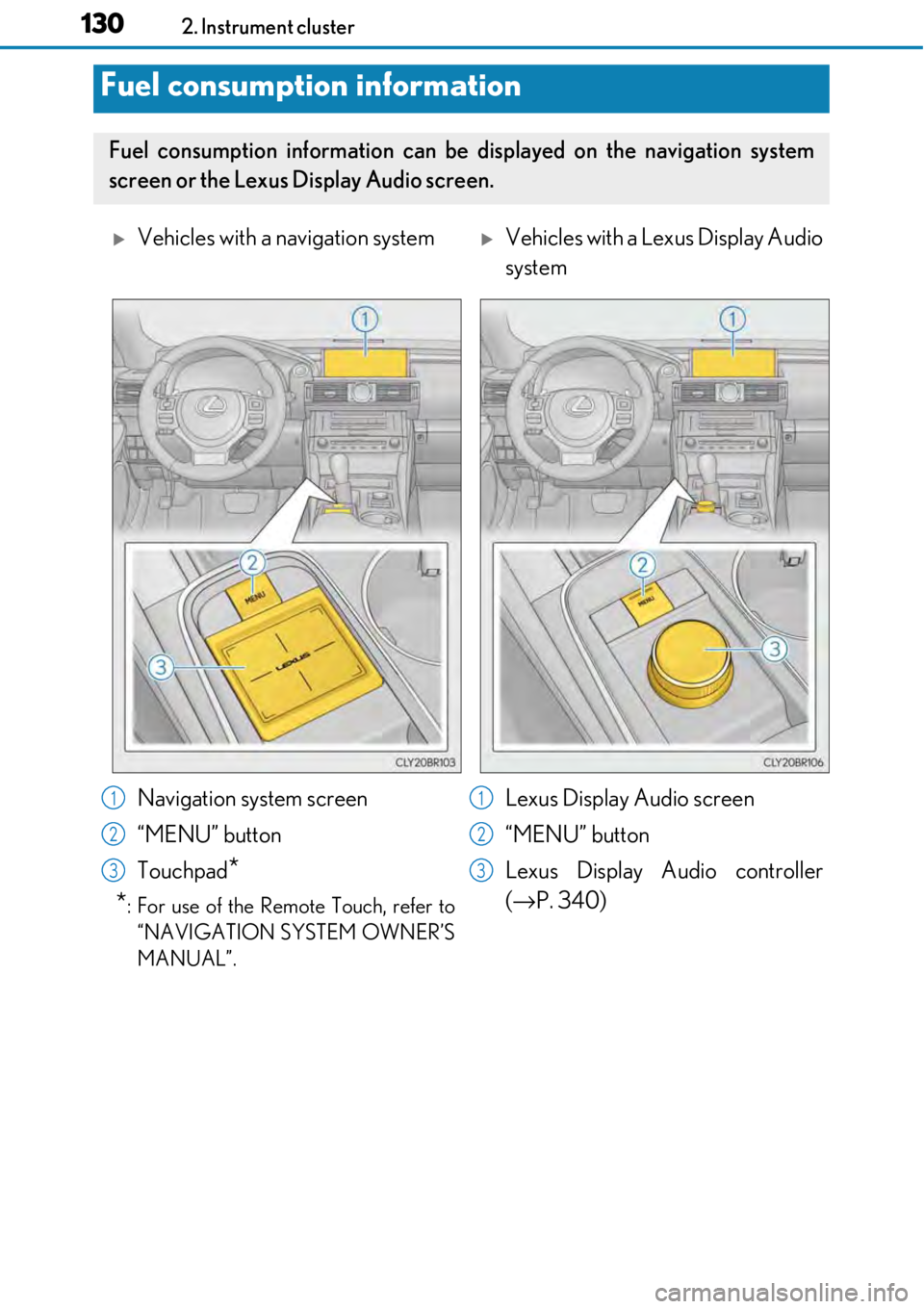
Fuel consumption information
Fuel consumption information can be displayed on the navigation system
screen or the Lexus Display Audio screen.
Vehicles with a navigation systemVehicles with a Lexus Display Audio
system
Navigation system screen
“MENU” button
Touchpad
*
*
: For use of the Remote Touch, refer to “NAVIGATION SYSTEM OWNER’S
MANUAL”.
Lexus Display Audio screen
“MENU” button
Lexus Display Audio controller
(→ P. 340)1
2
3
1
2
3
Page 131 of 724
1312. Instrument cluster
2
Instrument cluster
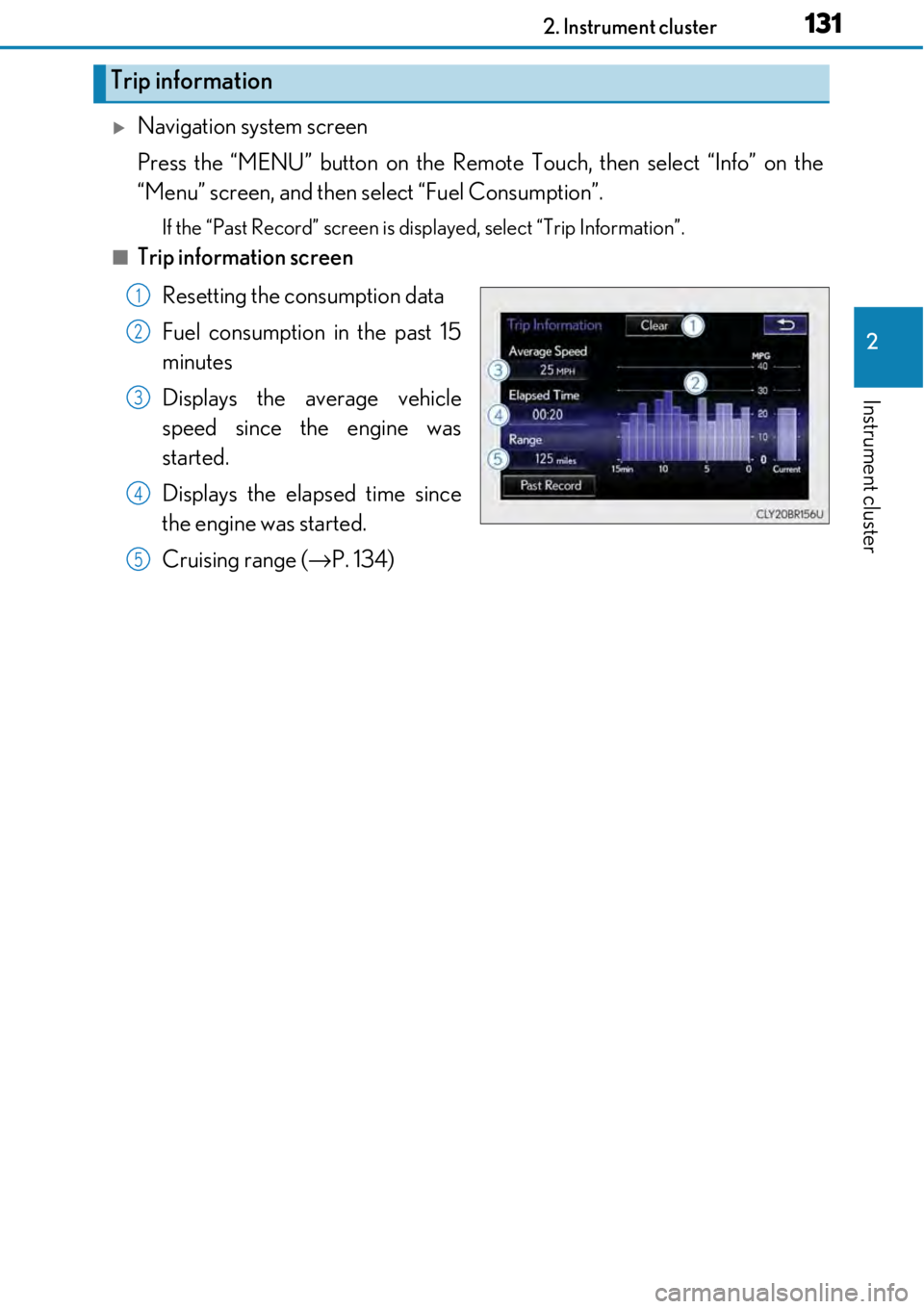
Navigation system screen
Press the “MENU” button on the Remote Touch, then select “Info” on the
“Menu” screen, and then select “Fuel Consumption”.
If the “Past Record” screen is disp layed, select “Trip Information”.
■Trip information screen
Resetting the consumption data
Fuel consumption in the past 15
minutes
Displays the average vehicle
speed since the engine was
started.
Displays the elapsed time since
the engine was started.
Cruising range ( →P. 134)
Trip information
1
2
3
4
5
Page 132 of 724
1322. Instrument cluster
Lexus Display Audio screen
Press the “MENU” button on the Lexus Display Audio controller, then select
“Info” on the “Menu” screen, and then select “Fuel Consumption”.
If the “Trip Information” screen does no t appear, move the controller to the right
and select “Trip Information”.
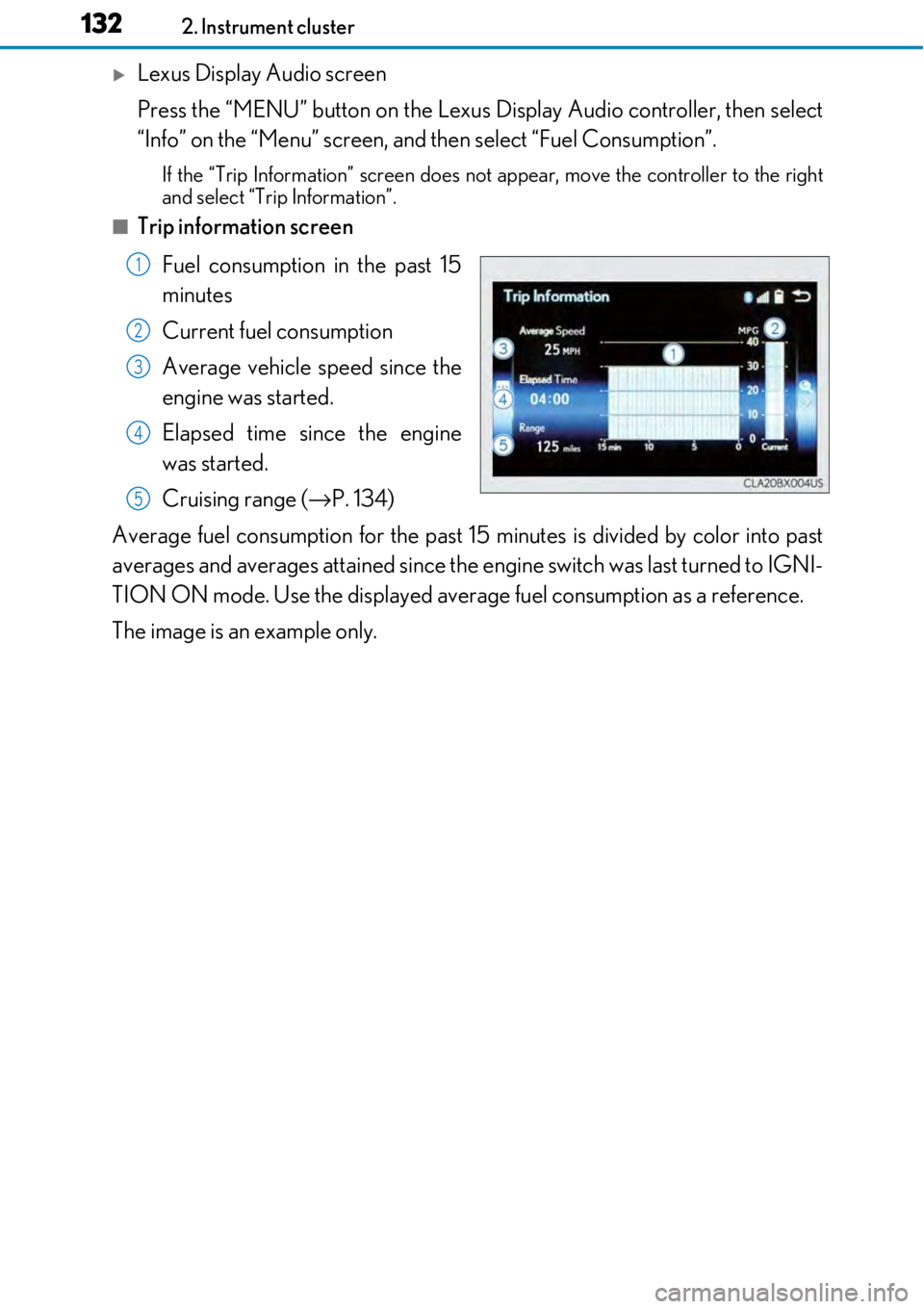
■Trip information screen
Fuel consumption in the past 15
minutes
Current fuel consumption
Average vehicle speed since the
engine was started.
Elapsed time since the engine
was started.
Cruising range ( →P. 134)
Average fuel consumption for the past 15 minutes is divided by color into past
averages and averages attained since the engine switch was last turned to IGNI-
TION ON mode. Use the displayed average fuel consumption as a reference.
The image is an example only.
1
2
3
4
5
Page 133 of 724
1332. Instrument cluster
2
Instrument cluster
Navigation system screen
Press the “MENU” button on the Remote Touch, then select “Info” on the
“Menu” screen, and then select “Fuel Consumption”.
If the “Trip Information” screen is displayed, select “Past Record”.
■Past record screen
Resetting the past record data
Best recorded fuel consumption
Average fuel consumption
Previous fuel consumption record
Updating the average fuel con-
sumption data
Lexus Display Audio screen
Press the “MENU” button on the Lexus Display Audio controller, then select
“Info” on the “Menu” screen, and then select “Fuel Consumption”.
If the “Past Record” screen does not appear, move the controller to the right and
select “Past Record”.
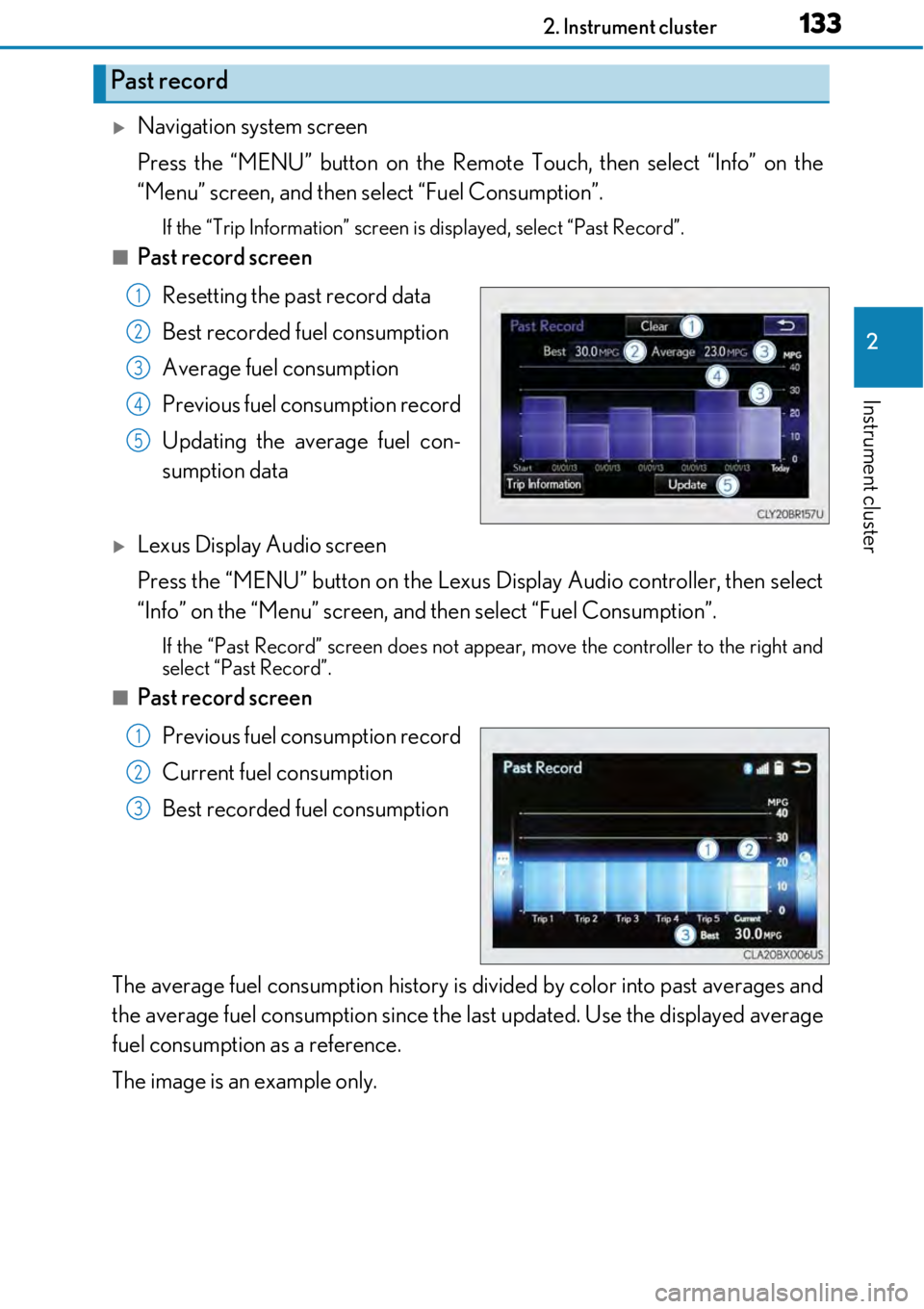
■Past record screen
Previous fuel consumption record
Current fuel consumption
Best recorded fuel consumption
The average fuel consumption history is di vided by color into past averages and
the average fuel consumption since the last updated. Use the displayed average
fuel consumption as a reference.
The image is an example only.
Past record
1
2
3
4
5
1
2
3