audio LEXUS RC300 2023 User Guide
[x] Cancel search | Manufacturer: LEXUS, Model Year: 2023, Model line: RC300, Model: LEXUS RC300 2023Pages: 80, PDF Size: 5.84 MB
Page 46 of 80
45
RC350 AWD_RC350_RC300 AWD_RC300_QG_(U)
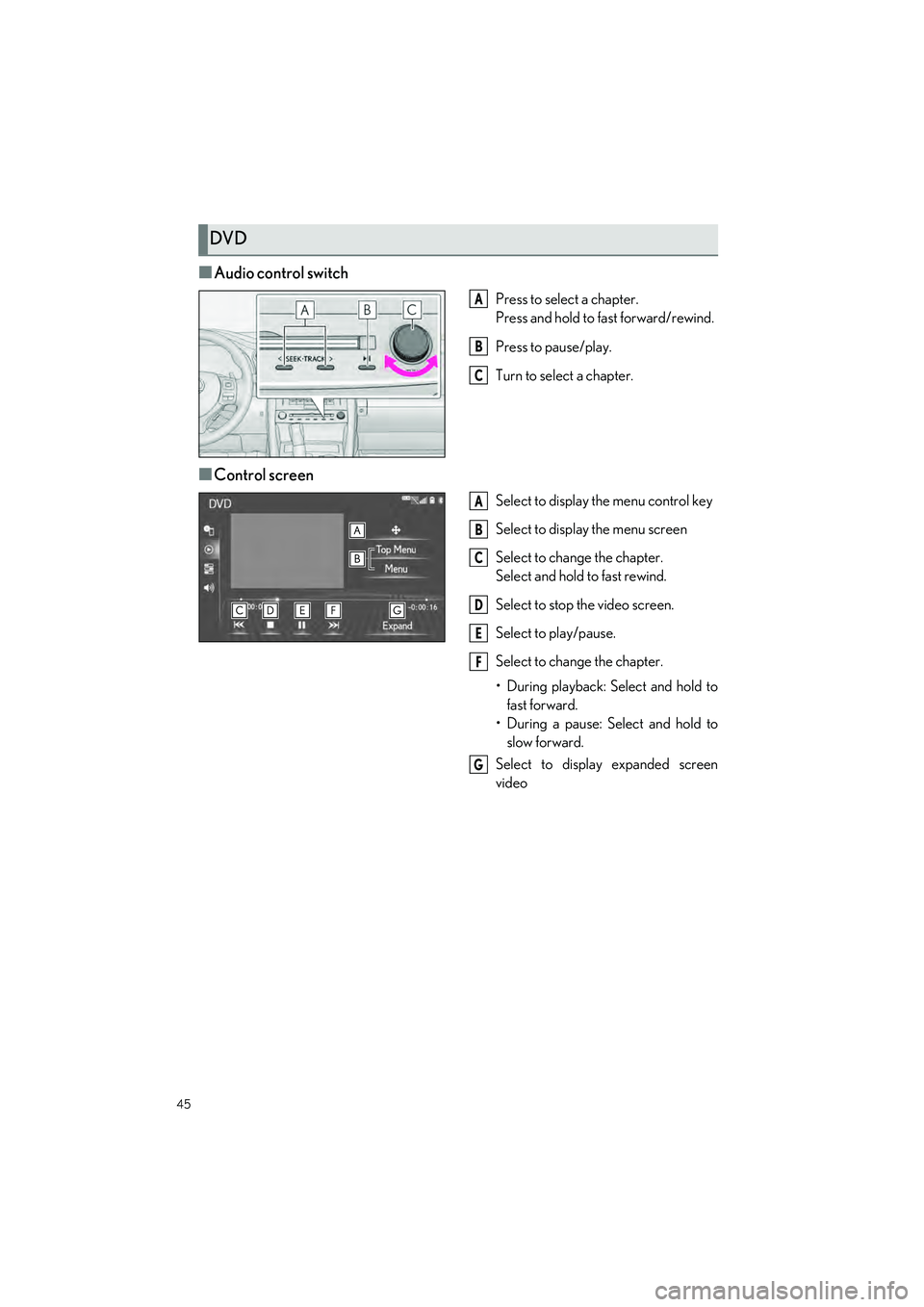
■Audio control switch
Press to select a chapter.
Press and hold to fast forward/rewind.
Press to pause/play.
Turn to select a chapter.
■Control screen
Select to display the menu control key
Select to display the menu screen
Select to change the chapter.
Select and hold to fast rewind.
Select to stop the video screen.
Select to play/pause.
Select to change the chapter.
• During playback: Select and hold to fast forward.
• During a pause: Select and hold to slow forward.
Select to display expanded screen
video
DVD
A
B
C
A
B
C
D
E
F
G
Page 47 of 80
46
RC350 AWD_RC350_RC300 AWD_RC300_QG_(U)
*: This function is not available in some countries or areas.
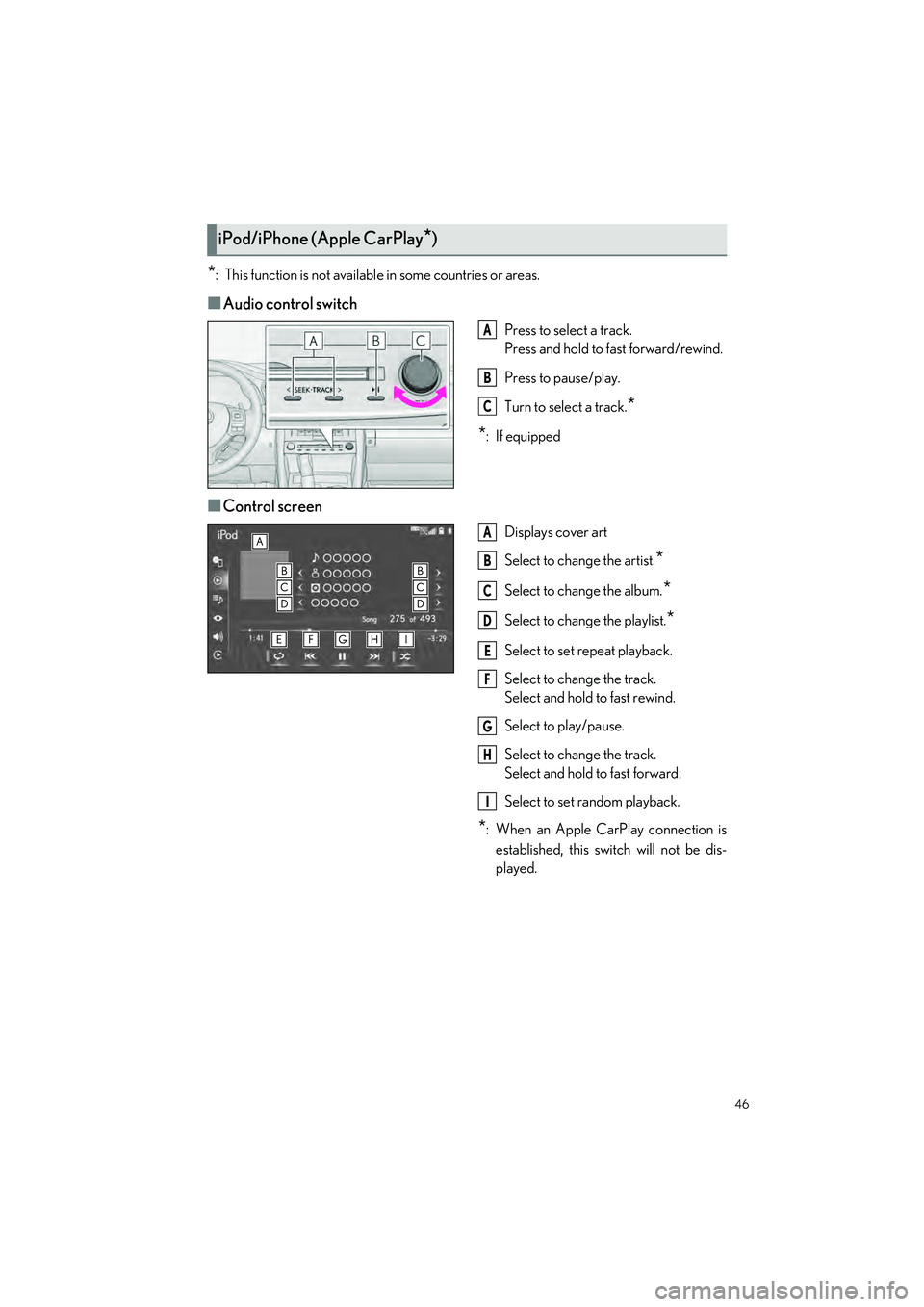
■Audio control switch
Press to select a track.
Press and hold to fast forward/rewind.
Press to pause/play.
Turn to select a track.
*
*
:If equipped
■Control screen
Displays cover art
Select to change the artist.
*
Select to change the album.*
Select to change the playlist.*
Select to set repeat playback.
Select to change the track.
Select and hold to fast rewind.
Select to play/pause.
Select to change the track.
Select and hold to fast forward.
Select to set random playback.
*: When an Apple CarPlay connection is established, this switch will not be dis-
played.
iPod/iPhone (Apple CarPlay*)
A
B
C
A
B
C
D
E
F
G
H
I
Page 53 of 80
52
RC350 AWD_RC350_RC300 AWD_RC300_QG_(U)
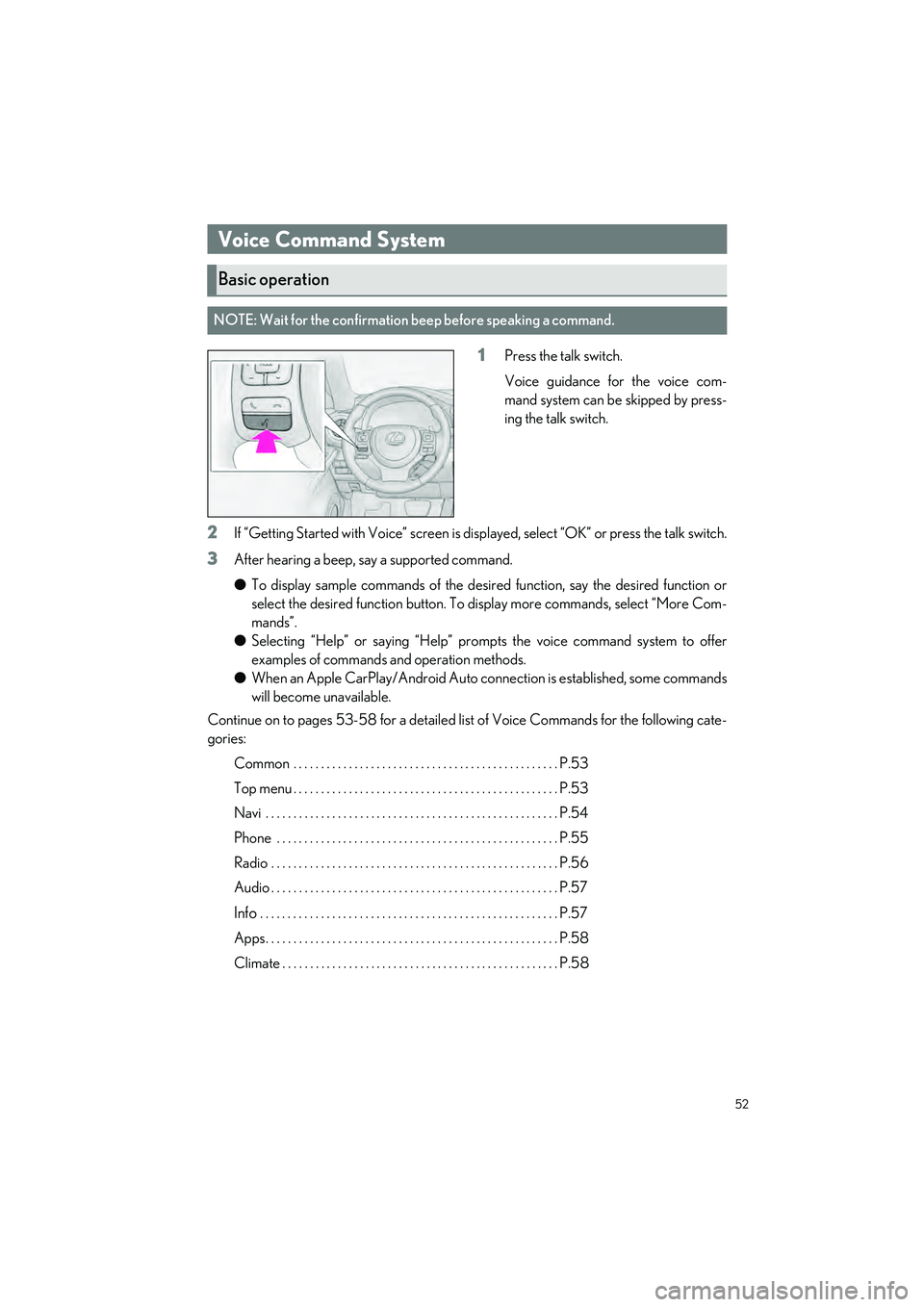
1Press the talk switch.
Voice guidance for the voice com-
mand system can be skipped by press-
ing the talk switch.
2If “Getting Started with Voice” screen is disp layed, select “OK” or press the talk switch.
3After hearing a beep, say a supported command.
●To display sample commands of the desired function, say the desired function or
select the desired function button. To display more commands, select “More Com-
mands”.
● Selecting “Help” or saying “Help” prom pts the voice command system to offer
examples of commands and operation methods.
● When an Apple CarPlay/Android Auto co nnection is established, some commands
will become unavailable.
Continue on to pages 53-58 for a detailed lis t of Voice Commands for the following cate-
gories:
Common . . . . . . . . . . . . . . . . . . . . . . . . . . . . . . . . . . . . . . . . . . . . . . . . P.53
Top menu . . . . . . . . . . . . . . . . . . . . . . . . . . . . . . . . . . . . . . . . . . . . . . . . P.53
Navi . . . . . . . . . . . . . . . . . . . . . . . . . . . . . . . . . . . . . . . . . . . . . . . . . . . . . P.54
Phone . . . . . . . . . . . . . . . . . . . . . . . . . . . . . . . . . . . . . . . . . . . . . . . . . . . P.55
Radio . . . . . . . . . . . . . . . . . . . . . . . . . . . . . . . . . . . . . . . . . . . . . . . . . . . . P.56
Audio . . . . . . . . . . . . . . . . . . . . . . . . . . . . . . . . . . . . . . . . . . . . . . . . . . . . P.57
Info . . . . . . . . . . . . . . . . . . . . . . . . . . . . . . . . . . . . . . . . . . . . . . . . . . . . . . P.57
Apps. . . . . . . . . . . . . . . . . . . . . . . . . . . . . . . . . . . . . . . . . . . . . . . . . . . . . P.58
Climate . . . . . . . . . . . . . . . . . . . . . . . . . . . . . . . . . . . . . . . . . . . . . . . . . . P.58
Voice Command System
Basic operation
NOTE: Wait for the confirmation beep before speaking a command.
Page 58 of 80
57
RC350 AWD_RC350_RC300 AWD_RC300_QG_(U)
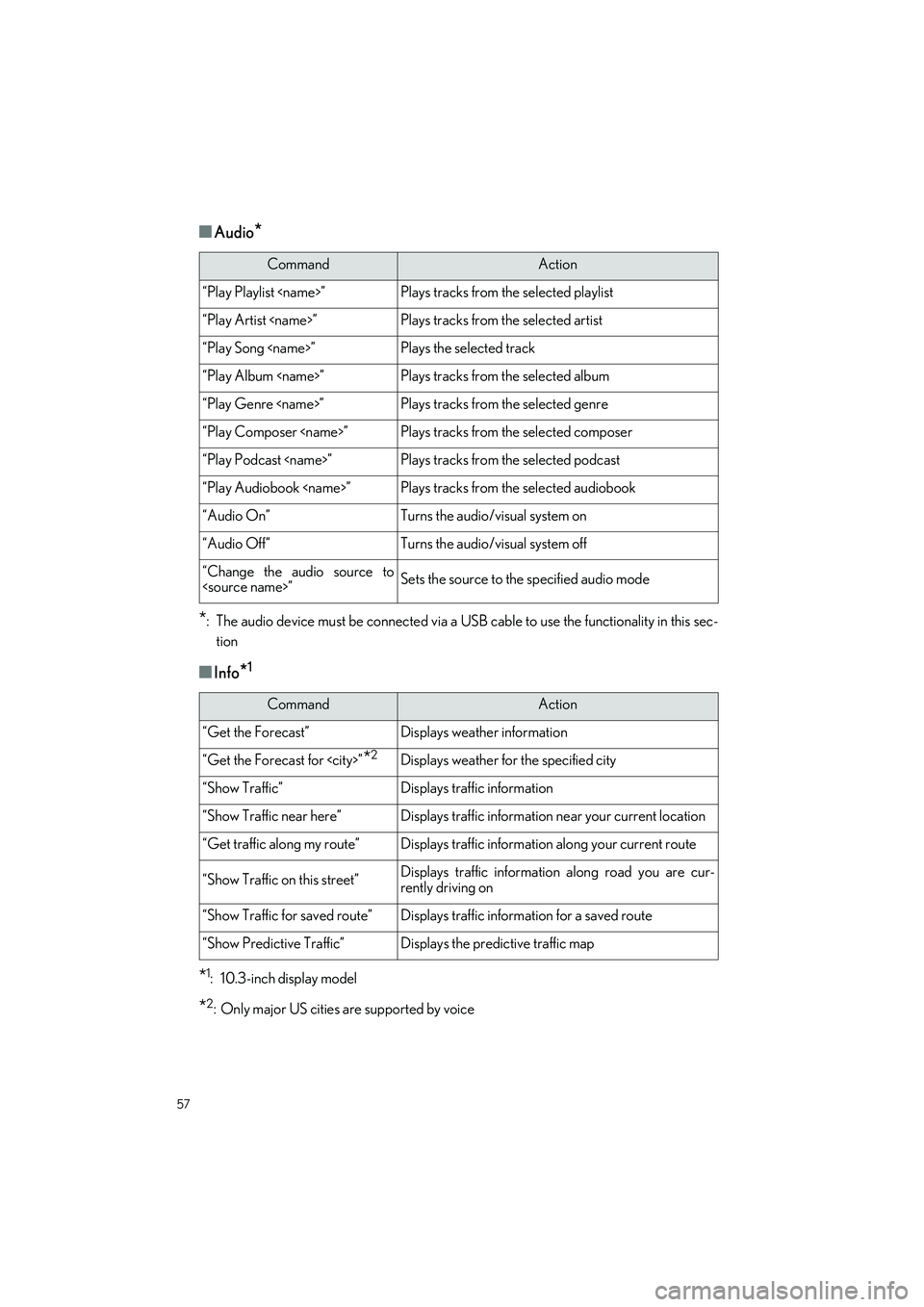
■Audio*
*
: The audio device must be connected via a US B cable to use the functionality in this sec-
tion
■Info*1
*1: 10.3-inch display model
*2: Only major US cities are supported by voice
CommandAction
“Play Playlist
“Play Artist
“Play Song
“Play Album
“Play Genre
“Play Composer
“Play Podcast
“Play Audiobook
“Audio On”Turns the audio/visual system on
“Audio Off”Turns the audio/visual system off
“Change the audio source to
CommandAction
“Get the Forecast”Displays weather information
“Get the Forecast for
“Show Traffic”Displays traffic information
“Show Traffic near here”Displays traffic information near your current location
“Get traffic along my route”Displays traffic information along your current route
“Show Traffic on this street”Displays traffic information along road you are cur-
rently driving on
“Show Traffic for saved route”Displays traffic information for a saved route
“Show Predictive Traffic”Displays the predictive traffic map