audio LEXUS RX200T 2017 Owner's Guide
[x] Cancel search | Manufacturer: LEXUS, Model Year: 2017, Model line: RX200T, Model: LEXUS RX200T 2017Pages: 776, PDF Size: 44.51 MB
Page 376 of 776
3764-5. Using the driving support systems
RX350/RX200t_EE_OM48F32E
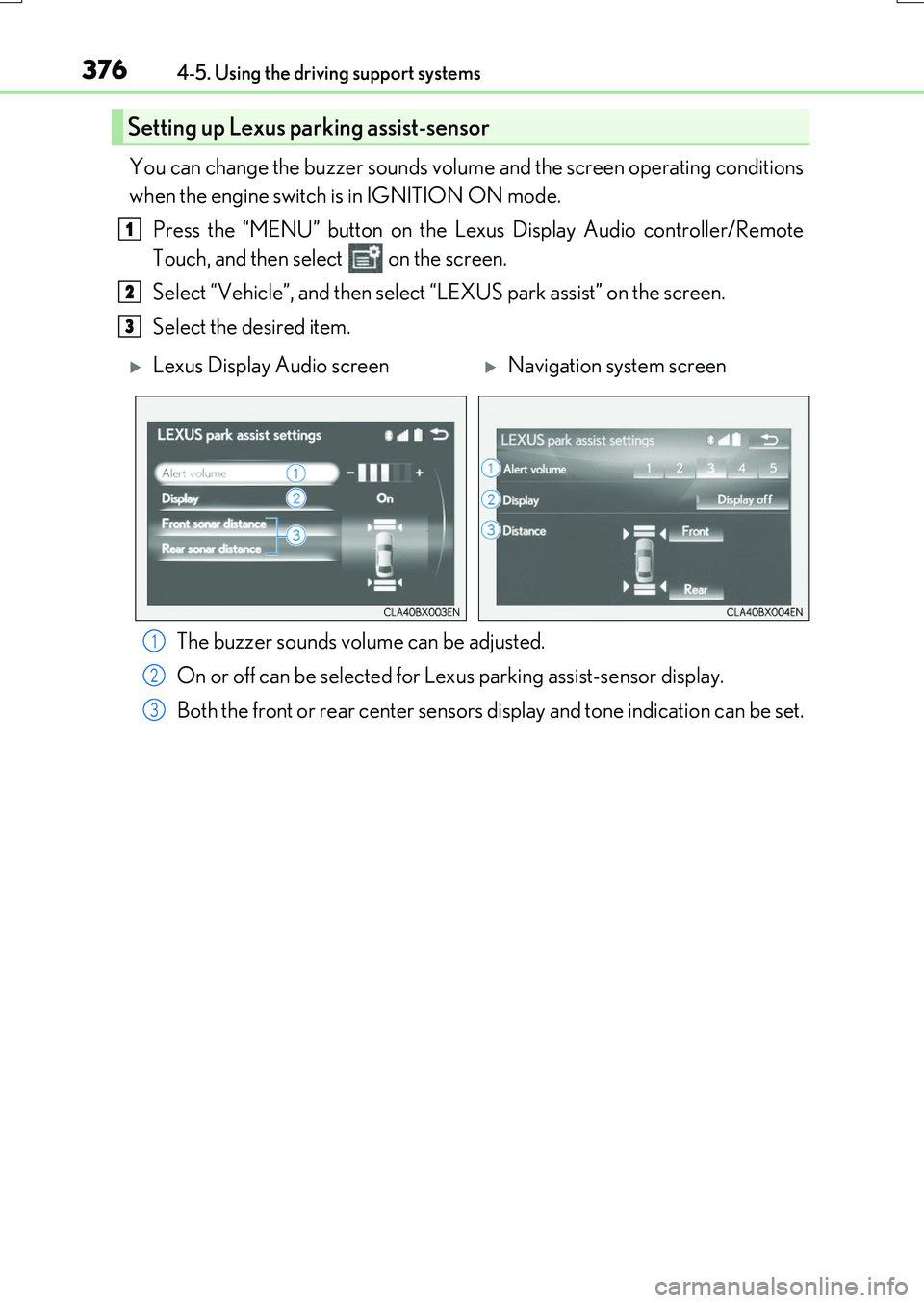
You can change the buzzer sounds volume and the screen operating conditions
when the engine switch is in IGNITION ON mode.
Press the “MENU” button on the Le xus Display Audio controller/Remote
Touch, and then select on the screen.
Select “Vehicle”, and then select “LEXUS park assist” on the screen.
Select the desired item.
The buzzer sounds volume can be adjusted.
On or off can be selected for Le xus parking assist-sensor display.
Both the front or rear ce nter sensors display and tone indication can be set.
Setting up Lexus parking assist-sensor
1
2
3
Lexus Display Audio screenNavigation system screen
1
2
3
Page 377 of 776
3774-5. Using the driving support systems
4
Driving
RX350/RX200t_EE_OM48F32E
■The Lexus parking assist-sensor can be operated when
●Front corner sensors:
• The engine switch is in IGNITION ON mode. • The shift lever is in other than P.
• The vehicle speed is less than about 10 km/h (6 mph). (At any speed when the shift lever is in R)
●Front center sensors:
• The engine switch is in IGNITION ON mode. • The shift lever is in other than P or R.
• The vehicle speed is less than about 10 km/h (6 mph).
●Rear corner and rear center sensors:
• The engine switch is in IGNITION ON mode. • The shift lever is in R.
■Lexus parking assist-sensor display
●Vehicles with a Lexus Display Audio system : When an obstacle is detected while the Lexus parking assist monitor is in use, the warning indicator will appear in the upperpart of the screen even if the display setting has been set to off.
●Vehicles with a navigation system: If the Lexu s parking assist-sensor display is set to on, detected objects will also be displayed on the panoramic view monitor. For details, refer to “NAVIGATION SYSTEM OWNER’S MANUAL”.
■Sensor detection information
●The sensor’s detection areas are limited to the areas around the vehicle’s bumper.
●Certain vehicle conditions and the surrounding environment may affect the ability of a
sensor to correctly detect an obstacle. Particular instances where this may occur are listed below.
• There is dirt, snow or ice on the sensor . (Wiping the sensors will resolve this prob-
lem.) • The sensor is frozen. (Thawing the area will resolve this problem.) In especially cold weather, if a sensor is frozen the screen may show an abnormal
display, or obstacles may not be detected. • The sensor is covered in any way.• The vehicle is leaning considerably to one side.
• On an extremely bumpy road, on an incline, on gravel, or on grass. • The vicinity of the vehicle is noisy due to vehicle horns, motorcycle engines, airbrakes of large vehicles, or other loud noises producing ultrasonic waves.
• There is another vehicle equipped with parking assist sensors in the vicinity. • The sensor is coated with a sheet of spray or heavy rain. • The vehicle is equipped with a fender pole or wireless antenna.
• Towing eyelets are installed. • The bumper or sensor receives a strong impact.
• The vehicle is approaching a tall or curved curb. • In harsh sunlight or intense cold weather.• The area directly under the bumpers is not detected.
• If obstacles draw too close to the sensor. • A non-genuine Lexus suspension (low ered suspension etc.) is installed. • People may not be detected if they are wearing certain types of clothing.
In addition to the examples above, there are instances in which, because of their shape, signs and other objects may be judged by a sensor to be closer than they are.
Page 378 of 776
3784-5. Using the driving support systems
RX350/RX200t_EE_OM48F32E
●The shape of the obstacle may prevent a sensor from detecting it. Pay particular atten- tion to the following obstacles:
• Wires, fences, ropes, etc.
• Cotton, snow and other materials that absorb sound waves • Sharply-angled objects• Low obstacles
• Tall obstacles with upper sections projecting outwards in the direction of your vehi- cle
●The following situations may occur during use.
• Depending on the shape of the obstacle and other factors, the detection distance may shorten, or detection may be impossible.
• Obstacles may not be detected if they are too close to the sensor. • There will be a short delay between obst acle detection and display. Even at slow speeds, there is a possibility that the obstacl e will come within the sensor’s detection
areas before the display is shown and the buzzer sounds. • Thin posts or objects lower than the sens or may not be detected when approached, even if they have been detected once.
• It might be difficult to hear beeps due to the volume of audio system or air flow noise of the air conditioning system.
■If “Clean Parking Assist Sensor” is di splayed on the multi-information display
A sensor may be dirty or covered with snow or ice. In such cases, if it is removed from the sensor, the system should return to normal. Also, due to the sensor being frozen at low temperatures, a malfunction display may
appear or an obstacle may not be detected. If the sensor thaws out, the system should return to normal.
■If “Parking Assist Malfun ction” is displayed on the multi-information display
Depending on the malfunction of the sensor , the device may not be working normally. Have the vehicle inspected by any authorized Lexus dealer or repairer, or another duly
qualified and equipped professional.
■Customization
Some functions can be customized. ( P. 376,740)
WARNING
■When using the Lexus parking assist-sensor
Observe the following precautions.
Failing to do so may result in the vehicle be ing unable to be driven safely and possibly cause an accident.
●Do not use the sensor at speeds in excess of 10 km/h (6 mph).
●The sensors’ detection areas and reaction times are limited. When moving forward or reversing, check the areas surrounding the vehicle (especially the sides of the vehi-cle) for safety, and drive slowly, using the brake to control the vehicle’s speed.
●Do not install accessories within the sensors’ detection areas.
Page 403 of 776
4034-5. Using the driving support systems
4
Driving
RX350/RX200t_EE_OM48F32E
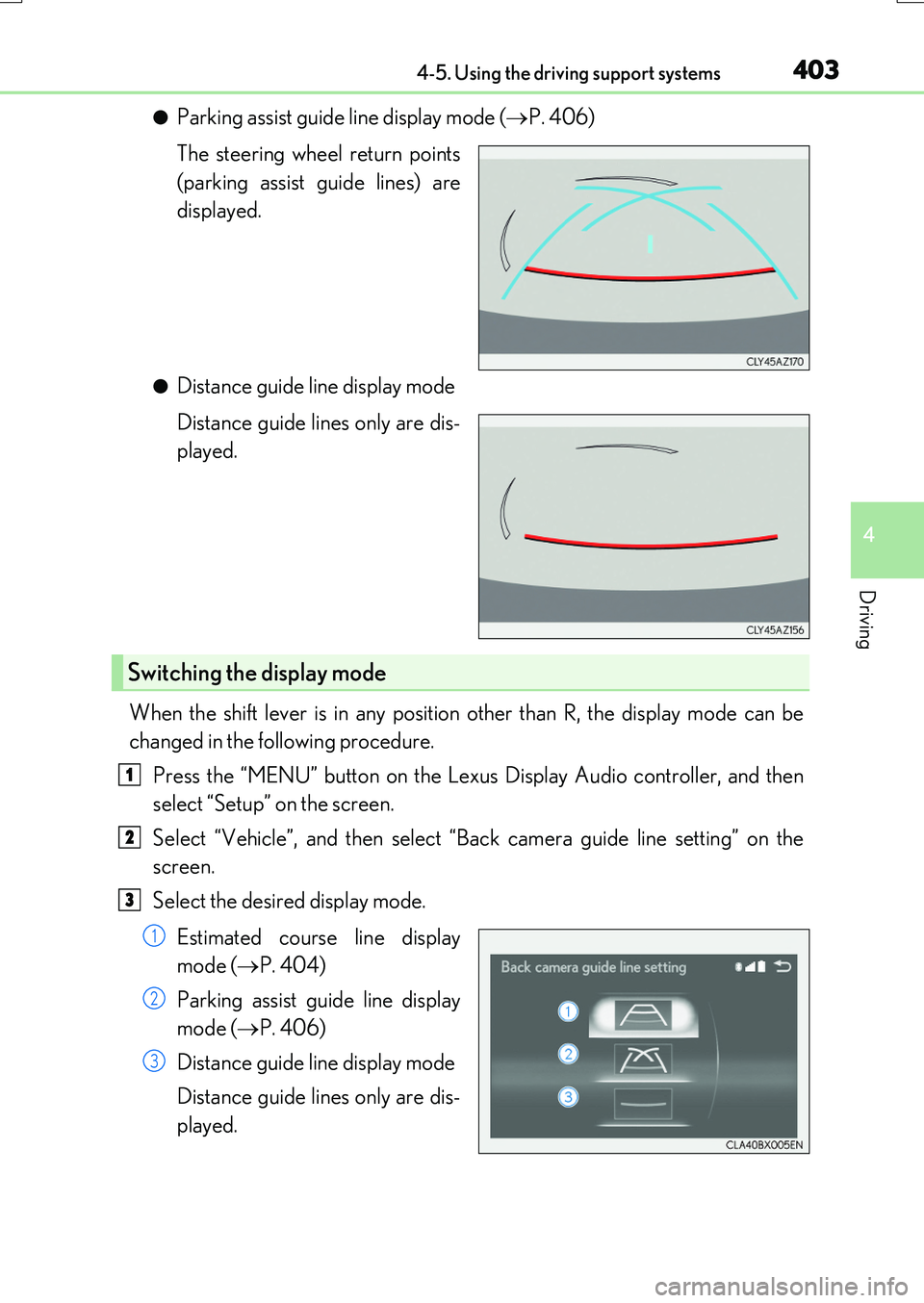
●Parking assist guide line display mode (P. 406)
The steering wheel return points
(parking assist guide lines) are
displayed.
●Distance guide line display mode
Distance guide lines only are dis-
played.
When the shift lever is in any position other than R, the display mode can be
changed in the following procedure.
Press the “MENU” button on the Lexus Display Audio controller, and then
select “Setup” on the screen.
Select “Vehicle”, and then select “Back camera guide line setting” on the
screen.
Select the desired display mode.
Estimated course line display
mode ( P. 404)
Parking assist guide line display
mode ( P. 406)
Distance guide line display mode
Distance guide lines only are dis-
played.
Switching the display mode
1
2
3
1
2
3
Page 418 of 776
4184-5. Using the driving support systems
RX350/RX200t_EE_OM48F32E
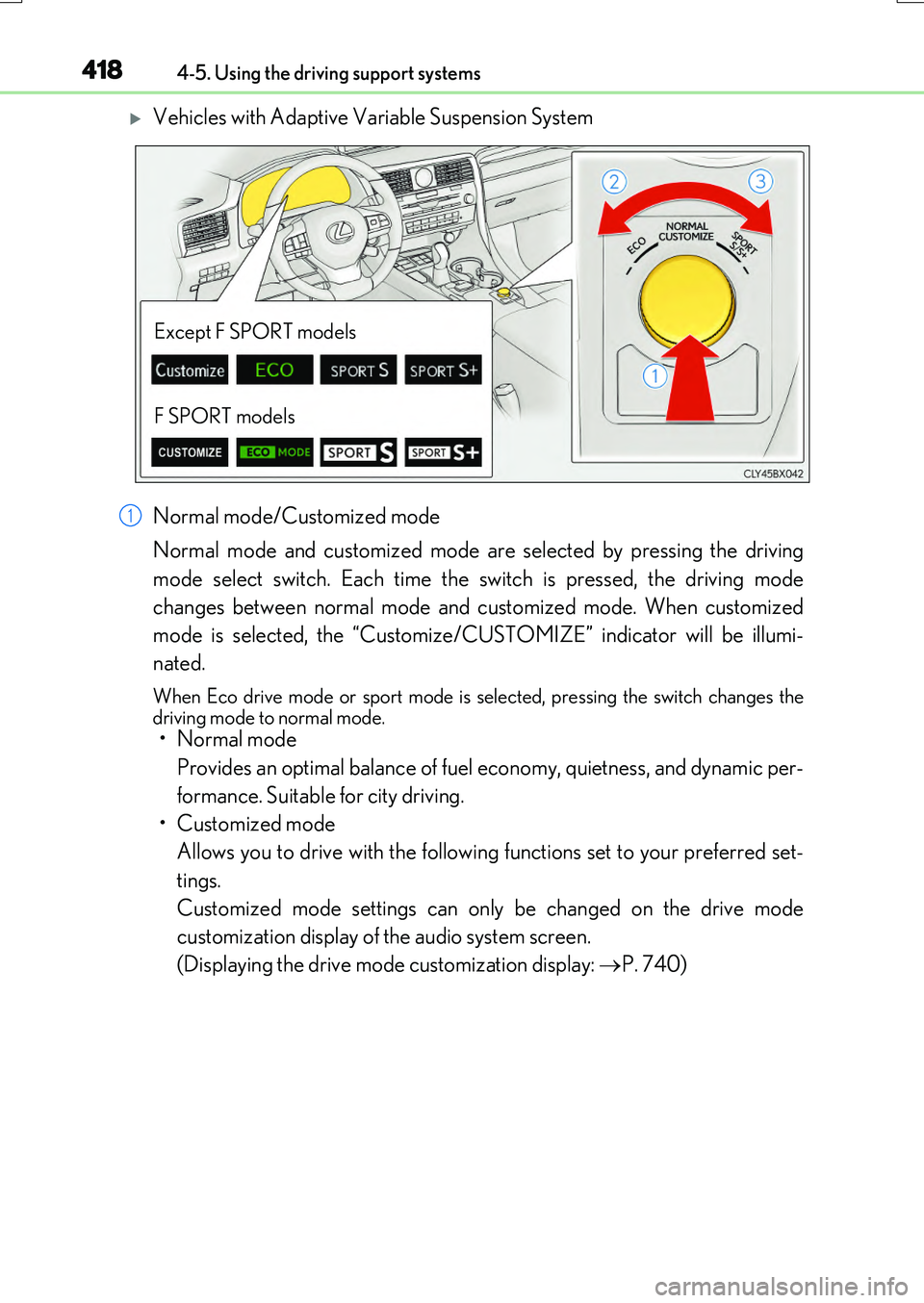
Vehicles with Adaptive Variable Suspension System
Normal mode/Customized mode
Normal mode and customized mode are selected by pressing the driving
mode select switch. Each time the switch is pressed, the driving mode
changes between normal mode and customized mode. When customized
mode is selected, the “Customize/CUSTOMIZE” indicator will be illumi-
nated.
When Eco drive mode or sport mode is sele cted, pressing the switch changes the driving mode to normal mode.
• Normal mode
Provides an optimal balance of fuel economy, quietness, and dynamic per-
formance. Suitable for city driving.
• Customized mode
Allows you to drive with the following functions set to your preferred set-
tings.
Customized mode settings can only be changed on the drive mode
customization display of the audio system screen.
(Displaying the drive mode customization display: P. 740)
Except F SPORT models
F SPORT models
1
Page 436 of 776
436
RX350/RX200t_EE_OM48F32E
5-1. Basic Operations
Lexus Display Audio
system ..........................................438
Steering wheel audio
switches....................................... 444
USB/AUX ports ........................ 445
5-2. Setup
Setup menu ..................................448
General settings......................... 449
Voice settings.............................. 452
Display settings ........................... 453
5-3. Using the audio system
Selecting the audio
source ..........................................455
Optimal use of the audio
system .......................................... 456
Audio settings ............................. 457
Audio menu screen
operation ......................................461
5-4. Using the radio
Radio operation.......................... 464
5-5. Playing an audio CD and
MP3/WMA/AAC discs
CD player operation ................ 466
Page 437 of 776
437
5
Lexus Display
Audio system
RX350/RX200t_EE_OM48F32E
5-6. Using an external device
Listening to an iPod................... 472
Using USB memory
device........................................... 476
Using the AUX port .................. 481
5-7. Connecting Bluetooth®
Steps for using Bluetooth®
devices.........................................482
Registering a Bluetooth®
device...........................................484
Selecting a Bluetooth®
device.......................................... 485
Connecting a Bluetooth®
audio player ...............................486
Connecting a Bluetooth®
phone ...........................................487
Displaying a Bluetooth®
device details ........................... 488
Detailed Bluetooth®
settings........................................ 489
5-8. Bluetooth® Audio
Listening to Bluetooth®
Audio........................................... 490
5-9. Bluetooth® Phone
Using a Bluetooth®
Phone........................................... 492
Making a call................................ 494
Receiving a call ........................... 497
Speaking on the phone ...........498
Using a Bluetooth®
phone messages .................... 500
Using the steering wheel
switches.......................................503
Bluetooth® phone
settings ........................................504
5-10. Phonebook
Contact settings .........................506
Messaging setting .....................509
5-11. Bluetooth®
What to do if...
(Troubleshooting).................... 510
Bluetooth®.................................... 513
5-12. Other function
“Information” screen.................. 519
MirrorLink™ ................................520
USB photo .................................... 524
Speech command system ...... 526
Some of the functions cannot be operated while driving.
Page 438 of 776
438
RX350/RX200t_EE_OM48F32E
5-1. Basic Operations
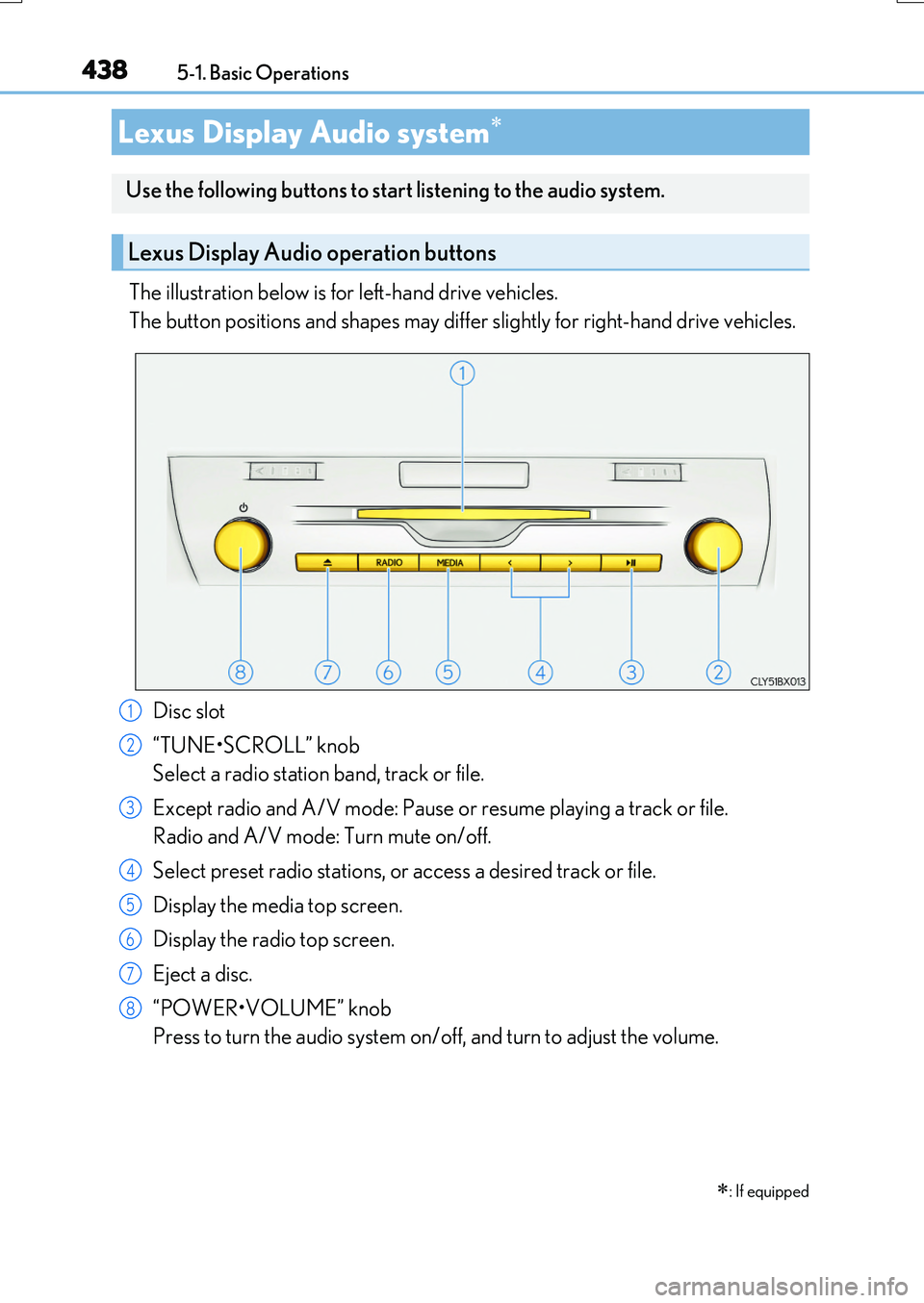
The illustration below is for left-hand drive vehicles.
The button positions and shapes may differ slightly for right-hand drive vehicles.
Disc slot
“TUNE•SCROLL” knob
Select a radio station band, track or file.
Except radio and A/V mode: Pause or resume playing a track or file.
Radio and A/V mode: Turn mute on/off.
Select preset radio stations, or access a desired track or file.
Display the media top screen.
Display the radio top screen.
Eject a disc.
“POWER•VOLUME” knob
Press to turn the audio system on/off, and turn to adjust the volume.
Lexus Display Audio system
: If equipped
Use the following buttons to start listening to the audio system.
Lexus Display Audio operation buttons
1
2
3
4
5
6
7
8
Page 439 of 776
4395-1. Basic Operations
5
Lexus Display Audio system
RX350/RX200t_EE_OM48F32E
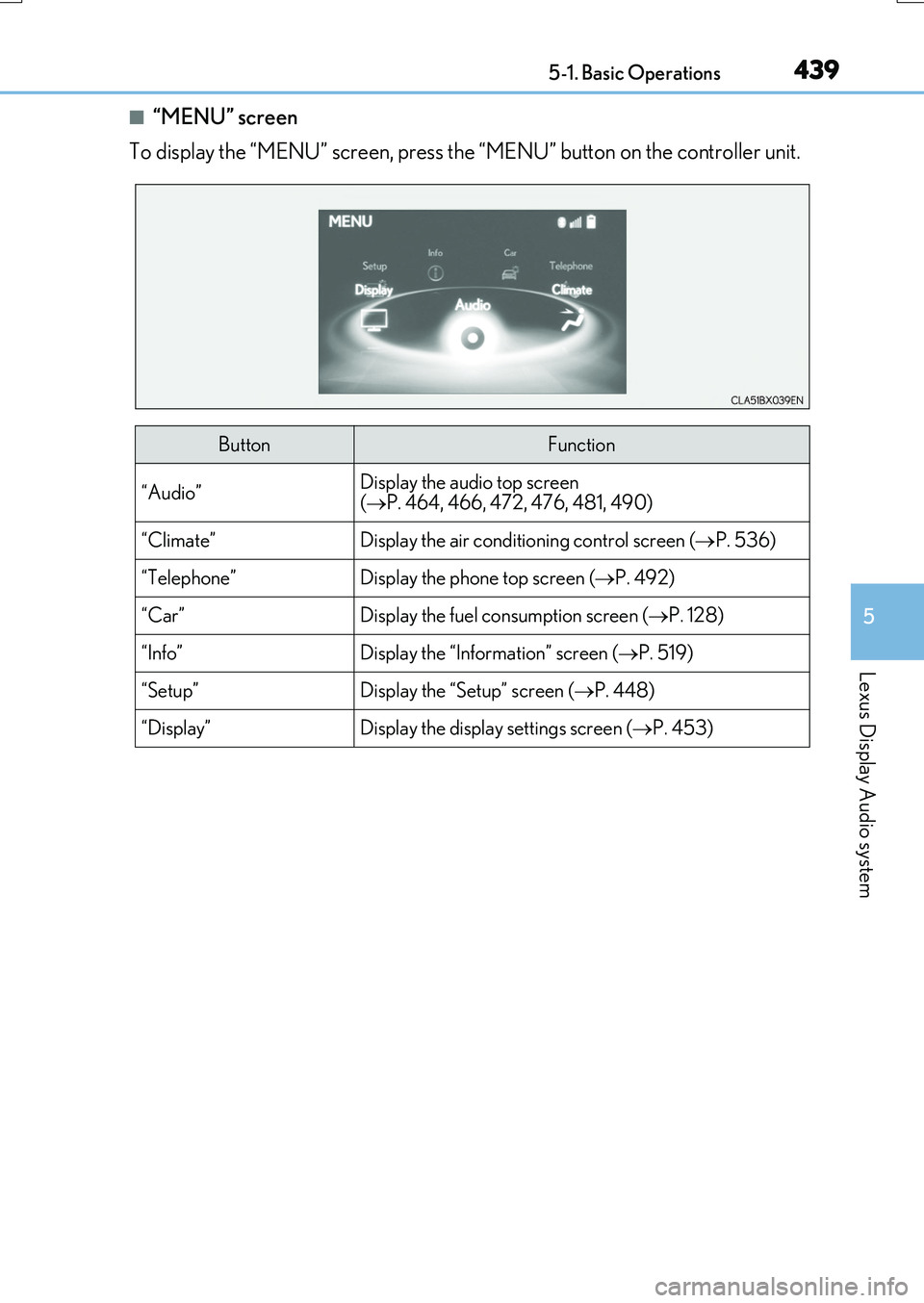
■“MENU” screen
To display the “MENU” screen, press the “MENU” button on the controller unit.
ButtonFunction
“Audio”Display the audio top screen ( P. 464, 466, 472, 476, 481, 490)
“Climate”Display the air conditioning control screen (P. 536)
“Telephone”Display the phone top screen (P. 492)
“Car” Display the fuel consumption screen (P. 128)
“Info”Display the “Information” screen (P. 519)
“Setup”Display the “Setup” screen (P. 448)
“Display”Display the display settings screen (P. 453)
Page 440 of 776
4405-1. Basic Operations
RX350/RX200t_EE_OM48F32E
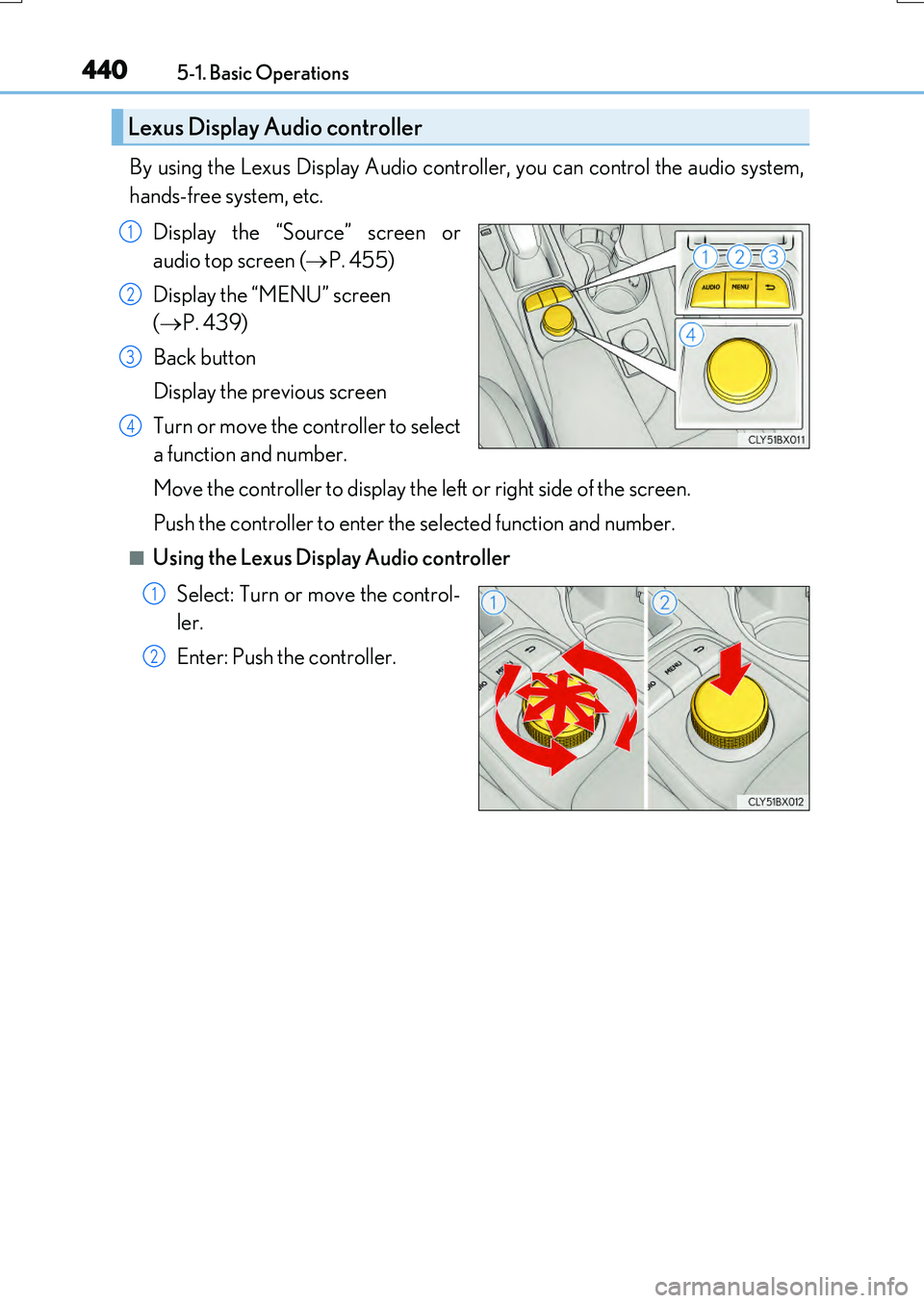
By using the Lexus Display Audio controller, you can control the audio system,
hands-free system, etc.
Display the “Source” screen or
audio top screen ( P. 455)
Display the “MENU” screen
( P. 439)
Back button
Display the previous screen
Turn or move the controller to select
a function and number.
Move the controller to display the left or right side of the screen.
Push the controller to enter the selected function and number.
■Using the Lexus Display Audio controller
Select: Turn or move the control-
ler.
Enter: Push the controller.
Lexus Display Audio controller
1
2
3
4
1
2