reset LEXUS RX350 2016 User Guide
[x] Cancel search | Manufacturer: LEXUS, Model Year: 2016, Model line: RX350, Model: LEXUS RX350 2016Pages: 748, PDF Size: 12.36 MB
Page 115 of 748
1152. Instrument cluster
2
Instrument cluster
RX350_U_OM48E90U
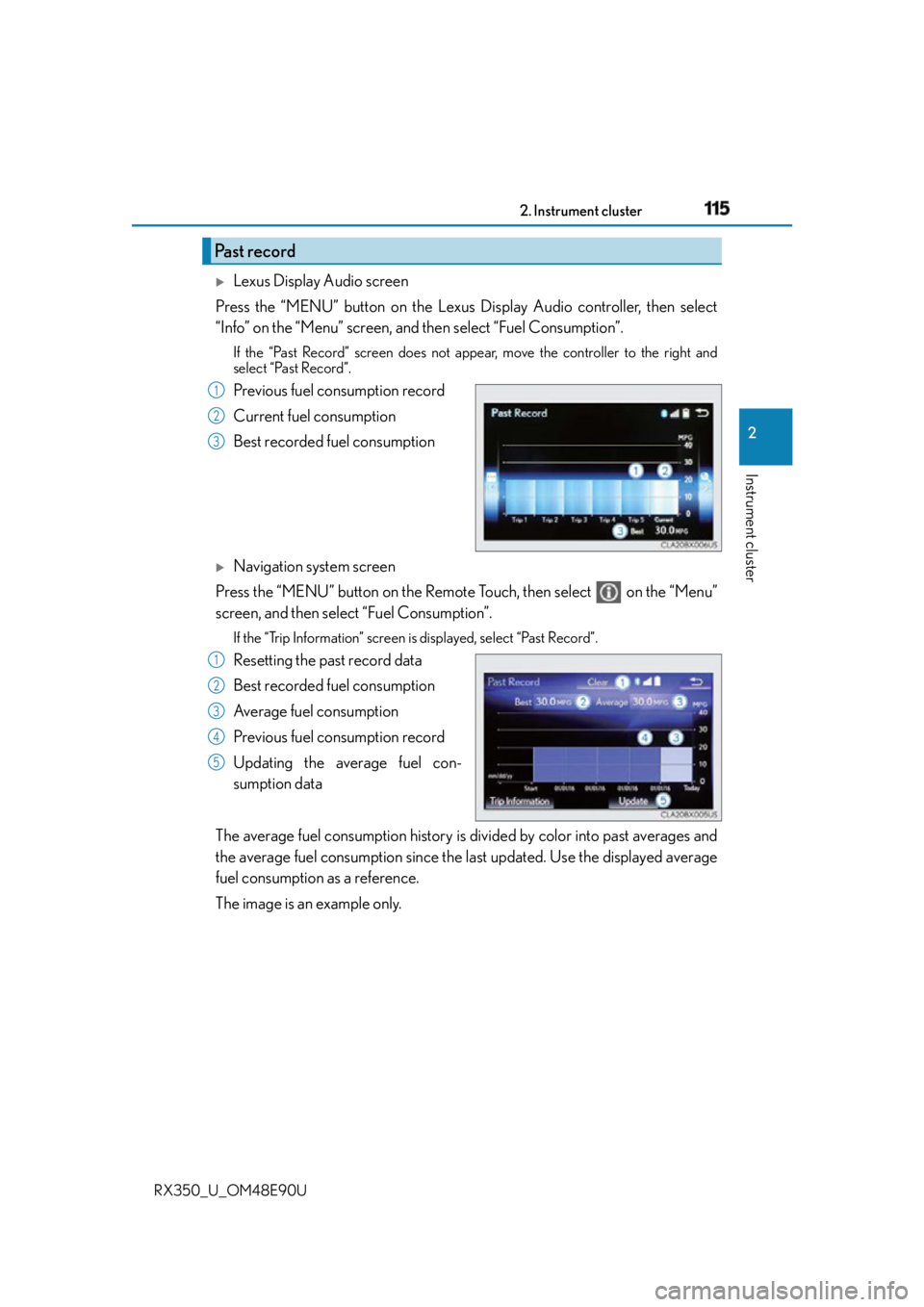
Lexus Display Audio screen
Press the “MENU” button on the Lexus Display Audio controller, then select
“Info” on the “Menu” screen, and then select “Fuel Consumption”.If the “Past Record” screen does not appe ar, move the controller to the right and
select “Past Record”.
Previous fuel consumption record
Current fuel consumption
Best recorded fuel consumption
Navigation system screen
Press the “MENU” button on the Remote Touch, then select on the “Menu”
screen, and then select “Fuel Consumption”. If the “Trip Information” screen is displayed, select “Past Record”.
Resetting the past record data
Best recorded fuel consumption
Average fuel consumption
Previous fuel consumption record
Updating the average fuel con-
sumption data
The average fuel consumption history is di vided by color into past averages and
the average fuel consumption since the la st updated. Use the displayed average
fuel consumption as a reference.
The image is an example only.Past record 1
2
3
1
2
3
4
5
Page 116 of 748

116 2. Instrument cluster
RX350_U_OM48E90U ■
Updating the past record data
Vehicles with a Lexus Display Audio system
Update the average fuel consumption by moving the controller to the left and select
“Update” to measure the current fuel consumption again.
Vehicles with a navigation system
Update the average fuel consumption by selecting “Update” to measure the current fuel
consumption again. ■
Resetting the data
Vehicles with a Lexus Display Audio system
The fuel consumption data can be deleted by moving the controller to the left and select
“Clear ”.
Vehicles with a navigation system
The fuel consumption data can be deleted by selecting “Clear”. ■
Cruising range
Displays the estimated maximum distance that can be driven with the quantity of fuel
remaining.
This distance is computed based on your average fuel consumption.
As a result, the actual distance that can be driven may differ from that displayed.
Page 163 of 748
1633-3. Adjusting the seats
3
Operation of each component
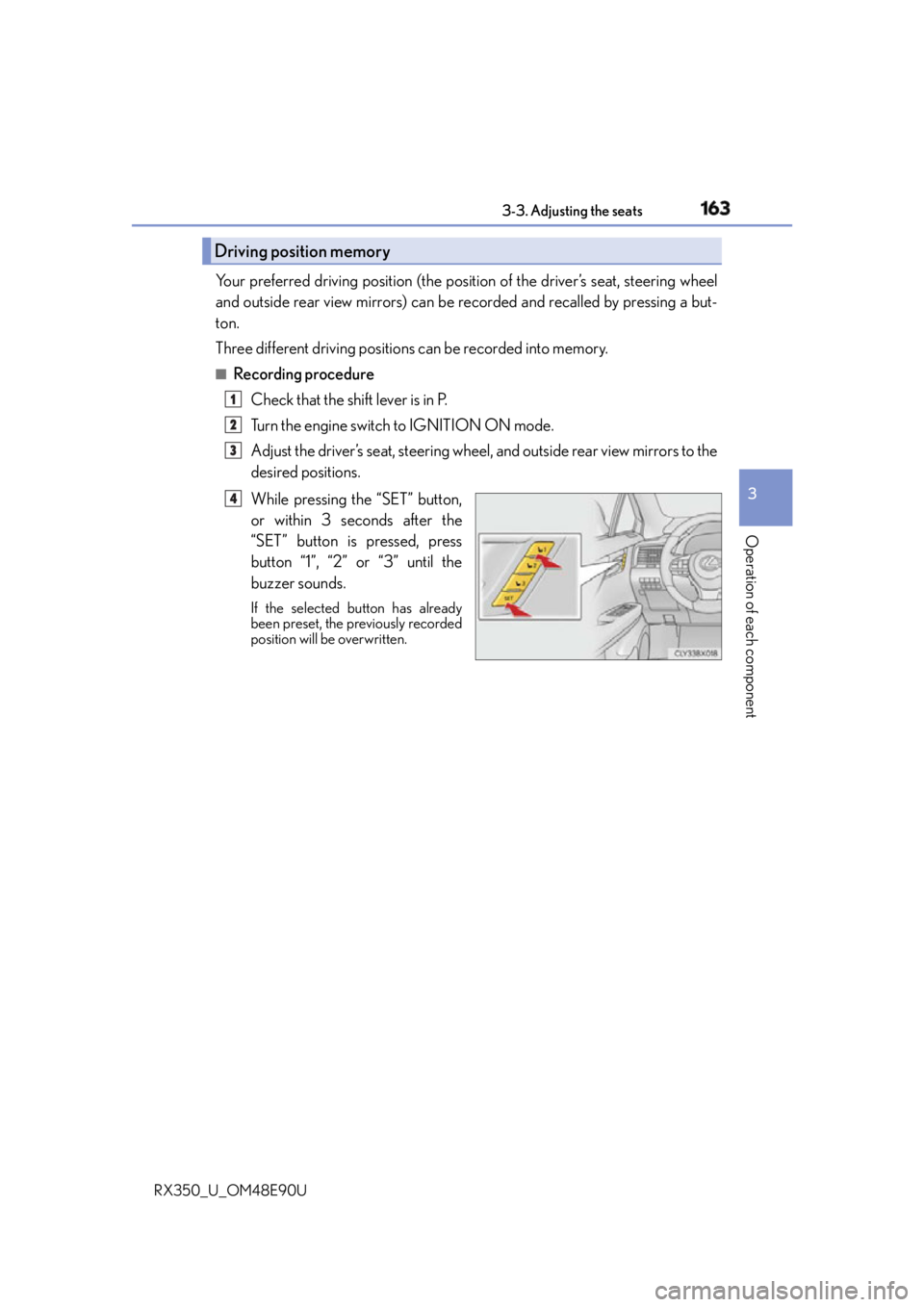
RX350_U_OM48E90U Your preferred driving position (the posi tion of the driver’s seat, steering wheel
and outside rear view mirrors) can be recorded and recalled by pressing a but-
ton.
Three different driving positions can be recorded into memory. ■
Recording procedure
Check that the shift lever is in P.
Turn the engine switch to IGNITION ON mode.
Adjust the driver’s seat, steering wheel, and outside rear view mirrors to the
desired positions.
While pressing the “SET” button,
or within 3 seconds after the
“SET” button is pressed, press
button “1”, “2” or “3” until the
buzzer sounds. If the selected button has already
been preset, the previously recorded
position will be overwritten.Driving position memory 1
2
3
4
Page 211 of 748
2114-1. Before driving
4
Driving
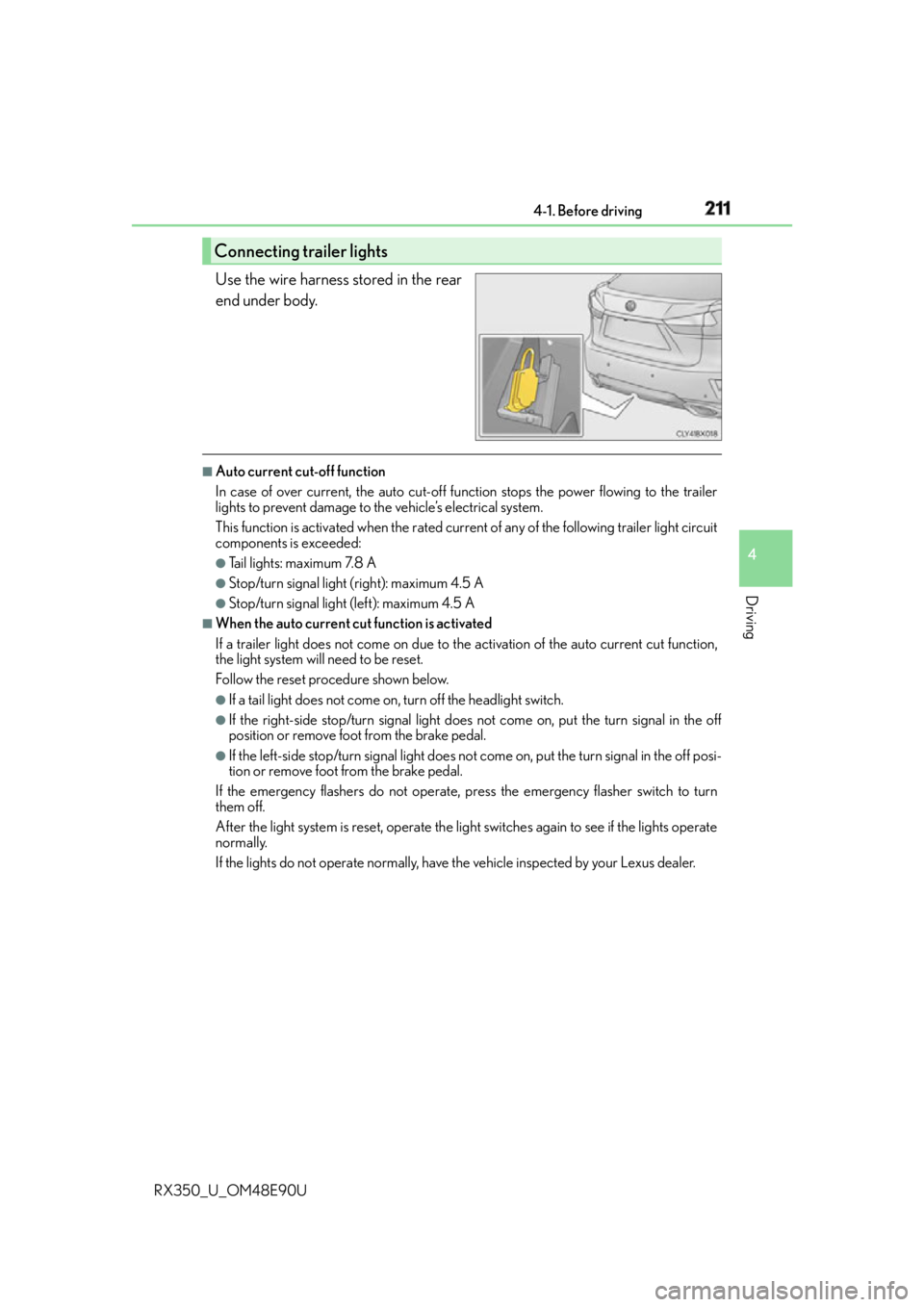
RX350_U_OM48E90U Use the wire harness stored in the rear
end under body. ■
Auto current cut-off function
In case of over current, the auto cut-off fu nction stops the power flowing to the trailer
lights to prevent damage to th e vehicle’s electrical system.
This function is activated when the rated curren t of any of the following trailer light circuit
components is exceeded: ●
Tail lights: maximum 7.8 A ●
Stop/turn signal light (right): maximum 4.5 A ●
Stop/turn signal light (left): maximum 4.5 A ■
When the auto current cut function is activated
If a trailer light does not come on due to the activation of the auto current cut function,
the light system will need to be reset.
Follow the reset procedure shown below. ●
If a tail light does not come on, turn off the headlight switch. ●
If the right-side stop/turn signal light does not come on, put the turn signal in the off
position or remove foot from the brake pedal. ●
If the left-side stop/turn signal light does not come on, put the turn signal in the off posi-
tion or remove foot from the brake pedal.
If the emergency flashers do not operate, press the emergency flasher switch to turn
them off.
After the light system is reset, operate the light switches again to see if the lights operate
normally.
If the lights do not operate normally, have the vehicle inspected by your Lexus dealer.Connecting trailer lights
Page 390 of 748
390
RX350_U_OM48E90U 5-1. Basic Operations
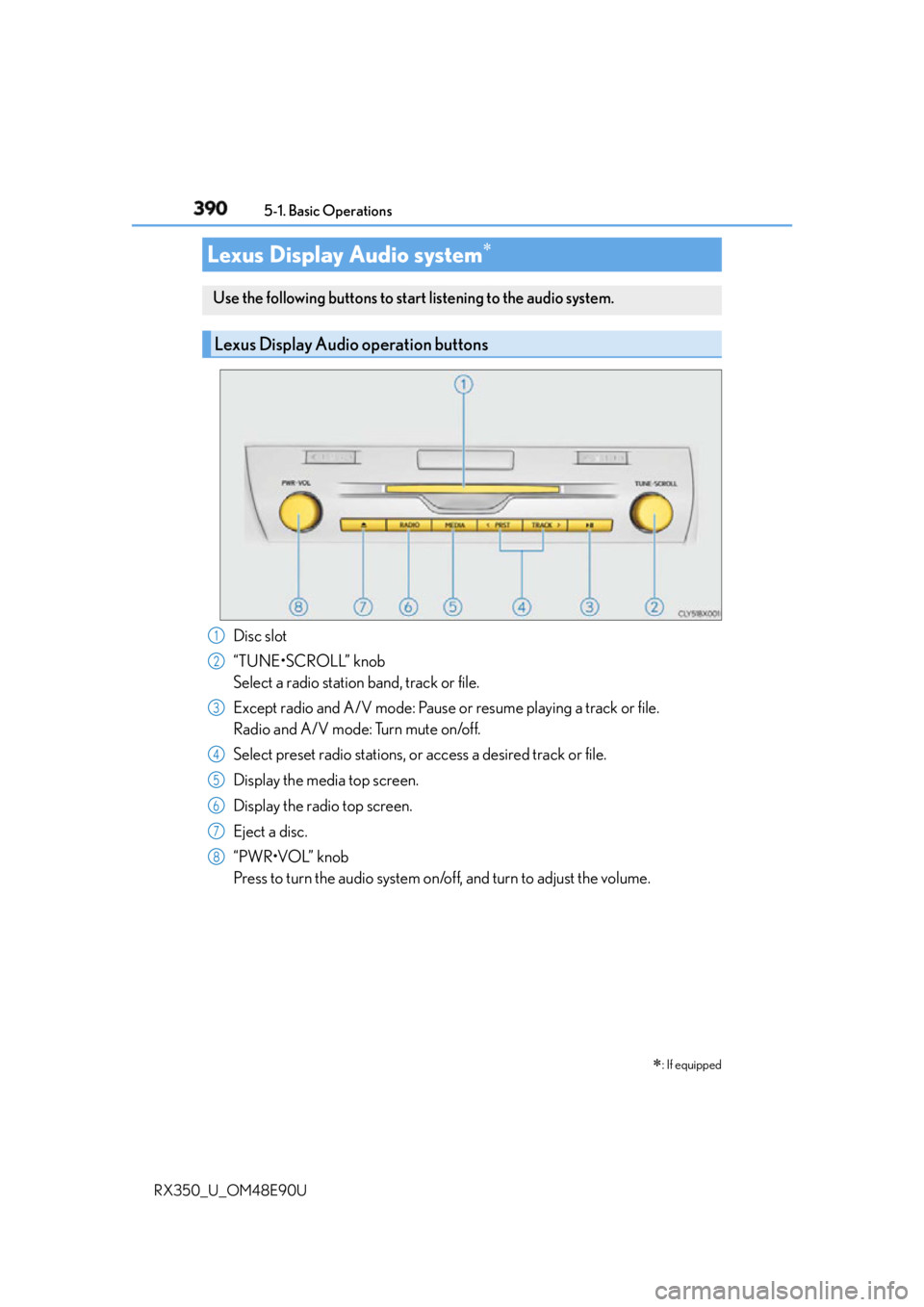
Disc slot
“TUNE•SCROLL” knob
Select a radio station band, track or file.
Except radio and A/V mode: Pause or resume playing a track or file.
Radio and A/V mode: Turn mute on/off.
Select preset radio stations, or access a desired track or file.
Display the media top screen.
Display the radio top screen.
Eject a disc.
“PWR•VOL” knob
Press to turn the audio system on/o ff, and turn to adjust the volume.Lexus Display Audio system
: If equippedUse the following buttons to start listening to the audio system.
Lexus Display Audio operation buttons
1
2
3
4
5
6
7
8
Page 410 of 748
410 5-3. Using the audio system
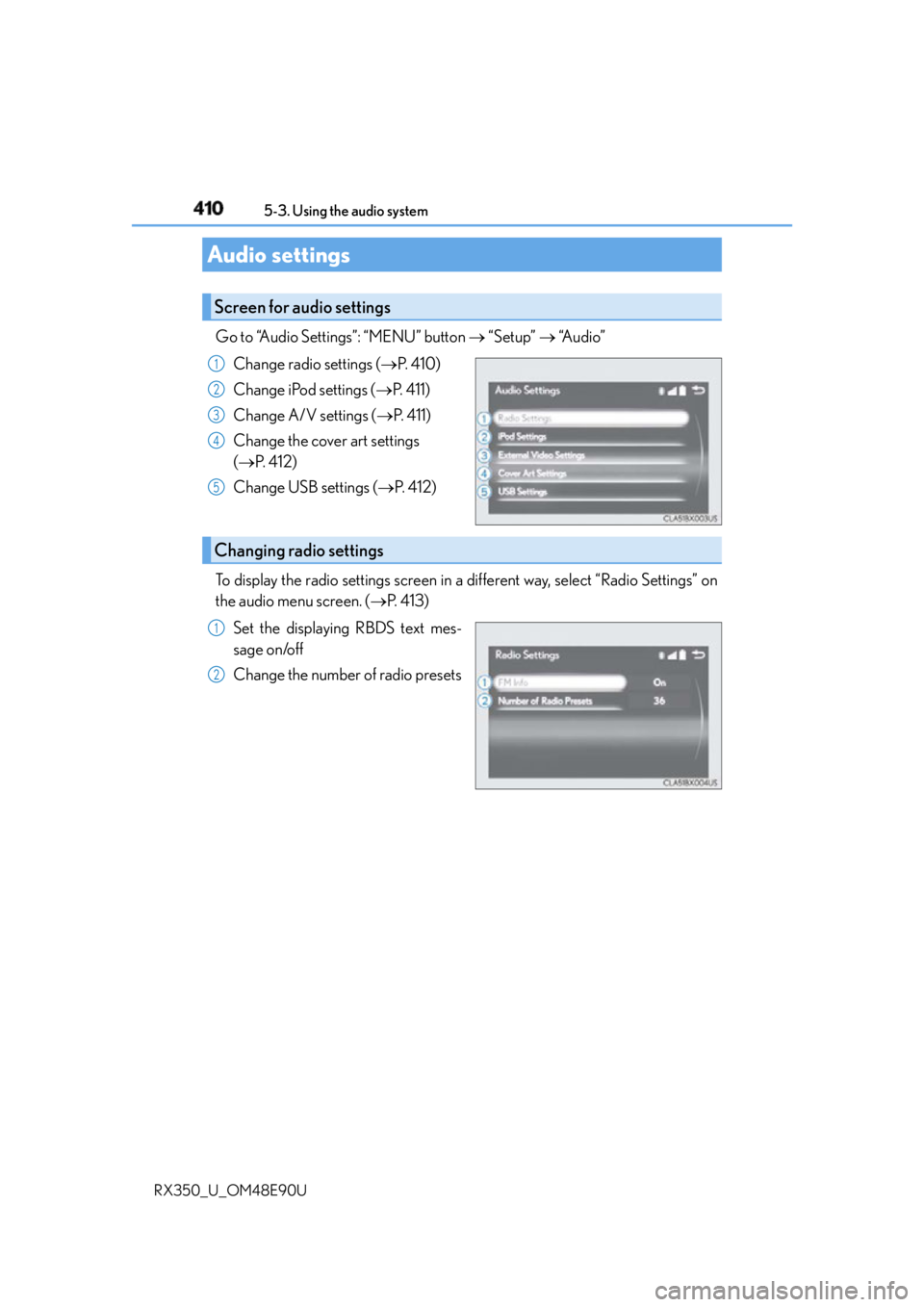
RX350_U_OM48E90U Go to “Audio Settings”: “MENU” button “Setup” “Audio”
Change radio settings ( P. 4 1 0 )
Change iPod settings ( P. 4 1 1 )
Change A/V settings ( P. 411)
Change the cover art settings
( P. 4 1 2 )
Change USB settings ( P. 4 1 2 )
To display the radio settings screen in a different way, select “Radio Settings” on
the audio menu screen. ( P. 4 1 3 )
Set the displaying RBDS text mes-
sage on/off
Change the number of radio presetsAudio settings Screen for audio settings 1
2
3
4
5
Changing radio settings 1
2
Page 416 of 748
416
RX350_U_OM48E90U 5-4. Using the radio
Pressing the “RADIO” button displays the radio top screen from any screen of
the selected source. ■
Menu screen
P. 4 1 3
Tune in to the desired station us ing one of the following methods.■
Seek tuning
Press and hold then release the “ PRST” or “TRACK ” button.
Seek tuning can also be operated on the menu screen. ( P. 4 1 3 )
The radio will begin seeking up or down for a station of the nearest frequency
and will stop when a station is found. ■
Manual tuning
Turn the “TUNE•SCROLL” knob. ■
Preset stations
Select the desired preset station by pressing the “ PRST” or “TRACK ” but-
ton, or turning and pressing the controller. ■
Station list
Move the controller to the right and selecting “Station List”.
AM radio: Selecting a desired station.
FM radio: Selecting a desired type of station and selecting a desired sta-
tion. To refreshing the station list, select “R efresh”. Select “Source” on the refresh
screen, can be change to the other audio source while refreshing.Radio operation Select “AM”, “FM” or “SAT” on the audio source selection screen to begin lis-
tening to the radio.
Radio top screen
Selecting a station (AM or FM radio)
1
2
Page 417 of 748
4175-4. Using the radio
5
Lexus Display Audio system
RX350_U_OM48E90U When “HD Radio” is set to “On”, available stations with HD Radio channels are
marked with “HD)”.
In AM or FM mode, select a station marked with “HD)”.
Turn the “TUNE•SCROLL” knob to select an HD Radio channel. HD Radio channels can also be selected by selecting “Multicast” on the menu screen.
( P. 4 1 3 )
Select in to the desired channel using one of the following methods.■
Tu r n i n g u p /d o w n t h e c h a n n e l
Press and hold the “ PRST” or “TRACK ” button or turn the
“TUNE•SCROLL” knob. ■
Preset channels
Select the desired preset channel by pressing the “ PRST” or “TRACK ”
button or controller. ■
Channel list
Move the controller to the right and selecting “Select a SAT Category”.
Selecting a desired category of chan nel and selecting a desired channel.
Search for desired stations or channel.
Select and hold one of the preset until you hear a beep. ■
Display the song information
Move the controller to the right and selecting “Text”. ■
Display the Additional information (HD radio)
Move the controller to the right and selecting “Additional Information”.Selecting an HD Radio channel
Selecting a channel (XM Satellite Radio)
Setting presets
Display the text message 1
2
1
2
1
2
Page 419 of 748
4195-4. Using the radio
5
Lexus Display Audio system
RX350_U_OM48E90U ■
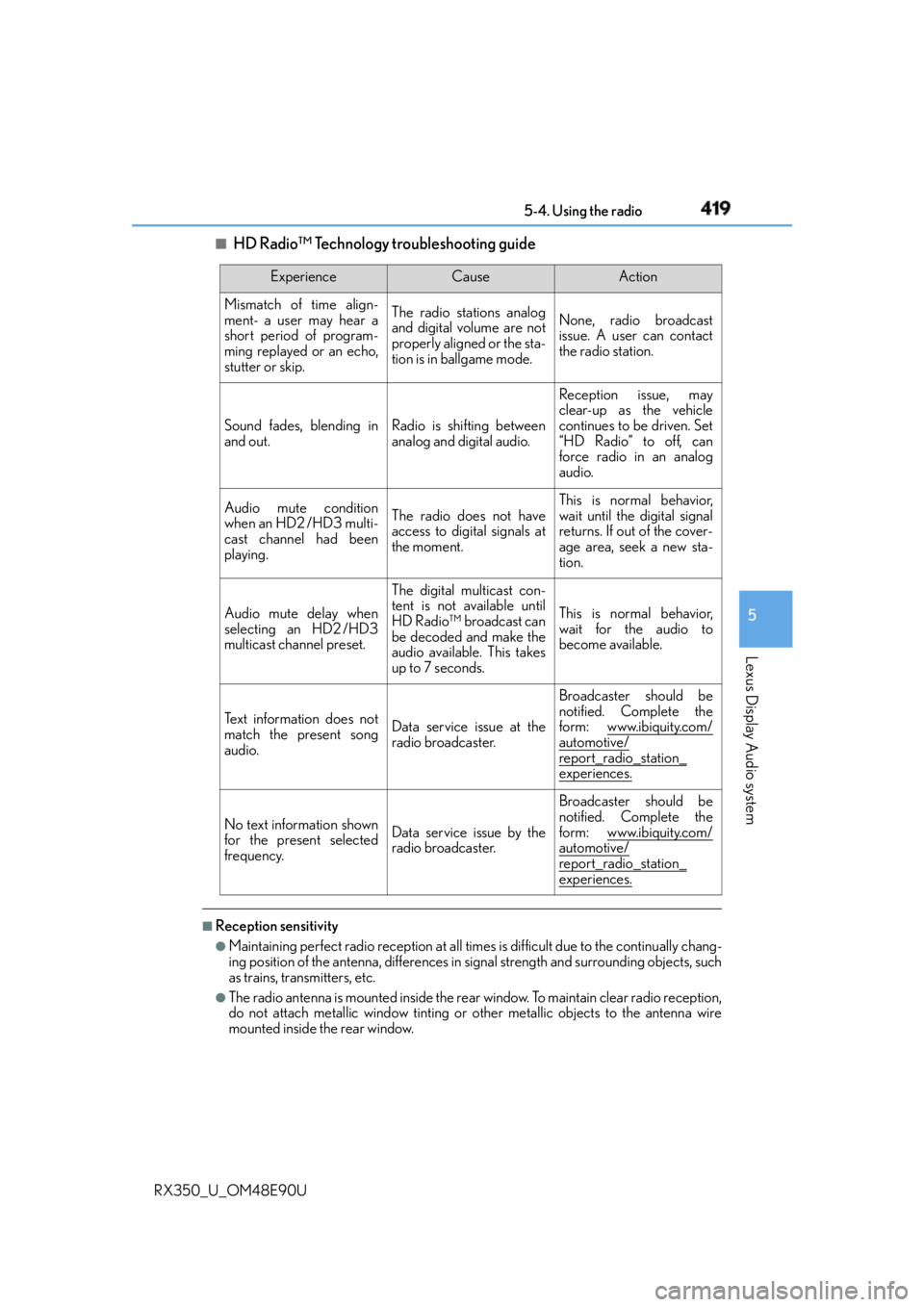
HD Radio™ Technology troubleshooting guide
■
Reception sensitivity ●
Maintaining perfect radio recept ion at all times is difficult due to the continually chang-
ing position of the antenna, differences in signal strength and surrounding objects, such
as trains, transmitters, etc. ●
The radio antenna is mounted inside the rear window. To maintain clear radio reception,
do not attach metallic window tinting or other metallic objects to the antenna wire
mounted inside the rear window. Experience Cause Action
Mismatch of time align-
ment- a user may hear a
short period of program-
ming replayed or an echo,
stutter or skip. The radio stations analog
and digital volume are not
properly aligned or the sta-
tion is in ballgame mode. None, radio broadcast
issue. A user can contact
the radio station.
Sound fades, blending in
and out. Radio is shifting between
analog and digital audio. Reception issue, may
clear-up as the vehicle
continues to be driven. Set
“HD Radio” to off, can
force radio in an analog
audio.
Audio mute condition
when an HD2 /HD3 multi-
cast channel had been
playing. The radio does not have
access to digital signals at
the moment. This is normal behavior,
wait until the digital signal
returns. If out of the cover-
age area, seek a new sta-
tion.
Audio mute delay when
selecting an HD2 /HD3
multicast channel preset. The digital multicast con-
tent is not available until
HD Radio™ broadcast can
be decoded and make the
audio available. This takes
up to 7 seconds. This is normal behavior,
wait for the audio to
become available.
Te x t i n f o r m a t i o n d o e s n o t
match the present song
audio. Data service issue at the
radio broadcaster. Broadcaster should be
notified. Complete the
form: www.ibiquity.com/
automotive/
report_radio_station_
experiences.
No text information shown
for the present selected
frequency. Data service issue by the
radio broadcaster. Broadcaster should be
notified. Complete the
form: www.ibiquity.com/
automotive/
report_radio_station_
experiences.
Page 430 of 748
430 5-6. Using an external device
RX350_U_OM48E90U ●
“Made for iPod” and “Made for iPhone” mean that an electronic accessory has been
designed to connect specifically to an iPod , or iPhone, respectively, and has been certi-
fied by the developer to meet Apple performance standards. ●
Apple is not responsible for the operation of this device or its compliance with safety
and regulatory standards. Please note that th e use of this accessory with iPod or iPhone
may affect wireless performance. ●
iPhone, iPod, iPod classic, iPod nano and iPod touch are trademarks of Apple Inc., reg-
istered in the U.S. and other countries. ■
iPod cover art ●
Depending on the iPod and songs in the iPod, iPod cover art may be displayed.●
This function can be changed to on/off. ( P. 4 1 2 )●
It may take time to display iPod cover art, and the iPod may not be operated while the
cover art display is in process. ■
iPod functions ●
When an iPod is connected and the audio sour ce is changed to iPod mode, the iPod will
resume play from the same poin t in which it was last used.●
Depending on the iPod that is connected to the system, certain functions may not be
available. If a function is un available due to a malfunction (as opposed to a system spec-
ification), disconnecting the device and reconnecting it may resolve the problem.●
Depending on the iPod, while connected to the system, the iPod cannot be operated
with its own controls. It is necessary to us e the controls of the vehicle’s audio system
instead. ●
When the battery level of an iPod is very low, the iPod may not operate. If so, charge the
iPod before use. ●
Compatible models ( P. 4 3 2 )■
iPod problems
To resolve most problems encountered when using your iPod, disconnect your iPod from
the vehicle iPod connection and reset it. For in structions on how to reset your iPod, refer
to your iPod Owner’s Manual.