service LEXUS RX350 2016 User Guide
[x] Cancel search | Manufacturer: LEXUS, Model Year: 2016, Model line: RX350, Model: LEXUS RX350 2016Pages: 748, PDF Size: 12.36 MB
Page 382 of 748
382 4-6. Driving tips
RX350_U_OM48E90U To enable the windshield wipers to be lifted when heavy snow or icy conditions
are expected, change the rest position of the windshield wipers from the
retracted position below the hood to the service position using the wiper lever.
( P. 2 5 4 ) ■
Tire chain installation
Observe the following precautions wh en installing and removing chains:●
Install and remove tire chains in a safe location. ●
Install tire chains on the front tires only. Do not install tire chains on the rear tires. ●
Install tire chains on front tires as tightl y as possible. Retighten chains after driving
1/4 -1/2 mile (0.5 - 1.0 km). ●
Install tire chains following the instru ctions provided with the tire chains. Windshield wipers
WA R N I N G ■
Driving with snow tires
Observe the following precautions to reduce the risk of accidents.
Failure to do so may result in a loss of ve hicle control and cause death or serious injury.●
Use tires of the specified size. ●
Maintain the recommended level of air pressure. ●
Do not drive in excess of 75 mph (120 km/h), regardless of the type of snow tires
being used. ●
Use snow tires on all, not just some wheels.■
Driving with tire chains
Observe the following precautions to reduce the risk of accidents.
Failure to do so may result in the vehicle being unable to be driven safely, and may
cause death or serious injury. ●
Do not drive in excess of the speed limit specified for the tire chains being used, or
30 mph (50 km/h), whichever is lower. ●
Avoid driving on bumpy road surfaces or over potholes. ●
Avoid sudden acceleration, ab rupt steering, sudden bra king and shifting operations
that cause sudden engine braking. ●
Slow down sufficiently before entering a cu rve to ensure that vehicle control is main-
tained. ●
Do not use the LKA (Lane-Keeping Assist) system. (if equipped) ●
Do not use the LDA (Lane Departure Alert with steering control) system. (if
equipped)
Page 385 of 748

3854-6. Driving tips
4
Driving
RX350_U_OM48E90U Your vehicle is not designed to be driven off-road. However, in the event that
off-road driving cannot be avoided, please observe the following precautions to
help avoid the areas prohibited to vehicles. ●
Drive your vehicle only in areas where off-road vehicles are permitted to
travel. ●
Respect private property. Get owner’s permission before entering private
property. ●
Do not enter areas that are closed. Honor gates, barriers and signs that
restrict travel. ●
Stay on established roads. When co nditions are wet, driving techniques
should be changed or travel delayed to prevent damage to roads. ●
AWD models: Avoid driving on very steep, slippery roads and other surfaces,
such as sand, where the tires are liable to lose traction. Your vehicle may not
perform as well as conventional AWD on-road vehicles on these surfaces.■
Additional information for off-road driving
For owners in U.S. mainland, Hawaii and Puerto Rico:
To obtain additional informat ion pertaining to driving your vehicle off-road, consult the
following organizations. ●
State and Local Parks and Recreation Departments ●
State Motor Vehicle Bureau ●
Recreational Vehicle Clubs ●
U.S. Forest Service and Bureau of Land ManagementOff-road driving
Page 386 of 748
386 4-6. Driving tips
RX350_U_OM48E90U WA R N I N G ■
Off-road driving precautions
Always observe the following precautions to minimize the risk of death, serious injury
or damage to your vehicle: ●
Drive carefully when off the road. Do not ta ke unnecessary risks by driving in danger-
ous places. ●
Do not grip the steering wheel spokes when driving off-road. A bad bump could jerk
the wheel and injure your hands. Keep both hands and especially your thumbs on the
outside of the rim. ●
Always check your brakes for effectivenes s immediately after driving in sand, mud,
water or snow. ●
After driving through tall grass, mud, rock, sand, rivers, etc., check that there is no
grass, bush, paper, rags, stone, sand, etc. adhering or trapped on the underbody.
Clear off any such matter from the underbody. If the vehicle is used with these materi-
als trapped or adhering to the underb ody, a breakdown or fire could occur.●
When driving off-road or in rugged terrai n, do not drive at excessive speeds, jump,
make sharp turns, strike objects, etc. This may cause loss of control or vehicle rollover
causing death or serious injury. You are also risking expensive damage to your vehi-
cle’s suspension and chassis.
NOTICE ■
To prevent water damage
Take all necessary safety measures to ensure that water damage to the engine or other
components does not occur. ●
Water entering the engine air intake will cause severe engine damage. ●
Water entering the automatic transmission will cause deterioration in shift quality,
locking up of your transmission accompan ied by vibration, and ultimately damage.●
Water can wash the grease from wheel be arings, causing rusting and premature fail-
ure, and may also enter the differential, tr ansmission and transfer (AWD models only)
case, reducing the gear o il’s lubricating qualities.■
When you drive through water
If driving through water, such as when crossing shallow streams, first check the depth of
the water and the bottom of the riverbed for firmness. Drive slowly and avoid deep
water. ■
Inspection after off-road driving ●
Sand and mud that has accumulated around brake discs may affect braking efficiency
and may damage brake system components. ●
Always perform a maintenance inspection after each day of off-road driving that has
taken you through rough terr ain, sand, mud, or water. For scheduled maintenance
information, refer to the “Warranty and Services Guide/Owner’s Manual Supple-
ment/Scheduled Maintenance”.
Page 418 of 748
418 5-4. Using the radio
RX350_U_OM48E90U HD Radio™ Technology is the digital evolution of analog AM/FM radio. Your
radio product has a special receiver which allows it to receive digital broadcasts
(where available) in addition to the analog broadcasts it already receives.
Digital broadcasts have better sound qua lity than analog broadcasts as digital
broadcasts provide free, crystal clear audio with no static or distortion. For more
information, and a guide to available radio stations and programming, refer to
www.hdradio.com
.
“HD Radio features included in Lexus radios:
Digital Sound - HD Radio broadcasts deliver crystal-clear, digital audio quality to
listeners.
HD2 /HD3 Channels - FM stations can provide additional digital only audio pro-
gramming with expanded content and format choices on HD2 /HD3 channels.
PSD - Program Service Data (PSD) gives you on-screen information such as art-
ist name and song title.
iTunes Tagging - Listeners can tag (store) songs they like for later review and pur-
chase through iTunes.
Artist Experience - Images related to the broadcast are displayed on the radio
screen, such as album cover art and station logos.”HD Radio™ Technology
HD Radio Technology manufactured under license from iBiquity Digital Corpora-
tion. U.S. and Foreign Patents. HD Radio™ and the HD, HD Radio, and “Arc” logos
are proprietary trademarks of iBiquity Digital Corp.
Page 419 of 748
4195-4. Using the radio
5
Lexus Display Audio system
RX350_U_OM48E90U ■
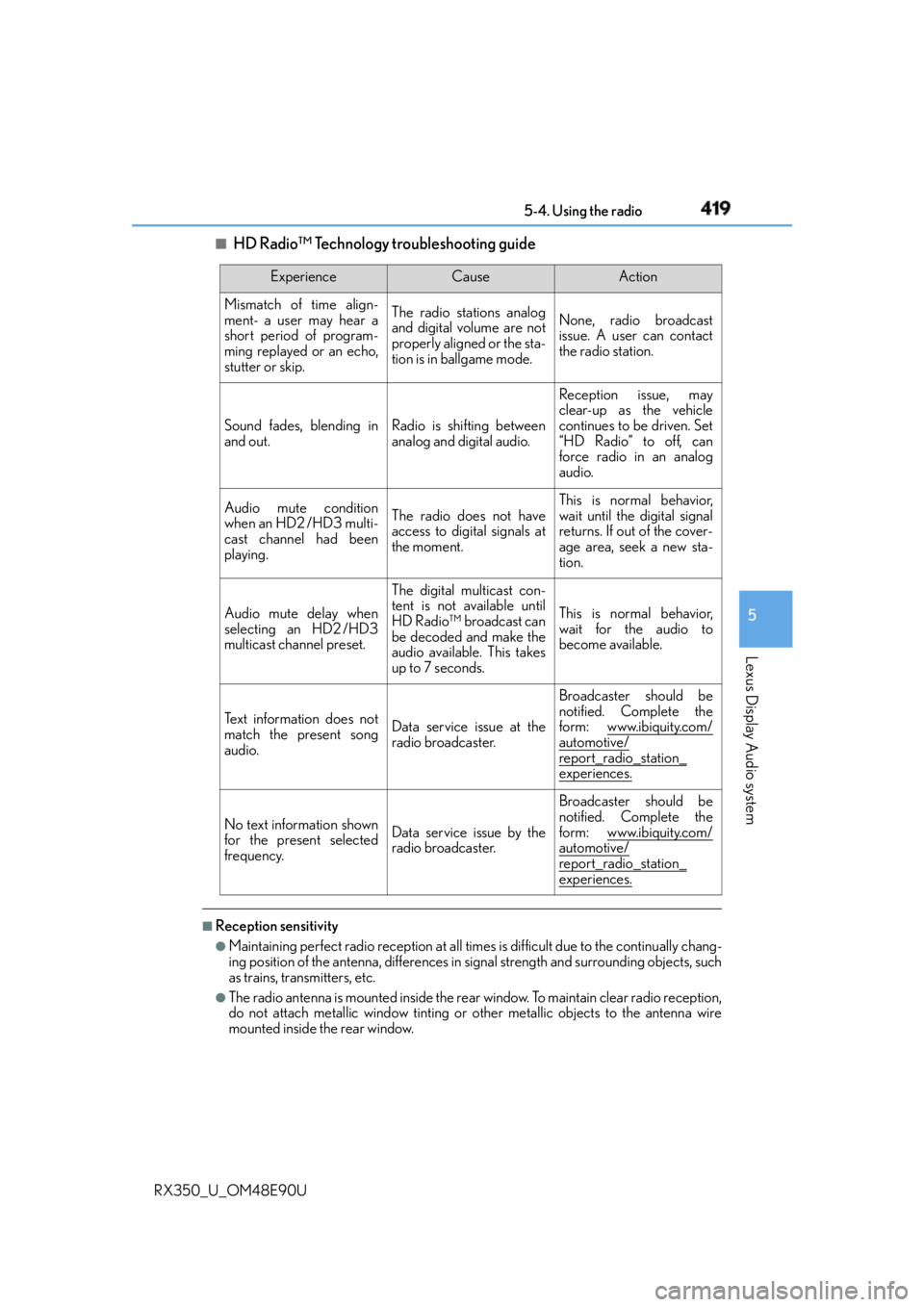
HD Radio™ Technology troubleshooting guide
■
Reception sensitivity ●
Maintaining perfect radio recept ion at all times is difficult due to the continually chang-
ing position of the antenna, differences in signal strength and surrounding objects, such
as trains, transmitters, etc. ●
The radio antenna is mounted inside the rear window. To maintain clear radio reception,
do not attach metallic window tinting or other metallic objects to the antenna wire
mounted inside the rear window. Experience Cause Action
Mismatch of time align-
ment- a user may hear a
short period of program-
ming replayed or an echo,
stutter or skip. The radio stations analog
and digital volume are not
properly aligned or the sta-
tion is in ballgame mode. None, radio broadcast
issue. A user can contact
the radio station.
Sound fades, blending in
and out. Radio is shifting between
analog and digital audio. Reception issue, may
clear-up as the vehicle
continues to be driven. Set
“HD Radio” to off, can
force radio in an analog
audio.
Audio mute condition
when an HD2 /HD3 multi-
cast channel had been
playing. The radio does not have
access to digital signals at
the moment. This is normal behavior,
wait until the digital signal
returns. If out of the cover-
age area, seek a new sta-
tion.
Audio mute delay when
selecting an HD2 /HD3
multicast channel preset. The digital multicast con-
tent is not available until
HD Radio™ broadcast can
be decoded and make the
audio available. This takes
up to 7 seconds. This is normal behavior,
wait for the audio to
become available.
Te x t i n f o r m a t i o n d o e s n o t
match the present song
audio. Data service issue at the
radio broadcaster. Broadcaster should be
notified. Complete the
form: www.ibiquity.com/
automotive/
report_radio_station_
experiences.
No text information shown
for the present selected
frequency. Data service issue by the
radio broadcaster. Broadcaster should be
notified. Complete the
form: www.ibiquity.com/
automotive/
report_radio_station_
experiences.
Page 420 of 748

420 5-4. Using the radio
RX350_U_OM48E90U ■
XM Radio Services — Descriptions ●
Radio and Entertainment
XM offers more than 170 satellite radio channels of commercial-free music and pre-
mier sports, news, talk, and entertainment. XM is broadcast via satellites to millions of
listeners across the continental United States . XM subscribers listen to XM on satellite
radio receivers for the car, home, and port able use. More information about XM is
available online at www.siriusxm.com
(U.S.A.) or www.siriusxm.ca (Canada).●
Satellite tuner
The tuner supports only Audio Services (M usic and Talk) and the accompanying Text
Information of XM ®
Satellite Radio.■
XM Radio Services — Subscription Instructions
For XM Services requiring a subscription (s uch as XM Radio), the following paragraph
shall be included.
Required XM Radio monthly subscriptions sold separately after tr ial period. Subscrip-
tion fee is consumer only. All fees and prog ramming subject to change. Subscriptions are
subject to the Customer Agreement available at www.siriusxm.com
(U.S.A.) or
www.siriusxm.ca (Canada) XM service only availa ble in the 48 contiguous United
States and 10 Canadian provinces. © 2011 Sirius XM Radio Inc. Sirius, XM and all
related marks and logos are trademarks of Sirius XM Radio Inc. All other marks, channel
names and logos are the property of their respective owners.
For more information, program schedules, and to subscribe or extend subscription after
complimentary trial period; more information is available at:
U.S.A. Customers:
Visit w w w.siriusxm.com or call 1-877-447-0011
Canadian Customers:
Visit w w w.siriusxm.ca or call 1-877-438-9677●
Radio ID
You will need the radio ID when activating XM service or reporting a problem. If
“Ch000” is selected using the “TUNE•SCRO LL” knob, the ID code, which is 8 alpha-
numeric characters, will be displayed. If anot her channel is selected , the ID code will no
longer be displayed. The channel (000) alte rnates between displaying the radio ID and
the specific radio code. ■
XM Radio Services — Legal Disclaimers and Warnings ●
Fees and Taxes — Subscription fee, taxes, on e time activation fee, and other fees may
apply. Subscription fee is consumer only. All fees and programming subject to change.
Subscriptions subject to Customer Agreement available at www.siriusxm.com (U.S.A.)
or www.siriusxm.ca (Canada) XM service only available in the 48 contiguous United
States and Canada
* .
* : Canada — some deterioration of service may occur in extreme northern latitudes.
This is beyond the control of XM Satellite Radio.
Explicit Language Notice — Channels with frequent explicit la nguage are indicated
with an “XL” preceding the channel name. Channel blocking is available for XM Satel-
lite Radio receivers by notifying XM at;
U.S.A. Customers:
Visit www.siriusxm.com or calling 1-877-447-0011
Canadian Customers:
Visit www.siriusxm.ca or calling 1-877-438-9677
Page 426 of 748

426 5-5. Playing an audio CD and MP3/WMA/AAC discs
RX350_U_OM48E90U ■
The Gracenote ®
media database●
Music recognition technology and rela ted data are provided by Gracenote ®
.
Gracenote is the industry standard in music recognition technology and related
content delivery. For more information visit www.gracenote.com .●
CD and music-related data from Graceno te, Inc., copyright © 2000 to present
Gracenote. Gracenote Software, copyrigh t © 2000 to present Gracenote. One
or more patents owned by Gracenote appl y to this product and service. See the
Gracenote website for a non-exhaustive list of applicable Gracenote patents.
Gracenote, CDDB, MusicID, MediaVOCS, the Gracenote logo and logotype,
and the “Powered by Gracenote” logo are either registered trademarks or trade-
marks of Gracenote in the United States and/or other countries.
Page 453 of 748

4535-9. Bluetooth ®
Phone
5
Lexus Display Audio system
RX350_U_OM48E90U You can transfer the phone numbers in a Bluetooth ®
phone to the system.
Operation methods differ between PBAP (Phone Book Access Profile) compat-
ible and PBAP inco mpatible Bluetooth ®
phones. If the cellular phone does not
support either PBAP or OPP (Object Push Profile) service, you cannot transfer
contacts.
Press the off-hook switch on the steering wheel. If the phonebook is empty, a message will be displayed.
For a PBAP compatible Bluetooth ®
phone and “Automatic Transfer” is off
To enable automatic transfer of new contacts from a cellular phone every time
it is connected, select “Always”. ( P. 4 6 3 )
Select “Once” if you want to transf er new contacts from a cellular phone.
For a PBAP incompatible an d OPP compatible Bluetooth ®
phone
Select “Transfer” and operate your ce llular phone to transfer new contacts
from a cellular phone.
Select “Add” if you want to add a new contact manually.When the phonebook is empty 1
2
2
Page 456 of 748
456 5-9. Bluetooth ®
Phone
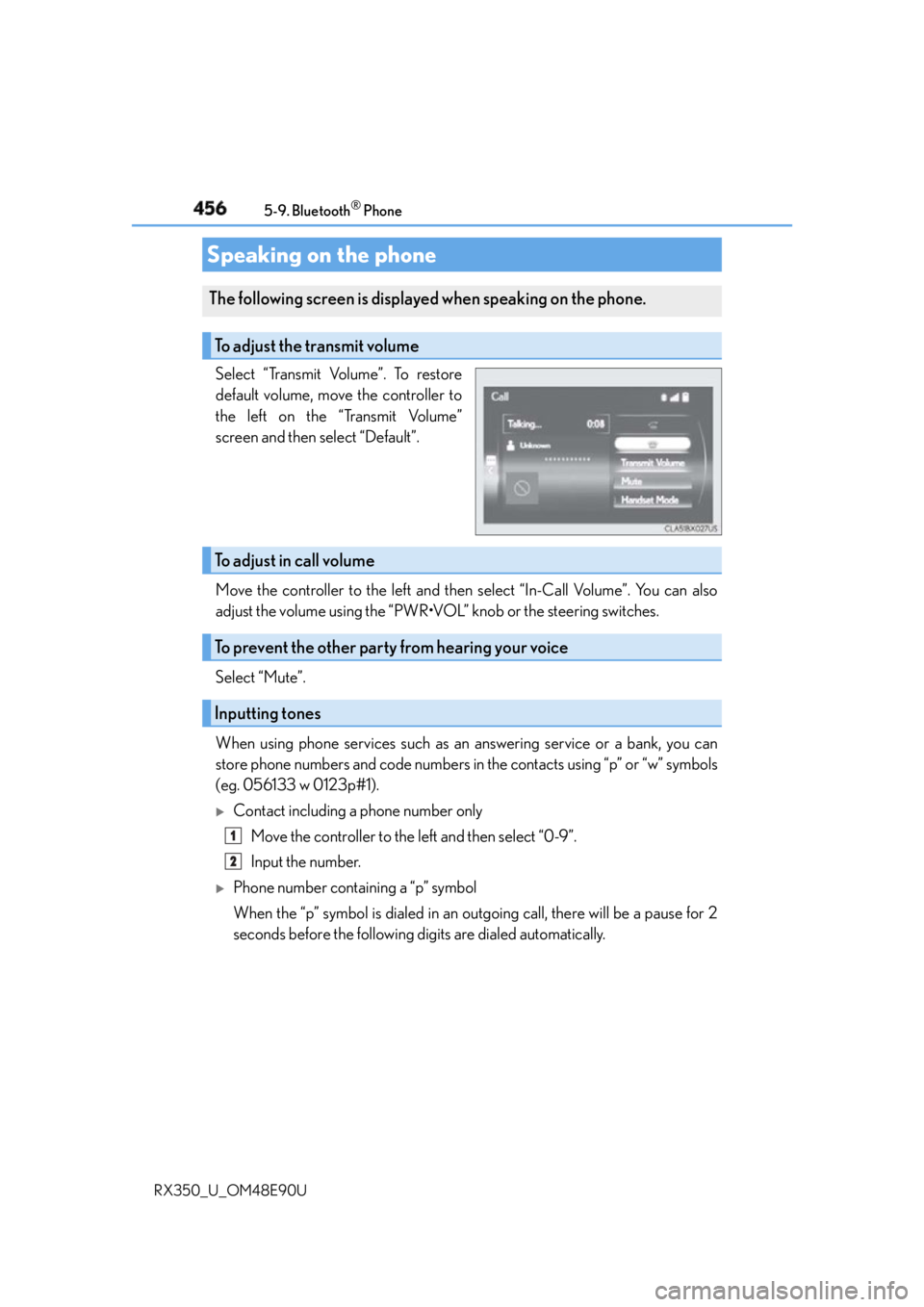
RX350_U_OM48E90U Select “Transmit Volume”. To restore
default volume, move the controller to
the left on the “Transmit Volume”
screen and then select “Default”.
Move the controller to the left and then select “In-Call Volume”. You can also
adjust the volume using the “PWR•VOL” knob or the steering switches.
Select “Mute”.
When using phone services such as an answering service or a bank, you can
store phone numbers and code numbers in the contacts using “p” or “w” symbols
(eg. 056133 w 0123p#1).
Contact including a phone number only
Move the controller to the left and then select “0-9”.
Input the number.
Phone number containing a “p” symbol
When the “p” symbol is dialed in an ou tgoing call, there will be a pause for 2
seconds before the following digits are dialed automatically.Speaking on the phone The following screen is displayed when speaking on the phone.
To adjust the transmit volume
To adjust in call volume
To prevent the other party from hearing your voice
Inputting tones 1
2
Page 464 of 748

464 5-10. Phonebook
RX350_U_OM48E90U ■
Return to the default settings
Move the controller to the left and select “Default”.
You can transfer the phone numbers in your Bluetooth ®
phone to the system.
Operation methods differ between PBAP compatible and PBAP incompatible
Bluetooth ®
phones. If your cellular phone does not support either PBAP or
OPP services, you cannot transfer contacts.
For PBAP compatible Bluetooth ®
phones
Go to “Automatic Transfer”: “MENU” button “Setup” “Phone” “Con-
tacts/Call History” “Automatic Transfer”
Select to set the automatic phone-
book download on/off With this setting on , phonebook data will
be automatically transferred.
Depending on the ce llular phone, call
history will be also transferred.
Select to update contacts from the
connected phone
Select to set the display of contact
images on/off
For PBAP compatible Bluetooth ®
phones when “Automatic Transfer” is set to
off and PBAP incompatible Bluetooth ®
phones
Go to “Transfer Contacts from Phone”: “MENU” button “Setup” “Phone”
“Contacts/Call History” “Transfer Contacts from Phone”
Select to transfer the contact from
the connected cellular phone and
replace the current one
Select to transfer the desired con-
tact data from the connected cellu-
lar phone to add to the current one ■
Return to the default automatic transfer settings
Move the controller to the left and select “Default” on the “Automatic Transfer” screen.Transferring a phone number 1
2
3
1
2