audio LEXUS RX350 2016 Owner's Guide
[x] Cancel search | Manufacturer: LEXUS, Model Year: 2016, Model line: RX350, Model: LEXUS RX350 2016Pages: 748, PDF Size: 12.36 MB
Page 351 of 748
3514-5. Using the driving support systems
4
Driving
RX350_U_OM48E90U ■
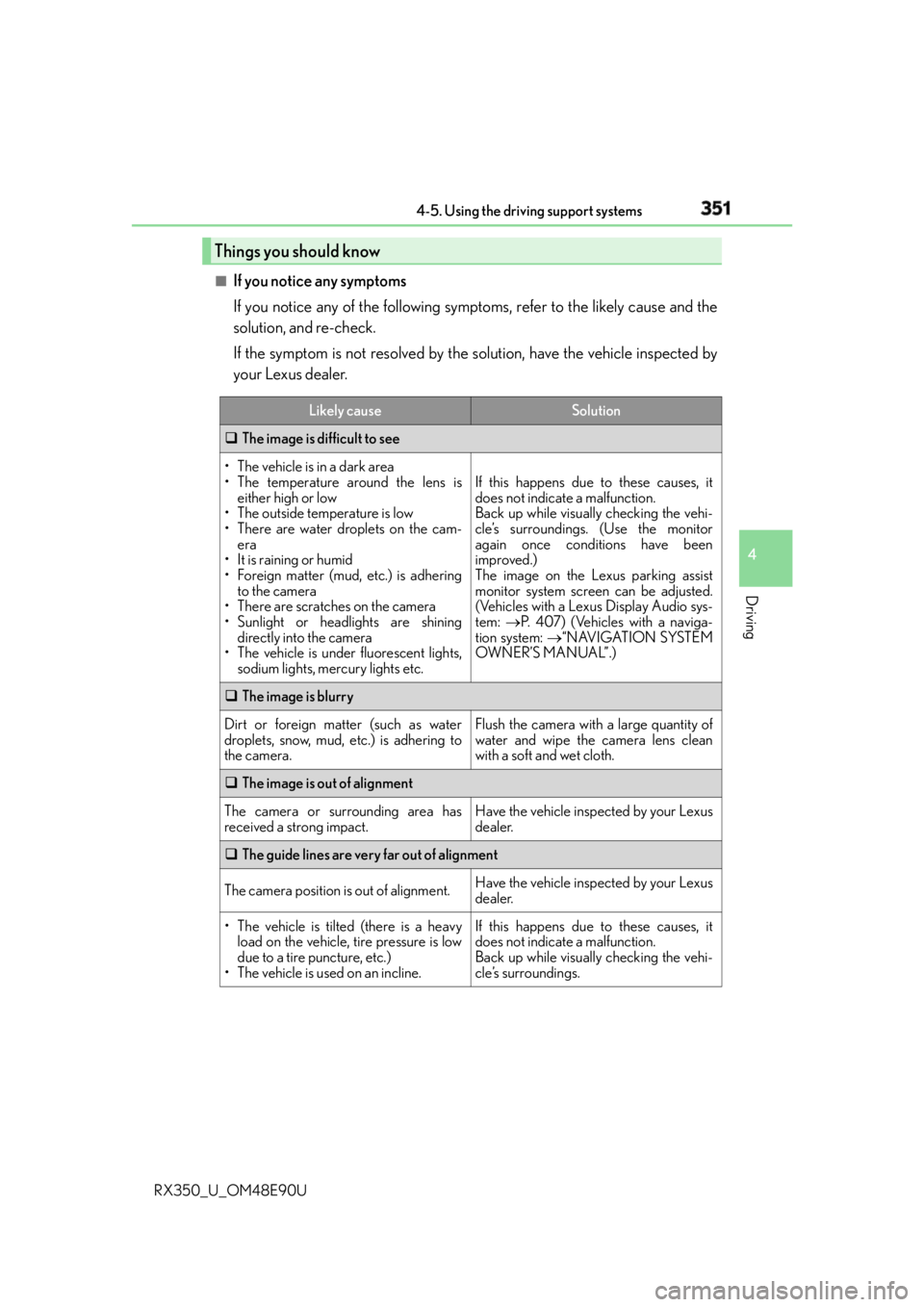
If you notice any symptoms
If you notice any of the following symp toms, refer to the likely cause and the
solution, and re-check.
If the symptom is not resolved by the solution, have the vehicle inspected by
your Lexus dealer.Things you should know Likely cause Solution
The image is difficult to see
• The vehicle is in a dark area
• The temperature around the lens is
either high or low
• The outside temperature is low
• There are water droplets on the cam-
era
• It is raining or humid
• Foreign matter (mud, etc.) is adhering
to the camera
• There are scratches on the camera
• Sunlight or headlights are shining
directly into the camera
• The vehicle is under fluorescent lights,
sodium lights, mercury lights etc. If this happens due to these causes, it
does not indicate a malfunction.
Back up while visually checking the vehi-
cle’s surroundings. (Use the monitor
again once conditions have been
improved.)
The image on the Lexus parking assist
monitor system screen can be adjusted.
(Vehicles with a Lexus Display Audio sys-
tem: P. 407) (Vehicles with a naviga-
tion system: “NAVIGATION SYSTEM
OWNER’S MANUAL”.)
The image is blurry
Dirt or foreign matter (such as water
droplets, snow, mud, etc.) is adhering to
the camera. Flush the camera with a large quantity of
water and wipe the camera lens clean
with a soft and wet cloth.
The image is out of alignment
The camera or surrounding area has
received a strong impact. Have the vehicle inspected by your Lexus
dealer.
The guide lines are very far out of alignment
The camera position is out of alignment. Have the vehicle inspected by your Lexus
dealer.
• The vehicle is tilted (there is a heavy
load on the vehicle, tire pressure is low
due to a tire puncture, etc.)
• The vehicle is used on an incline. If this happens due to these causes, it
does not indicate a malfunction.
Back up while visually checking the vehi-
cle’s surroundings.
Page 357 of 748
3574-5. Using the driving support systems
4
Driving
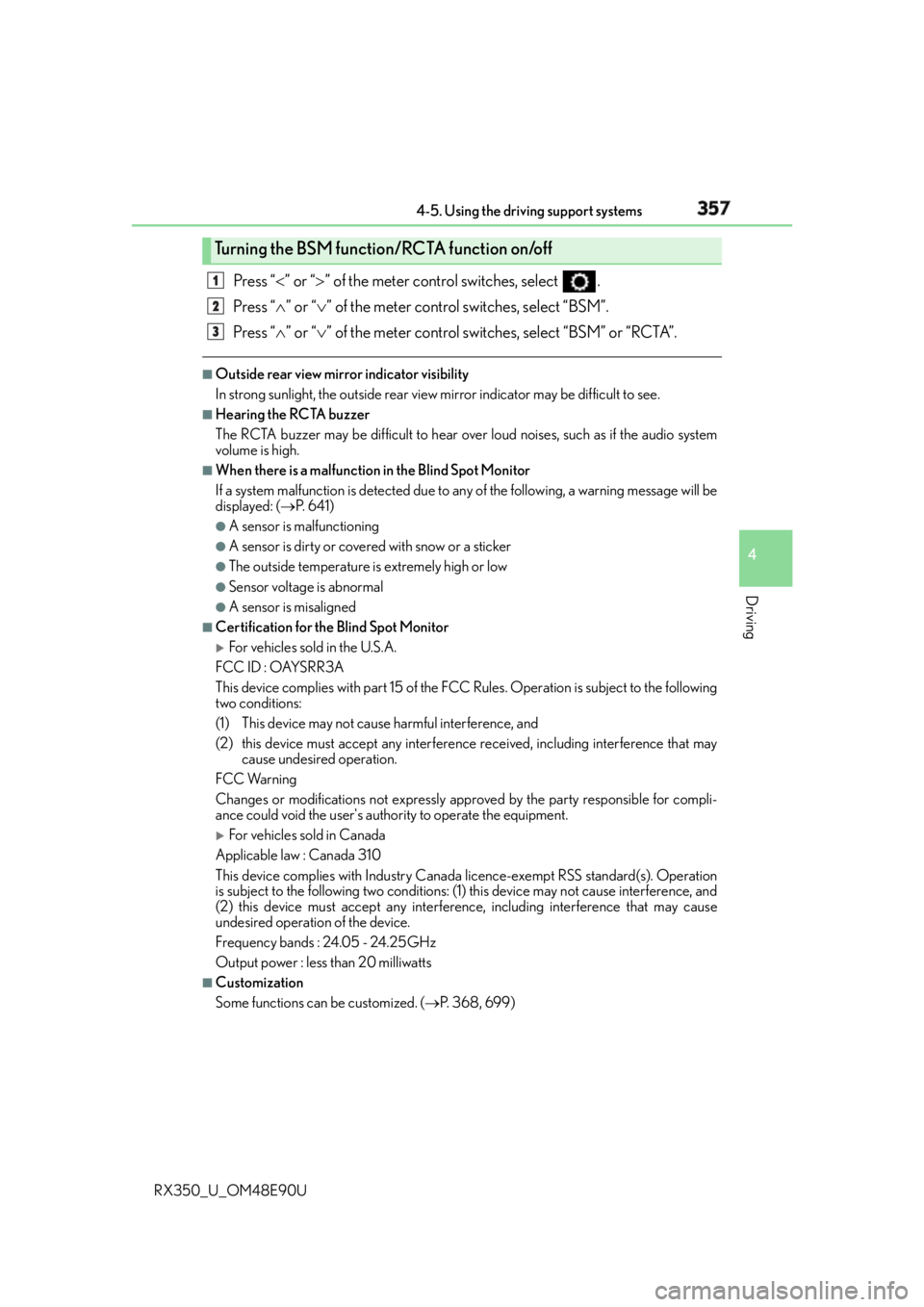
RX350_U_OM48E90U Press “ ” or “ ” of the meter control switches, select .
Press “ ” or “ ” of the meter control switches, select “BSM”.
Press “ ” or “ ” of the meter control switches, select “BSM” or “RCTA”.■
Outside rear view mirror indicator visibility
In strong sunlight, the outside rear view mirror indicator may be difficult to see.■
Hearing the RCTA buzzer
The RCTA buzzer may be difficult to hear ov er loud noises, such as if the audio system
volume is high. ■
When there is a malfunction in the Blind Spot Monitor
If a system malfunction is de tected due to any of the following, a warning message will be
displayed: ( P. 6 4 1 )●
A sensor is malfunctioning ●
A sensor is dirty or covered with snow or a sticker ●
The outside temperature is extremely high or low ●
Sensor voltage is abnormal ●
A sensor is misaligned ■
Certification for the Blind Spot Monitor
For vehicles sold in the U.S.A.
FCC ID : OAYSRR3A
This device complies with part 15 of the FC C Rules. Operation is subject to the following
two conditions:
(1) This device may not cause harmful interference, and
(2) this device must accept any interference received, including in terference that may
cause undesired operation.
FCC Warning
Changes or modifications not expressly approved by the party responsible for compli-
ance could void the user's authority to operate the equipment.
For vehicles sold in Canada
Applicable law : Canada 310
This device complies with Industry Canada licence-exempt RSS st andard(s). Operation
is subject to the following two conditions: (1) this device may not cause interference, and
(2) this device must accept any interference, including interference that may cause
undesired operation of the device.
Frequency bands : 24.05 - 24.25GHz
Output power : less than 20 milliwatts ■
Customization
Some functions can be customized. ( P. 3 6 8 , 6 9 9 )Turning the BSM function/RCTA function on/off 1
2
3
Page 364 of 748
364 4-5. Using the driving support systems
RX350_U_OM48E90U ■
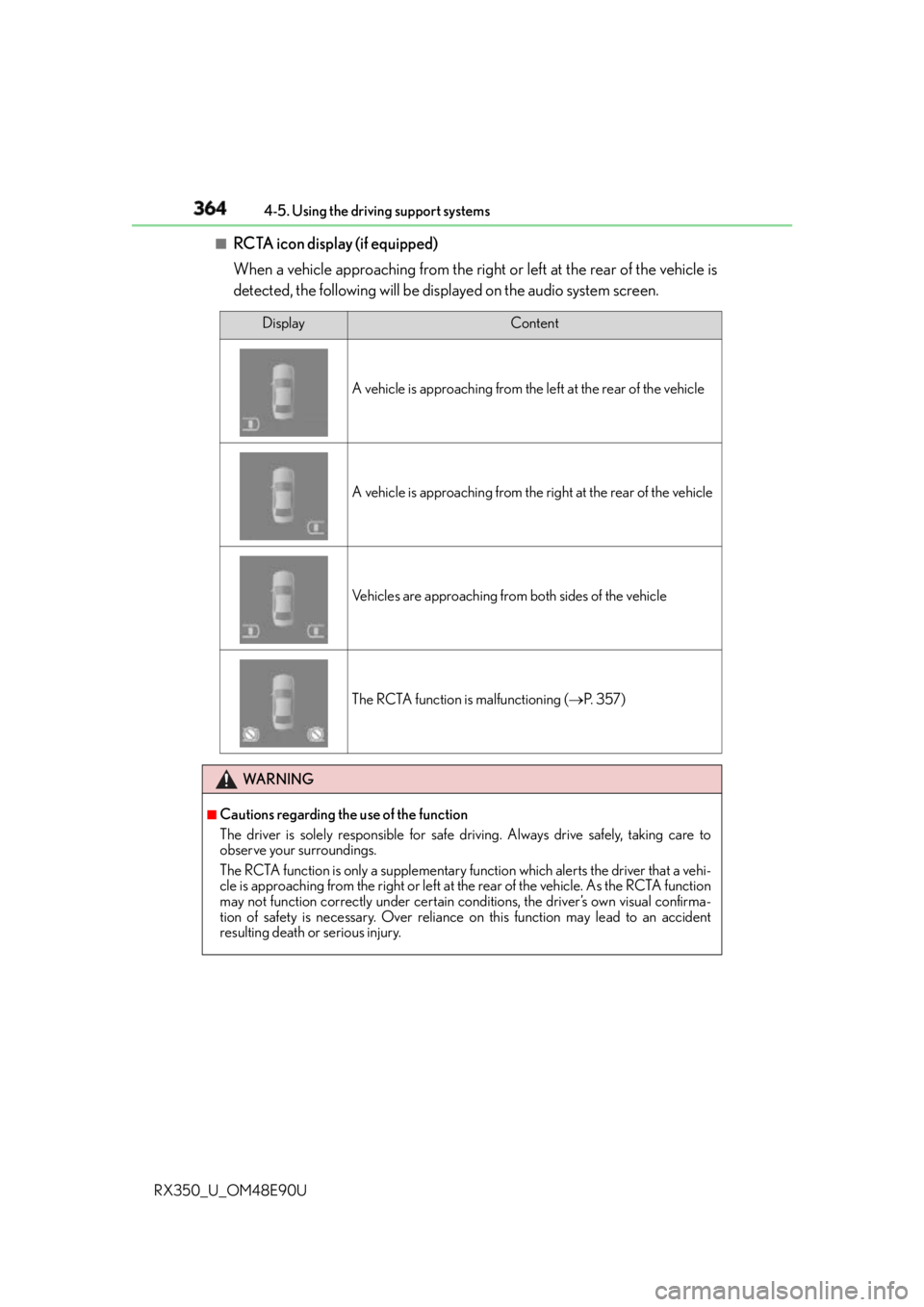
RCTA icon display (if equipped)
When a vehicle approaching from the right or left at the rear of the vehicle is
detected, the following will be displayed on the audio system screen. Display Content
A vehicle is approaching from the left at the rear of the vehicle
A vehicle is approaching from the right at the rear of the vehicle
Vehicles are approaching from both sides of the vehicle
The RCTA function is malfunctioning ( P. 3 5 7 )
WA R N I N G ■
Cautions regarding the use of the function
The driver is solely responsible for safe driving. Always drive safely, taking care to
observe your surroundings.
The RCTA function is only a supplementary fu nction which alerts the driver that a vehi-
cle is approaching from the right or left at the rear of the vehicle. As the RCTA function
may not function correctly under certain conditions, the driver’s own visual confirma-
tion of safety is necessary. Over reliance on this function may lead to an accident
resulting death or serious injury.
Page 370 of 748
370 4-5. Using the driving support systems
RX350_U_OM48E90U
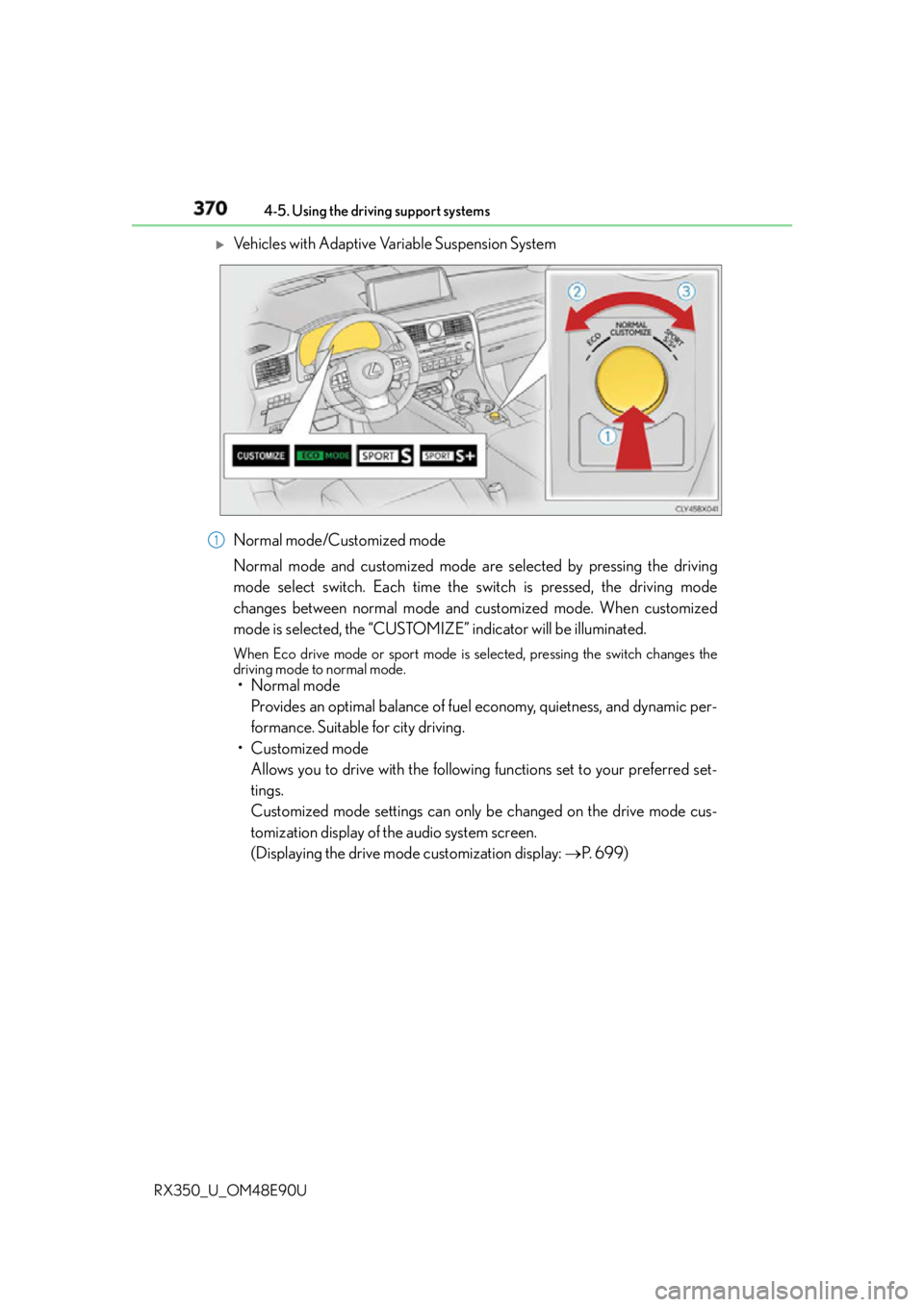
Vehicles with Adaptive Variable Suspension System
Normal mode/Customized mode
Normal mode and customized mode are selected by pressing the driving
mode select switch. Each time the switch is pressed, the driving mode
changes between normal mode and customized mode. When customized
mode is selected, the “CUSTOMIZE” indicator will be illuminated. When Eco drive mode or sport mode is se lected, pressing the switch changes the
driving mode to normal mode.
• Normal mode
Provides an optimal balance of fuel economy, quietness, and dynamic per-
formance. Suitable for city driving.
• Customized mode
Allows you to drive with the following functions set to your preferred set-
tings.
Customized mode settings can only be changed on the drive mode cus-
tomization display of the audio system screen.
(Displaying the drive mode customization display: P. 6 9 9 )1
Page 388 of 748

388
RX350_U_OM48E90U 5-1. Basic Operations
Lexus Display Audio
system ..........................................390
Steering wheel audio
switches....................................... 396
Mobile Assistant......................... 397
USB/AUX ports ......................... 399
5-2. Setup
Setup menu .................................. 402
General settings ......................... 403
Voice settings ..............................406
Display settings ........................... 407
5-3. Using the audio system
Selecting the audio
source ......................................... 408
Optimal use of the audio
system ..........................................409
Audio settings............................... 410
Audio menu screen
operation ..................................... 413
5-4. Using the radio
Radio operation ............................4165 Lexus Display
Audio system
Page 389 of 748
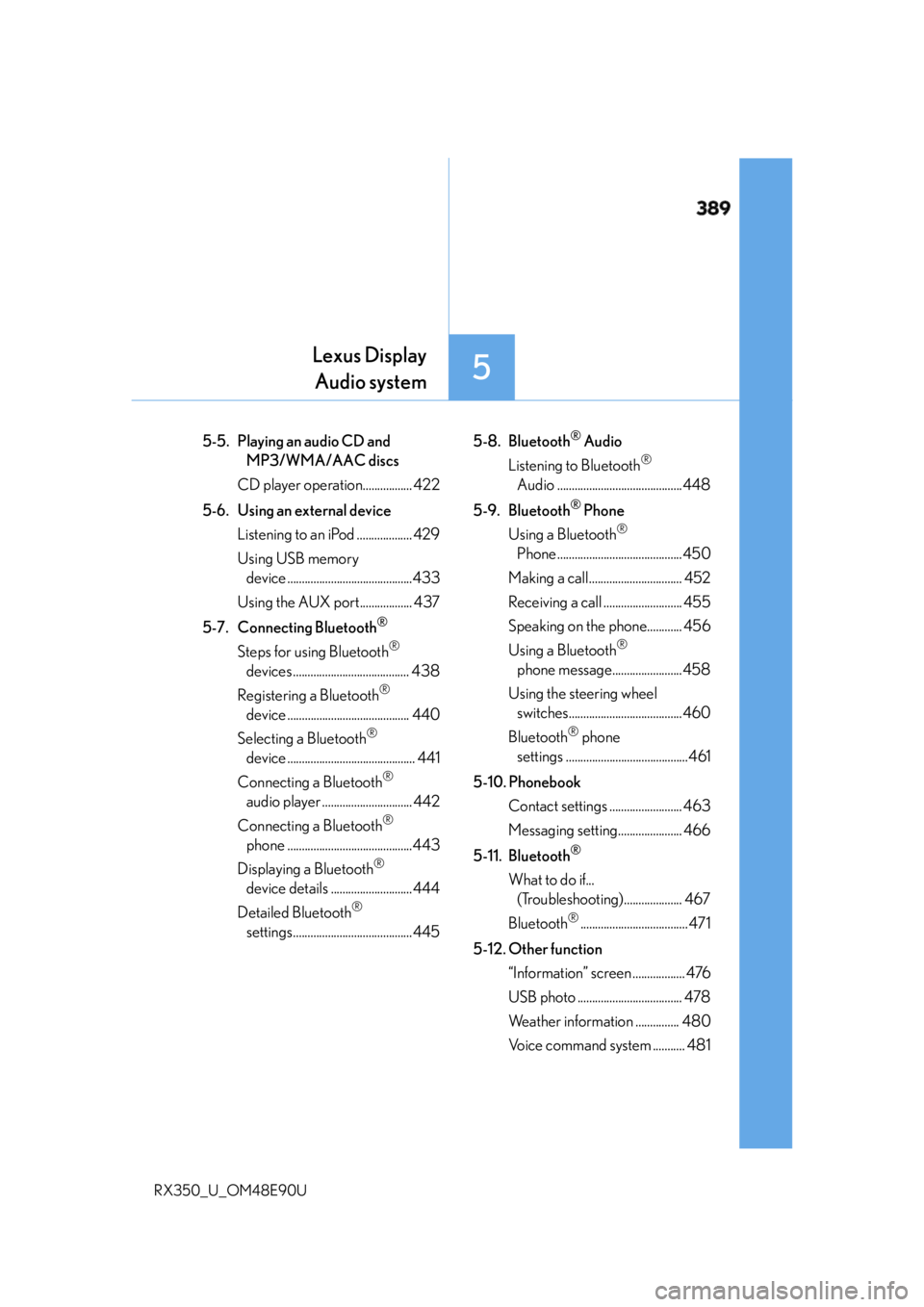
389
5 Lexus Display
Audio system
RX350_U_OM48E90U 5-5. Playing an audio CD and
MP3/WMA/AAC discs
CD player operation................. 422
5-6. Using an external device
Listening to an iPod ................... 429
Using USB memory
device ...........................................433
Using the AUX port.................. 437
5-7. Connecting Bluetooth ®
Steps for using Bluetooth ®
devices ........................................ 438
Registering a Bluetooth ®
device .......................................... 440
Selecting a Bluetooth ®
device ............................................ 441
Connecting a Bluetooth ®
audio player ............................... 442
Connecting a Bluetooth ®
phone ...........................................443
Displaying a Bluetooth ®
device details ............................444
Detailed Bluetooth ®
settings......................................... 445 5-8. Bluetooth ®
Audio
Listening to Bluetooth ®
Audio ...........................................448
5-9. Bluetooth ®
Phone
Using a Bluetooth ®
Phone ........................................... 450
Making a call ................................ 452
Receiving a call ........................... 455
Speaking on the phone............ 456
Using a Bluetooth ®
phone message........................ 458
Using the steering wheel
switches.......................................460
Bluetooth ®
phone
settings ..........................................461
5-10. Phonebook
Contact settings ......................... 463
Messaging setting...................... 466
5-11. Bluetooth ®
What to do if...
(Troubleshooting).................... 467
Bluetooth ®
..................................... 471
5-12. Other function
“Information” screen .................. 476
USB photo .................................... 478
Weather information ............... 480
Voice command system ........... 481
Page 390 of 748
390
RX350_U_OM48E90U 5-1. Basic Operations
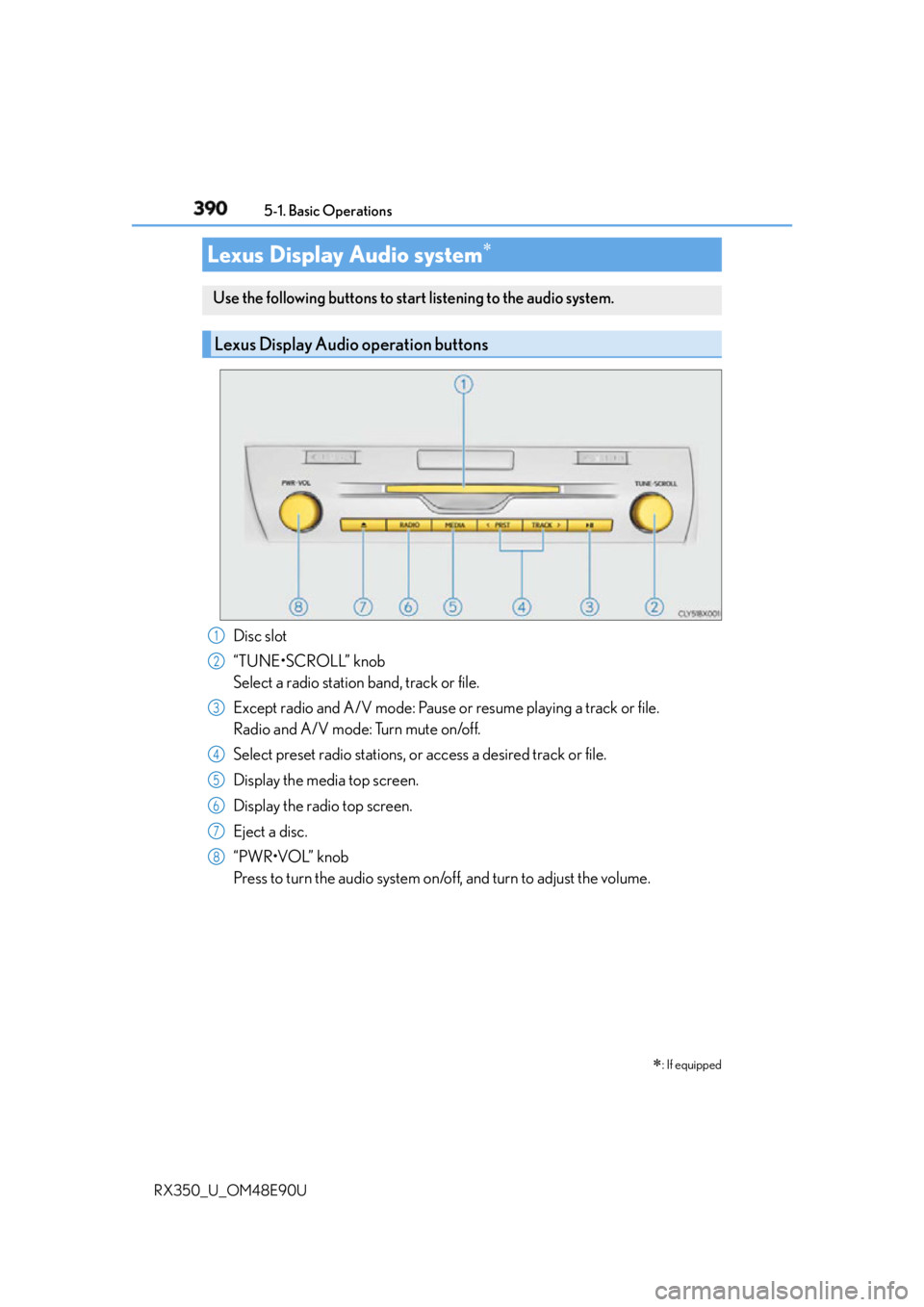
Disc slot
“TUNE•SCROLL” knob
Select a radio station band, track or file.
Except radio and A/V mode: Pause or resume playing a track or file.
Radio and A/V mode: Turn mute on/off.
Select preset radio stations, or access a desired track or file.
Display the media top screen.
Display the radio top screen.
Eject a disc.
“PWR•VOL” knob
Press to turn the audio system on/o ff, and turn to adjust the volume.Lexus Display Audio system
: If equippedUse the following buttons to start listening to the audio system.
Lexus Display Audio operation buttons
1
2
3
4
5
6
7
8
Page 391 of 748
3915-1. Basic Operations
5
Lexus Display Audio system
RX350_U_OM48E90U ■
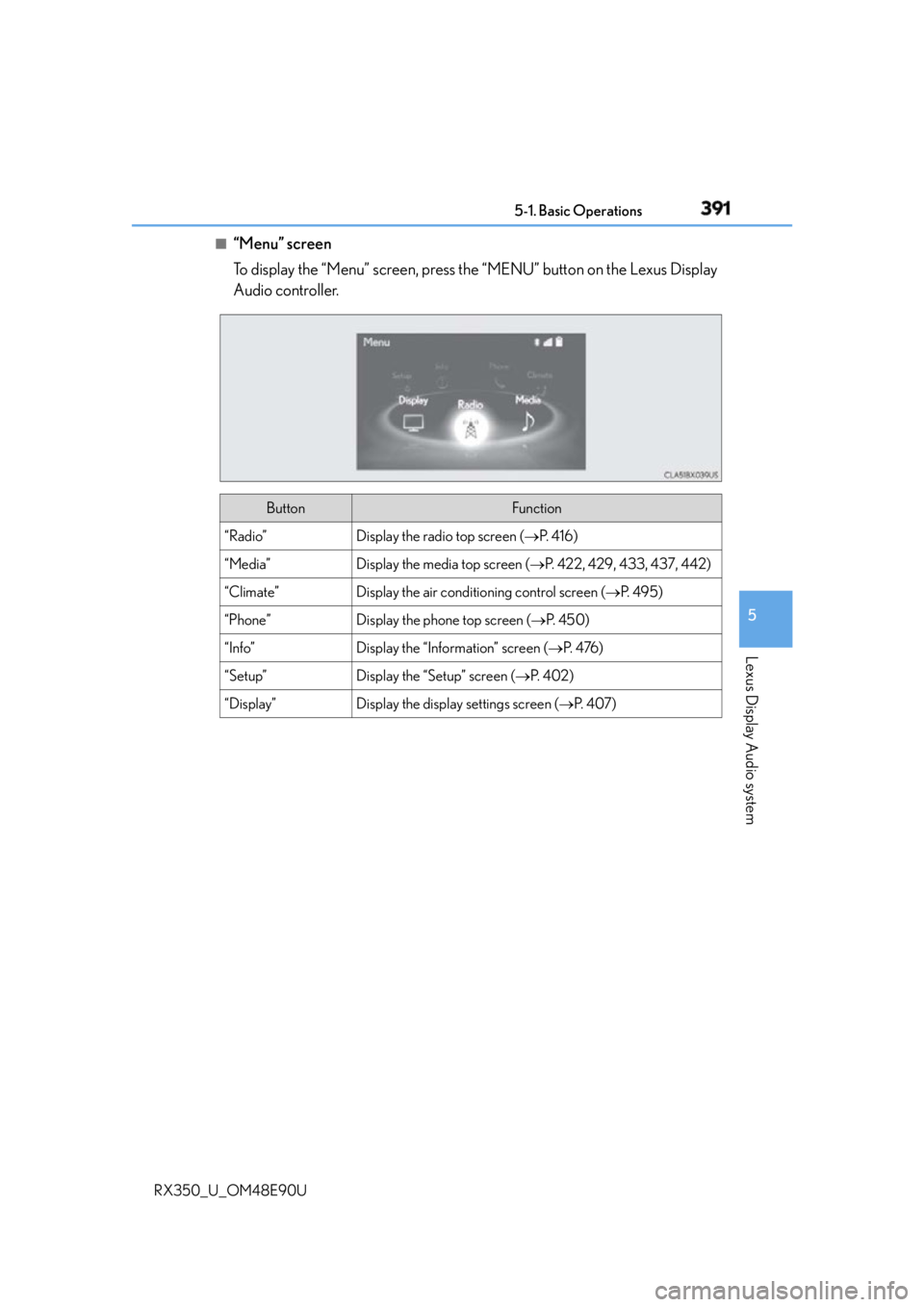
“Menu” screen
To display the “Menu” screen, press th e “MENU” button on the Lexus Display
Audio controller.
Button Function
“Radio” Display the radio top screen ( P. 4 1 6 )
“Media” Display the media top screen ( P. 422, 429, 433, 437, 442)
“Climate” Display the air conditioning control screen ( P. 4 9 5 )
“Phone” Display the phone top screen ( P. 4 5 0 )
“Info” Display the “Information” screen ( P. 4 76 )
“Setup” Display the “Setup” screen ( P. 4 0 2 )
“Display” Display the display settings screen ( P. 4 0 7 )
Page 392 of 748
392 5-1. Basic Operations
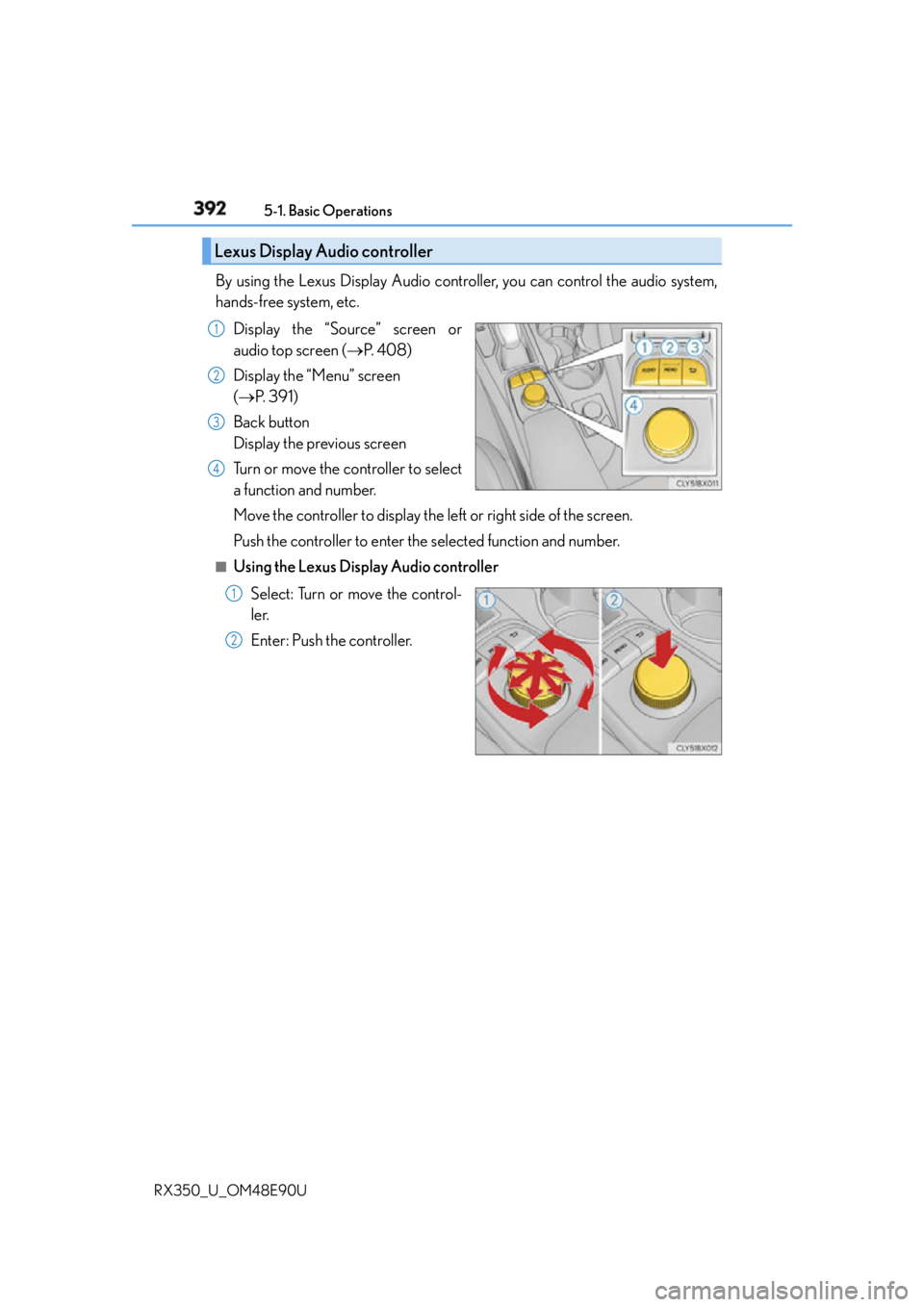
RX350_U_OM48E90U By using the Lexus Display Audio controller, you can control the audio system,
hands-free system, etc.
Display the “Source” screen or
audio top screen ( P. 4 0 8 )
Display the “Menu” screen
( P. 3 9 1 )
Back button
Display the previous screen
Turn or move the controller to select
a function and number.
Move the controller to display the left or right side of the screen.
Push the controller to enter the selected function and number.■
Using the Lexus Display Audio controller
Select: Turn or move the control-
ler.
Enter: Push the controller.Lexus Display Audio controller 1
2
3
4
1
2
Page 393 of 748
3935-1. Basic Operations
5
Lexus Display Audio system
RX350_U_OM48E90U ■
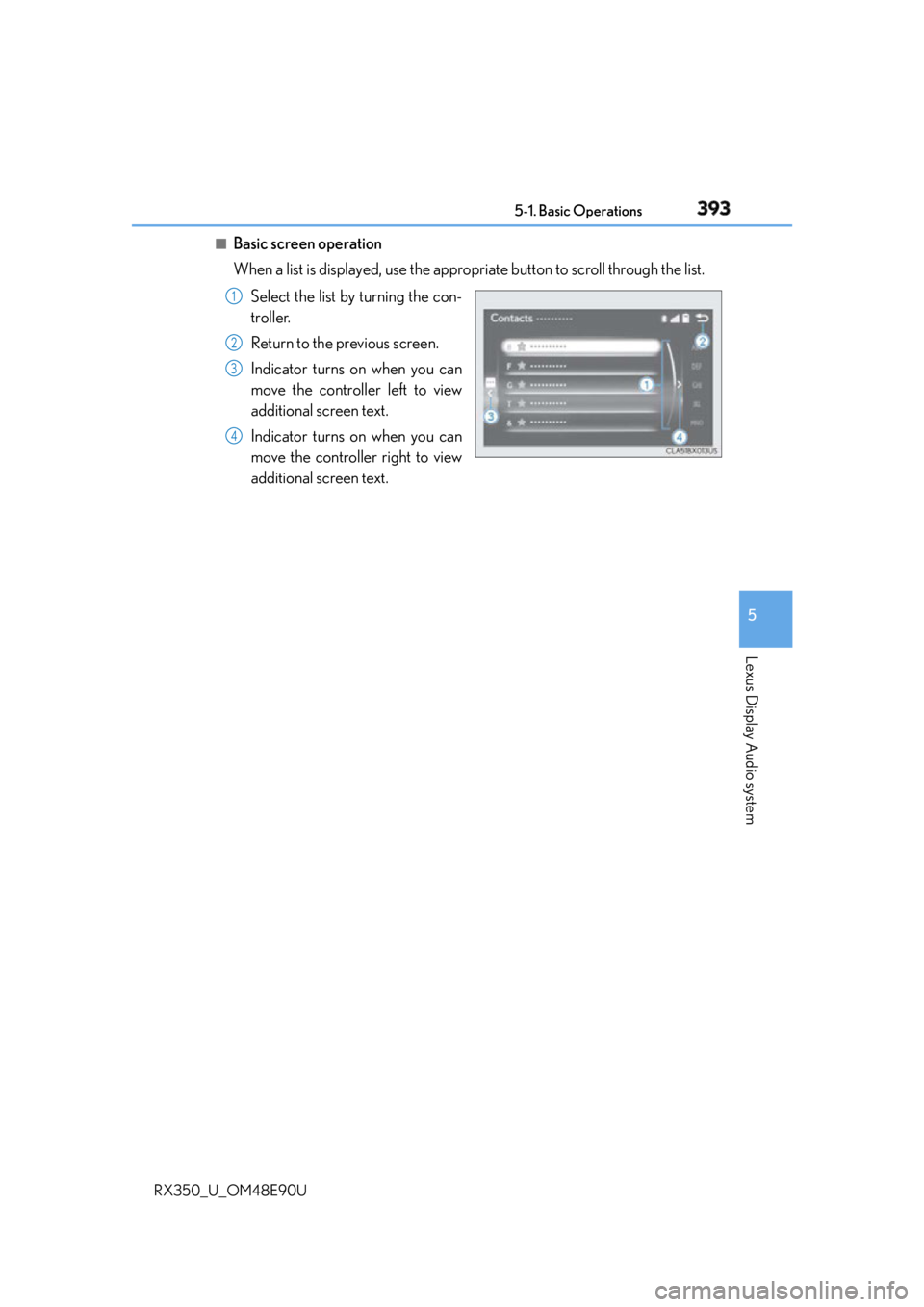
Basic screen operation
When a list is displayed, use the appropriate button to scroll through the list.
Select the list by turning the con-
troller.
Return to the previous screen.
Indicator turns on when you can
move the controller left to view
additional screen text.
Indicator turns on when you can
move the controller right to view
additional screen text. 1
2
3
4