display LEXUS RX350 2016 Owner's Guide
[x] Cancel search | Manufacturer: LEXUS, Model Year: 2016, Model line: RX350, Model: LEXUS RX350 2016Pages: 748, PDF Size: 12.36 MB
Page 106 of 748
106 2. Instrument cluster
RX350_U_OM48E90U WA R N I N G ■
Caution for use while driving ●
When operating the multi-information display while driving, pay extra attention to the
safety of the area around the vehicle. ●
Do not look continuously at the multi-info rmation display while driving as you may fail
to see pedestrians, objects on the road, etc. ahead of the vehicle. ■
The information display at low temperatures
Allow the interior of the vehicle to warm up before using the liquid crystal information
display. At extremely low temperatures, th e information display monitor may respond
slowly, and display changes may be delayed.
For example, there is a lag between the driver’s shifting and the new gear number
appearing on the display. This lag could cau se the driver to downshift again, causing
rapid and excessive engine braking and po ssibly an accident resulting in death or
injury. ■
Cautions during setting up the display
As the engine needs to be running during sett ing up the display, ensure that the vehicle
is parked in a place with adequate ventila tion. In a closed area such as a garage,
exhaust gases including harmful carbon mo noxide (CO) may collect and enter the
vehicle. This may lead to death or a serious health hazard.
NOTICE ■
While setting up the display
To prevent battery discharge, ensure that th e engine is running while setting up the dis-
play features.
Page 107 of 748
1072. Instrument cluster
2
Instrument cluster
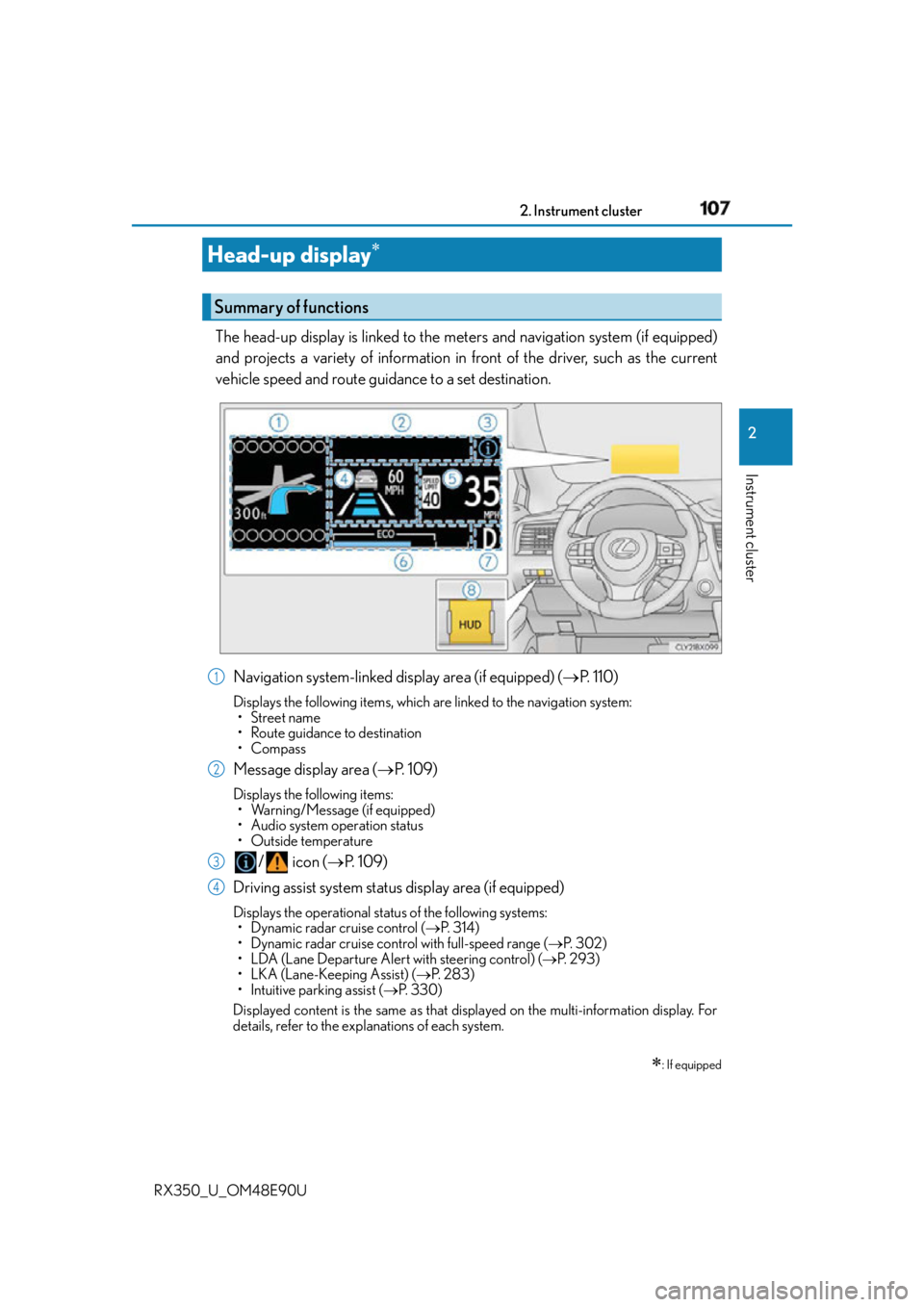
RX350_U_OM48E90U The head-up display is linked to the meters and navigation system (if equipped)
and projects a variety of information in front of the driver, such as the current
vehicle speed and route guidance to a set destination.
Navigation system-linked display area (if equipped) ( P. 1 1 0 )Displays the following items, which ar e linked to the navigation system:
• Street name
• Route guidance to destination
•Compass
Message display area ( P. 1 0 9 )Displays the following items:
• Warning/Message (if equipped)
• Audio system operation status
•Outside temperature
/ icon ( P. 1 0 9 )
Driving assist system status display area (if equipped) Displays the operational status of the following systems:
• Dynamic radar cruise control ( P. 3 1 4 )
• Dynamic radar cruise control with full-speed range ( P. 3 0 2 )
• LDA (Lane Departure Alert with steering control) ( P. 2 9 3 )
• LKA (Lane-Keeping Assist) ( P. 2 8 3 )
• Intuitive parking assist ( P. 3 3 0 )
Displayed content is the same as that disp layed on the multi-information display. For
details, refer to the explanations of each system.Head-up display
: If equippedSummary of functions
1
2
3
4
Page 108 of 748
108 2. Instrument cluster
RX350_U_OM48E90U Vehicle speed display area Displays the following items:
• Vehicle speed
• Speed limit (vehicles wi th a navigation system)
Eco Driving Indicator/Tachometer ( P. 1 1 0 )
Shift position display ( P. 225, 229)
HUD (Head-up display) switch ( P. 1 0 8 )
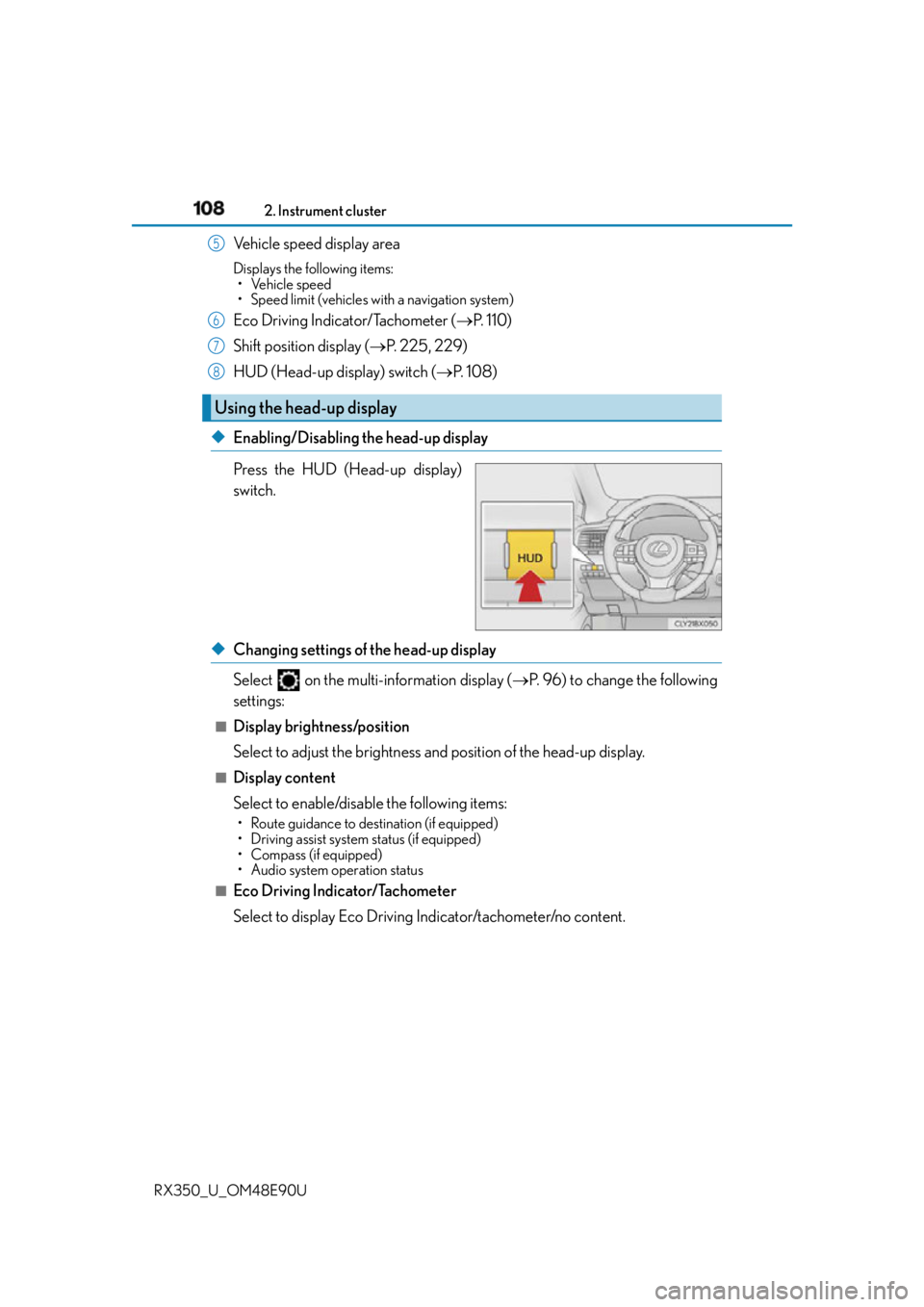
◆ Enabling/Disabling the head-up display
Press the HUD (Head-up display)
switch.
◆ Changing settings of the head-up display
Select on the multi-information display ( P. 96) to change the following
settings: ■
Display brightness/position
Select to adjust the brightness an d position of the head-up display.■
Display content
Select to enable/disable the following items: • Route guidance to de stination (if equipped)
• Driving assist system status (if equipped)
• Compass (if equipped)
• Audio system operation status
■
Eco Driving Indicator/Tachometer
Select to display Eco Driving Indicator/tachometer/no content. Using the head-up display 5
6
7
8
Page 109 of 748
1092. Instrument cluster
2
Instrument cluster
RX350_U_OM48E90U Displays the following multi-in formation display linked icons:
: Master warning icon
Displayed when a warning message is displayed on the multi-information
display. ( P. 6 4 1 )
: Information icon
Displayed when a suggestion/advice po p-up display is displayed on the
multi-information display. ( P. 1 0 4 )
Displays the following items in the appropriate situation: ■
Warning/Message (if equipped)
Displays the following system warning/messages: • Pre-collision warning (Pre-collision system)
• Notification message (Dynamic radar cruise control/Dynamic radar cruise con-
trol with full-speed range)■
Audio system operation status
Displayed when the audio system is operated. ■
Outside temperature
Displayed in the following situations: • When the engine switch is turned to IGNITION ON mode
• When the low outside temperature indicator is flashing
Displayed content is the same as that disp layed on the multi-information display. For
details, refer to the explanation of the outs ide temperature display on the multi-infor-
mation display. ( P. 8 5 )/ icons
Message display area
Page 110 of 748
110 2. Instrument cluster
RX350_U_OM48E90U Displays the following items which are linked to the navigation system: ■
Street name
The name of the street that the vehicle is currently driving on is displayed on
the bottom of the display area.
When the navigation system is performing route guidance, the name of the
next street will be displayed on the top of the display area. ■
Route guidance to destination
Displayed when the navigation system is performing route guidance. When
approaching an intersection, an arrow will be displayed to indicate the sug-
gested direction of travel. ■
Compass
Displays the direction of travel. ■
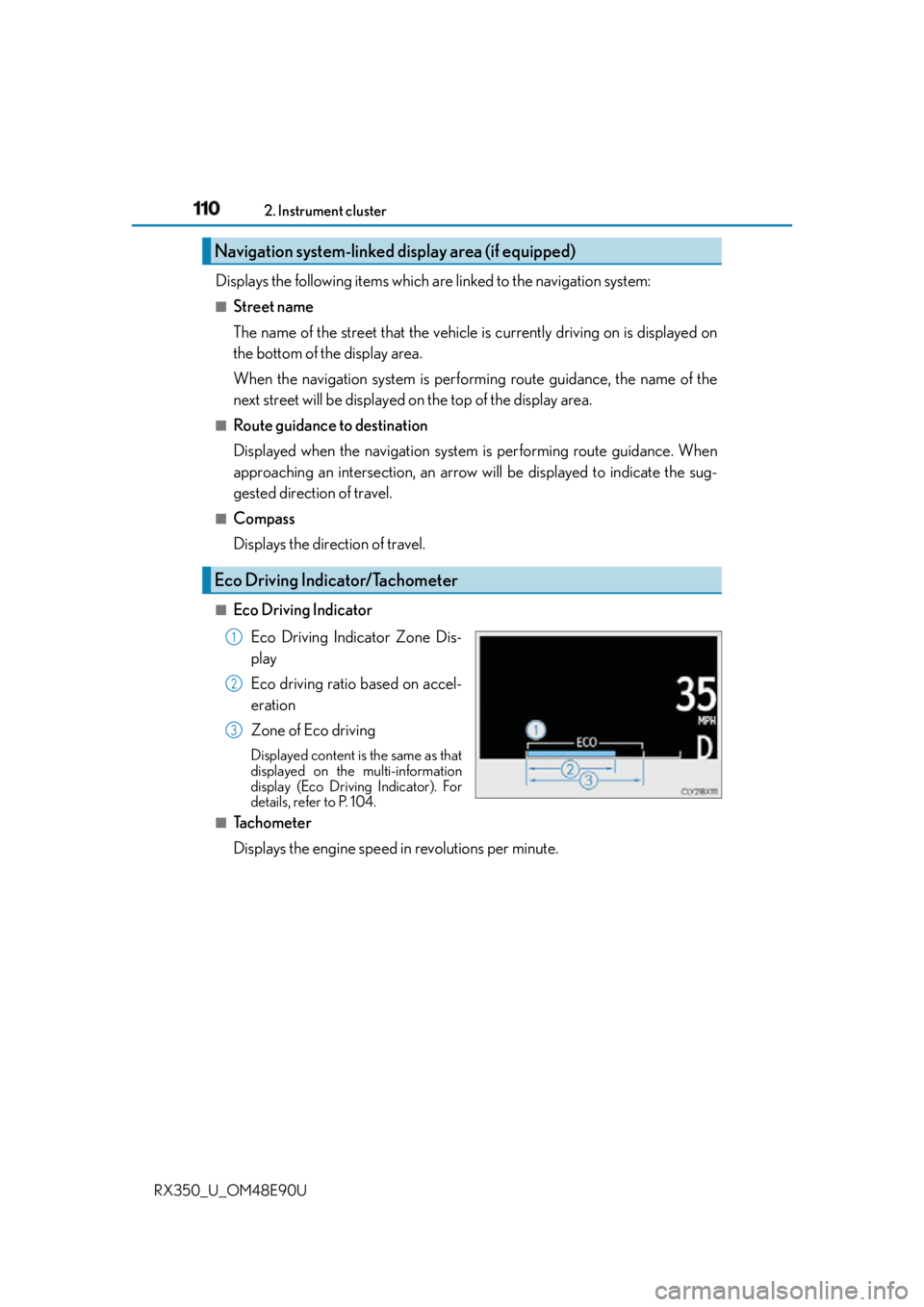
Eco Driving Indicator
Eco Driving Indicator Zone Dis-
play
Eco driving ratio based on accel-
eration
Zone of Eco driving Displayed content is the same as that
displayed on the multi-information
display (Eco Driving Indicator). For
details, refer to P. 104.■
Tachometer
Displays the engine speed in revolutions per minute.Navigation system-linked display area (if equipped)
Eco Driving Indicator/Tachometer 1
2
3
Page 111 of 748
1112. Instrument cluster
2
Instrument cluster
RX350_U_OM48E90U ■
Head-up display
The head-up display may seem dark or hard to see when viewed through sunglasses,
especially polarized sunglasses.
Adjust the brightness of the head-up display or remove your sunglasses.■
When the battery is disconnected
The customize settings of the head-up display will be reset.■
Display brightness
The brightness of the head-up display can be adjusted on of the multi-information
display. Also, it is automa tically adjusted according to the ambient brightness.■
Enabling/disabling of the head-up display
If the head-up display is disabled, it will rema in disabled when the engine switch is turned
off then back to IGNITION ON mode. ■
Street name display (vehicles with a navigation system)
Only street names which are included in the map data will be displayed.
WA R N I N G ■
Before using the head-up display ●
Check that the position and brightness of the head-up display image does not inter-
fere with safe driving. Incorrect adjustment of the image’s position or brightness may
obstruct the driver’s view and lead to an accident, resulting in death or serious injury. ●
Do not continuously look at the head-up di splay while driving as you may fail to see
pedestrians, objects on the road, etc. ahead of the vehicle. ■
Caution for changing settings of the head-up display
As the engine needs to be running while changing the settings of the head-up display,
ensure that the vehicle is parked in a place with adequate ventilation. In a closed area
such as a garage, exhaust gases includin g harmful carbon monoxide (CO) may collect
and enter the vehicle. This may lead to death or a serious health hazard.
Page 112 of 748
112 2. Instrument cluster
RX350_U_OM48E90U NOTICE ■
To prevent damage to components
■
When changing the settings of the head-up display
To prevent battery discharge, ensure that th e engine is running while the changing the
settings of the head-up display. ●
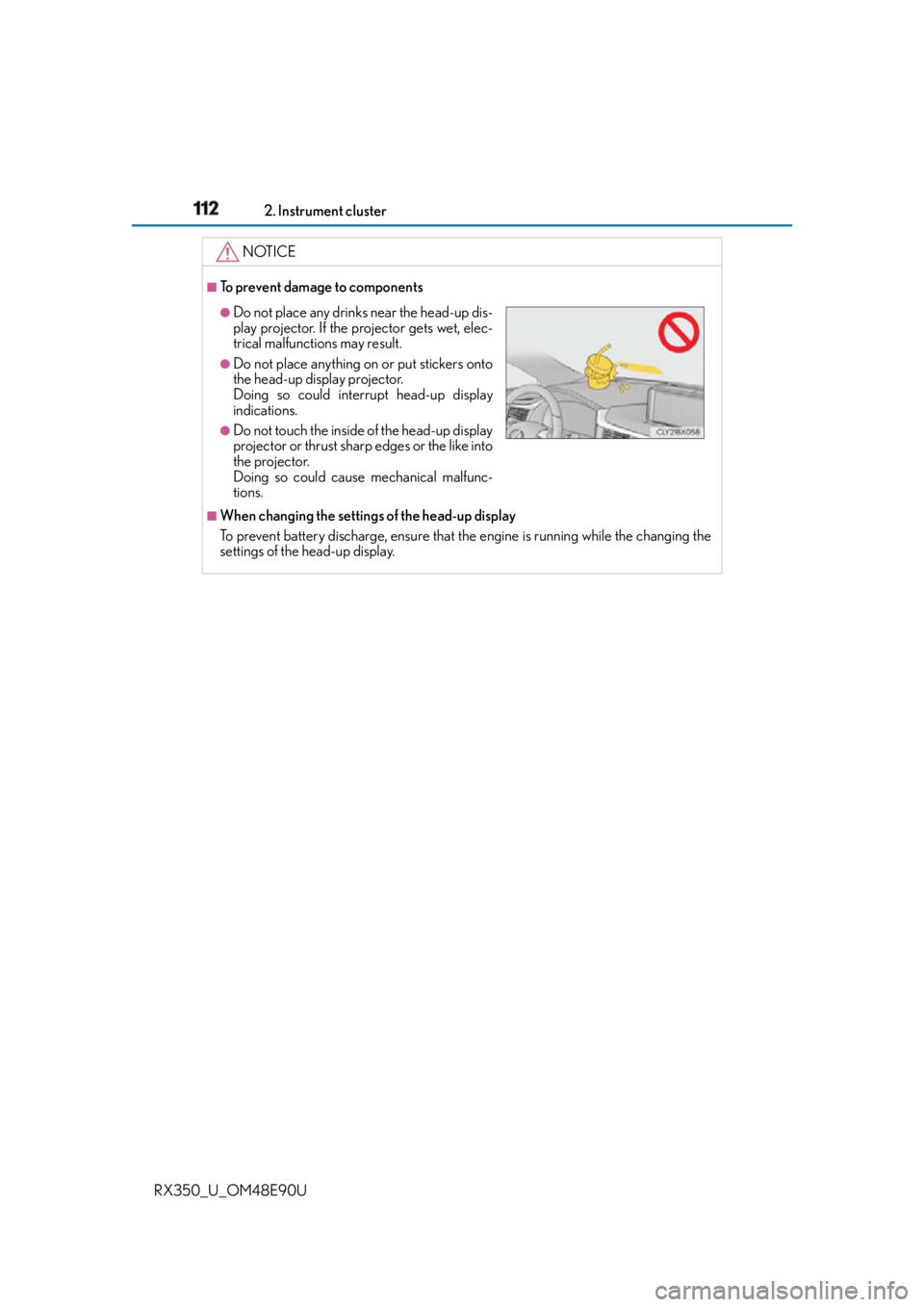
Do not place any drinks near the head-up dis-
play projector. If the projector gets wet, elec-
trical malfunctions may result. ●
Do not place anything on or put stickers onto
the head-up display projector.
Doing so could interrupt head-up display
indications. ●
Do not touch the inside of the head-up display
projector or thrust sharp edges or the like into
the projector.
Doing so could cause mechanical malfunc-
tions.
Page 113 of 748
1132. Instrument cluster
2
Instrument cluster
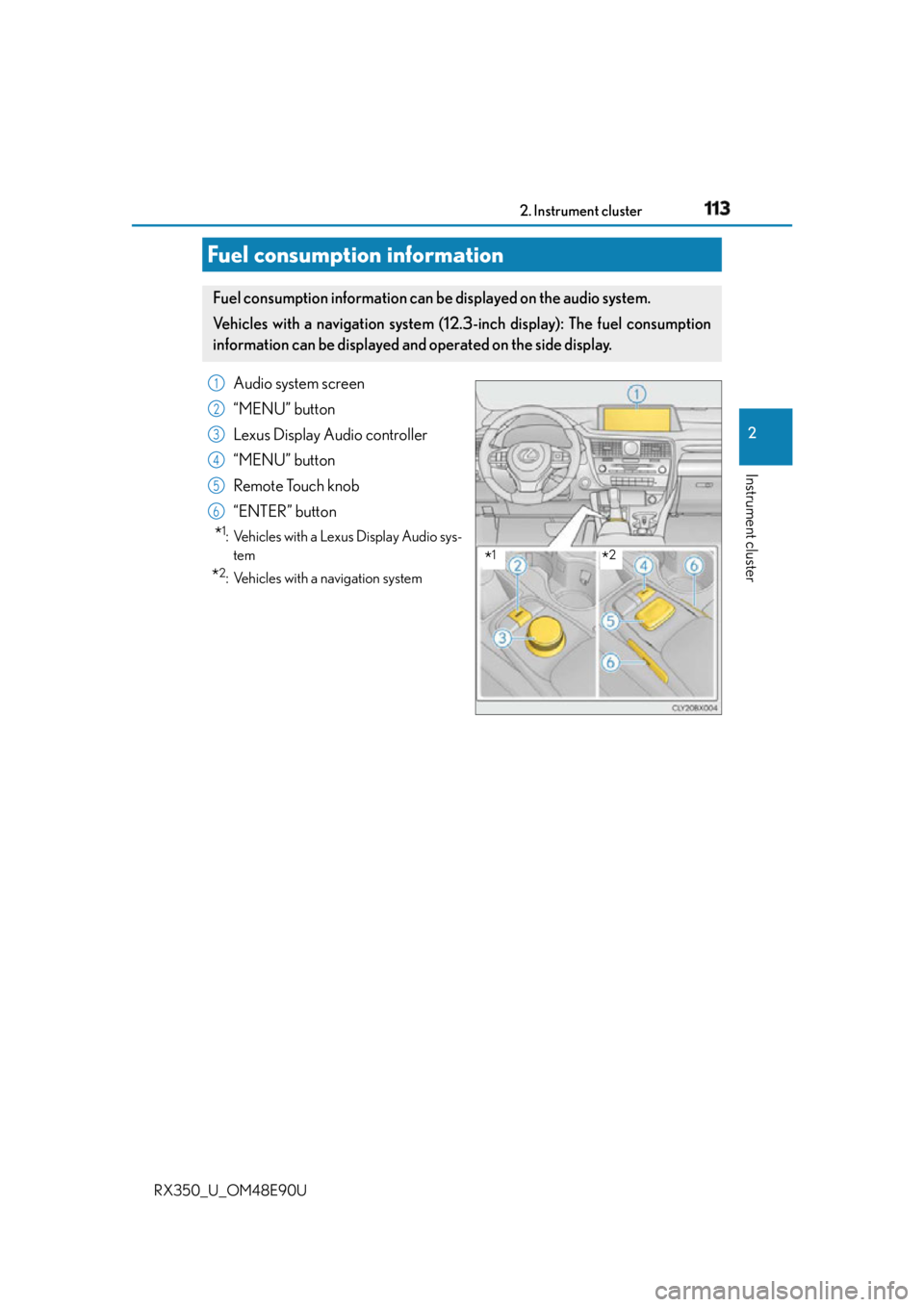
RX350_U_OM48E90U Audio system screen
“MENU” button
Lexus Display Audio controller
“MENU” button
Remote Touch knob
“ENTER” button
* 1
: Vehicles with a Lexus Display Audio sys-
tem
* 2
: Vehicles with a navigation system
Fuel consumption information Fuel consumption information can be displayed on the audio system.
Vehicles with a navigation system (12. 3-inch display): Th e fuel consumption
information can be displayed and operated on the side display.
* 1
* 21
2
3
4
5
6
Page 114 of 748
114 2. Instrument cluster
RX350_U_OM48E90U
Lexus Display Audio screen
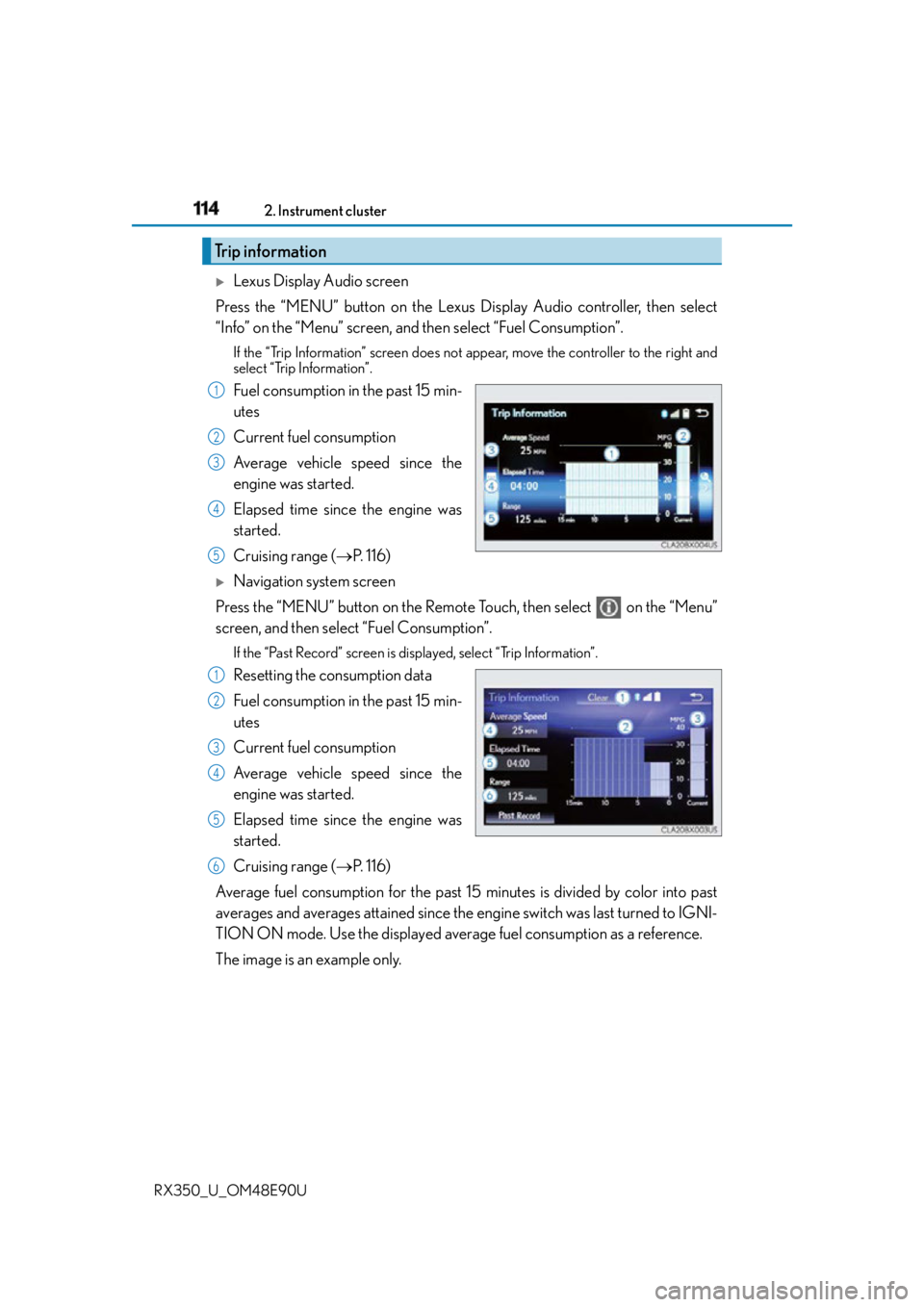
Press the “MENU” button on the Lexus Display Audio controller, then select
“Info” on the “Menu” screen, and then select “Fuel Consumption”.If the “Trip Information” screen does not appear, move the controller to the right and
select “Trip Information”.
Fuel consumption in the past 15 min-
utes
Current fuel consumption
Average vehicle speed since the
engine was started.
Elapsed time since the engine was
started.
Cruising range ( P. 1 1 6 )
Navigation system screen
Press the “MENU” button on the Remote Touch, then select on the “Menu”
screen, and then select “Fuel Consumption”. If the “Past Record” screen is disp layed, select “Trip Information”.
Resetting the consumption data
Fuel consumption in the past 15 min-
utes
Current fuel consumption
Average vehicle speed since the
engine was started.
Elapsed time since the engine was
started.
Cruising range ( P. 1 1 6 )
Average fuel consumption for the past 15 minutes is divided by color into past
averages and averages attained since the engine switch was last turned to IGNI-
TION ON mode. Use the displayed average fuel consumption as a reference.
The image is an example only.Trip information 1
2
3
4
5
1
2
3
4
5
6
Page 115 of 748
1152. Instrument cluster
2
Instrument cluster
RX350_U_OM48E90U
Lexus Display Audio screen
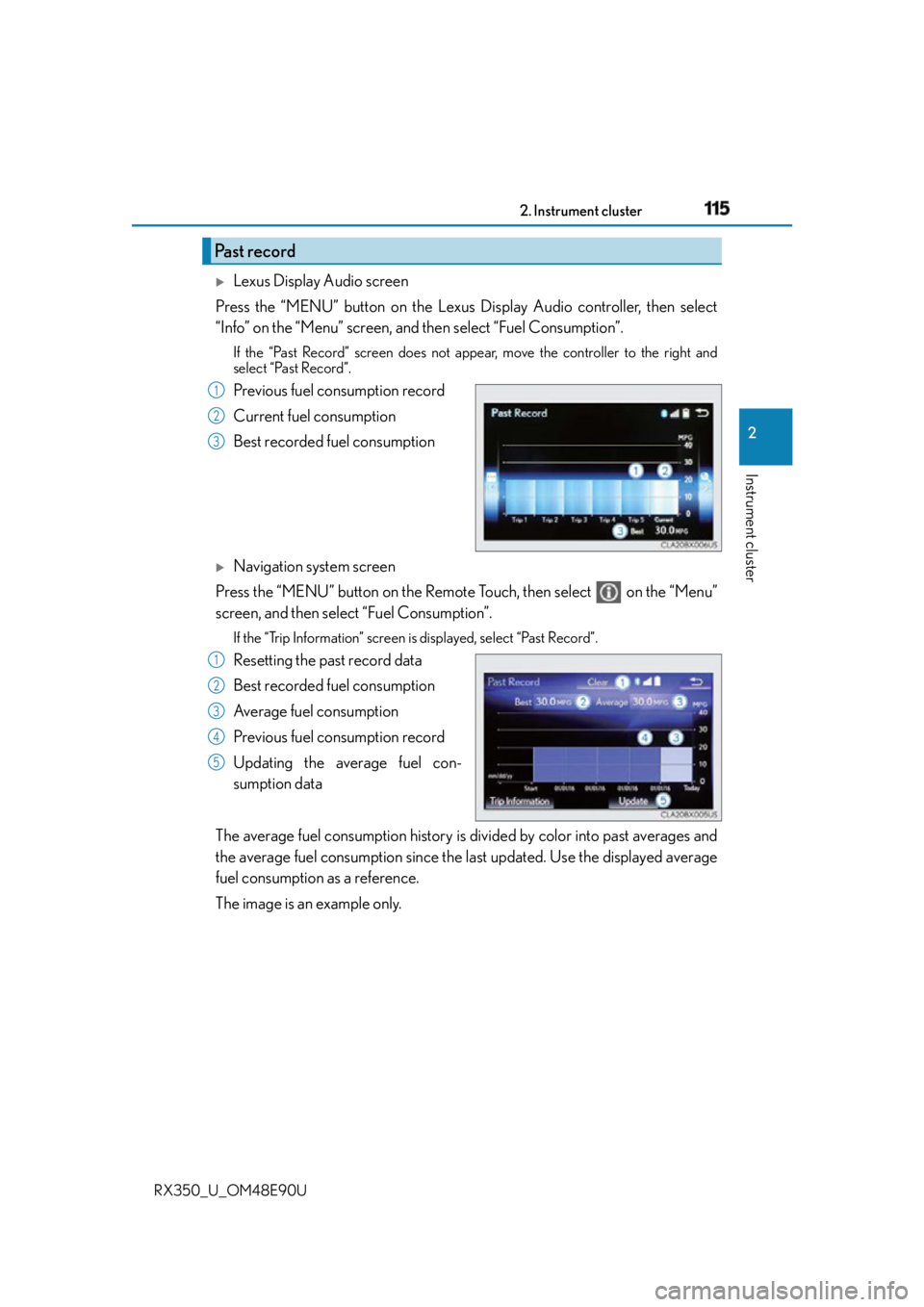
Press the “MENU” button on the Lexus Display Audio controller, then select
“Info” on the “Menu” screen, and then select “Fuel Consumption”.If the “Past Record” screen does not appe ar, move the controller to the right and
select “Past Record”.
Previous fuel consumption record
Current fuel consumption
Best recorded fuel consumption
Navigation system screen
Press the “MENU” button on the Remote Touch, then select on the “Menu”
screen, and then select “Fuel Consumption”. If the “Trip Information” screen is displayed, select “Past Record”.
Resetting the past record data
Best recorded fuel consumption
Average fuel consumption
Previous fuel consumption record
Updating the average fuel con-
sumption data
The average fuel consumption history is di vided by color into past averages and
the average fuel consumption since the la st updated. Use the displayed average
fuel consumption as a reference.
The image is an example only.Past record 1
2
3
1
2
3
4
5