phone LEXUS RX450h 2015 Owners Manual
[x] Cancel search | Manufacturer: LEXUS, Model Year: 2015, Model line: RX450h, Model: LEXUS RX450h 2015Pages: 878, PDF Size: 11.62 MB
Page 574 of 878
5743-4. Using the audio system
Initializing the system
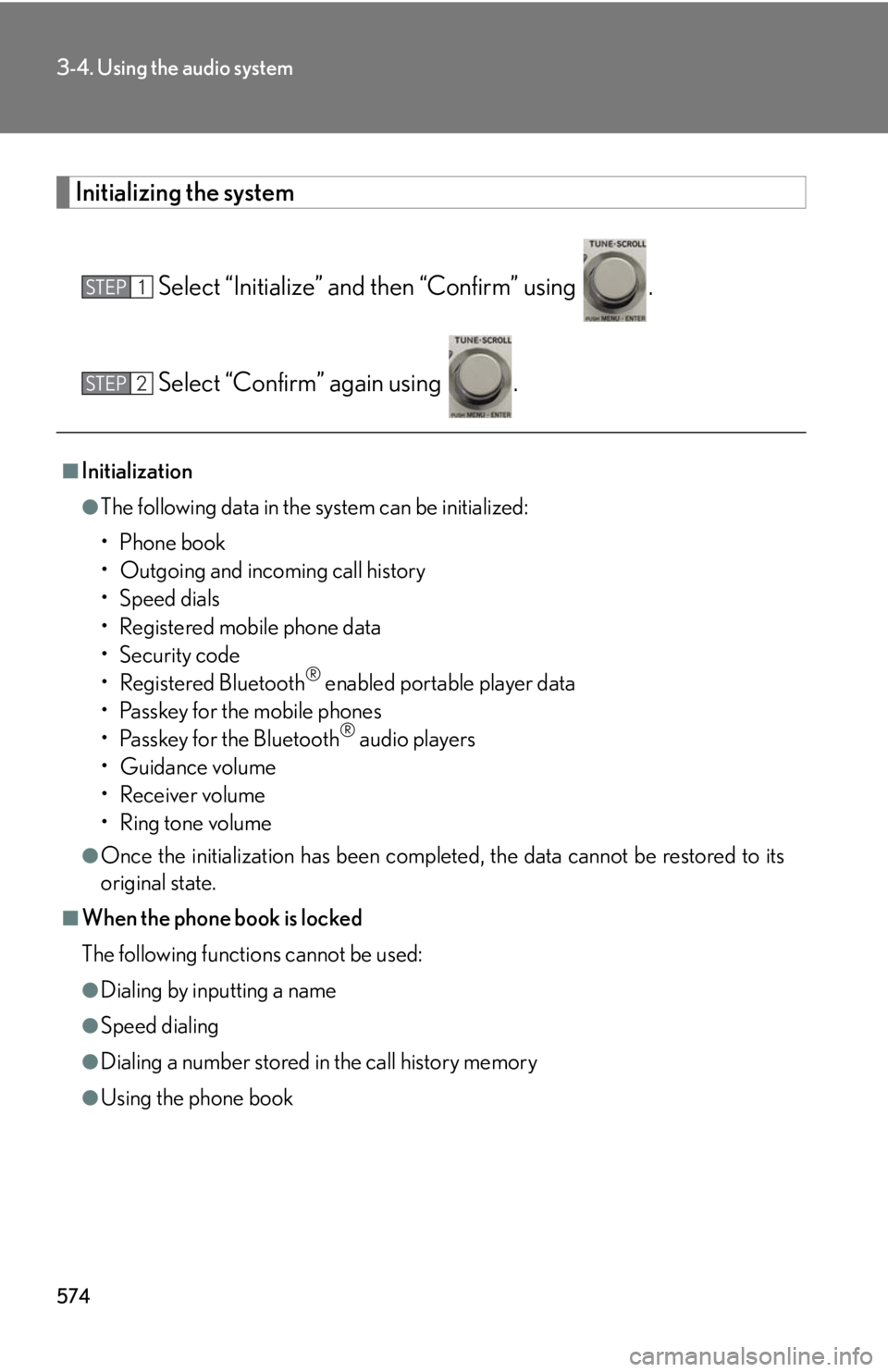
Select “Initialize” and then “Confirm” using .
Select “Confirm” again using .■
Initialization ●
The following data in the system can be initialized:
•Phone book
• Outgoing and incoming call history
•Speed dials
• Registered mobile phone data
•Security code
• Registered Bluetooth ®
enabled portable player data
• Passkey for the mobile phones
• Passkey for the Bluetooth ®
audio players
•Guidance volume
• Receiver volume
• Ring tone volume●
Once the initialization has been complete d, the data cannot be restored to its
original state.■
When the phone book is locked
The following functions cannot be used: ●
Dialing by inputting a name●
Speed dialing
●
Dialing a number stored in the call history memory
●
Using the phone bookSTEP 1
STEP 2
Page 575 of 878
5753-4. Using the audio system
3
Interior features Using the phone book
Adding a new phone number
The following methods can be used to add a new phone number:
● Inputting a phone number using a voice command
● Transferring data from the mobile phone
● Inputting a phone number using
● Selecting a phone number from the outgoing or incoming call historyTo enter the menu for each function , follow the steps below using a
voice command or :
● Adding a new phone number
1. “Phonebook” 2. “Add Entry”
● Changing the registered name in the phone book
1. “Phonebook” 2. “Change Name”
● Listing the registered data
1. “Phonebook” 2. “List Names”
● Setting speed dials
1. “Phonebook” 2. “Set Speed Dial (Speed Dial)”
● Deleting the registered data
1. “Phonebook” 2. “Delete Entry”
● Deleting speed dials
1. “Phonebook” 2. “Delete Speed Dial (Del Spd Dial)”
Page 576 of 878
5763-4. Using the audio system
■ Adding procedure
Select “Add Entry” using a voice command or .
Use one of the following methods to input a telephone number:
Inputting a telephone number using a voice command:
STEP2-1 Select “By Voice” using a voice command or .
STEP2-2 Press the talk switch , say the desired number, and
select “Confirm” using a voice command.
Transferring data from the mobile phone:
STEP2-1 Select “By Phone” and then “Confirm” using a voice
command or .
STEP2-2 Transfer the data from the mobile phone. Refer to the manual that comes with the mobile phone for
details on transferring data.
STEP2-3 Select the data to be reg istered by either of the follow-
ing methods:
a. Say “Previous” or “Next” until the desired data is dis-
played, and select “Co nfirm” using a voice com-
mand.
b. Select the desired data using .STEP 1
STEP 2
Page 577 of 878
5773-4. Using the audio system
3
Interior features Inputting a phone number using :
STEP2-1 Select “Manual Input” using .
STEP2-2 Input a phone number using , and press
again.
Input the phone number 1 digit at a time.
Selecting a phone number from the outgoing or incoming call history:
STEP2-1 Select “Call History” using a voice command or .
STEP2-2 Select “Outgoing” or “Incoming” using a voice com-
mand or .
STEP2-3 Select the data to be re gistered by either of the follow-
ing methods:
a. Say “Previous” or “Go back ” until the desired data is
displayed, and select “Confirm” using a voice com-
mand.
b. Select the desired data using .
Page 578 of 878
5783-4. Using the audio system
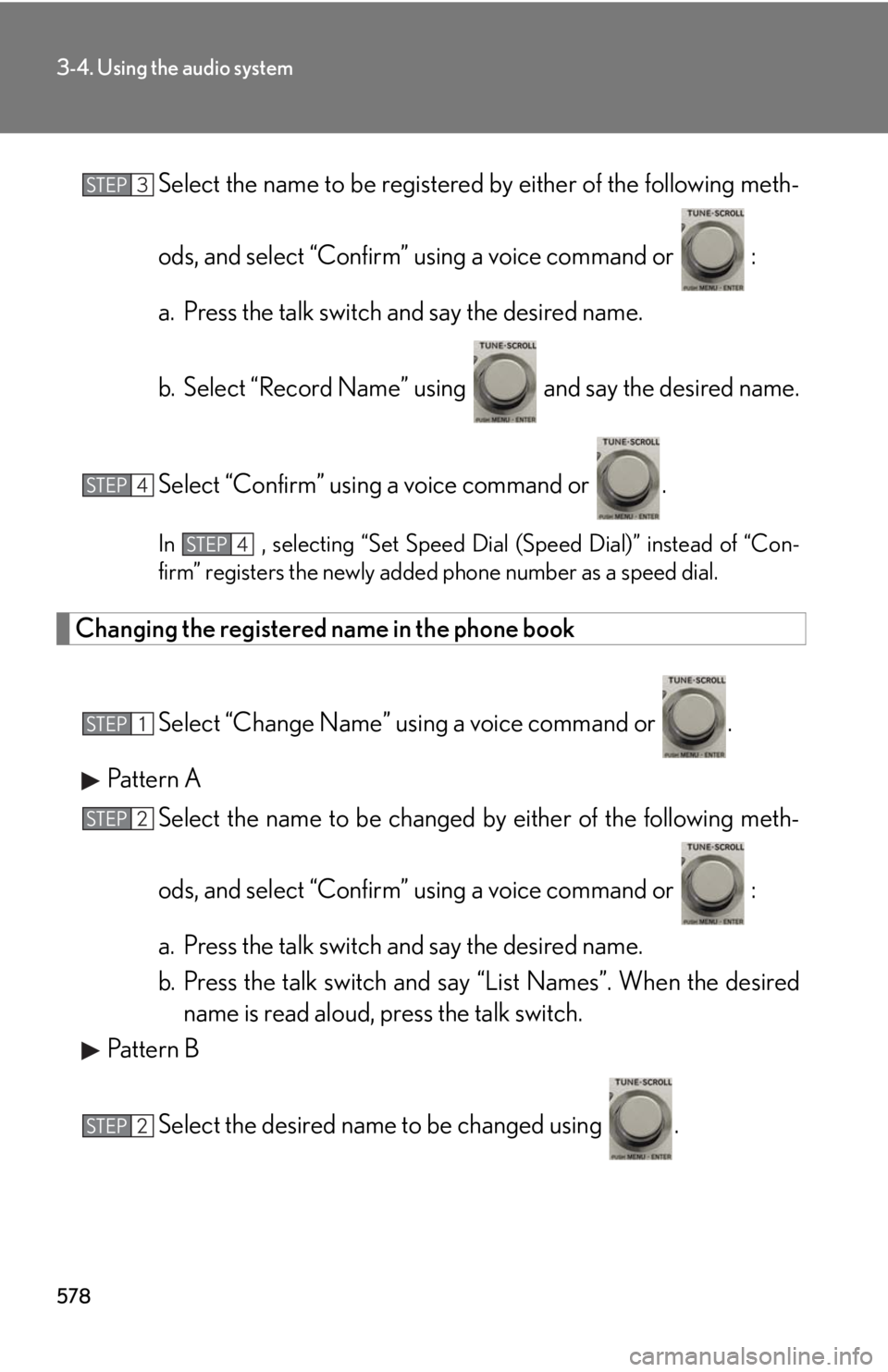
Select the name to be registered by either of the following meth-
ods, and select “Confirm” using a voice command or :
a. Press the talk switch and say the desired name.
b. Select “Record Name” using and say the desired name.
Select “Confirm” using a voice command or . In , selecting “Set Speed Dial (Speed Dial)” instead of “Con-
firm” registers the newly added phone number as a speed dial.
Changing the registered name in the phone book
Select “Change Name” using a voice command or .
Pattern A
Select the name to be changed by either of the following meth-
ods, and select “Confirm” using a voice command or :
a. Press the talk switch and say the desired name.
b. Press the talk switch and say “List Names”. When the desired
name is read aloud, press the talk switch.
Pattern B
Select the desired name to be changed using .STEP 3
STEP 4
STEP 4
STEP 1
STEP 2
STEP 2
Page 579 of 878
5793-4. Using the audio system
3
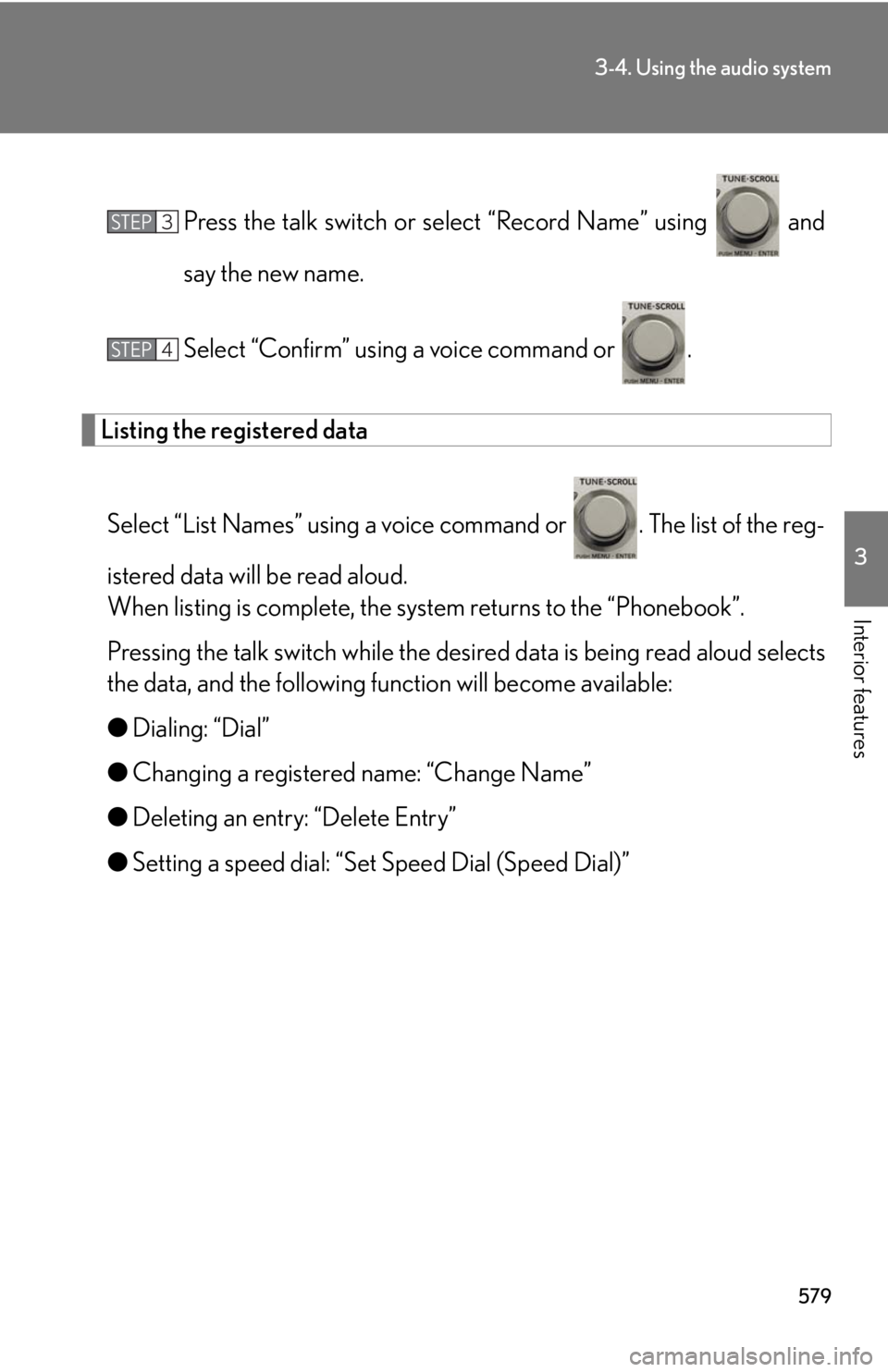
Interior features Press the talk switch or sele ct “Record Name” using and
say the new name.
Select “Confirm” using a voice command or .
Listing the registered data
Select “List Names” using a voice command or . The list of the reg-
istered data will be read aloud.
When listing is complete, the sy stem returns to the “Phonebook”.
Pressing the talk switch while the desired data is being read aloud selects
the data, and the following fu nction will become available:
● Dialing: “Dial”
● Changing a registered name: “Change Name”
● Deleting an entry: “Delete Entry”
● Setting a speed dial: “Set Speed Dial (Speed Dial)” STEP 3
STEP 4
Page 581 of 878
5813-4. Using the audio system
3
Interior features Deleting the registered data
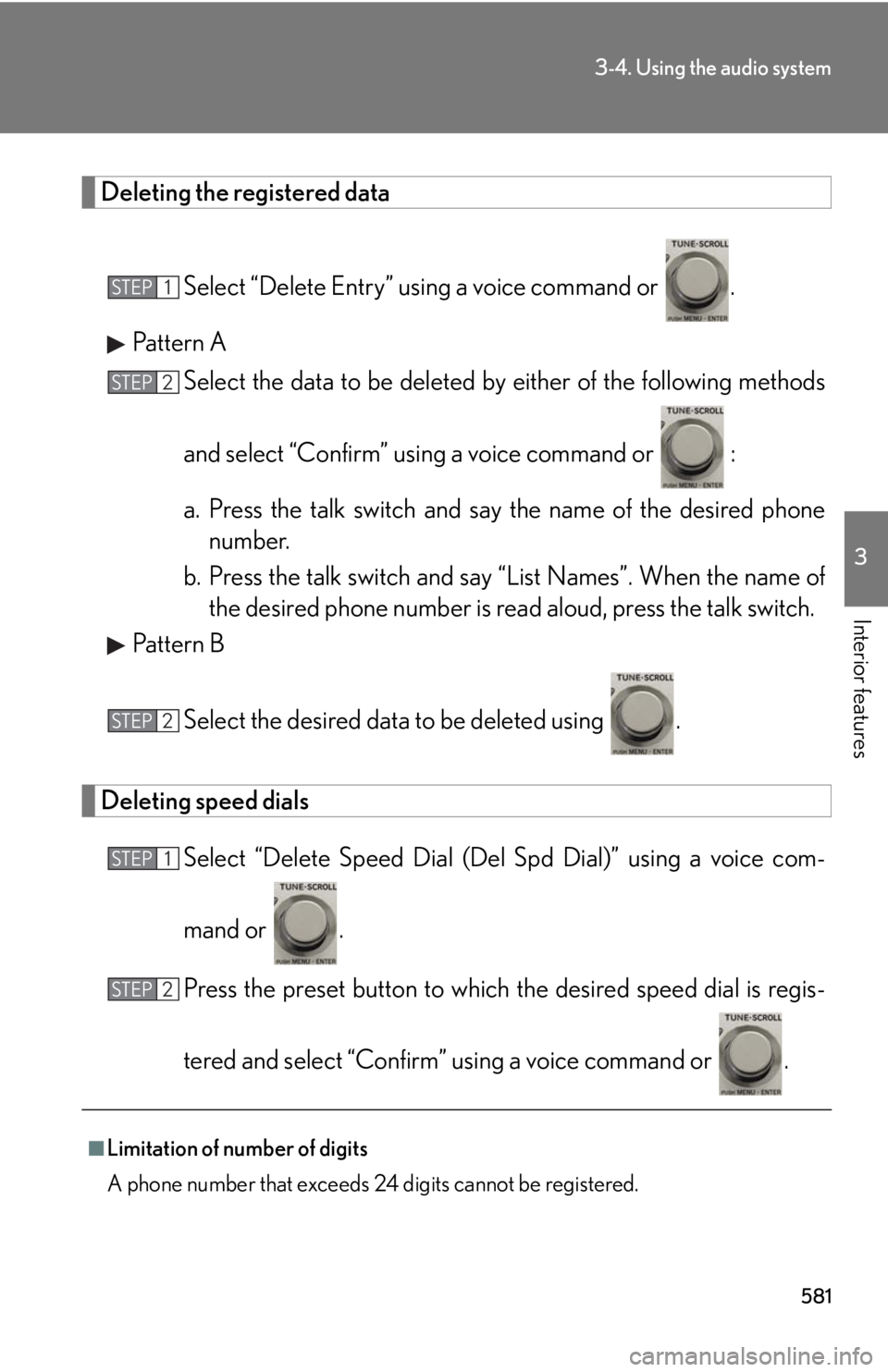
Select “Delete Entry” using a voice command or .
Pattern A
Select the data to be deleted by either of the following methods
and select “Confirm” using a voice command or :
a. Press the talk switch and say the name of the desired phone
number.
b. Press the talk switch and sa y “List Names”. When the name of
the desired phone number is read aloud, press the talk switch.
Pattern B
Select the desired data to be deleted using .
Deleting speed dials
Select “Delete Speed Dial (Del Spd Dial)” using a voice com-
mand or .
Press the preset button to which th e desired speed dial is regis-
tered and select “Confirm” using a voice command or .
■
Limitation of number of digits
A phone number that exceeds 24 digits cannot be registered. STEP 1
STEP 2
STEP 2
STEP 1
STEP 2
Page 626 of 878
6263-7. Other interior features
Safety Connect
: If equippedSafety Connect is a subscription-based telematics service that uses Global
Positioning System (GPS) data and emb edded cellular technology to pro-
vide safety and security features to subscribers. Safety Connect is sup-
ported by Lexus’ designated response center, which operates 24 hours per
day, 7 days per week.
Safety Connect service is available by subscription on select, telematics
hardware-equipped vehicles.
By using the Safety Connect service, you are agreeing to be bound by the
Telematics Subscription Service Agreement and its Terms and Conditions,
as in effect and amended from time to time, a current copy of which is avail-
able at Lexus.com. All use of the Safety Connect service is subject to such
then-applicable Terms and Conditions.
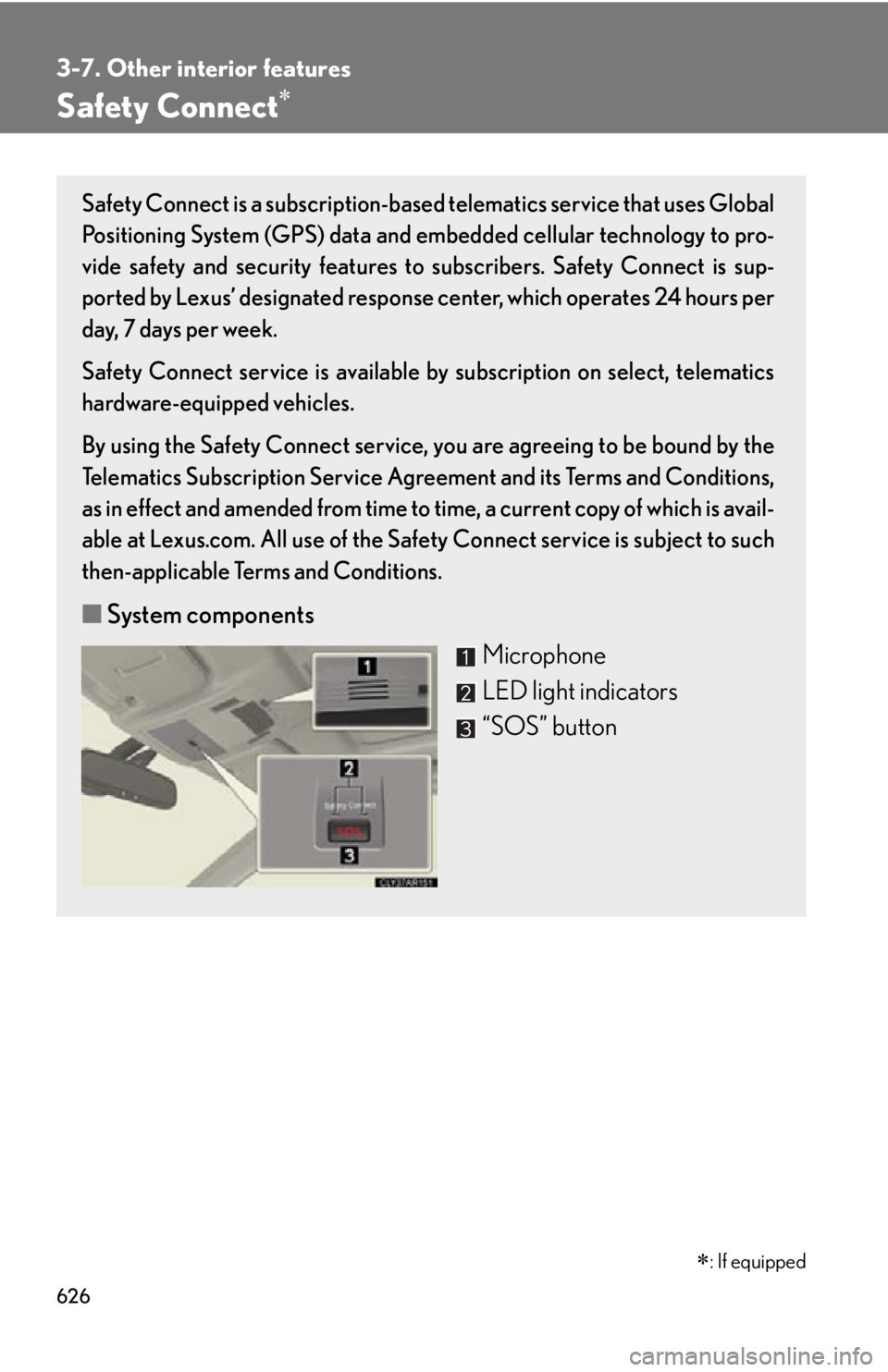
■ System components
Microphone
LED light indicators
“SOS” button
Page 628 of 878

6283-7. Other interior features
■
Safety Connect Services Information ●
Phone calls using the vehicles Bluetooth ®
technology will not be possible dur-
ing Safety Connect.●
Safety Connect is available beginning Fall 2009 on select Lexus models. Con-
tact with the Safety Connect response center is dependent upon the telematics
device being in operative condition, ce llular connection availability, and GPS
satellite signal reception, which can limit the ability to reach the response center
or receive emergency service support. Enrollment and Telema tics Subscription
Service Agreement required. A variety of subscription terms is available;
charges vary by subscription term selected.●
Automatic Collision Notification, Emergency Assistance and Stolen Vehicle
Location will function in the United States, including Hawaii and Alaska, and in
Canada, and Enhanced Roadside Assistance will function in the United States
(except Hawaii) and in Canada. No Safety Connect services will function out-
side of the United States in countries other than Canada.●
Safety Connect services ar e not subject to section 255 of the Telecommunica-
tions Act and the device is not TTY compatible.■
Languages
The Safety Connect response center will offer support in multiple languages. The
Safety Connect system will offer voice prompts in English and Spanish. Please indi-
cate your language of choice when enrolling.■
When contacting th e response center
You may be unable to contact the response center if the network is busy.
Page 631 of 878
6313-7. Other interior features
3
Interior features Safety information for Safety Connect
Important! Read this information before using Safety Connect.
■ Exposure to radio frequency signals
The Safety Connect sy stem installed in your vehicle is a low-power
radio transmitter and receiver. It receives and also sends out radio fre-
quency (RF) signals.
In August 1996, the Federal Communications Commission (FCC)
adopted RF exposure guidelines with safety levels fo r mobile wireless
phones. Those guidelines are consistent with th e safety standards pre-
viously set by the following U.S. and international standards bodies.
● ANSI (American National Standards Institute) C95.1 [1992]
● NCRP (National Council on Radiation Protection and Measure-
ment) Report 86 [1986]
● ICNIRP (International Commission on Non-Ionizing Radiation Pro-
tection) [1996]
Those standards were based on co mprehensive and periodic evalua-
tions of the relevant scientific literature. Over 120 scientists, engineers,
and physicians from universities, an d government health agencies and
industries reviewed the available body of research to develop the
ANSI Standard (C95.1).
The design of Safety Connect co mplies with the FCC guidelines in
addition to those standards.