display LEXUS RX450h 2015 Owners Manual
[x] Cancel search | Manufacturer: LEXUS, Model Year: 2015, Model line: RX450h, Model: LEXUS RX450h 2015Pages: 878, PDF Size: 11.62 MB
Page 470 of 878
4703-3. Using the Lexus Display Audio system
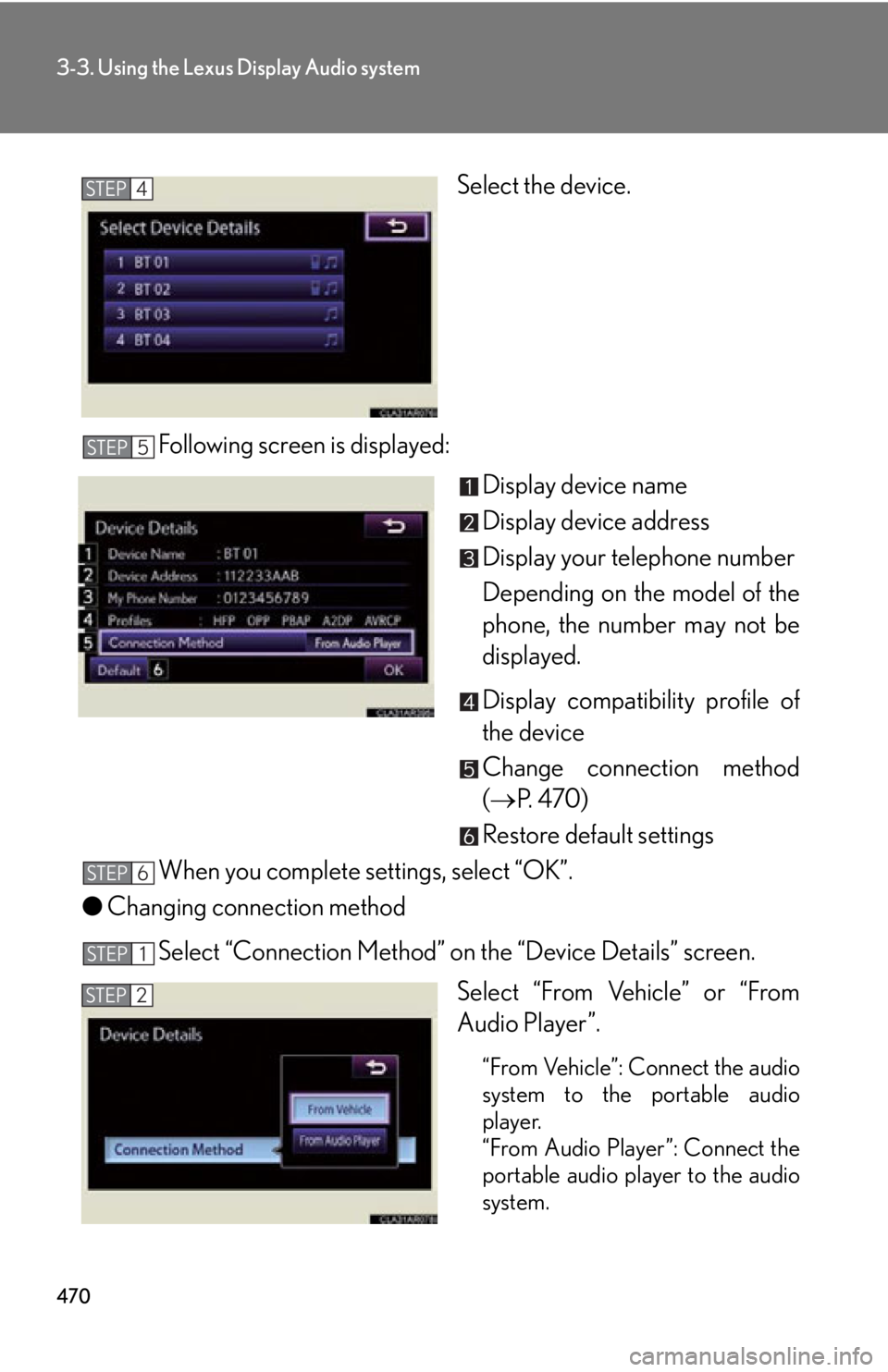
Select the device.
Following screen is displayed:
Display device name
Display device address
Display your telephone number
Depending on the model of the
phone, the number may not be
displayed.
Display compatibility profile of
the device
Change connection method
( P. 470)
Restore default settings
When you complete settings, select “OK”.
● Changing connection method
Select “Connection Method” on the “Device Details” screen.
Select “From Vehicle” or “From
Audio Player”.
“From Vehicle”: Connect the audio
system to the portable audio
player.
“From Audio Player”: Connect the
portable audio player to the audio
system.STEP 4
STEP 5
STEP 6
STEP 1
STEP 2
Page 471 of 878
4713-3. Using the Lexus Display Audio system
3
Interior features Selecting the Bluetooth
phone
If multiple Bluetooth
devices are registered, follow the procedure
below to select the Bluetooth
device to be used. You may only use one
device at a time.
Display the “Bluetooth
* Settings” screen. ( P. 466)
Select “Connect Phone” on the “Bluetooth
* Settings” screen.
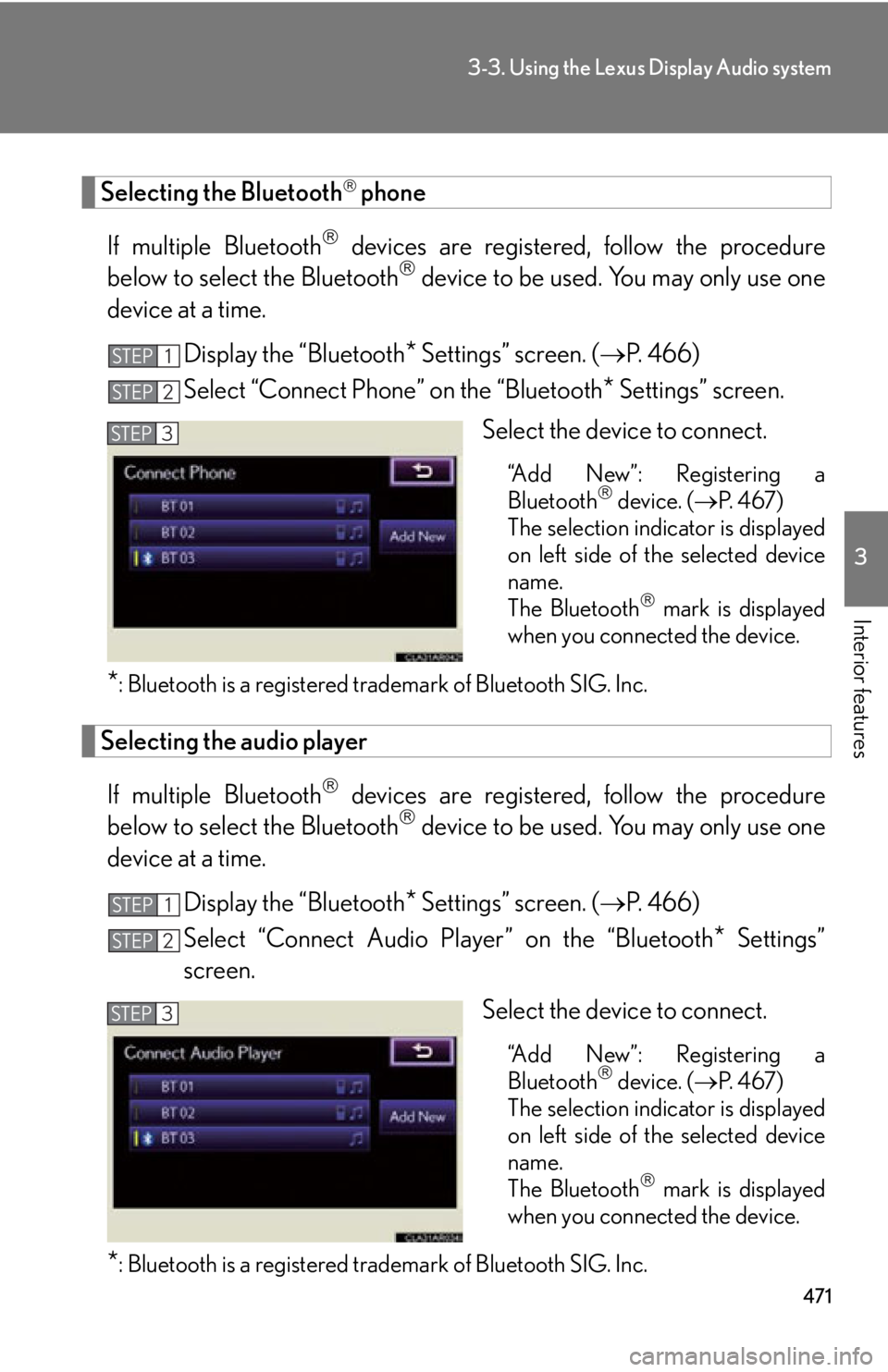
Select the device to connect. “Add New”: Registering a
Bluetooth
device. ( P. 4 6 7 )
The selection indicator is displayed
on left side of the selected device
name.
The Bluetooth
mark is displayed
when you connected the device.
* : Bluetooth is a registered tr ademark of Bluetooth SIG. Inc.
Selecting the audio player
If multiple Bluetooth
devices are registered, follow the procedure
below to select the Bluetooth
device to be used. You may only use one
device at a time.
Display the “Bluetooth
* Settings” screen. ( P. 466)
Select “Connect Audio Player” on the “Bluetooth
* Settings”
screen.
Select the device to connect.
“Add New”: Registering a
Bluetooth
device. ( P. 4 6 7 )
The selection indicator is displayed
on left side of the selected device
name.
The Bluetooth
mark is displayed
when you connected the device.
* : Bluetooth is a registered tr ademark of Bluetooth SIG. Inc.STEP 1
STEP 2
STEP 3
STEP 1
STEP 2
STEP 3
Page 472 of 878
4723-3. Using the Lexus Display Audio system
Detailed Bluetooth
settings
You can confirm and change the detailed Bluetooth
settings.
Display the “Bluetooth
* Settings” screen. ( P. 466)
Select “Detailed Bluetooth
* Settings” on the “Bluetooth
*Settings” screen.
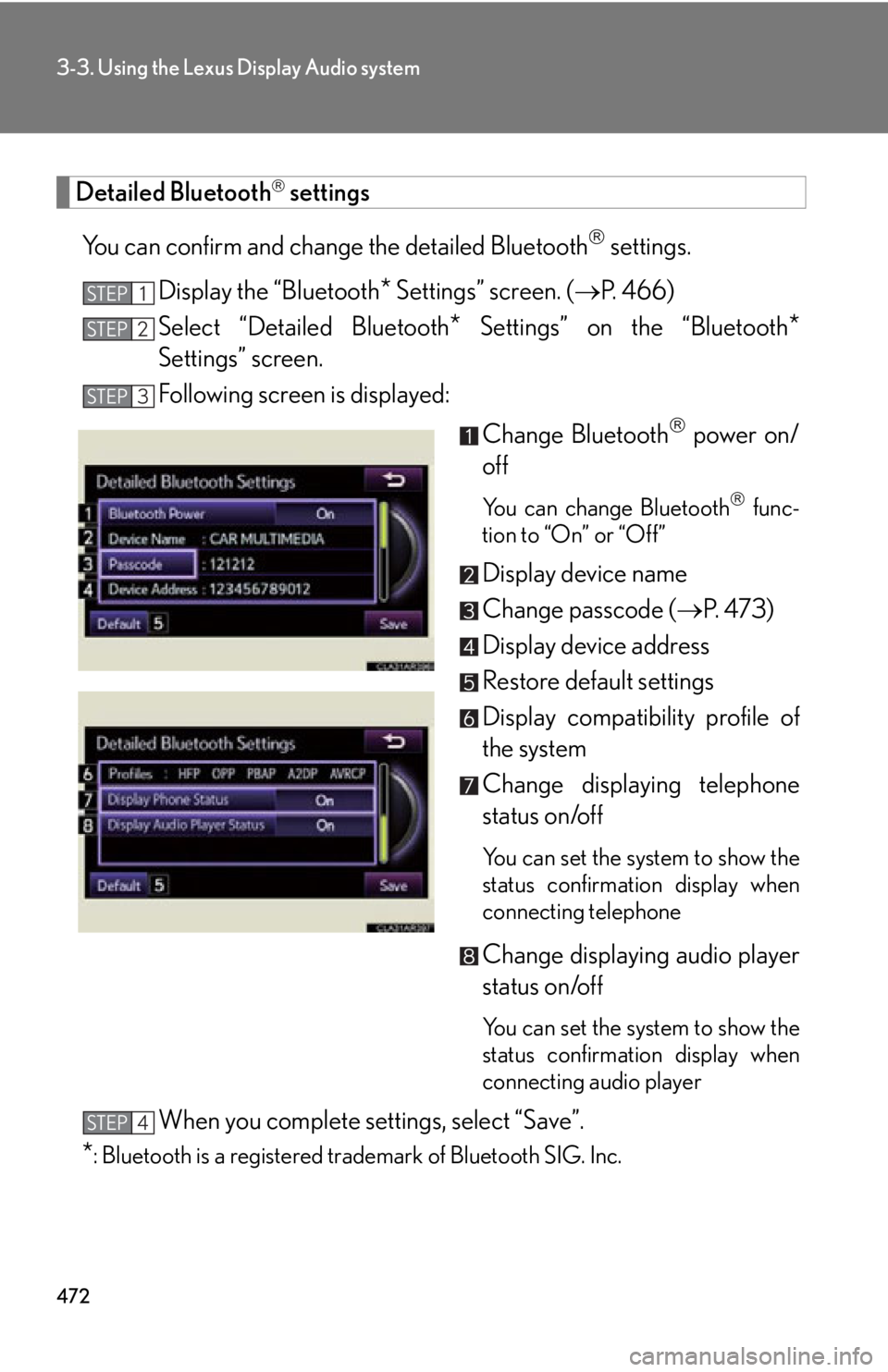
Following screen is displayed:
Change Bluetooth
power on/
off You can change Bluetooth
func-
tion to “On” or “Off”
Display device name
Change passcode ( P. 473)
Display device address
Restore default settings
Display compatibility profile of
the system
Change displaying telephone
status on/off You can set the system to show the
status confirmation display when
connecting telephone
Change displaying audio player
status on/off
You can set the system to show the
status confirmation display when
connecting audio player
When you complete settings, select “Save”.
* : Bluetooth is a registered tr ademark of Bluetooth SIG. Inc.STEP 1
STEP 2
STEP 3
STEP 4
Page 473 of 878
4733-3. Using the Lexus Display Audio system
3
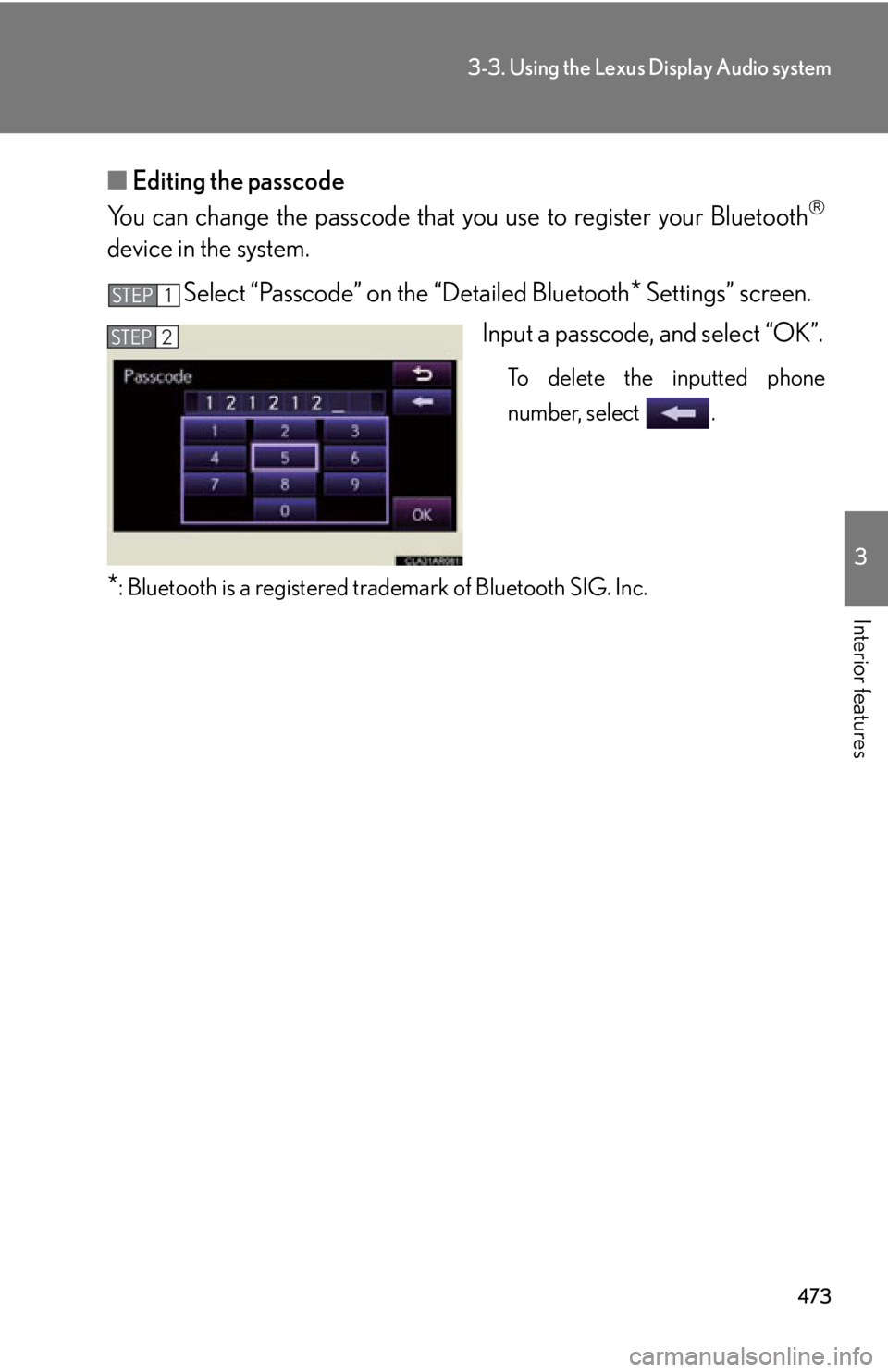
Interior features ■ Editing the passcode
You can change the passcode that you use to register your Bluetooth
device in the system.
Select “Passcode” on the “Detailed Bluetooth
* Settings” screen.
Input a passcode, and select “OK”. To delete the inputted phone
number, select .
* : Bluetooth is a registered tr ademark of Bluetooth SIG. Inc.STEP 1
STEP 2
Page 474 of 878
4743-4. Using the audio system
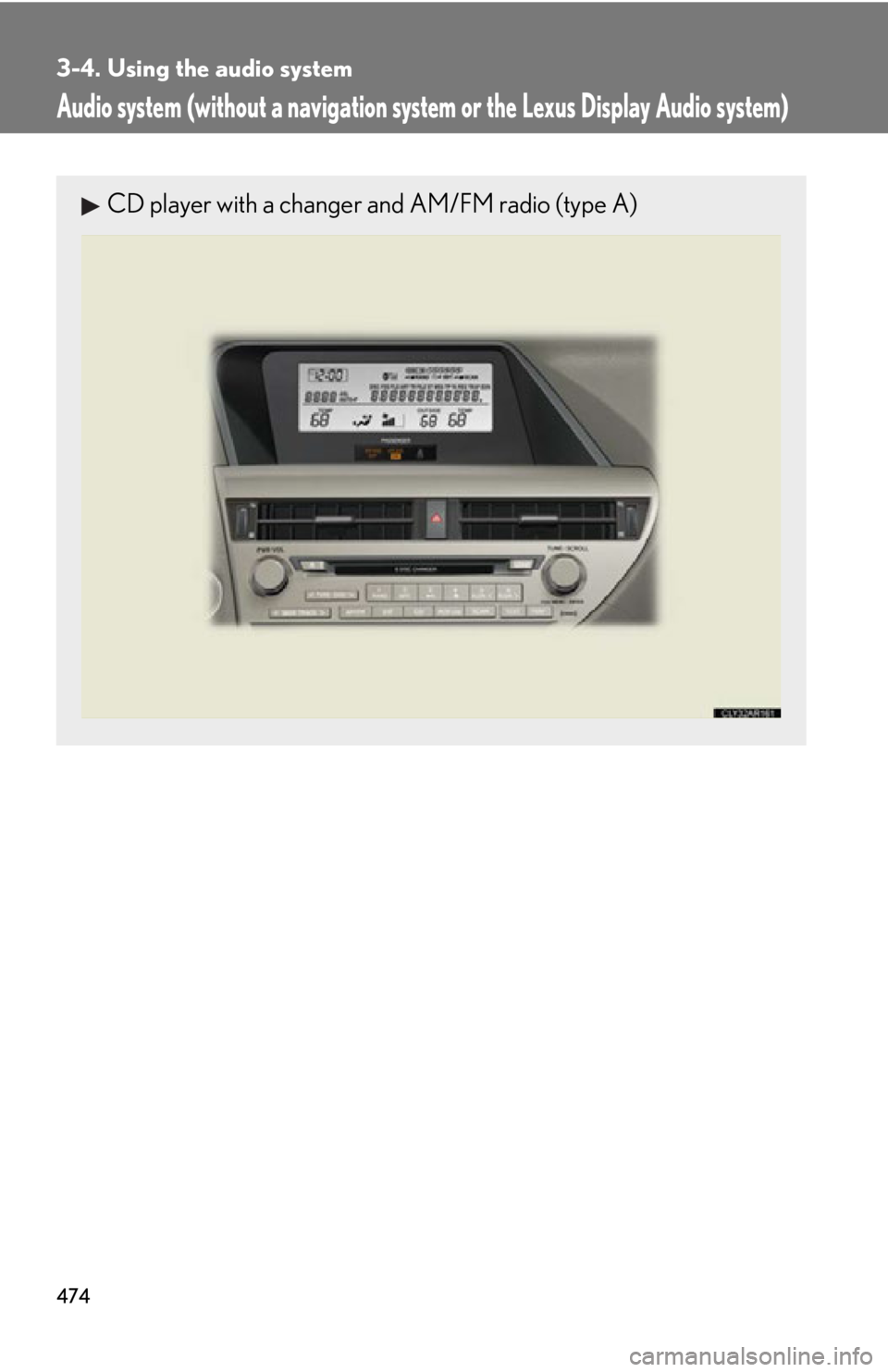
Audio system (without a navigation syst em or the Lexus Display Audio system)CD player with a changer and AM/FM radio (type A)
Page 480 of 878
4803-4. Using the audio system
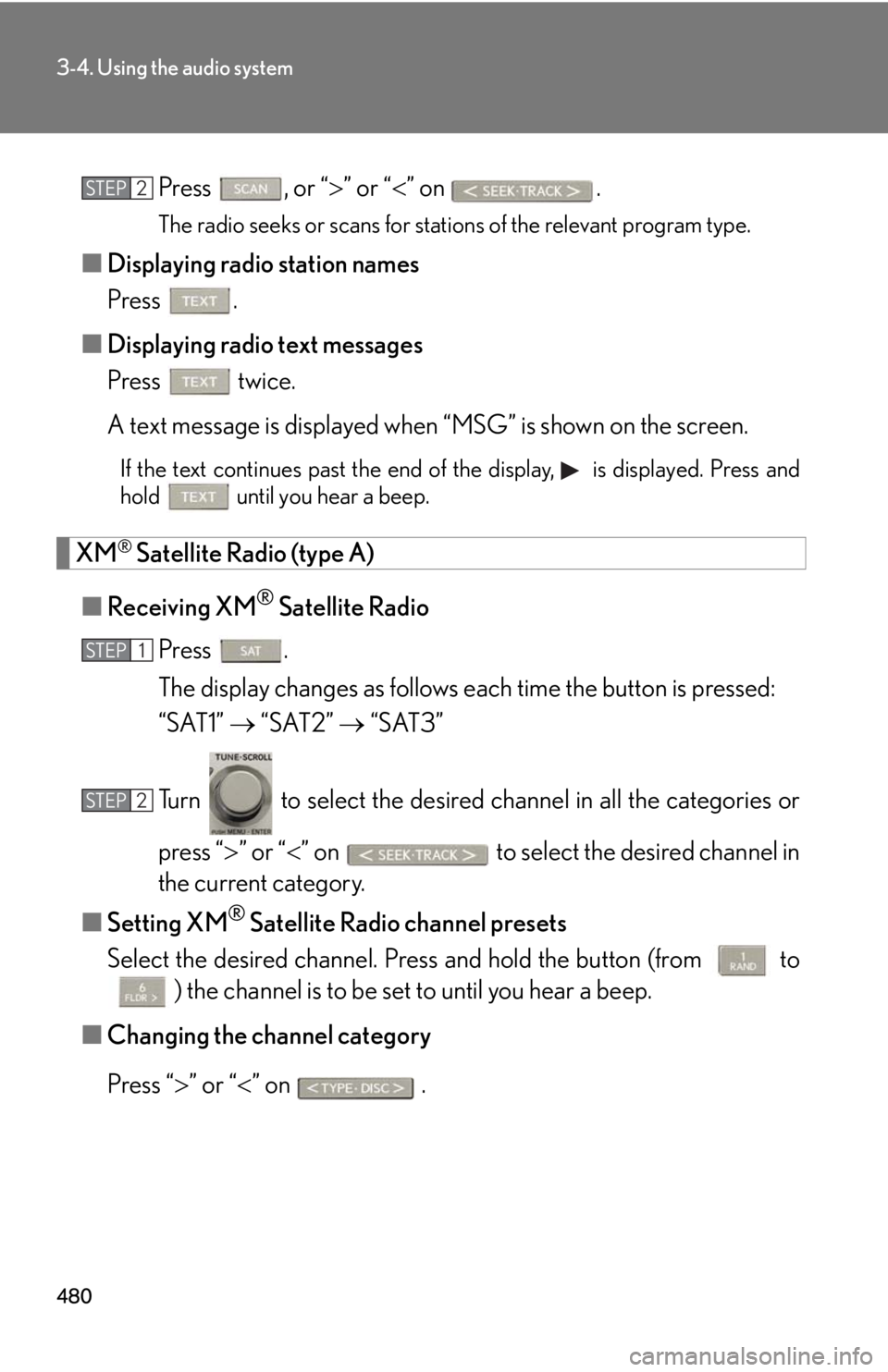
Press , or “ ” or “ ” on
.The radio seeks or scans for stations of the relevant program type.
■ Displaying radio station names
Press .
■ Displaying radio text messages
Press twice.
A text message is displayed when “MSG” is shown on the screen.If the text continues past the end of the display, is displayed. Press and
hold until you hear a beep.
XM ®
Satellite Radio (type A)
■ Receiving XM ®
Satellite Radio
Press .
The display changes as follows each time the button is pressed:
“SAT1” “SAT2” “SAT3”
Turn to select the desired channel in all the categories or
press “ ” or “ ” on to select the desired channel in
the current category.
■ Setting XM ®
Satellite Radio channel presets
Select the desired channel. Pr ess and hold the button (from
to
) the channel is to be set to until you hear a beep.
■ Changing the channel category
Press “ ” or “ ” on .STEP 2
STEP 1
STEP 2
Page 481 of 878
4813-4. Using the audio system
3
Interior features ■ Scanning the XM ®
Satellite Radio channels
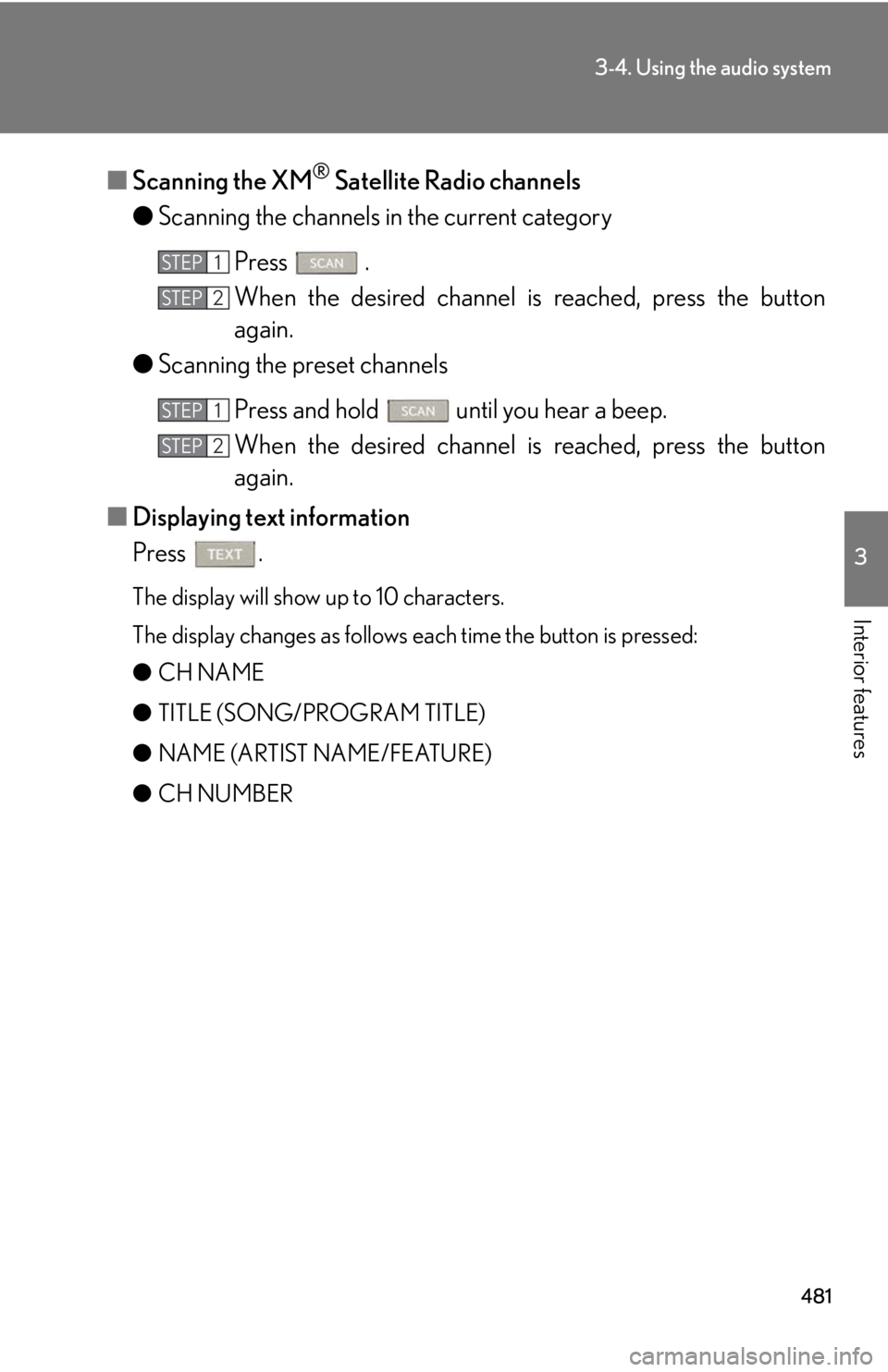
● Scanning the channels in the current category
Press .
When the desired channel is reached, press the button
again.
● Scanning the preset channels
Press and hold until you hear a beep.
When the desired channel is reached, press the button
again.
■ Displaying text information
Press . The display will show up to 10 characters.
The display changes as follows each time the button is pressed:
● CH NAME
● TITLE (SONG/PROGRAM TITLE)
● NAME (ARTIST NAME/FEATURE)
● CH NUMBER STEP 1
STEP 2
STEP 1
STEP 2
Page 483 of 878
4833-4. Using the audio system
3
Interior features ■
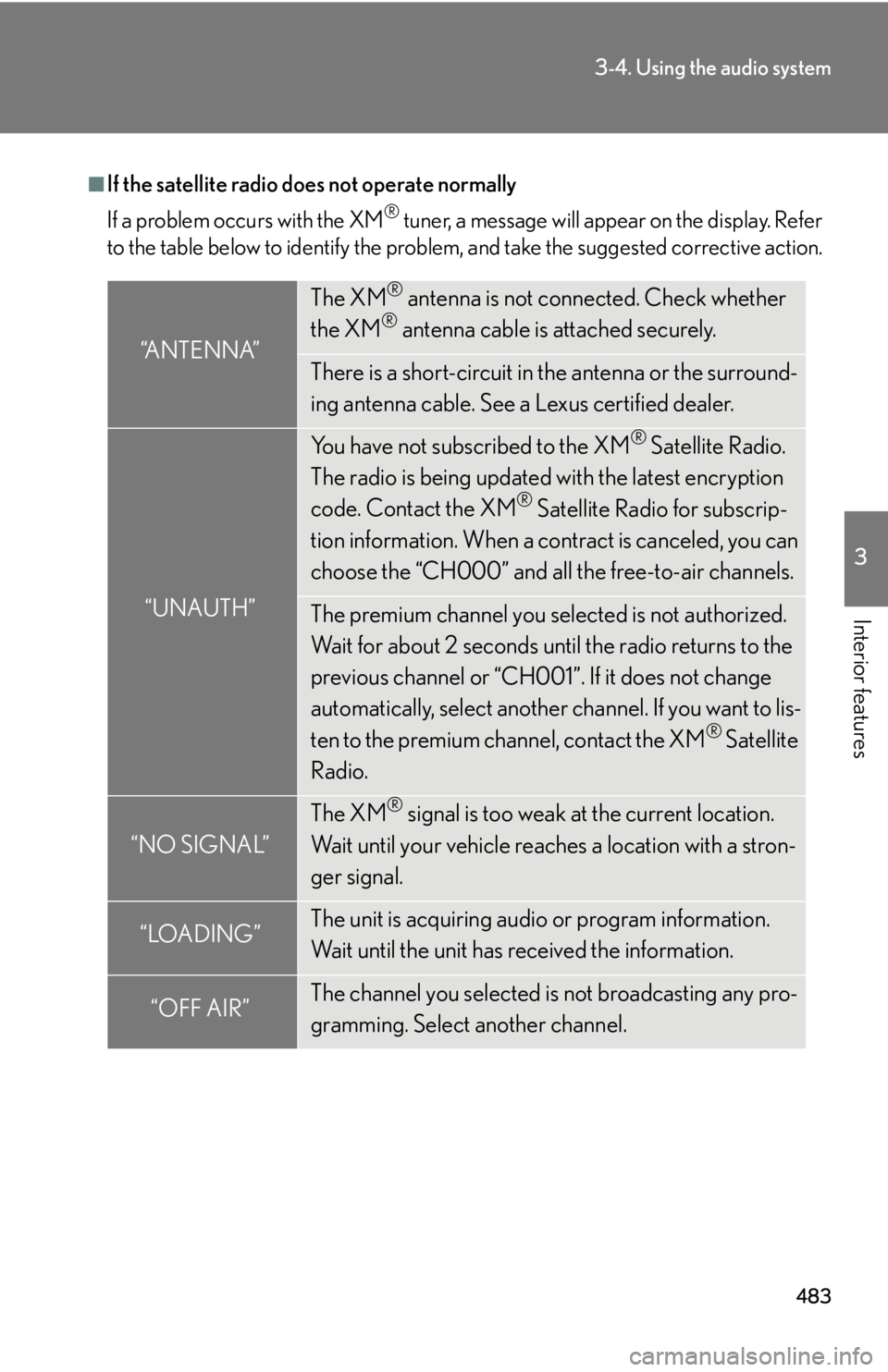
If the satellite radio does not operate normally
If a problem occurs with the XM ®
tuner, a message will appear on the display. Refer
to the table below to identify the problem, and take the suggested corrective action.
“ANTENNA” The XM ®
antenna is not connected. Check whether
the XM ®
antenna cable is attached securely.
There is a short-circuit in the antenna or the surround-
ing antenna cable. See a Lexus certified dealer.
“UNAUTH” You have not subscribed to the XM ®
Satellite Radio.
The radio is being updated with the latest encryption
code. Contact the XM ®
Satellite Radio for subscrip-
tion information. When a co ntract is canceled, you can
choose the “CH000” and all the free-to-air channels.
The premium channel you selected is not authorized.
Wait for about 2 seconds until the radio returns to the
previous channel or “CH001”. If it does not change
automatically, select another channel. If you want to lis-
ten to the premium channel, contact the XM ®
Satellite
Radio.
“NO SIGNAL” The XM ®
signal is too weak at the current location.
Wait until your vehicle reaches a location with a stron-
ger signal.
“LOADING” The unit is acquiring audio or program information.
Wait until the unit has received the information.
“OFF AIR” The channel you selected is not broadcasting any pro-
gramming. Select another channel.
Page 486 of 878
4863-4. Using the audio system
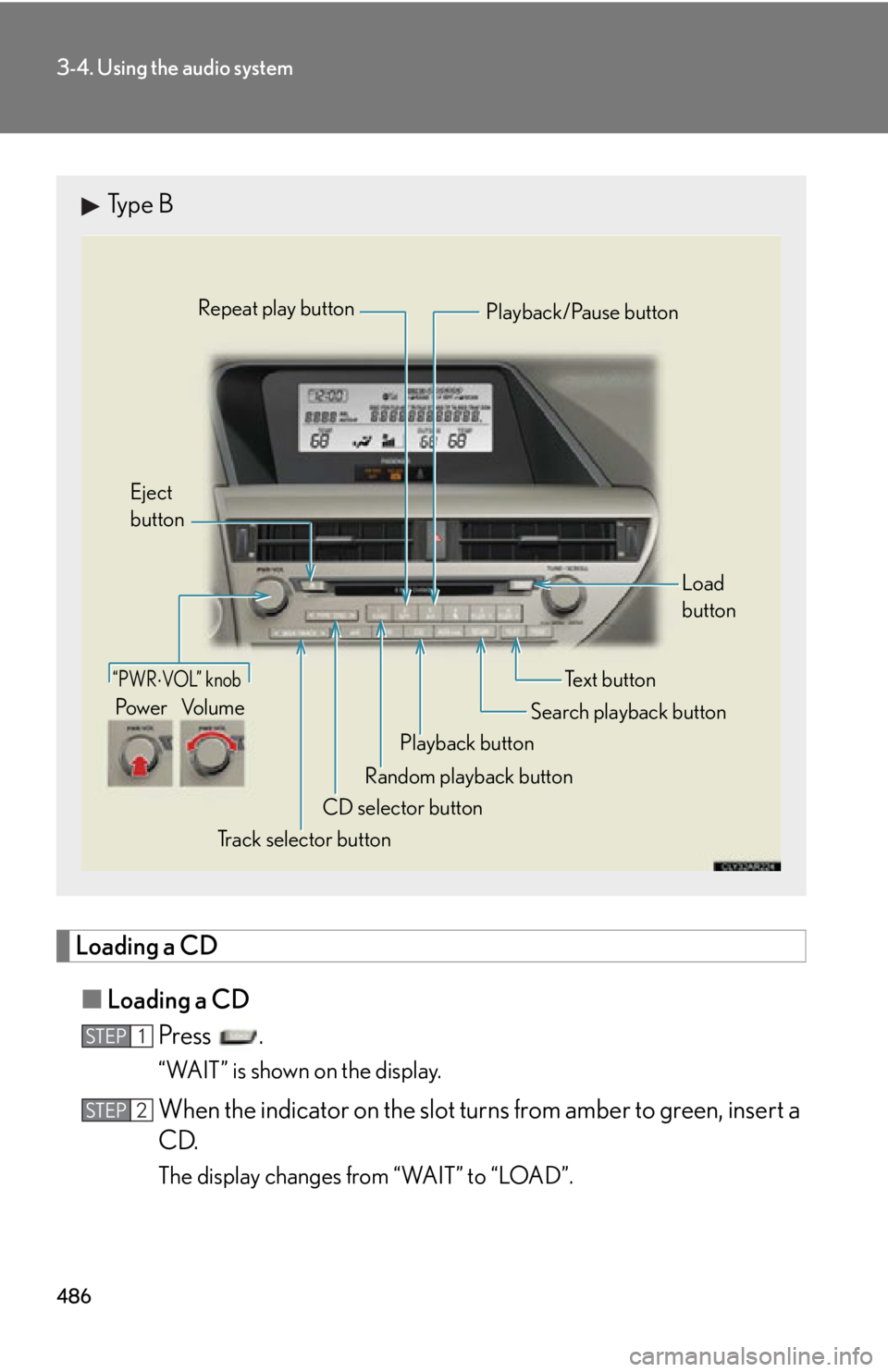
Loading a CD
■ Loading a CD
Press .
“WAIT” is shown on the display.
When the indicator on the slot tu rns from amber to green, insert a
CD.
The display changes from “WAIT” to “LOAD”.Type B
“PWR VOL” knob
Track selector buttonEject
button
Playback button Search playback button Load
button
CD selector button Random playback buttonRepeat play button
Te x t b u t t o n
Po w e r Vo l u m e Playback/Pause button
STEP 1
STEP 2
Page 487 of 878
4873-4. Using the audio system
3
Interior features ■ Loading multiple CDs
Press and hold until you hear a beep. “WAIT” is shown on the display.
When the indicator on the slot tu rns from amber to green, insert a
CD. The display changes from “WAIT” to “LOAD”.
The indicator on the slot turns to am ber when the CD is being inserted.
When the indicator on the slot tu rns from amber to green, insert
the next CD. Repeat the procedure for the remaining CDs.
To cancel the operation, press . If you do not insert a disc within 15
seconds, loading will be canceled automatically.
Ejecting CDs
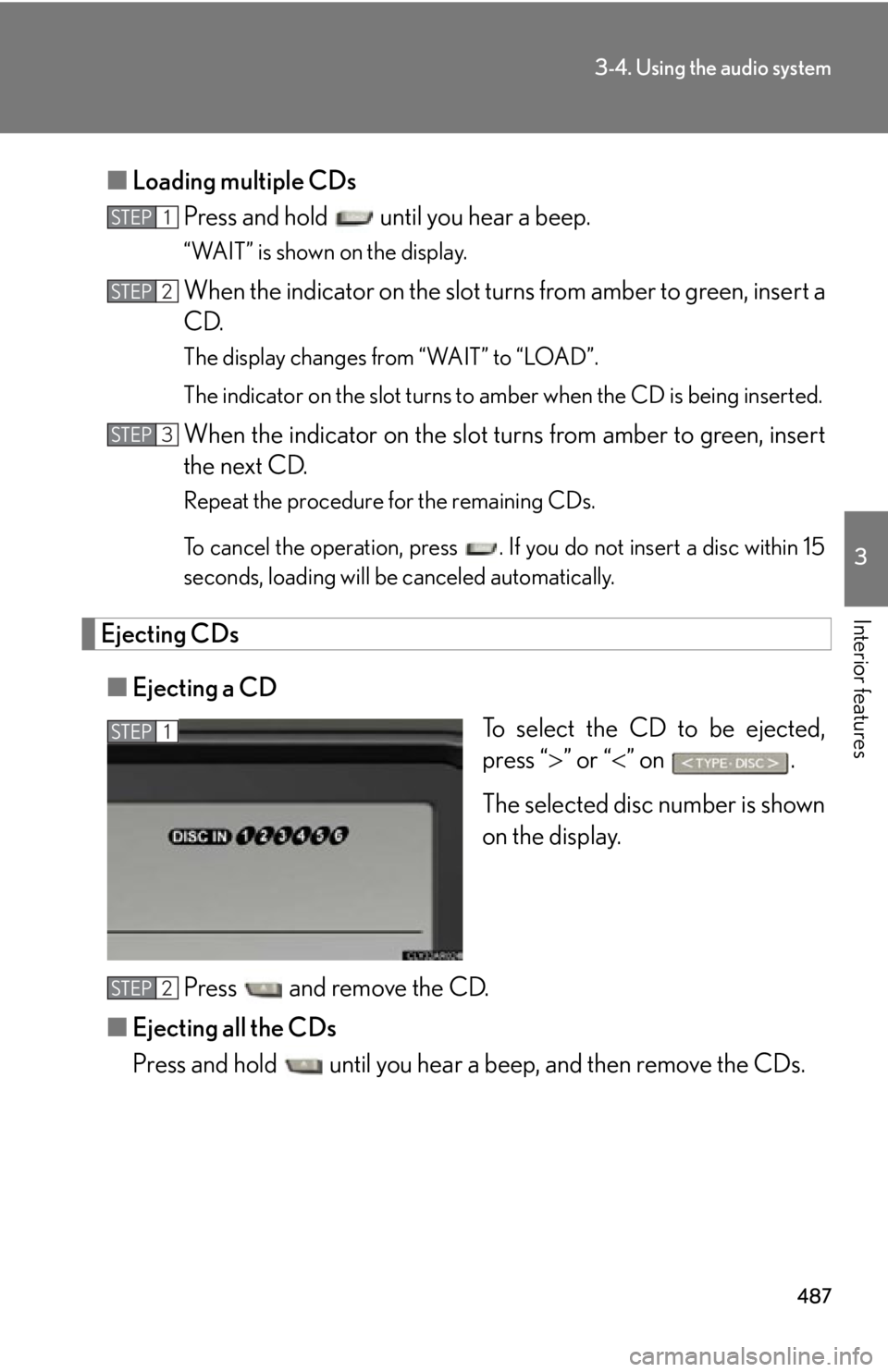
■ Ejecting a CD
To select the CD to be ejected,
press “ ” or “ ” on .
The selected disc number is shown
on the display.
Press and remove the CD.
■ Ejecting all the CDs
Press and hold until you hear a beep, and then remove the CDs.STEP 1
STEP 2
STEP 3
STEP 1
STEP 2