low LEXUS RX450H 2019 Owners Manual
[x] Cancel search | Manufacturer: LEXUS, Model Year: 2019, Model line: RX450H, Model: LEXUS RX450H 2019Pages: 792, PDF Size: 13.48 MB
Page 409 of 792
4095-1. Basic Operations
5
Lexus Display Audio system
RX450h_RX450hL_U
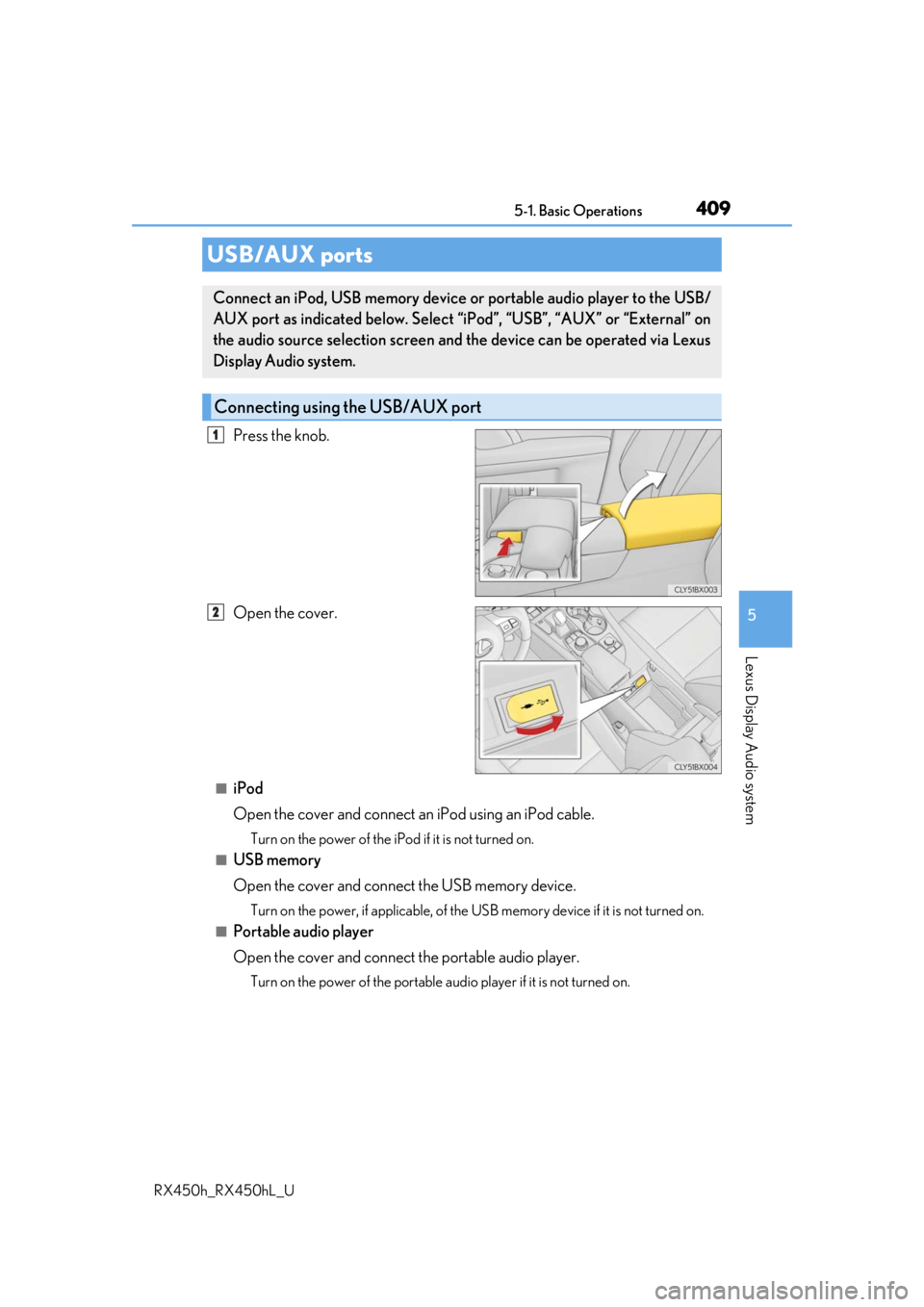
Press the knob.
Open the cover.
■iPod
Open the cover and connect an iPod using an iPod cable.
Turn on the power of the iPod if it is not turned on.
■USB memory
Open the cover and connect the USB memory device.
Turn on the power, if applicable, of the US B memory device if it is not turned on.
■Portable audio player
Open the cover and connect the portable audio player.
Turn on the power of the portable audio player if it is not turned on.
USB/AUX ports
Connect an iPod, USB memory device or portable audio player to the USB/
AUX port as indicated below. Select “iPod”, “USB”, “AUX” or “External” on
the audio source selection screen and the device can be operated via Lexus
Display Audio system.
Connecting using the USB/AUX port
1
2
Page 411 of 792
4115-1. Basic Operations
5
Lexus Display Audio system
RX450h_RX450hL_U
■When using a 4-pole AUX cable
If a 4-pole AUX cable with a different layout is used, audio and/or video may not be out-
put properly.
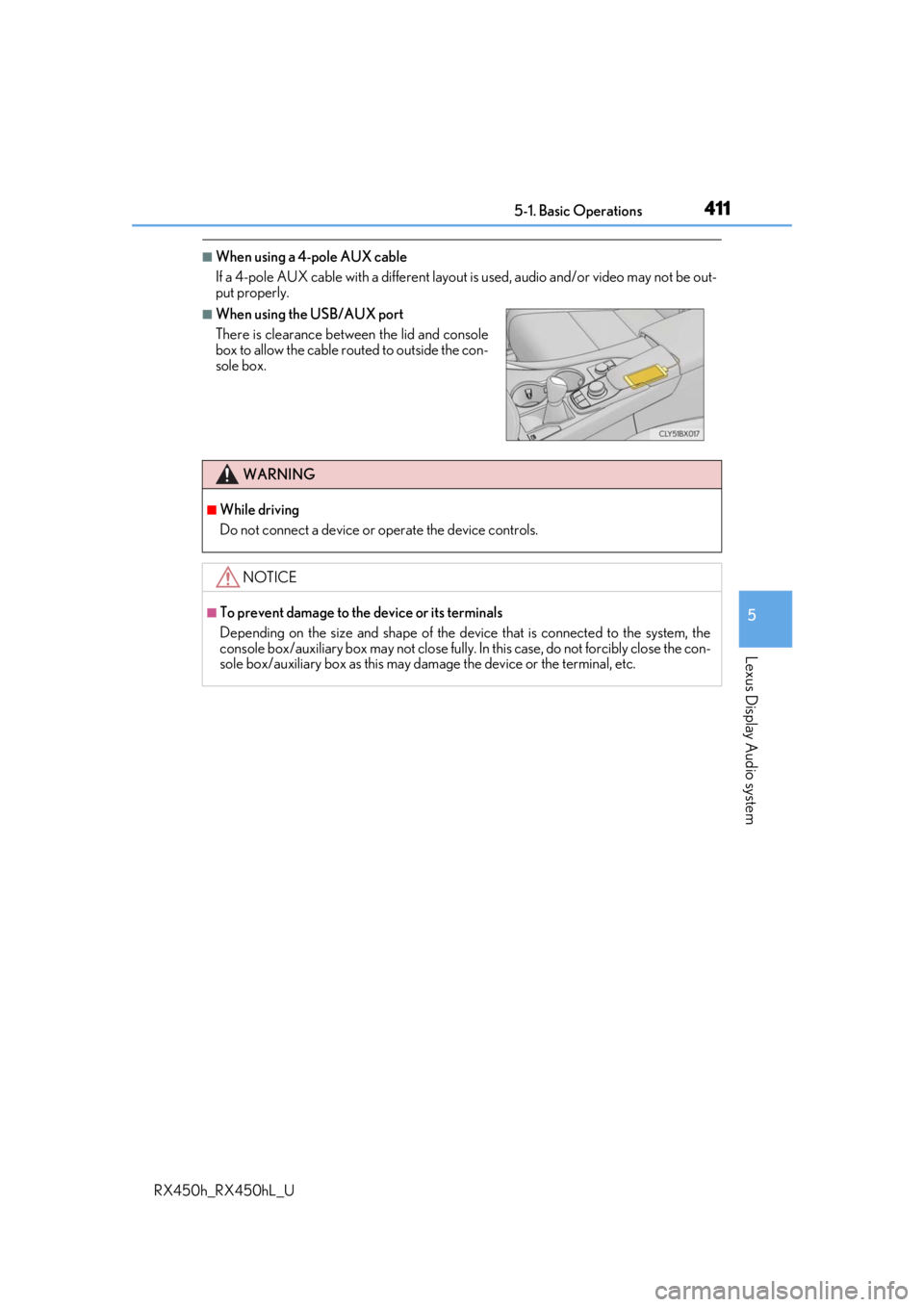
■When using the USB/AUX port
There is clearance between the lid and console
box to allow the cable routed to outside the con-
sole box.
WARNING
■While driving
Do not connect a device or operate the device controls.
NOTICE
■To prevent damage to the device or its terminals
Depending on the size and shape of the device that is connected to the system, the
console box/auxiliary box may not close fully. In this case, do not forcibly close the con-
sole box/auxiliary box as this may da mage the device or the terminal, etc.
Page 414 of 792
4145-2. Setup
RX450h_RX450hL_U
Go to “Customize Images”: “MENU” button “Setup” “General”
“Customize Images”
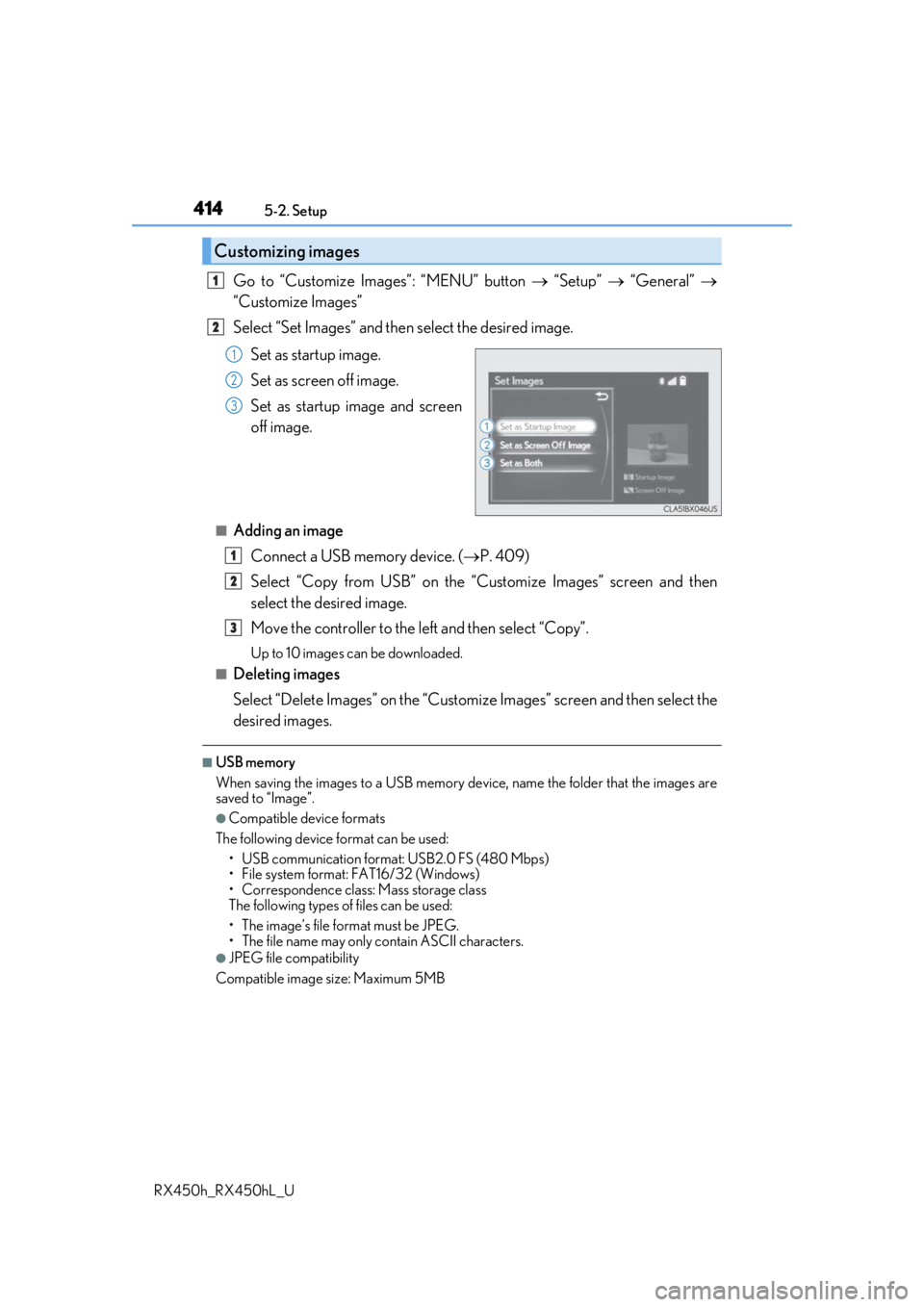
Select “Set Images” and then select the desired image.
Set as startup image.
Set as screen off image.
Set as startup image and screen
off image.
■Adding an imageConnect a USB memory device. ( P. 409)
Select “Copy from USB” on the “Customize Images” screen and then
select the desired image.
Move the controller to the left and then select “Copy”.
Up to 10 images can be downloaded.
■Deleting images
Select “Delete Images” on the “Customize Images” screen and then select the
desired images.
■USB memory
When saving the images to a USB memory de vice, name the folder that the images are
saved to “Image”.
●Compatible device formats
The following device format can be used: • USB communication format: USB2.0 FS (480 Mbps)
• File system format: FAT16/32 (Windows)
• Correspondence class: Mass storage class
The following types of files can be used:
• The image’s file fo rmat must be JPEG.
• The file name may only contain ASCII characters.
●JPEG file compatibility
Compatible image size: Maximum 5MB
Customizing images
1
2
1
2
3
1
2
3
Page 415 of 792
4155-2. Setup
5
Lexus Display Audio system
RX450h_RX450hL_U
Go to “Delete Personal Data”: “MENU” button “Setup” “General”
“Delete Personal Data”
Select “Delete”.
Check carefully beforeha nd, as data cannot be retrieved once deleted.
The following personal data will be dele ted or changed to its default settings.
• Phonebook data
• Call history data
•Favorite data
•Bluetooth
® devices data
• Phone sound settings
• Detailed Bluetooth
® settings
• Audio/video setting
• Customized image data
•FM info setting
• iPod tagging information
• Software update history
• Software update detail information
• Phone display setting
• Contact/call history setting
• Messaging setting
• Traffic information map
• Weather information
• Phonebook data for voice recognition
• Music data for voice recognition
NOTICE
■To prevent damage to the USB me mory device or its terminals
P. 447
Deleting personal data
1
2
Page 426 of 792
426
RX450h_RX450hL_U5-4. Using the radio
Pressing the “RADIO” button displays the radio top screen from any screen of
the selected source.
■Menu screen
P. 423
Tune in to the desired station using one of the following methods.
■Seek tuning
Press and hold then release the “ PRST” or “TRACK ” button.
Seek tuning can also be operated on the menu screen. ( P. 423)
The radio will begin seeking up or down for a station of the nearest frequency
and will stop when a station is found.
■Manual tuning
Turn the “TUNE•SCROLL” knob.
■Preset stations
Select the desired preset station by pressing the “ PRST” or “TRACK ” but-
ton, or turning and pressing the controller.
■Station list
Move the controller to the right and selecting “Station List”.
AM radio: Selectin g a desired station.
FM radio: Selecting a desired type of station and selecting a desired st\
a-
tion.
To refreshing the station list, select “Refresh”. Select “Source” on the refresh
screen, can be change to the othe r audio source while refreshing.
Radio operation
Select “AM”, “FM” or “SAT” on the audi o source selection screen to begin lis-
tening to the radio.
Radio top screen
Selecting a station (AM or FM radio)
1
2
Page 427 of 792
4275-4. Using the radio
5
Lexus Display Audio system
RX450h_RX450hL_U
When “HD Radio” is set to “On”, available stations with HD Radio channels are
marked with “HD)”.In AM or FM mode, select a station marked with “HD)”.
Turn the “TUNE•SCROLL” knob to select an HD Radio channel.
HD Radio channels can also be selected by selecting “Mul ticast” on the menu screen.
( P. 423)
Select in to the desired channel using one of the following methods.
■Turning up/down the channel
Press and hold the “ PRST” or “TRACK ” button or turn the
“TUNE•SCROLL” knob.
■Preset channels
Select the desired preset channel by pressing the “ PRST” or “TRACK ”
button or controller.
■Channel list
Move the controller to the right and selecting “Select a SAT Category”.
Selecting a desired category of cha nnel and selecting a desired channel.
Search for desired stations or channel.
Select and hold one of the pr eset until you hear a beep.
■Display the song information
Move the controller to the right and selecting “Text”.
■Display the Additional information (HD radio)
Move the controller to the right and selecting “Additional Information”.
Selecting an HD Radio channel
Selecting a channel (XM Satellite Radio)
Setting presets
Display the text message
1
2
1
2
1
2
Page 428 of 792
4285-4. Using the radio
RX450h_RX450hL_U
HD Radio™ Technology is the digital evolution of analog AM/FM radio. Your
radio product has a special receiver which allows it to receive digital broadcasts
(where available) in addition to the analog broadcasts it already receives.
Digital broadcasts have better sound qua lity than analog broadcasts as digital
broadcasts provide free, crystal clear audio with no static or distortion. For more
information, and a guide to available radio stations and programming, refer to
www.hdradio.com
.
“HD Radio features included in Lexus radios:
Digital Sound - HD Radio broadcasts deliver crystal-clear, digital audio quality to
listeners.
HD2/HD3 Channels - FM stations can prov ide additional digital only audio pro-
gramming with expanded content and format choices on HD2/HD3 channels.
PSD - Program Service Data (PSD) gives you on-screen information such as art-
ist name and song title.
iTunes Tagging - Listeners can tag (store) songs they like for later review and pur-
chase through iTunes.
Artist Experience - Images related to the broadcast are displayed on the radio
screen, such as album cover art and station logos.”
HD Radio™ Technology
HD Radio Technology manufactured under license from iBiquity Digital Corpora-
tion. U.S. and Foreign Patents. HD Radio™ and the HD, HD Radio, and “Arc” logos
are proprietary trademarks of iBiquity Digital Corp.
Page 432 of 792
4325-4. Using the radio
RX450h_RX450hL_U
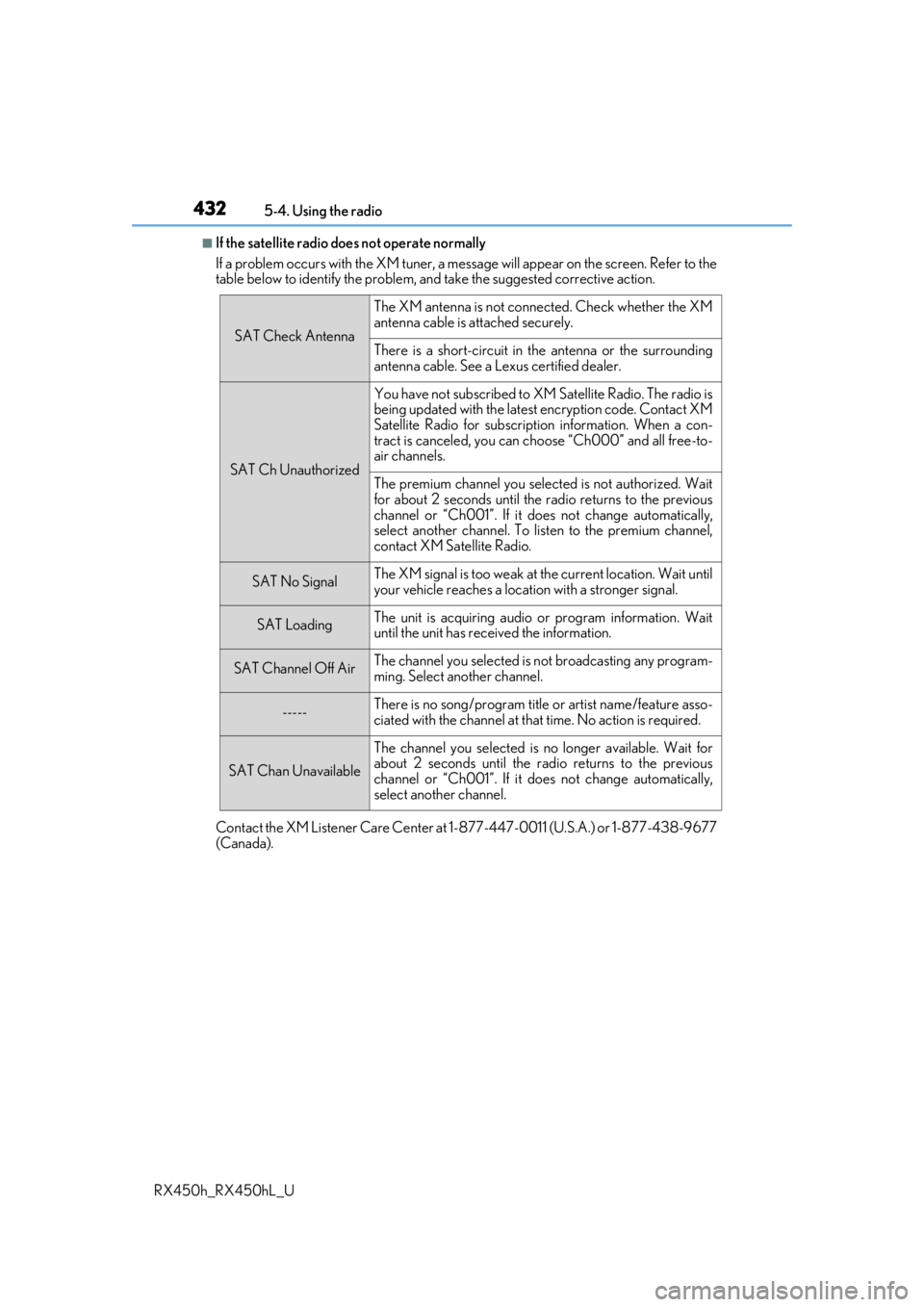
■If the satellite radio does not operate normally
If a problem occurs with the XM tuner, a message will appear on the screen. Refer to the
table below to identify the problem, an d take the suggested corrective action.
Contact the XM Listener Care Center at 1-877-447-0011 (U.S.A.) or 1-877-438-9677
(Canada).
SAT Check Antenna
The XM antenna is not connected. Check whether the XM
antenna cable is attached securely.
There is a short-circuit in the antenna or the surrounding
antenna cable. See a Lexus certified dealer.
SAT Ch Unauthorized
You have not subscribed to XM Satellite Radio. The radio is
being updated with the latest encryption code. Contact XM
Satellite Radio for subscripti on information. When a con-
tract is canceled, you can choose “Ch000” and all free-to-
air channels.
The premium channel you selected is not authorized. Wait
for about 2 seconds until the radio returns to the previous
channel or “Ch001”. If it does not change automatically,
select another channel. To listen to the premium channel,
contact XM Satellite Radio.
SAT No SignalThe XM signal is too weak at the current location. Wait until
your vehicle reaches a location with a stronger signal.
SAT LoadingThe unit is acquiring audio or program information. Wait
until the unit has rece ived the information.
SAT Channel Off AirThe channel you selected is not broadcasting any program-
ming. Select another channel.
-----There is no song/program title or artist name/feature asso-
ciated with the channel at that time. No action is required.
SAT Chan Unavailable
The channel you selected is no longer available. Wait for
about 2 seconds until the radio returns to the previous
channel or “Ch001”. If it does not change automatically,
select another channel.
Page 434 of 792

4345-5. Playing an audio CD and MP3/WMA/AAC discs
RX450h_RX450hL_U
■Error messages
If the following error messages appear on th e screen, refer to the table and take the
appropriate measures. If the pr oblem is not rectified, take the vehicle to your Lexus
dealer.
■Discs that can be used
Discs with the marks sh own below can be used.
Playback may not be possible depending on recording format or disc features, or due to
scratches, dirt or deterioration.
CDs with copy-protection feat ures may not play correctly.
■CD player protection feature
To protect the internal components, playback is automatically stopped when a problem is
detected.
■If a disc is left inside the CD player or in the ejected position for extended periods
Disc may be damaged and may not play properly.
■Lens cleaners
Do not use lens cleaners. Doing so may damage the CD player.
■MP3, WMA and AAC files
MP3 (MPEG Audio LAYER3) is a standard audio compression format.
Files can be compressed to approximately 1/10 of their original size by using MP3 com-
pression.
WMA (Windows Media Audio) is a Microsoft audio compression format.
This format compresses audio data to a si ze smaller than that of the MP3 format.
AAC is short for Advanced Audio Coding and refers to an audi o compression technol-
ogy standard used with MPEG2 and MPEG4.
MP3, WMA and AAC file and media/formats compatibility are limited.
MessageCauseCorrection procedures
“Check disc”
• The disc is dirty or dam- aged.
• The disc is inserted upside down.
•The disc is not playable with the player.
•Clean the disc.
• Insert the disc correctly.
•Confirm the disc is play-able with the player.
“DISC Error”There is a malfunction
within the system.Eject the disc.
“No music files found.”No playable data is
included on the disc.Eject the disc.
Page 435 of 792

4355-5. Playing an audio CD and MP3/WMA/AAC discs
5
Lexus Display Audio system
RX450h_RX450hL_U
●MP3 file compatibility
• Compatible standards MP3 (MPEG1 LAYER3, MPEG2 LSF LAYER3)
• Compatible sampling frequencies MPEG1 LAYER3: 32, 44.1, 48 (kHz)
MPEG2 LSF LAYER3: 16, 22.05, 24 (kHz)
• Compatible bit rates (compatible with VBR) MPEG1 LAYER3: 32-320 (kbps)
MPEG2 LSF LAYER3: 8-160 (kbps)
• Compatible channel modes: stereo, jo int stereo, dual channel and monaural
●WMA file compatibility
• Compatible standards
WMA Ver. 7, 8, 9 (only compatible with Window Media Audio Standard)
• Compatible sampling frequencies
32, 44.1, 48 (kHz)
• Compatible bit rates (only compatible with 2-channel playback) Ver. 7, 8: CBR 48-192 (kbps)
Ver. 9: CBR 48-320 (kbps)
●AAC file compatibility
• Compatible standards
MPEG4/AAC-LC
• Compatible sampling frequencies
11.025/12/16/22.05/24/32/44.1/48 (kHz)
• Compatible bit rates 16-320 (kbps)
• Compatible channel modes: 1 ch and 2 ch
●Compatible media
Media that can be used for MP3, WMA and AAC playback are CD-Rs and CD-RWs.
Playback in some instances may not be possible if the CD-R or CD-RW is not final-
ized. Playback may not be possible or the audio may jump if the disc is scratched or
marked with fingerprints.
●Compatible disc formats
The following disc formats can be used.
• Disc formats: CD-ROM Mode 1 and Mode 2 CD-ROM XA Mode 2, Form 1 and Form 2
• File formats: ISO9660 Level 1, Level 2, (Romeo, Joliet)
UDF (2.01 or lower)
MP3, WMA and AAC files written in any fo rmat other than those listed above may
not play correctly, and their file names an d folder names may not be displayed cor-
rectly.
Items related to standards an d limitations are as follows.
• Maximum directory hierarchy: 8 levels (including the root)
• Maximum length of folder na mes/file names: 32 characters
• Maximum number of folders: 192 (including the root)
• Maximum number of files per disc: 255