remove LEXUS RX450H 2019 Service Manual
[x] Cancel search | Manufacturer: LEXUS, Model Year: 2019, Model line: RX450H, Model: LEXUS RX450H 2019Pages: 792, PDF Size: 13.48 MB
Page 405 of 792
4055-1. Basic Operations
5
Lexus Display Audio system
RX450h_RX450hL_U
■When using the screen
●Under extremely cold conditions, the Lexus Display Audio controller may react slowly.
●If the screen is cold, the display may be dark, or the system may seem to be operating
slightly slower than normal.
●The screen may seem dark and hard to see when viewed through sunglasses. Change
your angle of viewing, adjust the display on the “Display” screen (P. 417) or remove
your sunglasses.
■Using cellular phones
Interference may be heard through the audi o system’s speakers if a cellular phone is
being used inside or close to the vehicle while the audio system is operating.
WARNING
■Using the Lexus Display Audio controller
Be careful when touching the Lexus Display Audio controller in extreme temperatures
as it may become very hot or cold due to the temperature inside the vehicle.
■Laser product
●CAUTION
USE OF CONTROL OR ADJUSTMENT OR PERFORMANCE OF PROCE-
DURES OTHER THAN THOSE SPECIFIED HEREIN MAY RESULT IN HAZARD-
OUS RADIATION EXPOSURE.
●CAUTION
THE USE OF OPTICAL INSTRUMENTS WITH THIS PRODUCT WILL
INCREASE EYE HAZARD.
NOTICE
■To prevent Lexus Display Au dio controller malfunction
●Do not allow the Lexus Display Audio controll er to come into contact with food, liq-
uid, stickers or lit cigarettes as doing so may cause it to change color, emit a strange
odor or stop functioning.
●Do not subject the Lexus Display Audio controller to excessive pressure or strong
impact as the controller may bend or break off.
■To prevent battery discharge
Do not leave the audio system on longer than necessary when the engine is off.
■To avoid damaging the audio system
Take care not to spill drinks or other fluids on the audio system.
Page 447 of 792
4475-6. Using an external device
5
Lexus Display Audio system
RX450h_RX450hL_U
●ID3, WMA and AAC tags
ID3 tags can be added to MP3 files, making it possible to record the track title, artist
name, etc.
The system is compatible with ID3 Ver. 1.0, 1.1, and Ver. 2.2, 2.3 ID3 tags. (The number
of characters is based on ID3 Ver. 1.0 and 1.1.)
WMA tags can be added to WMA files, making it possible to record the track title and
artist name in the same way as with ID3 tags.
AAC tags can be added to AAC files, making it possible to record the track title and
artist name in the same way as with ID3 tags.
●MP3, WMA and AAC playback
• When a device containing MP3, WMA or AA C files is connected, all files in the
USB memory device are checked. Once th e file check is finished, the first MP3,
WMA or AAC file is played. To make the file check finish more quickly, we recom-
mend that you do not include any files other than MP3, WMA or AAC files or cre-
ate any unnecessary folders.
• When a USB memory device is connected and the audio source is changed to USB memory mode, the USB memory device will st art playing the first file in the first
folder. If the same device is removed an d reconnected (and the contents have not
been changed), the USB memory device w ill resume play from the same point in
which it was last used.
●Extensions
If the file extensions .mp3, .wma and .m4a are used for files other than MP3, WMA
and AAC files, they will be skipped (not played).
●Playback
• To play MP3 files with steady sound quality, we recommend a fixed bit rate of at least 128 kbps and a sampling frequency of 44.1 kHz.
• There is a wide variety of freeware an d other encoding software for MP3, WMA
and AAC files on the market, and depending on the status of the encoding and the
file format, poor sound quality or noise at the start of playback may result. In some
cases, playback may not be possible at all.
• Microsoft, Windows, and Windows Media ar e the registered trademarks of Micro-
soft Corporation in the U.S.A. and other countries.
NOTICE
■To prevent damage to the USB me mory device or its terminals
●Depending on the size and shape of the USB memory that is connected to the sys-
tem, the console box may not close fully. In th is case, do not forcibly close the console
box as this may damage the USB memory or the terminal, etc.
●Do not leave the USB memory device in the vehicle. The temperature inside the vehi-
cle may become high.
●Do not push down on or apply unnecessary pressure to the USB memory device
while it is connected.
●Do not insert foreign objects into the port.
Page 451 of 792
4515-7. Connecting Bluetooth®
5
Lexus Display Audio system
RX450h_RX450hL_U
Turn the Bluetooth® connection setting of your device set to on.
Go to “Bluetooth
* Setup”: “MENU” button “Setup” “Bluetooth*”
Move the controller to the left and then select “Add Device”.
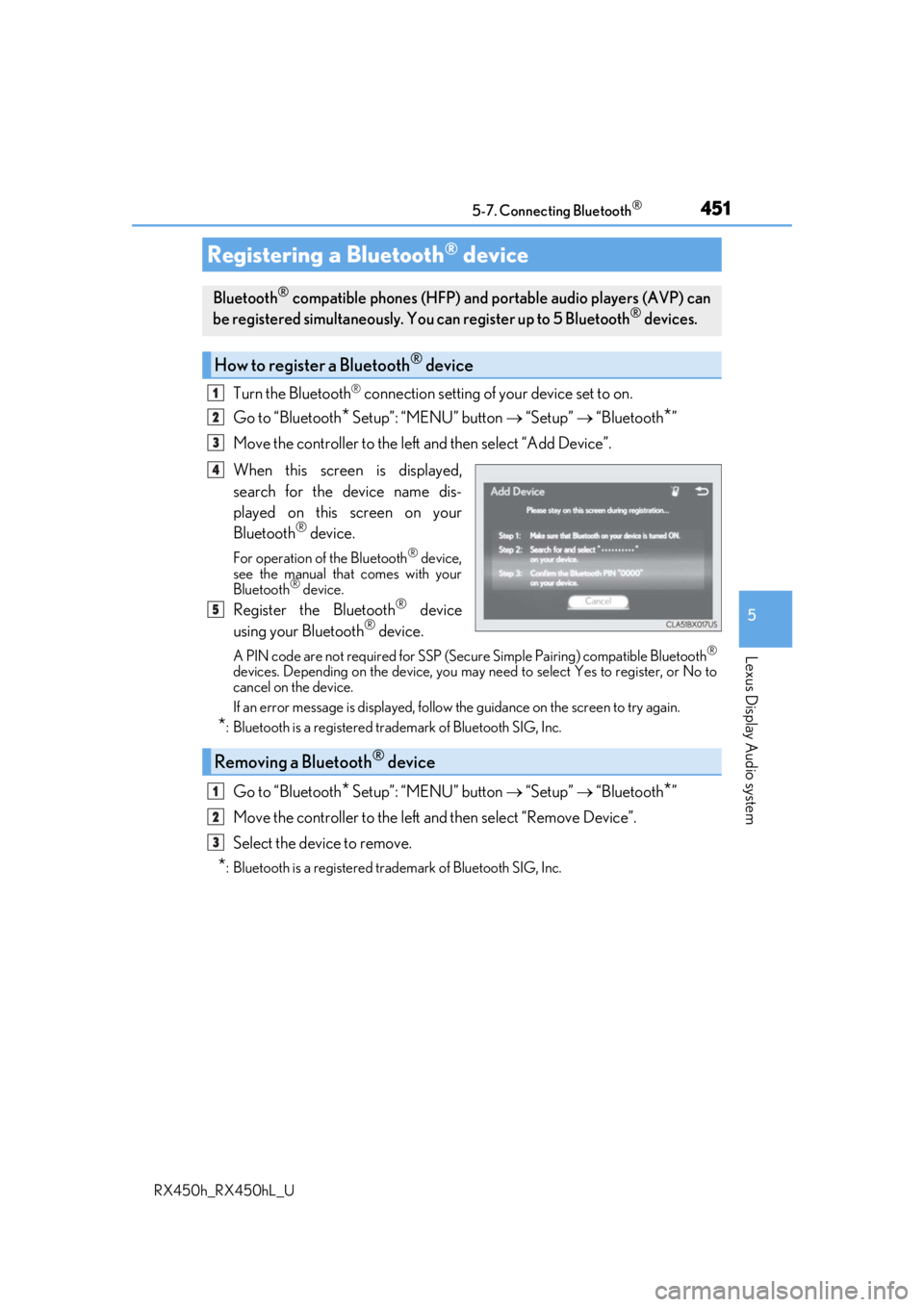
When this screen is displayed,
search for the device name dis-
played on this screen on your
Bluetooth
® device.
For operation of the Bluetooth® device,
see the manual that comes with your
Bluetooth
® device.
Register the Bluetooth® device
using your Bluetooth® device.
A PIN code are not required for SSP (Secur e Simple Pairing) compatible Bluetooth®
devices. Depending on the device, you may need to select Yes to register, or No to
cancel on the device.
If an error message is displayed, follow the guidance on the screen to try again.
*: Bluetooth is a registered trademark of Bluetooth SIG, Inc.
Go to “Bluetooth* Setup”: “MENU” button “Setup” “Bluetooth*”
Move the controller to the left and then select “Remove Device”.
Select the device to remove.
*: Bluetooth is a registered trademark of Bluetooth SIG, Inc.
Registering a Bluetooth® device
Bluetooth® compatible phones (HFP) and portable audio players (AVP) can
be registered simultaneously. You can register up to 5 Bluetooth® devices.
How to register a Bluetooth® device
1
2
3
4
5
Removing a Bluetooth® device
1
2
3
Page 476 of 792
4765-10. Phonebook
RX450h_RX450hL_U
You can register the desired contact from the phonebook. Up to 15 contacts per
phone can be registered.
Go to “Add Favorite”: “MENU” button “Setup” “Phone” “Contacts/
Call History” “Add Favorite”
Choose the contact to register.
Go to “Remove Favorite”: “MENU” button “Setup” “Phone” “Con-
tacts/Call History” “Remove Favorite”
Select the desired contacts.
You can select all contacts by selecting “Select All”.
Move the controller to the left and select “Remove”.
Go to “Delete Contact ”: “MENU” button “Setup” “Phone” “Con-
tacts/Call History” “Delete Contact”
Select the desired contacts.
You can select all contacts by selecting “Select All”.
Move the controller to the left and select “Delete”.
■Phonebook data
Phonebook data is managed separately for every registered phone. When one phone is
connected, you cannot read the registered data of the other phones.
■When transferring contacts
Transfer contacts while the engine is running.
If the cellular phone is OPP or PBAP compatible, you may need to input “1234” on the
cellular phone for OBEX certification.
■When you have selected “Replace Contacts” or “Add Contact” to transfer contacts
If the cellular phone does not support OPP service, you cannot use these functions. You
can transfer the phonebook data only by operating your phone.
■Transferring contacts while Bluetooth® audio is playing
Bluetooth® audio will disconnect. It will reconnect automatically when data transfer fin-
ishes. It may not reconnect dependin g on the phone which is connected.
Registering favorites
1
2
Removing favorites
Deleting the contacts data
1
2
3
1
2
3
Page 481 of 792
4815-11. Bluetooth®
5
Lexus Display Audio system
RX450h_RX450hL_U
In other situations
Even though all conceivable measures have been taken, the symptom status does not
change.
The cellular phone is not close enough to this system.
Bring the cellular phone closer to this system.
The cellular phone is the most likely cause of the symptom.
Turn the cellular phone off, remove and reinstall the battery pack, and then
restart the cellular phone.
Enable the cellular phone’s Bluetooth
® connection.
Stop the cellular phone’s security software and close all applications.
Before using an application installed on the cellular phone, carefully check its
source and how its operation might affect this system.
Page 516 of 792
5166-2. Using the air conditioning system and defogger
RX450h_RX450hL_U
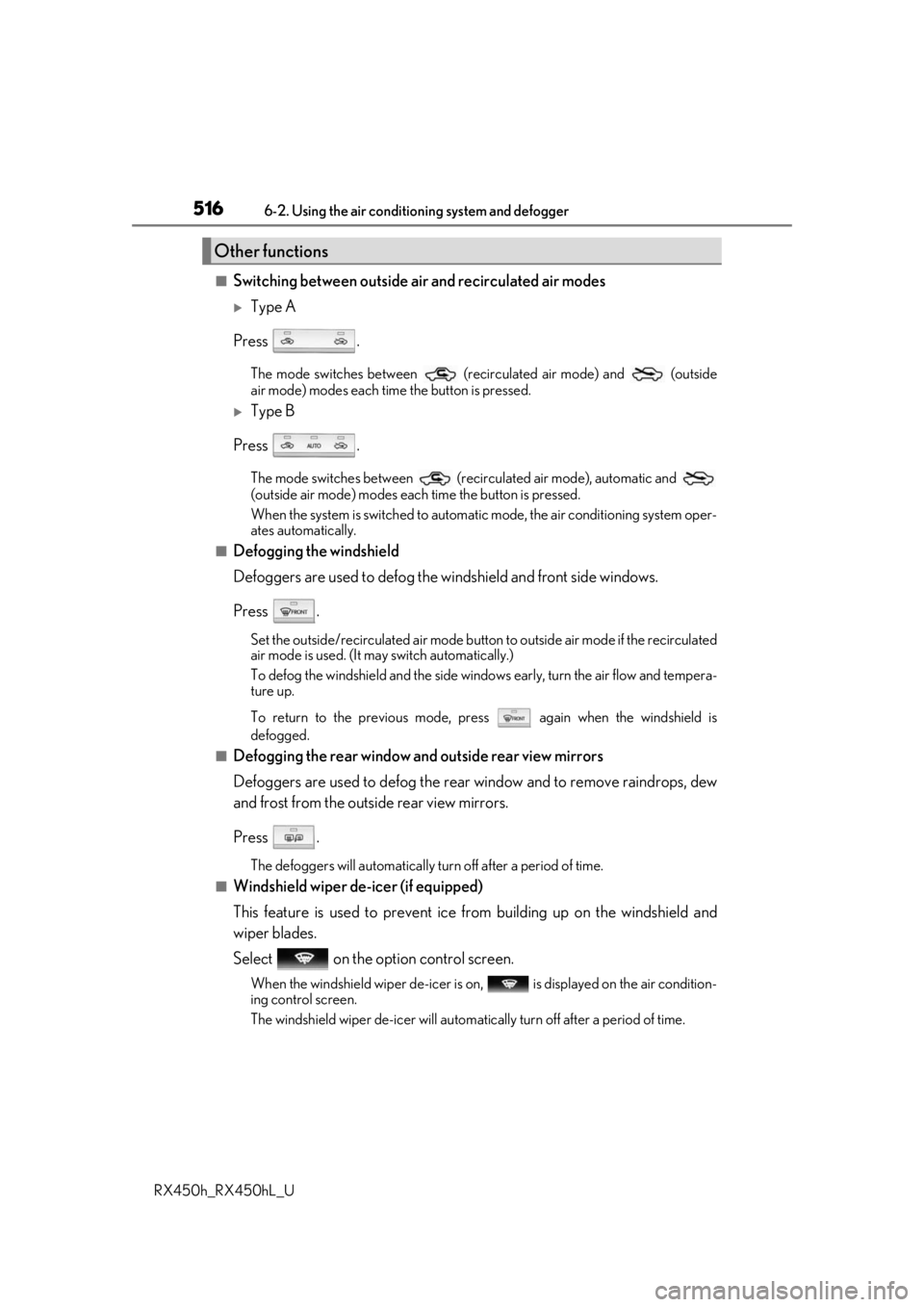
■Switching between outside air and recirculated air modes
Type A
Press .
The mode switches between (recirculated air mode) and (outside
air mode) modes each time the button is pressed.
Type B
Press .
The mode switches between (recir culated air mode), automatic and
(outside air mode) modes each time the button is pressed.
When the system is switched to automatic mode, the air conditioning system oper-
ates automatically.
■Defogging the windshield
Defoggers are used to defog the wi ndshield and front side windows.
Press .
Set the outside/recirculated air mode button to outside air mode if the recirculated
air mode is used. (It may switch automatically.)
To defog the windshield and the side wind ows early, turn the air flow and tempera-
ture up.
To return to the previous mode, press again when the windshield is
defogged.
■Defogging the rear window and outside rear view mirrors
Defoggers are used to defog the rear window and to remove raindrops, dew
and frost from the outside rear view mirrors.
Press .
The defoggers will automatically turn off after a period of time.
■Windshield wiper de-icer (if equipped)
This feature is used to prevent ice fr om building up on the windshield and
wiper blades.
Select on the option control screen.
When the windshield wiper de-icer is on , is displayed on the air condition-
ing control screen.
The windshield wiper de-icer will automati cally turn off after a period of time.
Other functions
Page 531 of 792
5316-3. Using the interior lights
6
Interior features
RX450h_RX450hL_U
●Illuminated entry system: The lights automatically turn on/off according to power switch
mode, the presence of the electronic key, whether the doors are locked/unlocked, and
whether the doors are opened/closed.
●If the interior lights remain on when the power switch is turned off, the lights will go off
automatically after 20 minutes.
●In the following cases, the interior lights and front personal lights may not respond as
normal.
• When water, dirt, etc., have adhered to the lens surface
• When operated with a wet hand
• When wearing gloves, etc.
●Some functions can be customized ( P. 736)
NOTICE
●Never remove the lens for the front interior light and front personal lights. Otherwise,
the lights will be damaged. If the lens need to remove, contact your Lexus dealer.
●To prevent 12-volt battery discharge, do not leave the lights on longer than necessary
when the hybrid system is off.
Page 534 of 792
5346-4. Using the storage features
RX450h_RX450hL_U
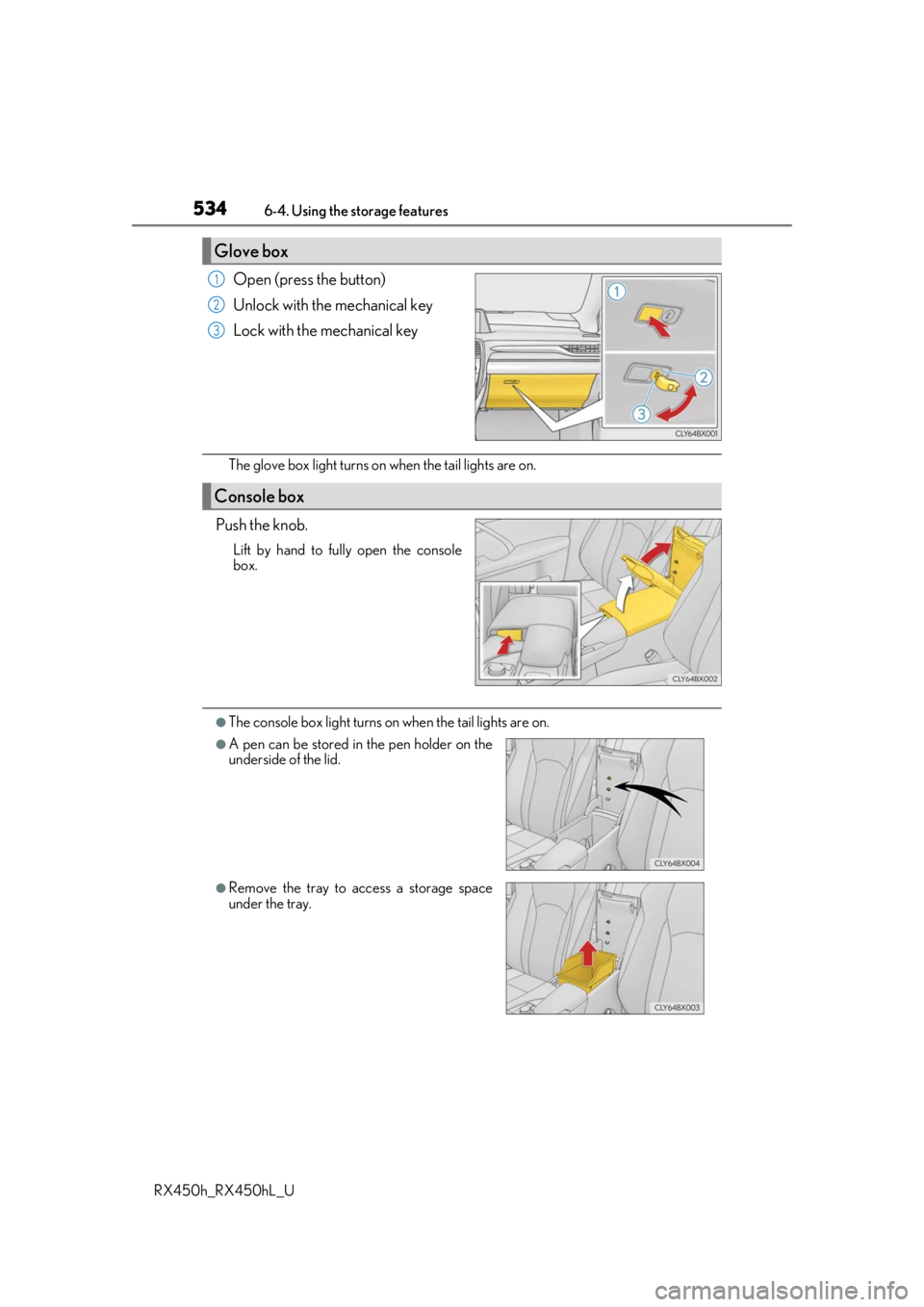
Open (press the button)
Unlock with the mechanical key
Lock with the mechanical key
The glove box light turns on when the tail lights are on.
Push the knob.
Lift by hand to fully open the console
box.
●The console box light turns on when the tail lights are on.
Glove box
1
2
3
Console box
●A pen can be stored in the pen holder on the
underside of the lid.
●Remove the tray to access a storage space
under the tray.
Page 541 of 792
5416-4. Using the storage features
6
Interior features
RX450h_RX450hL_U
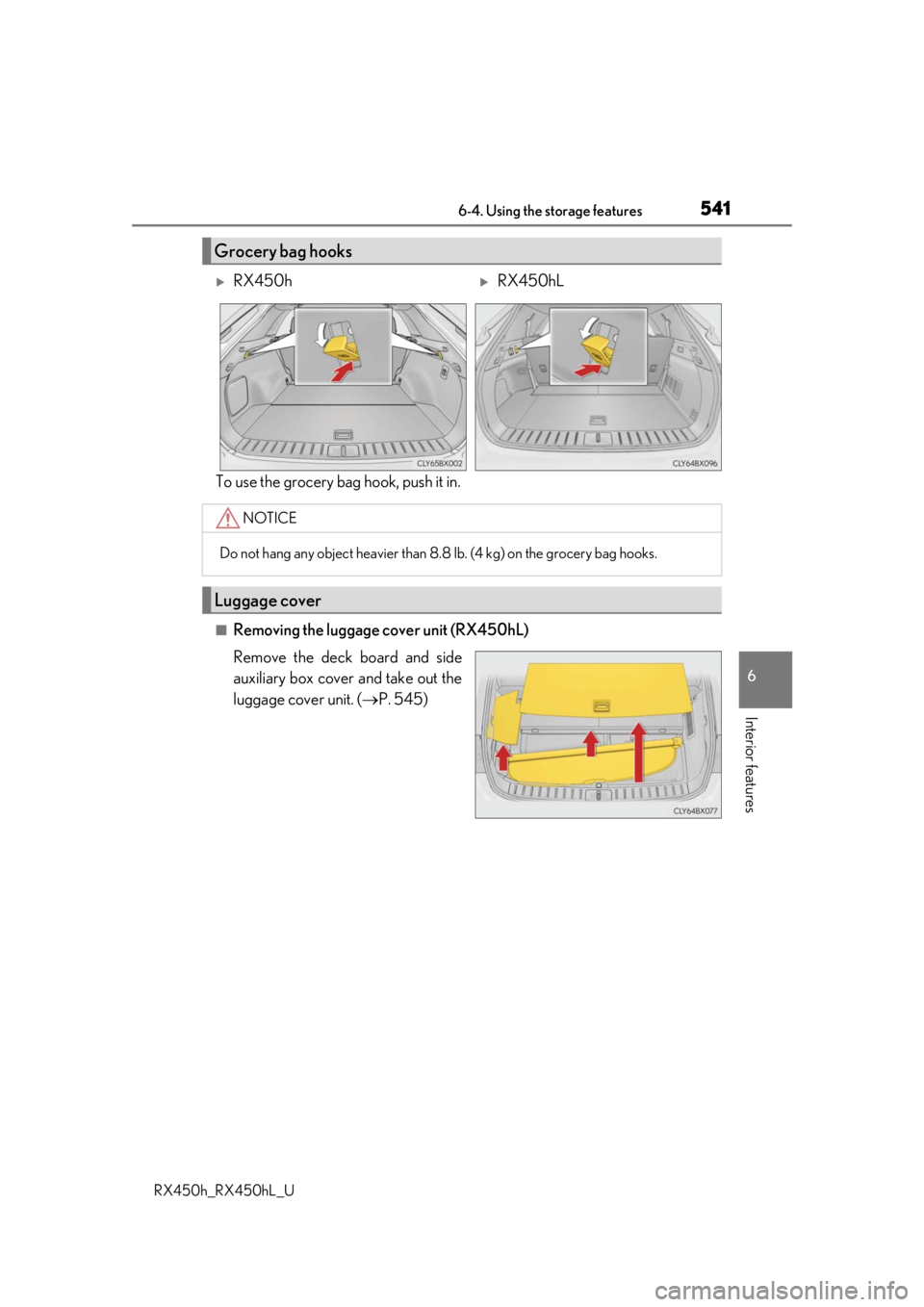
To use the grocery bag hook, push it in.
■Removing the luggage cover unit (RX450hL)
Remove the deck board and side
auxiliary box cover and take out the
luggage cover unit. (P. 545)
Grocery bag hooks
RX450hRX450hL
NOTICE
Do not hang any object heavier than 8. 8 lb. (4 kg) on the grocery bag hooks.
Luggage cover
Page 545 of 792
5456-4. Using the storage features
6
Interior features
RX450h_RX450hL_U
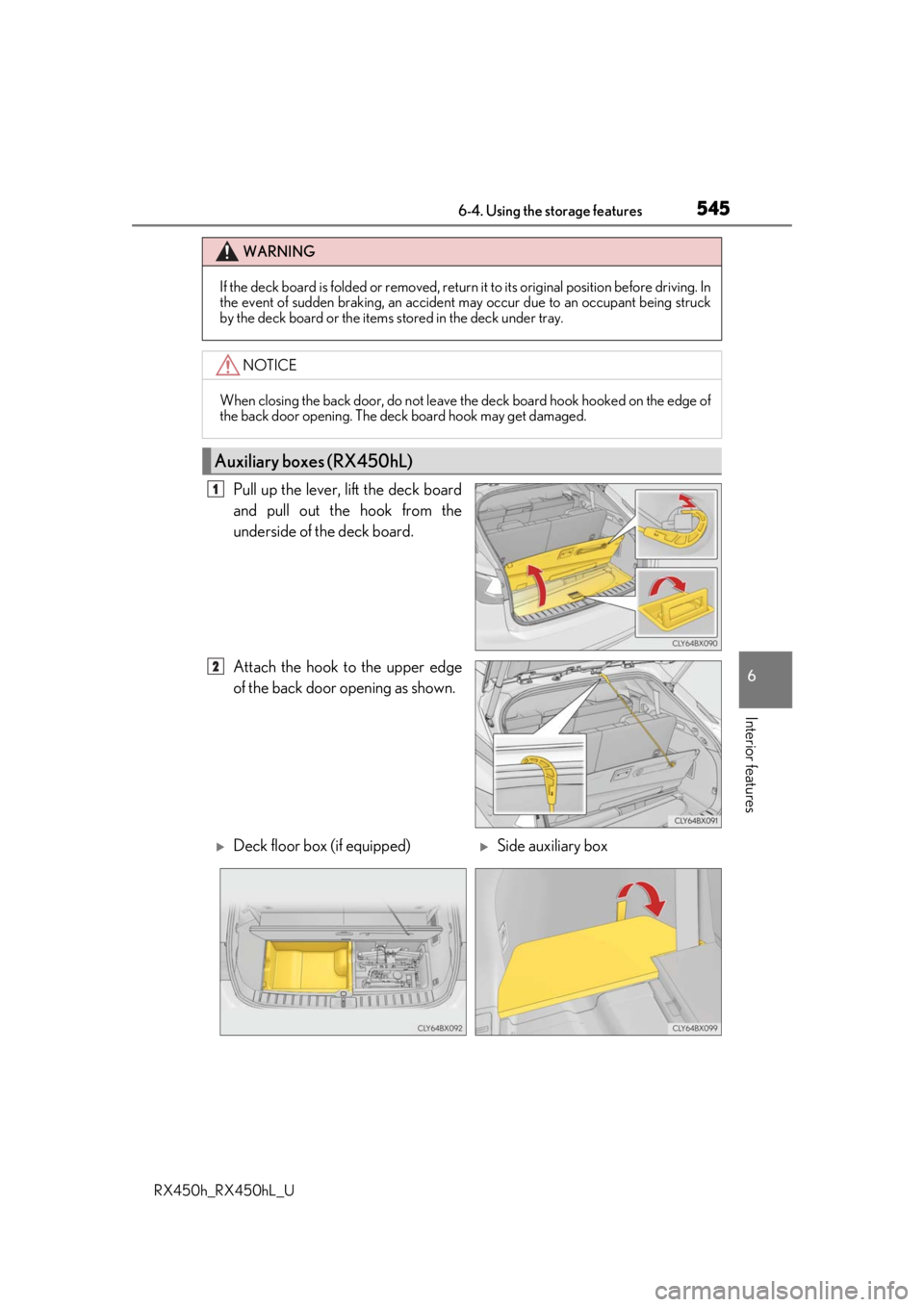
Pull up the lever, lift the deck board
and pull out the hook from the
underside of the deck board.
Attach the hook to the upper edge
of the back door opening as shown.
WARNING
If the deck board is folded or removed, return it to its original position before driving. In
the event of sudden braking, an accident may occur due to an occupant being struck
by the deck board or the items stored in the deck under tray.
NOTICE
When closing the back door, do not leave th e deck board hook hooked on the edge of
the back door opening. The deck board hook may get damaged.
Auxiliary boxes (RX450hL)
1
2
Deck floor box (if equipped)Side auxiliary box