change LEXUS RX450H 2020 Manual Online
[x] Cancel search | Manufacturer: LEXUS, Model Year: 2020, Model line: RX450H, Model: LEXUS RX450H 2020Pages: 777, PDF Size: 13.14 MB
Page 415 of 777
4145-3. Using the audio system
RX350/RX350L_U
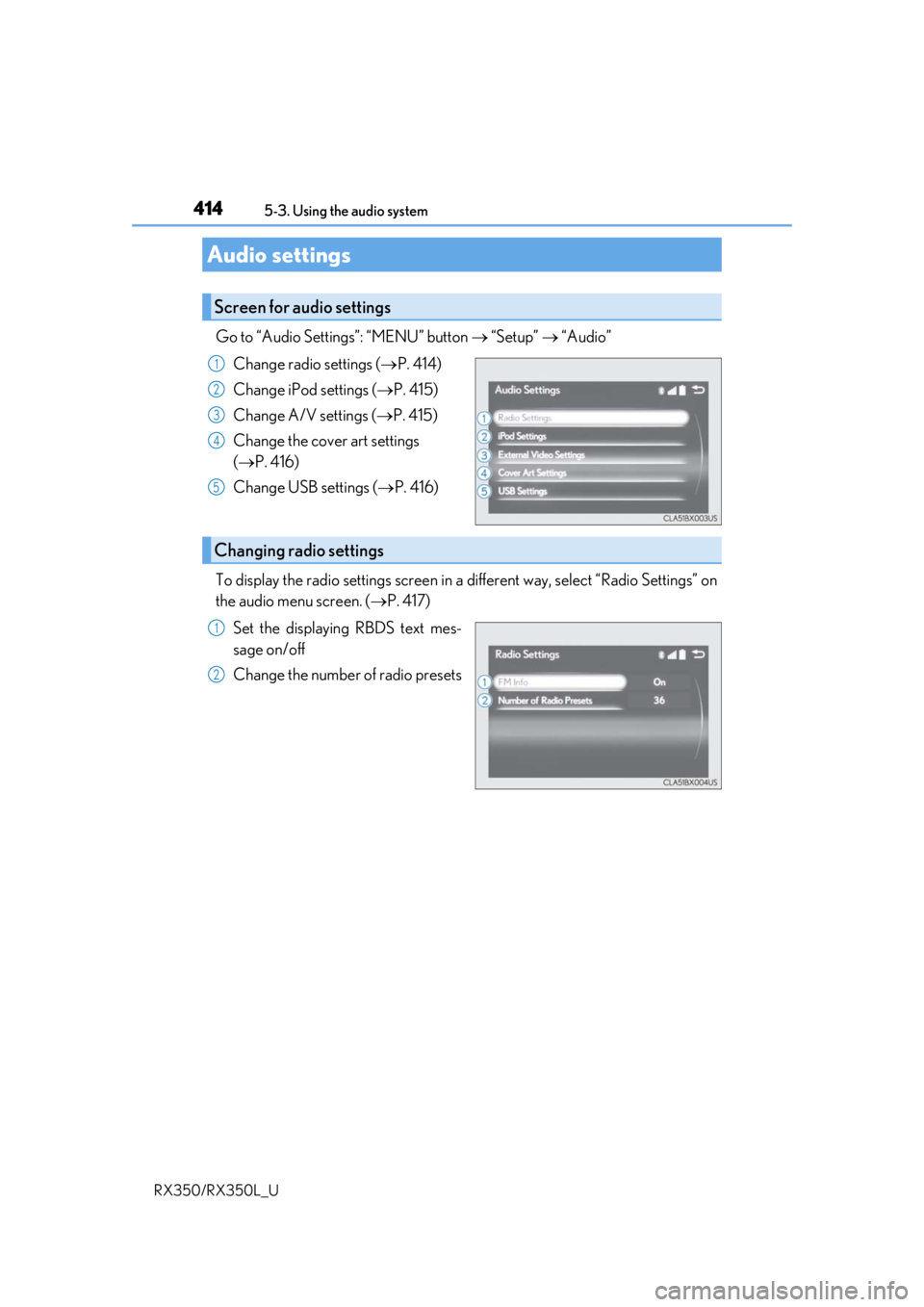
Go to “Audio Settings”: “MENU” button “Setup” “Audio”
Change radio settings ( P. 414)
Change iPod settings ( P. 415)
Change A/V settings ( P. 415)
Change the cover art settings
( P. 416)
Change USB settings ( P. 416)
To display the radio settings screen in a different way, select “Radio Settings” on
the audio menu screen. ( P. 417)
Set the displaying RBDS text mes-
sage on/off
Change the number of radio presets
Audio settings
Screen for audio settings
1
2
3
4
5
Changing radio settings
1
2
Page 416 of 777
4155-3. Using the audio system
5
Lexus Display Audio system
RX350/RX350L_U
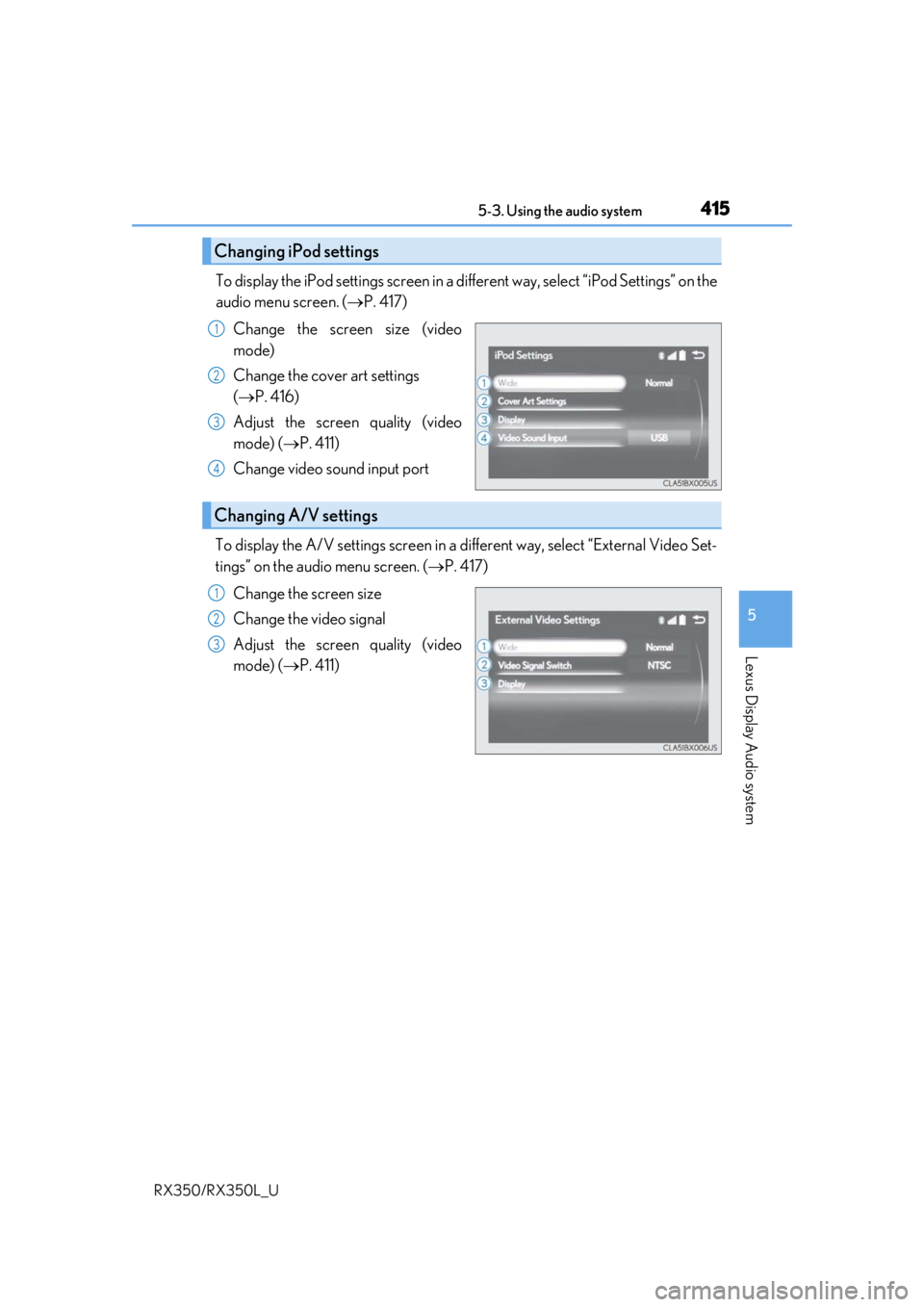
To display the iPod settings screen in a different way, select “iPod Settings” on the
audio menu screen. ( P. 417)
Change the screen size (video
mode)
Change the cover art settings
( P. 416)
Adjust the screen quality (video
mode) ( P. 411)
Change video sound input port
To display the A/V settings screen in a different way, select “External Video Set-
tings” on the audio menu screen. ( P. 417)
Change the screen size
Change the video signal
Adjust the screen quality (video
mode) ( P. 411)
Changing iPod settings
1
2
3
4
Changing A/V settings
1
2
3
Page 417 of 777
4165-3. Using the audio system
RX350/RX350L_U
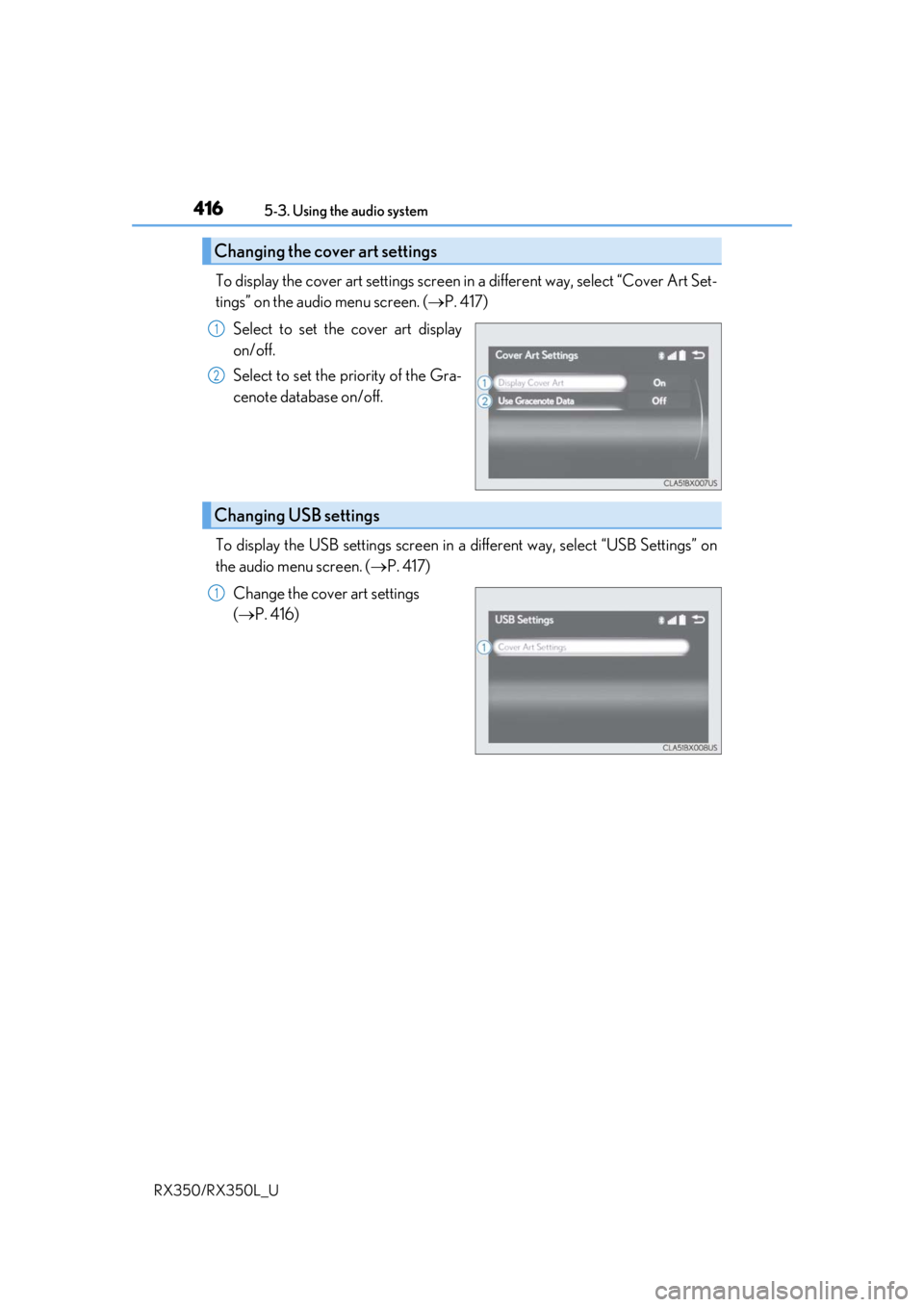
To display the cover art settings screen in a different way, select “Cover Art Set-
tings” on the audio menu screen. ( P. 417)
Select to set the cover art display
on/off.
Select to set the priority of the Gra-
cenote database on/off.
To display the USB settings screen in a different way, select “USB Settings” on
the audio menu screen. ( P. 417)
Change the cover art settings
( P. 416)
Changing the cover art settings
1
2
Changing USB settings
1
Page 418 of 777
4175-3. Using the audio system
5
Lexus Display Audio system
RX350/RX350L_U
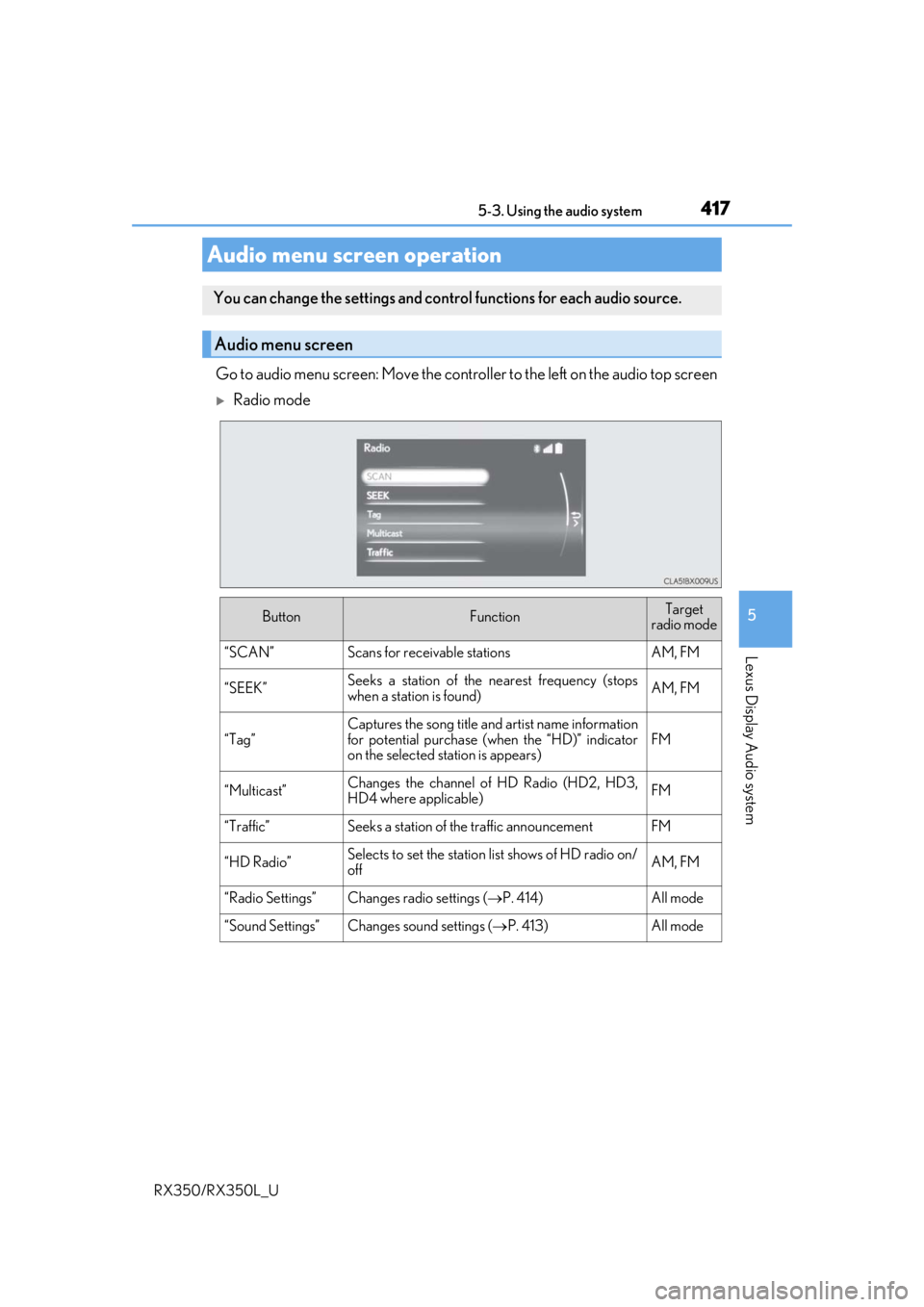
Go to audio menu screen: Move the controller to the left on the audio top screen
Radio mode
Audio menu screen operation
You can change the settings and control functions for each audio source.
Audio menu screen
ButtonFunctionTarget
radio mode
“SCAN”Scans for receivable stationsAM, FM
“SEEK”Seeks a station of the nearest frequency (stops
when a station is found)AM, FM
“Tag”
Captures the song title and artist name information
for potential purchase (when the “HD)” indicator
on the selected st ation is appears)
FM
“Multicast”Changes the channel of HD Radio (HD2, HD3,
HD4 where applicable)FM
“Traffic”Seeks a station of th e traffic announcementFM
“HD Radio”Selects to set the station list shows of HD radio on/
offAM, FM
“Radio Settings”Changes radio settings ( P. 414)All mode
“Sound Settings”Changes sound settings (P. 413)All mode
Page 419 of 777
4185-3. Using the audio system
RX350/RX350L_U
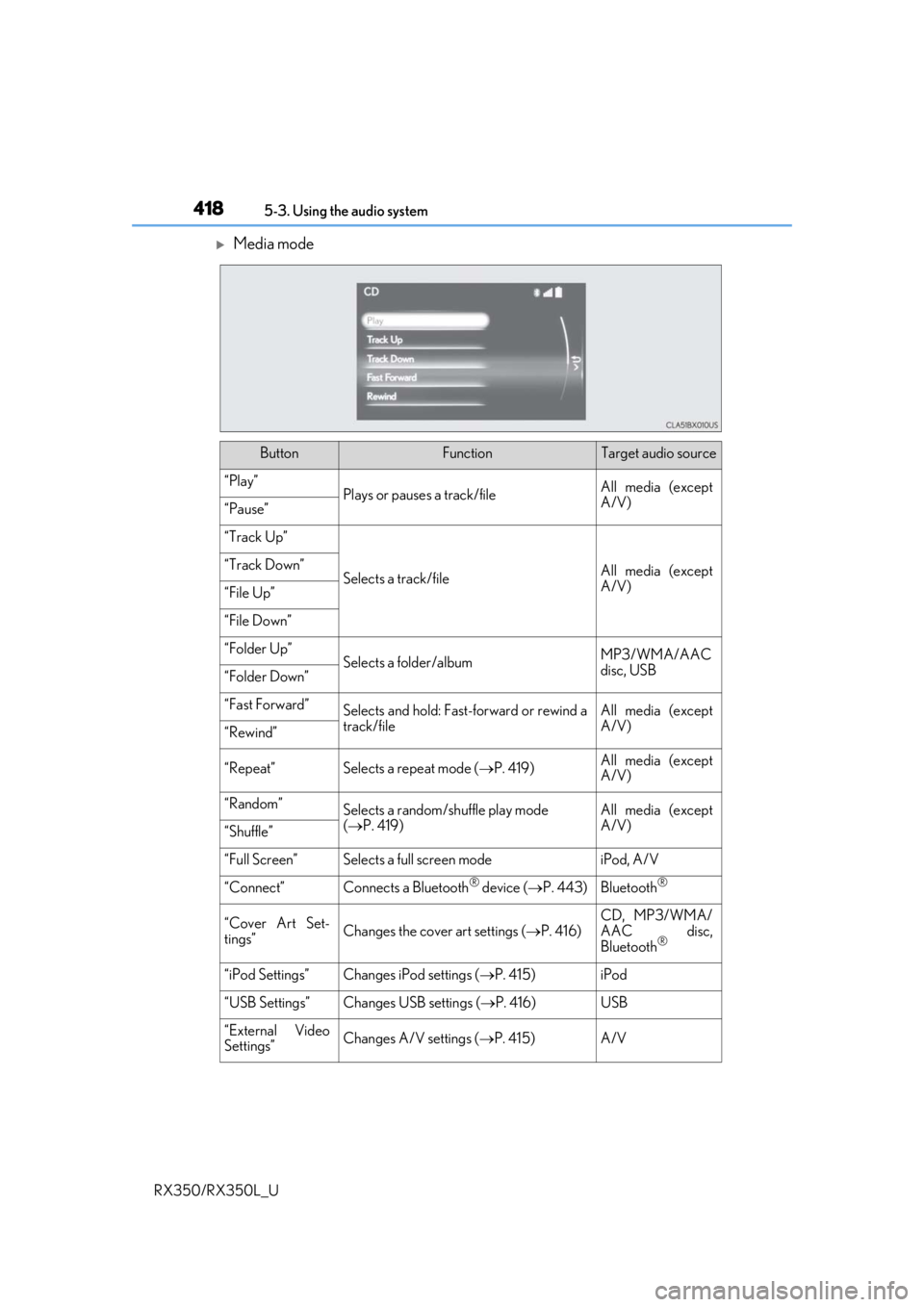
Media mode
ButtonFunctionTarget audio source
“Play”Plays or pauses a track/fileAll media (except
A/V)
“Pause”
“Track Up”
Selects a track/fileAll media (except
A/V)“Track Down”
“File Up”
“File Down”
“Folder Up”Selects a folder/albumMP3/WMA/AAC
disc, USB
“Folder Down”
“Fast Forward”Selects and hold: Fast-f orward or rewind a
track/fileAll media (except
A/V)
“Rewind”
“Repeat”Selects a repeat mode ( P. 419)All media (except
A/V)
“Random”Selects a random/shuffle play mode
( P. 419)All media (except
A/V)
“Shuffle”
“Full Screen”Selects a full screen modeiPod, A/V
“Connect”Connects a Bluetooth® device ( P. 443)Bluetooth®
“Cover Art Set-
tings”Changes the cover art settings ( P. 416)
CD, MP3/WMA/
AAC disc,
Bluetooth
®
“iPod Settings”Changes iPod settings ( P. 415)iPod
“USB Settings”Changes USB settings ( P. 416)USB
“External Video
Settings”Changes A/V settings (P. 415)A/V
Page 420 of 777
4195-3. Using the audio system
5
Lexus Display Audio system
RX350/RX350L_U
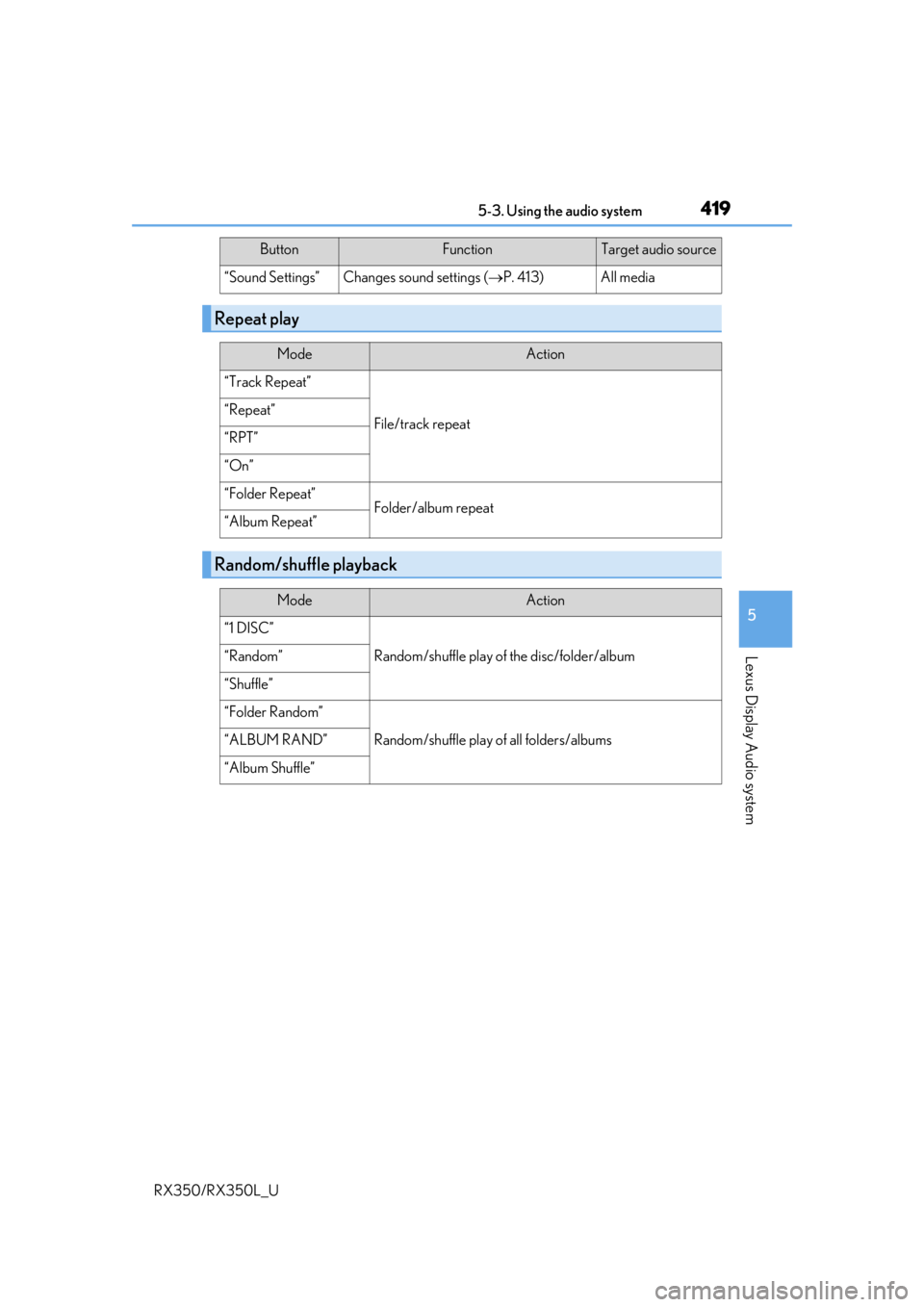
“Sound Settings”Changes sound settings (P. 413)All media
Repeat play
ModeAction
“Track Repeat”
File/track repeat“Repeat”
“RPT”
“On”
“Folder Repeat”Folder/album repeat“Album Repeat”
Random/shuffle playback
ModeAction
“1 DISC”
Random/shuffle play of the disc/folder/album“Random”
“Shuffle”
“Folder Random”
Random/shuffle play of all folders/albums“ALBUM RAND”
“Album Shuffle”
ButtonFunctionTarget audio source
Page 421 of 777
420
RX350/RX350L_U5-4. Using the radio
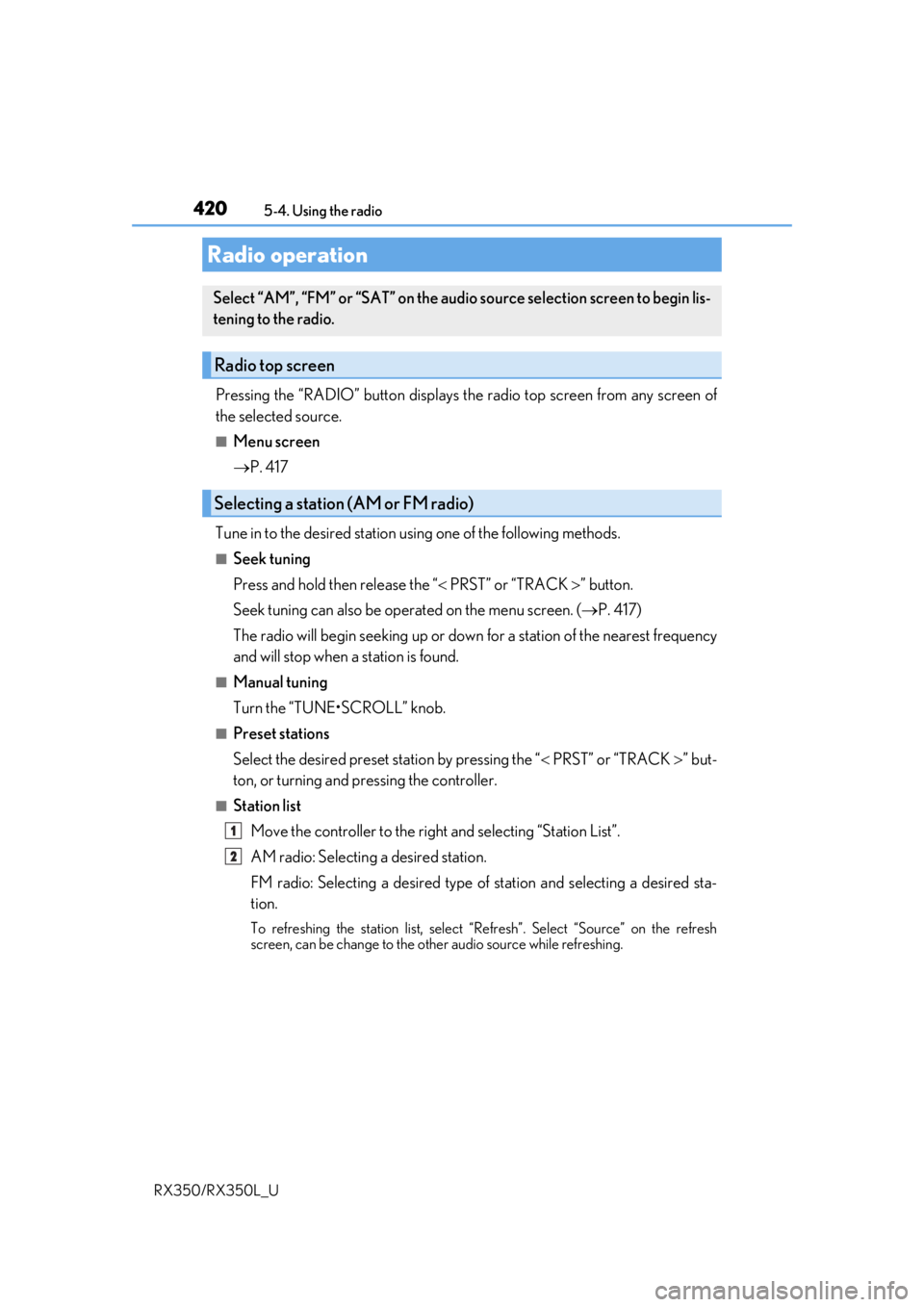
Pressing the “RADIO” button displays the radio top screen from any screen of
the selected source.
■Menu screen
P. 417
Tune in to the desired station using one of the following methods.
■Seek tuning
Press and hold then release the “ PRST” or “TRACK ” button.
Seek tuning can also be operated on the menu screen. ( P. 417)
The radio will begin seeking up or down for a station of the nearest frequency
and will stop when a station is found.
■Manual tuning
Turn the “TUNE•SCROLL” knob.
■Preset stations
Select the desired preset station by pressing the “ PRST” or “TRACK ” but-
ton, or turning and pressing the controller.
■Station list
Move the controller to the right and selecting “Station List”.
AM radio: Selectin g a desired station.
FM radio: Selecting a desired type of station and selecting a desired st\
a-
tion.
To refreshing the station list, select “Refresh”. Select “Source” on the refresh
screen, can be change to the othe r audio source while refreshing.
Radio operation
Select “AM”, “FM” or “SAT” on the audi o source selection screen to begin lis-
tening to the radio.
Radio top screen
Selecting a station (AM or FM radio)
1
2
Page 427 of 777
4265-4. Using the radio
RX350/RX350L_U
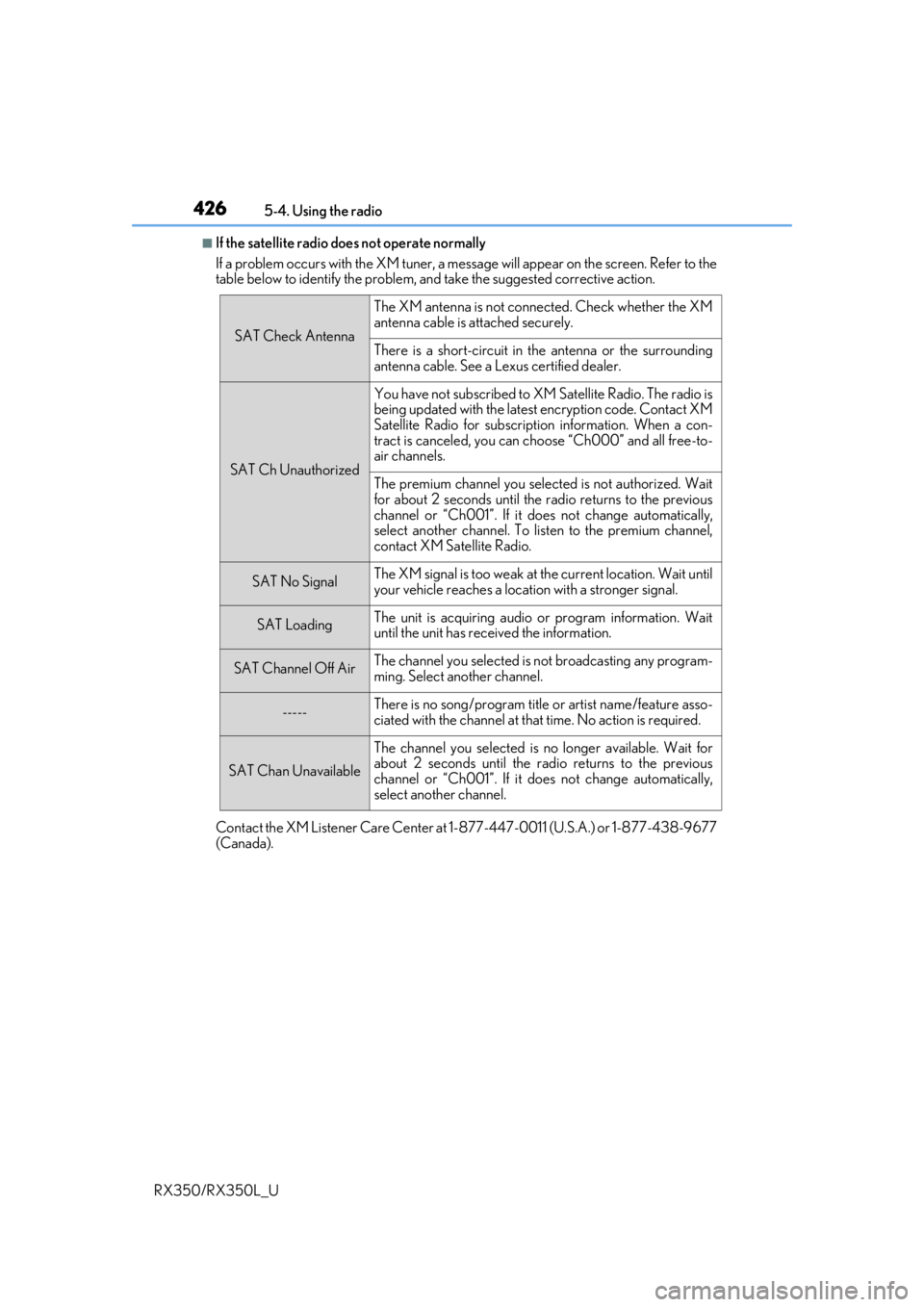
■If the satellite radio does not operate normally
If a problem occurs with the XM tuner, a message will appear on the screen. Refer to the
table below to identify the problem, an d take the suggested corrective action.
Contact the XM Listener Care Center at 1-877-447-0011 (U.S.A.) or 1-877-438-9677
(Canada).
SAT Check Antenna
The XM antenna is not connected. Check whether the XM
antenna cable is attached securely.
There is a short-circuit in the antenna or the surrounding
antenna cable. See a Lexus certified dealer.
SAT Ch Unauthorized
You have not subscribed to XM Satellite Radio. The radio is
being updated with the latest encryption code. Contact XM
Satellite Radio for subscripti on information. When a con-
tract is canceled, you can choose “Ch000” and all free-to-
air channels.
The premium channel you selected is not authorized. Wait
for about 2 seconds until the radio returns to the previous
channel or “Ch001”. If it does not change automatically,
select another channel. To listen to the premium channel,
contact XM Satellite Radio.
SAT No SignalThe XM signal is too weak at the current location. Wait until
your vehicle reaches a location with a stronger signal.
SAT LoadingThe unit is acquiring audio or program information. Wait
until the unit has rece ived the information.
SAT Channel Off AirThe channel you selected is not broadcasting any program-
ming. Select another channel.
-----There is no song/program title or artist name/feature asso-
ciated with the channel at that time. No action is required.
SAT Chan Unavailable
The channel you selected is no longer available. Wait for
about 2 seconds until the radio returns to the previous
channel or “Ch001”. If it does not change automatically,
select another channel.
Page 436 of 777

4355-6. Using an external device
5
Lexus Display Audio system
RX350/RX350L_U
■iPod cover art
●Depending on the iPod and songs in the iPod, iPod cover art may be displayed.
●This function can be changed to on/off. (P. 416)
●It may take time to display iPod cover art, and the iPod may not be operated while the
cover art display is in process.
■iPod functions
●When an iPod is connected and the audio sour ce is changed to iPod mode, the iPod will
resume play from the same poin t in which it was last used.
●Depending on the iPod that is connected to the system, certain functions may not be
available. If a function is unavailable due to a malfunction (as opposed to a system spec-
ification), disconnecting th e device and reconnecting it may resolve the problem.
●Depending on the iPod, while connected to the system, the iPod cannot be operated
with its own controls. It is necessary to us e the controls of the vehicle’s audio system
instead.
●When the battery level of an iP od is very low, the iPod may not operate. If so, charge the
iPod before use.
●Compatible models ( P. 437)
■iPod problems
To resolve most problems encountered when using your iPod, disconnect your iPod from
the vehicle iPod connection and reset it. For instructions on how to reset your iPod, refer
to your iPod Owner’s Manual.
Page 442 of 777
4415-6. Using an external device
5
Lexus Display Audio system
RX350/RX350L_U
●ID3, WMA and AAC tags
ID3 tags can be added to MP3 files, making it possible to record the track title, artist
name, etc.
The system is compatible with ID3 Ver. 1.0, 1.1, and Ver. 2.2, 2.3 ID3 tags. (The number
of characters is based on ID3 Ver. 1.0 and 1.1.)
WMA tags can be added to WMA files, making it possible to record the track title and
artist name in the same way as with ID3 tags.
AAC tags can be added to AAC files, making it possible to record the track title and
artist name in the same way as with ID3 tags.
●MP3, WMA and AAC playback
• When a device containing MP3, WMA or AA C files is connected, all files in the
USB memory device are checked. Once th e file check is finished, the first MP3,
WMA or AAC file is played. To make the file check finish more quickly, we recom-
mend that you do not include any files other than MP3, WMA or AAC files or cre-
ate any unnecessary folders.
• When a USB memory device is connected and the audio source is changed to USB memory mode, the USB memory device will st art playing the first file in the first
folder. If the same device is removed an d reconnected (and the contents have not
been changed), the USB memory device w ill resume play from the same point in
which it was last used.
●Extensions
If the file extensions .mp3, .wma and .m4a are used for files other than MP3, WMA
and AAC files, they will be skipped (not played).
●Playback
• To play MP3 files with steady sound quality, we recommend a fixed bit rate of at least 128 kbps and a sampling frequency of 44.1 kHz.
• There is a wide variety of freeware an d other encoding software for MP3, WMA
and AAC files on the market, and depending on the status of the encoding and the
file format, poor sound quality or noise at the start of playback may result. In some
cases, playback may not be possible at all.
• Microsoft, Windows, and Windows Media ar e the registered trademarks of Micro-
soft Corporation in the U.S.A. and other countries.
NOTICE
■To prevent damage to the USB me mory device or its terminals
●Depending on the size and shape of the USB memory that is connected to the sys-
tem, the console box may not close fully. In th is case, do not forcibly close the console
box as this may damage the USB memory or the terminal, etc.
●Do not leave the USB memory device in the vehicle. The temperature inside the vehi-
cle may become high.
●Do not push down on or apply unnecessary pressure to the USB memory device
while it is connected.
●Do not insert foreign objects into the port.