phone LEXUS UX 2022 Owners Manual
[x] Cancel search | Manufacturer: LEXUS, Model Year: 2022, Model line: UX, Model: LEXUS UX 2022Pages: 100, PDF Size: 6.15 MB
Page 3 of 100
2
UX250h_QG_OM76572U_(U)
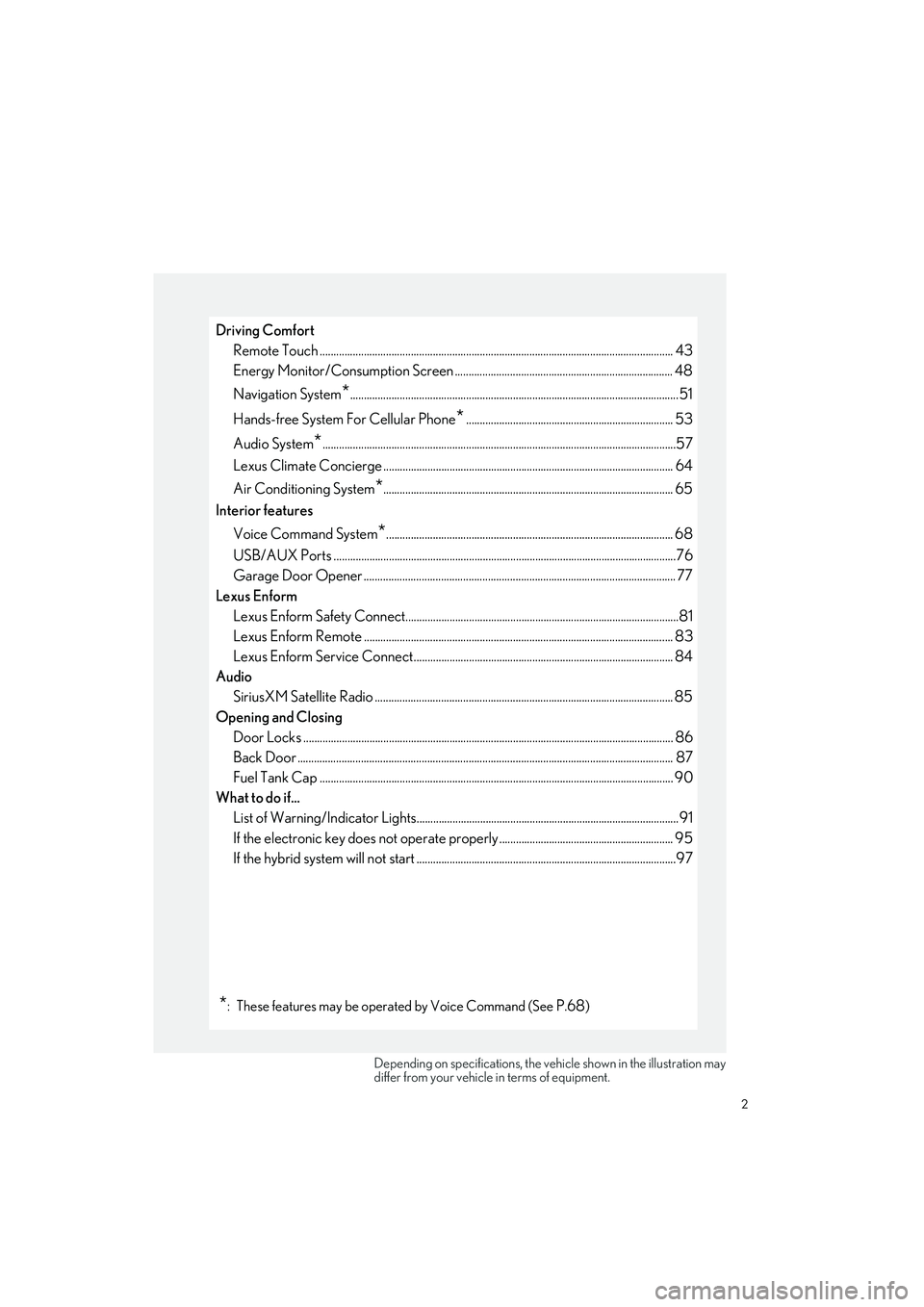
Driving ComfortRemote Touch ................................................................................................................... ............. 43
Energy Monitor/Consumption Screen ............................................................................... 48
Navigation System
*.......................................................................................................................51
Hands-free System For Cellular Phone
*........................................................................... 53
Audio System
*................................................................................................................................57
Lexus Climate Concierge .........................................................................................................64
Air Conditioning System
*......................................................................................................... 65
Interior features
Voice Command System
*........................................................................................................ 68
USB/AUX Ports .................................................................................................................. ..........76
Garage Door Opener ............................................................................................................. .... 77
Lexus Enform Lexus Enform Safety Connect...................................................................................................8 1
Lexus Enform Remote ............................................................................................................ .... 83
Lexus Enform Service Connect.............................................................................................. 84
Audio SiriusXM Satellite Radio ....................................................................................................... ..... 85
Opening and Closing Door Locks ..................................................................................................................... ................. 86
Back Door ...................................................................................................................... .................. 87
Fuel Tank Cap .................................................................................................................. .............. 90
What to do if... List of Warning/Indicator Lights............................................................................................... 91
If the electronic key does not oper ate properly ............................................................... 95
If the hybrid system will not star t ..............................................................................................97
*: These features may be operated by Voice Command (See P.68)
Depending on specifications, the vehicle shown in the illustration may
differ from your vehicle in terms of equipment.
Page 53 of 100
52
UX250h_QG_OM76572U_(U)
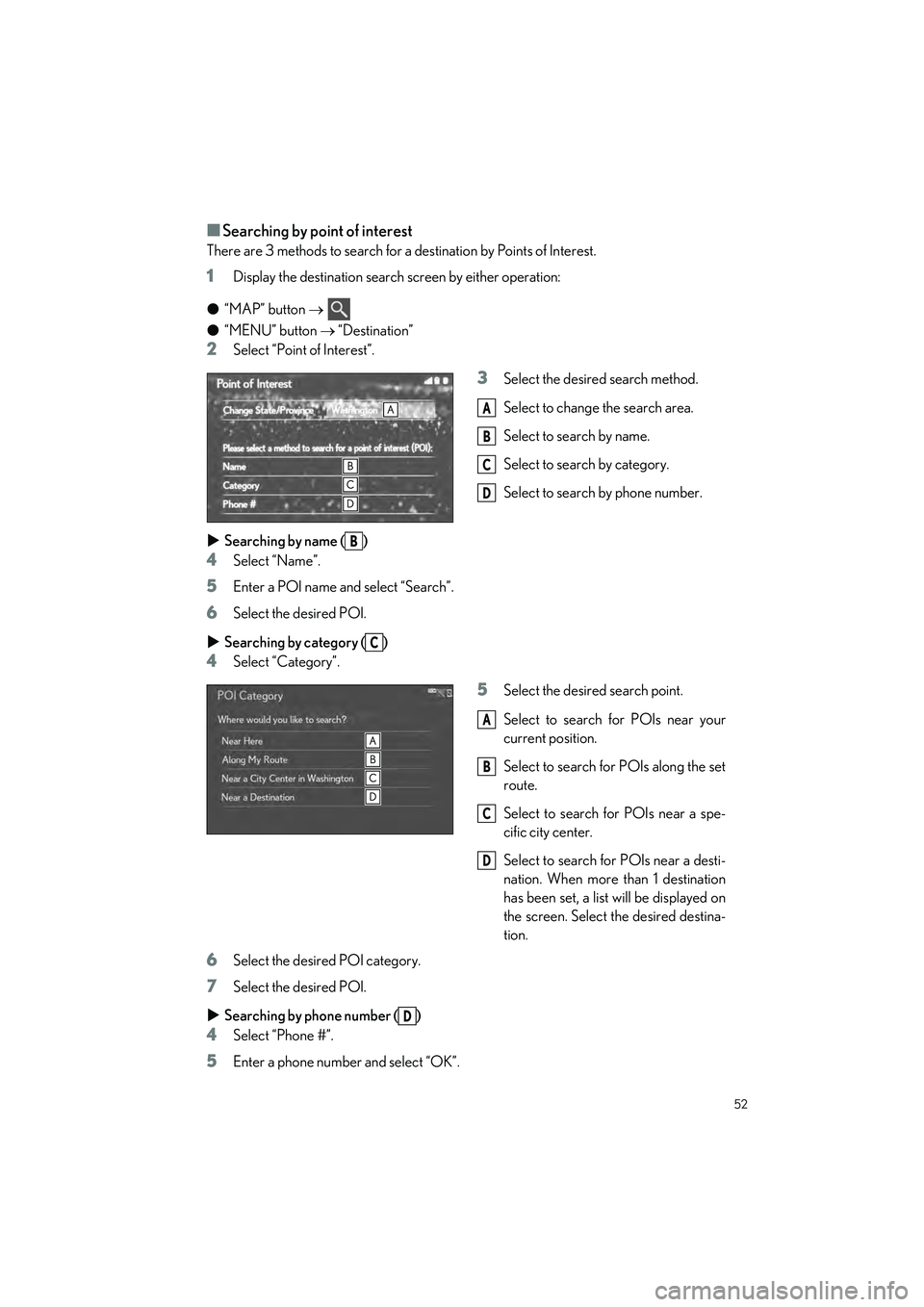
■Searching by point of interest
There are 3 methods to search for a destination by Points of Interest.
1Display the destination search screen by either operation:
● “MAP” button
● “MENU” button “Destination”
2Select “Point of Interest”.
3Select the desired search method.
Select to change the search area.
Select to search by name.
Select to search by category.
Select to search by phone number.
Searching by name ( )
4Select “Name”.
5Enter a POI name and select “Search”.
6Select the desired POI.
Searching by category ( )
4Select “Category”.
5Select the desired search point.
Select to search for POIs near your
current position.
Select to search for POIs along the set
route.
Select to search for POIs near a spe-
cific city center.
Select to search for POIs near a desti-
nation. When more than 1 destination
has been set, a list will be displayed on
the screen. Select the desired destina-
tion.
6Select the desired POI category.
7Select the desired POI.
Searching by phone number ( )
4Select “Phone #”.
5Enter a phone number and select “OK”.
A
B
C
D
B
C
A
B
C
D
D
Page 54 of 100
53
UX250h_QG_OM76572U_(U)
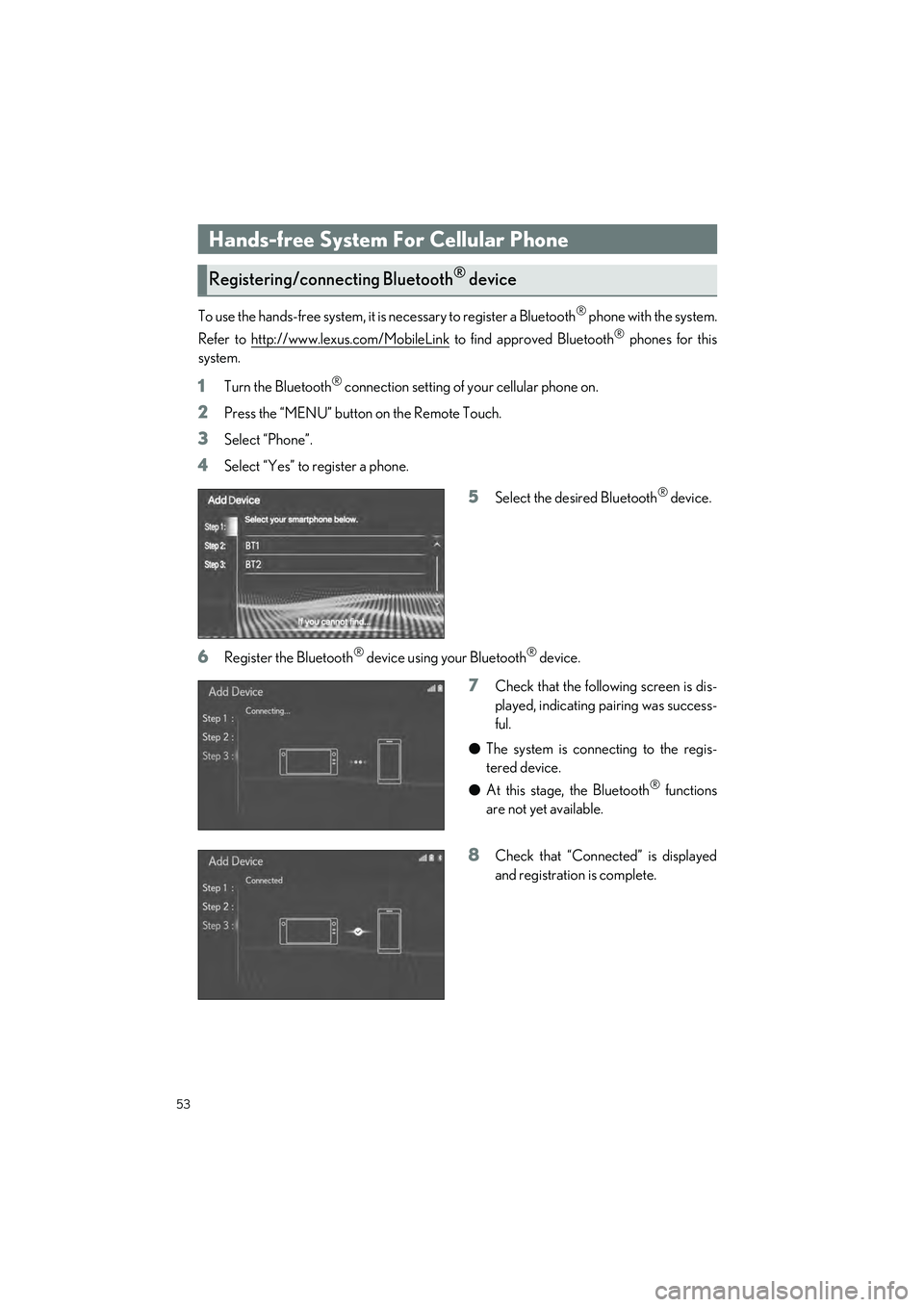
To use the hands-free system, it is necessary to register a Bluetooth® phone with the system.
Refer to http://www.lexus.com/MobileLink
to find approved Bluetooth® phones for this
system.
1Turn the Bluetooth® connection setting of your cellular phone on.
2Press the “MENU” button on the Remote Touch.
3Select “Phone”.
4Select “Yes” to register a phone.
5Select the desired Bluetooth® device.
6Register the Bluetooth® device using your Bluetooth® device.
7Check that the following screen is dis-
played, indicating pairing was success-
ful.
● The system is connecting to the regis-
tered device.
● At this stage, the Bluetooth
® functions
are not yet available.
8Check that “Connected” is displayed
and registration is complete.
Hands-free System For Cellular Phone
Registering/connecti ng Bluetooth® device
Page 55 of 100
54
UX250h_QG_OM76572U_(U)
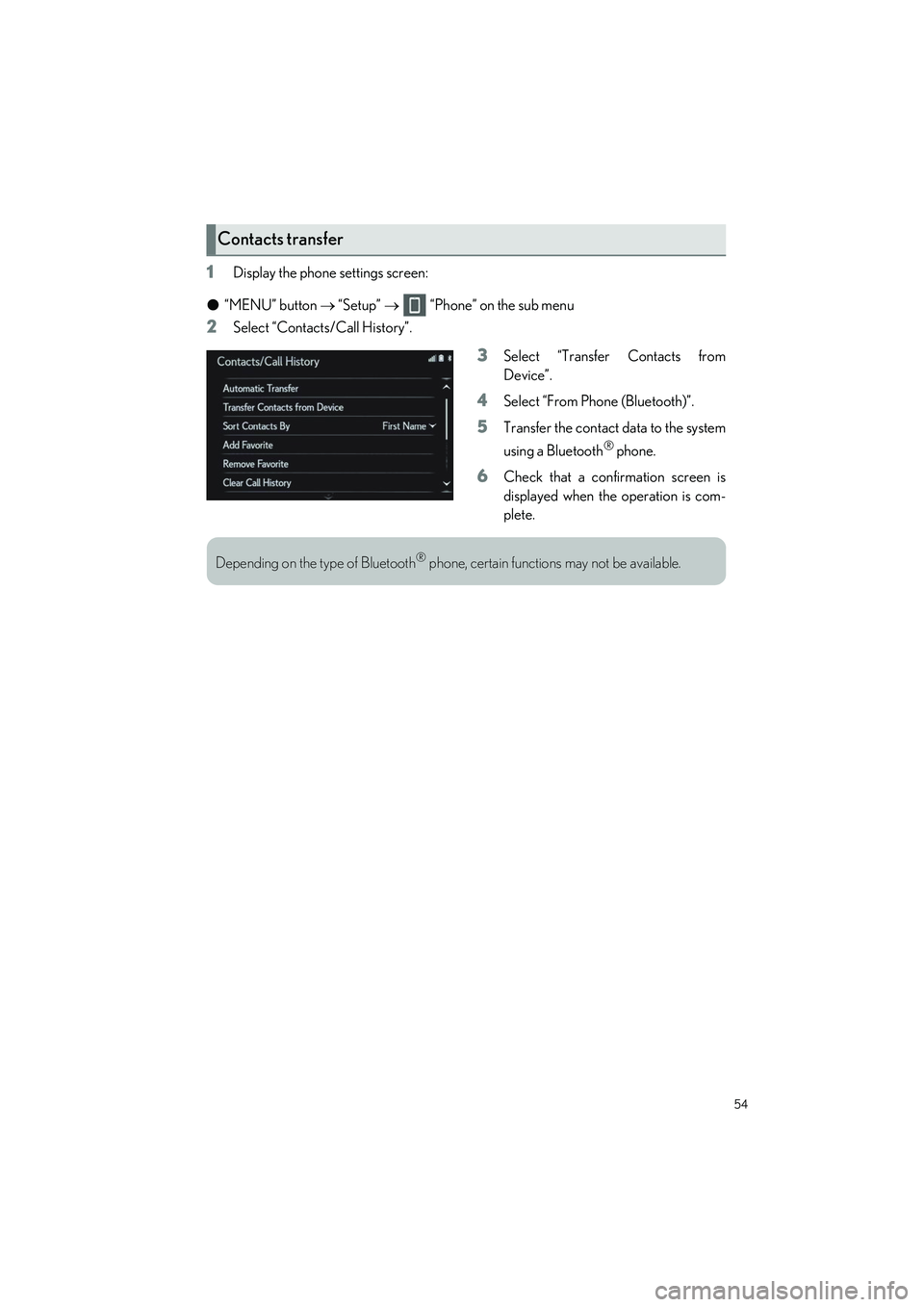
1Display the phone settings screen:
● “MENU” button “Setup” “Phone” on the sub menu
2Select “Contacts/Call History”.
3Select “Transfer Contacts from
Device”.
4Select “From Phone (Bluetooth)”.
5Transfer the contact data to the system
using a Bluetooth
® phone.
6Check that a confirmation screen is
displayed when the operation is com-
plete.
Contacts transfer
Depending on the type of Bluetooth® phone, certain functions may not be available.
Page 56 of 100
55
UX250h_QG_OM76572U_(U)
1Display the phone settings screen:
● “MENU” button “Setup” “Phone” on the sub menu
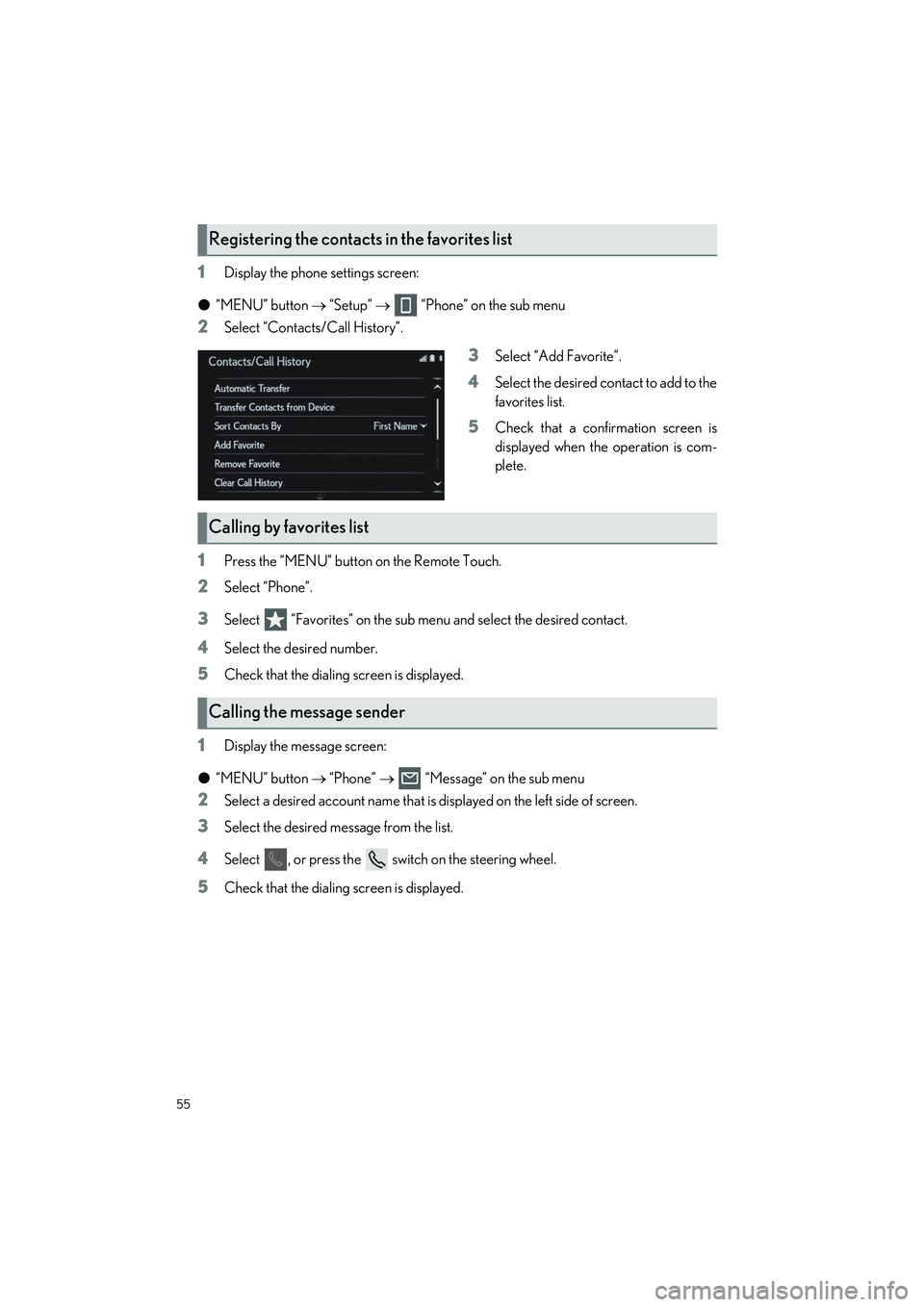
2Select “Contacts/Call History”.
3Select “Add Favorite”.
4Select the desired contact to add to the
favorites list.
5Check that a confirmation screen is
displayed when the operation is com-
plete.
1Press the “MENU” button on the Remote Touch.
2Select “Phone”.
3Select “Favorites” on the sub menu and select the desired contact.
4Select the desired number.
5Check that the dialing screen is displayed.
1Display the message screen:
● “MENU” button “Phone” “Message” on the sub menu
2Select a desired account name that is displayed on the left side of screen.
3Select the desired message from the list.
4Select , or press the switch on the steering wheel.
5Check that the dialing screen is displayed.
Registering the contacts in the favorites list
Calling by favorites list
Calling the message sender
Page 57 of 100
56
UX250h_QG_OM76572U_(U)
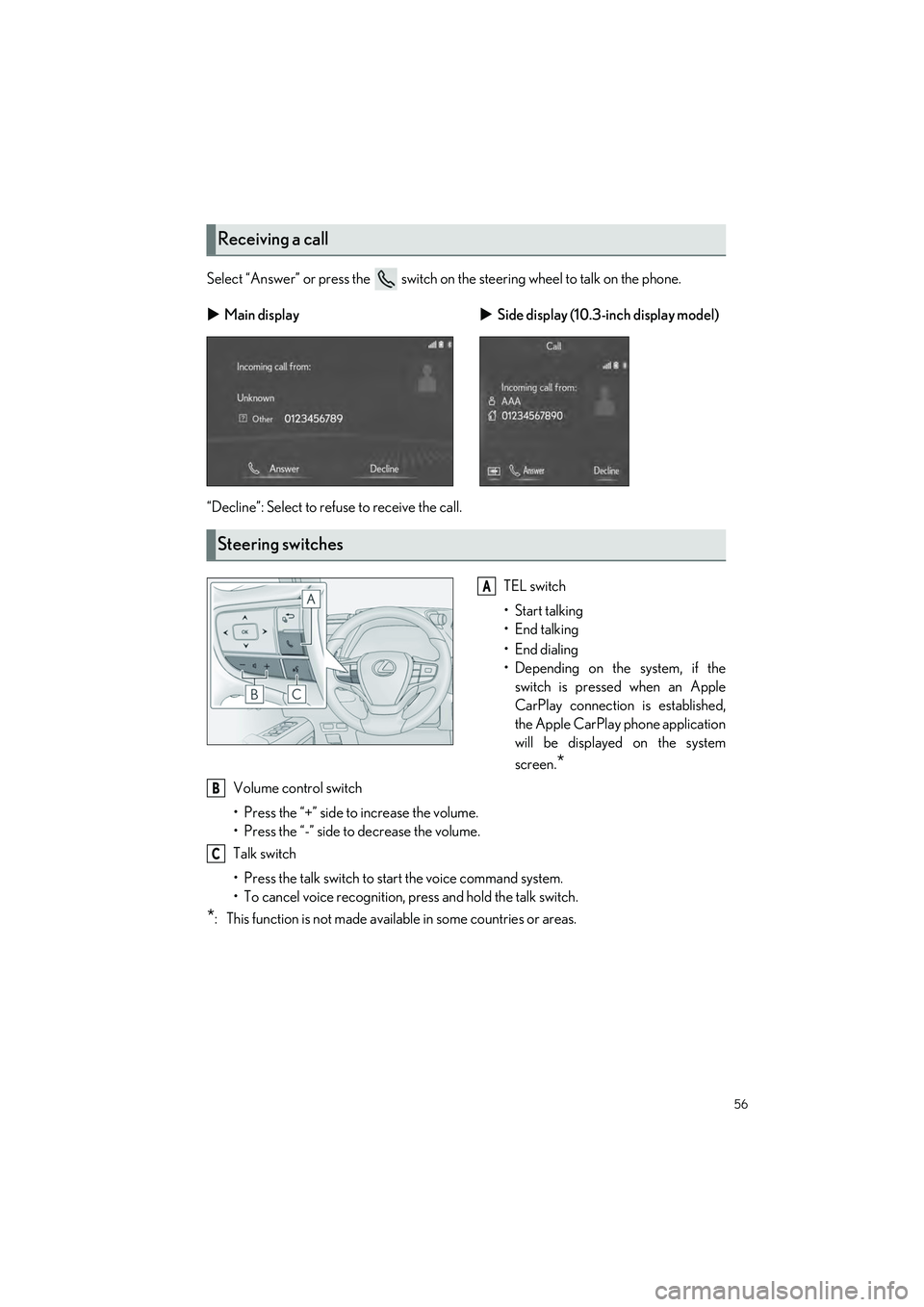
Select “Answer” or press the switch on the steering wheel to talk on the phone.
“Decline”: Select to refuse to receive the call. TEL switch
• Start talking
• End talking
• End dialing
• Depending on the system, if theswitch is pressed when an Apple
CarPlay connection is established,
the Apple CarPlay phone application
will be displayed on the system
screen.
*
Volume control switch
• Press the “+” side to increase the volume.
• Press the “-” side to decrease the volume.
Talk switch
• Press the talk switch to st art the voice command system.
• To cancel voice recognition, pr ess and hold the talk switch.
*: This function is not made available in some countries or areas.
Receiving a call
Main display Side display (10.3-inch display model)
Steering switches
A
B
C
Page 59 of 100
58
UX250h_QG_OM76572U_(U)
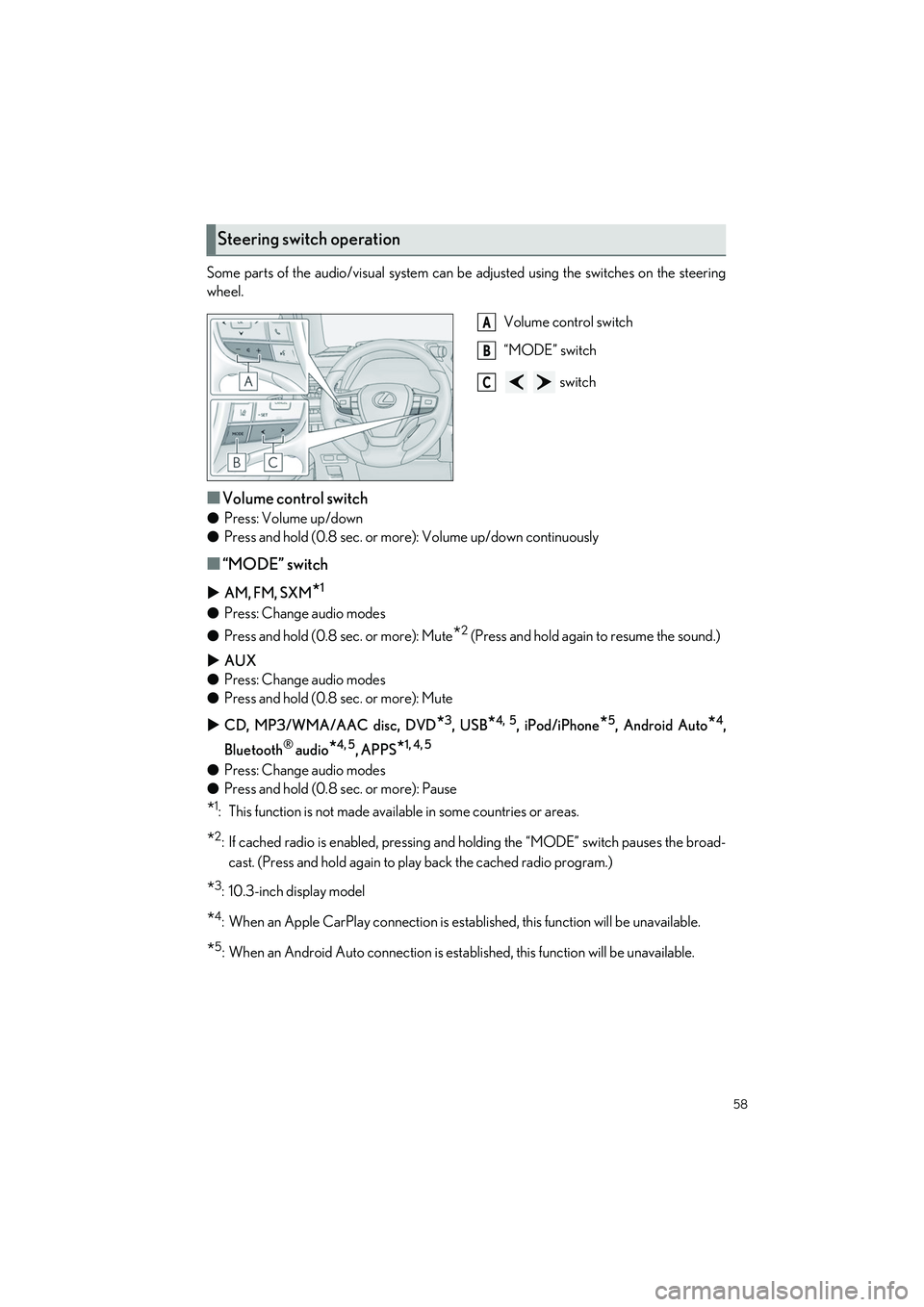
Some parts of the audio/visual system can be adjusted using the switches on the steering
wheel.
Volume control switch
“MODE” switch
switch
■Volume control switch
●Press: Volume up/down
● Press and hold (0.8 sec. or more): Volume up/down continuously
■“MODE” switch
AM, FM, SXM*1
●Press: Change audio modes
● Press and hold (0.8 sec. or more): Mute
*2 (Press and hold again to resume the sound.)
AUX
● Press: Change audio modes
● Press and hold (0.8 sec. or more): Mute
CD, MP3/WMA/AAC disc, DVD
*3, USB*4, 5, iPod/iPhone*5, Android Auto*4,
Bluetooth
® audio*4, 5, APPS*1, 4, 5
● Press: Change audio modes
● Press and hold (0.8 sec. or more): Pause
*1: This function is not made available in some countries or areas.
*2: If cached radio is enabled, pressing and holding the “MODE” switch pauses the broad-
cast. (Press and hold again to play back the cached radio program.)
*3: 10.3-inch display model
*4: When an Apple CarPlay connection is established, this function will be unavailable.
*5: When an Android Auto connection is established, this function will be unavailable.
Steering switch operation
A
B
C
Page 60 of 100
59
UX250h_QG_OM76572U_(U)
■ switch
AM, FM, HD
● Press: Preset station up/down
● Press and hold (0.8 sec. or more): Seek up/down
● Press and hold (1.5 sec. or more): Seek up/down continuously while the switch is being
pressed
SXM
*1
●Press: Preset channel up/down
● Press and hold (0.8 sec. or more): Seek for stations in the relevant program type/channel
category
● Press and hold (1.5 sec. or more): Seek for the channel while the switch is being pressed
CD
● Press: Track up/down
● Press and hold (0.8 sec. or more): Fast forward/rewind
MP3/WMA/AAC disc
● Press: File up/down
● Press and hold (0.8 sec. or more): Fast forward/rewind
DVD
*2
●Press: Chapter up/down
● Press and hold (0.8 sec. or more): Fast forward/rewind
USB
*3, 4
●Press: File/Track up/down
● Press and hold (0.8 sec. or more): Fast forward/rewind
iPod/iPhone
*4
●Press: Track up/down
● Press and hold (0.8 sec. or more): Fast forward/rewind
Android Auto
*3
●Press: Track up/down
Bluetooth
® audio*3, 4
●Press: Track up/down
● Press and hold (0.8 sec. or more): Fast forward/rewind
*1: This function is not made available in some countries or areas.
*2: 10.3-inch display model
*3: When an Apple CarPlay connection is established, this function will be unavailable.
*4: When an Android Auto connection is established, this function will be unavailable.
Page 64 of 100

63
UX250h_QG_OM76572U_(U)
*: This function is not made available in some countries or areas.
■Audio control switch
Turn to select a track. *
Turn to move up/down the list.
Press to select a track.
Press and hold to fast forward/rewind.
*: If equipped
■Control screen
Displays cover art.
Select to change the artist.
*
Select to change the album.*
Select to change the playlist.*
Select to set repeat playback.
Select to change the track.
Select and hold to fast rewind.
Select to play/pause.
Select to change the track.
Select and hold to fast forward.
Select to set random playback.
*: When an Apple CarPlay connection isestablished, this switch will not be dis-
played.
iPod/iPhone (Apple CarPlay*)
A
B
A
B
C
D
E
F
G
H
I
Some functions may not be available depending on the type of model.
Page 69 of 100

68
UX250h_QG_OM76572U_(U)
1Press the talk switch.
Voice guidance for the voice com-
mand system can be skipped by press-
ing the talk switch.
2If “Getting Started with Voice” screen
is displayed, select “OK” or press the
talk switch.
3After hearing a beep, say a supported command.
● To display sample commands of the desire d function, say the desired function or
select the desired function button. To display more commands, select “More Com-
mands”.
● Selecting “Help” or saying “Help” prompts the voice command system to offer
examples of commands and operation methods.
● Registered POIs, registered names in the contacts list etc., can be said in the place
of the “<>” next to the commands.
Continue on to pages 69-75 for a detailed list of Voice Commands for the following cate-
gories:
Common . . . . . . . . . . . . . . . . . . . . . . . . . . . . . . . . . . . . . . . . . . . . . . . . P.69
Top menu . . . . . . . . . . . . . . . . . . . . . . . . . . . . . . . . . . . . . . . . . . . . . . . . P.69
Navigation . . . . . . . . . . . . . . . . . . . . . . . . . . . . . . . . . . . . . . . . . . . . . . . P.70
Phone . . . . . . . . . . . . . . . . . . . . . . . . . . . . . . . . . . . . . . . . . . . . . . . . . . . P.71
Radio . . . . . . . . . . . . . . . . . . . . . . . . . . . . . . . . . . . . . . . . . . . . . . . . . . . . P.72
Audio . . . . . . . . . . . . . . . . . . . . . . . . . . . . . . . . . . . . . . . . . . . . . . . . . . . . P.73
Info . . . . . . . . . . . . . . . . . . . . . . . . . . . . . . . . . . . . . . . . . . . . . . . . . . . . . . P.74
Apps. . . . . . . . . . . . . . . . . . . . . . . . . . . . . . . . . . . . . . . . . . . . . . . . . . . . . P.74
Climate . . . . . . . . . . . . . . . . . . . . . . . . . . . . . . . . . . . . . . . . . . . . . . . . . . P.75
Voice Command System
Basic operation
The voice command system enables the radio, phone dialing, etc. to be operated using
voice commands. Refer to the command list for samples of voice commands.