set LEXUS UX250H 2019 Owner's Manual
[x] Cancel search | Manufacturer: LEXUS, Model Year: 2019, Model line: UX250H, Model: LEXUS UX250H 2019Pages: 476, PDF Size: 10.51 MB
Page 94 of 476
942-1. Instrument cluster
a garage, tunnel, etc.)
●When “--” or “E” is displayed, the system
may be malfunctioning. Take your vehicle
to your Lexus dealer.
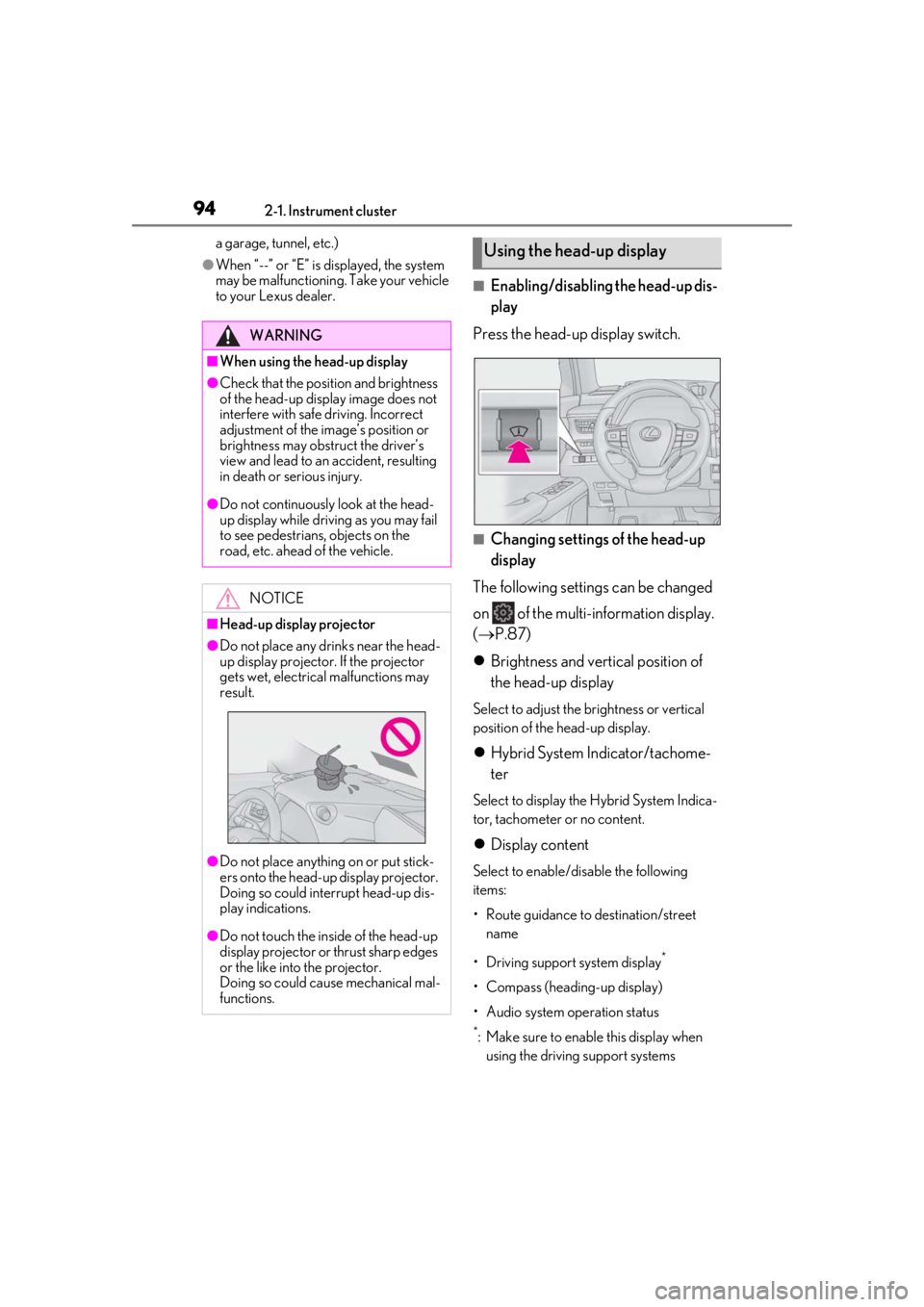
■Enabling/disabling the head-up dis-
play
Press the head-up display switch.
■Changing settings of the head-up
display
The following settings can be changed
on of the multi-information display.
( P.87)
Brightness and vert ical position of
the head-up display
Select to adjust the brightness or vertical
position of the head-up display.
Hybrid System Indicator/tachome-
ter
Select to display the Hybrid System Indica-
tor, tachometer or no content.
Display content
Select to enable/disable the following
items:
• Route guidance to destination/street
name
• Driving support system display
*
• Compass (heading-up display)
• Audio system operation status
*: Make sure to enable this display when using the driving support systems
WARNING
■When using the head-up display
●Check that the position and brightness
of the head-up display image does not
interfere with safe driving. Incorrect
adjustment of the image’s position or
brightness may obstruct the driver’s
view and lead to an accident, resulting
in death or serious injury.
●Do not continuously look at the head-
up display while driving as you may fail
to see pedestrians, objects on the
road, etc. ahead of the vehicle.
NOTICE
■Head-up display projector
●Do not place any drinks near the head-
up display projector. If the projector
gets wet, electrical malfunctions may
result.
●Do not place anything on or put stick-
ers onto the head-up display projector.
Doing so could interrupt head-up dis-
play indications.
●Do not touch the inside of the head-up
display projector or thrust sharp edges
or the like into the projector.
Doing so could cause mechanical mal-
functions.
Using the head-up display
Page 95 of 476
952-1. Instrument cluster
2
Vehicle status information and indicators
Display angle
Select to adjust the angle of the head-up
display.
■Enabling/disabling of the head-up dis-
play
If the head-up display is disabled, it will
remain disabled when the power switch is
turned off then back to ON.
■Display brightness
The brightness of the head-up display can
be adjusted on of the multi-information
display. Also, it is automatically adjusted
according to the ambient brightness.
■Head-up display automatic position
adjustment (vehicles with driving posi-
tion memory)
If the display position is recorded into mem-
ory, the head-up display will be automati-
cally adjusted to the desired position.
( P.133)
■When the 12-volt battery is discon-
nected
The customize settings of the head-up dis-
play will be reset.
Displays the operational status of the
following systems:
LTA (Lane Tracing Assist)
( P.205)
Dynamic radar cruise control with
full-speed range ( P.216)
Details of content displayed on the head-
up display may differ from that displayed
on the multi-inform ation display. For
details, refer to the explanation of each sys-
tem.
Pop-up displays for the following sys-
tems will be displayed when necessary.
■Driving support systems
Displays a warning/suggestion/advice
message or the operating state of a rel-
evant system.
PCS (Pre-Collision System)
( P.198)
Intuitive parking assist (if equipped)
( P.232)
Parking Support Brake function (for
static objects) (if equipped)
( P.247)
Brake Override System ( P.152)
WARNING
■Caution for changing settings of the
head-up display
As the hybrid system needs to be operat-
ing while changing th e settings of the
head-up display, ensure that the vehicle
is parked in a place with adequate venti-
lation. In a closed area such as a garage,
exhaust gases including harmful carbon
monoxide (CO) may collect and enter
the vehicle. This may lead to death or a
serious health hazard.
NOTICE
■When changing the settings of the
head-up display
To prevent 12-volt battery discharge,
ensure that the hybrid system is operat-
ing while changing th e settings of the
head-up display.
Driving support system display
area
Pop-up display
Page 100 of 476
1002-1. Instrument cluster
High
Multi-information displayLow
High
These images are examples only, and may
vary slightly from actual conditions.
Press the “MENU” button on the
Remote Touch, and then select on
the screen.
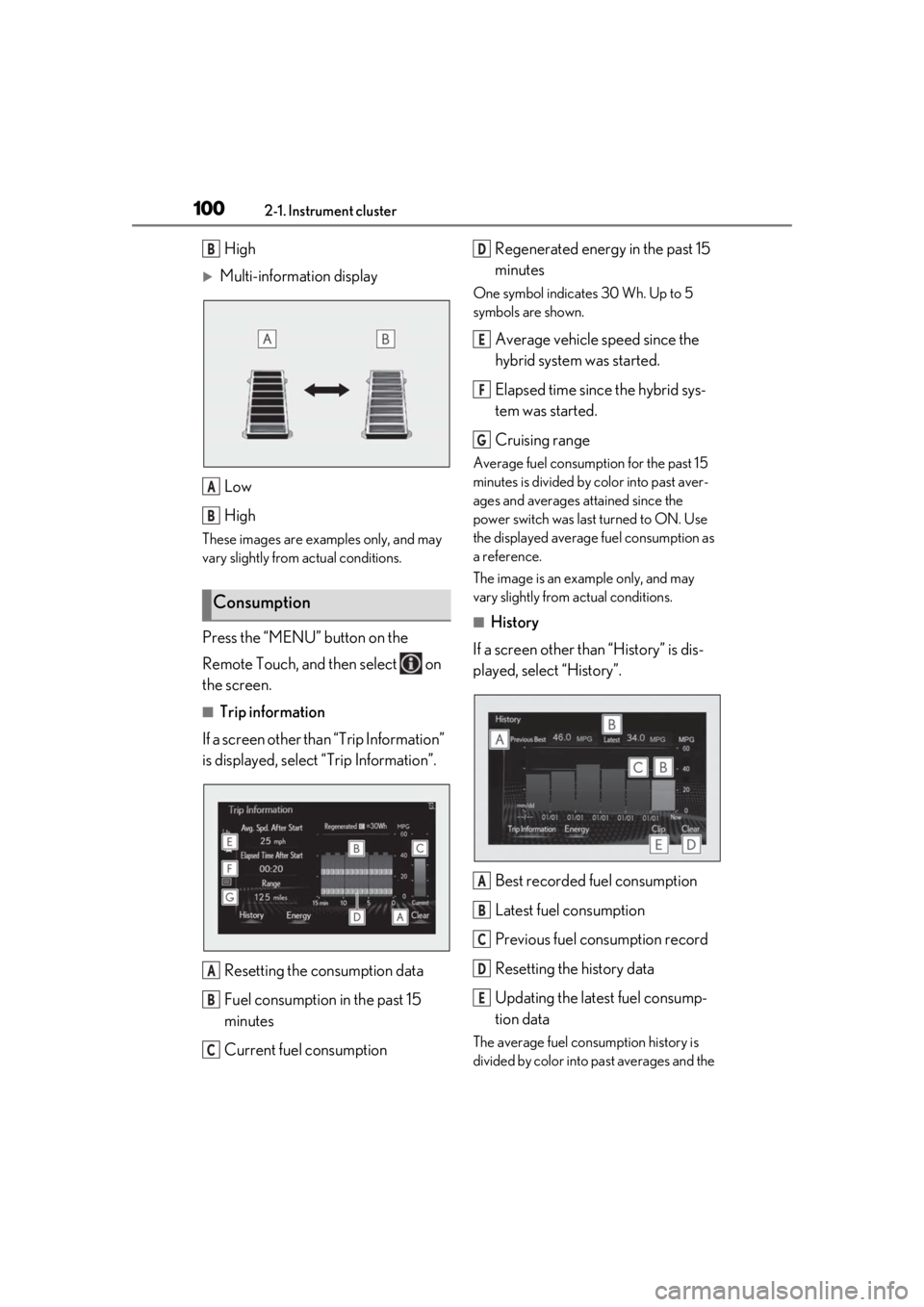
■Trip information
If a screen other than “Trip Information”
is displayed, select “Trip Information”.
Resetting the consumption data
Fuel consumption in the past 15
minutes
Current fuel consumption Regenerated energy in the past 15
minutes
One symbol indicates 30 Wh. Up to 5
symbols are shown.
Average vehicle speed since the
hybrid system was started.
Elapsed time since the hybrid sys-
tem was started.
Cruising range
Average fuel consumption for the past 15
minutes is divided by color into past aver-
ages and averages attained since the
power switch was last turned to ON. Use
the displayed average fuel consumption as
a reference.
The image is an example only, and may
vary slightly from actual conditions.
■History
If a screen other than “History” is dis-
played, select “History”.
Best recorded fuel consumption
Latest fuel consumption
Previous fuel consumption record
Resetting the history data
Updating the latest fuel consump-
tion data
The average fuel consumption history is
divided by color into past averages and the
Consumption
B
A
B
A
B
C
D
E
F
G
A
B
C
D
E
Page 101 of 476
1012-1. Instrument cluster
2
Vehicle status information and indicators
average fuel consumption since the last
updated. Use the displayed average fuel
consumption as a reference.
The image is an example only, and may
vary slightly from actual conditions.
■Updating the history data
Update the latest fuel consumption by
selecting “Clip” to measure the current fuel
consumption again.
■Resetting the data
The fuel consumption data can be deleted
by selecting “Clear”.
■Cruising range
Displays the estimated maximum distance
that can be driven with the quantity of fuel
remaining.
This distance is comp uted based on your
average fuel consumption.
As a result, the actual distance that can be
driven may differ from that displayed.
Display the vehicle information on the
side display ( P.273), and then select
or to display the desired
screen.
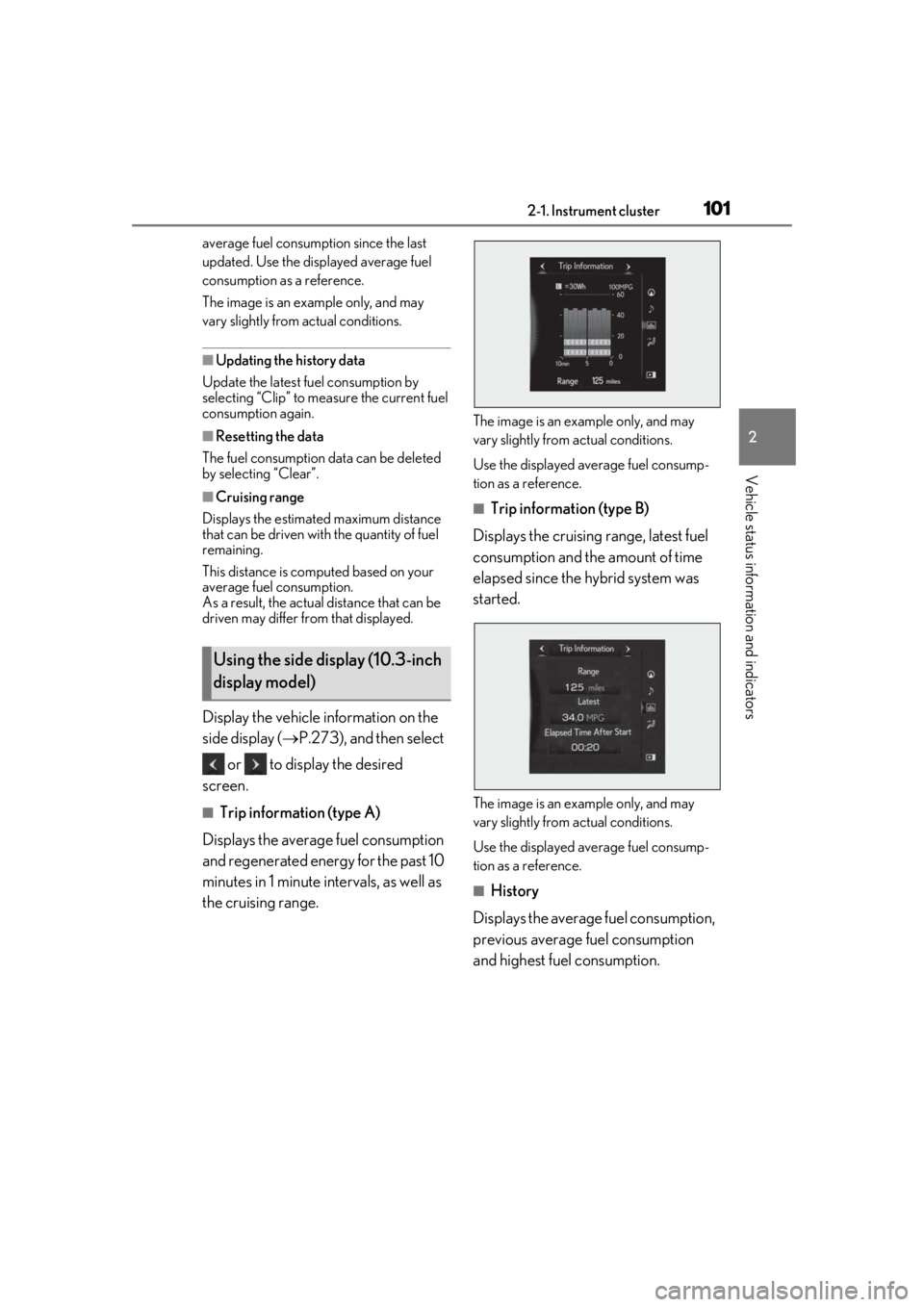
■Trip information (type A)
Displays the average fuel consumption
and regenerated energy for the past 10
minutes in 1 minute intervals, as well as
the cruising range.
The image is an example only, and may
vary slightly from actual conditions.
Use the displayed average fuel consump-
tion as a reference.
■Trip information (type B)
Displays the cruising range, latest fuel
consumption and the amount of time
elapsed since the hybrid system was
started.
The image is an example only, and may
vary slightly from actual conditions.
Use the displayed average fuel consump-
tion as a reference.
■History
Displays the average fuel consumption,
previous average fuel consumption
and highest fuel consumption.
Using the side display (10.3-inch
display model)
Page 104 of 476
1043-1. Key information
3-1.Key information
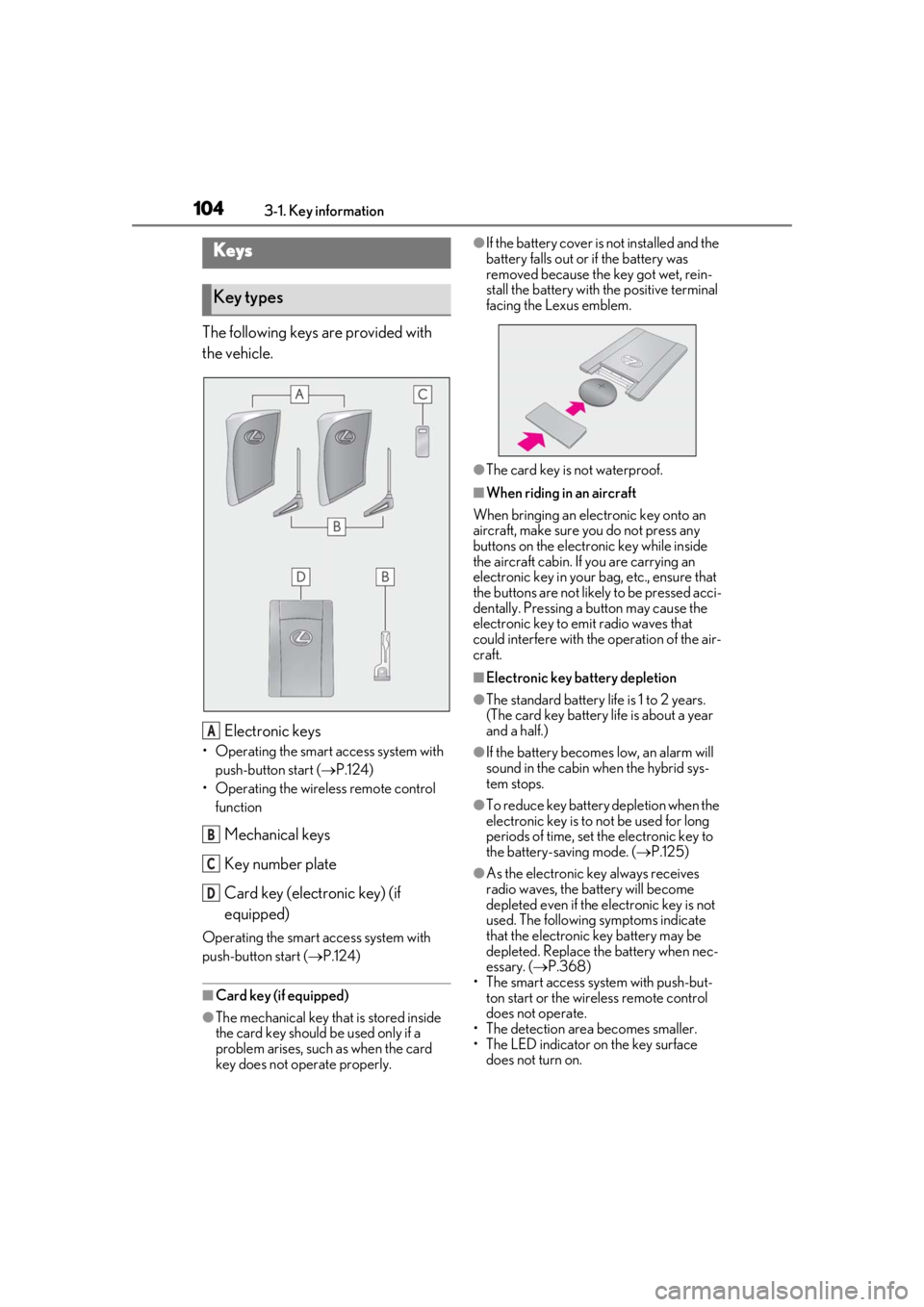
The following keys are provided with
the vehicle.
Electronic keys
• Operating the smart access system with push-button start ( P.124)
• Operating the wireless remote control function
Mechanical keys
Key number plate
Card key (electronic key) (if
equipped)
Operating the smart access system with
push-button start ( P.124)
■Card key (if equipped)
●The mechanical key that is stored inside
the card key should be used only if a
problem arises, such as when the card
key does not operate properly.
●If the battery cover is not installed and the
battery falls out or if the battery was
removed because the key got wet, rein-
stall the battery with the positive terminal
facing the Lexus emblem.
●The card key is not waterproof.
■When riding in an aircraft
When bringing an electronic key onto an
aircraft, make sure you do not press any
buttons on the electronic key while inside
the aircraft cabin. If you are carrying an
electronic key in your bag, etc., ensure that
the buttons are not likely to be pressed acci-
dentally. Pressing a button may cause the
electronic key to emit radio waves that
could interfere with the operation of the air-
craft.
■Electronic key battery depletion
●The standard battery life is 1 to 2 years.
(The card key battery life is about a year
and a half.)
●If the battery becomes low, an alarm will
sound in the cabin wh en the hybrid sys-
tem stops.
●To reduce key battery depletion when the
electronic key is to not be used for long
periods of time, set the electronic key to
the battery-saving mode. ( P.125)
●As the electronic key always receives
radio waves, the battery will become
depleted even if the electronic key is not
used. The following symptoms indicate
that the electronic key battery may be
depleted. Replace the battery when nec-
essary. ( P.368)
• The smart access system with push-but-
ton start or the wireless remote control
does not operate.
• The detection area becomes smaller.
• The LED indicator on the key surface
does not turn on.
Keys
Key types
A
B
C
D
Page 106 of 476
1063-1. Key information
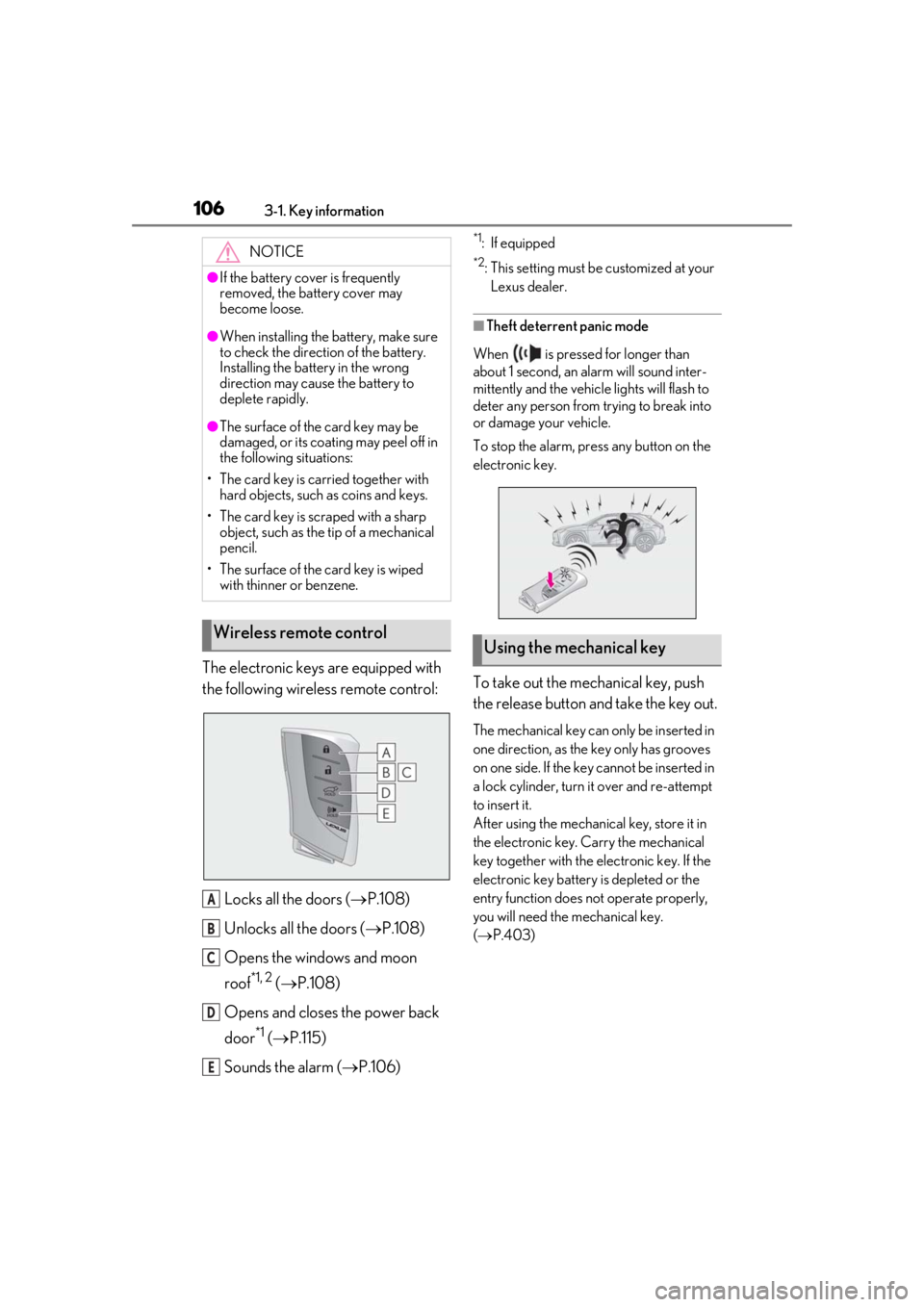
The electronic keys are equipped with
the following wireless remote control:Locks all the doors ( P.108)
Unlocks all the doors ( P.108)
Opens the windows and moon
roof
*1, 2 ( P.108)
Opens and closes the power back
door
*1 ( P.115)
Sounds the alarm ( P.106)
*1: If equipped
*2: This setting must be customized at your
Lexus dealer.
■Theft deterrent panic mode
When is pressed for longer than
about 1 second, an alarm will sound inter-
mittently and the vehicle lights will flash to
deter any person from trying to break into
or damage your vehicle.
To stop the alarm, press any button on the
electronic key.
To take out the mechanical key, push
the release button and take the key out.
The mechanical key can only be inserted in
one direction, as the key only has grooves
on one side. If the key cannot be inserted in
a lock cylinder, turn it over and re-attempt
to insert it.
After using the mechanical key, store it in
the electronic key. Carry the mechanical
key together with the electronic key. If the
electronic key battery is depleted or the
entry function does not operate properly,
you will need the mechanical key.
( P.403)
NOTICE
●If the battery cover is frequently
removed, the battery cover may
become loose.
●When installing the ba
ttery, make sure
to check the direction of the battery.
Installing the battery in the wrong
direction may cause the battery to
deplete rapidly.
●The surface of the card key may be
damaged, or its coating may peel off in
the following situations:
• The card key is carried together with hard objects, such as coins and keys.
• The card key is scraped with a sharp object, such as the tip of a mechanical
pencil.
• The surface of the card key is wiped with thinner or benzene.
Wireless remote control
A
B
C
D
E
Using the mechanical key
Page 108 of 476
1083-2. Opening, closing and locking the doors
3-2.Opening, closing and locking the doors
■Smart access system with push-
button start
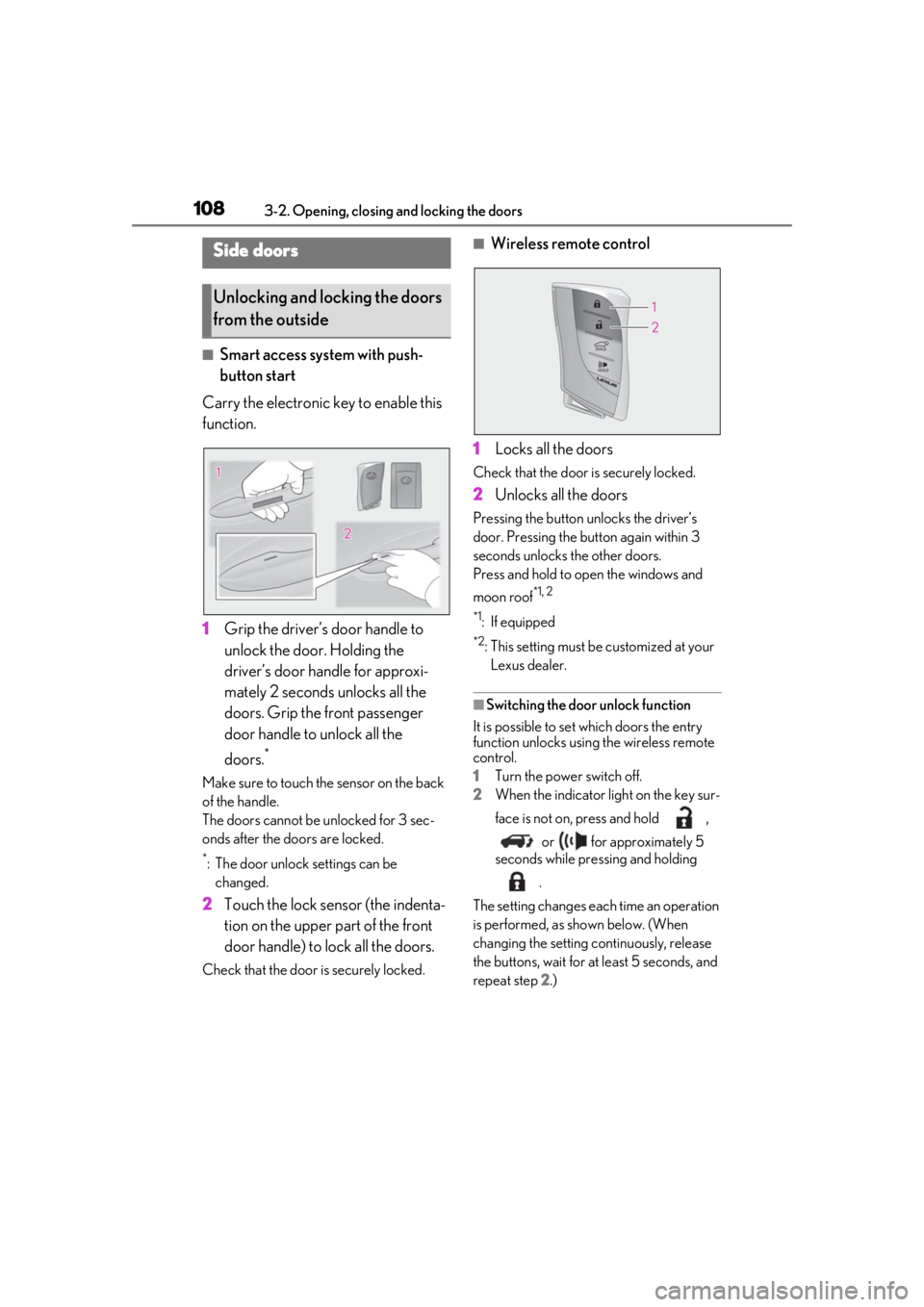
Carry the electronic key to enable this
function.
1 Grip the driver’s door handle to
unlock the door. Holding the
driver’s door ha ndle for approxi-
mately 2 seconds unlocks all the
doors. Grip the front passenger
door handle to unlock all the
doors.
*
Make sure to touch the sensor on the back
of the handle.
The doors cannot be unlocked for 3 sec-
onds after the doors are locked.
*: The door unlock settings can be changed.
2 Touch the lock sensor (the indenta-
tion on the upper part of the front
door handle) to lock all the doors.
Check that the door is securely locked.
■Wireless remote control
1 Locks all the doors
Check that the door is securely locked.
2Unlocks all the doors
Pressing the button unlocks the driver’s
door. Pressing the button again within 3
seconds unlocks the other doors.
Press and hold to open the windows and
moon roof
*1, 2
*1
: If equipped
*2: This setting must be customized at your
Lexus dealer.
■Switching the door unlock function
It is possible to set which doors the entry
function unlocks using the wireless remote
control.
1 Turn the power switch off.
2 When the indicator light on the key sur-
face is not on, press and hold ,
or for approximately 5
seconds while pre ssing and holding
.
The setting changes each time an operation
is performed, as shown below. (When
changing the setting continuously, release
the buttons, wait for at least 5 seconds, and
repeat step 2 .)
Side doors
Unlocking and locking the doors
from the outside
Page 109 of 476
1093-2. Opening, closing and locking the doors
3
Before driving
To prevent unintended triggering of the
alarm, unlock the doors using the wireless
remote control and open and close a door
once after the settings have been changed.
(If a door is not opened within 60 seconds
after is pressed, the doors will be
locked again and the alarm will automati-
cally be set.)
In a case that the alarm is triggered, imme-
diately stop the alarm. (P.71)
■Locking the front doors from the outside
without a key
1 Push down the inside lock button.
( P.110)
2 Close the door.
The door cannot be locked if the power
switch is in ACC or ON, or the electronic
key is left inside the vehicle.
The key may not be detected correctly and
the door may be locked.
■Impact detection door lock release sys-
tem
In the event that the vehicle is subject to a
strong impact, all the doors are unlocked.
Depending on the force of the impact or the
type of accident, however, the system may not operate.
■Operation signals
A buzzer sounds and the emergency flash-
ers flash to indicate that the doors have
been locked/unlocked. (Locked: Once;
Unlocked: Twice)
A buzzer sounds to indicate that all win-
dows are opening.
■Security feature
If a door is not opened within approximately
60 seconds after the vehicle is unlocked,
the security feature automatically locks the
vehicle again.
■When the door cannot be locked by the
lock sensor on the upper part of the
door handle
When the door cannot be locked even if the
lock sensor on the upper part of the door
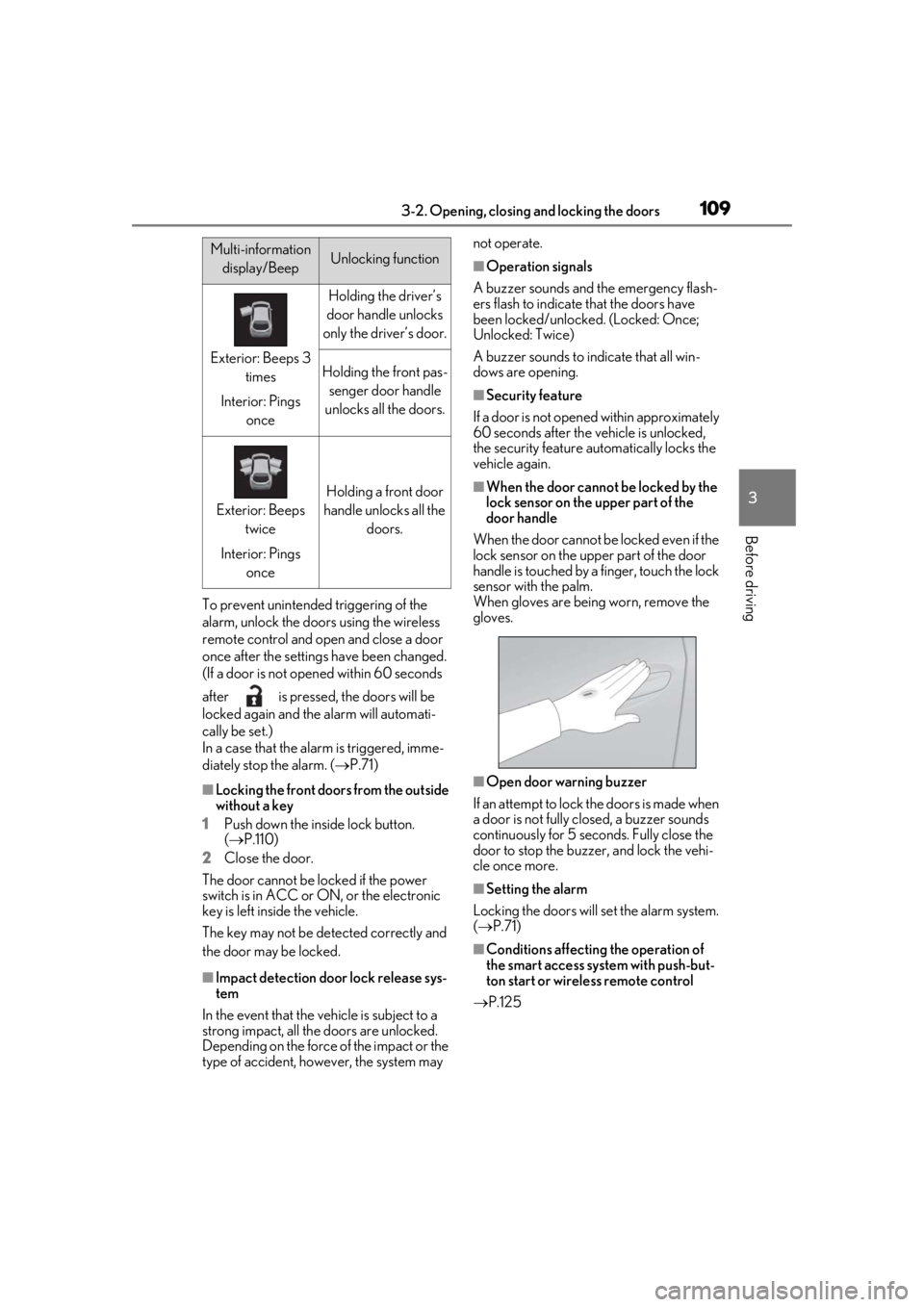
handle is touched by a finger, touch the lock
sensor with the palm.
When gloves are being worn, remove the
gloves.
■Open door warning buzzer
If an attempt to lock the doors is made when
a door is not fully closed, a buzzer sounds
continuously for 5 seconds. Fully close the
door to stop the buzzer, and lock the vehi-
cle once more.
■Setting the alarm
Locking the doors will set the alarm system.
( P.71)
■Conditions affecting the operation of
the smart access system with push-but-
ton start or wireless remote control
P.125
Multi-information
display/BeepUnlocking function
Exterior: Beeps 3 times
Interior: Pings once
Holding the driver’s
door handle unlocks
only the driver’s door.
Holding the front pas- senger door handle
unlocks all the doors.
Exterior: Beeps twice
Interior: Pings once
Holding a front door
handle unlocks all the doors.
Page 110 of 476
1103-2. Opening, closing and locking the doors
■If the smart access system with push-
button start or the wireless remote con-
trol does not operate properly
●Use the mechanical key to lock and
unlock the doors. (P.403)
●Replace the key battery with a new one if
it is depleted. (P.368)
■If the 12-volt battery is discharged
The doors cannot be locked and unlocked
using the smart access system with push-
button start or wireless remote control.
Lock or unlock the doors using the
mechanical key. ( P.403)
■Customization
Settings (e.g. unlocking function using a
key) can be changed. (Customizable fea-
tures: P.437)
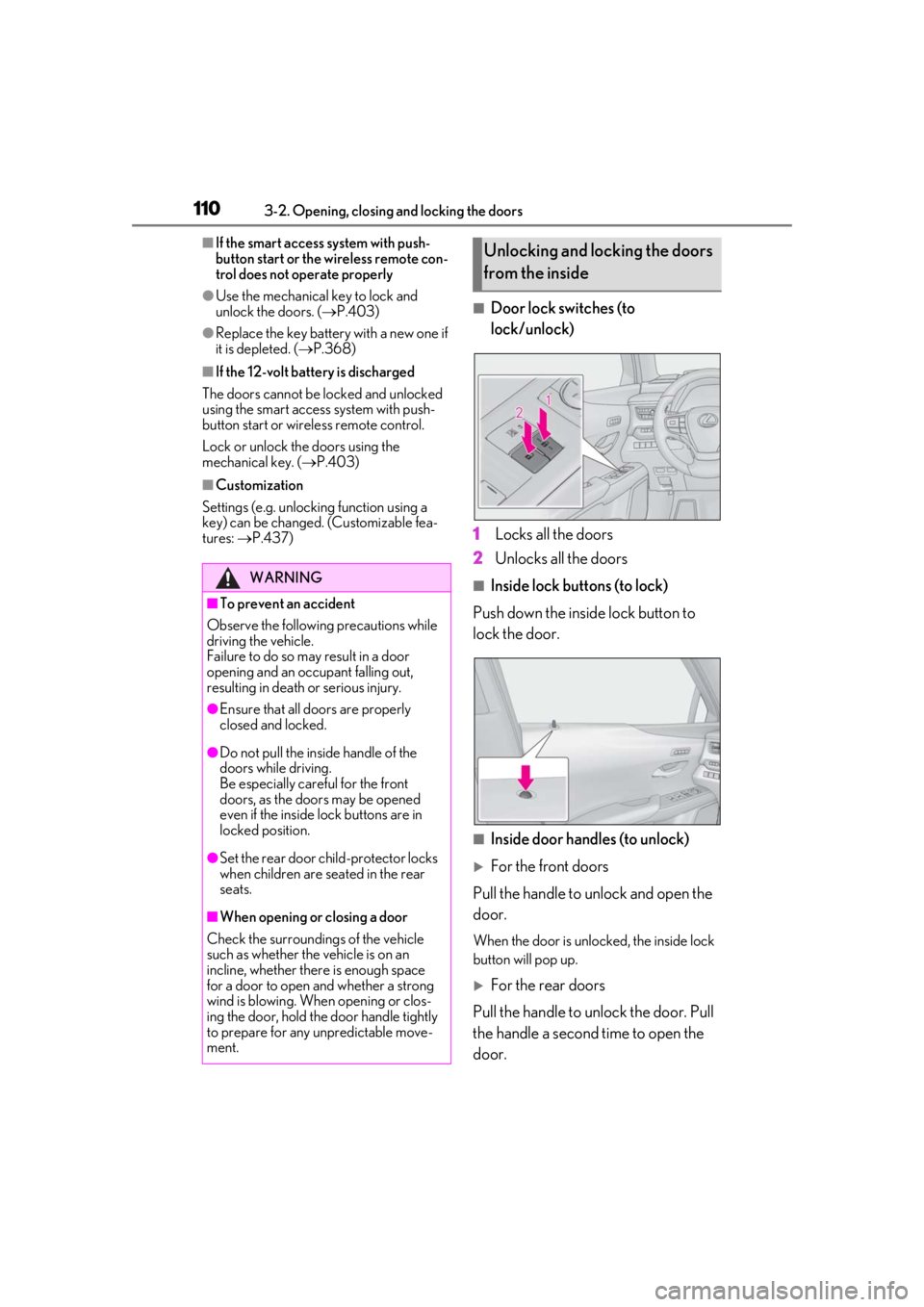
■Door lock switches (to
lock/unlock)
1
Locks all the doors
2
Unlocks all the doors
■Inside lock buttons (to lock)
Push down the inside lock button to
lock the door.
■Inside door handles (to unlock)
For the front doors
Pull the handle to unlock and open the
door.
When the door is unlo cked, the inside lock
button will pop up.
For the rear doors
Pull the handle to unlock the door. Pull
the handle a second time to open the
door.
WARNING
■To prevent an accident
Observe the following precautions while
driving the vehicle.
Failure to do so may result in a door
opening and an occupant falling out,
resulting in death or serious injury.
●Ensure that all doors are properly
closed and locked.
●Do not pull the inside handle of the
doors while driving.
Be especially careful for the front
doors, as the doors may be opened
even if the inside lock buttons are in
locked position.
●Set the rear door ch ild-protector locks
when children are seated in the rear
seats.
■When opening or closing a door
Check the surroundings of the vehicle
such as whether the vehicle is on an
incline, whether ther e is enough space
for a door to open and whether a strong
wind is blowing. When opening or clos-
ing the door, hold the door handle tightly
to prepare for any unpredictable move-
ment.
Unlocking and locking the doors
from the inside
Page 111 of 476
1113-2. Opening, closing and locking the doors
3
Before driving
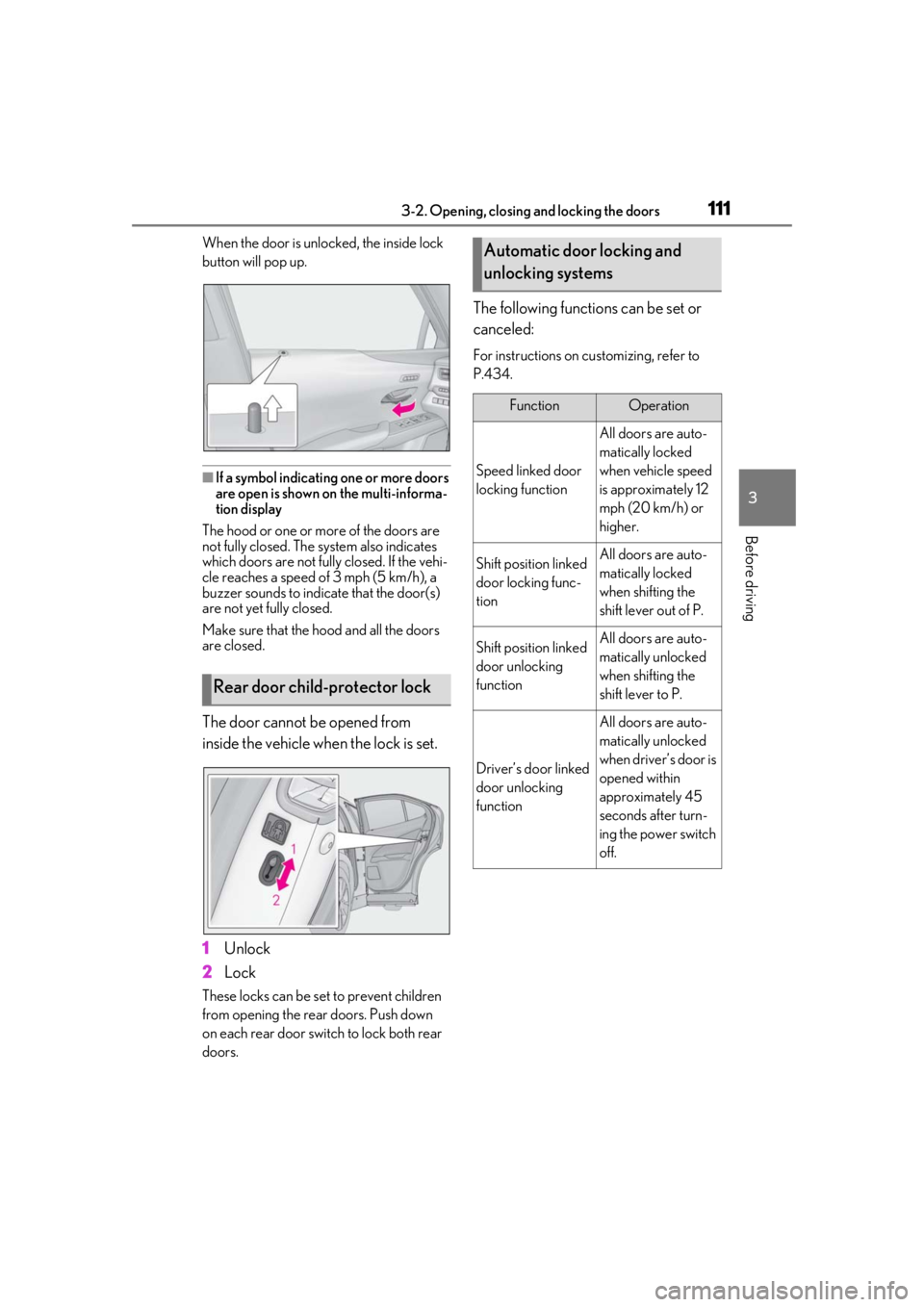
When the door is unlocked, the inside lock
button will pop up.
■If a symbol indicating one or more doors
are open is shown on the multi-informa-
tion display
The hood or one or more of the doors are
not fully closed. The system also indicates
which doors are not fully closed. If the vehi-
cle reaches a speed of 3 mph (5 km/h), a
buzzer sounds to indicate that the door(s)
are not yet fully closed.
Make sure that the hood and all the doors
are closed.
The door cannot be opened from
inside the vehicle when the lock is set.
1 Unlock
2 Lock
These locks can be set to prevent children
from opening the rear doors. Push down
on each rear door switch to lock both rear
doors.
The following functions can be set or
canceled:
For instructions on customizing, refer to
P.434.
Rear door child-protector lock
Automatic door locking and
unlocking systems
FunctionOperation
Speed linked door
locking function
All doors are auto-
matically locked
when vehicle speed
is approximately 12
mph (20 km/h) or
higher.
Shift position linked
door locking func-
tionAll doors are auto-
matically locked
when shifting the
shift lever out of P.
Shift position linked
door unlocking
functionAll doors are auto-
matically unlocked
when shifting the
shift lever to P.
Driver’s door linked
door unlocking
function
All doors are auto-
matically unlocked
when driver’s door is
opened within
approximately 45
seconds after turn-
ing the power switch
off.