page 498 LINCOLN AVIATOR 2020 User Guide
[x] Cancel search | Manufacturer: LINCOLN, Model Year: 2020, Model line: AVIATOR, Model: LINCOLN AVIATOR 2020Pages: 609, PDF Size: 5.4 MB
Page 170 of 609
The system adjusts the blower motor speed,
air distribution, air conditioning operation to
reach and maintain the temperature you
have set.
Switching the Rear Climate Control On
and Off
Press and release the button to
switch the rear climate control on
or off.
Note: If the system is on and Max Defrost is
switched on through the front climate
controls, the system turns off. It turns back
on when Max Defrost is switched off.
Note: If Max Defrost is switched on, the
system can be turned on at the same time.
Switching the Rear Heated Seats On
and Off (If Equipped) See
Heated Seats (page 185).Switching the Rear Ventilated Seats
On and Off
(If Equipped) See
Climate Controlled Seats
(page 186).
HEATED REAR WINDOW Press the button to clear the rear
window of thin ice and fog. The
heated rear window turns off after
a short period of time.
Note: Do not use harsh chemicals, razor
blades or other sharp objects to clean or
remove decals from the inside of the heated
rear window. The vehicle warranty may not
cover damage to the heated rear window
grid lines.
HEATED EXTERIOR MIRRORS
When you switch the heated rear window
on, the heated exterior mirrors turn on. Note:
Do not remove ice from the mirrors
with a scraper or adjust the mirror glass
when it is frozen in place.
Note: Do not clean the mirror housing or
glass with harsh abrasives, fuel or other
petroleum-based cleaning products. The
vehicle warranty may not cover damage
caused to the mirror housing or glass.
REMOTE START
The climate control system adjusts the
interior temperature during remote start.
You can switch this feature on or off and
adjust the settings using the touchscreen.
See
Settings (page 498).
You cannot adjust the climate control setting
during remote start operation. Switch the
ignition on to make adjustments.
Based on your remote start settings, the
following vehicle-dependent features may
or may not remain on after remote starting
your vehicle:
• Climate controlled seats.
• Heated steering wheel.
167
Aviator (CTV) Canada/United States of America, enUSA, Edition date: 201902, Third-Printing- Climate Control E268558 E184884
Page 182 of 609
Recalling a PreSet Position
Press and release the preset button
associated with your preferred driving
position. The memory features move to the
position stored for that preset.
Note:
You can only recall a preset memory
position when the ignition is off, or when the
transmission is in park (P) or neutral (N) and
the vehicle is not moving if the ignition is on.
You can also recall a preset memory position
by:
• Pressing the unlock button on your
remote control if it is linked to a preset
position.
• Unlocking the intelligent driver door
handle if a linked remote control is
present.
• Recalling a personal profile in your SYNC
3 menu.
Note: Using a linked remote control to recall
your memory position when the ignition is
off moves the seat to the Easy Entry position. Note:
Pressing any active memory feature
adjustment control, or any memory button
during a memory recall, cancels the
operation.
Easy Entry and Exit Feature
If you enable the easy entry and exit feature,
it moves the driver seat position rearward up
to 2 in (5 cm) when you switch the ignition
off.
The driver seat returns to the previous
position when you switch the ignition on.
You can enable or disable this feature
through the touchscreen.
See Settings
(page 498). Personal Profiles
This feature allows you to create multiple
personal profiles enabling users to
personalize vehicle
’s settings. You can
create one profile for each preset memory
seat button along with a guest profile. You
can recall a profile using SYNC 3 or the
preset button you selected when you created
your profile. You can also link a remote
control and a mobile device to your profile,
which are used to recall it.
Creating a Personal Profile
Use the SYNC display to create a personal
profile.
1. Switch the ignition on and leave the vehicle in park (P).
2. Select the Personal Profiles button under
Settings.
3. Follow the instructions on the display.
179
Aviator (CTV) Canada/United States of America, enUSA, Edition date: 201902, Third-Printing- Seats
Page 245 of 609
Note:
Certain add-on devices around the
bumper or fascia may create false alerts. For
example, large trailer hitches, bicycle or
surfboard racks, license plate brackets,
bumper covers or any other device that may
block the normal detection zone of the
system. Remove the add-on device to
prevent false alerts.
Note: The system does not react to small or
moving objects, particularly those close to
the ground.
Note: The system does not operate during
hard acceleration or steering.
Note: If your vehicle sustains damage to the
bumper or fascia leaving it misaligned or
bent, the sensing zone may be altered
causing inaccurate measurement of
obstacles or false alerts. Note:
Vehicle loading and suspension
changes can impact the angle of the sensors
and may change the normal detection zone
of the system resulting in inaccurate
measurement of obstacles or false alerts.
Note: When you connect a trailer, the system
may detect the trailer and provide an alert
or the system turns off. If the system does
not turn off, switch the system off manually
after you connect the trailer.
Note: You may experience reduced system
performance on road surfaces that limit
deceleration. For example, roads with ice,
loose gravel, mud or sand.
SWITCHING REVERSE BRAKING
ASSIST ON AND OFF
You can switch the system on or off through
the touchscreen. See Settings (page 498). Note:
The system is unavailable when rear
parking aid or cross traffic alert is off.
OVERRIDING REVERSE BRAKING
ASSIST
There could be instances when unexpected
or unwanted braking occurs. Firmly pressing
the accelerator pedal or switching the feature
off overrides the system.
REVERSE BRAKING ASSIST
INDICATORS
If the system determines that a collision with
an obstacle may occur, full braking may
apply. Bring your vehicle to a stop a safe
distance away from the obstacle. A message and warning indicator
appear when the system applies
the brakes.
242
Aviator (CTV) Canada/United States of America, enUSA, Edition date: 201902, Third-Printing- Reverse Braking Assist
(If Equipped)E293490
Page 248 of 609
PRINCIPLE OF OPERATION
The traction control system helps avoid drive
wheel spin and loss of traction.
If your vehicle begins to slide, the system
applies the brakes to individual wheels and,
when needed, reduces engine power at the
same time. If the wheels spin when
accelerating on slippery or loose surfaces,
the system reduces engine power in order
to increase traction.
USING TRACTION CONTROL
WARNING: The stability and traction
control light illuminates steadily if the
system detects a failure. Make sure you
did not manually disable the traction
control system using the information
display controls or the switch. If the stability
control and traction control light is still illuminating steadily, have the system
serviced by an authorized dealer
immediately. Operating your vehicle with
the traction control disabled could lead to
an increased risk of loss of vehicle control,
vehicle rollover, personal injury and death.
The system turns on each time you switch
on the ignition.
If your vehicle is stuck in mud or snow,
switching traction control off may be
beneficial as this allows the wheels to spin.
Note: When you switch traction control off,
stability control remains fully active.
Switching the System Off
When you switch the system off or on, a
message appears in the information display
showing system status.
You can switch the system off by accessing
the traction control settings through the
touchscreen.
See Settings (page 498). Note:
If your vehicle detects a loss of traction
due to excessive wheel spin or deceleration,
a display message appears on the
touchscreen prompting you to disable
traction control if needed.
Using the Information Display Controls
You can switch this feature off or on in the
information display.
See General
Information (page 130).
System Indicator Lights and Messages The stability and traction control
light:
• Temporarily illuminates on engine
start-up.
• Flashes when a driving condition
activates either of the systems.
• Illuminates if a problem occurs in either
of the systems. The stability and traction control
off light temporarily illuminates on
engine start-up and stays on when
you switch the traction control system off.
245
Aviator (CTV) Canada/United States of America, enUSA, Edition date: 201902, Third-Printing- Traction ControlE138639 E130458
Page 265 of 609
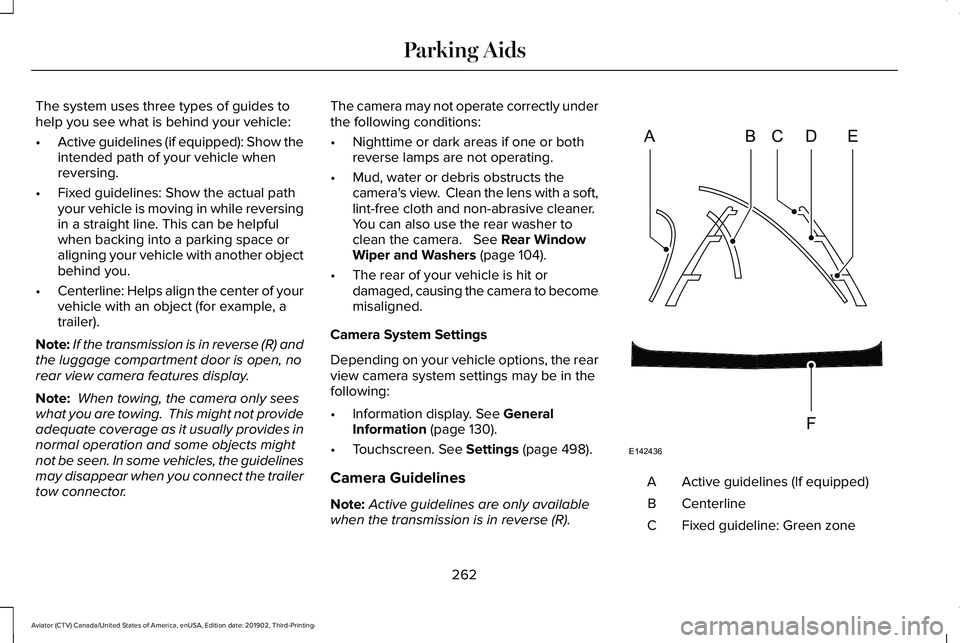
The system uses three types of guides to
help you see what is behind your vehicle:
•
Active guidelines (if equipped): Show the
intended path of your vehicle when
reversing.
• Fixed guidelines: Show the actual path
your vehicle is moving in while reversing
in a straight line. This can be helpful
when backing into a parking space or
aligning your vehicle with another object
behind you.
• Centerline: Helps align the center of your
vehicle with an object (for example, a
trailer).
Note: If the transmission is in reverse (R) and
the luggage compartment door is open, no
rear view camera features display.
Note: When towing, the camera only sees
what you are towing. This might not provide
adequate coverage as it usually provides in
normal operation and some objects might
not be seen. In some vehicles, the guidelines
may disappear when you connect the trailer
tow connector. The camera may not operate correctly under
the following conditions:
•
Nighttime or dark areas if one or both
reverse lamps are not operating.
• Mud, water or debris obstructs the
camera's view. Clean the lens with a soft,
lint-free cloth and non-abrasive cleaner.
You can also use the rear washer to
clean the camera. See Rear Window
Wiper and Washers (page 104).
• The rear of your vehicle is hit or
damaged, causing the camera to become
misaligned.
Camera System Settings
Depending on your vehicle options, the rear
view camera system settings may be in the
following:
• Information display.
See General
Information (page 130).
• Touchscreen.
See Settings (page 498).
Camera Guidelines
Note: Active guidelines are only available
when the transmission is in reverse (R). Active guidelines (If equipped)
A
Centerline
B
Fixed guideline: Green zone
C
262
Aviator (CTV) Canada/United States of America, enUSA, Edition date: 201902, Third-Printing- Parking AidsABCD
F
E
E142436
Page 281 of 609
The cruise control indicator
replaces the adaptive cruise
control indicator if you select
normal cruise control. The gap setting does
not display, and the system does not respond
to lead vehicles. Automatic braking remains
active to maintain set speed. The system
remembers the last setting when you start
your vehicle.
SWITCHING INTELLIGENT MODE
ON AND OFF WARNING: You are responsible for
controlling your vehicle at all times. The
system is designed to be an aid and does
not relieve you of your responsibility to
drive with due care and attention. Failure
to follow this instruction could result in the
loss of control of your vehicle, personal
injury or death.
Use the touchscreen to select the following:
1. Select Settings. See Settings (page 498). 2. Select
Driver Assist..
3. Select
Cruise Control.
Changing the Set Speed with
Intelligent Adaptive Cruise Control
When intelligent mode is on, the system
adjusts the set speed to the speed limit
detected by the camera and the speed limit
information provided by the navigation
system.
Note: The set speed adjusts when the
system detects a different maximum speed
limit.
Note: The speed limit information provided
by the navigation map data may be
inaccurate or out of date.
See Navigation
(page 487).
Note: The system alerts you if the set speed
increases beyond the speed limit.
See
Adaptive Cruise Control Indicators (page
276).
If the system does not detect a speed limit,
the vehicle speed remains at the current set
speed. You can override the set speed at any time.
You may need to override or cancel the
system in certain situations such as inclement
weather or if an incorrect speed is set.
Note:
The system may not detect and read
speed limit signs with conditional
information, for example, when a sign is
flashing, during specific time ranges, or when
children are present.
Note: Under certain conditions, the system
may not adjust the vehicle speed until after
your vehicle passes the speed limit sign.
ADJUSTING THE SET SPEED
TOLERANCE
You can set a permanent speed tolerance
that is above or below the detected speed
limit.
Use the touchscreen to select the following:
1. Select Settings. See Settings (page 498).
2. Select
Driver Assist.
3. Select
Cruise Control.
4. Select
Tolerance.
278
Aviator (CTV) Canada/United States of America, enUSA, Edition date: 201902, Third-Printing- Adaptive Cruise Control
(If Equipped)E71340
Page 293 of 609
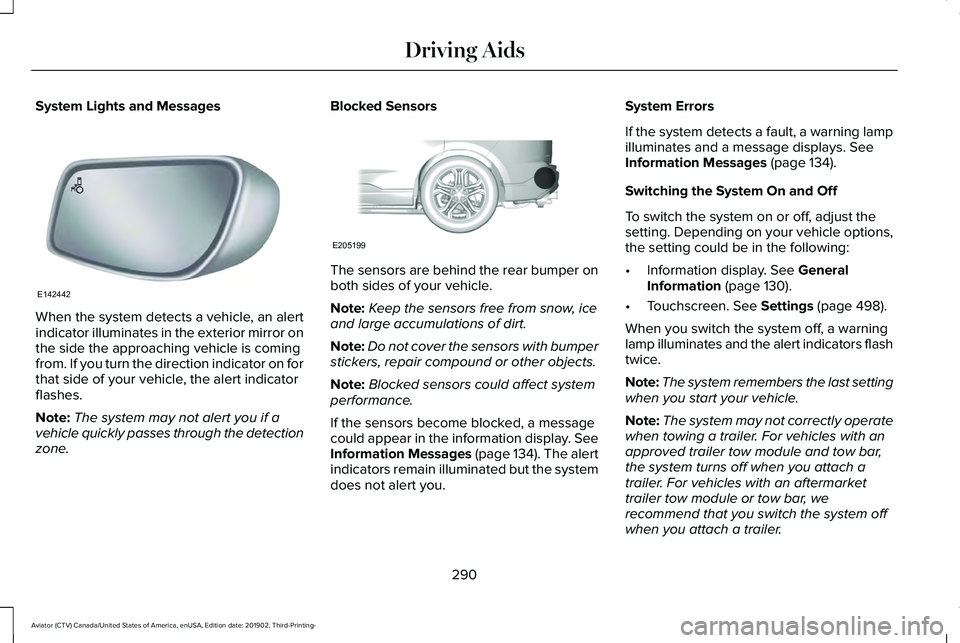
System Lights and Messages
When the system detects a vehicle, an alert
indicator illuminates in the exterior mirror on
the side the approaching vehicle is coming
from. If you turn the direction indicator on for
that side of your vehicle, the alert indicator
flashes.
Note:
The system may not alert you if a
vehicle quickly passes through the detection
zone. Blocked Sensors
The sensors are behind the rear bumper on
both sides of your vehicle.
Note:
Keep the sensors free from snow, ice
and large accumulations of dirt.
Note: Do not cover the sensors with bumper
stickers, repair compound or other objects.
Note: Blocked sensors could affect system
performance.
If the sensors become blocked, a message
could appear in the information display. See
Information Messages (page 134). The alert
indicators remain illuminated but the system
does not alert you. System Errors
If the system detects a fault, a warning lamp
illuminates and a message displays. See
Information Messages (page 134).
Switching the System On and Off
To switch the system on or off, adjust the
setting. Depending on your vehicle options,
the setting could be in the following:
• Information display.
See General
Information (page 130).
• Touchscreen.
See Settings (page 498).
When you switch the system off, a warning
lamp illuminates and the alert indicators flash
twice.
Note: The system remembers the last setting
when you start your vehicle.
Note: The system may not correctly operate
when towing a trailer. For vehicles with an
approved trailer tow module and tow bar,
the system turns off when you attach a
trailer. For vehicles with an aftermarket
trailer tow module or tow bar, we
recommend that you switch the system off
when you attach a trailer.
290
Aviator (CTV) Canada/United States of America, enUSA, Edition date: 201902, Third-Printing- Driving AidsE142442 E205199
Page 299 of 609
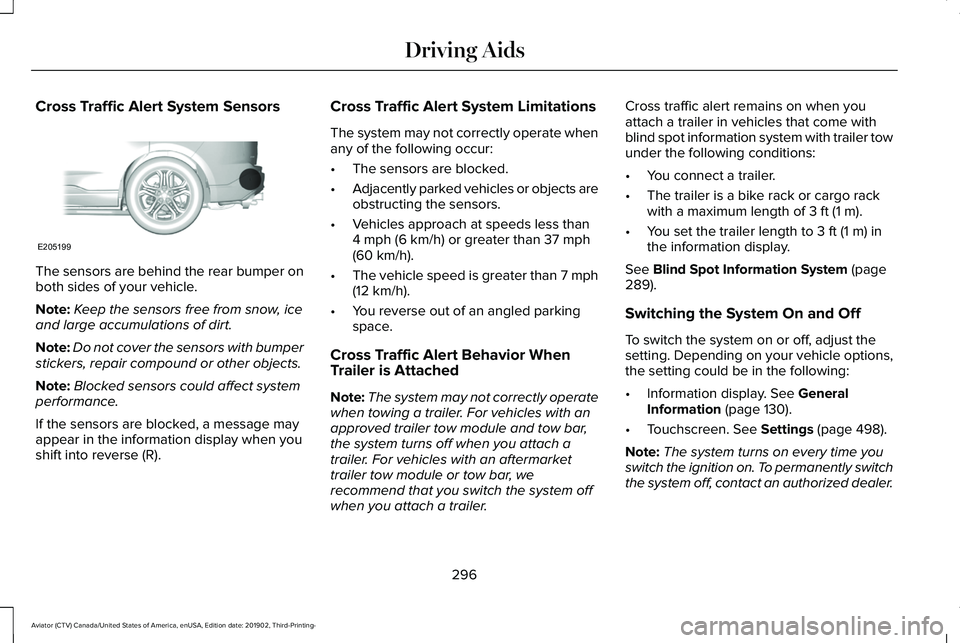
Cross Traffic Alert System Sensors
The sensors are behind the rear bumper on
both sides of your vehicle.
Note:
Keep the sensors free from snow, ice
and large accumulations of dirt.
Note: Do not cover the sensors with bumper
stickers, repair compound or other objects.
Note: Blocked sensors could affect system
performance.
If the sensors are blocked, a message may
appear in the information display when you
shift into reverse (R). Cross Traffic Alert System Limitations
The system may not correctly operate when
any of the following occur:
•
The sensors are blocked.
• Adjacently parked vehicles or objects are
obstructing the sensors.
• Vehicles approach at speeds less than
4 mph (6 km/h) or greater than 37 mph
(60 km/h).
• The vehicle speed is greater than 7 mph
(12 km/h)
.
• You reverse out of an angled parking
space.
Cross Traffic Alert Behavior When
Trailer is Attached
Note: The system may not correctly operate
when towing a trailer. For vehicles with an
approved trailer tow module and tow bar,
the system turns off when you attach a
trailer. For vehicles with an aftermarket
trailer tow module or tow bar, we
recommend that you switch the system off
when you attach a trailer. Cross traffic alert remains on when you
attach a trailer in vehicles that come with
blind spot information system with trailer tow
under the following conditions:
•
You connect a trailer.
• The trailer is a bike rack or cargo rack
with a maximum length of
3 ft (1 m).
• You set the trailer length to
3 ft (1 m) in
the information display.
See
Blind Spot Information System (page
289).
Switching the System On and Off
To switch the system on or off, adjust the
setting. Depending on your vehicle options,
the setting could be in the following:
• Information display.
See General
Information (page 130).
• Touchscreen.
See Settings (page 498).
Note: The system turns on every time you
switch the ignition on. To permanently switch
the system off, contact an authorized dealer.
296
Aviator (CTV) Canada/United States of America, enUSA, Edition date: 201902, Third-Printing- Driving AidsE205199
Page 455 of 609
SiriusXM Satellite Radio Service
Note:
SiriusXM reserves the unrestricted
right to change, rearrange, add or delete
programming including canceling, moving
or adding particular channels, and its prices,
at any time, with or without notice to you.
Ford Motor Company shall not be
responsible for any such programming
changes. SiriusXM satellite radio is a
subscription-based satellite radio service that
broadcasts a variety of music, sports, news,
weather, traffic and entertainment
programming. Your factory-installed SiriusXM
satellite radio system includes hardware and
a limited subscription term, which begins on
the date of sale or lease of your vehicle. See
an authorized dealer for availability.
For more information on extended
subscription terms (a service fee is required),
the online media player and a complete list
of SiriusXM satellite radio channels, and
other features, please visit www.siriusxm.com
in the United States, www.siriusxm.ca in
Canada, or call SiriusXM at 1-888-539-7474.
Satellite Radio Electronic Serial
Number (ESN)
You need your ESN to activate, modify or
track your satellite radio account.
Locating Your ESN
With satellite radio as the source, use the
touchscreen to select the following:
1.
Select Settings. See Settings (page 498).
2. Select SiriusXM.
3. Select
SiriusXM information.
452
Aviator (CTV) Canada/United States of America, enUSA, Edition date: 201902, Third-Printing- Audio SystemE208625
Page 459 of 609
GENERAL INFORMATION
WARNING: Driving while distracted
can result in loss of vehicle control, crash
and injury. We strongly recommend that
you use extreme caution when using any
device that may take your focus off the
road. Your primary responsibility is the safe
operation of your vehicle. We recommend
against the use of any hand-held device
while driving and encourage the use of
voice-operated systems when possible.
Make sure you are aware of all applicable
local laws that may affect the use of
electronic devices while driving.
About SYNC
The system allows you to interact with the
entertainment, information and
communication systems on your vehicle
using voice commands and a touchscreen.
The system provides easy interaction with
audio, phone, navigation, mobile apps and
settings. Note:
You can switch the system on and use
it for up to an hour without switching the
ignition on.
Note: You can use the system after you
switch the ignition off for up to 10 minutes or
until you open a door.
Note: For your safety, some features are
speed-dependent. Their use is limited to
when your vehicle speed is less than 3 mph
(5 km/h)
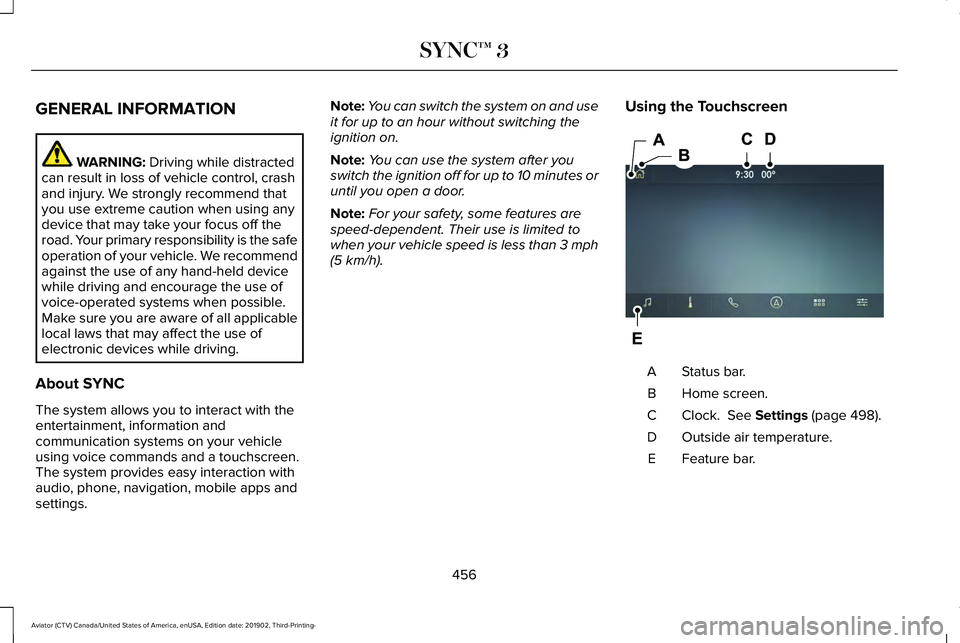
. Using the Touchscreen Status bar.
A
Home screen.
B
Clock.
See Settings (page 498).
C
Outside air temperature.
D
Feature bar.
E
456
Aviator (CTV) Canada/United States of America, enUSA, Edition date: 201902, Third-Printing- SYNC™ 3E297844