radio LINCOLN AVIATOR 2020 Owners Manual
[x] Cancel search | Manufacturer: LINCOLN, Model Year: 2020, Model line: AVIATOR, Model: LINCOLN AVIATOR 2020Pages: 609, PDF Size: 5.4 MB
Page 4 of 609
Introduction
About This Manual
...........................................9
Symbols Glossary ............................................
9
Data Recording ...............................................
12
Perchlorate .......................................................
16
Lincoln Automotive Financial Services ........................................................................\
..
16
Replacement Parts Recommendation ........................................................................\
..
17
Special Notices ................................................
17
Mobile Communications Equipment .........
18
Export Unique Options ..................................
19
Environment
Protecting the Environment ........................
20
At a Glance
Instrument Panel .............................................
21
Child Safety
General Information ......................................
24
Installing Child Restraints ............................
26
Booster Seats ..................................................
37Child Restraint Positioning
..........................
39
Child Safety Locks ..........................................
41
Seatbelts
Principle of Operation ..................................
43
Fastening the Seatbelts ...............................
44
Seatbelt Height Adjustment .......................
46
Seatbelt Warning Lamp and Indicator Chime ...........................................................
46
Seatbelt Reminder .........................................
47
Child Restraint and Seatbelt Maintenance ........................................................................\
.
49
Seatbelt Extensions ......................................
50
Personal Safety System ™
Personal Safety System ™..............................
51
Supplementary Restraints System
Principle of Operation ..................................
52
Driver and Passenger Airbags ...................
53
Front Passenger Sensing System .............
55
Side Airbags ....................................................
57Driver and Passenger Knee Airbags
........
58
Safety Canopy™ ..............................................
58
Crash Sensors and Airbag Indicator ........
60
Airbag Disposal ...............................................
61
911 Assist
What Is 911 Assist ...........................................
62
Emergency Call Requirements ..................
62
Emergency Call Limitations ........................
63
Keys and Remote Controls
General Information on Radio Frequencies ........................................................................\
.
64
Remote Control ..............................................
64
Replacing a Lost Key or Remote Control ........................................................................\
69
Phone as a Key
What Is Phone As a Key ...............................
70
Phone as a Key Limitations .........................
70
Programming Your Phone ..........................
70
Using the Valet Mode ...................................
70
Using the Backup Start Passcode ..............
71
1
Aviator (CTV) Canada/United States of America, enUSA, Edition date: 201902, Third-Printing- Table of Contents
Page 10 of 609
Changing the Front Wiper Blades -
Vehicles Without: Heated Wiper Blades
......................................................................375
Changing the Front Wiper Blades - Vehicles With: Heated Wiper Blades
......................................................................
376
Changing the Rear Wiper Blades ............
377
Changing a Bulb ..........................................
377
Vehicle Care
General Information ....................................
378
Cleaning Products .......................................
378
Cleaning the Exterior ..................................
379
Waxing ...........................................................
380
Cleaning the Engine ....................................
381
Cleaning the Windows and Wiper Blades .......................................................................
381
Cleaning the Interior ...................................
382
Cleaning the Instrument Panel and Instrument Cluster Lens ........................
382
Cleaning Leather Seats .............................
383
Repairing Minor Paint Damage ................
384
Cleaning the Wheels ..................................
384
Vehicle Storage ...........................................
384Wheels and Tires
General Information
....................................
387
Tire Care ........................................................
389
Using Summer Tires ....................................
401
Using Snow Chains ....................................
402
Tire Pressure Monitoring System ...........
405
Changing a Road Wheel .............................
411
Technical Specifications .............................
419
Capacities and Specifications
Engine Specifications ..................................
421
Motorcraft Parts ...........................................
422
Vehicle Identification Number .................
424
Vehicle Certification Label ........................
424
Transmission Code Designation .............
425
Capacities and Specifications ..................
426
Bulb Specification Chart ............................
437
Vehicle Identification
Installing the Vehicle Identification Card ......................................................................
438 Connected Vehicle
Connected Vehicle Requirements
..........
439
Connected Vehicle Limitations ................
439
Connecting the Vehicle to a Mobile Network .....................................................
439
Connecting the Vehicle to a Wi-Fi Network ......................................................................
439
Connected Vehicle – Troubleshooting ......................................................................
440
Vehicle Wi-Fi Hotspot
Creating a Vehicle Wi-Fi Hotspot ............
443
Changing the Vehicle Wi-Fi Hotspot Name or Password ..............................................
443
Audio System
General Information ....................................
445
Audio Unit .....................................................
446
Digital Radio .................................................
448
Satellite Radio ...............................................
451
USB Port ........................................................
454
SYNC™ 3
General Information ...................................
456
7
Aviator (CTV) Canada/United States of America, enUSA, Edition date: 201902, Third-Printing- Table of Contents
Page 17 of 609
Note:
Event data recorder data is recorded
by your vehicle only if a non-trivial crash
situation occurs; no data is recorded by the
event data recorder under normal driving
conditions and no personal data or
information (e.g., name, gender, age, and
crash location) is recorded. However, other
parties, such as law enforcement, could
combine the event data recorder data with
the type of personally identifying data
routinely acquired during a crash
investigation.
To read data recorded by an event data
recorder, special equipment is required, and
access to the vehicle or the event data
recorder is needed. In addition to the vehicle
manufacturer, other parties, such as law
enforcement, that have such special
equipment, can read the information if they
have access to the vehicle or the event data
recorder. Comfort, Convenience and
Entertainment Data
Your vehicle has electronic control units that
have the ability to store data based on your
personalized settings. The data is stored
locally in the vehicle or on devices that you
connect to it, for example, a USB drive or
digital music player. You can delete some of
this data and also choose whether to share
it through the services to which you
subscribe. See Settings (page 498).
Comfort and Convenience Data
Data recorded includes, for example:
• Seat and steering wheel position.
• Climate control settings.
• Radio presets.
Entertainment Data
Data recorded includes, for example:
• Music, videos or album art.
• Contacts and corresponding address
book entries.
• Navigation destinations. Services That We Provide
If you use our services, we collect and use
data, for example, account information,
vehicle location and driving characteristics,
that could identify you. We transmit this data
through a dedicated, protected connection.
We only collect and use data to enable your
use of our services to which you have
subscribed, with your consent or where
permitted by law. For additional information,
see the terms and conditions of the services
to which you have subscribed.
Services That Third Parties Provide
We recommend that you review the terms
and conditions and data privacy information
for any services to which you subscribe. We
take no responsibility for services that third
parties provide.
14
Aviator (CTV) Canada/United States of America, enUSA, Edition date: 201902, Third-Printing- Introduction
Page 22 of 609
Using mobile communications equipment is
becoming increasingly important in the
conduct of business and personal affairs.
However, you must not compromise your
own or others
’ safety when using such
equipment. Mobile communications can
enhance personal safety and security when
appropriately used, particularly in emergency
situations. Safety must be paramount when
using mobile communications equipment to
avoid negating these benefits. Mobile
communication equipment includes, but is
not limited to, cellular phones, pagers,
portable email devices, text messaging
devices and portable two-way radios.
EXPORT UNIQUE OPTIONS
For your particular global region, your vehicle
may be equipped with features and options
that are different from the features and
options that are described in this Owner’ s
Manual. A market unique supplement may
be supplied that complements this book. By
referring to the market unique supplement,
if provided, you can properly identify those
features, recommendations and specifications that are unique to your vehicle.
This Owner’
s Manual is written primarily for
the U.S. and Canadian Markets. Features or
equipment listed as standard may be
different on units built for export. Refer to
this Owner’ s Manual for all other required
information and warnings.
19
Aviator (CTV) Canada/United States of America, enUSA, Edition date: 201902, Third-Printing- Introduction
Page 67 of 609
GENERAL INFORMATION ON
RADIO FREQUENCIES
This device complies with Part 15 of the FCC
Rules and with Industry Canada
license-exempt RSS standard(s). Operation
is subject to the following two conditions: (1)
This device may not cause harmful
interference, and (2) This device must accept
any interference received, including
interference that may cause undesired
operation.
WARNING: Changes or modifications
not expressively approved by the party
responsible for compliance could void the
user's authority to operate the equipment.
The term "IC:" before the radio certification
number only signifies that Industry Canada
technical specifications were met.
The typical operating range for your
transmitter is approximately 33 ft (10 m).
Vehicles with the remote start feature will
have a greater range. One of the following could cause a decrease
in operating range:
•
Weather conditions.
• Nearby radio towers.
• Structures around the vehicle.
• Other vehicles parked next to your
vehicle.
The radio frequency used by your remote
control can also be used by other radio
transmitters, for example amateur radios,
medical equipment, wireless headphones,
wireless remote controls, cell phones, battery
chargers and alarm systems. If the
frequencies are jammed, you will not be able
to use your remote control. You can lock and
unlock the doors with the key.
Note: Make sure to lock your vehicle before
leaving it unattended.
Note: If you are in range, the remote control
will operate if you press any button
unintentionally.
Note: The remote control contains sensitive
electrical components. Exposure to moisture
or impact may cause permanent damage. Intelligent Access
(If Equipped)
The system uses a radio frequency signal to
communicate with your vehicle and authorize
your vehicle to unlock when one of the
following conditions are met:
• You activate the front exterior door
handle switch.
• You press the luggage compartment
button.
• You press a button on the transmitter.
If excessive radio frequency interference is
present in the area or if the transmitter
battery is low, you may need to mechanically
unlock your door. You can use the
mechanical key blade in your intelligent
access key to open the driver door in this
situation.
See Remote Control (page 64).
REMOTE CONTROL
Intelligent Access Key
Note: You may not be able to shift out of
park (P) unless the intelligent access key is
inside your vehicle.
64
Aviator (CTV) Canada/United States of America, enUSA, Edition date: 201902, Third-Printing- Keys and Remote Controls
Page 71 of 609
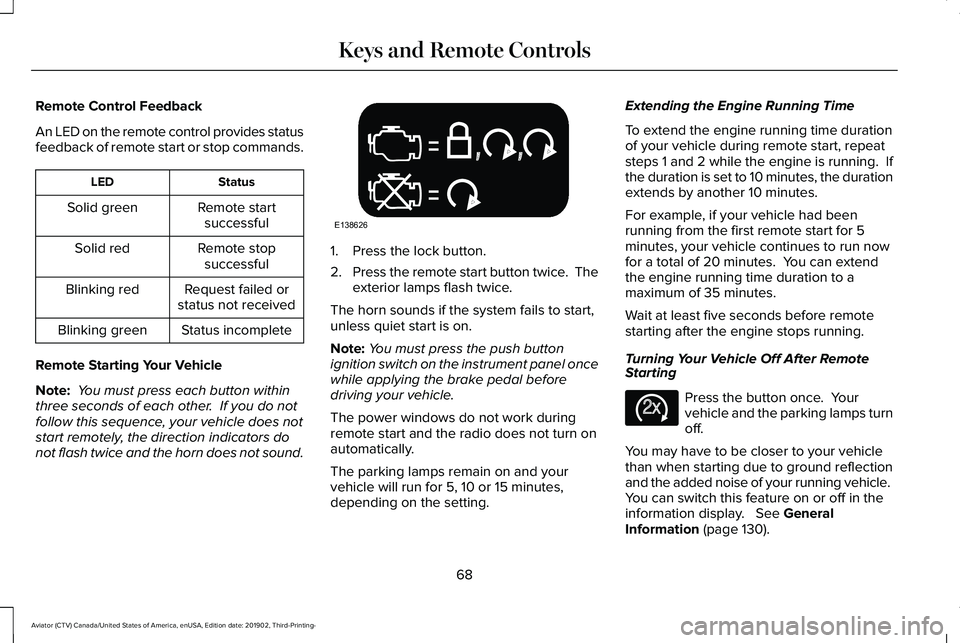
Remote Control Feedback
An LED on the remote control provides status
feedback of remote start or stop commands.
Status
LED
Remote startsuccessful
Solid green
Remote stopsuccessful
Solid red
Request failed or
status not received
Blinking red
Status incomplete
Blinking green
Remote Starting Your Vehicle
Note: You must press each button within
three seconds of each other. If you do not
follow this sequence, your vehicle does not
start remotely, the direction indicators do
not flash twice and the horn does not sound. 1. Press the lock button.
2.
Press the remote start button twice. The
exterior lamps flash twice.
The horn sounds if the system fails to start,
unless quiet start is on.
Note: You must press the push button
ignition switch on the instrument panel once
while applying the brake pedal before
driving your vehicle.
The power windows do not work during
remote start and the radio does not turn on
automatically.
The parking lamps remain on and your
vehicle will run for 5, 10 or 15 minutes,
depending on the setting. Extending the Engine Running Time
To extend the engine running time duration
of your vehicle during remote start, repeat
steps 1 and 2 while the engine is running. If
the duration is set to 10 minutes, the duration
extends by another 10 minutes.
For example, if your vehicle had been
running from the first remote start for 5
minutes, your vehicle continues to run now
for a total of 20 minutes. You can extend
the engine running time duration to a
maximum of 35 minutes.
Wait at least five seconds before remote
starting after the engine stops running.
Turning Your Vehicle Off After Remote
Starting
Press the button once. Your
vehicle and the parking lamps turn
off.
You may have to be closer to your vehicle
than when starting due to ground reflection
and the added noise of your running vehicle.
You can switch this feature on or off in the
information display. See General
Information (page 130).
68
Aviator (CTV) Canada/United States of America, enUSA, Edition date: 201902, Third-Printing- Keys and Remote ControlsE138626 E138625
Page 76 of 609
PRINCIPLE OF OPERATION
MyKey allows you to program keys with
restricted driving modes to promote good
driving habits. You can program the
restrictions to all keys except one. Any keys
that you did not program are administrator
keys or admin keys.
You can use admin keys to:
•
Create a MyKey with certain vehicle
restrictions.
• Program certain MyKey settings.
• Clear all MyKey restrictions.
After you program a MyKey, you can view
the following information through the
information display:
• The total number of admin keys and
MyKeys for your vehicle.
• The total distance a MyKey driver
traveled with your vehicle.
Note: Every MyKey receives the same
restrictions and settings. You cannot
program them individually. Note:
For vehicles equipped with a
push-button start switch: When both a MyKey
and an admin key are present when you
start your vehicle, the system recognizes the
admin key only.
Standard Settings
Not every vehicle includes the features listed
below. If your vehicle has this equipment,
then you cannot change the following
settings when using a MyKey:
• Seatbelt reminder or Belt-Minder™. MyKey
mutes the audio system until drivers, and
in some instances, passengers, fasten
their seatbelts. Note: If your vehicle
includes an AM/FM radio or a very basic
audio system, then the radio may not
mute.
• Earlier low-fuel warning. The low-fuel
warning activates earlier for MyKey
drivers, giving them more time to refuel. •
Certain driver alerts, stability systems or
parking aids turn on automatically when
you use the MyKey system. For example,
Blind Spot Information System (BLIS),
cross traffic alert, lane departure warning
or forward collision warning. Note: MyKey
drivers may be able to turn the lane
departure warning feature off, but this
feature turns back on automatically with
every new key cycle.
• Restricted touchscreen operation in some
markets. For example, MyKey may
prevent manual navigation destination
input while the vehicle is in any gear
other than park (P) or when the vehicle
reaches a certain rate of speed.
• Satellite radio adult content restrictions,
if this feature is available in your market.
Optional Settings
You can configure certain vehicle feature
settings when you first create a MyKey. You
can also change the settings afterward with
an admin key.
73
Aviator (CTV) Canada/United States of America, enUSA, Edition date: 201902, Third-Printing- MyKey™
Page 77 of 609
Note:
Not every feature applies to every
vehicle in every market. When they are
available for your vehicle, then they appear
in your information display, providing choices
to switch them on or off, or to select a more
specific setting.
• Various vehicle speed limits so the
MyKey driver cannot exceed certain
speeds. The information display shows
warnings followed by an audible tone
when the MyKey driver reaches the set
speed. You cannot override the set
speed by fully depressing the accelerator
pedal. WARNING: Do not set MyKey
maximum speed limit to a limit that will
prevent the driver from maintaining a safe
speed considering posted speed limits and
prevailing road conditions. The driver is
always responsible to drive in accordance
with local laws and prevailing conditions.
Failure to do so could result in accident or
injury. •
Various vehicle speed reminders so
MyKey drivers know when their vehicle
speed approaches the limits. Warnings
appear in your information display and a
tone sounds when the MyKey drivers
exceed the set vehicle speed.
• The audio system's maximum volume
limits to 45% so MyKey drivers can
concentrate on the road. A message
appears in the information display when
MyKey drivers attempt to exceed the
limited volume. MyKey also disables the
automatic volume control.
Note: If your
vehicle includes an AM/FM radio or a
very basic audio system, then the radio
may not limit.
• Always on setting. This setting forces
certain features to remain on and active
for MyKey drivers. For example, E911 or
emergency assistance and the do not
disturb features stay on even if a MyKey
driver uses the feature's control to switch
it off. When selected, you will not be able
to turn off Advance Trac or traction
control (if your vehicle has this feature). CREATING A MYKEY
Use the touchscreen to create a MyKey:
1. Insert the key you want to program into
the ignition. If your vehicle has a
push-button start, place the remote
control into the backup slot. See Starting
a Gasoline Engine
(page 203).
2. Switch the ignition on.
3. Access the main menu in the touchscreen and then scroll through the
menus to change the settings of your
MyKey. From the MyKey menu, select the
option Create MyKey.
See Settings
(page 498).
4. Press Yes if you want to create the key as a MyKey. A confirmation message
appears on the screen.
5. Switch the ignition off.
You have successfully created a MyKey.
Make sure you label it so you can distinguish
it from the admin keys.
You can also program configurable settings
for the key.
74
Aviator (CTV) Canada/United States of America, enUSA, Edition date: 201902, Third-Printing- MyKey™
Page 183 of 609
Linking a Personal Profile to Your Remote
Control or Mobile Device
You can save preset memory positions for
up to three remote controls, by assigning a
remote control to a personal profile in your
SYNC 3. You can assign three additional
remote controls set up as Phone as a Key.
See Keys and Remote Controls (page 64).
Use the SYNC display to link a remote
control, mobile device or both to a personal
profile.
1. Switch the ignition on and leave the vehicle in park (P).
2. Select the Personal Profiles button under
Settings.
3. Touch the arrow for the profile you wish to link to a remote control or mobile
device.
4. Select the correct button to link a remote
control, mobile device, or both.
5. Follow the instructions on the display. Note:
To successfully link a mobile device,
the mobile device must be present in your
vehicle, and must have previously been
setup as a remote control for your vehicle.
Note: If more than one linked remote control
is in range, the memory function moves to
the settings of the first key to initiate a
memory recall.
Note: The guest profile consists of existing
settings when there is no driver profile
created. After you create a driver profile, the
guest profile serves as an additional driver
profile.
Note: You cannot link a personalized name,
a memory seat button or a remote control
to a guest profile.
Personal Settings
Personal Profiles allow you to personalize
positional settings such as seats and mirrors,
as well as non-positional settings such as
radio, navigation, driver assist and system
settings.
See SYNC™ 3 (page 456). You
cannot change the menu locations and
settings of those personalized features with
Personal Profiles. Note:
Non-positional settings are saved to
the active driver profile whenever you
change a setting.
Note: You can save positional settings if you
press and hold a memory seat button.
Recalling and Changing a Profile
You can recall a profile by:
• Using a remote control or mobile device
that has been linked to a driver profile to
access the remote start feature, press an
unlock button or open the door with the
exterior door handle.
• Pressing a memory seat button that has
been linked to a driver profile.
• Using the Personal Profiles menu on the
SYNC touchscreen.
Note: The recalled profile replaces the
previously active profile. If the active profile
is not your preferred profile, you can change
it using any of the three methods listed.
180
Aviator (CTV) Canada/United States of America, enUSA, Edition date: 201902, Third-Printing- Seats
Page 194 of 609
UNIVERSAL GARAGE DOOR
OPENER
HomeLink Wireless Control System
WARNING: Do not use the system
with any garage door opener that does not
have the safety stop and reverse feature
as required by U.S. Federal Safety
Standards (this includes any garage door
opener manufactured before April 1, 1982).
A garage door opener which cannot detect
an object, signaling the door to stop and
reverse, does not meet current federal
safety standards. Using a garage door
opener without these features increases
the risk of serious injury or death.
Note: Make sure that the garage door and
security device are free from obstruction
when you are programming. Do not program
the system with the vehicle in the garage.
Note: Make sure you keep the original
remote control transmitter for use in other
vehicles as well as for future system
programming. Note:
We recommend that upon the sale or
lease termination of your vehicle, you erase
the programmed function buttons for security
reasons. See
Erasing the Function Button
Codes.
Note: You can program a maximum of three
devices. To change or replace any of the
three devices after it has been initially
programmed, you must first erase the current
settings. See
Erasing the Function Button
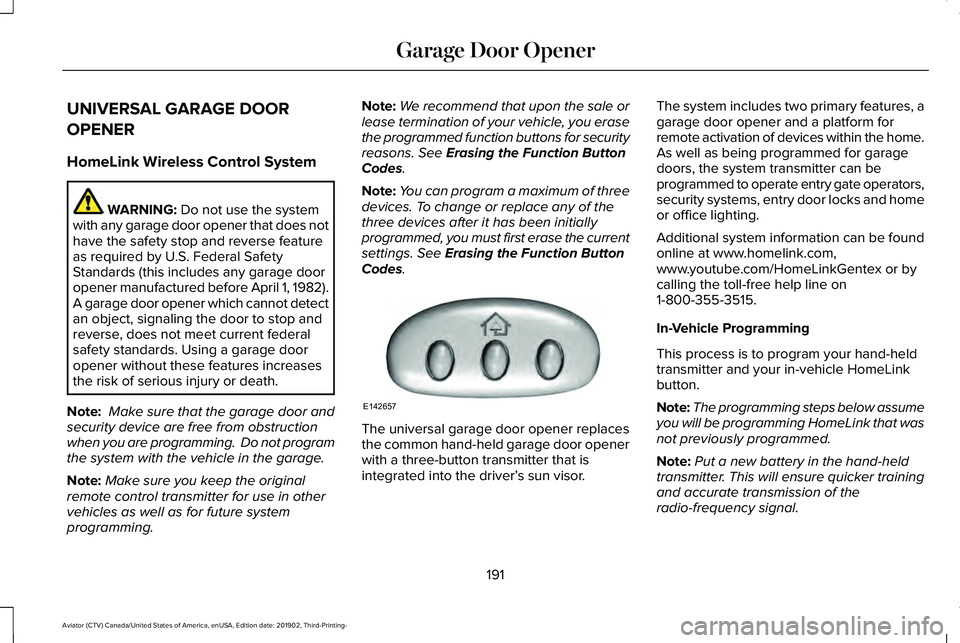
Codes. The universal garage door opener replaces
the common hand-held garage door opener
with a three-button transmitter that is
integrated into the driver’
s sun visor.The system includes two primary features, a
garage door opener and a platform for
remote activation of devices within the home.
As well as being programmed for garage
doors, the system transmitter can be
programmed to operate entry gate operators,
security systems, entry door locks and home
or office lighting.
Additional system information can be found
online at www.homelink.com,
www.youtube.com/HomeLinkGentex or by
calling the toll-free help line on
1-800-355-3515.
In-Vehicle Programming
This process is to program your hand-held
transmitter and your in-vehicle HomeLink
button.
Note:
The programming steps below assume
you will be programming HomeLink that was
not previously programmed.
Note: Put a new battery in the hand-held
transmitter. This will ensure quicker training
and accurate transmission of the
radio-frequency signal.
191
Aviator (CTV) Canada/United States of America, enUSA, Edition date: 201902, Third-Printing- Garage Door OpenerE142657