radio LINCOLN AVIATOR 2021 Owners Manual
[x] Cancel search | Manufacturer: LINCOLN, Model Year: 2021, Model line: AVIATOR, Model: LINCOLN AVIATOR 2021Pages: 667, PDF Size: 7.01 MB
Page 5 of 667

Keys and Remote Controls
General Information on Radio Frequencies
........................................................................\
66
Remote Control ..............................................
67
Replacing a Lost Key or Remote Control ........................................................................\
..
71
Phone as a Key
What Is Phone As a Key ...............................
72
Phone as a Key Limitations .........................
72
Programming Your Phone ..........................
72
Using the Valet Mode ...................................
73
Using the Backup Start Passcode .............
73
Phone as a Key – Troubleshooting ...........
74
MyKey™
Principle of Operation ..................................
76
Creating a MyKey ...........................................
77
Clearing All MyKeys ......................................
78
Checking MyKey System Status ................
78
Using MyKey With Remote Start Systems ........................................................................\
.
79
MyKey – Troubleshooting ............................
79Doors and Locks
Locking and Unlocking
.................................
81
Opening the Doors .......................................
88
Emergency Door Release ...........................
89
Soft Closing Door ..........................................
89
Keyless Entry ..................................................
89
Liftgate
Power Liftgate ................................................
92
Security
Passive Anti-Theft System ...........................
97
Anti-Theft Alarm .............................................
98
Steering Wheel
Adjusting the Steering Wheel - Vehicles With: Manual Adjustable Steering
Column .......................................................
100
Adjusting the Steering Wheel - Vehicles With: Power Adjustable Steering Column
.......................................................................
100
Audio Control ................................................
102
Voice Control ................................................
102Cruise Control - Vehicles With: Adaptive
Cruise Control With Lane Centering
.......................................................................
102
Cruise Control - Vehicles With: Cruise Control ........................................................
103
Information Display Control .......................
104
Heated Steering Wheel ..............................
104
Horn .................................................................
104
Wipers and Washers
Windshield Wipers - Vehicles Without: Heated Wiper Blades .............................
105
Windshield Wipers - Vehicles With: Heated Wiper Blades ............................................
106
Autowipers .....................................................
106
Windshield Washers ....................................
107
Rear Window Wiper and Washers ...........
107
Lighting
General Information ....................................
109
Lighting Control ............................................
109
Autolamps .......................................................
110
Instrument Lighting Dimmer .......................
110
Headlamp Exit Delay .....................................
111
2
Aviator (CTV) Canada/United States of America, enUSA, Edition date: 202007, Second-Printing Table of Contents
Page 11 of 667
Motorcraft Parts - Excluding: Plug-In Hybrid
Electric Vehicle (PHEV) ..........................446
Motorcraft Parts - Plug-In Hybrid Electric Vehicle (PHEV) .........................................
448
Vehicle Identification Number .................
450
Capacities and Specifications - Excluding: Plug-In Hybrid Electric Vehicle (PHEV)
......................................................................
450
Capacities and Specifications - Plug-In Hybrid Electric Vehicle (PHEV) ............
462
Bulb Specification Chart ............................
473
Vehicle Identification
Installing the Vehicle Identification Card ......................................................................
474
Network Connectivity
Connecting the Vehicle to a Mobile Network .....................................................
475
Network Connectivity – Troubleshooting ......................................................................
476
Vehicle Wi-Fi Hotspot
Creating a Vehicle Wi-Fi Hotspot ............
479Changing the Vehicle Wi-Fi Hotspot Name
or Password ..............................................
479
Audio System
General Information .....................................
481
Audio Unit .....................................................
482
Digital Radio .................................................
484
Satellite Radio ..............................................
487
USB Port ........................................................
490
SYNC™ 3
General Information ...................................
492
Using Voice Recognition ...........................
494
Entertainment ..............................................
506
Climate ............................................................
518
Phone ..............................................................
521
Navigation .....................................................
523
Electric Vehicle Information .......................
531
Apps ................................................................
537
Settings ..........................................................
540
SYNC™ 3 Troubleshooting ........................
542Accessories
Accessories
..................................................
559
Lincoln Protect
Lincoln Protect ..............................................
561
Scheduled Maintenance
General Maintenance Information ..........
564
Normal Scheduled Maintenance ............
568
Special Operating Conditions Scheduled Maintenance ............................................
572
Customer Information
Rollover Warning .........................................
576
Radio Frequency Certification Labels ......................................................................
576
Appendices
Electromagnetic Compatibility ................
609
End User License Agreement ...................
614
Declaration of Conformity .........................
644
Declaration of Conformity - Vehicles With: SYNC 3 ......................................................
645
8
Aviator (CTV) Canada/United States of America, enUSA, Edition date: 202007, Second-Printing Table of Contents
Page 18 of 667
using mobile communications equipment to
avoid negating these benefits. Mobile
communication equipment includes, but is
not limited to, cellular phones, pagers,
portable email devices, text messaging
devices and portable two-way radios.
EXPORT UNIQUE OPTIONS
For your particular global region, your vehicle
may be equipped with features and options
that are different from the features and
options that are described in this Owner’
s
Manual. A market unique supplement may
be supplied that complements this book. By
referring to the market unique supplement,
if provided, you can properly identify those
features, recommendations and
specifications that are unique to your vehicle.
This Owner’ s Manual is written primarily for
the U.S. and Canadian Markets. Features or
equipment listed as standard may be
different on units built for export. Refer to
this Owner’ s Manual for all other required
information and warnings.
15
Aviator (CTV) Canada/United States of America, enUSA, Edition date: 202007, Second-Printing Introduction
Page 21 of 667
EVENT DATA
This vehicle is equipped with an event data
recorder. The main purpose of an event data
recorder is to record, in certain crash or near
crash-like situations, such as an airbag
deployment or hitting a road obstacle; this
data will assist in understanding how a
vehicle
’s systems performed. The event data
recorder is designed to record data related
to vehicle dynamics and safety systems for
a short period of time, typically 30 seconds
or less.
The event data recorder in this vehicle is
designed to record such data as:
• How various systems in your vehicle
were operating.
• Whether or not the driver and passenger
seatbelts were buckled/fastened.
• How far (if at all) the driver was
depressing the accelerator and/or the
brake pedal.
• How fast the vehicle was traveling.
• Where the driver was positioning the
steering wheel. This data can help provide a better
understanding of the circumstances in which
crashes and injuries occur.
Note:
Event data recorder data is recorded
by your vehicle only if a non-trivial crash
situation occurs; no data is recorded by the
event data recorder under normal driving
conditions and no personal data or
information (for example name, gender, age,
and crash location) is recorded. However,
parties, such as law enforcement, could
combine the event data recorder data with
the type of personally identifying data
routinely acquired during a crash
investigation.
To read data recorded by an event data
recorder, special equipment is required, and
access to the vehicle or the event data
recorder is needed. In addition to the vehicle
manufacturer, other parties, such as law
enforcement, that have such special
equipment, can read the information if they
have access to the vehicle or the event data
recorder. SETTINGS DATA
Your vehicle has electronic control units that
have the ability to store data based on your
personalized settings. The data is stored
locally in the vehicle or on devices that you
connect to it, for example, a USB drive or
digital music player. You can delete some of
this data and also choose whether to share
it through the services to which you
subscribe. See Settings (page 540).
Comfort and Convenience Data
Data recorded includes, for example:
• Seat and steering wheel position.
• Climate control settings.
• Radio presets.
Entertainment Data
Data recorded includes, for example:
• Music, videos or album art.
• Contacts and corresponding address
book entries.
• Navigation destinations.
18
Aviator (CTV) Canada/United States of America, enUSA, Edition date: 202007, Second-Printing Data Privacy
Page 69 of 667
GENERAL INFORMATION ON
RADIO FREQUENCIES
This device complies with Part 15 of the FCC
Rules and with Industry Canada
license-exempt RSS standard(s). Operation
is subject to the following two conditions: (1)
This device may not cause harmful
interference, and (2) This device must accept
any interference received, including
interference that may cause undesired
operation.
WARNING: Changes or modifications
not expressively approved by the party
responsible for compliance could void the
user's authority to operate the equipment.
The term "IC:" before the radio certification
number only signifies that Industry Canada
technical specifications were met.
The typical operating range for your
transmitter is approximately 33 ft (10 m).
Vehicles with the remote start feature will
have a greater range. One of the following could cause a decrease
in operating range:
•
Weather conditions.
• Nearby radio towers.
• Structures around the vehicle.
• Other vehicles parked next to your
vehicle.
The radio frequency used by your remote
control can also be used by other radio
transmitters, for example amateur radios,
medical equipment, wireless headphones,
wireless remote controls, cell phones, battery
chargers and alarm systems. If the
frequencies are jammed, you will not be able
to use your remote control. You can lock and
unlock the doors with the key.
Note: Make sure to lock your vehicle before
leaving it unattended.
Note: If you are in range, the remote control
will operate if you press any button
unintentionally.
Note: The remote control contains sensitive
electrical components. Exposure to moisture
or impact may cause permanent damage. Intelligent Access
(If Equipped)
The system uses a radio frequency signal to
communicate with your vehicle and authorize
your vehicle to unlock when one of the
following conditions are met:
• You activate the front exterior door
handle switch.
• You press the luggage compartment
button.
• You press a button on the transmitter.
If excessive radio frequency interference is
present in the area or if the transmitter
battery is low, you may need to mechanically
unlock your door. You can use the
mechanical key blade in your intelligent
access key to open the driver door in this
situation.
See Remote Control (page 67).
66
Aviator (CTV) Canada/United States of America, enUSA, Edition date: 202007, Second-Printing Keys and Remote Controls
Page 73 of 667
The remote start system does not work if any
of the following occur:
•
The ignition is on.
• The anti-theft alarm triggers.
• You switch the feature off through the
touchscreen.
• The hood is open.
• The transmission is not in park (P).
• The battery voltage is below the
minimum operating voltage.
Note: Do not use remote start if your fuel
level is low.
Remote Control Feedback
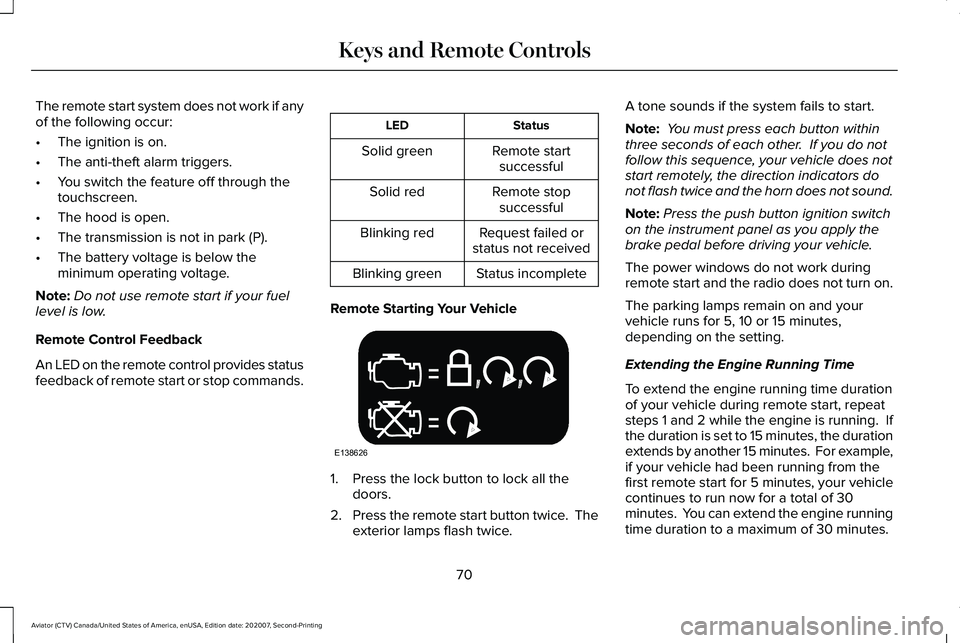
An LED on the remote control provides status
feedback of remote start or stop commands. Status
LED
Remote startsuccessful
Solid green
Remote stopsuccessful
Solid red
Request failed or
status not received
Blinking red
Status incomplete
Blinking green
Remote Starting Your Vehicle 1. Press the lock button to lock all the
doors.
2. Press the remote start button twice. The
exterior lamps flash twice. A tone sounds if the system fails to start.
Note:
You must press each button within
three seconds of each other. If you do not
follow this sequence, your vehicle does not
start remotely, the direction indicators do
not flash twice and the horn does not sound.
Note: Press the push button ignition switch
on the instrument panel as you apply the
brake pedal before driving your vehicle.
The power windows do not work during
remote start and the radio does not turn on.
The parking lamps remain on and your
vehicle runs for 5, 10 or 15 minutes,
depending on the setting.
Extending the Engine Running Time
To extend the engine running time duration
of your vehicle during remote start, repeat
steps 1 and 2 while the engine is running. If
the duration is set to 15 minutes, the duration
extends by another 15 minutes. For example,
if your vehicle had been running from the
first remote start for 5 minutes, your vehicle
continues to run now for a total of 30
minutes. You can extend the engine running
time duration to a maximum of 30 minutes.
70
Aviator (CTV) Canada/United States of America, enUSA, Edition date: 202007, Second-Printing Keys and Remote ControlsE138626
Page 75 of 667
WHAT IS PHONE AS A KEY
Phone as a Key allows you to use your phone
in place of a passive key.
You can use your phone for the following
functions:
•
Remote locking and unlocking.
• Passive entry and exit.
• Passive start and drive the vehicle.
• Remote start.
• Memory function recall.
PHONE AS A KEY LIMITATIONS
Limitations can vary based on the make and
model of your phone, phone location and
physical obstructions.
The following items could impact Phone as
a Key performance or prevent functionality
in some cases:
• The typical operating range for Phone as
a Key is 131 ft (40 m). •
Your Bluetooth connection is not
enabled, is disrupted, or out of range.
• Your Phone as a Key is not active or
enabled on at least one phone.
• Your vehicle battery has depleted.
• Your phone battery has depleted.
• Interference from other devices using
radio frequencies or physical
obstructions.
• Your phone is too close to metal objects
or other electronic devices.
Note: Do not leave a duplicate coded key
in the vehicle. Always take your keys and
phone and lock all doors when leaving the
vehicle.
PROGRAMMING YOUR PHONE
To program your smartphone as Phone as a
Key:
1. Visit your device's app store to download
the Lincoln Way app. 2.
Create or sign-in to the Lincoln Way app
and add the vehicle identification number
to your account.
3. Once you add the vehicle identification number, follow the prompts in the Lincoln
Way app to complete the Sync Connect
Authorization process.
4. After the vehicle authorizes, you can setup Phone as a Key following the
prompts in the Lincoln Way app.
5. After Phone as a Key is setup, you can setup the Backup Start Passcode by
following the prompts on your
touchscreen.
Note: Keep your new Backup Start Passcode
with you in case of an emergency.
Resetting Phone as a Key
If the Phone as a Key belongs to your
account, you can delete it from your phone.
If not, reset Phone as a Key using the
following steps:
1. Press Settings on the touchscreen.
2. Press
General.
3. Press
Reset.
72
Aviator (CTV) Canada/United States of America, enUSA, Edition date: 202007, Second-Printing Phone as a Key
(If Equipped)
Page 79 of 667
PRINCIPLE OF OPERATION
MyKey allows you to program keys with
restricted driving modes to promote good
driving habits. You can program the
restrictions to all keys except one. Any keys
that you did not program are administrator
keys or admin keys.
You can use admin keys to:
•
Create a MyKey with certain vehicle
restrictions.
• Program certain MyKey settings.
• Clear all MyKey restrictions.
After you program a MyKey, you can view
the following information through the
information display:
• The total number of admin keys and
MyKeys for your vehicle.
• The total distance a MyKey driver
traveled with your vehicle.
Note: Every MyKey receives the same
restrictions and settings. You cannot
program them individually. Note:
For vehicles equipped with a
push-button start switch: When both a MyKey
and an admin key are present when you
start your vehicle, the system recognizes the
admin key only.
Standard Settings
Not every vehicle includes the features listed
below. If your vehicle has this equipment,
then you cannot change the following
settings when using a MyKey:
• Seatbelt reminder or Belt-Minder™. MyKey
mutes the audio system until drivers, and
in some instances, passengers, fasten
their seatbelts. Note: If your vehicle
includes an AM/FM radio or a very basic
audio system, then the radio may not
mute.
• Earlier low-fuel warning. The low-fuel
warning activates earlier for MyKey
drivers, giving them more time to refuel. •
Certain driver alerts, stability systems or
parking aids turn on automatically when
you use the MyKey system. For example,
Blind Spot Information System (BLIS),
cross traffic alert, lane departure warning
or forward collision warning. Note: MyKey
drivers may be able to turn the lane
departure warning feature off, but this
feature turns back on automatically with
every new key cycle.
• Restricted touchscreen operation in some
markets. For example, MyKey may
prevent manual navigation destination
input while the vehicle is in any gear
other than park (P) or when the vehicle
reaches a certain rate of speed.
• Satellite radio adult content restrictions,
if this feature is available in your market.
Optional Settings
You can configure certain vehicle feature
settings when you first create a MyKey. You
can also change the settings afterward with
an admin key.
76
Aviator (CTV) Canada/United States of America, enUSA, Edition date: 202007, Second-Printing MyKey™
Page 80 of 667
Note:
Not every feature applies to every
vehicle in every market. When they are
available for your vehicle, then they appear
in your information display, providing choices
to switch them on or off, or to select a more
specific setting.
• Various vehicle speed limits so the
MyKey driver cannot exceed certain
speeds. The information display shows
warnings followed by an audible tone
when the MyKey driver reaches the set
speed. You cannot override the set
speed by fully depressing the accelerator
pedal. WARNING: Do not set MyKey
maximum speed limit to a limit that will
prevent the driver from maintaining a safe
speed considering posted speed limits and
prevailing road conditions. The driver is
always responsible to drive in accordance
with local laws and prevailing conditions.
Failure to do so could result in accident or
injury. •
Various vehicle speed reminders so
MyKey drivers know when their vehicle
speed approaches the limits. Warnings
appear in your information display and a
tone sounds when the MyKey drivers
exceed the set vehicle speed.
• The audio system's maximum volume
limits to 45% so MyKey drivers can
concentrate on the road. A message
appears in the information display when
MyKey drivers attempt to exceed the
limited volume. MyKey also disables the
automatic volume control.
Note: If your
vehicle includes an AM/FM radio or a
very basic audio system, then the radio
may not limit.
• Always on setting. This setting forces
certain features to remain on and active
for MyKey drivers. For example, E911 or
emergency assistance and the do not
disturb features stay on even if a MyKey
driver uses the feature's control to switch
it off. When selected, you will not be able
to turn off Advance Trac or traction
control (if your vehicle has this feature). CREATING A MYKEY
Use the touchscreen to create a MyKey:
1. Insert the key you want to program into
the ignition. If your vehicle has a
push-button start, place the remote
control into the backup slot. See Starting
a Gasoline Engine
(page 209).
2. Switch the ignition on.
3. Access the main menu in the touchscreen and then scroll through the
menus to change the settings of your
MyKey. From the MyKey menu, select the
option Create MyKey.
See Settings
(page 540).
4. Press Yes if you want to create the key as a MyKey. A confirmation message
appears on the screen.
5. Switch the ignition off.
You have successfully created a MyKey.
Make sure you label it so you can distinguish
it from the admin keys.
You can also program configurable settings
for the key.
77
Aviator (CTV) Canada/United States of America, enUSA, Edition date: 202007, Second-Printing MyKey™
Page 191 of 667
Linking a Personal Profile to Your Remote
Control or Mobile Device
You can save preset memory positions for
up to three remote controls, by assigning a
remote control to a personal profile in your
SYNC 3. You can assign three additional
remote controls set up as Phone as a Key.
See Keys and Remote Controls (page 66).
Use the SYNC display to link a remote
control, mobile device or both to a personal
profile.
1. Switch the ignition on and leave the vehicle in park (P).
2. Select the Personal Profiles button under
Settings.
3. Touch the arrow for the profile you wish to link to a remote control or mobile
device.
4. Select the correct button to link a remote
control, mobile device, or both.
5. Follow the instructions on the display. Note:
To successfully link a mobile device,
the mobile device must be present in your
vehicle, and must have previously been
setup as a remote control for your vehicle.
Note: If more than one linked remote control
is in range, the memory function moves to
the settings of the first key to initiate a
memory recall.
Note: The guest profile consists of existing
settings when there is no driver profile
created. After you create a driver profile, the
guest profile serves as an additional driver
profile.
Note: You cannot link a personalized name,
a memory seat button or a remote control
to a guest profile.
Personal Settings
Personal Profiles allow you to personalize
positional settings such as seats and mirrors,
as well as non-positional settings such as
radio, navigation, driver assist and system
settings.
See SYNC™ 3 (page 492). You
cannot change the menu locations and
settings of those personalized features with
Personal Profiles. Note:
Non-positional settings are saved to
the active driver profile whenever you
change a setting.
Note: You can save positional settings if you
press and hold a memory seat button.
Recalling and Changing a Profile
You can recall a profile by:
• Using a remote control or mobile device
that has been linked to a driver profile to
access the remote start feature, press an
unlock button or open the door with the
exterior door handle.
• Pressing a memory seat button that has
been linked to a driver profile.
• Using the Personal Profiles menu on the
SYNC touchscreen.
Note: The recalled profile replaces the
previously active profile. If the active profile
is not your preferred profile, you can change
it using any of the three methods listed.
188
Aviator (CTV) Canada/United States of America, enUSA, Edition date: 202007, Second-Printing Seats