display LINCOLN CONTINENTAL 2018 Owners Manual
[x] Cancel search | Manufacturer: LINCOLN, Model Year: 2018, Model line: CONTINENTAL, Model: LINCOLN CONTINENTAL 2018Pages: 615, PDF Size: 5.31 MB
Page 236 of 615
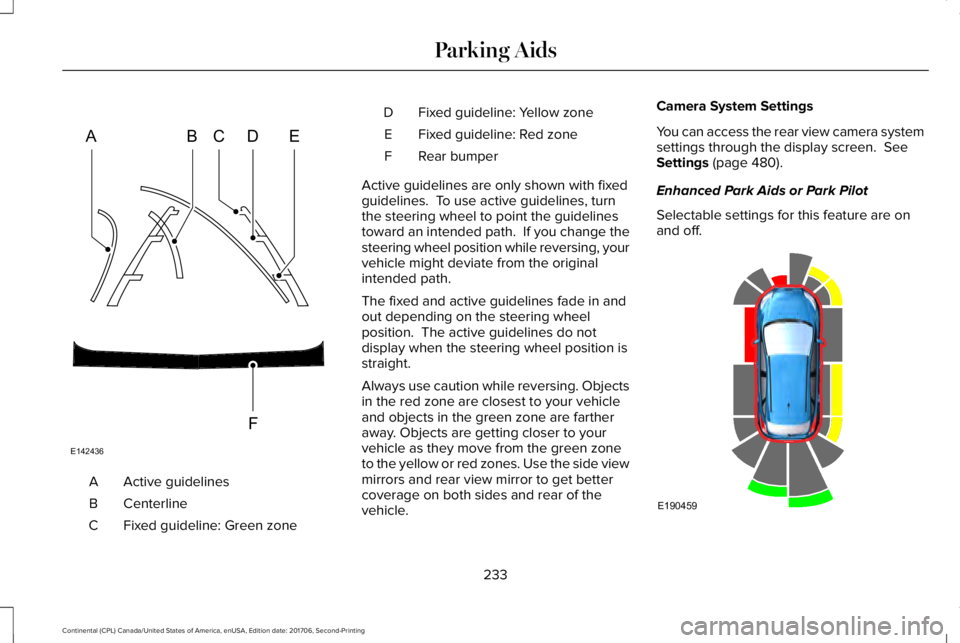
Active guidelinesA
CenterlineB
Fixed guideline: Green zoneC
Fixed guideline: Yellow zoneD
Fixed guideline: Red zoneE
Rear bumperF
Active guidelines are only shown with fixedguidelines. To use active guidelines, turnthe steering wheel to point the guidelinestoward an intended path. If you change thesteering wheel position while reversing, yourvehicle might deviate from the originalintended path.
The fixed and active guidelines fade in andout depending on the steering wheelposition. The active guidelines do notdisplay when the steering wheel position isstraight.
Always use caution while reversing. Objectsin the red zone are closest to your vehicleand objects in the green zone are fartheraway. Objects are getting closer to yourvehicle as they move from the green zoneto the yellow or red zones. Use the side viewmirrors and rear view mirror to get bettercoverage on both sides and rear of thevehicle.
Camera System Settings
You can access the rear view camera systemsettings through the display screen. SeeSettings (page 480).
Enhanced Park Aids or Park Pilot
Selectable settings for this feature are onand off.
233
Continental (CPL) Canada/United States of America, enUSA, Edition date: 201706, Second-Printing
Parking AidsABCD
F
E
E142436 E190459
Page 237 of 615

The system uses red, yellow and greenhighlights that appear on top of the videoimage when any of the sensing systemsdetect an object.
Manual Zoom
WARNING: When manual zoom is on,the full area behind your vehicle may notshow. Be aware of your surroundings whenusing the manual zoom feature.
Note:Manual zoom is only available whenthe transmission is in reverse (R).
Note:When you enable manual zoom, onlythe centerline is shown.
Selectable settings for this feature are zoomin (+) and zoom out (-). Press the symbol inthe camera screen to change the view. Thedefault setting is zoom off.
This allows you to get a closer view of anobject behind your vehicle. The zoomedimage keeps the bumper in the image toprovide a reference. The zoom is only activewhile the transmission is in reverse (R).
Rear Camera Delay
Selectable settings for this feature are onand off.
The default setting for the rear camera delayis off.
When shifting the transmission out of reverse(R) and into any gear other than park (P), thecamera image remains in the display until:
•Your vehicle speed sufficiently increases.
•You shift your vehicle into park (P).
360 DEGREE CAMERA (If Equipped)
WARNING: The 360 degree camerasystem still requires the driver to use it inconjunction with looking out of the windows,and checking the interior and exterior mirrorsfor maximum coverage.
WARNING: You may not see objectsthat are close to either corner of the bumperor under the bumper due to the limitedcoverage of the camera system.
WARNING: Use caution when turningcamera features on or off when thetransmission is not in park (P). Make sureyour vehicle is not moving.
WARNING: At all times, you areresponsible for controlling your vehicle,supervising the system and intervening, ifrequired. Failure to take care may result inthe loss of control of your vehicle, seriouspersonal injury or death.
Note:Use caution using the 360 view whenany of the doors are ajar. If a door is ajar,the camera will be out of position and thevideo image may be incorrect.
The 360 degree camera system consists offront, side and rear cameras. The system:
•Allows you to see what is directly in frontor behind your vehicle.
•Provides cross traffic view in front andbehind your vehicle.
234
Continental (CPL) Canada/United States of America, enUSA, Edition date: 201706, Second-Printing
Parking Aids
Page 238 of 615
•Allows you to see a top-down view of thearea outside your vehicle, including theblind spots.
•Provides visibility around your vehicle toyou in parking maneuvers such as:
•Centering in a parking space.
•Obstacles near vehicle.
•Parallel parking.
The front camera enable button islocated near the display screenand turns on the front camerawhen your vehicle is not in reverse (R).
Using the System
Note:The 360 degree camera system turnsoff when your vehicle is in motion at lowspeed, except when in reverse (R).
The front and rear cameras have multiplescreens which consist of: normal view with360, normal view, and split view. When inpark (P), neutral (N) or drive (D), only the frontimages display when you press the button.When in reverse (R), only the rear imagesdisplay.
Press to access the differentcamera views.
Normal + 360 view: Contains thenormal camera view next to a 360degree camera view.
Normal view: Provides an imageof what is directly in front or behindyour vehicle.
Split view: Provides an extendedview of what is in front or behindyour vehicle.
Zooms in on the image.
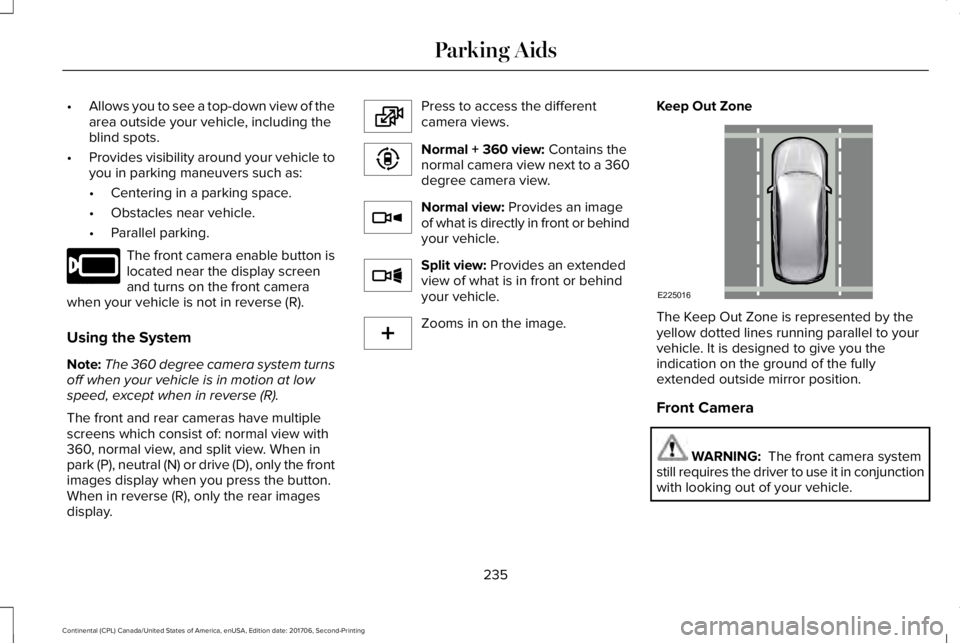
Keep Out Zone
The Keep Out Zone is represented by theyellow dotted lines running parallel to yourvehicle. It is designed to give you theindication on the ground of the fullyextended outside mirror position.
Front Camera
WARNING: The front camera systemstill requires the driver to use it in conjunctionwith looking out of your vehicle.
235
Continental (CPL) Canada/United States of America, enUSA, Edition date: 201706, Second-Printing
Parking AidsE205884 E224483 E224783 E224784 E224785 E224485 E225016
Page 239 of 615
Note:The system turns off the front videoimage when your vehicle is in motion at lowspeed, except when in reverse (R).
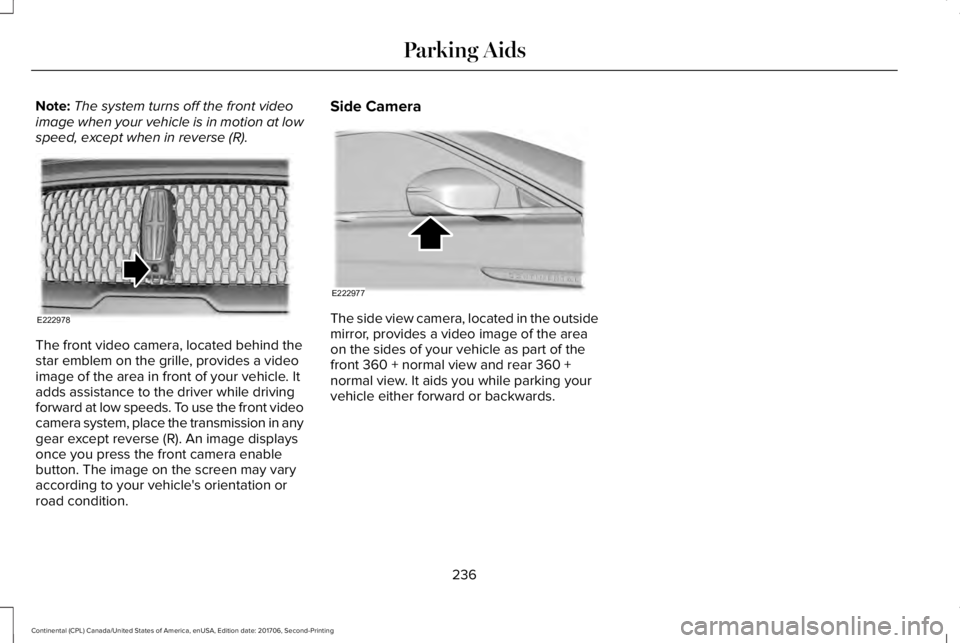
The front video camera, located behind thestar emblem on the grille, provides a videoimage of the area in front of your vehicle. Itadds assistance to the driver while drivingforward at low speeds. To use the front videocamera system, place the transmission in anygear except reverse (R). An image displaysonce you press the front camera enablebutton. The image on the screen may varyaccording to your vehicle's orientation orroad condition.
Side Camera
The side view camera, located in the outsidemirror, provides a video image of the areaon the sides of your vehicle as part of thefront 360 + normal view and rear 360 +normal view. It aids you while parking yourvehicle either forward or backwards.
236
Continental (CPL) Canada/United States of America, enUSA, Edition date: 201706, Second-Printing
Parking AidsE222978 E222977
Page 240 of 615
PRINCIPLE OF OPERATION
Cruise control lets you maintain a set speedwithout keeping your foot on the acceleratorpedal. You can use cruise control when yourvehicle speed is greater than 20 mph(30 km/h).
USING CRUISE CONTROL (If Equipped)
WARNING: Do not use cruise controlon winding roads, in heavy traffic or whenthe road surface is slippery. This could resultin loss of vehicle control, serious injury ordeath.
WARNING: When you are goingdownhill, your vehicle speed could increaseabove the set speed. The system does notapply the brakes.
Note:Cruise control disengages if thevehicle speed decreases more than 10 mph(16 km/h) below the set speed when drivinguphill.
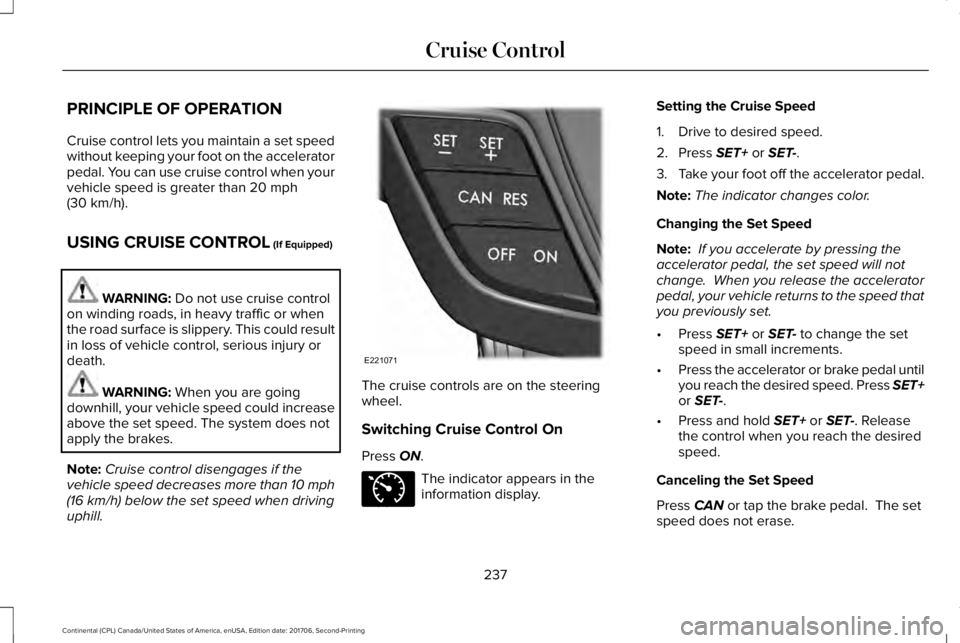
The cruise controls are on the steeringwheel.
Switching Cruise Control On
Press ON.
The indicator appears in theinformation display.
Setting the Cruise Speed
1. Drive to desired speed.
2. Press SET+ or SET-.
3.Take your foot off the accelerator pedal.
Note:The indicator changes color.
Changing the Set Speed
Note: If you accelerate by pressing theaccelerator pedal, the set speed will notchange. When you release the acceleratorpedal, your vehicle returns to the speed thatyou previously set.
•Press SET+ or SET- to change the setspeed in small increments.
•Press the accelerator or brake pedal untilyou reach the desired speed. Press SET+or SET-.
•Press and hold SET+ or SET-. Releasethe control when you reach the desiredspeed.
Canceling the Set Speed
Press CAN or tap the brake pedal. The setspeed does not erase.
237
Continental (CPL) Canada/United States of America, enUSA, Edition date: 201706, Second-Printing
Cruise ControlE221071 E71340
Page 242 of 615
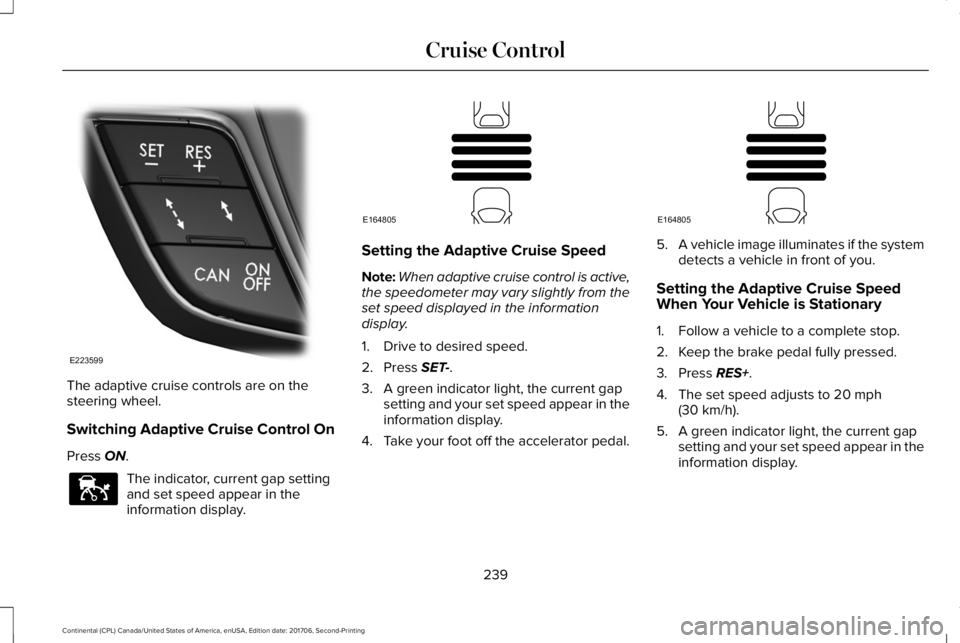
The adaptive cruise controls are on thesteering wheel.
Switching Adaptive Cruise Control On
Press ON.
The indicator, current gap settingand set speed appear in theinformation display.
Setting the Adaptive Cruise Speed
Note:When adaptive cruise control is active,the speedometer may vary slightly from theset speed displayed in the informationdisplay.
1. Drive to desired speed.
2. Press SET-.
3. A green indicator light, the current gapsetting and your set speed appear in theinformation display.
4.Take your foot off the accelerator pedal.
5.A vehicle image illuminates if the systemdetects a vehicle in front of you.
Setting the Adaptive Cruise SpeedWhen Your Vehicle is Stationary
1. Follow a vehicle to a complete stop.
2. Keep the brake pedal fully pressed.
3. Press RES+.
4. The set speed adjusts to 20 mph(30 km/h).
5. A green indicator light, the current gapsetting and your set speed appear in theinformation display.
239
Continental (CPL) Canada/United States of America, enUSA, Edition date: 201706, Second-Printing
Cruise ControlE223599 E144529 E164805 E164805
Page 243 of 615
Following a Vehicle
WARNING: When following a vehicle,your vehicle does not always deceleratequickly enough to avoid a crash withoutdriver intervention. Always apply the brakeswhen necessary. Failing to do so may resultin a crash, serious injury or death.
WARNING: Adaptive cruise controlonly warns of vehicles detected by the radarsensor. In some cases there may be nowarning or a delayed warning. You shouldalways apply the brakes when necessary.Failure to do so may result in a crash, seriousinjury or death.
Note:When you are following a vehicle andyou switch on a direction indicator, adaptivecruise control may provide a small temporaryacceleration to help you pass.
Note:The brakes may emit noise whenapplied by the system.
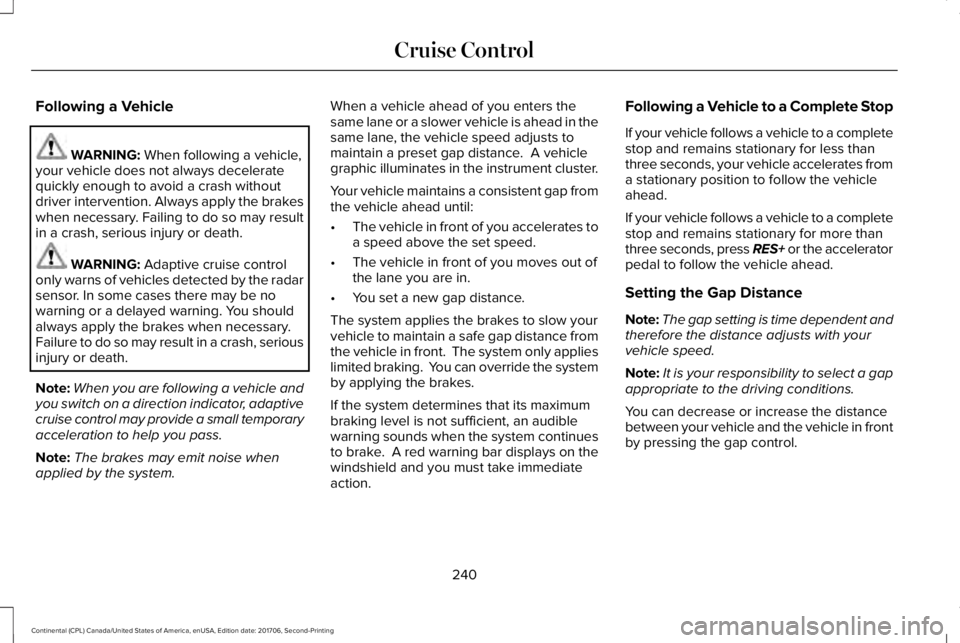
When a vehicle ahead of you enters thesame lane or a slower vehicle is ahead in thesame lane, the vehicle speed adjusts tomaintain a preset gap distance. A vehiclegraphic illuminates in the instrument cluster.
Your vehicle maintains a consistent gap fromthe vehicle ahead until:
•The vehicle in front of you accelerates toa speed above the set speed.
•The vehicle in front of you moves out ofthe lane you are in.
•You set a new gap distance.
The system applies the brakes to slow yourvehicle to maintain a safe gap distance fromthe vehicle in front. The system only applieslimited braking. You can override the systemby applying the brakes.
If the system determines that its maximumbraking level is not sufficient, an audiblewarning sounds when the system continuesto brake. A red warning bar displays on thewindshield and you must take immediateaction.
Following a Vehicle to a Complete Stop
If your vehicle follows a vehicle to a completestop and remains stationary for less thanthree seconds, your vehicle accelerates froma stationary position to follow the vehicleahead.
If your vehicle follows a vehicle to a completestop and remains stationary for more thanthree seconds, press RES+ or the acceleratorpedal to follow the vehicle ahead.
Setting the Gap Distance
Note:The gap setting is time dependent andtherefore the distance adjusts with yourvehicle speed.
Note:It is your responsibility to select a gapappropriate to the driving conditions.
You can decrease or increase the distancebetween your vehicle and the vehicle in frontby pressing the gap control.
240
Continental (CPL) Canada/United States of America, enUSA, Edition date: 201706, Second-Printing
Cruise Control
Page 244 of 615
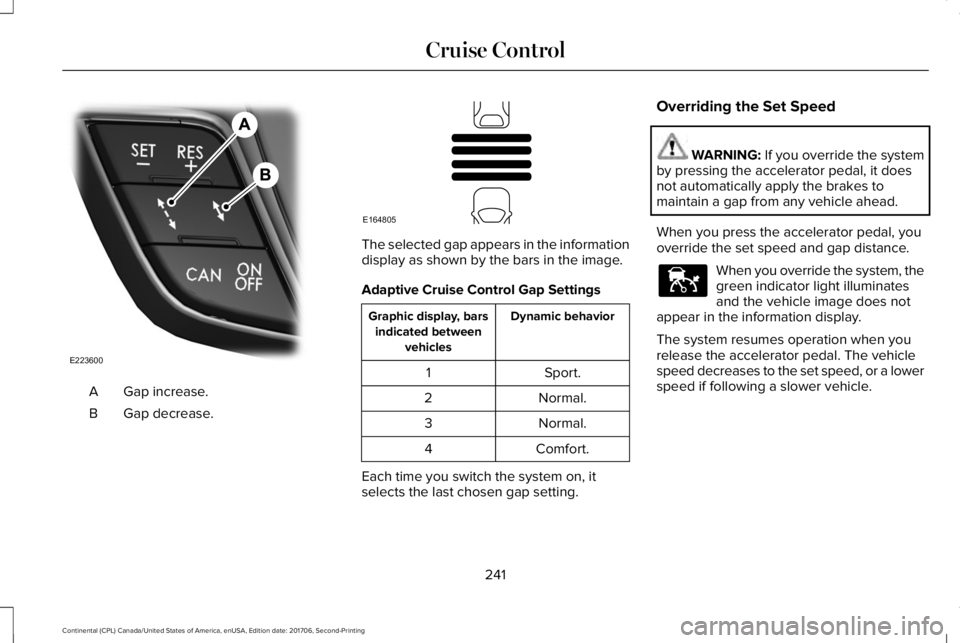
Gap increase.A
Gap decrease.B
The selected gap appears in the informationdisplay as shown by the bars in the image.
Adaptive Cruise Control Gap Settings
Dynamic behaviorGraphic display, barsindicated betweenvehicles
Sport.1
Normal.2
Normal.3
Comfort.4
Each time you switch the system on, itselects the last chosen gap setting.
Overriding the Set Speed
WARNING: If you override the systemby pressing the accelerator pedal, it doesnot automatically apply the brakes tomaintain a gap from any vehicle ahead.
When you press the accelerator pedal, youoverride the set speed and gap distance.
When you override the system, thegreen indicator light illuminatesand the vehicle image does notappear in the information display.
The system resumes operation when yourelease the accelerator pedal. The vehiclespeed decreases to the set speed, or a lowerspeed if following a slower vehicle.
241
Continental (CPL) Canada/United States of America, enUSA, Edition date: 201706, Second-Printing
Cruise ControlE223600 E164805 E144529
Page 245 of 615
Changing the Set Speed
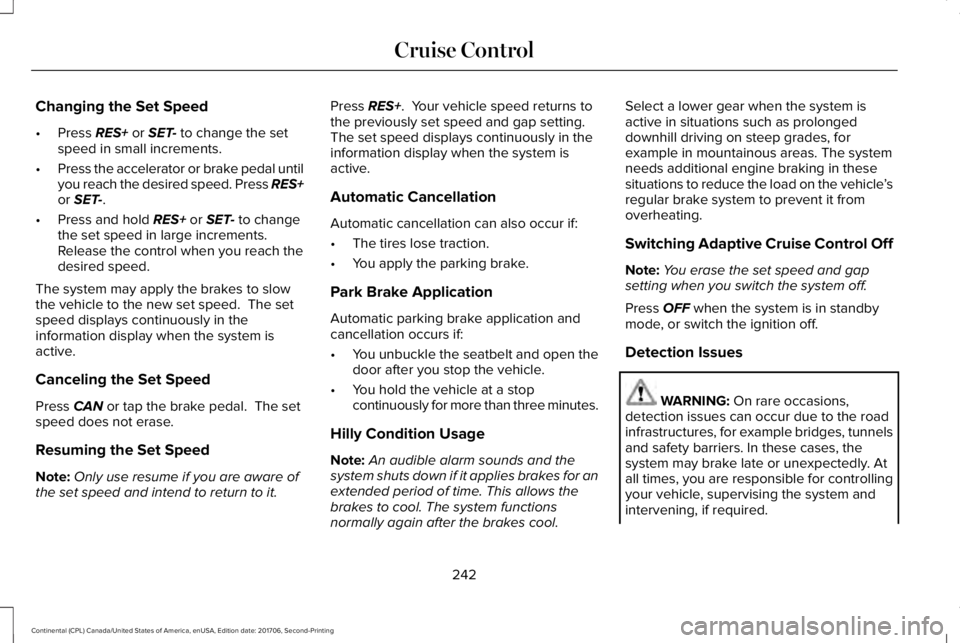
•Press RES+ or SET- to change the setspeed in small increments.
•Press the accelerator or brake pedal untilyou reach the desired speed. Press RES+or SET-.
•Press and hold RES+ or SET- to changethe set speed in large increments.Release the control when you reach thedesired speed.
The system may apply the brakes to slowthe vehicle to the new set speed. The setspeed displays continuously in theinformation display when the system isactive.
Canceling the Set Speed
Press CAN or tap the brake pedal. The setspeed does not erase.
Resuming the Set Speed
Note:Only use resume if you are aware ofthe set speed and intend to return to it.
Press RES+. Your vehicle speed returns tothe previously set speed and gap setting. The set speed displays continuously in theinformation display when the system isactive.
Automatic Cancellation
Automatic cancellation can also occur if:
•The tires lose traction.
•You apply the parking brake.
Park Brake Application
Automatic parking brake application andcancellation occurs if:
•You unbuckle the seatbelt and open thedoor after you stop the vehicle.
•You hold the vehicle at a stopcontinuously for more than three minutes.
Hilly Condition Usage
Note:An audible alarm sounds and thesystem shuts down if it applies brakes for anextended period of time. This allows thebrakes to cool. The system functionsnormally again after the brakes cool.
Select a lower gear when the system isactive in situations such as prolongeddownhill driving on steep grades, forexample in mountainous areas. The systemneeds additional engine braking in thesesituations to reduce the load on the vehicle’sregular brake system to prevent it fromoverheating.
Switching Adaptive Cruise Control Off
Note:You erase the set speed and gapsetting when you switch the system off.
Press OFF when the system is in standbymode, or switch the ignition off.
Detection Issues
WARNING: On rare occasions,detection issues can occur due to the roadinfrastructures, for example bridges, tunnelsand safety barriers. In these cases, thesystem may brake late or unexpectedly. Atall times, you are responsible for controllingyour vehicle, supervising the system andintervening, if required.
242
Continental (CPL) Canada/United States of America, enUSA, Edition date: 201706, Second-Printing
Cruise Control
Page 247 of 615
System Not Available
The system may not turn on if there is:
•A blocked sensor.
•High brake temperature.
•A failure in the system or a relatedsystem.
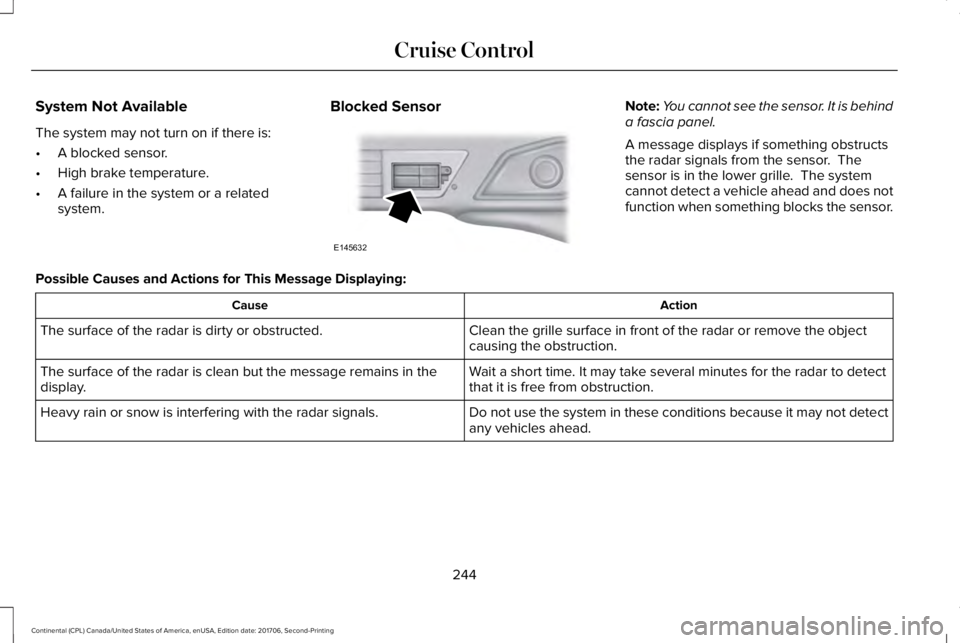
Blocked SensorNote:You cannot see the sensor. It is behinda fascia panel.
A message displays if something obstructsthe radar signals from the sensor. Thesensor is in the lower grille. The systemcannot detect a vehicle ahead and does notfunction when something blocks the sensor.
Possible Causes and Actions for This Message Displaying:
ActionCause
Clean the grille surface in front of the radar or remove the objectcausing the obstruction.The surface of the radar is dirty or obstructed.
Wait a short time. It may take several minutes for the radar to detectthat it is free from obstruction.The surface of the radar is clean but the message remains in thedisplay.
Do not use the system in these conditions because it may not detectany vehicles ahead.Heavy rain or snow is interfering with the radar signals.
244
Continental (CPL) Canada/United States of America, enUSA, Edition date: 201706, Second-Printing
Cruise ControlE145632