navigation system LINCOLN CONTINENTAL 2018 User Guide
[x] Cancel search | Manufacturer: LINCOLN, Model Year: 2018, Model line: CONTINENTAL, Model: LINCOLN CONTINENTAL 2018Pages: 615, PDF Size: 5.31 MB
Page 423 of 615
InformationOption
If you are on a call, the call information is displayed on the information display.
If you are receiving a call, you can accept it by selecting OK on the right-hand steering wheel controls.
* Depending on your vehicle options, all of these choices may not display.
Use the OK and arrow buttons on the rightside of your steering wheel to scroll throughthe available modes. The available optionsdepend on the cluster screen.
The selection menu expands and differentoptions appear.
•Press the up and down arrows to scrollthrough the modes.
•Press the right arrow to enter the mode,use the left arrow to exit the mode.
•Press the up and down arrows to makeadjustments within the chosen mode.
•Press OK to confirm your selection.
Note:If your vehicle is not equipped withnavigation, compass appears in the displayinstead of navigation. If you press the rightarrow to go into the compass menu, you cansee the compass graphic. The compassdisplays the direction in which the vehicle istraveling, not true direction (for example, ifthe vehicle is traveling west, the middle ofthe compass graphic displays west; northdisplays to the left of west though its truedirection is to the right of west).
Using the Steering Wheel Controls
Depending on your vehicle and optionpackage, you can use different controls onyour steering wheel to interact with thetouchscreen system in different ways.
VOL: Control the volume of audio output.
Mute: Mute the audio output.
Voice: Press to start a voice session. Pressagain to stop the voice prompt andimmediately begin speaking. Press and holdto end a voice session.
SEEK NEXT:
•While in radio mode, press to seekbetween memory presets.
•While in USB, Bluetooth Audio or CDmode, press to seek between songs orpress and hold to fast seek.
SEEK PREVIOUS:
•While in radio mode, press to seekbetween memory presets.
•While in USB, Bluetooth Audio or CDmode, press to seek between songs orpress and hold to fast seek.
PHONE ACCEPT: Press to answer a call orswitch between calls.
420
Continental (CPL) Canada/United States of America, enUSA, Edition date: 201706, Second-Printing
SYNC™ 3
Page 427 of 615
•Do not leave playing devices in yourvehicle during extreme conditions as itcould cause them damage. See yourdevice's user guide for furtherinformation.
•For your safety, some SYNC 3 functionsare speed-dependent. Their use is limitedto when your vehicle is traveling atspeeds under 3 mph (5 km/h). Make surethat you review your device's manualbefore using it with SYNC 3.
Speed-restricted Features
Some features of this system may be toodifficult to use while your vehicle is movingso they are restricted from use unless yourvehicle is stationary.
•Screens crowded with information, suchas Point of Interest reviews and ratings,SiriusXM Traffic and Travel Link sportsscores, movie times or ski conditions.
•Any action that requires you to use akeyboard is restricted, such as enteringa navigation destination or editinginformation.
•All lists are limited so the user can viewfewer entries (such as phone contacts orrecent phone call entries).
See the following table for more specificexamples.
Restricted features
Pairing a Bluetooth phone.Cellular Phone
Browsing of list entries is limited for phone contacts and recent phone calls.
Editing the keypad code.System Functionality
Enabling Valet Mode.
Editing settings while the rear view camera or active park assist are active.
Editing Wi-Fi settings.Wi-Fi
Editing the list of wireless networks.
424
Continental (CPL) Canada/United States of America, enUSA, Edition date: 201706, Second-Printing
SYNC™ 3
Page 428 of 615
Restricted features
Connecting to a new Wi-Fi network.
Sports Scores, Sports Schedule and Sports Headlines are not available when driving.Sirius Travel Link
Viewing received text messages.Text Messages
Using the keyboard to enter a destination.Navigation
Adding or editing Navigation Favorites entries or Avoid Areas.
Creating a SYNC Owner Account
Why do I need a SYNC owner account?
•Essential for keeping up with the latestsoftware and connected features.
•Access to customer support for anyquestions you may have.
•Maintain account permissions.
Visit the website to sign up and register.
Website
www.owner.lincoln.comwww.syncmyride.ca
Website
www.syncmaroute.ca
Lincoln Connect with Lincoln Way
With a Lincoln Connect-equipped vehicle,you can use Lincoln Way® to track yourvehicle’s location and remotely accessvehicle features such as start, lock andunlock and vehicle status including fuel leveland approximate mileage. You can alsoschedule specific times to remotely start your
vehicle so it’s ready to hit the road as soonas you are. Lincoln Way® is available througha free download via the Apple App Store®or Google Play™. Message and data ratesmay apply. Services may be limited by mobilephone network coverage area.
•FCC: LHJ-FAN
•IC: 2807E-FAN
Updating Your System
You can choose to download the updateonto a USB drive or use Wi-Fi to deliverautomatic updates.
425
Continental (CPL) Canada/United States of America, enUSA, Edition date: 201706, Second-Printing
SYNC™ 3
Page 429 of 615
USB Updates
To use the USB update you need to log intoyour owner account and visit the SYNCsoftware update page.
Website
www.owner.lincoln.comwww.syncmyride.cawww.syncmaroute.ca
The website notifies you if an update isavailable. You can then select to downloadthe update.
You will need an empty USB drive. Pleasecheck the website for minimumrequirements. Once you have inserted theUSB drive into your computer, choose to startthe download. Follow the instructionsprovided to download the files to the USBdrive.
The installation of most files occurs in thebackground, and does not interrupt your useof the system. Navigation updates cannot beinstalled in the background, because the filesare too large.
To install the update in your vehicle, removeanything that is plugged in the USB ports onthe media hub and plug in the USB drivecontaining the update. When the USB driveis plugged in, the installation should beginimmediately. After a successful installation,the update is available the next time thevehicle is started.
Please reference the website for any furtheractions.
Updating Over Wi-Fi
To update your System over Wi-Fi yourvehicle must be within the range of a Wi-Fiaccess point. Data rates may apply.
To connect your system to Wi-Fi, select:
Menu Item
Settings
Wi-Fi
You can then select your Wi-Fi network. You may haveto enter the security code ifthe network is secured. Thesystem confirms when it hasconnected to the network.
Available Wi-Fi Networks
You must also give the system permissionto update automatically. Upon vehicledelivery, the System asks you if you wouldlike to use the automatic update feature. Ifyou agree to automatic updates, you canpress OK to confirm. If this selection doesnot appear upon vehicle delivery you canaccess it through the General Settings. SeeSettings (page 480). You can also perform amaster reset. See SYNC™ 3 Troubleshooting(page 500).
426
Continental (CPL) Canada/United States of America, enUSA, Edition date: 201706, Second-Printing
SYNC™ 3
Page 433 of 615
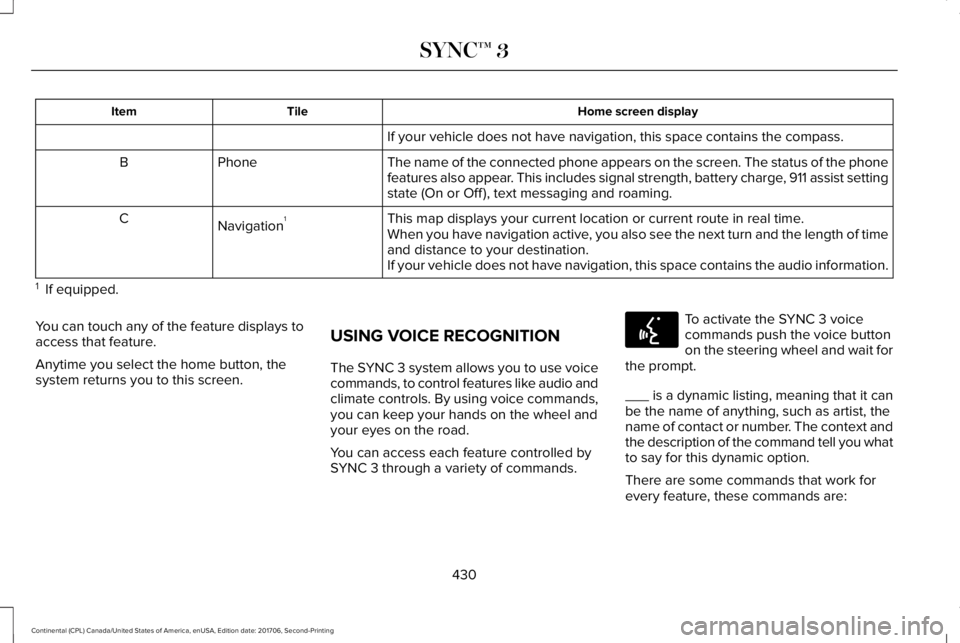
Home screen displayTileItem
If your vehicle does not have navigation, this space contains the compass.
The name of the connected phone appears on the screen. The status of the phonefeatures also appear. This includes signal strength, battery charge, 911 assist settingstate (On or Off ), text messaging and roaming.
PhoneB
This map displays your current location or current route in real time.Navigation1CWhen you have navigation active, you also see the next turn and the length of timeand distance to your destination.If your vehicle does not have navigation, this space contains the audio information.
1 If equipped.
You can touch any of the feature displays toaccess that feature.
Anytime you select the home button, thesystem returns you to this screen.
USING VOICE RECOGNITION
The SYNC 3 system allows you to use voicecommands, to control features like audio andclimate controls. By using voice commands,you can keep your hands on the wheel andyour eyes on the road.
You can access each feature controlled bySYNC 3 through a variety of commands.
To activate the SYNC 3 voicecommands push the voice buttonon the steering wheel and wait forthe prompt.
___ is a dynamic listing, meaning that it canbe the name of anything, such as artist, thename of contact or number. The context andthe description of the command tell you whatto say for this dynamic option.
There are some commands that work forevery feature, these commands are:
430
Continental (CPL) Canada/United States of America, enUSA, Edition date: 201706, Second-Printing
SYNC™ 3E142599
Page 434 of 615
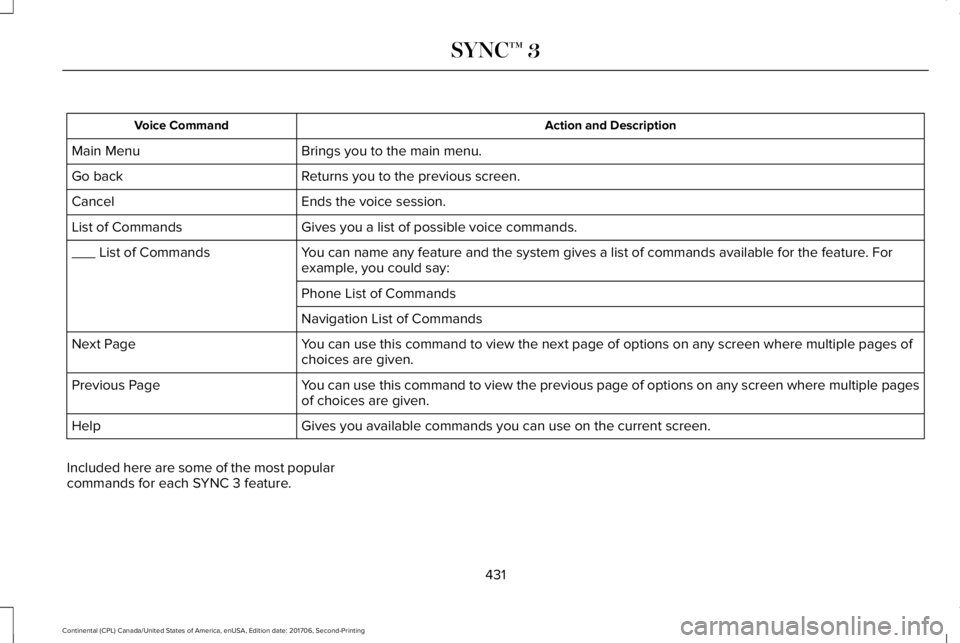
Action and DescriptionVoice Command
Brings you to the main menu.Main Menu
Returns you to the previous screen.Go back
Ends the voice session.Cancel
Gives you a list of possible voice commands.List of Commands
You can name any feature and the system gives a list of commands available for the feature. Forexample, you could say:___ List of Commands
Phone List of Commands
Navigation List of Commands
You can use this command to view the next page of options on any screen where multiple pages ofchoices are given.Next Page
You can use this command to view the previous page of options on any screen where multiple pagesof choices are given.Previous Page
Gives you available commands you can use on the current screen.Help
Included here are some of the most popularcommands for each SYNC 3 feature.
431
Continental (CPL) Canada/United States of America, enUSA, Edition date: 201706, Second-Printing
SYNC™ 3
Page 469 of 615
To return to SYNC 3, select the speedometericon in the Android Auto menu bar at thebottom of the touchscreen, and then touchthe option to return to SYNC.
Note:Contact Google for Android Autosupport.
NAVIGATION
Your navigation system is comprised of twomain features, destination mode and mapmode.
Map Mode
Map mode shows advanced viewingcomprised of 2D city maps, 3D landmarksand 3D city models (when available). 2D citymaps show detailed outlines of buildings,visible land use, landscape features, anddetailed railroad infrastructure for the mostessential cities around the globe.
3D landmarks appear as clear, visible objectsthat are typically recognizable and have acertain tourism value.
3D city models are complete 3D models ofentire city areas including navigable roads,parks, rivers and rendered buildings. 3Dlandmarks and city models appear in 3D mapmode only. Coverage of these varies andimproves with updated map releases.
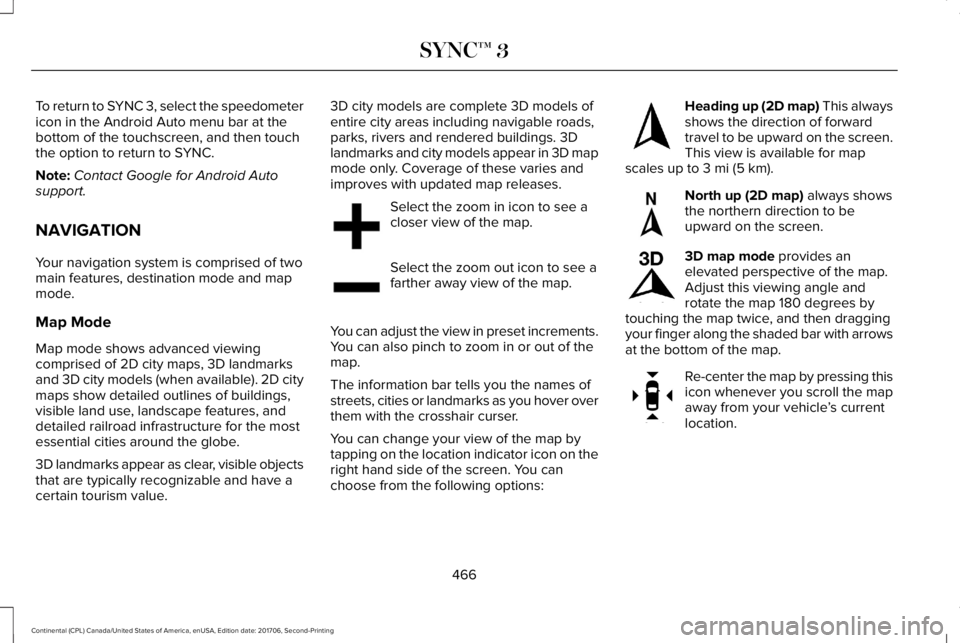
Select the zoom in icon to see acloser view of the map.
Select the zoom out icon to see afarther away view of the map.
You can adjust the view in preset increments.You can also pinch to zoom in or out of themap.
The information bar tells you the names ofstreets, cities or landmarks as you hover overthem with the crosshair curser.
You can change your view of the map bytapping on the location indicator icon on theright hand side of the screen. You canchoose from the following options:
Heading up (2D map) This alwaysshows the direction of forwardtravel to be upward on the screen.This view is available for mapscales up to 3 mi (5 km).
North up (2D map) always showsthe northern direction to beupward on the screen.
3D map mode provides anelevated perspective of the map.Adjust this viewing angle androtate the map 180 degrees bytouching the map twice, and then draggingyour finger along the shaded bar with arrowsat the bottom of the map.
Re-center the map by pressing thisicon whenever you scroll the mapaway from your vehicle’s currentlocation.
466
Continental (CPL) Canada/United States of America, enUSA, Edition date: 201706, Second-Printing
SYNC™ 3E207752 E207753 E207750 E207749 E207748 E207751
Page 474 of 615
DescriptionMenu Item
Along Route
Near Destination
In a City
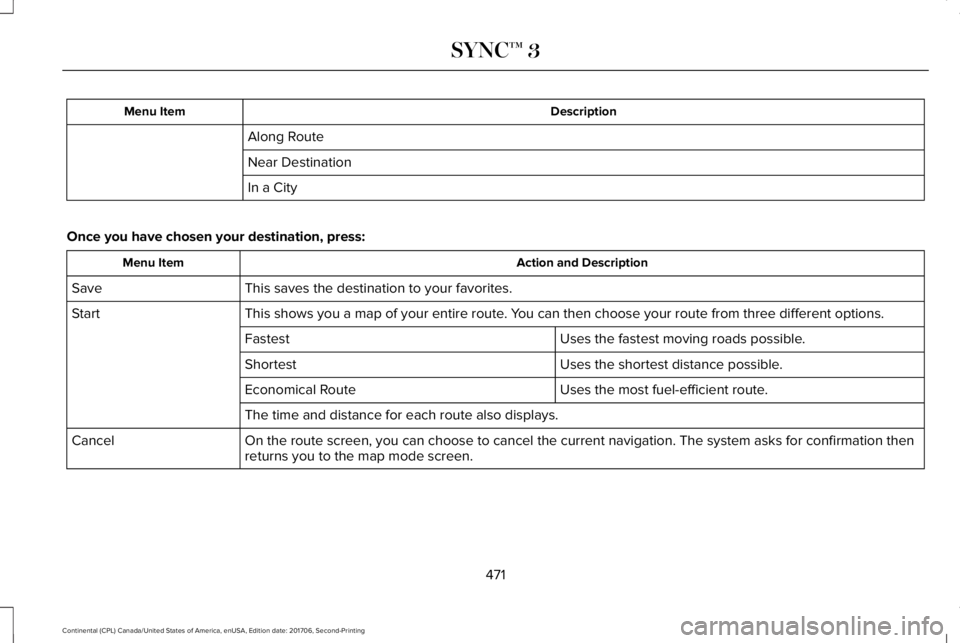
Once you have chosen your destination, press:
Action and DescriptionMenu Item
This saves the destination to your favorites.Save
This shows you a map of your entire route. You can then choose your route from three different options.Start
Uses the fastest moving roads possible.Fastest
Uses the shortest distance possible.Shortest
Uses the most fuel-efficient route.Economical Route
The time and distance for each route also displays.
On the route screen, you can choose to cancel the current navigation. The system asks for confirmation thenreturns you to the map mode screen.Cancel
471
Continental (CPL) Canada/United States of America, enUSA, Edition date: 201706, Second-Printing
SYNC™ 3
Page 475 of 615
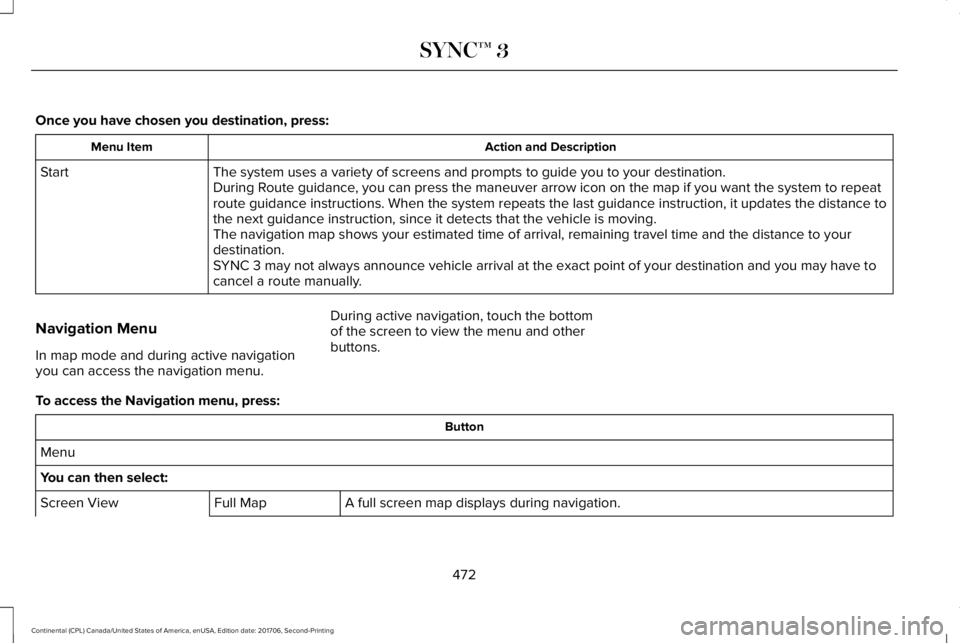
Once you have chosen you destination, press:
Action and DescriptionMenu Item
The system uses a variety of screens and prompts to guide you to your destination.StartDuring Route guidance, you can press the maneuver arrow icon on the map if you want the system to repeatroute guidance instructions. When the system repeats the last guidance instruction, it updates the distance tothe next guidance instruction, since it detects that the vehicle is moving.The navigation map shows your estimated time of arrival, remaining travel time and the distance to yourdestination.SYNC 3 may not always announce vehicle arrival at the exact point of your destination and you may have tocancel a route manually.
Navigation Menu
In map mode and during active navigationyou can access the navigation menu.
During active navigation, touch the bottomof the screen to view the menu and otherbuttons.
To access the Navigation menu, press:
Button
Menu
You can then select:
A full screen map displays during navigation.Full MapScreen View
472
Continental (CPL) Canada/United States of America, enUSA, Edition date: 201706, Second-Printing
SYNC™ 3
Page 476 of 615
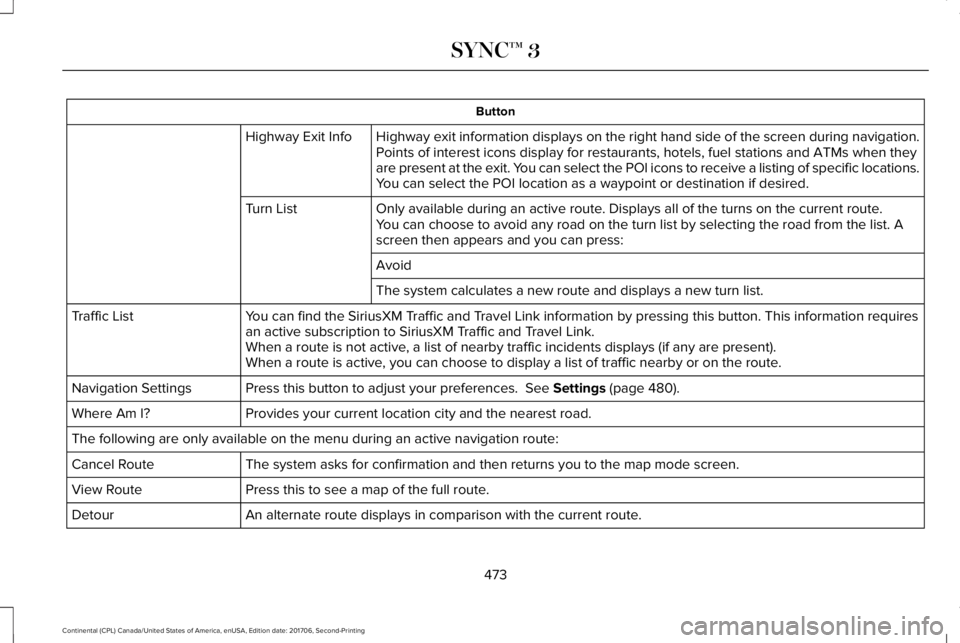
Button
Highway exit information displays on the right hand side of the screen during navigation.Highway Exit InfoPoints of interest icons display for restaurants, hotels, fuel stations and ATMs when theyare present at the exit. You can select the POI icons to receive a listing of specific locations.You can select the POI location as a waypoint or destination if desired.
Only available during an active route. Displays all of the turns on the current route.Turn ListYou can choose to avoid any road on the turn list by selecting the road from the list. Ascreen then appears and you can press:
Avoid
The system calculates a new route and displays a new turn list.
You can find the SiriusXM Traffic and Travel Link information by pressing this button. This information requiresan active subscription to SiriusXM Traffic and Travel Link.Traffic List
When a route is not active, a list of nearby traffic incidents displays (if any are present).When a route is active, you can choose to display a list of traffic nearby or on the route.
Press this button to adjust your preferences. See Settings (page 480).Navigation Settings
Provides your current location city and the nearest road.Where Am I?
The following are only available on the menu during an active navigation route:
The system asks for confirmation and then returns you to the map mode screen.Cancel Route
Press this to see a map of the full route.View Route
An alternate route displays in comparison with the current route.Detour
473
Continental (CPL) Canada/United States of America, enUSA, Edition date: 201706, Second-Printing
SYNC™ 3