start stop button LINCOLN CONTINENTAL 2019 User Guide
[x] Cancel search | Manufacturer: LINCOLN, Model Year: 2019, Model line: CONTINENTAL, Model: LINCOLN CONTINENTAL 2019Pages: 627, PDF Size: 6.39 MB
Page 195 of 627
Park (P)
With the transmission in park (P), your vehicle
locks the transmission and prevents the
wheels from turning. Always come to a
complete stop before putting your vehicle
into and out of park (P). An audible chime
sounds once you select park (P).
When the ignition is turned off, the vehicle
will automatically shift into park (P). If the
ignition is turned off while the vehicle is
moving, it will first shift into neutral (N) until
a slow enough speed is reached. The vehicle
will then shift into park (P) automatically.
Automatic Return to Park
Note:
This feature will not operate when your
vehicle is in Stay in Neutral mode or neutral
tow.
Your vehicle has a safety feature that will
automatically shift your vehicle into park (P)
when any of the following conditions occur: •
You turn the ignition off
• You open the driver's door with your
safety belt unlatched
• Your safety belt is unlatched while the
driver's door is open
If you turn your vehicle off while moving, your
vehicle will first shift into neutral (N) until it
slows down enough to shift into park (P)
automatically.
Note: If you have waited an extended period
of time (2-15 minutes) before starting your
vehicle, unlatching your safety belt will cause
this feature to activate, even with the driver's
door closed.
Note: This feature may not work properly if
the door ajar switch is malfunctioning. If your
door ajar indicator does not illuminate when
you open the driver’ s door or the indicator
illuminates with the driver’ s door closed, see
your authorized dealer. Reverse (R)
With the transmission in reverse (R), your
vehicle will move backward. Always come
to a complete stop before shifting into and
out of reverse (R).
Neutral (N)
With the transmission in neutral (N), you can
start your vehicle and it is free to roll. Hold
the brake pedal down while in this position.
Stay in Neutral mode
Stay in Neutral mode allows your vehicle to
stay in neutral (N) when you exit the vehicle.
Your vehicle must be stationary to enter this
mode.
To enter Stay in Neutral mode:
1. Press the neutral (N) button on your
shifter assembly.
2. A message will appear in your information display screen prompting you
to press the neutral (N) button again to
enter Stay in Neutral mode.
3. Press the neutral (N) button again to enter Stay in Neutral mode.
192
Continental (CPL) Canada/United States of America, enUSA, Edition date: 201807, Second-Printing Transmission
Page 214 of 627
Press the Auto Hold button to switch the
system on and off. The Auto Hold indicator
light illuminates in the Auto Hold button
when the system is on.
Note:
You can only switch Auto Hold on if
you close the door and fasten your seatbelt.
Note: The system remembers the last setting
when you start your vehicle.
Note: When in reverse (R), Auto Hold does
not function.
When Auto Hold is off, your vehicle behaves
the same as a vehicle without Auto Hold.
There is an Auto Hold indicator lamp in the
instrument cluster that has two modes, active
and unavailable. The Auto Hold (ACTIVE) indicator
light illuminates in the information
display when the system holds
your vehicle stationary. When in active mode,
press the brake pedal and the Auto Hold
button to switch Auto Hold off. The Auto Hold (UNAVAILABLE)
indicator light illuminates in the
information display when the
system is on but unavailable to hold your
vehicle (for example, during Active Park
Assist, Stay in Neutral Mode, or when you
do not fasten your seatbelt or close the
door).
Note: Make sure you switch off Auto Hold
or use the Stay in Neutral mode before you
enter a car wash. See Automatic
Transmission (page 191).
Using Auto Hold
1. Bring your vehicle to a stop by pressing the brake pedal. After coming to a stop,
the green Auto Hold (ACTIVE) indicator
lamp illuminates in the information
display.
2. Release the brake pedal. The Auto Hold
(ACTIVE) indicator light remains
illuminated in the information display and
Auto Hold will hold your vehicle at a stop. 3. When you press the accelerator pedal,
Auto Hold releases the brakes and allows
you to drive off. Once you drive off, the
green Auto Hold (ACTIVE) indicator no
longer illuminates in the information
display.
211
Continental (CPL) Canada/United States of America, enUSA, Edition date: 201807, Second-Printing BrakesE197933 E197934
Page 475 of 627
Mute: Press to mute the audio
navigation guidance. Press the
button again to un-mute the
guidance. Points of Interest (POI) grouping
icon:
You can choose up to three
POI icons to display on the map. If
the chosen POIs are located close
together or are at the same location a box is
used to display a single category icon instead of repeating the same icon, in order
to reduce clutter. When you select the box
on the map, a pop-up appears indicating how
many POIs are in this location. Select the pop
up to see a list of the available POIs. You can
scroll through and select POIs from this list.
If your vehicle is low on charge or fuel,
station icons automatically display on the
map.
If you have subscribed to SiriusXM Traffic
and Travel Link (where available), traffic flow
will be indicated on the map by green (clear),
yellow (slowing), and red (stopped) road
highlights. Traffic flow is indicated where the
information is available and varies across the
US.
You can choose to display traffic icons on
the map representing twelve different types
of incidents. See Settings (page 485).
You can set a destination by hovering above
a location and selecting: Button
Start
Destination Mode
To set a destination, press: Description
Menu Item
Destination
Enter a navigation destination in any of the following formats: Street Address
Search
472
Continental (CPL) Canada/United States of America, enUSA, Edition date: 201807, Second-Printing SYNC™ 3E251780 E251779 E207754
Page 517 of 627
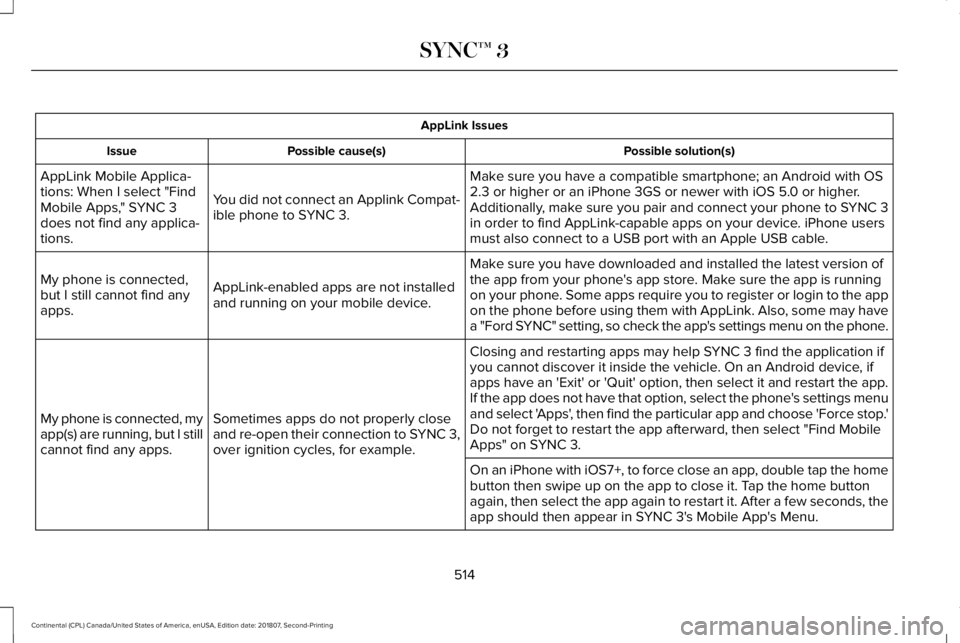
AppLink Issues
Possible solution(s)
Possible cause(s)
Issue
Make sure you have a compatible smartphone; an Android with OS
2.3 or higher or an iPhone 3GS or newer with iOS 5.0 or higher.
Additionally, make sure you pair and connect your phone to SYNC 3
in order to find AppLink-capable apps on your device. iPhone users
must also connect to a USB port with an Apple USB cable.
You did not connect an Applink Compat-
ible phone to SYNC 3.
AppLink Mobile Applica-
tions: When I select "Find
Mobile Apps," SYNC 3
does not find any applica-
tions.
Make sure you have downloaded and installed the latest version of
the app from your phone's app store. Make sure the app is running
on your phone. Some apps require you to register or login to the app
on the phone before using them with AppLink. Also, some may have
a "Ford SYNC" setting, so check the app's settings menu on the phone.
AppLink-enabled apps are not installed
and running on your mobile device.
My phone is connected,
but I still cannot find any
apps.
Closing and restarting apps may help SYNC 3 find the application if
you cannot discover it inside the vehicle. On an Android device, if
apps have an 'Exit' or 'Quit' option, then select it and restart the app.
If the app does not have that option, select the phone's settings menu
and select 'Apps', then find the particular app and choose 'Force stop.'
Do not forget to restart the app afterward, then select "Find Mobile
Apps" on SYNC 3.
Sometimes apps do not properly close
and re-open their connection to SYNC 3,
over ignition cycles, for example.
My phone is connected, my
app(s) are running, but I still
cannot find any apps.
On an iPhone with iOS7+, to force close an app, double tap the home
button then swipe up on the app to close it. Tap the home button
again, then select the app again to restart it. After a few seconds, the\
app should then appear in SYNC 3's Mobile App's Menu.
514
Continental (CPL) Canada/United States of America, enUSA, Edition date: 201807, Second-Printing SYNC™ 3