buttons LINCOLN CONTINENTAL 2019 Owner's Manual
[x] Cancel search | Manufacturer: LINCOLN, Model Year: 2019, Model line: CONTINENTAL, Model: LINCOLN CONTINENTAL 2019Pages: 627, PDF Size: 6.39 MB
Page 459 of 627
HD Radio Technology manufactured under
license from iBiquity Digital Corp. U.S. and
foreign patents. HD Radio and the HD and
HD Radio logos are proprietary trademarks
of iBiquity Digital Corp. Ford Motor Company
and iBiquity Digital Corp. are not responsible
for the content sent using HD Radio
technology. Content may be changed, added
or deleted at any time at the station owner's
discretion.
* You can find the form here: Website
http://www.ibiquity.com/automotive/
report_radio_station_experiences
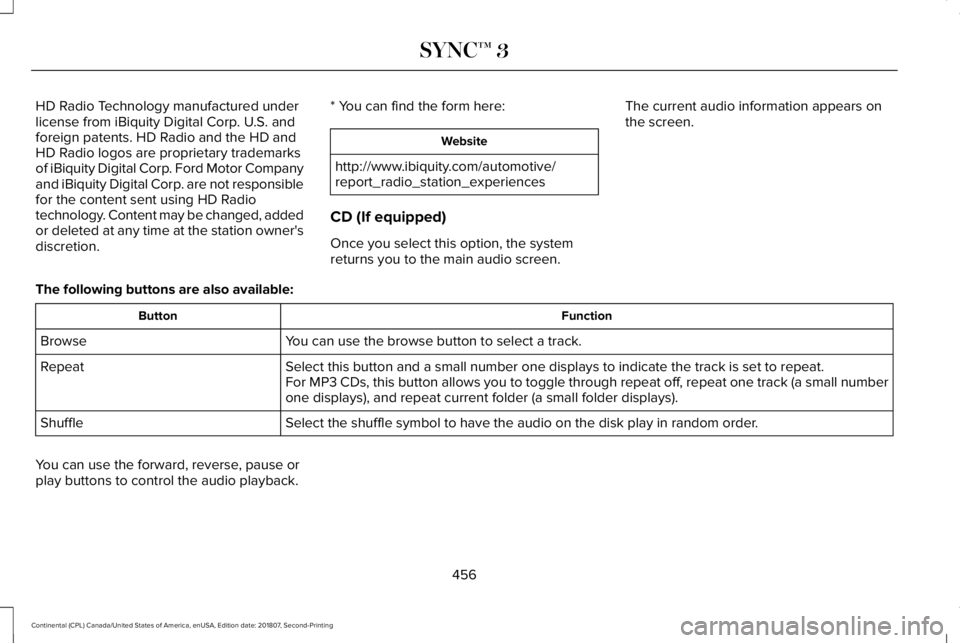
CD (If equipped)
Once you select this option, the system
returns you to the main audio screen. The current audio information appears on
the screen.
The following buttons are also available: Function
Button
You can use the browse button to select a track.
Browse
Select this button and a small number one displays to indicate the track\
is set to repeat.
Repeat
For MP3 CDs, this button allows you to toggle through repeat off, repeat one track (a small number
one displays), and repeat current folder (a small folder displays).
Select the shuffle symbol to have the audio on the disk play in random o\
rder.
Shuffle
You can use the forward, reverse, pause or
play buttons to control the audio playback.
456
Continental (CPL) Canada/United States of America, enUSA, Edition date: 201807, Second-Printing SYNC™ 3
Page 460 of 627
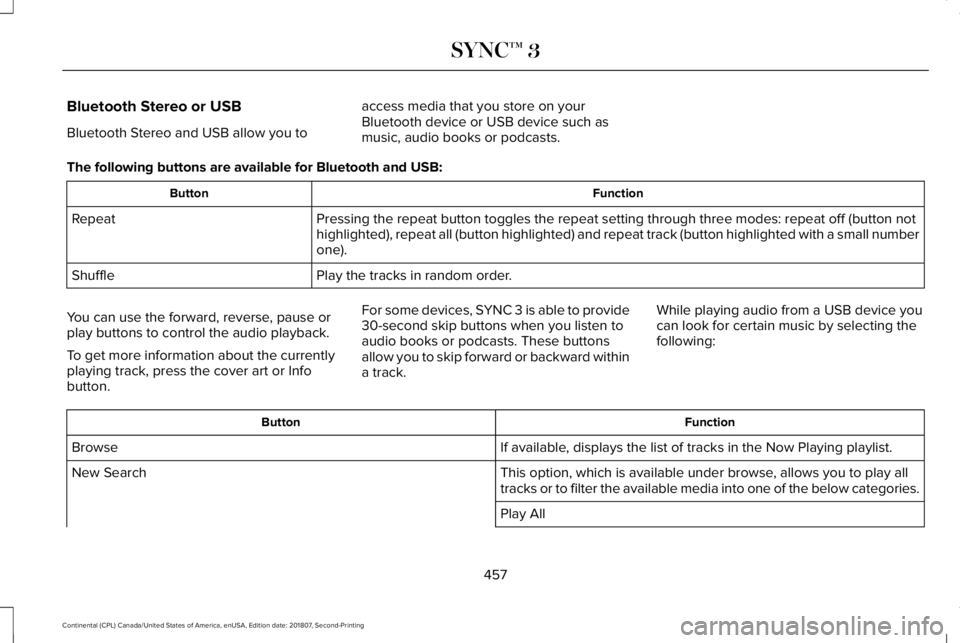
Bluetooth Stereo or USB
Bluetooth Stereo and USB allow you to
access media that you store on your
Bluetooth device or USB device such as
music, audio books or podcasts.
The following buttons are available for Bluetooth and USB: Function
Button
Pressing the repeat button toggles the repeat setting through three mode\
s: repeat off (button not
highlighted), repeat all (button highlighted) and repeat track (butt\
on highlighted with a small number
one).
Repeat
Play the tracks in random order.
Shuffle
You can use the forward, reverse, pause or
play buttons to control the audio playback.
To get more information about the currently
playing track, press the cover art or Info
button. For some devices, SYNC 3 is able to provide
30-second skip buttons when you listen to
audio books or podcasts. These buttons
allow you to skip forward or backward within
a track.
While playing audio from a USB device you
can look for certain music by selecting the
following: Function
Button
If available, displays the list of tracks in the Now Playing playlist.
Browse
This option, which is available under browse, allows you to play all
tracks or to filter the available media into one of the below categories\
.
New Search
Play All
457
Continental (CPL) Canada/United States of America, enUSA, Edition date: 201807, Second-Printing SYNC™ 3
Page 480 of 627

Once you have chosen your destination, press:
Action and Description
Menu Item
The system uses a variety of screens and prompts to guide you to your de\
stination.
Start
During Route guidance, you can press the maneuver arrow icon on the map if you want the syste\
m to repeat
route guidance instructions. When the system repeats the last guidance i\
nstruction, it updates the distance to
the next guidance instruction, since it detects that the vehicle is movi\
ng.
The navigation map shows your estimated time of arrival, remaining trave\
l time and the distance to your
destination.
SYNC 3 may not always announce vehicle arrival at the exact point of your\
destination and you may have to
cancel a route manually.
Navigation Menu
In map mode and during active navigation
you can access the navigation menu. During active navigation, touch the bottom
of the screen to view the menu and other
buttons.
To access the Navigation menu, press: Button
Menu
You can then select: A full screen map displays during navigation.
Full Map
Screen View
477
Continental (CPL) Canada/United States of America, enUSA, Edition date: 201807, Second-Printing SYNC™ 3
Page 487 of 627
operation of your vehicle. We recommend
against the use of any hand-held device
while driving and encourage the use of
voice-operated systems when possible.
Make sure you are aware of all applicable
local laws that may affect the use of
electronic devices while driving.
Note: SiriusXM Traffic and Travel Link may
not be available in all markets. Note:
In order to use SiriusXM Traffic and
Travel Link, your vehicle must have
navigation.
Note: A paid subscription is required to
access and use these features. Go to
www.siriusxm.com/travellink for more
information.
Note: Visit www.siriusxm.com/traffic and click
on Coverage map and details for a complete
listing of all traffic areas covered by SiriusXM
Traffic and Travel Link. Note:
Neither Sirius nor Lincoln is
responsible for any errors or inaccuracies in
the SiriusXM Traffic and Travel Link services
or its use in vehicles.
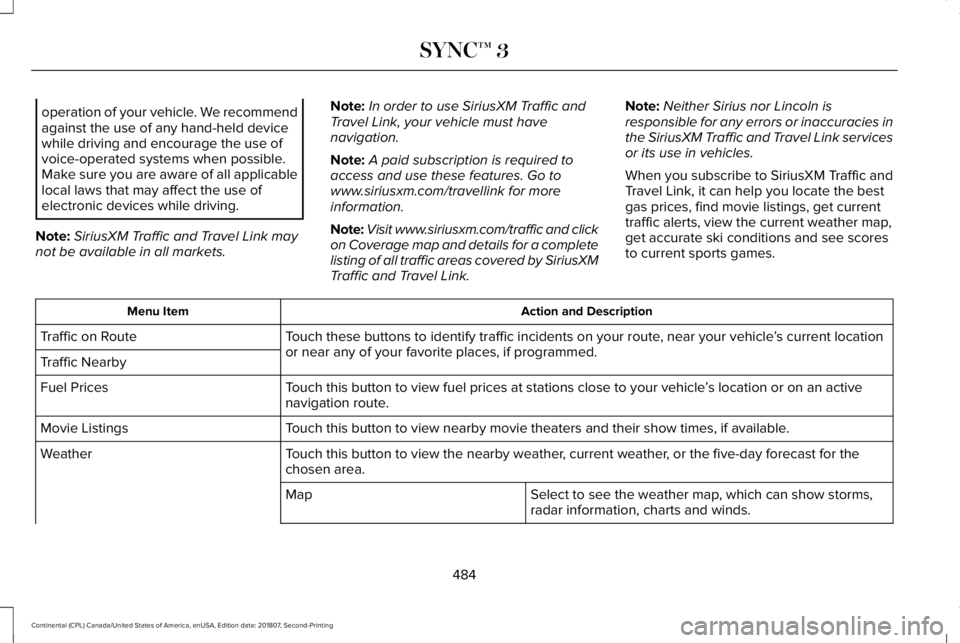
When you subscribe to SiriusXM Traffic and
Travel Link, it can help you locate the best
gas prices, find movie listings, get current
traffic alerts, view the current weather map,
get accurate ski conditions and see scores
to current sports games. Action and Description
Menu Item
Touch these buttons to identify traffic incidents on your route, near your vehicle ’s current location
or near any of your favorite places, if programmed.
Traffic on Route
Traffic Nearby
Touch this button to view fuel prices at stations close to your vehicle ’s location or on an active
navigation route.
Fuel Prices
Touch this button to view nearby movie theaters and their show times, if \
available.
Movie Listings
Touch this button to view the nearby weather, current weather, or the five-day forecast for the
chosen area.
Weather
Select to see the weather map, which can show storms,
radar information, charts and winds.
Map
484
Continental (CPL) Canada/United States of America, enUSA, Edition date: 201807, Second-Printing SYNC™ 3
Page 514 of 627
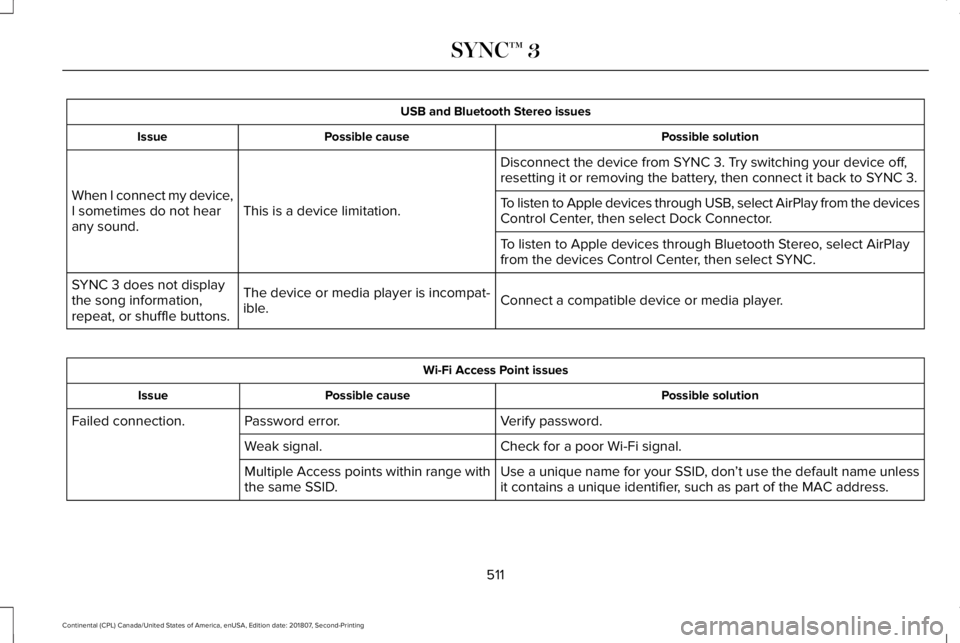
USB and Bluetooth Stereo issues
Possible solution
Possible cause
Issue
Disconnect the device from SYNC 3. Try switching your device off,
resetting it or removing the battery, then connect it back to SYNC 3.
This is a device limitation.
When I connect my device,
I sometimes do not hear
any sound. To listen to Apple devices through USB, select AirPlay from the devices
Control Center, then select Dock Connector.
To listen to Apple devices through Bluetooth Stereo, select AirPlay
from the devices Control Center, then select SYNC.
Connect a compatible device or media player.
The device or media player is incompat-
ible.
SYNC 3 does not display
the song information,
repeat, or shuffle buttons. Wi-Fi Access Point issues
Possible solution
Possible cause
Issue
Verify password.
Password error.
Failed connection.
Check for a poor Wi-Fi signal.
Weak signal.
Use a unique name for your SSID, don’t use the default name unless
it contains a unique identifier, such as part of the MAC address.
Multiple Access points within range with
the same SSID.
511
Continental (CPL) Canada/United States of America, enUSA, Edition date: 201807, Second-Printing SYNC™ 3
Page 518 of 627
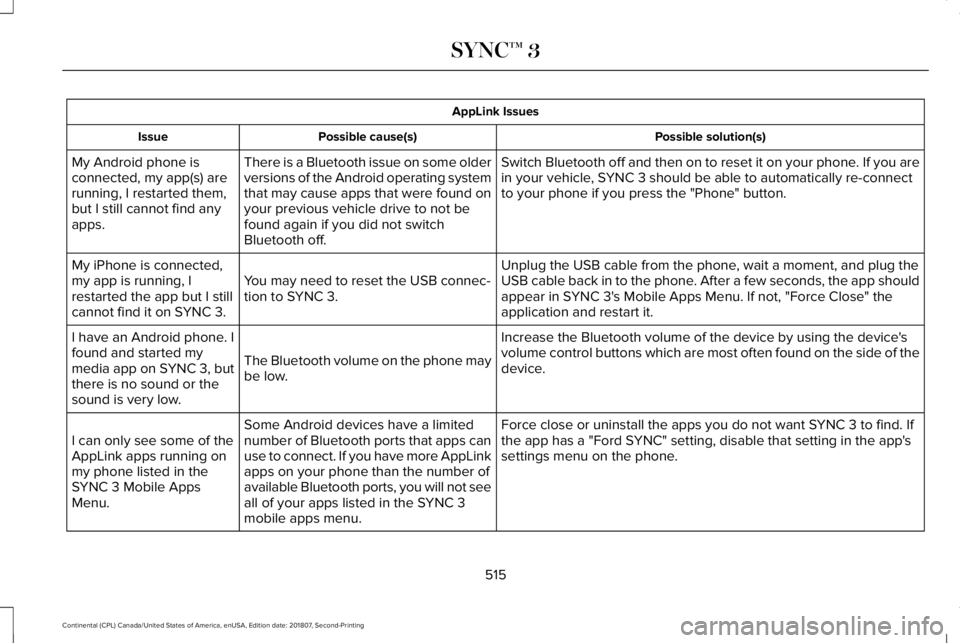
AppLink Issues
Possible solution(s)
Possible cause(s)
Issue
Switch Bluetooth off and then on to reset it on your phone. If you are
in your vehicle, SYNC 3 should be able to automatically re-connect
to your phone if you press the "Phone" button.
There is a Bluetooth issue on some older
versions of the Android operating system
that may cause apps that were found on
your previous vehicle drive to not be
found again if you did not switch
Bluetooth off.
My Android phone is
connected, my app(s) are
running, I restarted them,
but I still cannot find any
apps.
Unplug the USB cable from the phone, wait a moment, and plug the
USB cable back in to the phone. After a few seconds, the app should
appear in SYNC 3's Mobile Apps Menu. If not, "Force Close" the
application and restart it.
You may need to reset the USB connec-
tion to SYNC 3.
My iPhone is connected,
my app is running, I
restarted the app but I still
cannot find it on SYNC 3.
Increase the Bluetooth volume of the device by using the device's
volume control buttons which are most often found on the side of the
device.
The Bluetooth volume on the phone may
be low.
I have an Android phone. I
found and started my
media app on SYNC 3, but
there is no sound or the
sound is very low.
Force close or uninstall the apps you do not want SYNC 3 to find. If
the app has a "Ford SYNC" setting, disable that setting in the app's
settings menu on the phone.
Some Android devices have a limited
number of Bluetooth ports that apps can
use to connect. If you have more AppLink
apps on your phone than the number of
available Bluetooth ports, you will not see
all of your apps listed in the SYNC 3
mobile apps menu.
I can only see some of the
AppLink apps running on
my phone listed in the
SYNC 3 Mobile Apps
Menu.
515
Continental (CPL) Canada/United States of America, enUSA, Edition date: 201807, Second-Printing SYNC™ 3