apple LINCOLN CONTINENTAL 2019 Owners Manual
[x] Cancel search | Manufacturer: LINCOLN, Model Year: 2019, Model line: CONTINENTAL, Model: LINCOLN CONTINENTAL 2019Pages: 627, PDF Size: 6.39 MB
Page 434 of 627
Website
www.syncmaroute.ca
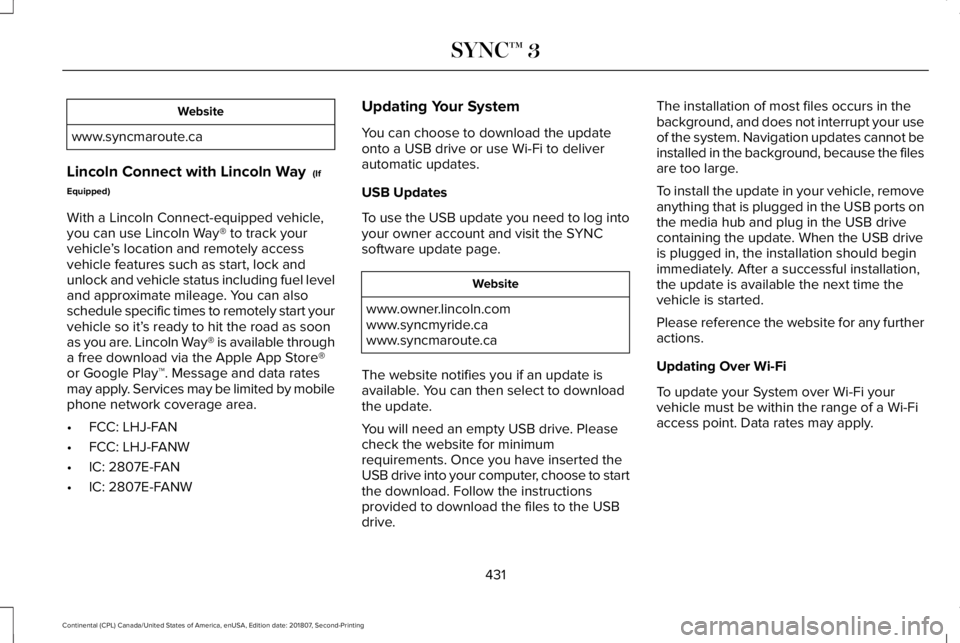
Lincoln Connect with Lincoln Way (If
Equipped)
With a Lincoln Connect-equipped vehicle,
you can use Lincoln Way® to track your
vehicle ’s location and remotely access
vehicle features such as start, lock and
unlock and vehicle status including fuel level
and approximate mileage. You can also
schedule specific times to remotely start your
vehicle so it’ s ready to hit the road as soon
as you are. Lincoln Way® is available through
a free download via the Apple App Store®
or Google Play™. Message and data rates
may apply. Services may be limited by mobile
phone network coverage area.
• FCC: LHJ-FAN
• FCC: LHJ-FANW
• IC: 2807E-FAN
• IC: 2807E-FANW Updating Your System
You can choose to download the update
onto a USB drive or use Wi-Fi to deliver
automatic updates.
USB Updates
To use the USB update you need to log into
your owner account and visit the SYNC
software update page.
Website
www.owner.lincoln.com
www.syncmyride.ca
www.syncmaroute.ca
The website notifies you if an update is
available. You can then select to download
the update.
You will need an empty USB drive. Please
check the website for minimum
requirements. Once you have inserted the
USB drive into your computer, choose to start
the download. Follow the instructions
provided to download the files to the USB
drive. The installation of most files occurs in the
background, and does not interrupt your use
of the system. Navigation updates cannot be
installed in the background, because the files
are too large.
To install the update in your vehicle, remove
anything that is plugged in the USB ports on
the media hub and plug in the USB drive
containing the update. When the USB drive
is plugged in, the installation should begin
immediately. After a successful installation,
the update is available the next time the
vehicle is started.
Please reference the website for any further
actions.
Updating Over Wi-Fi
To update your System over Wi-Fi your
vehicle must be within the range of a Wi-Fi
access point. Data rates may apply.
431
Continental (CPL) Canada/United States of America, enUSA, Edition date: 201807, Second-Printing SYNC™ 3
Page 473 of 627
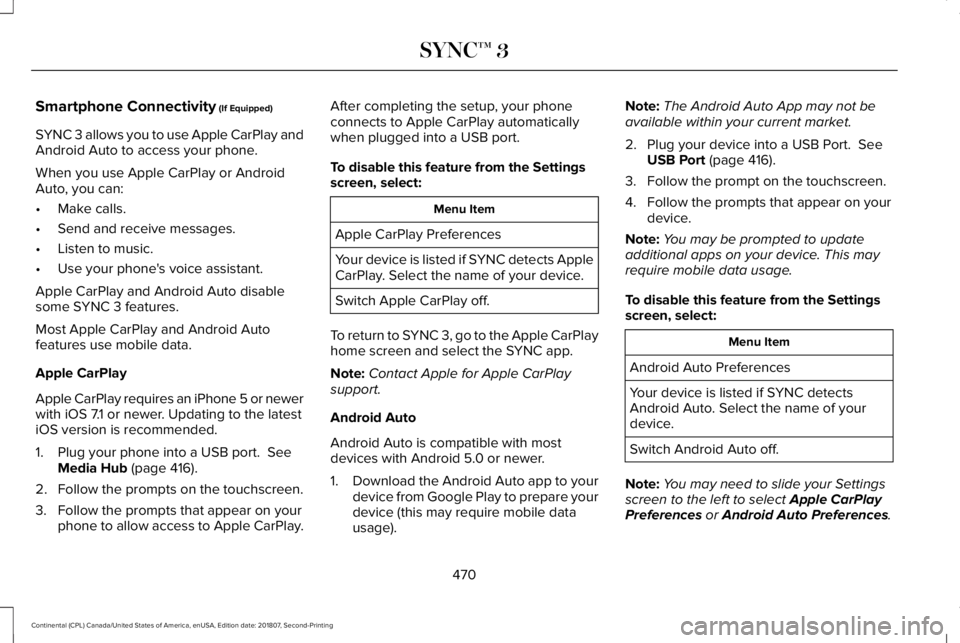
Smartphone Connectivity (If Equipped)
SYNC 3 allows you to use Apple CarPlay and
Android Auto to access your phone.
When you use Apple CarPlay or Android
Auto, you can:
• Make calls.
• Send and receive messages.
• Listen to music.
• Use your phone's voice assistant.
Apple CarPlay and Android Auto disable
some SYNC 3 features.
Most Apple CarPlay and Android Auto
features use mobile data.
Apple CarPlay
Apple CarPlay requires an iPhone 5 or newer
with iOS 7.1 or newer. Updating to the latest
iOS version is recommended.
1. Plug your phone into a USB port.
See
Media Hub (page 416).
2. Follow the prompts on the touchscreen.
3. Follow the prompts that appear on your phone to allow access to Apple CarPlay. After completing the setup, your phone
connects to Apple CarPlay automatically
when plugged into a USB port.
To disable this feature from the Settings
screen, select:
Menu Item
Apple CarPlay Preferences
Your device is listed if SYNC detects Apple
CarPlay. Select the name of your device.
Switch Apple CarPlay off.
To return to SYNC 3, go to the Apple CarPlay
home screen and select the SYNC app.
Note: Contact Apple for Apple CarPlay
support.
Android Auto
Android Auto is compatible with most
devices with Android 5.0 or newer.
1. Download the Android Auto app to your
device from Google Play to prepare your
device (this may require mobile data
usage). Note:
The Android Auto App may not be
available within your current market.
2. Plug your device into a USB Port.
See
USB Port (page 416).
3. Follow the prompt on the touchscreen.
4. Follow the prompts that appear on your device.
Note: You may be prompted to update
additional apps on your device. This may
require mobile data usage.
To disable this feature from the Settings
screen, select: Menu Item
Android Auto Preferences
Your device is listed if SYNC detects
Android Auto. Select the name of your
device.
Switch Android Auto off.
Note: You may need to slide your Settings
screen to the left to select
Apple CarPlay
Preferences or Android Auto Preferences.
470
Continental (CPL) Canada/United States of America, enUSA, Edition date: 201807, Second-Printing SYNC™ 3
Page 485 of 627
HERE is the digital map provider for the
navigation application. If you find map data
errors, you may report them directly to HERE
by going to www.here.com/mapcreator.
HERE evaluates all reported map errors and
responds with the result of their investigation
by e-mail.
Map coverage includes the USA (including
Puerto Rico and the US Virgin Islands),
Canada and Mexico.
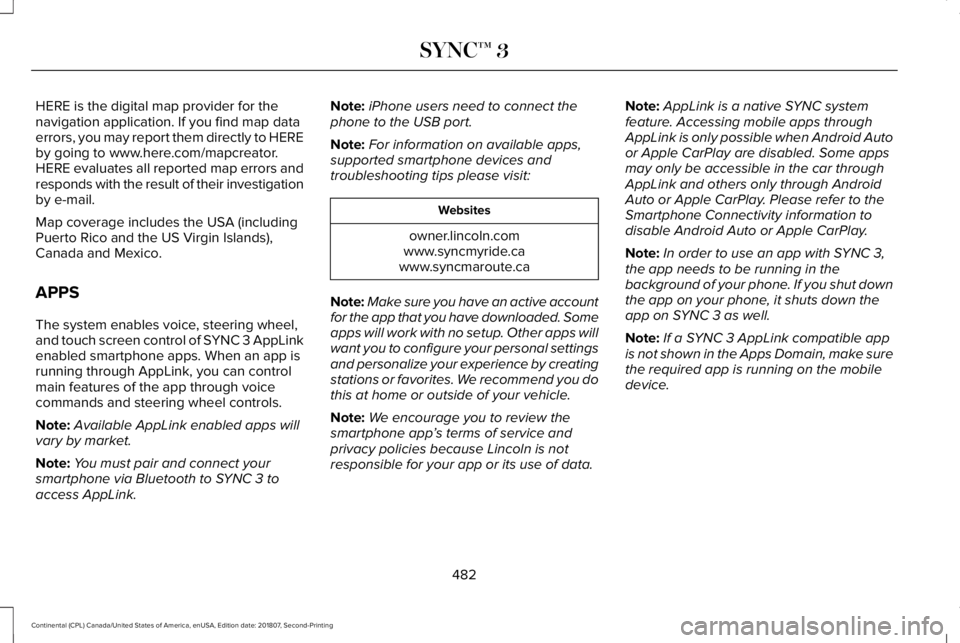
APPS
The system enables voice, steering wheel,
and touch screen control of SYNC 3 AppLink
enabled smartphone apps. When an app is
running through AppLink, you can control
main features of the app through voice
commands and steering wheel controls.
Note:
Available AppLink enabled apps will
vary by market.
Note: You must pair and connect your
smartphone via Bluetooth to SYNC 3 to
access AppLink. Note:
iPhone users need to connect the
phone to the USB port.
Note: For information on available apps,
supported smartphone devices and
troubleshooting tips please visit: Websites
owner.lincoln.com
www.syncmyride.ca
www.syncmaroute.ca
Note: Make sure you have an active account
for the app that you have downloaded. Some
apps will work with no setup. Other apps will
want you to configure your personal settings
and personalize your experience by creating
stations or favorites. We recommend you do
this at home or outside of your vehicle.
Note: We encourage you to review the
smartphone app ’s terms of service and
privacy policies because Lincoln is not
responsible for your app or its use of data. Note:
AppLink is a native SYNC system
feature. Accessing mobile apps through
AppLink is only possible when Android Auto
or Apple CarPlay are disabled. Some apps
may only be accessible in the car through
AppLink and others only through Android
Auto or Apple CarPlay. Please refer to the
Smartphone Connectivity information to
disable Android Auto or Apple CarPlay.
Note: In order to use an app with SYNC 3,
the app needs to be running in the
background of your phone. If you shut down
the app on your phone, it shuts down the
app on SYNC 3 as well.
Note: If a SYNC 3 AppLink compatible app
is not shown in the Apps Domain, make sure
the required app is running on the mobile
device.
482
Continental (CPL) Canada/United States of America, enUSA, Edition date: 201807, Second-Printing SYNC™ 3
Page 514 of 627
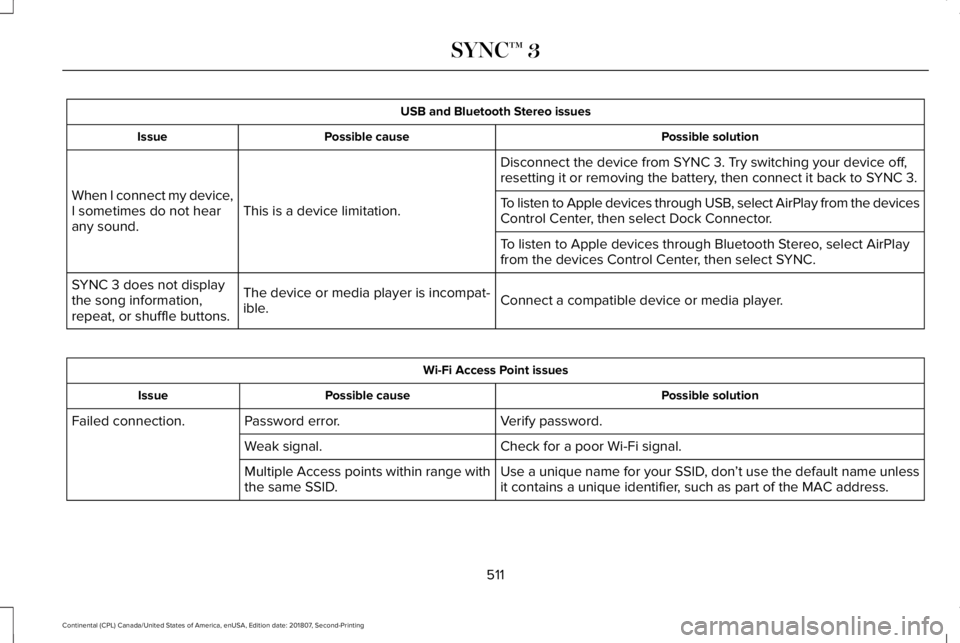
USB and Bluetooth Stereo issues
Possible solution
Possible cause
Issue
Disconnect the device from SYNC 3. Try switching your device off,
resetting it or removing the battery, then connect it back to SYNC 3.
This is a device limitation.
When I connect my device,
I sometimes do not hear
any sound. To listen to Apple devices through USB, select AirPlay from the devices
Control Center, then select Dock Connector.
To listen to Apple devices through Bluetooth Stereo, select AirPlay
from the devices Control Center, then select SYNC.
Connect a compatible device or media player.
The device or media player is incompat-
ible.
SYNC 3 does not display
the song information,
repeat, or shuffle buttons. Wi-Fi Access Point issues
Possible solution
Possible cause
Issue
Verify password.
Password error.
Failed connection.
Check for a poor Wi-Fi signal.
Weak signal.
Use a unique name for your SSID, don’t use the default name unless
it contains a unique identifier, such as part of the MAC address.
Multiple Access points within range with
the same SSID.
511
Continental (CPL) Canada/United States of America, enUSA, Edition date: 201807, Second-Printing SYNC™ 3
Page 517 of 627
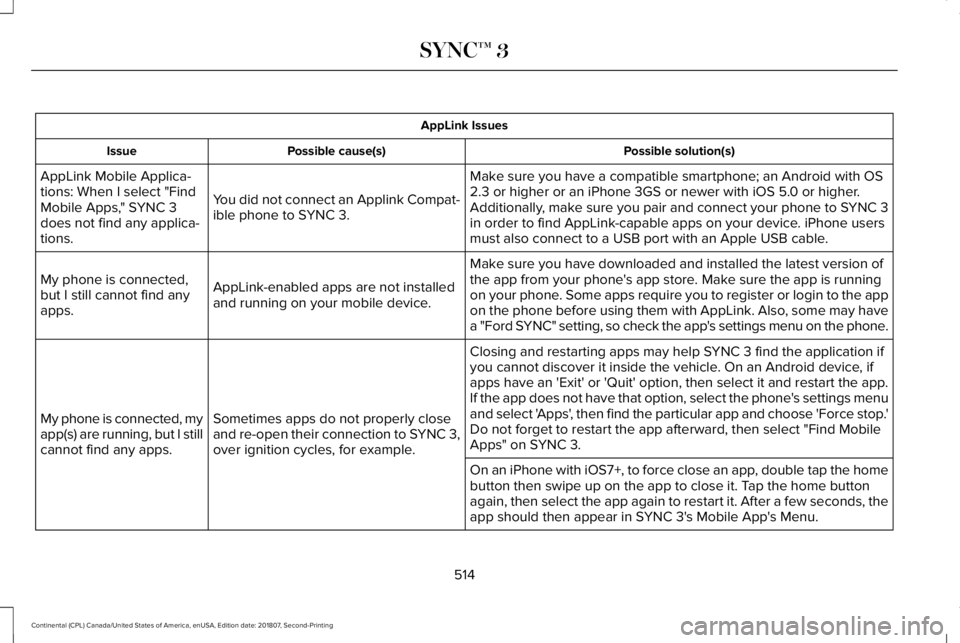
AppLink Issues
Possible solution(s)
Possible cause(s)
Issue
Make sure you have a compatible smartphone; an Android with OS
2.3 or higher or an iPhone 3GS or newer with iOS 5.0 or higher.
Additionally, make sure you pair and connect your phone to SYNC 3
in order to find AppLink-capable apps on your device. iPhone users
must also connect to a USB port with an Apple USB cable.
You did not connect an Applink Compat-
ible phone to SYNC 3.
AppLink Mobile Applica-
tions: When I select "Find
Mobile Apps," SYNC 3
does not find any applica-
tions.
Make sure you have downloaded and installed the latest version of
the app from your phone's app store. Make sure the app is running
on your phone. Some apps require you to register or login to the app
on the phone before using them with AppLink. Also, some may have
a "Ford SYNC" setting, so check the app's settings menu on the phone.
AppLink-enabled apps are not installed
and running on your mobile device.
My phone is connected,
but I still cannot find any
apps.
Closing and restarting apps may help SYNC 3 find the application if
you cannot discover it inside the vehicle. On an Android device, if
apps have an 'Exit' or 'Quit' option, then select it and restart the app.
If the app does not have that option, select the phone's settings menu
and select 'Apps', then find the particular app and choose 'Force stop.'
Do not forget to restart the app afterward, then select "Find Mobile
Apps" on SYNC 3.
Sometimes apps do not properly close
and re-open their connection to SYNC 3,
over ignition cycles, for example.
My phone is connected, my
app(s) are running, but I still
cannot find any apps.
On an iPhone with iOS7+, to force close an app, double tap the home
button then swipe up on the app to close it. Tap the home button
again, then select the app again to restart it. After a few seconds, the\
app should then appear in SYNC 3's Mobile App's Menu.
514
Continental (CPL) Canada/United States of America, enUSA, Edition date: 201807, Second-Printing SYNC™ 3
Page 572 of 627
•
Links to Third Party Sites: The
SOFTWARE may provide you with the
ability to link to third party sites. The third
party sites are not under the control of
FORD MOTOR COMPANY, its affiliates
and/or its designated agent. Neither
FORD MOTOR COMPANY nor its
affiliates nor its designated agent are
responsible for (I) the contents of any
third party sites, any links contained in
third party sites, or any changes or
updates to third party sites, or (ii)
webcasting or any other form of
transmission received from any third
party sites. If the SOFTWARE provides
links to third party sites, those links are
provided to you only as a convenience,
and the inclusion of any link does not
imply an endorsement of the third party
site by FORD MOTOR COMPANY, its
affiliates and/or its designated agent.
• Obligation to Drive Responsibly:
You
recognize your obligation to drive
responsibly and keep attention on the
road. You will read and abide with the
DEVICES operating instructions
particularly as they pertain to safety and
you agree to assume any risk associated with the use of the DEVICES.
UPGRADES AND RECOVERY MEDIA: If the
SOFTWARE is provided by FORD MOTOR
COMPANY separate from the DEVICES on
media such as a ROM chip, CD ROM disk(s)
or via web download or other means, and is
labeled "For Upgrade Purposes Only" or "For
Recovery Purposes Only" you may install one
(1) copy of such SOFTWARE onto the
DEVICES as a replacement copy for the
existing SOFTWARE, and use it in
accordance with this EULA, including any
additional EULA terms accompanying the
upgrade SOFTWARE.
INTELLECTUAL PROPERTY RIGHTS:
All
title and intellectual property rights in and to
the SOFTWARE (including but not limited to
any images, photographs, animations, video,
audio, music, text and "applets" incorporated
into the SOFTWARE), the accompanying
printed materials, and any copies of the
SOFTWARE, are owned by FORD MOTOR
COMPANY, or its affiliates or suppliers. The
SOFTWARE is licensed, not sold. You may
not copy the printed materials accompanying
the SOFTWARE. All title and intellectual
property rights in and to the content which may be accessed through use of the
SOFTWARE is the property of the respective
content owner and may be protected by
applicable copyright or other intellectual
property laws and treaties. This EULA grants
you no rights to use such content outside its
intended use. All rights not specifically
granted under this EULA are reserved by
FORD MOTOR COMPANY, its affiliates, and
third party software and service providers
and suppliers. Use of any on-line services
which may be accessed through the
SOFTWARE may be governed by the
respective terms of use relating to such
services. If this SOFTWARE contains
documentation that is provided only in
electronic form, you may print one copy of
such electronic documentation.
569
Continental (CPL) Canada/United States of America, enUSA, Edition date: 201807, Second-Printing Appendices