steering LINCOLN CONTINENTAL 2020 Service Manual
[x] Cancel search | Manufacturer: LINCOLN, Model Year: 2020, Model line: CONTINENTAL, Model: LINCOLN CONTINENTAL 2020Pages: 609, PDF Size: 6.24 MB
Page 234 of 609
When the vehicle speed is less than 19 mph
(30 km/h), the system scans both sides of
your vehicle for an available parking space.
A message and a graphic appear in the
information display to indicate the system is
searching for a parking space. Use the
direction indicator lever to search for a
parking space on the driver or passenger
side of your vehicle.
Note: The system scans both sides of your
vehicle and offers parking spaces one side
at a time if you do not use the direction
indicator.
Note: The system defaults to the passenger
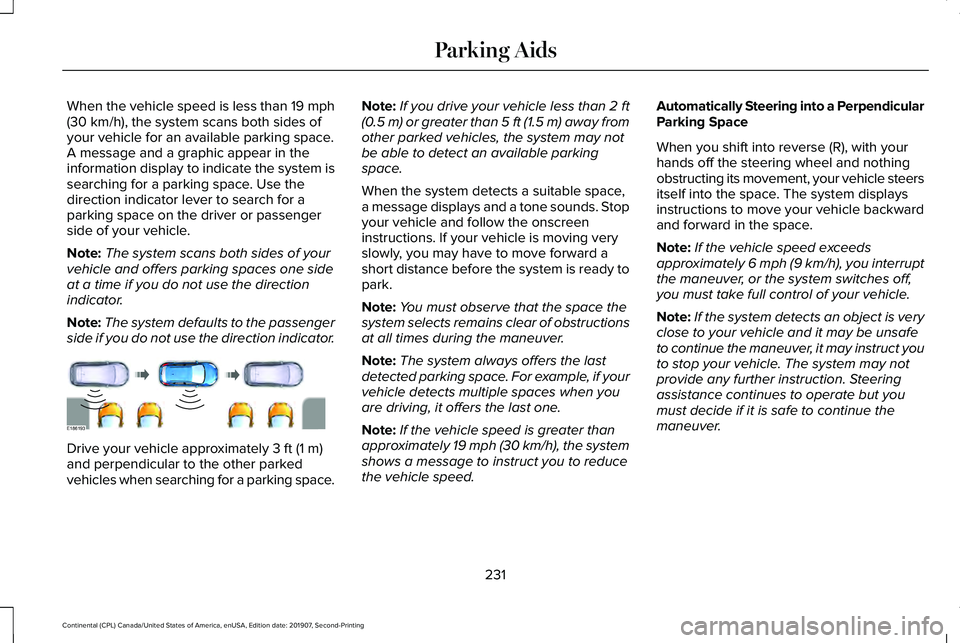
side if you do not use the direction indicator. Drive your vehicle approximately
3 ft (1 m)
and perpendicular to the other parked
vehicles when searching for a parking space. Note:
If you drive your vehicle less than 2 ft
(0.5 m)
or greater than 5 ft (1.5 m) away from
other parked vehicles, the system may not
be able to detect an available parking
space.
When the system detects a suitable space,
a message displays and a tone sounds. Stop
your vehicle and follow the onscreen
instructions. If your vehicle is moving very
slowly, you may have to move forward a
short distance before the system is ready to
park.
Note: You must observe that the space the
system selects remains clear of obstructions
at all times during the maneuver.
Note: The system always offers the last
detected parking space. For example, if your
vehicle detects multiple spaces when you
are driving, it offers the last one.
Note: If the vehicle speed is greater than
approximately
19 mph (30 km/h), the system
shows a message to instruct you to reduce
the vehicle speed. Automatically Steering into a Perpendicular
Parking Space
When you shift into reverse (R), with your
hands off the steering wheel and nothing
obstructing its movement, your vehicle steers
itself into the space. The system displays
instructions to move your vehicle backward
and forward in the space.
Note:
If the vehicle speed exceeds
approximately
6 mph (9 km/h), you interrupt
the maneuver, or the system switches off,
you must take full control of your vehicle.
Note: If the system detects an object is very
close to your vehicle and it may be unsafe
to continue the maneuver, it may instruct you
to stop your vehicle. The system may not
provide any further instruction. Steering
assistance continues to operate but you
must decide if it is safe to continue the
maneuver.
231
Continental (CPL) Canada/United States of America, enUSA, Edition date: 201907, Second-Printing Parking AidsE186193
Page 235 of 609
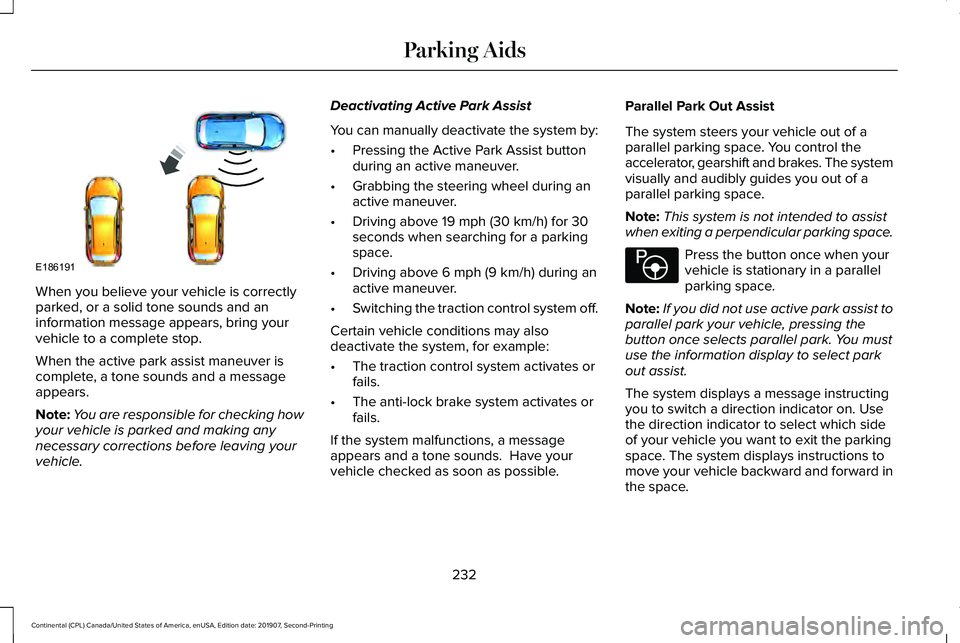
When you believe your vehicle is correctly
parked, or a solid tone sounds and an
information message appears, bring your
vehicle to a complete stop.
When the active park assist maneuver is
complete, a tone sounds and a message
appears.
Note:
You are responsible for checking how
your vehicle is parked and making any
necessary corrections before leaving your
vehicle. Deactivating Active Park Assist
You can manually deactivate the system by:
•
Pressing the Active Park Assist button
during an active maneuver.
• Grabbing the steering wheel during an
active maneuver.
• Driving above 19 mph (30 km/h) for 30
seconds when searching for a parking
space.
• Driving above
6 mph (9 km/h) during an
active maneuver.
• Switching the traction control system off.
Certain vehicle conditions may also
deactivate the system, for example:
• The traction control system activates or
fails.
• The anti-lock brake system activates or
fails.
If the system malfunctions, a message
appears and a tone sounds. Have your
vehicle checked as soon as possible. Parallel Park Out Assist
The system steers your vehicle out of a
parallel parking space. You control the
accelerator, gearshift and brakes. The system
visually and audibly guides you out of a
parallel parking space.
Note:
This system is not intended to assist
when exiting a perpendicular parking space. Press the button once when your
vehicle is stationary in a parallel
parking space.
Note: If you did not use active park assist to
parallel park your vehicle, pressing the
button once selects parallel park. You must
use the information display to select park
out assist.
The system displays a message instructing
you to switch a direction indicator on. Use
the direction indicator to select which side
of your vehicle you want to exit the parking
space. The system displays instructions to
move your vehicle backward and forward in
the space.
232
Continental (CPL) Canada/United States of America, enUSA, Edition date: 201907, Second-Printing Parking AidsE186191 E146186
Page 236 of 609
Note:
If the system detects an object is very
close to your vehicle and it may be unsafe
to continue the maneuver, it may instruct you
to stop your vehicle. The system may not
provide any further instruction. Steering
assistance continues to operate but you
must decide if it is safe to continue the
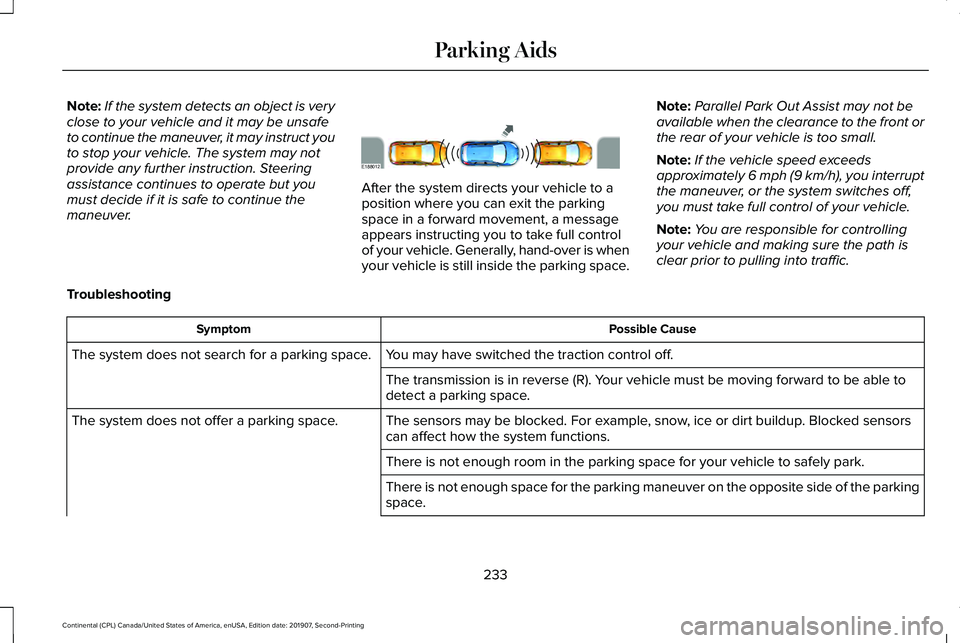
maneuver. After the system directs your vehicle to a
position where you can exit the parking
space in a forward movement, a message
appears instructing you to take full control
of your vehicle. Generally, hand-over is when
your vehicle is still inside the parking space.
Note:
Parallel Park Out Assist may not be
available when the clearance to the front or
the rear of your vehicle is too small.
Note: If the vehicle speed exceeds
approximately 6 mph (9 km/h), you interrupt
the maneuver, or the system switches off,
you must take full control of your vehicle.
Note: You are responsible for controlling
your vehicle and making sure the path is
clear prior to pulling into traffic.
Troubleshooting Possible Cause
Symptom
You may have switched the traction control off.
The system does not search for a parking space.
The transmission is in reverse (R). Your vehicle must be moving forward to be able to
detect a parking space.
The sensors may be blocked. For example, snow, ice or dirt buildup. Blocked sensors
can affect how the system functions.
The system does not offer a parking space.
There is not enough room in the parking space for your vehicle to safely\
park.
There is not enough space for the parking maneuver on the opposite side \
of the parking
space.
233
Continental (CPL) Canada/United States of America, enUSA, Edition date: 201907, Second-Printing Parking AidsE188012
Page 240 of 609
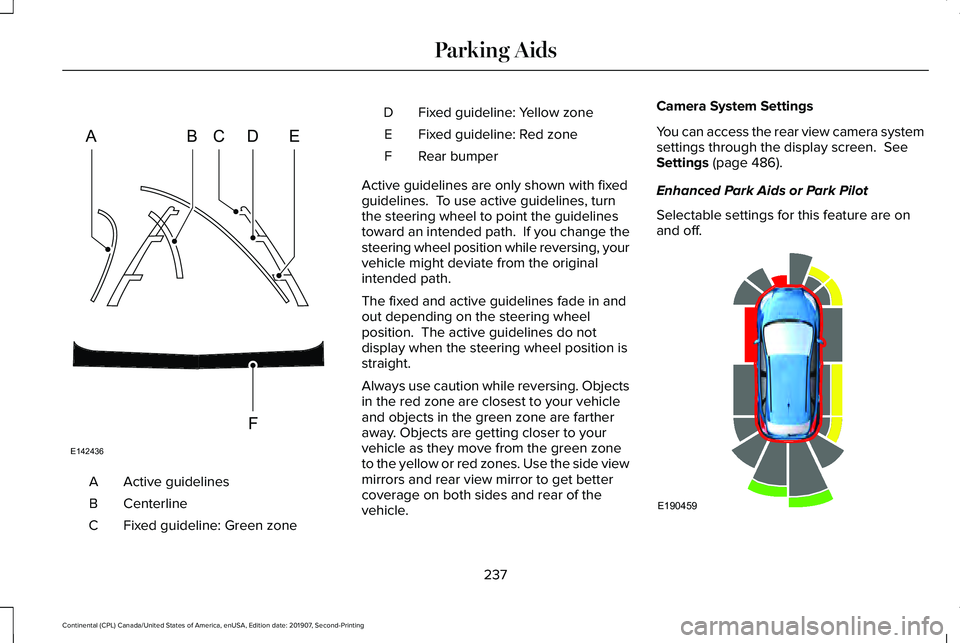
Active guidelines
A
Centerline
B
Fixed guideline: Green zone
C Fixed guideline: Yellow zone
D
Fixed guideline: Red zone
E
Rear bumper
F
Active guidelines are only shown with fixed
guidelines. To use active guidelines, turn
the steering wheel to point the guidelines
toward an intended path. If you change the
steering wheel position while reversing, your
vehicle might deviate from the original
intended path.
The fixed and active guidelines fade in and
out depending on the steering wheel
position. The active guidelines do not
display when the steering wheel position is
straight.
Always use caution while reversing. Objects
in the red zone are closest to your vehicle
and objects in the green zone are farther
away. Objects are getting closer to your
vehicle as they move from the green zone
to the yellow or red zones. Use the side view
mirrors and rear view mirror to get better
coverage on both sides and rear of the
vehicle. Camera System Settings
You can access the rear view camera system
settings through the display screen. See
Settings (page 486).
Enhanced Park Aids or Park Pilot
Selectable settings for this feature are on
and off. 237
Continental (CPL) Canada/United States of America, enUSA, Edition date: 201907, Second-Printing Parking AidsABCD
F
E
E142436 E190459
Page 245 of 609
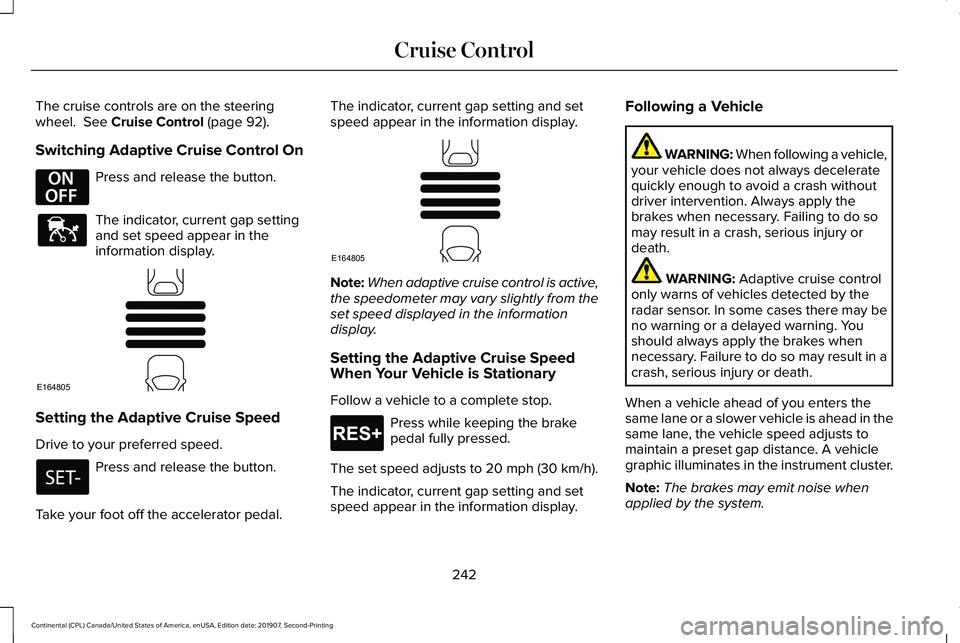
The cruise controls are on the steering
wheel. See Cruise Control (page 92).
Switching Adaptive Cruise Control On Press and release the button.
The indicator, current gap setting
and set speed appear in the
information display.
Setting the Adaptive Cruise Speed
Drive to your preferred speed.
Press and release the button.
Take your foot off the accelerator pedal. The indicator, current gap setting and set
speed appear in the information display.
Note:
When adaptive cruise control is active,
the speedometer may vary slightly from the
set speed displayed in the information
display.
Setting the Adaptive Cruise Speed
When Your Vehicle is Stationary
Follow a vehicle to a complete stop. Press while keeping the brake
pedal fully pressed.
The set speed adjusts to 20 mph (30 km/h).
The indicator, current gap setting and set
speed appear in the information display. Following a Vehicle WARNING: When following a vehicle,
your vehicle does not always decelerate
quickly enough to avoid a crash without
driver intervention. Always apply the
brakes when necessary. Failing to do so
may result in a crash, serious injury or
death. WARNING:
Adaptive cruise control
only warns of vehicles detected by the
radar sensor. In some cases there may be
no warning or a delayed warning. You
should always apply the brakes when
necessary. Failure to do so may result in a
crash, serious injury or death.
When a vehicle ahead of you enters the
same lane or a slower vehicle is ahead in the
same lane, the vehicle speed adjusts to
maintain a preset gap distance. A vehicle
graphic illuminates in the instrument cluster.
Note: The brakes may emit noise when
applied by the system.
242
Continental (CPL) Canada/United States of America, enUSA, Edition date: 201907, Second-Printing Cruise ControlE294678 E144529 E164805 E164805 E265299
Page 254 of 609
Using Driver Alert
Switching the system on and off
You may switch the system on or off through
the information display. See General
Information (page 117). When activated, the
system will monitor your alertness level
based upon your driving behavior in relation
to the lane markings and other factors.
System Warnings
Note: The system does not issue warnings
below approximately
40 mph (64 km/h).
The warning system is in two stages. At first
the system issues a temporary warning that
you need to take a rest. This message will
only appear for a short time. If the system
detects further reduction in driving alertness,
another warning may be issued which will
remain in the information display for a longer
time. Press OK on the steering wheel control
to clear the warning System Display
When active the system will run automatically
in the background and only issue a warning
if required.
Note:
If the camera sensor cannot track the
road lane markings or if your vehicle speed
drops below approximately
40 mph
(64 km/h), the system does not issue
warnings.
Resetting the System
You can reset the system by either:
• Switching the ignition off and on.
• Stopping the vehicle and then opening
and closing the driver’ s door.LANE KEEPING SYSTEM WARNING:
You are responsible for
controlling your vehicle at all times. The
system is designed to be an aid and does
not relieve you of your responsibility to
drive with due care and attention. Failure
to follow this instruction could result in the
loss of control of your vehicle, personal
injury or death. WARNING:
Always drive with due
care and attention when using and
operating the controls and features on your
vehicle. WARNING:
In cold and severe
weather conditions the system may not
function. Rain, snow and spray can all limit
sensor performance. WARNING:
The system will not
operate if the sensor cannot track the road
lane markings.
251
Continental (CPL) Canada/United States of America, enUSA, Edition date: 201907, Second-Printing Driving Aids
Page 255 of 609
WARNING: The sensor may
incorrectly track lane markings as other
structures or objects. This can result in a
false or missed warning. WARNING:
The system may not
operate properly if the sensor is blocked.
Keep the windshield free from obstruction. WARNING:
If damage occurs in the
immediate area surrounding the sensor,
have your vehicle checked as soon as
possible. WARNING:
The system may not
correctly operate if your vehicle is fitted
with a suspension kit not approved by us.
Note: The system works as long as the
camera can detect one lane marking.
Note: When aid or alert and aid modes are
selected and the system detects no steering
activity for a short period, the system alerts
you to put your hands on the steering wheel.
The system may detect a light grip or touch
on the steering wheel as hands off driving. Note:
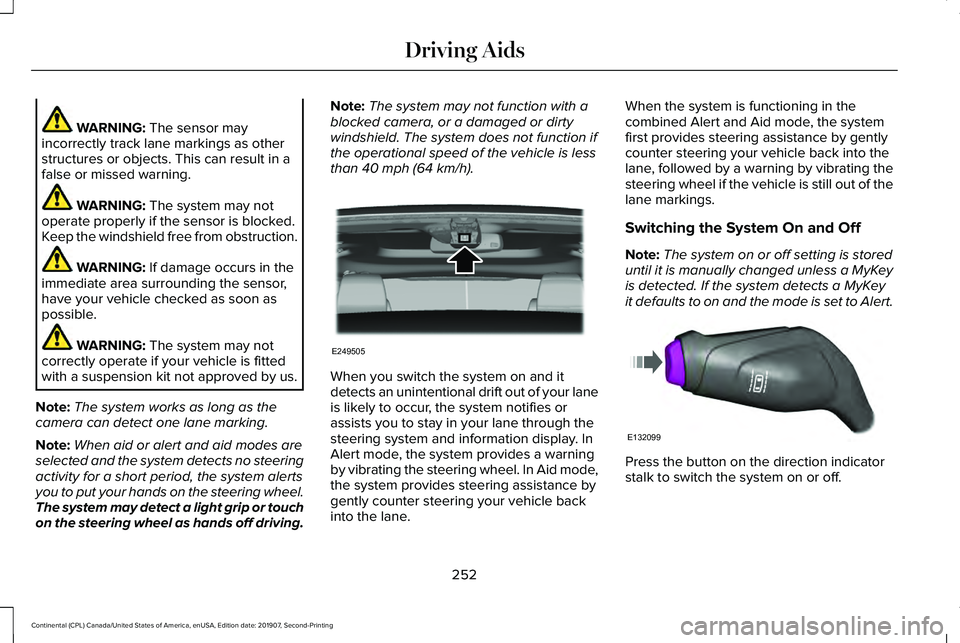
The system may not function with a
blocked camera, or a damaged or dirty
windshield. The system does not function if
the operational speed of the vehicle is less
than
40 mph (64 km/h). When you switch the system on and it
detects an unintentional drift out of your lane
is likely to occur, the system notifies or
assists you to stay in your lane through the
steering system and information display. In
Alert mode, the system provides a warning
by vibrating the steering wheel. In Aid mode,
the system provides steering assistance by
gently counter steering your vehicle back
into the lane.When the system is functioning in the
combined Alert and Aid mode, the system
first provides steering assistance by gently
counter steering your vehicle back into the
lane, followed by a warning by vibrating the
steering wheel if the vehicle is still out of the
lane markings.
Switching the System On and Off
Note:
The system on or off setting is stored
until it is manually changed unless a MyKey
is detected. If the system detects a MyKey
it defaults to on and the mode is set to Alert. Press the button on the direction indicator
stalk to switch the system on or off.
252
Continental (CPL) Canada/United States of America, enUSA, Edition date: 201907, Second-Printing Driving AidsE249505 E132099
Page 256 of 609
System Settings
The system has optional setting menus
available. To view or adjust the settings, See
Settings (page 486). The system stores the
last-known selection for each of these
settings. You do not need to readjust your
settings each time you switch the system on.
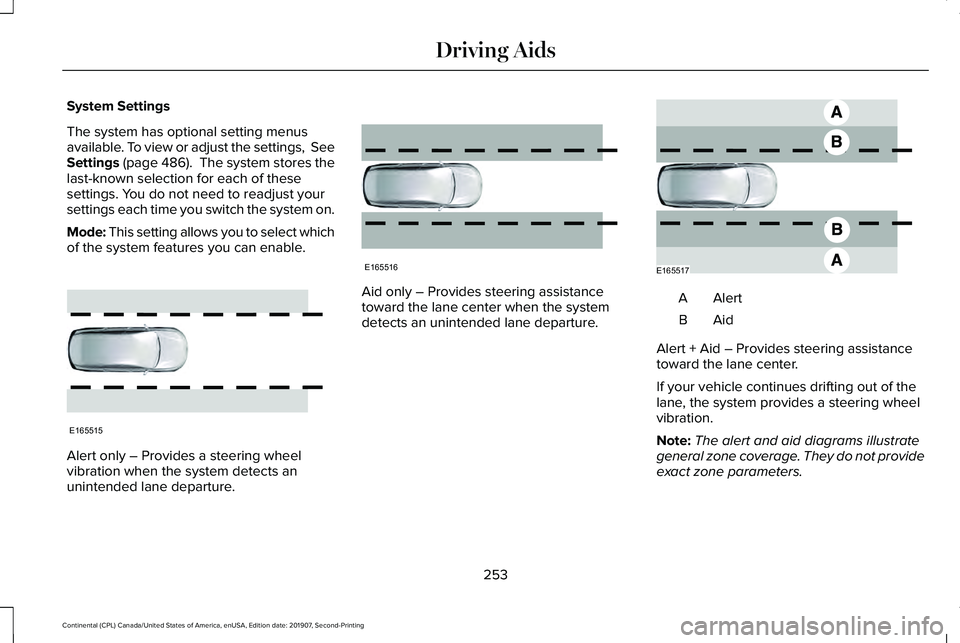
Mode: This setting allows you to select which
of the system features you can enable. Alert only – Provides a steering wheel
vibration when the system detects an
unintended lane departure. Aid only – Provides steering assistance
toward the lane center when the system
detects an unintended lane departure.
AlertA
AidB
Alert + Aid – Provides steering assistance
toward the lane center.
If your vehicle continues drifting out of the
lane, the system provides a steering wheel
vibration.
Note: The alert and aid diagrams illustrate
general zone coverage. They do not provide
exact zone parameters.
253
Continental (CPL) Canada/United States of America, enUSA, Edition date: 201907, Second-Printing Driving AidsE165515 E165516 E165517
Page 257 of 609
Intensity: This setting affects the intensity of
the steering wheel vibration used for the alert
and alert + aid modes. This setting does not
affect the aid mode.
• Low.
• Normal.
• High.
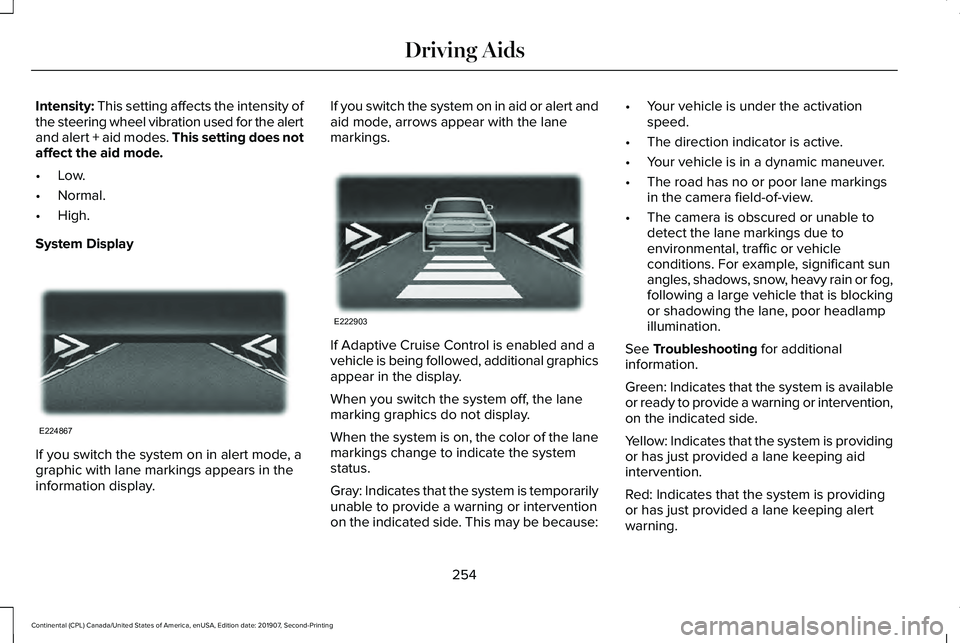
System Display If you switch the system on in alert mode, a
graphic with lane markings appears in the
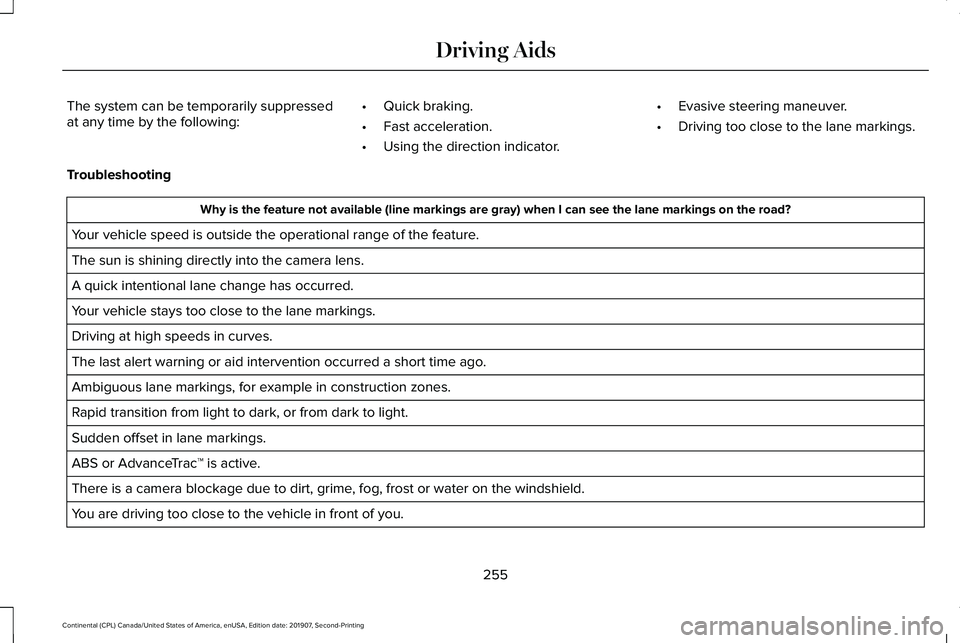
information display. If you switch the system on in aid or alert and
aid mode, arrows appear with the lane
markings.
If Adaptive Cruise Control is enabled and a
vehicle is being followed, additional graphics
appear in the display.
When you switch the system off, the lane
marking graphics do not display.
When the system is on, the color of the lane
markings change to indicate the system
status.
Gray: Indicates that the system is temporarily
unable to provide a warning or intervention
on the indicated side. This may be because:•
Your vehicle is under the activation
speed.
• The direction indicator is active.
• Your vehicle is in a dynamic maneuver.
• The road has no or poor lane markings
in the camera field-of-view.
• The camera is obscured or unable to
detect the lane markings due to
environmental, traffic or vehicle
conditions. For example, significant sun
angles, shadows, snow, heavy rain or fog,
following a large vehicle that is blocking
or shadowing the lane, poor headlamp
illumination.
See
Troubleshooting for additional
information.
Green: Indicates that the system is available
or ready to provide a warning or intervention,
on the indicated side.
Yellow: Indicates that the system is providing
or has just provided a lane keeping aid
intervention.
Red: Indicates that the system is providing
or has just provided a lane keeping alert
warning.
254
Continental (CPL) Canada/United States of America, enUSA, Edition date: 201907, Second-Printing Driving AidsE224867 E222903
Page 258 of 609
The system can be temporarily suppressed
at any time by the following:
•
Quick braking.
• Fast acceleration.
• Using the direction indicator. •
Evasive steering maneuver.
• Driving too close to the lane markings.
Troubleshooting Why is the feature not available (line markings are gray) when I can s\
ee the lane markings on the road?
Your vehicle speed is outside the operational range of the feature.
The sun is shining directly into the camera lens.
A quick intentional lane change has occurred.
Your vehicle stays too close to the lane markings.
Driving at high speeds in curves.
The last alert warning or aid intervention occurred a short time ago.
Ambiguous lane markings, for example in construction zones.
Rapid transition from light to dark, or from dark to light.
Sudden offset in lane markings.
ABS or AdvanceTrac ™ is active.
There is a camera blockage due to dirt, grime, fog, frost or water on the windshield.
You are driving too close to the vehicle in front of you.
255
Continental (CPL) Canada/United States of America, enUSA, Edition date: 201907, Second-Printing Driving Aids