steering wheel LINCOLN CONTINENTAL 2020 Workshop Manual
[x] Cancel search | Manufacturer: LINCOLN, Model Year: 2020, Model line: CONTINENTAL, Model: LINCOLN CONTINENTAL 2020Pages: 609, PDF Size: 6.24 MB
Page 350 of 609
CLEANING THE INSTRUMENT
PANEL AND INSTRUMENT
CLUSTER LENS
WARNING: Do not use chemical
solvents or strong detergents when
cleaning the steering wheel or instrument
panel to avoid contamination of the airbag
system.
Note: Follow the same procedure as
cleaning leather seats for cleaning leather
instrument panels and leather interior trim
surfaces. See Cleaning Leather Seats
(page
347).
Clean the instrument panel and cluster lens
with a clean, damp and soft cloth, then use
a clean, dry and soft cloth to dry these areas. •
Avoid cleaners or polishes that increase
the gloss of the upper portion of the
instrument panel. The dull finish in this
area helps protect you from undesirable
windshield reflection.
• Do not use any household cleaning
products or glass cleaners as these may
damage the finish of the instrument
panel, interior trim and cluster lens.
• Wash or wipe your hands clean if you
have been in contact with certain
products such as insect repellent and
suntan lotion to avoid possible damage
to the interior painted surfaces.
• Do not allow air fresheners and hand
sanitizers to spill onto interior surfaces.
If a spill occurs, wipe off immediately.
Your warranty may not cover these
damages.
If a staining liquid like coffee or juice has
been spilled on the instrument panel or on
interior trim surfaces:
1. Wipe up spilled liquid using a clean, soft
cloth as quickly as possible. 2. Use Motorcraft Premium Leather and
Vinyl Cleaner or a commercially available
leather cleaning product for automotive
interiors. Test any cleaner or stain
remover on an inconspicuous area.
3. Alternatively, wipe the surface with a clean, soft cloth and a mild soap and
water solution. Dry the area with a clean,
soft cloth.
4. If necessary, apply more soap and water
solution or cleaning product to a clean,
soft cloth and press it onto the soiled
area. Allow this to set at room
temperature for 30 minutes.
5. Remove the soaked cloth, then with a clean, damp cloth, use a rubbing motion
for 60 seconds on the soiled area.
6. Dry the area with a clean, soft cloth.
CLEANING LEATHER SEATS
Note: Follow the same procedure as
cleaning leather seats for cleaning leather
instrument panels and leather interior trim
surfaces.
347
Continental (CPL) Canada/United States of America, enUSA, Edition date: 201907, Second-Printing Vehicle Care
Page 369 of 609
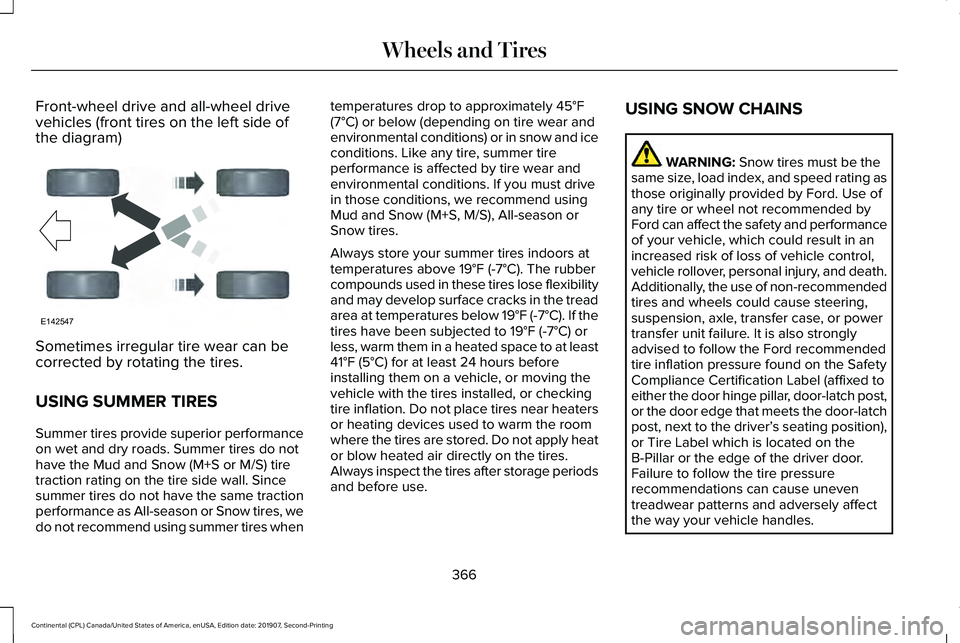
Front-wheel drive and all-wheel drive
vehicles (front tires on the left side of
the diagram)
Sometimes irregular tire wear can be
corrected by rotating the tires.
USING SUMMER TIRES
Summer tires provide superior performance
on wet and dry roads. Summer tires do not
have the Mud and Snow (M+S or M/S) tire
traction rating on the tire side wall. Since
summer tires do not have the same traction
performance as All-season or Snow tires, we
do not recommend using summer tires when temperatures drop to approximately 45°F
(7°C) or below (depending on tire wear and
environmental conditions) or in snow and ice
conditions. Like any tire, summer tire
performance is affected by tire wear and
environmental conditions. If you must drive
in those conditions, we recommend using
Mud and Snow (M+S, M/S), All-season or
Snow tires.
Always store your summer tires indoors at
temperatures above
19°F (-7°C). The rubber
compounds used in these tires lose flexibility
and may develop surface cracks in the tread
area at temperatures below
19°F (-7°C). If the
tires have been subjected to 19°F (-7°C) or
less, warm them in a heated space to at least
41°F (5°C)
for at least 24 hours before
installing them on a vehicle, or moving the
vehicle with the tires installed, or checking
tire inflation. Do not place tires near heaters
or heating devices used to warm the room
where the tires are stored. Do not apply heat
or blow heated air directly on the tires.
Always inspect the tires after storage periods
and before use. USING SNOW CHAINS WARNING:
Snow tires must be the
same size, load index, and speed rating as
those originally provided by Ford. Use of
any tire or wheel not recommended by
Ford can affect the safety and performance
of your vehicle, which could result in an
increased risk of loss of vehicle control,
vehicle rollover, personal injury, and death.
Additionally, the use of non-recommended
tires and wheels could cause steering,
suspension, axle, transfer case, or power
transfer unit failure. It is also strongly
advised to follow the Ford recommended
tire inflation pressure found on the Safety
Compliance Certification Label (affixed to
either the door hinge pillar, door-latch post,
or the door edge that meets the door-latch
post, next to the driver’ s seating position),
or Tire Label which is located on the
B-Pillar or the edge of the driver door.
Failure to follow the tire pressure
recommendations can cause uneven
treadwear patterns and adversely affect
the way your vehicle handles.
366
Continental (CPL) Canada/United States of America, enUSA, Edition date: 201907, Second-Printing Wheels and TiresE142547
Page 375 of 609
When Inflating Your Tires
WARNING: Do not use the tire
pressure displayed in the information
display as a tire pressure gauge. Failure to
follow this instruction could result in
personal injury or death.
When putting air into your tires (such as at a
gas station or in your garage), the tire
pressure monitoring system will not respond
immediately to the air added to your tires.
It could take up to two minutes of driving
over
20 mph (32 km/h) for the light to turn
off after you have filled your tires to the
recommended inflation pressure.
How Temperature Affects Your Tire
Pressure
The tire pressure monitoring system monitors
tire pressure in each pneumatic tire. While
driving in a normal manner, a typical
passenger tire inflation pressure could
increase about
2–4 psi (14–28 kPa) from a
cold start situation. If the vehicle is stationary
overnight with the outside temperature significantly lower than the daytime
temperature, the tire pressure could
decrease about
3 psi (21 kPa) for a drop of
30°F (17°C) in ambient temperature. This
lower pressure value could be detected by
the tire pressure monitoring system as being
significantly lower than the recommended
inflation pressure and activate the system
warning light for low tire pressure. If the low
tire pressure warning light is on, visually
check each tire to verify that no tire is flat. If
one or more tires are flat, repair as
necessary. Check the air pressure in the road
tires. If any tire is under-inflated, carefully
drive the vehicle to the nearest location
where air can be added to the tires. Inflate
all the tires to the recommended inflation
pressure.
CHANGING A ROAD WHEEL WARNING:
If the tire pressure
monitor sensor becomes damaged it may
not function. Note:
You should only use tire sealants in
roadside emergencies as they may cause
damage to the tire pressure monitoring
system sensor.
Note: The tire pressure monitoring system
indicator light illuminates when the spare
tire is in use. To restore the full function of
the monitoring system, all road wheels
equipped with tire pressure monitoring
sensors must be mounted on the vehicle.
If you get a flat tire when driving, do not
apply the brake heavily. Instead, gradually
decrease your speed. Hold the steering
wheel firmly and slowly move to a safe place
on the side of the road.
Have a flat serviced by an authorized dealer
in order to prevent damage to the tire
pressure monitoring system sensors.
See
Tire Pressure Monitoring System (page 367).
Replace the spare tire with a road tire as
soon as possible. During repairing or
replacing of the flat tire, have an authorized
dealer inspect the tire pressure monitoring
system sensor for damage.
372
Continental (CPL) Canada/United States of America, enUSA, Edition date: 201907, Second-Printing Wheels and Tires
Page 377 of 609
The usage of a full-size dissimilar spare
wheel and tire assembly can lead to
impairment of the following:
•
Handling, stability and braking
performance.
• Comfort and noise.
• Ground clearance and parking at curbs.
• Winter weather driving capability.
• Wet weather driving capability.
• All-wheel driving capability.
When driving with the full-size dissimilar
spare wheel and tire assembly additional
caution should be given to:
• Towing a trailer.
• Driving vehicles equipped with a camper
body.
• Driving vehicles with a load on the cargo
rack.
Drive cautiously when using a full-size
dissimilar spare wheel and tire assembly and
seek service as soon as possible. Tire Change Procedure (If Equipped) WARNING:
The jack supplied with
this vehicle is only intended for changing
wheels. Do not use the vehicle jack other
than when you are changing a wheel in an
emergency. WARNING: The jack should be used
on level firm ground wherever possible. WARNING:
Check that the vehicle
jack is not damaged or deformed and the
thread is lubricated and clean. WARNING:
Never place anything
between the vehicle jack and the ground. WARNING:
Never place anything
between the vehicle jack and your vehicle. WARNING:
Use only the specified
jacking points. If you use other positions,
you may damage the body, steering,
suspension, engine, braking system or the
fuel lines. WARNING:
To help prevent your
vehicle from moving when changing a
wheel, shift the transmission into park (P),
set the parking brake and use an
appropriate block or wheel chock to
secure the wheel diagonally opposite to
the wheel being changed. For example,
when changing the front left wheel, place
an appropriate block or wheel chock on
the right rear wheel. WARNING:
When one of the front
wheels is off the ground, the transmission
alone will not prevent the vehicle from
moving or slipping off the jack, even if the
transmission is in park (P). WARNING:
Do not get under a
vehicle that is only supported by a vehicle
jack.
374
Continental (CPL) Canada/United States of America, enUSA, Edition date: 201907, Second-Printing Wheels and Tires
Page 449 of 609
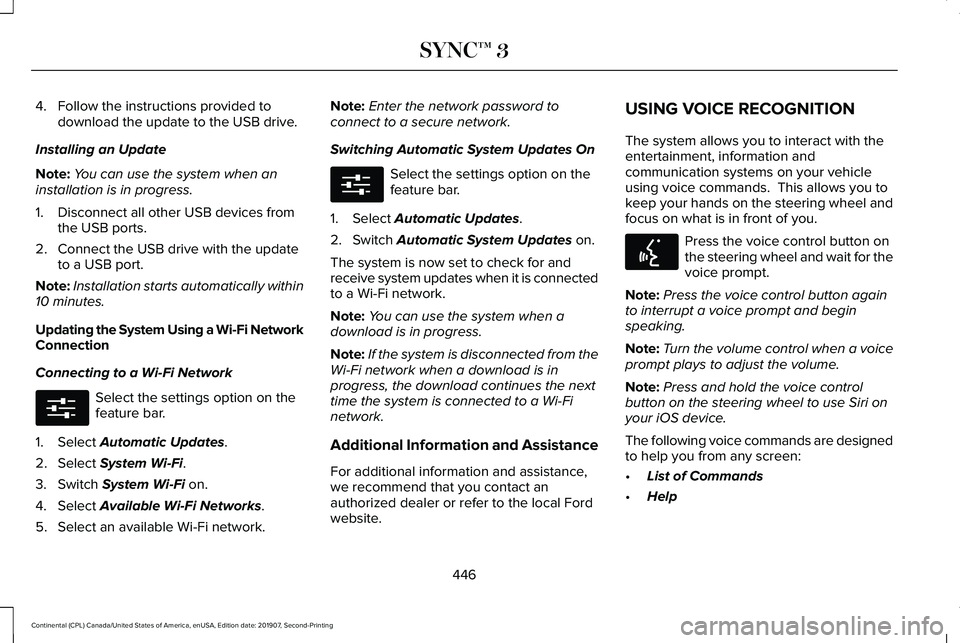
4. Follow the instructions provided to
download the update to the USB drive.
Installing an Update
Note: You can use the system when an
installation is in progress.
1. Disconnect all other USB devices from the USB ports.
2. Connect the USB drive with the update to a USB port.
Note: Installation starts automatically within
10 minutes.
Updating the System Using a Wi-Fi Network
Connection
Connecting to a Wi-Fi Network Select the settings option on the
feature bar.
1. Select Automatic Updates.
2. Select
System Wi-Fi.
3. Switch
System Wi-Fi on.
4. Select
Available Wi-Fi Networks.
5. Select an available Wi-Fi network. Note:
Enter the network password to
connect to a secure network.
Switching Automatic System Updates On Select the settings option on the
feature bar.
1. Select
Automatic Updates.
2. Switch
Automatic System Updates on.
The system is now set to check for and
receive system updates when it is connected
to a Wi-Fi network.
Note: You can use the system when a
download is in progress.
Note: If the system is disconnected from the
Wi-Fi network when a download is in
progress, the download continues the next
time the system is connected to a Wi-Fi
network.
Additional Information and Assistance
For additional information and assistance,
we recommend that you contact an
authorized dealer or refer to the local Ford
website. USING VOICE RECOGNITION
The system allows you to interact with the
entertainment, information and
communication systems on your vehicle
using voice commands. This allows you to
keep your hands on the steering wheel and
focus on what is in front of you.
Press the voice control button on
the steering wheel and wait for the
voice prompt.
Note: Press the voice control button again
to interrupt a voice prompt and begin
speaking.
Note: Turn the volume control when a voice
prompt plays to adjust the volume.
Note: Press and hold the voice control
button on the steering wheel to use Siri on
your iOS device.
The following voice commands are designed
to help you from any screen:
• List of Commands
• Help
446
Continental (CPL) Canada/United States of America, enUSA, Edition date: 201907, Second-Printing SYNC™ 3E280315 E280315 E142599
Page 475 of 609
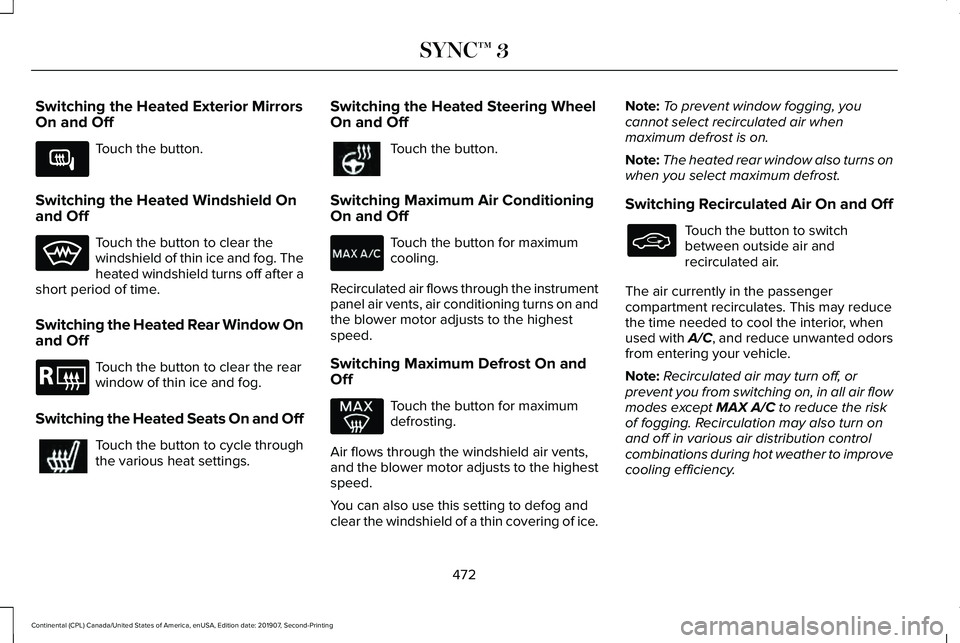
Switching the Heated Exterior Mirrors
On and Off
Touch the button.
Switching the Heated Windshield On
and Off Touch the button to clear the
windshield of thin ice and fog. The
heated windshield turns off after a
short period of time.
Switching the Heated Rear Window On
and Off Touch the button to clear the rear
window of thin ice and fog.
Switching the Heated Seats On and Off Touch the button to cycle through
the various heat settings. Switching the Heated Steering Wheel
On and Off Touch the button.
Switching Maximum Air Conditioning
On and Off Touch the button for maximum
cooling.
Recirculated air flows through the instrument
panel air vents, air conditioning turns on and
the blower motor adjusts to the highest
speed.
Switching Maximum Defrost On and
Off Touch the button for maximum
defrosting.
Air flows through the windshield air vents,
and the blower motor adjusts to the highest
speed.
You can also use this setting to defog and
clear the windshield of a thin covering of ice. Note:
To prevent window fogging, you
cannot select recirculated air when
maximum defrost is on.
Note: The heated rear window also turns on
when you select maximum defrost.
Switching Recirculated Air On and Off Touch the button to switch
between outside air and
recirculated air.
The air currently in the passenger
compartment recirculates. This may reduce
the time needed to cool the interior, when
used with A/C, and reduce unwanted odors
from entering your vehicle.
Note: Recirculated air may turn off, or
prevent you from switching on, in all air flow
modes except MAX A/C to reduce the risk
of fogging. Recirculation may also turn on
and off in various air distribution control
combinations during hot weather to improve
cooling efficiency.
472
Continental (CPL) Canada/United States of America, enUSA, Edition date: 201907, Second-Printing SYNC™ 3E266189 E184884
Page 486 of 609
The navigation system map data may contain
inaccurate or incomplete information due to
the passage of time, changing
circumstances, sources used and the nature
of collecting comprehensive geographic
data, any of which may lead to incorrect
results. Inaccurate speed limit information,
turn restrictions and other road attributes
may affect the determined route and
associated guidance
Annual navigation map updates are available
for purchase through your dealership.
Depending on your purchase agreement,
you might be eligible for free Map update.
You can choose to download the Map data
update onto a USB, order a USB, or use Wi-Fi
to deliver automatic updates. To update your
Map data over Wi-Fi, your vehicle must be
connected to a Wi-Fi access point. Map Data
files are large, so it is highly recommended
to perform the update when free Wi-Fi is
available otherwise high data rates may
apply. For USB updates, free map update
eligibility, and other details, contact dealers
at 1-866-462-8837 in the United States and
Canada or 01-800-557-5539 in Mexico or
visit our local website for more information.
APPS
The system allows you interact with select
mobile apps while keeping your eyes on the
road. Voice commands, your steering wheel
buttons, or a quick tap on your touchscreen
give you advanced control of compatible
mobile apps. You can also stream your
favorite music or podcasts, share your time
of arrival with friends, and keep connected
safely.
When you start an app through the system
for the first time, you could be asked to grant
certain permissions. You can review and
change the permissions that you have
granted at any time when your vehicle is not
moving. We recommend that you check your
data plan before using your apps through
the system. Using them could result in
additional charges. We also recommend that
you check the app provider's terms and
conditions and privacy policy before using
their app. Make sure that you have an active
account for apps that you want to use
through the system. Some apps will work
with no setup. Others require you to
configure some personal settings before you
can use them.
Note:
For more information about available
apps, visit catalog.ford.com.
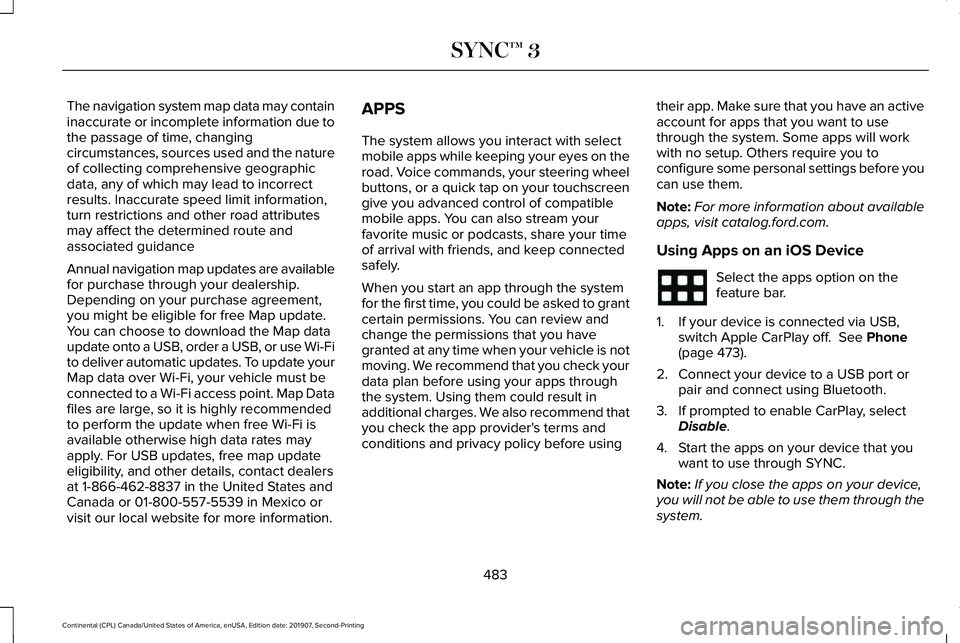
Using Apps on an iOS Device Select the apps option on the
feature bar.
1. If your device is connected via USB, switch Apple CarPlay off. See Phone
(page 473).
2. Connect your device to a USB port or pair and connect using Bluetooth.
3. If prompted to enable CarPlay, select Disable
.
4. Start the apps on your device that you want to use through SYNC.
Note: If you close the apps on your device,
you will not be able to use them through the
system.
483
Continental (CPL) Canada/United States of America, enUSA, Edition date: 201907, Second-Printing SYNC™ 3
Page 492 of 609
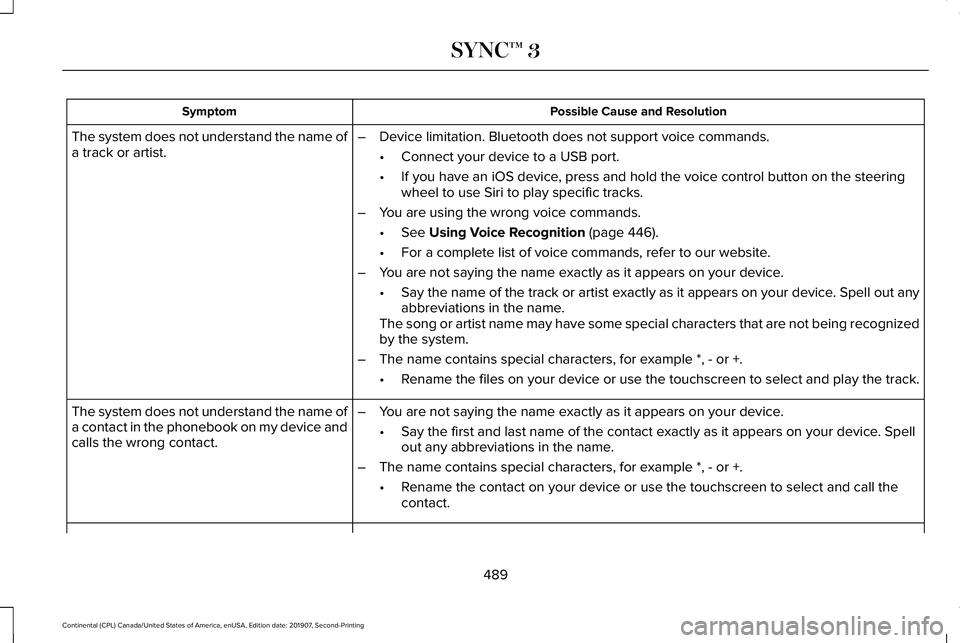
Possible Cause and Resolution
Symptom
–Device limitation. Bluetooth does not support voice commands.
•Connect your device to a USB port.
• If you have an iOS device, press and hold the voice control button on the steering
wheel to use Siri to play specific tracks.
– You are using the wrong voice commands.
•See Using Voice Recognition (page 446).
• For a complete list of voice commands, refer to our website.
– You are not saying the name exactly as it appears on your device.
•Say the name of the track or artist exactly as it appears on your device\
. Spell out any
abbreviations in the name.
The song or artist name may have some special characters that are not be\
ing recognized
by the system.
– The name contains special characters, for example *, - or +.
•Rename the files on your device or use the touchscreen to select and play\
the track.
The system does not understand the name of
a track or artist.
–You are not saying the name exactly as it appears on your device.
•Say the first and last name of the contact exactly as it appears on your\
device. Spell
out any abbreviations in the name.
– The name contains special characters, for example *, - or +.
•Rename the contact on your device or use the touchscreen to select and ca\
ll the
contact.
The system does not understand the name of
a contact in the phonebook on my device and
calls the wrong contact.
489
Continental (CPL) Canada/United States of America, enUSA, Edition date: 201907, Second-Printing SYNC™ 3
Page 494 of 609

Possible Cause and Resolution
Symptom
–Incorrect device settings.
•Make sure that your device does not have an auto-install program or active \
security
settings.
• Check that your device is not set only to charge.
– Device lock screen enabled.
•Unlock your device before connecting it.
The system does not recognize my device. –Device limitation.
•Do not leave your device in your vehicle during very hot or very cold we\
ather condi-
tions.
– Cable connection issue.
•Correctly connect the cable to your device and the vehicle USB port.
– Incompatible cable.
•Use the cable recommended by the manufacturer of your device.
The system does not understand the name of
a track or artist. –
Device limitation. Bluetooth does not support voice commands.
•Connect your device to a USB port.
• If you have an iOS device, press and hold the voice control button on the steering
wheel to use Siri to play specific tracks.
491
Continental (CPL) Canada/United States of America, enUSA, Edition date: 201907, Second-Printing SYNC™ 3
Page 520 of 609
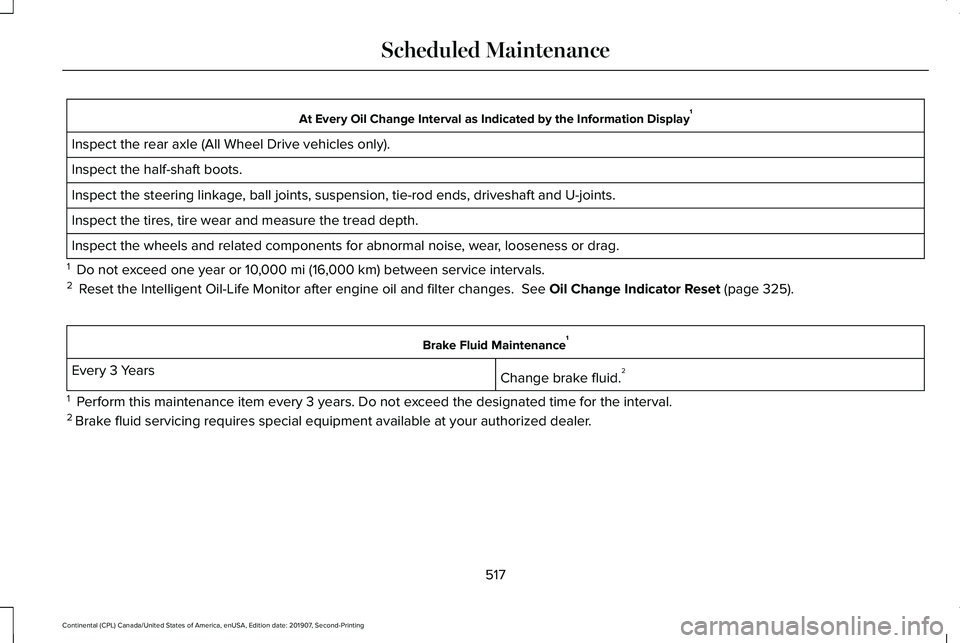
At Every Oil Change Interval as Indicated by the Information Display
1
Inspect the rear axle (All Wheel Drive vehicles only).
Inspect the half-shaft boots.
Inspect the steering linkage, ball joints, suspension, tie-rod ends, driveshaft and U-joints.
Inspect the tires, tire wear and measure the tread depth.
Inspect the wheels and related components for abnormal noise, wear, looseness or drag.
1 Do not exceed one year or 10,000 mi (16,000 km) between service intervals.
2 Reset the Intelligent Oil-Life Monitor after engine oil and filter change\
s.
See Oil Change Indicator Reset (page 325). Brake Fluid Maintenance
1
Change brake fluid. 2
Every 3 Years
1 Perform this maintenance item every 3 years. Do not exceed the designated time for the interval.
2 Brake fluid servicing requires special equipment available at your authorize\
d dealer.
517
Continental (CPL) Canada/United States of America, enUSA, Edition date: 201907, Second-Printing Scheduled Maintenance