display LINCOLN CORSAIR 2020 Owners Manual
[x] Cancel search | Manufacturer: LINCOLN, Model Year: 2020, Model line: CORSAIR, Model: LINCOLN CORSAIR 2020Pages: 591, PDF Size: 6 MB
Page 466 of 591
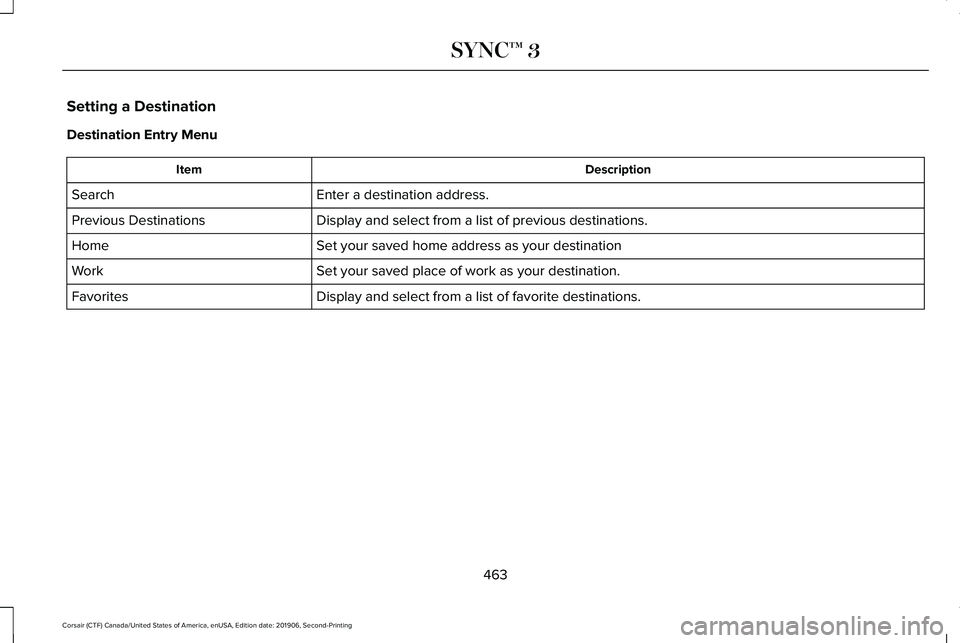
Setting a Destination
Destination Entry Menu
Description
Item
Enter a destination address.
Search
Display and select from a list of previous destinations.
Previous Destinations
Set your saved home address as your destination
Home
Set your saved place of work as your destination.
Work
Display and select from a list of favorite destinations.
Favorites
463
Corsair (CTF) Canada/United States of America, enUSA, Edition date: 201906, Second-Printing SYNC™ 3
Page 467 of 591
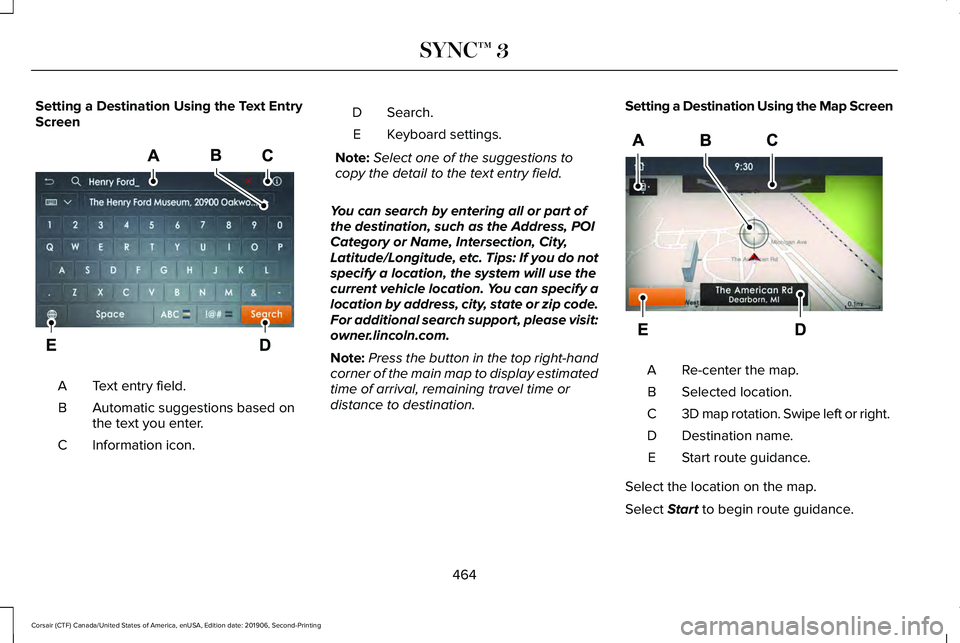
Setting a Destination Using the Text Entry
Screen
Text entry field.
A
Automatic suggestions based on
the text you enter.
B
Information icon.
C Search.
D
Keyboard settings.
E
Note: Select one of the suggestions to
copy the detail to the text entry field.
You can search by entering all or part of
the destination, such as the Address, POI
Category or Name, Intersection, City,
Latitude/Longitude, etc. Tips: If you do not
specify a location, the system will use the
current vehicle location. You can specify a
location by address, city, state or zip code.
For additional search support, please visit:
owner.lincoln.com.
Note: Press the button in the top right-hand
corner of the main map to display estimated
time of arrival, remaining travel time or
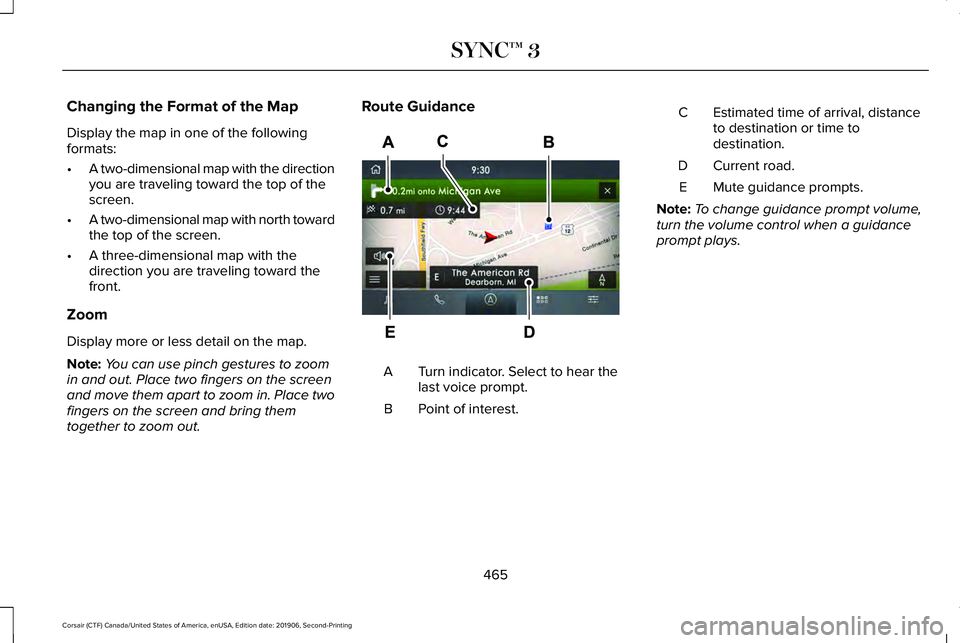
distance to destination. Setting a Destination Using the Map Screen
Re-center the map.
A
Selected location.
B
3D map rotation. Swipe left or right.
C
Destination name.
D
Start route guidance.
E
Select the location on the map.
Select Start to begin route guidance.
464
Corsair (CTF) Canada/United States of America, enUSA, Edition date: 201906, Second-Printing SYNC™ 3E297857 E297858
Page 468 of 591
Changing the Format of the Map
Display the map in one of the following
formats:
•
A two-dimensional map with the direction
you are traveling toward the top of the
screen.
• A two-dimensional map with north toward
the top of the screen.
• A three-dimensional map with the
direction you are traveling toward the
front.
Zoom
Display more or less detail on the map.
Note: You can use pinch gestures to zoom
in and out. Place two fingers on the screen
and move them apart to zoom in. Place two
fingers on the screen and bring them
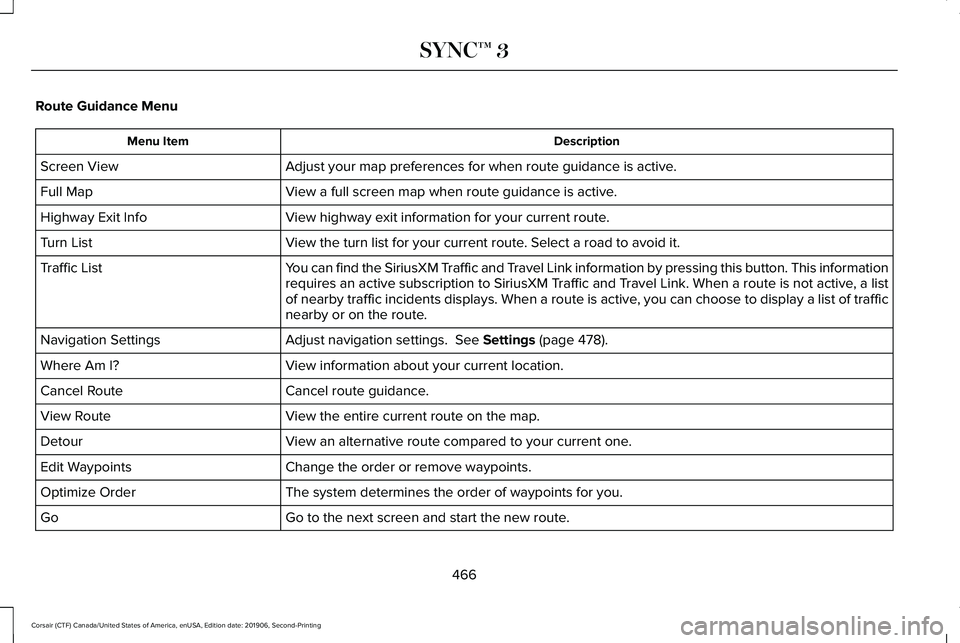
together to zoom out. Route Guidance
Turn indicator. Select to hear the
last voice prompt.
A
Point of interest.
B Estimated time of arrival, distance
to destination or time to
destination.
C
Current road.
D
Mute guidance prompts.
E
Note: To change guidance prompt volume,
turn the volume control when a guidance
prompt plays.
465
Corsair (CTF) Canada/United States of America, enUSA, Edition date: 201906, Second-Printing SYNC™ 3E297859
Page 469 of 591
Route Guidance Menu
Description
Menu Item
Adjust your map preferences for when route guidance is active.
Screen View
View a full screen map when route guidance is active.
Full Map
View highway exit information for your current route.
Highway Exit Info
View the turn list for your current route. Select a road to avoid it.
Turn List
You can find the SiriusXM Traffic and Travel Link information by pressing this button. This information
requires an active subscription to SiriusXM Traffic and Travel Link. When a route is not active, a list
of nearby traffic incidents displays. When a route is active, you can choose to display a list of traffic
nearby or on the route.
Traffic List
Adjust navigation settings. See Settings (page 478).
Navigation Settings
View information about your current location.
Where Am I?
Cancel route guidance.
Cancel Route
View the entire current route on the map.
View Route
View an alternative route compared to your current one.
Detour
Change the order or remove waypoints.
Edit Waypoints
The system determines the order of waypoints for you.
Optimize Order
Go to the next screen and start the new route.
Go
466
Corsair (CTF) Canada/United States of America, enUSA, Edition date: 201906, Second-Printing SYNC™ 3
Page 470 of 591
Adjusting the Guidance Prompt Volume
Turn the volume control when a guidance
prompt plays to adjust the volume.
Note:
If you have inadvertently adjusted the
volume to zero, press the turn indicator
button to play the last voice prompt and then
adjust the volume to the desired level.
Muting Guidance Prompts Select the mute option on the
screen to mute guidance prompts.
Note: The system mutes the next and all
future guidance prompts.
Adding Waypoints
You can add a waypoint to a navigation route
as a destination along your route. You can
add up to five waypoints.
1. Select the search option on the map.
2. Set a destination.
3. Select Add Waypoint.
4. Select
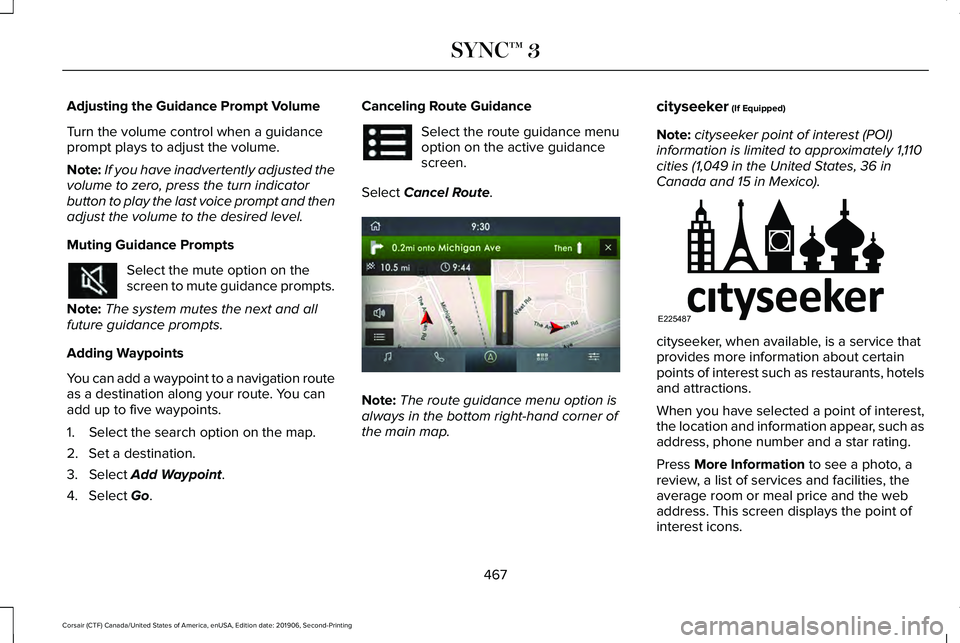
Go. Canceling Route Guidance Select the route guidance menu
option on the active guidance
screen.
Select
Cancel Route. Note:
The route guidance menu option is
always in the bottom right-hand corner of
the main map. cityseeker
(If Equipped)
Note: cityseeker point of interest (POI)
information is limited to approximately 1,110
cities (1,049 in the United States, 36 in
Canada and 15 in Mexico). cityseeker, when available, is a service that
provides more information about certain
points of interest such as restaurants, hotels
and attractions.
When you have selected a point of interest,
the location and information appear, such as
address, phone number and a star rating.
Press
More Information to see a photo, a
review, a list of services and facilities, the
average room or meal price and the web
address. This screen displays the point of
interest icons.
467
Corsair (CTF) Canada/United States of America, enUSA, Edition date: 201906, Second-Printing SYNC™ 3 E297860 E225487
Page 471 of 591
For restaurants, cityseeker can provide
information such as star rating, average cost,
review, handicap access, hours of operation,
and website address.
For hotels, cityseeker can provide
information such as star rating, price
category, review, check-in and checkout
times, hotel service icons and website
address. Hotel service icons include:
•
Restaurant
• Business center
• Handicap facilities
• Laundry
• Refrigerator
• 24 hour room service
• Fitness center
• Internet access
• Pool
• Wi-Fi
Attractions include nearby landmarks,
amusement parks, historic buildings and
more. cityseeker can provide information
such as star rating, reviews, hour of operation
and admission price. SiriusXM Traffic and Travel Link (If
Equipped)
SiriusXM Traffic and Travel Link is available
on vehicles equipped with navigation and
only in select markets. You must activate and
subscribe to receive SiriusXM Traffic and
Travel Link information. It helps you locate
the best gas prices, find movie listings, get
current traffic alerts, view the weather map,
get accurate ski conditions and see current
sports scores.
The system calculates a reasonable efficient
route based on available speed limits, traffic,
and road conditions. You may know a local
short cut that is more efficient at a given time
than the route provided by SYNC 3, but you
should expect a slight difference in minutes
or miles with the SYNC 3 route. Michelin Travel Guide (If Equipped)
The Michelin travel guide is a service which
provides additional information about certain
places of interest, for example restaurants,
hotels and tourist sites. Points of interest that
have Michelin travel guide information
display a button to show you more
information. Push the button to see the
additional information. If you have paired
your phone with the system, you can press
the phone button to directly establish a call
with the selected point of interest.
Navigation Map Accuracy and Updates
HERE is the digital map provider for the
navigation application. If you find map data
errors, you may report them directly to HERE
by going to www.here.com. HERE evaluates
all reported map errors and responds with
the result of their investigation by e-mail.
468
Corsair (CTF) Canada/United States of America, enUSA, Edition date: 201906, Second-Printing SYNC™ 3
Page 474 of 591
Departure Times
Setting Departure Times allows you to
control charging schedules and have the
vehicle cabin heated or cooled while
plugged in, so your vehicle is ready to drive
when you are. By setting a departure time
your vehicle can use your charge time
settings to minimize your electricity costs but
still prioritize finishing charging before your
scheduled departure. A calendar view allows
you to program two departure times per day
for each day of the week.
Note:
You can also set up and use these
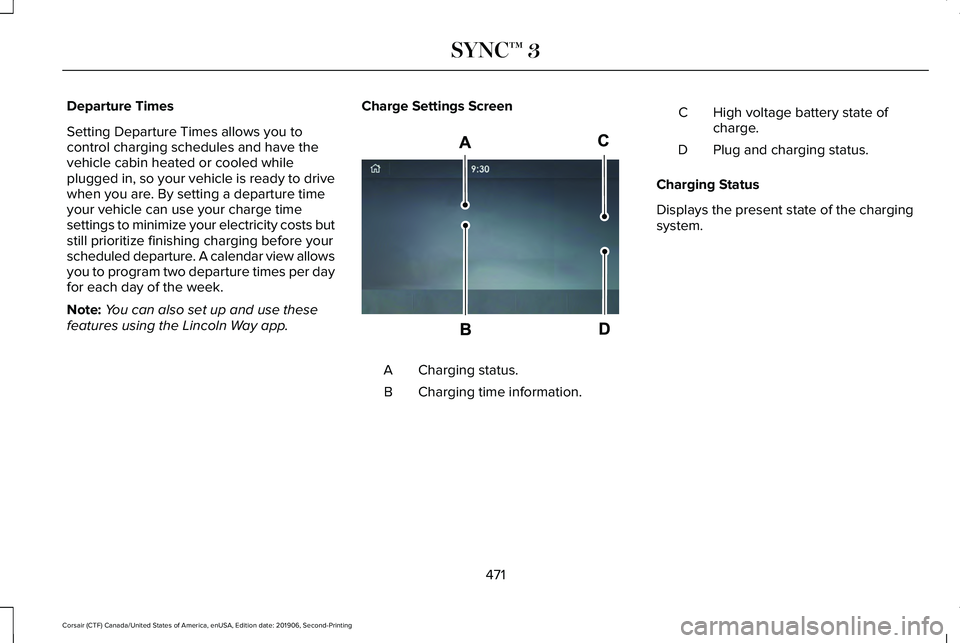
features using the Lincoln Way app. Charge Settings Screen Charging status.
A
Charging time information.
B High voltage battery state of
charge.
C
Plug and charging status.
D
Charging Status
Displays the present state of the charging
system.
471
Corsair (CTF) Canada/United States of America, enUSA, Edition date: 201906, Second-Printing SYNC™ 3E304455
Page 475 of 591
Description and Action
Charging Status
Your vehicle is unplugged and starts charging when plugged in.
Will charge when plugged in.
Your vehicle is unplugged at a saved location with Charge Times is
enabled. Charging is scheduled to start at the time displayed based
on your charge time settings. You must plug in prior to the start time shown for the vehicle to begin charging at that time.
Will wait for preferred charge time.
Your vehicle is plugged in at a saved location with Charge Times
enabled. Charging starts at the time displayed, which is based on your Charge Times settings.
Waiting for preferred charge time.
Your vehicle is plugged in and using power to charge the high voltagebattery or run electrical systems.
Charging.
Your vehicle is finished charging.
Charged.
Your vehicle is plugged in and there is a fault within the vehicle
charging system. Unplug and plug back in. If the fault is still present,\
contact your dealer.
Vehicle charge fault.
Your vehicle is plugged in and a fault is detected with the charge
station or charging cord. Check the charging cord and the charge station or electrical supply.
Charge station fault.
472
Corsair (CTF) Canada/United States of America, enUSA, Edition date: 201906, Second-Printing SYNC™ 3
Page 476 of 591
Description and Action
Charging Status
A charging coupler is plugged into the vehicle but there is noconnection with a charging power source.
Charge station not detected.
Your vehicle is plugged in but cannot communicate with the chargingstation. Contact the station provider.
Incompatible charge station.
Your vehicle is plugged in and charging is paused at the chargestation.
Charge station paused.
Charging Time Information
Displays estimates of how long your vehicle
takes to fully charge when plugged into a
high or low power charger.
• High power estimate: The minimum time
to a 100% charge using a high power
charger.
• Low power estimate: The longest time to
a 100% charge using a low power
charger.
When charging, the start and estimated end
time displays. When your vehicle is not
plugged in and at a location with Charge
Times enabled, the start and end times
display based on known charging power. Note:
Charging durations and end times are
only estimates. Certain conditions may result
in longer charging times.
High Voltage Battery State of Charge
Displays the remaining charge percentage
with 100% representing the total amount of
energy you can get from an external charge.
Plug and Charging Status
Displays the plug and charging status icons. Not plugged in.
Plugged in and not currently
charging. Plugged in and charging.
Plugged in and waiting to charge
based on charge time settings.
Charge Preferences
Touch the button to access Charge Time and
Departure Time settings. Additional
information and settings are displayed on
the charge settings screen once Charge
Time or Departure Times are set up.
473
Corsair (CTF) Canada/United States of America, enUSA, Edition date: 201906, Second-Printing SYNC™ 3E304458 E304459 E304460 E304461
Page 477 of 591
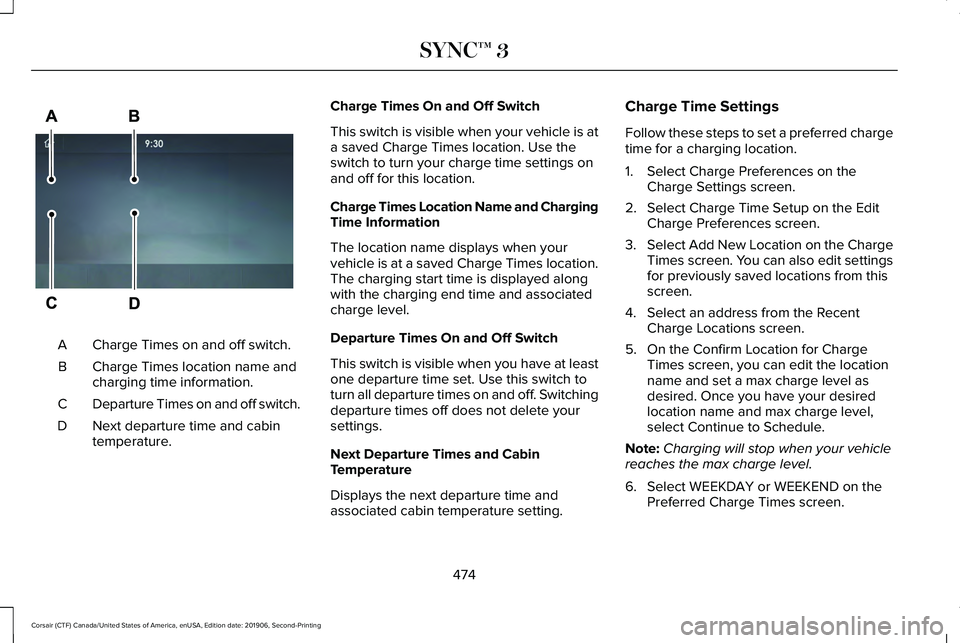
Charge Times on and off switch.
A
Charge Times location name and
charging time information.
B
Departure Times on and off switch.
C
Next departure time and cabin
temperature.
D Charge Times On and Off Switch
This switch is visible when your vehicle is at
a saved Charge Times location. Use the
switch to turn your charge time settings on
and off for this location.
Charge Times Location Name and Charging
Time Information
The location name displays when your
vehicle is at a saved Charge Times location.
The charging start time is displayed along
with the charging end time and associated
charge level.
Departure Times On and Off Switch
This switch is visible when you have at least
one departure time set. Use this switch to
turn all departure times on and off. Switching
departure times off does not delete your
settings.
Next Departure Times and Cabin
Temperature
Displays the next departure time and
associated cabin temperature setting. Charge Time Settings
Follow these steps to set a preferred charge
time for a charging location.
1. Select Charge Preferences on the
Charge Settings screen.
2. Select Charge Time Setup on the Edit Charge Preferences screen.
3. Select Add New Location on the Charge
Times screen. You can also edit settings
for previously saved locations from this
screen.
4. Select an address from the Recent Charge Locations screen.
5. On the Confirm Location for Charge Times screen, you can edit the location
name and set a max charge level as
desired. Once you have your desired
location name and max charge level,
select Continue to Schedule.
Note: Charging will stop when your vehicle
reaches the max charge level.
6. Select WEEKDAY or WEEKEND on the Preferred Charge Times screen.
474
Corsair (CTF) Canada/United States of America, enUSA, Edition date: 201906, Second-Printing SYNC™ 3E304454