ignition LINCOLN CORSAIR 2020 User Guide
[x] Cancel search | Manufacturer: LINCOLN, Model Year: 2020, Model line: CORSAIR, Model: LINCOLN CORSAIR 2020Pages: 591, PDF Size: 6 MB
Page 75 of 591
You can also program configurable settings
for the key(s). See Programming and
Changing Configurable Settings.
Programming and Changing
Configurable Settings
Use the touchscreen to access your
configurable MyKey settings.
1. Switch the ignition on using an admin key
or remote control you want to program.
2. Access the main menu in the information
display and then scroll through the
menus to change the settings of your
MyKey.
See Settings (page 478).
3. Follow the instructions in the touchscreen. The programmed
restrictions apply when you switch the
vehicle off, open and close the driver
door and restart your vehicle with the
programmed key or remote control. Note:
You can clear or change your MyKey
settings at any time during the same key
cycle as you created the MyKey. Once you
have switched the vehicle off, however, you
will need an admin key to change or clear
your MyKey settings. When you make any
changes to your MyKey settings, you change
the settings for every MyKey. You cannot
make individual changes to apply to certain
MyKeys.
CLEARING ALL MYKEYS
When you clear your MyKeys, you remove
all restrictions and return all MyKeys to their
original admin key status at once. To clear
all MyKeys of all MyKey settings, use the
touchscreen.
1. Switch the ignition on using an admin key.
2. Access the main menu in the touchscreen and then scroll through the
menus to begin clearing your MyKey
programming.
See Settings (page 478).
3. Follow the instructions in the display. 4. A confirmation message appears in the
display after you finish clearing your
MyKeys.
Note: When you clear your MyKeys, you
remove all restrictions and return all MyKeys
to their original admin key status. You cannot
remove the MyKey restrictions individually.
CHECKING MYKEY SYSTEM
STATUS
You can find information about your
programmed MyKeys by using the
touchscreen.
See Settings (page 478).
MyKey Distance
Tracks the distance when drivers use a
MyKey. The only way to delete the
accumulated distance is by using an admin
key to clear all MyKeys. If the distance does
not accumulate as expected, then the
intended user is not using the MyKey, or an
admin key user recently cleared and then
recreated a MyKey.
72
Corsair (CTF) Canada/United States of America, enUSA, Edition date: 201906, Second-Printing MyKey™
Page 78 of 591
LOCKING AND UNLOCKING
You can use the power door lock or the
remote control to lock and unlock your
vehicle.
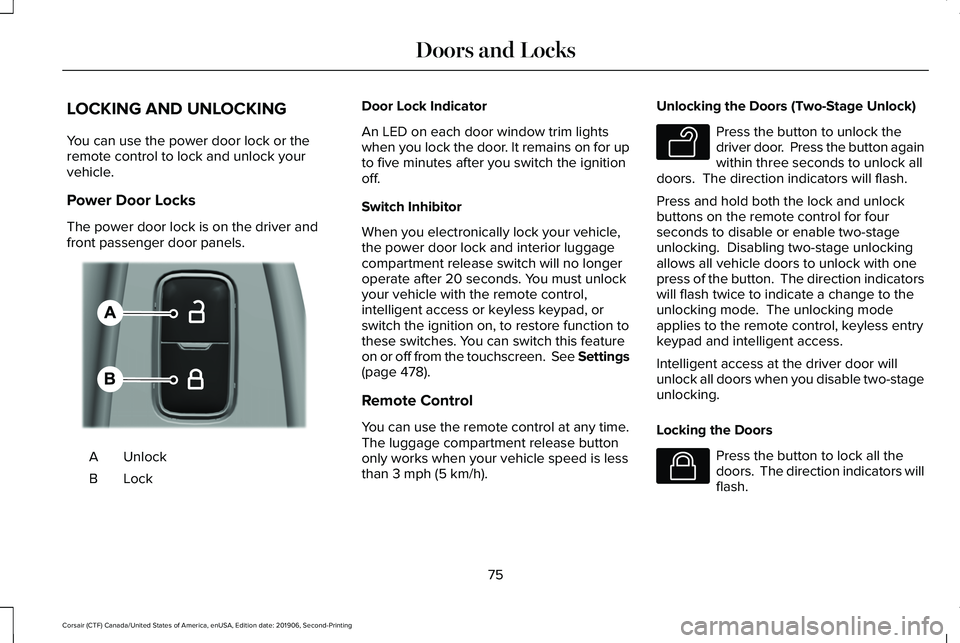
Power Door Locks
The power door lock is on the driver and
front passenger door panels.
Unlock
A
LockB Door Lock Indicator
An LED on each door window trim lights
when you lock the door. It remains on for up
to five minutes after you switch the ignition
off.
Switch Inhibitor
When you electronically lock your vehicle,
the power door lock and interior luggage
compartment release switch will no longer
operate after 20 seconds. You must unlock
your vehicle with the remote control,
intelligent access or keyless keypad, or
switch the ignition on, to restore function to
these switches. You can switch this feature
on or off from the touchscreen. See Settings
(page 478).
Remote Control
You can use the remote control at any time.
The luggage compartment release button
only works when your vehicle speed is less
than
3 mph (5 km/h). Unlocking the Doors (Two-Stage Unlock) Press the button to unlock the
driver door. Press the button again
within three seconds to unlock all
doors. The direction indicators will flash.
Press and hold both the lock and unlock
buttons on the remote control for four
seconds to disable or enable two-stage
unlocking. Disabling two-stage unlocking
allows all vehicle doors to unlock with one
press of the button. The direction indicators
will flash twice to indicate a change to the
unlocking mode. The unlocking mode
applies to the remote control, keyless entry
keypad and intelligent access.
Intelligent access at the driver door will
unlock all doors when you disable two-stage
unlocking.
Locking the Doors Press the button to lock all the
doors. The direction indicators will
flash.
75
Corsair (CTF) Canada/United States of America, enUSA, Edition date: 201906, Second-Printing Doors and LocksE309203 E138629 E138623
Page 80 of 591
Note:
The system may not function if the
passive key is close to metal objects or
electronic devices, for example keys or a
cell phone.
Note: If the system does not function, use
the key blade to lock and unlock your
vehicle. See Remote Control (page 61).
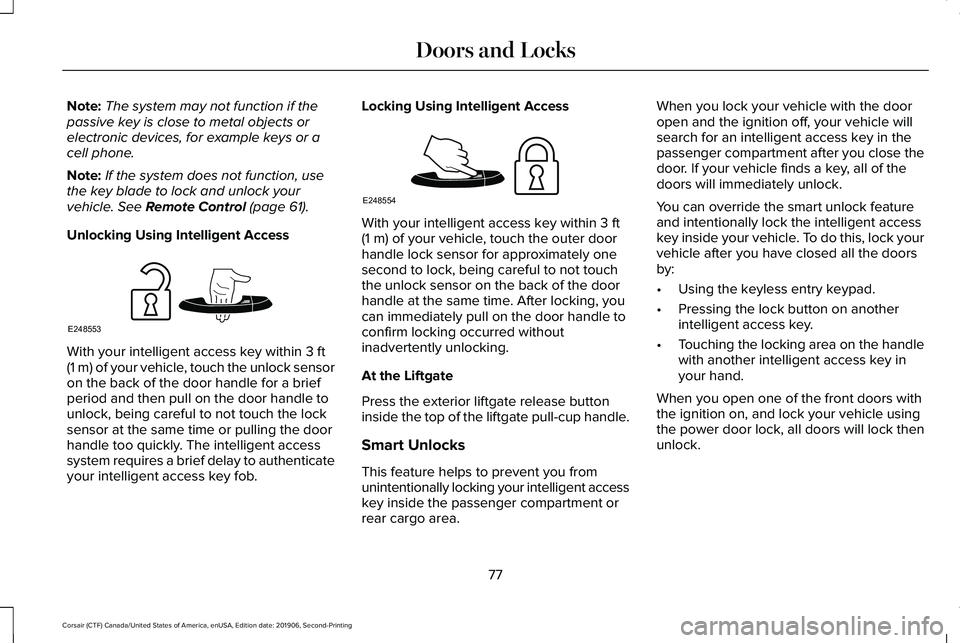
Unlocking Using Intelligent Access With your intelligent access key within
3 ft
(1 m) of your vehicle, touch the unlock sensor
on the back of the door handle for a brief
period and then pull on the door handle to
unlock, being careful to not touch the lock
sensor at the same time or pulling the door
handle too quickly. The intelligent access
system requires a brief delay to authenticate
your intelligent access key fob. Locking Using Intelligent Access With your intelligent access key within
3 ft
(1 m) of your vehicle, touch the outer door
handle lock sensor for approximately one
second to lock, being careful to not touch
the unlock sensor on the back of the door
handle at the same time. After locking, you
can immediately pull on the door handle to
confirm locking occurred without
inadvertently unlocking.
At the Liftgate
Press the exterior liftgate release button
inside the top of the liftgate pull-cup handle.
Smart Unlocks
This feature helps to prevent you from
unintentionally locking your intelligent access
key inside the passenger compartment or
rear cargo area. When you lock your vehicle with the door
open and the ignition off, your vehicle will
search for an intelligent access key in the
passenger compartment after you close the
door. If your vehicle finds a key, all of the
doors will immediately unlock.
You can override the smart unlock feature
and intentionally lock the intelligent access
key inside your vehicle. To do this, lock your
vehicle after you have closed all the doors
by:
•
Using the keyless entry keypad.
• Pressing the lock button on another
intelligent access key.
• Touching the locking area on the handle
with another intelligent access key in
your hand.
When you open one of the front doors with
the ignition on, and lock your vehicle using
the power door lock, all doors will lock then
unlock.
77
Corsair (CTF) Canada/United States of America, enUSA, Edition date: 201906, Second-Printing Doors and LocksE248553 E248554
Page 81 of 591
Autolock (If Equipped)
Autolock locks all the doors when all of the
following occur:
• All doors are closed.
• The ignition is on.
• You shift into any gear putting your
vehicle in motion.
• Your vehicle reaches a speed greater
than
12 mph (20 km/h).
Autolock repeats when:
• You open then close any door while the
ignition is on and your vehicle speed is
9 mph (15 km/h)
or lower.
• Your vehicle reaches a speed greater
than
12 mph (20 km/h). Autounlock
Autounlock unlocks all the doors when:
•
The ignition is on, all the doors are
closed, and your vehicle has been
moving at a speed greater than
12 mph
(20 km/h).
• Your vehicle comes to a stop and you
switch the ignition off or to the accessory
position.
• You open the driver door within 10
minutes of switching the ignition off or to
accessory.
Note: The doors do not autounlock if you
electronically lock your vehicle after you
switch the ignition off before you open the
driver door.
Enabling or Disabling
You can enable or disable the feature from
the touchscreen or an authorized dealer can
do it for you.
See Settings (page 478). Illuminated Entry
(If Equipped)
The interior lamps and select exterior lamps
will light when you unlock the doors with the
remote control.
The system turns off the lights if:
• You start your vehicle.
• You press the remote control lock button.
• They are on for 25 seconds.
The lights will not turn off if:
• You switch them on with the lamp
control.
• Any door is open.
Illuminated Exit
The interior lamps and select exterior lamps
will light when all doors are closed and you
switch the ignition off.
The lamps turn off if all the doors remain
closed and either of the following occurs:
• After 25 seconds elapse.
• You lock your vehicle from the outside.
78
Corsair (CTF) Canada/United States of America, enUSA, Edition date: 201906, Second-Printing Doors and Locks
Page 82 of 591
Battery Saver
If you leave the courtesy lamps or dome
lamps on and switch the ignition off, this
feature turns them off after some time.
Accessory Mode Battery Saver for
Intelligent Access Keys
If you leave your vehicle with the ignition on,
it will turn off 30 minutes after you close all
of the doors.
Welcome Lighting
This feature lights select exterior lighting as
you approach your vehicle. You must have
an intelligent access key with you. The
feature turns off when you open a door,
liftgate, or unlock your vehicle. Welcome
lighting remains on for 25 seconds or until
you start your vehicle.
The feature is active when:
•
The feature is configured from the
touchscreen. See Welcome Lighting
(page 103).
• The ignition is off. •
All doors and the liftgate are closed.
• You lock your vehicle.
The feature is disabled when:
• Your vehicle detects the intelligent
access key is inside.
• The intelligent access key is in close
range of the vehicle for more than two
minutes.
• The anti-theft alarm triggers.
• You do not start your vehicle for more
than five days.
• The vehicle battery charge is low.
• You approach the vehicle to trigger the
welcome lighting feature 10 or more
times without switching the ignition on.
Note: When this feature is disabled, you
must switch the ignition on to reset it.
Note: This feature may not correctly operate
if the intelligent access key is stored within
8–15 ft (2.4–4.6 m)
of your vehicle while not
in use.
Note: Welcome Lighting will not function if
disabled from the touchscreen. KEYLESS ENTRY
SECURICODE™ KEYLESS ENTRY
KEYPAD
The keypad is located near the driver
window. It is invisible until touched and then
it lights up so you can see and touch the
appropriate buttons.
Note:
If you enter your entry code too fast
on the keypad, the unlock function may not
work. Re-enter your entry code more slowly.
79
Corsair (CTF) Canada/United States of America, enUSA, Edition date: 201906, Second-Printing Doors and Locks
Page 84 of 591
The anti-scan feature turns off after any of
the following occur:
•
One minute of keypad inactivity passes.
• You press the unlock button on the
remote control.
• You switch the ignition on.
• You unlock the vehicle using intelligent
access.
Unlocking and Locking the Doors
To Unlock the Driver Door
Enter the factory-set five-digit code or your
personal code. You must press each number
within five seconds of each other. The
interior lamps illuminates.
Note: All doors unlock if the two-stage
unlocking feature is disabled. See Locking
and Unlocking (page 75).
To Unlock All Doors
Enter the factory-set code or your personal
code, then press
3•4 control within five
seconds. To Lock All Doors
Press and hold
7•8 and 9•0 at the same time
with the driver door closed. You do not need
to enter the keypad code first.
Displaying the Factory-Set Code
Note: You need to have two programmed
intelligent access keys for this procedure.
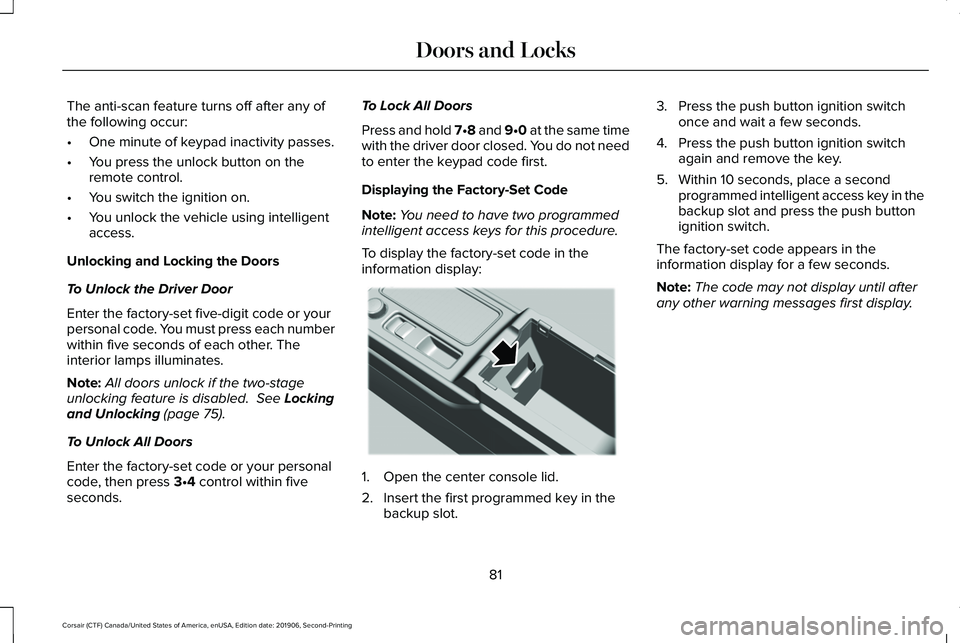
To display the factory-set code in the
information display: 1. Open the center console lid.
2. Insert the first programmed key in the
backup slot. 3. Press the push button ignition switch
once and wait a few seconds.
4. Press the push button ignition switch again and remove the key.
5. Within 10 seconds, place a second programmed intelligent access key in the
backup slot and press the push button
ignition switch.
The factory-set code appears in the
information display for a few seconds.
Note: The code may not display until after
any other warning messages first display.
81
Corsair (CTF) Canada/United States of America, enUSA, Edition date: 201906, Second-Printing Doors and LocksE306288
Page 85 of 591
POWER LIFTGATE
WARNING: It is extremely dangerous
to ride in a cargo area, inside or outside of
a vehicle. In a crash, people riding in these
areas are more likely to be seriously
injured or killed. Do not allow people to
ride in any area of your vehicle that is not
equipped with seats and seatbelts. Make
sure everyone in your vehicle is in a seat
and properly using a seatbelt. Failure to
follow this warning could result in serious
personal injury or death. WARNING: Make sure that you fully
close the liftgate to prevent exhaust fumes
from entering your vehicle. If you are
unable to fully close the liftgate, open the
air vents or the windows to allow fresh air
to enter your vehicle. Failure to follow this
instruction could result in personal injury
or death. WARNING:
Make sure that you fully
close the liftgate to prevent passengers
and cargo from falling out. Failure to follow
this instruction could result in personal
injury or death. WARNING:
Keep keys out of reach
of children. Do not allow children to
operate or play near an open or moving
power liftgate. You should supervise the
operation of the power liftgate at all times.
Note: Make sure that you close the liftgate
before operating or moving your vehicle,
especially in an enclosure, like a garage or
a parking structure. This could damage the
liftgate and its components.
Note: Do not hang anything, for example a
bike rack, from the glass or liftgate. This
could damage the liftgate and its
components.
The liftgate only operates with the
transmission in park (P). If there is a problem with the open or close
request, a tone sounds for one of the
following reasons:
•
The ignition is on and the transmission
is not in park (P).
• The battery voltage is below the
minimum operating voltage.
• The liftgate is not fully closed and your
vehicle speed is at or above
3 mph
(5 km/h).
If the liftgate starts to close after it has fully
opened, this indicates there may be
excessive weight on the liftgate or a possible
strut failure. A repetitive tone sounds and
the liftgate closes under control. If the
liftgate continues to close after opening,
have the system checked by an authorized
dealer. Remove any excessive weight from
the liftgate.
Opening and Closing the Liftgate WARNING:
Make sure all persons
are clear of the power liftgate area before
using the power liftgate control.
82
Corsair (CTF) Canada/United States of America, enUSA, Edition date: 201906, Second-Printing Liftgate
Page 90 of 591
PASSIVE ANTI-THEFT SYSTEM
Note:
The system is not compatible with
non-Lincoln aftermarket remote start
systems. Use of these systems may result in
engine starting problems and a loss of
security protection.
Note: Metallic objects, electronic devices or
a second coded key on the same key chain
may result in vehicle starting problems,
especially if they are too close to the key
when starting your vehicle. Prevent these
objects from touching the coded key when
starting your vehicle. Switch the ignition off,
move all objects on the key chain away from
the coded key and restart your vehicle if a
problem occurs
Note: Do not leave a duplicate coded key
in your vehicle. Always take your keys and
lock all doors when leaving your vehicle. SecuriLock®
The system helps prevent the engine from
starting unless you use a coded key
programmed to your vehicle. Using the
wrong key may prevent your vehicle from
starting. A message may appear in the
information display.
If you are unable to start your vehicle with a
coded key, it is not operating correctly. A
message may appear in the information
display.
Automatic Arming
The system arms when you switch the
ignition off.
Automatic Disarming
The system disarms when you switch the
ignition on with a coded key.
Replacement Keys
Note:
Your vehicle comes with two keys. The intelligent access key functions as a
programmed key that operates the driver
door lock and turns on the intelligent access
with push button start system, as well as a
remote control.
If your programmed transmitters are lost or
stolen and you do not have an extra coded
key, you will need to have your vehicle
towed to an authorized dealer to program
new coded keys.
Store a spare intelligent access key away
from your vehicle in a safe place. You can
purchase replacement keys or remote
controls from an authorized dealer.
Programming a Spare Key
Note:
You can program a maximum of four
keys to your vehicle.
You must have two previously programmed
intelligent access keys inside your vehicle
and the new unprogrammed intelligent
access keys readily accessible. Contact an
authorized dealer to have the spare key
programmed if two previously programmed
keys are not available.
87
Corsair (CTF) Canada/United States of America, enUSA, Edition date: 201906, Second-Printing Security
Page 91 of 591
Make sure that the ignition is switched off
before beginning this procedure. Make sure
that you close all the doors before beginning
and that they remain closed throughout the
procedure. Carry out all steps within 30
seconds of starting the sequence. Stop and
wait for at least one minute before starting
again if you carry out any steps out of
sequence.
Read and understand the entire procedure
before you begin.
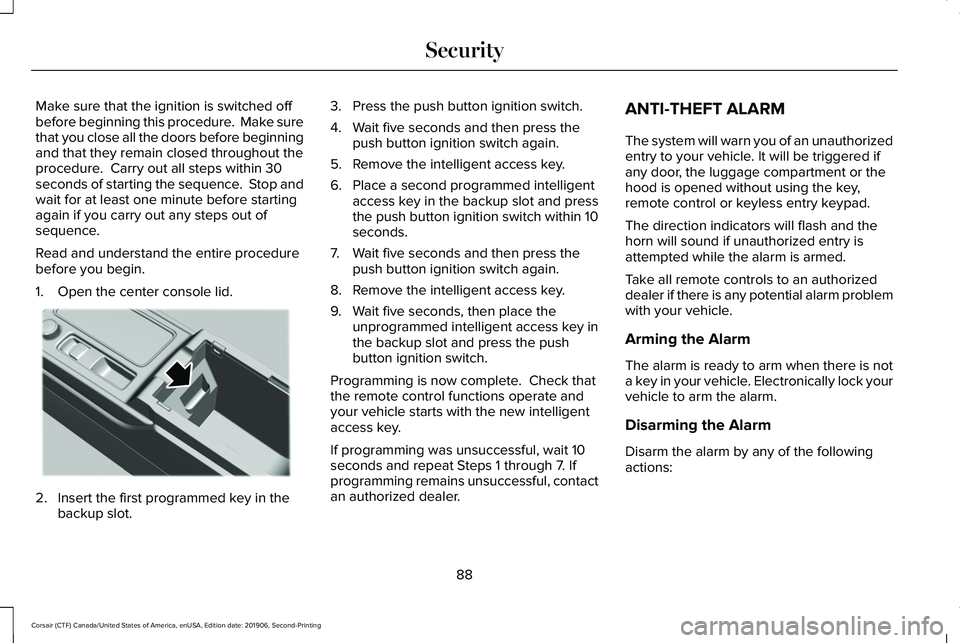
1. Open the center console lid.
2. Insert the first programmed key in the
backup slot. 3. Press the push button ignition switch.
4. Wait five seconds and then press the
push button ignition switch again.
5. Remove the intelligent access key.
6. Place a second programmed intelligent access key in the backup slot and press
the push button ignition switch within 10
seconds.
7. Wait five seconds and then press the push button ignition switch again.
8. Remove the intelligent access key.
9. Wait five seconds, then place the unprogrammed intelligent access key in
the backup slot and press the push
button ignition switch.
Programming is now complete. Check that
the remote control functions operate and
your vehicle starts with the new intelligent
access key.
If programming was unsuccessful, wait 10
seconds and repeat Steps 1 through 7. If
programming remains unsuccessful, contact
an authorized dealer. ANTI-THEFT ALARM
The system will warn you of an unauthorized
entry to your vehicle. It will be triggered if
any door, the luggage compartment or the
hood is opened without using the key,
remote control or keyless entry keypad.
The direction indicators will flash and the
horn will sound if unauthorized entry is
attempted while the alarm is armed.
Take all remote controls to an authorized
dealer if there is any potential alarm problem
with your vehicle.
Arming the Alarm
The alarm is ready to arm when there is not
a key in your vehicle. Electronically lock your
vehicle to arm the alarm.
Disarming the Alarm
Disarm the alarm by any of the following
actions:
88
Corsair (CTF) Canada/United States of America, enUSA, Edition date: 201906, Second-Printing SecurityE306288
Page 94 of 591
Use the control on the side of the steering
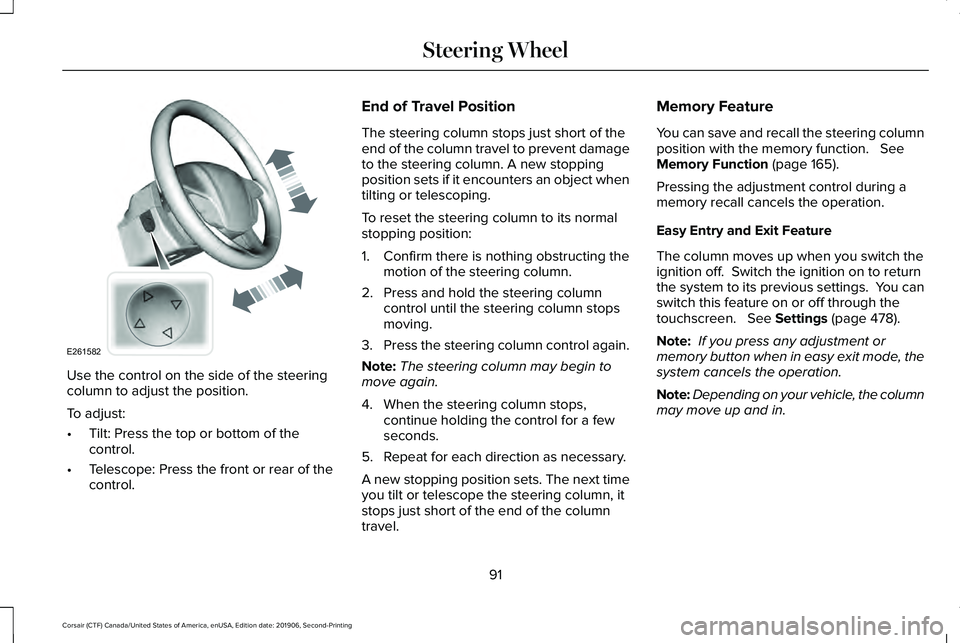
column to adjust the position.
To adjust:
•
Tilt: Press the top or bottom of the
control.
• Telescope: Press the front or rear of the
control. End of Travel Position
The steering column stops just short of the
end of the column travel to prevent damage
to the steering column. A new stopping
position sets if it encounters an object when
tilting or telescoping.
To reset the steering column to its normal
stopping position:
1. Confirm there is nothing obstructing the
motion of the steering column.
2. Press and hold the steering column control until the steering column stops
moving.
3. Press the steering column control again.
Note: The steering column may begin to
move again.
4. When the steering column stops, continue holding the control for a few
seconds.
5. Repeat for each direction as necessary.
A new stopping position sets. The next time
you tilt or telescope the steering column, it
stops just short of the end of the column
travel. Memory Feature
You can save and recall the steering column
position with the memory function. See
Memory Function (page 165).
Pressing the adjustment control during a
memory recall cancels the operation.
Easy Entry and Exit Feature
The column moves up when you switch the
ignition off. Switch the ignition on to return
the system to its previous settings. You can
switch this feature on or off through the
touchscreen.
See Settings (page 478).
Note: If you press any adjustment or
memory button when in easy exit mode, the
system cancels the operation.
Note: Depending on your vehicle, the column
may move up and in.
91
Corsair (CTF) Canada/United States of America, enUSA, Edition date: 201906, Second-Printing Steering WheelE261582