reset LINCOLN CORSAIR 2020 User Guide
[x] Cancel search | Manufacturer: LINCOLN, Model Year: 2020, Model line: CORSAIR, Model: LINCOLN CORSAIR 2020Pages: 591, PDF Size: 6 MB
Page 112 of 591
Resetting Bounce-Back
WARNING: Bounce-back is off until
you reset the memory. Take care when
closing the windows to avoid personal
injury or damage to your vehicle.
If you have disconnected the battery, you
must reset the bounce-back memory
separately for each window.
1. Lift and hold the switch until the window
is fully closed.
2. Release the switch.
3. Lift and hold the switch again for a few seconds.
4. Release the switch.
5. Lift and hold the switch again for a few seconds.
6. Release the switch.
7. Press and hold the switch until the window is fully open.
8. Lift and hold the switch until the window
is fully closed.
9. Release the switch. 10.
Open the window and then try to close
it using one-touch close.
Note: Repeat the procedure if the window
does not close when you use one-touch.
Accessory Delay
You can use the window controls for several
minutes after switching off the ignition or
until opening either front door.
GLOBAL OPENING AND CLOSING
You can use the remote control to operate
the windows with the ignition off.
Note: You can switch this feature on and off
in the information display or contact an
authorized dealer. See
General Information
(page 123).
Note: To operate this feature, make sure the
accessory delay is not switched on. Opening the Windows
You can open the windows only for a short
time after you unlock your vehicle with the
remote control. After you unlock your vehicle,
press and hold the remote control unlock
button to open the windows. Release the
button once movement starts. Press the lock
or unlock button to stop movement.
Closing the Windows
WARNING:
When closing the
windows, you should verify they are free
of obstructions and make sure that children
and pets are not in the proximity of the
window openings.
To close the windows, press and hold the
remote control lock button. Release the
button once movement starts. Press the lock
or unlock button to stop movement.
109
Corsair (CTF) Canada/United States of America, enUSA, Edition date: 201906, Second-Printing Windows and Mirrors
Page 114 of 591
Note:
If you use the power-folding control to
fold the mirrors on demand and the auto fold
feature is switched on, the auto-folding
feature becomes disabled. To re-enable the
auto-folding feature, press the control again
to unfold the mirrors.
Loose Mirror
If your auto-folding mirrors are manually
folded or unfolded, they may not work
properly even after you re-position them.
You need to reset them if:
• The mirrors vibrate when you drive.
• The mirrors feel loose.
• The mirrors do not stay in the folded or
unfolded position.
• One of the mirrors is not in its normal
driving position.
To reset the auto-fold feature, use the
power-folding mirror control to fold and
unfold the mirrors. You may hear a loud noise
as you reset the mirrors. This sound is
normal. Repeat this process as needed each
time the mirrors are manually folded or
unfolded. Heated Exterior Mirrors
See Heated Exterior Mirrors (page 155).
Memory Mirrors
You can save and recall the mirror positions
through the memory function. See Memory
Function
(page 165).
Signal Indicator Mirrors
(If Equipped)
The outer portion of the appropriate mirror
housing blinks when you switch on the turn
signal.
Auto-Dimming Feature
(If Equipped)
The driver’ s exterior mirror automatically
dims when the interior auto-dimming mirror
turns on.
Lincoln Welcome Mat
Projection lights, on the bottom of the mirror
housings, project an image onto the ground
a short distance from the vehicle.
See
Welcome Lighting (page 103). Blind Spot Monitor
See
Blind Spot Information System (page
266).
INTERIOR MIRROR WARNING: Do not adjust the mirrors
when your vehicle is moving. This could
result in the loss of control of your vehicle,
serious personal injury or death.
Note: Do not clean the housing or glass of
any mirror with harsh abrasives, fuel or other
petroleum or ammonia-based cleaning
products.
You can adjust the interior mirror to your
preference. Some mirrors also have a second
pivot point. This lets you move the mirror
head up or down and from side to side.
111
Corsair (CTF) Canada/United States of America, enUSA, Edition date: 201906, Second-Printing Windows and Mirrors
Page 128 of 591
Settings
Hold OK to Reset
Hold OK to Reset
Tire Monitor
Hold OK to Initialize
Neutral Tow 1
1 Hybrid Only
Note: Additional vehicle settings are
available through your touchscreen. See
Settings (page 478).
Head Up Display Head Up Display
Menu options covered in the head up display section.
See Head Up Display (page 148).
Phone Phone
Menu options covered in the SYNC chapter.
See Phone (page 459).
125
Corsair (CTF) Canada/United States of America, enUSA, Edition date: 201906, Second-Printing Information Displays
Page 131 of 591
Trip 1 and 2
Provides trip timer, trip average fuel economy
and total trip distance traveled.
Press and hold the folder button to reset.
Fuel Economy
An Instant Fuel Economy gauge is provided
along with Average Fuel Economy. Average
fuel economy is continuously averaged since
the last reset.
While viewing this screen you can reset your
average fuel economy by pressing and
holding the folder button.
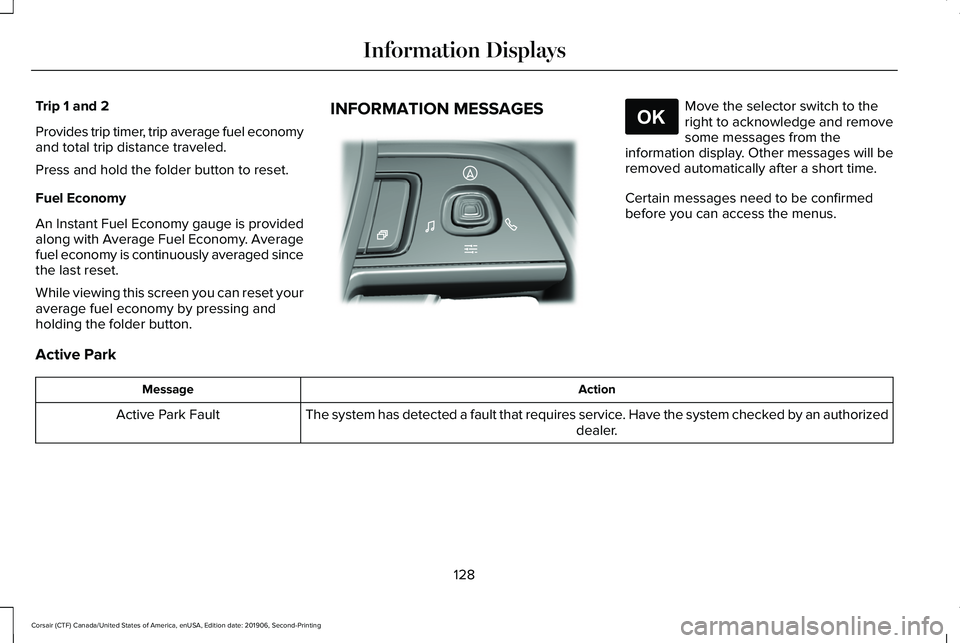
INFORMATION MESSAGES Move the selector switch to the
right to acknowledge and remove
some messages from the
information display. Other messages will be
removed automatically after a short time.
Certain messages need to be confirmed
before you can access the menus.
Active Park Action
Message
The system has detected a fault that requires service. Have the system checked by an authorized dealer.
Active Park Fault
128
Corsair (CTF) Canada/United States of America, enUSA, Edition date: 201906, Second-Printing Information DisplaysE281220 E265041
Page 138 of 591

Action
Message
Indicates that the rear seat interior door release switches and power wi\
ndows are switched off,preventing rear seat occupants from opening the doors or windows.
Child Lock ON
Indicates that the rear seat interior door release switches and power wi\
ndows are switched on.
Child Lock OFF
The factory keypad code displays in the information display after the system resets t\
he keypad.See Passive Anti-Theft System (page 87).
Factory Keypad Code {X X X X X}
Driver Alert Action
Message
Stop and rest as soon as it is safe to do so.
Driver Alert Warning Rest Now
Take a rest soon.
Driver Alert Warning Rest Suggested
Fuel Action
Message
An early reminder of a low fuel condition.
Fuel Level Low
The fuel fill inlet valve may not be properly closed.
Check Fuel Fill Inlet
135
Corsair (CTF) Canada/United States of America, enUSA, Edition date: 201906, Second-Printing Information Displays
Page 152 of 591
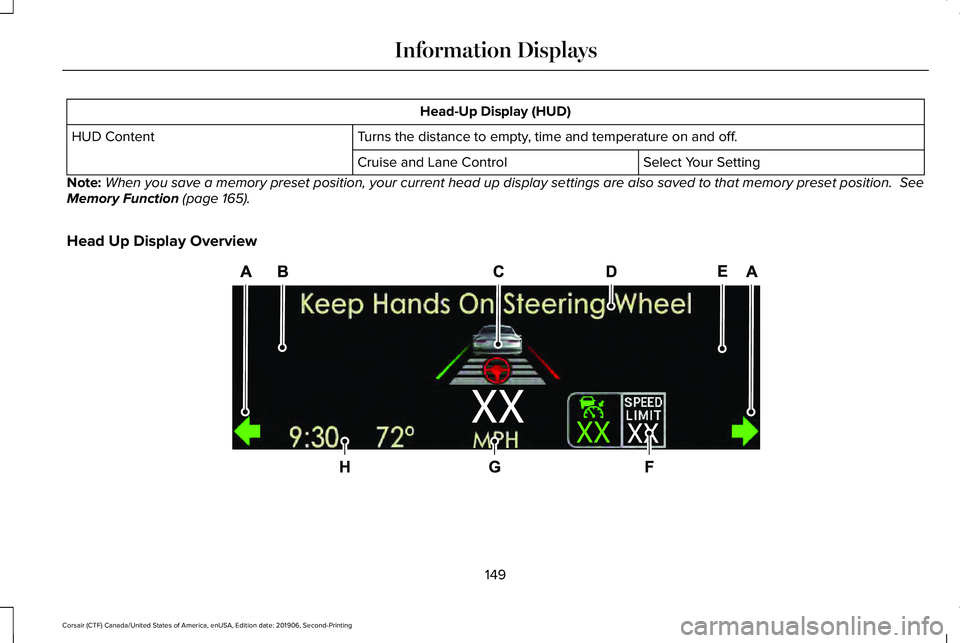
Head-Up Display (HUD)
Turns the distance to empty, time and temperature on and off.
HUD Content
Select Your Setting
Cruise and Lane Control
Note: When you save a memory preset position, your current head up display set\
tings are also saved to that memory preset position. See
Memory Function (page 165).
Head Up Display Overview 149
Corsair (CTF) Canada/United States of America, enUSA, Edition date: 201906, Second-Printing Information DisplaysE307581
Page 163 of 591
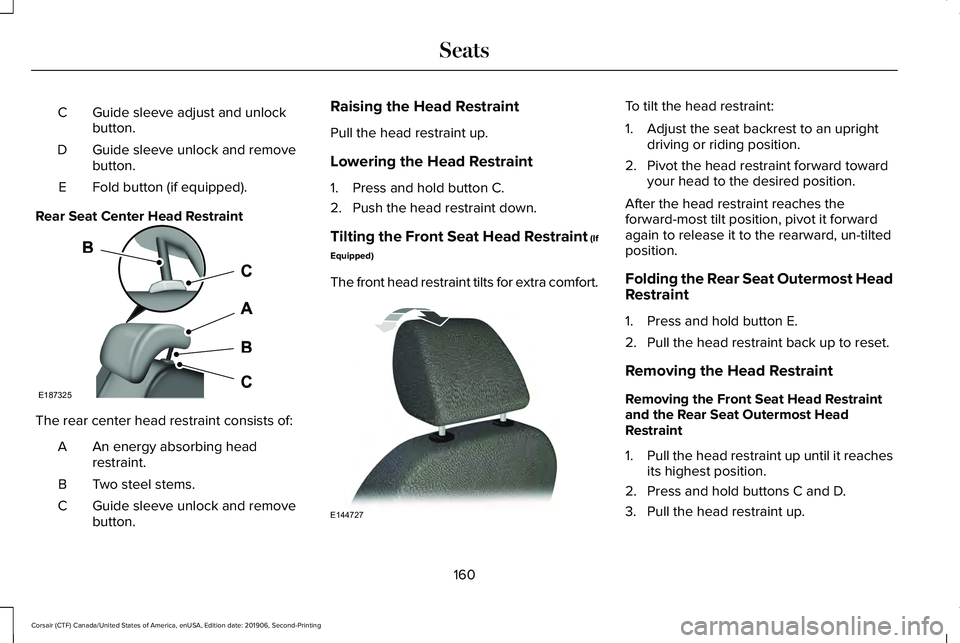
Guide sleeve adjust and unlock
button.
C
Guide sleeve unlock and remove
button.
D
Fold button (if equipped).
E
Rear Seat Center Head Restraint The rear center head restraint consists of:
An energy absorbing head
restraint.
A
Two steel stems.
B
Guide sleeve unlock and remove
button.
C Raising the Head Restraint
Pull the head restraint up.
Lowering the Head Restraint
1. Press and hold button C.
2. Push the head restraint down.
Tilting the Front Seat Head Restraint (If
Equipped)
The front head restraint tilts for extra comfort. To tilt the head restraint:
1. Adjust the seat backrest to an upright
driving or riding position.
2. Pivot the head restraint forward toward your head to the desired position.
After the head restraint reaches the
forward-most tilt position, pivot it forward
again to release it to the rearward, un-tilted
position.
Folding the Rear Seat Outermost Head
Restraint
1. Press and hold button E.
2. Pull the head restraint back up to reset.
Removing the Head Restraint
Removing the Front Seat Head Restraint
and the Rear Seat Outermost Head
Restraint
1. Pull the head restraint up until it reaches
its highest position.
2. Press and hold buttons C and D.
3. Pull the head restraint up.
160
Corsair (CTF) Canada/United States of America, enUSA, Edition date: 201906, Second-Printing SeatsE187325 E144727
Page 168 of 591
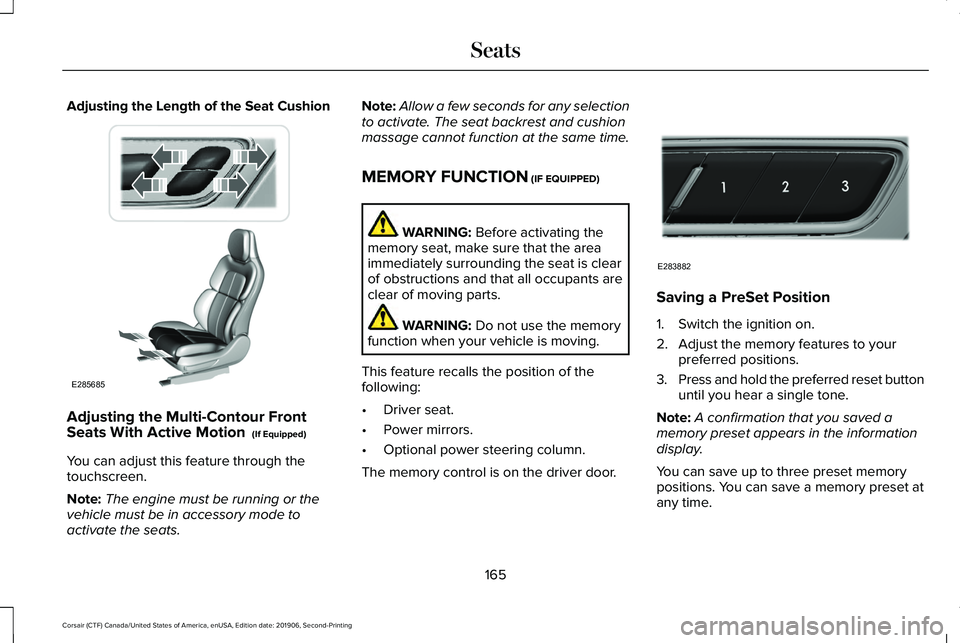
Adjusting the Length of the Seat Cushion
Adjusting the Multi-Contour Front
Seats With Active Motion (If Equipped)
You can adjust this feature through the
touchscreen.
Note: The engine must be running or the
vehicle must be in accessory mode to
activate the seats. Note:
Allow a few seconds for any selection
to activate. The seat backrest and cushion
massage cannot function at the same time.
MEMORY FUNCTION
(IF EQUIPPED) WARNING:
Before activating the
memory seat, make sure that the area
immediately surrounding the seat is clear
of obstructions and that all occupants are
clear of moving parts. WARNING:
Do not use the memory
function when your vehicle is moving.
This feature recalls the position of the
following:
• Driver seat.
• Power mirrors.
• Optional power steering column.
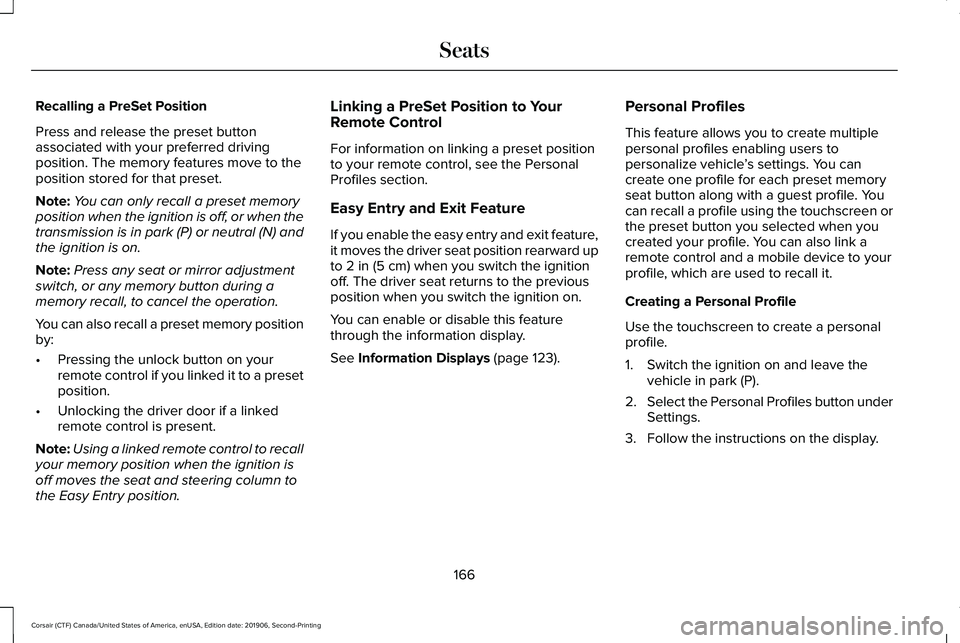
The memory control is on the driver door. Saving a PreSet Position
1. Switch the ignition on.
2. Adjust the memory features to your
preferred positions.
3. Press and hold the preferred reset button
until you hear a single tone.
Note: A confirmation that you saved a
memory preset appears in the information
display.
You can save up to three preset memory
positions. You can save a memory preset at
any time.
165
Corsair (CTF) Canada/United States of America, enUSA, Edition date: 201906, Second-Printing SeatsE285685 E283882
Page 169 of 591
Recalling a PreSet Position
Press and release the preset button
associated with your preferred driving
position. The memory features move to the
position stored for that preset.
Note:
You can only recall a preset memory
position when the ignition is off, or when the
transmission is in park (P) or neutral (N) and
the ignition is on.
Note: Press any seat or mirror adjustment
switch, or any memory button during a
memory recall, to cancel the operation.
You can also recall a preset memory position
by:
• Pressing the unlock button on your
remote control if you linked it to a preset
position.
• Unlocking the driver door if a linked
remote control is present.
Note: Using a linked remote control to recall
your memory position when the ignition is
off moves the seat and steering column to
the Easy Entry position. Linking a PreSet Position to Your
Remote Control
For information on linking a preset position
to your remote control, see the Personal
Profiles section.
Easy Entry and Exit Feature
If you enable the easy entry and exit feature,
it moves the driver seat position rearward up
to 2 in (5 cm) when you switch the ignition
off. The driver seat returns to the previous
position when you switch the ignition on.
You can enable or disable this feature
through the information display.
See
Information Displays (page 123). Personal Profiles
This feature allows you to create multiple
personal profiles enabling users to
personalize vehicle
’s settings. You can
create one profile for each preset memory
seat button along with a guest profile. You
can recall a profile using the touchscreen or
the preset button you selected when you
created your profile. You can also link a
remote control and a mobile device to your
profile, which are used to recall it.
Creating a Personal Profile
Use the touchscreen to create a personal
profile.
1. Switch the ignition on and leave the vehicle in park (P).
2. Select the Personal Profiles button under
Settings.
3. Follow the instructions on the display.
166
Corsair (CTF) Canada/United States of America, enUSA, Edition date: 201906, Second-Printing Seats
Page 170 of 591
Linking a Personal Profile to Your Remote
Control or Mobile Device
You can save preset memory positions for
up to three remote controls by assigning a
remote control to a personal profile using
the touchscreen. You can assign three
additional remote controls set up as Phone
as a Key.
Use the touchscreen to link a remote control,
mobile device or both to a personal profile.
1. Switch the ignition on and leave the
vehicle in park (P).
2. Select the Personal Profiles button under
Settings.
3. Touch the arrow for the profile you wish to link to a remote control or mobile
device.
4. Select remote control, mobile device, or
both.
5. Follow the instructions on the display.
Note: To successfully link a mobile device,
the mobile device must be in your vehicle,
and must have previously been setup as a
remote control for your vehicle. Note:
If more than one linked remote control
is in range, the memory function moves to
the settings of the first key to initiate a
memory recall.
Note: The guest profile consists of existing
settings when there is no driver profile
created. After you create a driver profile, the
guest profile serves as an additional driver
profile.
Note: You cannot link a personalized name,
a memory seat button or a remote control
to a guest profile.
Personal Settings
Personal Profiles allow you to personalize
positional settings such as seats and mirrors,
as well as non-positional settings such as
radio, navigation, driver assist and system
settings. See SYNC™ 3 (page 430). You
cannot change the menu locations and
settings of those personalized features with
Personal Profiles.
Note: Non-positional settings save to the
active driver profile whenever you change
a setting. Note:
You can save positional settings if you
press and hold a memory seat button.
Recalling and Changing a Profile
You can recall a profile by:
• Using a remote control or mobile device
linked to a driver profile to access the
remote start feature, press an unlock
button or open the door with the exterior
door handle.
• Pressing a memory seat button linked to
a driver profile.
• Using the Personal Profiles menu on the
touchscreen.
Note: The recalled profile replaces the
previously active profile. If the active profile
is not your preferred profile, you can change
it using any of the three methods listed.
167
Corsair (CTF) Canada/United States of America, enUSA, Edition date: 201906, Second-Printing Seats