door lock LINCOLN CORSAIR 2021 Owners Manual
[x] Cancel search | Manufacturer: LINCOLN, Model Year: 2021, Model line: CORSAIR, Model: LINCOLN CORSAIR 2021Pages: 638, PDF Size: 5.7 MB
Page 5 of 638
Programming Your Phone
..........................68
Using the Valet Mode ...................................
69
Using the Backup Start Passcode .............
69
Phone as a Key – Troubleshooting ...........
70
MyKey™
What Is MyKey ................................................
72
MyKey Settings ...............................................
72
Creating a MyKey ...........................................
73
Programming a MyKey .................................
73
Clearing All MyKeys ......................................
73
Checking MyKey System Status ................
74
Using MyKey With Remote Start Systems ........................................................................\
.
74
MyKey – Troubleshooting ............................
74
Doors and Locks
Locking and Unlocking .................................
76
Keyless Entry
Locating the Keyless Entry Keypad ...........
81
Keyless Entry Limitations ..............................
81
Master Access Code ......................................
81Keyless Entry Settings
...................................
81
Locking and Unlocking the Doors Using Keyless Entry ..............................................
83
Keyless Entry – Troubleshooting ...............
84
Liftgate
Liftgate Precautions ......................................
85
Opening the Liftgate .....................................
85
Setting the Liftgate Opening Height .........
87
Closing the Liftgate .......................................
88
Stopping the Liftgate Movement ...............
90
Liftgate Obstacle Detection ........................
90
Liftgate – Troubleshooting ...........................
91
Security
Passive Anti-Theft System ...........................
93
Anti-Theft Alarm System ..............................
93
Anti-Theft Alarm System Settings .............
94
Security – Troubleshooting .........................
95
Steering Wheel
Adjusting the Steering Wheel - Vehicles With: Power Adjustable Steering Column
........................................................................\
.
97 Adjusting the Steering Wheel - Vehicles
With: Manual Adjustable Steering
Column .........................................................
97
Resetting the Stopping Position - Vehicles With: Power Adjustable Steering Column
........................................................................\
98
Horn ..................................................................
98
Switching the Heated Steering Wheel On ........................................................................\
98
Wipers and Washers
Windshield Wipers ........................................
99
Autowipers ....................................................
100
Windshield Washers .....................................
101
Rear Window Wiper and Washers ............
101
Lighting
General Information ....................................
102
Lighting Control ............................................
102
Autolamps ......................................................
103
Instrument Lighting Dimmer ......................
103
Headlamp Exit Delay ...................................
104
Daytime Running Lamps - Vehicles With: Configurable Daytime Running Lamps
.......................................................................
104
2
Corsair (CTF) Canada/United States of America, enUSA, Edition date: 202007, First-Printing Table of Contents
Page 7 of 638
Power Seats
...................................................173
Memory Function ..........................................
177
Rear Seats ......................................................
180
Heated Seats ................................................
182
Ventilated Seats ...........................................
183
Rear Occupant Alert System
What is the Rear Occupant Alert System .......................................................................
185
How Does the Rear Occupant Alert System Work ............................................................
185
Rear Occupant Alert System Precautions .......................................................................
185
Rear Occupant Alert System Limitations .......................................................................
185
Switching Rear Occupant Alert System On and Off ........................................................
186
Rear Occupant Alert System Indicators .......................................................................
186
Rear Occupant Alert System Audible Warnings ....................................................
186
Garage Door Opener
What Is the Garage Door Opener ............
187How Does the Garage Door Opener Work
.......................................................................
187
Garage Door Opener Precautions ...........
187
Garage Door Opener Limitations ............
188
Programming the Garage Door Opener to Your Hand-Held Transmitter .................
188
Programming the Garage Door Opener to Your Garage Door Opener Motor ........
189
Programming the Garage Door Opener to Your Gate Opener Motor .......................
189
Clearing the Garage Door Opener .........
190
Reprogramming the Garage Door Opener .......................................................................
190
Garage Door Opener Radio Frequencies .......................................................................
190
Auxiliary Power Points
Auxiliary Power Points ................................
192
Wireless Accessory Charger .....................
192
Storage Compartments
Overhead Console ......................................
195Starting and Stopping the Engine
General Information
....................................
196
Keyless Starting ............................................
196
Starting a Gasoline Engine ........................
197
Starting a Hybrid Electric Vehicle System ......................................................................
200
Engine Block Heater ..................................
202
Unique Driving Characteristics
Auto-Start-Stop ............................................
204
Plug-In Hybrid Vehicle Operation ...........
206
Hybrid Vehicle Frequently Asked Questions ..................................................
207
Fuel and Refueling
Safety Precautions ......................................
209
Fuel Quality - Gasoline ...............................
210
Fuel Quality - Plug-In Hybrid Electric Vehicle (PHEV) ...........................................
211
Fuel Filler Funnel Location .........................
211
Running Out of Fuel ....................................
212
Refueling - Plug-In Hybrid Electric Vehicle (PHEV) .........................................................
213
4
Corsair (CTF) Canada/United States of America, enUSA, Edition date: 202007, First-Printing Table of Contents
Page 15 of 638
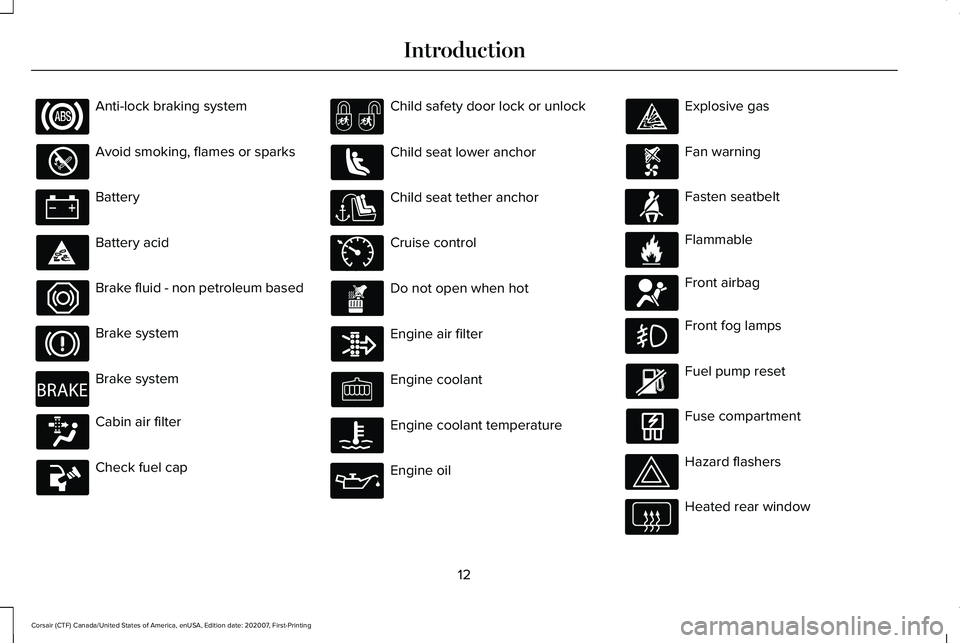
Anti-lock braking system
Avoid smoking, flames or sparks
Battery
Battery acid
Brake fluid - non petroleum based
Brake system
Brake system
Cabin air filter
Check fuel cap Child safety door lock or unlock
Child seat lower anchor
Child seat tether anchor
Cruise control
Do not open when hot
Engine air filter
Engine coolant
Engine coolant temperature
Engine oil Explosive gas
Fan warning
Fasten seatbelt
Flammable
Front airbag
Front fog lamps
Fuel pump reset
Fuse compartment
Hazard flashers
Heated rear window
12
Corsair (CTF) Canada/United States of America, enUSA, Edition date: 202007, First-Printing Introduction E270480 E71340 E71880 E231160 E67017
Page 42 of 638
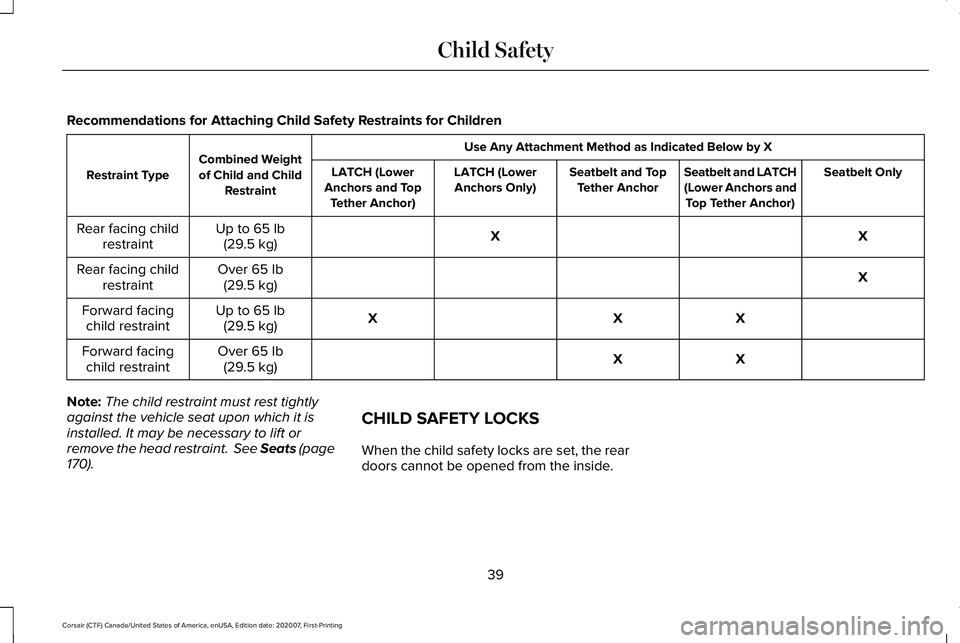
Recommendations for Attaching Child Safety Restraints for Children
Use Any Attachment Method as Indicated Below by X
Combined Weight
of Child and Child Restraint
Restraint Type
Seatbelt Only
Seatbelt and LATCH
(Lower Anchors and
Top Tether Anchor)
Seatbelt and Top
Tether Anchor
LATCH (Lower
Anchors Only)
LATCH (Lower
Anchors and Top Tether Anchor)
X
X
Up to 65 lb
(29.5 kg)
Rear facing child
restraint
X
Over
65 lb
(29.5 kg)
Rear facing child
restraint
X
X
X
Up to
65 lb
(29.5 kg)
Forward facing
child restraint
X
X
Over
65 lb
(29.5 kg)
Forward facing
child restraint
Note: The child restraint must rest tightly
against the vehicle seat upon which it is
installed. It may be necessary to lift or
remove the head restraint. See Seats (page
170
). CHILD SAFETY LOCKS
When the child safety locks are set, the rear
doors cannot be opened from the inside.
39
Corsair (CTF) Canada/United States of America, enUSA, Edition date: 202007, First-Printing Child Safety
Page 43 of 638
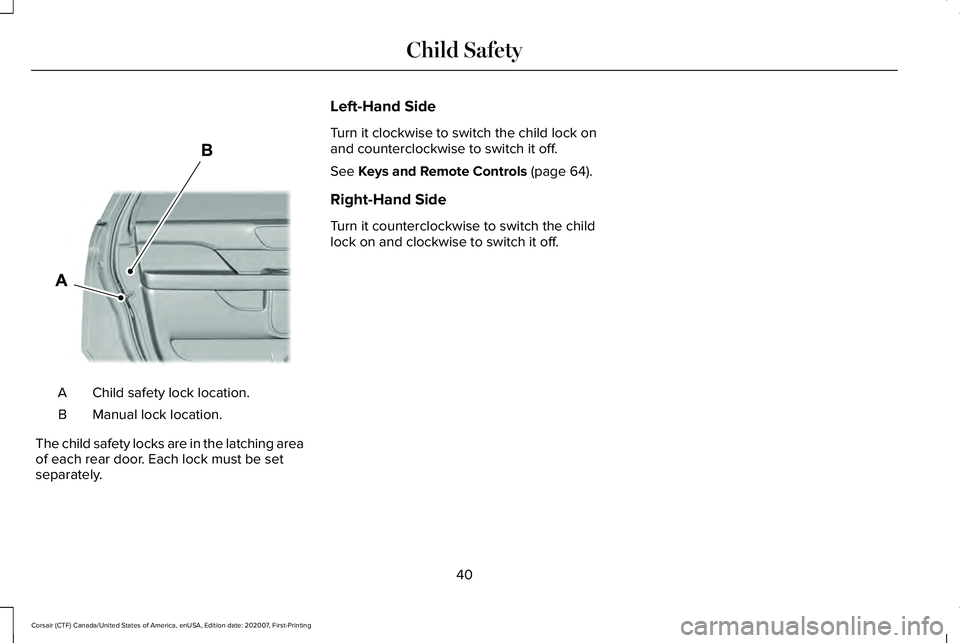
Child safety lock location.
A
Manual lock location.
B
The child safety locks are in the latching area
of each rear door. Each lock must be set
separately. Left-Hand Side
Turn it clockwise to switch the child lock on
and counterclockwise to switch it off.
See Keys and Remote Controls (page 64).
Right-Hand Side
Turn it counterclockwise to switch the child
lock on and clockwise to switch it off.
40
Corsair (CTF) Canada/United States of America, enUSA, Edition date: 202007, First-Printing Child SafetyE327362
Page 67 of 638
GENERAL INFORMATION ON
RADIO FREQUENCIES
This device complies with Part 15 of the FCC
Rules and with Industry Canada
license-exempt RSS standard(s). Operation
is subject to the following two conditions: (1)
This device may not cause harmful
interference, and (2) This device must accept
any interference received, including
interference that may cause undesired
operation.
WARNING: Changes or modifications
not expressively approved by the party
responsible for compliance could void the
user's authority to operate the equipment.
The term "IC:" before the radio certification
number only signifies that Industry Canada
technical specifications were met.
The typical operating range for your
transmitter is approximately 33 ft (10 m).
Vehicles with the remote start feature will
have a greater range. One of the following could cause a decrease
in operating range:
•
Weather conditions.
• Nearby radio towers.
• Structures around the vehicle.
• Other vehicles parked next to your
vehicle.
The radio frequency used by your remote
control can also be used by other radio
transmitters, for example amateur radios,
medical equipment, wireless headphones,
wireless remote controls, cell phones, battery
chargers and alarm systems. If the
frequencies are jammed, you will not be able
to use your remote control. You can lock and
unlock the doors with the key.
Note: Make sure to lock your vehicle before
leaving it unattended.
Note: If you are in range, the remote control
will operate if you press any button
unintentionally.
Note: The remote control contains sensitive
electrical components. Exposure to moisture
or impact may cause permanent damage. Intelligent Access
(If Equipped)
The system uses a radio frequency signal to
communicate with your vehicle and authorize
your vehicle to unlock when one of the
following conditions are met:
• You activate the front exterior door
handle switch.
• You press the luggage compartment
button.
• You press a button on the transmitter.
If excessive radio frequency interference is
present in the area or if the transmitter
battery is low, you may need to mechanically
unlock your door. You can use the
mechanical key blade in your intelligent
access key to open the driver door in this
situation.
See Remote Control (page 64).
REMOTE CONTROL
Passive Key
Note: You may not be able to shift out of
park (P) unless the passive key is inside your
vehicle.
64
Corsair (CTF) Canada/United States of America, enUSA, Edition date: 202007, First-Printing Keys and Remote Controls
Page 71 of 638
WHAT IS PHONE AS A KEY
Phone as a Key allows you to use your phone
in place of a passive key.
You can use your phone for the following
functions:
•
Remote locking and unlocking.
• Passive entry and exit.
• Passive start and drive the vehicle.
• Remote start.
• Memory function recall.
PHONE AS A KEY LIMITATIONS
Limitations can vary based on the make and
model of your phone, phone location and
physical obstructions.
The following items could impact Phone as
a Key performance or prevent functionality
in some cases:
• The typical operating range for Phone as
a Key is 131 ft (40 m). •
Your Bluetooth connection is not
enabled, is disrupted, or out of range.
• Your Phone as a Key is not active or
enabled on at least one phone.
• Your vehicle battery has depleted.
• Your phone battery has depleted.
• Interference from other devices using
radio frequencies or physical
obstructions.
• Your phone is too close to metal objects
or other electronic devices.
Note: Do not leave a duplicate coded key
in the vehicle. Always take your keys and
phone and lock all doors when leaving the
vehicle.
PROGRAMMING YOUR PHONE
To program your smartphone as Phone as a
Key:
1. Visit your device's app store to download
the Lincoln Way app. 2.
Create or sign-in to the Lincoln Way app
and add the vehicle identification number
to your account.
3. Once you add the vehicle identification number, follow the prompts in the Lincoln
Way app to complete the Sync Connect
Authorization process.
4. After the vehicle authorizes, you can setup Phone as a Key following the
prompts in the Lincoln Way app.
5. After Phone as a Key is setup, you can setup the Backup Start Passcode by
following the prompts on your
touchscreen.
Note: Keep your new Backup Start Passcode
with you in case of an emergency.
Resetting Phone as a Key
If the Phone as a Key belongs to your
account, you can delete it from your phone.
If not, reset Phone as a Key using the
following steps:
1. Press Settings on the touchscreen.
2. Press
General.
3. Press
Reset.
68
Corsair (CTF) Canada/United States of America, enUSA, Edition date: 202007, First-Printing Phone as a Key
Page 79 of 638
LOCKING AND UNLOCKING
You can use the power door lock or the
remote control to lock and unlock your
vehicle.
Power Door Locks
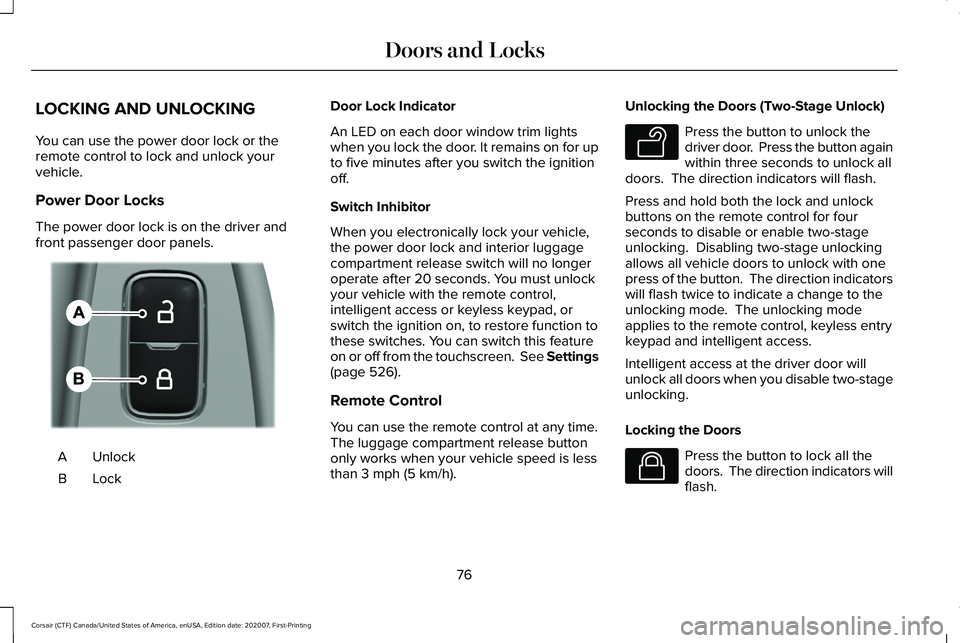
The power door lock is on the driver and
front passenger door panels.
Unlock
A
LockB Door Lock Indicator
An LED on each door window trim lights
when you lock the door. It remains on for up
to five minutes after you switch the ignition
off.
Switch Inhibitor
When you electronically lock your vehicle,
the power door lock and interior luggage
compartment release switch will no longer
operate after 20 seconds. You must unlock
your vehicle with the remote control,
intelligent access or keyless keypad, or
switch the ignition on, to restore function to
these switches. You can switch this feature
on or off from the touchscreen. See Settings
(page 526).
Remote Control
You can use the remote control at any time.
The luggage compartment release button
only works when your vehicle speed is less
than
3 mph (5 km/h). Unlocking the Doors (Two-Stage Unlock) Press the button to unlock the
driver door. Press the button again
within three seconds to unlock all
doors. The direction indicators will flash.
Press and hold both the lock and unlock
buttons on the remote control for four
seconds to disable or enable two-stage
unlocking. Disabling two-stage unlocking
allows all vehicle doors to unlock with one
press of the button. The direction indicators
will flash twice to indicate a change to the
unlocking mode. The unlocking mode
applies to the remote control, keyless entry
keypad and intelligent access.
Intelligent access at the driver door will
unlock all doors when you disable two-stage
unlocking.
Locking the Doors Press the button to lock all the
doors. The direction indicators will
flash.
76
Corsair (CTF) Canada/United States of America, enUSA, Edition date: 202007, First-Printing Doors and LocksE309203 E138629 E138623
Page 80 of 638
Press the button again within three seconds
to confirm that all the doors are closed. The
doors lock again, a tone sounds and the
direction indicators flash if all the doors and
the luggage compartment are closed.
Mislock
If any door or the luggage compartment is
open, or if the hood is open on vehicles with
an anti-theft alarm or remote start, a tone
sounds and the direction indicators will not
flash. You can switch this feature on or off
from the touchscreen. See Settings (page
526).
Audible and Visual Locking Confirmation
If audible and visual locking confirmation is
configurable, you can turn it on or off from
the touchscreen.
See Settings (page 526).
Mechanical Key
The intelligent access key also contains a
removable key blade that you can use to lock
and unlock your vehicle.
See Remote
Control (page 64). Turn the top of the key toward the front of
your vehicle once to lock all doors.
Turn the top of the key toward the rear of
your vehicle once to unlock the driver door
only.
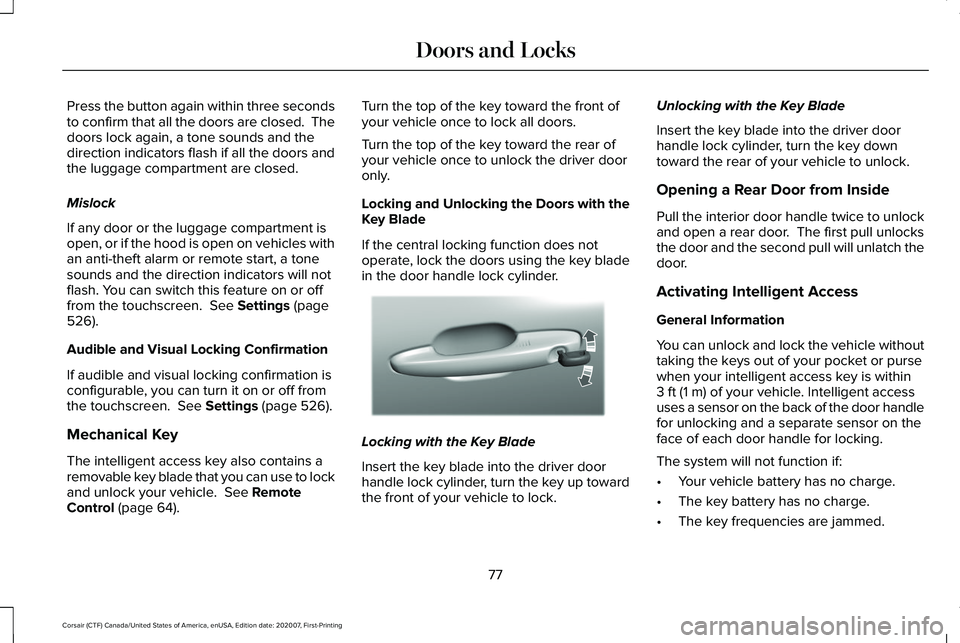
Locking and Unlocking the Doors with the
Key Blade
If the central locking function does not
operate, lock the doors using the key blade
in the door handle lock cylinder.
Locking with the Key Blade
Insert the key blade into the driver door
handle lock cylinder, turn the key up toward
the front of your vehicle to lock.Unlocking with the Key Blade
Insert the key blade into the driver door
handle lock cylinder, turn the key down
toward the rear of your vehicle to unlock.
Opening a Rear Door from Inside
Pull the interior door handle twice to unlock
and open a rear door. The first pull unlocks
the door and the second pull will unlatch the
door.
Activating Intelligent Access
General Information
You can unlock and lock the vehicle without
taking the keys out of your pocket or purse
when your intelligent access key is within
3 ft (1 m)
of your vehicle. Intelligent access
uses a sensor on the back of the door handle
for unlocking and a separate sensor on the
face of each door handle for locking.
The system will not function if:
• Your vehicle battery has no charge.
• The key battery has no charge.
• The key frequencies are jammed.
77
Corsair (CTF) Canada/United States of America, enUSA, Edition date: 202007, First-Printing Doors and LocksE310901
Page 81 of 638
Note:
The system may not function if the
passive key is close to metal objects or
electronic devices, for example keys or a
cell phone.
Note: If the system does not function, use
the key blade to lock and unlock your
vehicle. See Remote Control (page 64).
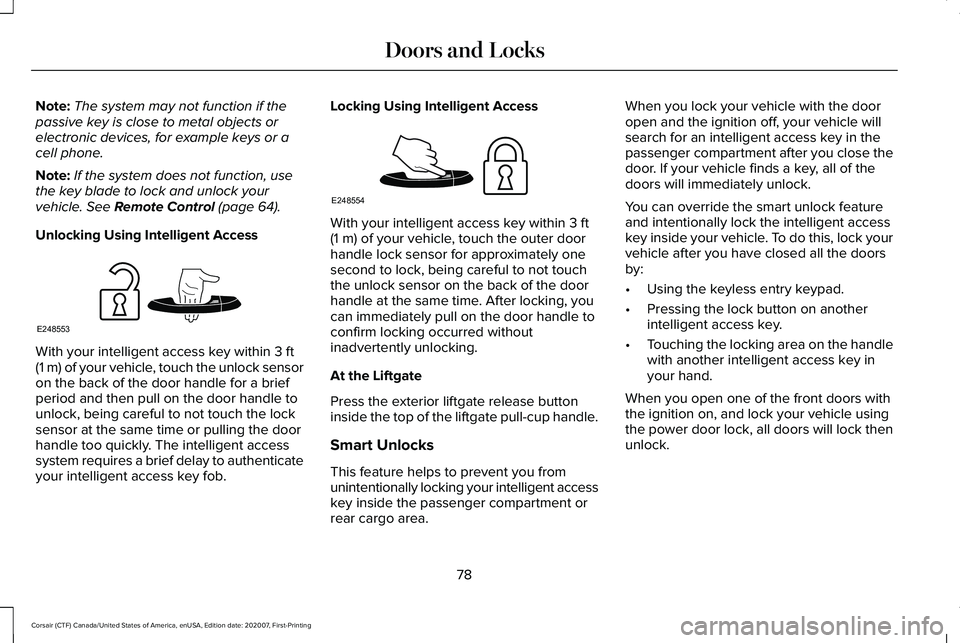
Unlocking Using Intelligent Access With your intelligent access key within
3 ft
(1 m) of your vehicle, touch the unlock sensor
on the back of the door handle for a brief
period and then pull on the door handle to
unlock, being careful to not touch the lock
sensor at the same time or pulling the door
handle too quickly. The intelligent access
system requires a brief delay to authenticate
your intelligent access key fob. Locking Using Intelligent Access With your intelligent access key within
3 ft
(1 m) of your vehicle, touch the outer door
handle lock sensor for approximately one
second to lock, being careful to not touch
the unlock sensor on the back of the door
handle at the same time. After locking, you
can immediately pull on the door handle to
confirm locking occurred without
inadvertently unlocking.
At the Liftgate
Press the exterior liftgate release button
inside the top of the liftgate pull-cup handle.
Smart Unlocks
This feature helps to prevent you from
unintentionally locking your intelligent access
key inside the passenger compartment or
rear cargo area. When you lock your vehicle with the door
open and the ignition off, your vehicle will
search for an intelligent access key in the
passenger compartment after you close the
door. If your vehicle finds a key, all of the
doors will immediately unlock.
You can override the smart unlock feature
and intentionally lock the intelligent access
key inside your vehicle. To do this, lock your
vehicle after you have closed all the doors
by:
•
Using the keyless entry keypad.
• Pressing the lock button on another
intelligent access key.
• Touching the locking area on the handle
with another intelligent access key in
your hand.
When you open one of the front doors with
the ignition on, and lock your vehicle using
the power door lock, all doors will lock then
unlock.
78
Corsair (CTF) Canada/United States of America, enUSA, Edition date: 202007, First-Printing Doors and LocksE248553 E248554